
“Add File Is Unavailable” in ChatGPT: Meaning, Fixes (Step-by-Step), and No‑Upload Workarounds (2026)
 Video To Text AI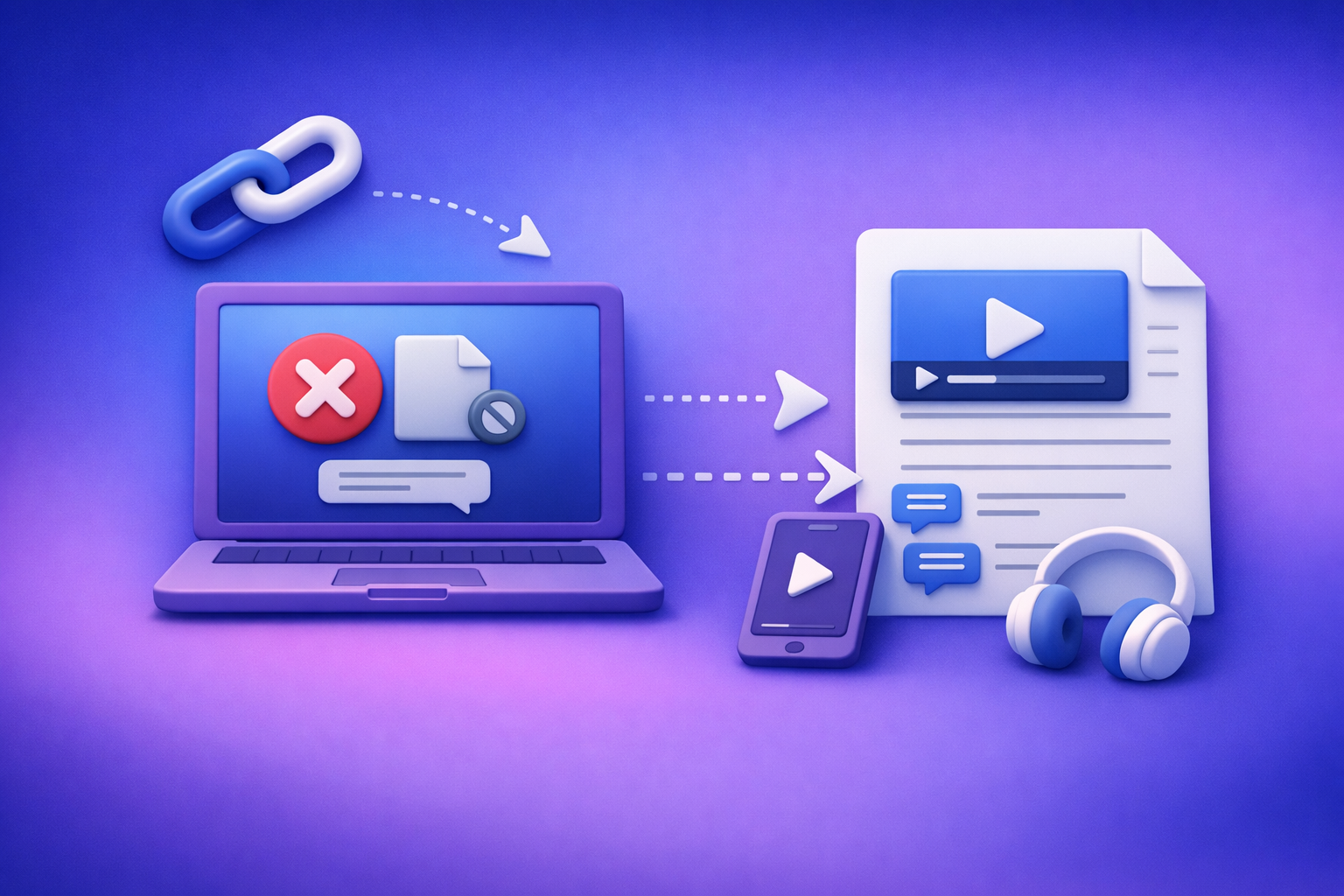
If ChatGPT says “add file is unavailable”, stop retrying the same upload—switch to a new chat/model/surface first, then isolate policy, browser, and network in minutes. If uploads are blocked by workspace or security controls, skip debugging and use a no‑upload, link‑based video→text workflow (transcript → SRT/VTT → repurpose) to keep shipping.
Why you’re seeing “add file is unavailable” in ChatGPT
What the message actually means (it’s the chat context, not your file)
In most cases, the attachment feature is unavailable in the current context:
- The current conversation thread may not expose attachments.
- The selected model may not show upload controls on that surface.
- Your workspace admin policy may disable attachments.
- Your browser/network may block upload endpoints.
Treat it as a capability/permission/UI state issue, not a file corruption issue.
Where it appears (web vs desktop vs mobile) and why that matters
Uploads can differ by surface:
- Web app: most sensitive to extensions, cookies, and blocked storage.
- Desktop app: can lag behind web in feature parity depending on version.
- Mobile app: may show different controls or require an update/re-login.
If it works on one surface but not another, you’ve already narrowed the cause to platform/version or browser environment.
Quick reality check: when uploads are temporarily down vs permanently blocked
Use this quick test:
- Temporary outage: multiple users report failures; you see intermittent behavior across networks/devices.
- Permanently blocked: consistent absence of the paperclip across a workspace, or it only fails on corporate Wi‑Fi/VPN.
If it’s a policy/network block, stop spending hours on “fixes” that can’t work.
60‑second triage (fastest path to the right fix)
Step 1: Confirm you’re on a surface that supports attachments
- Try ChatGPT web in a modern browser.
- If you’re in an embedded view (in-app browser, restricted environment), switch to a full browser.
Step 2: Start a brand‑new chat (thread-level attachment flags can differ)
- Create New chat.
- Look for the paperclip / “Add files” control.
Step 3: Switch models (some models/surfaces don’t expose uploads)
- Change to a different model available to you.
- Re-check whether the attachment UI appears.
Step 4: Test a clean browser profile (no extensions) or another device
- Open Incognito/Private.
- Or use a second device (phone vs laptop).
Step 5: Test another network (corporate proxies commonly block upload endpoints)
- Try mobile data/hotspot.
- If it works there, your office network is the likely blocker.
Step 6: Check workspace/admin policy (Team/Enterprise restrictions)
- If multiple users in the same workspace can’t upload, assume admin policy until proven otherwise.
Root causes (mapped to symptoms → fixes)
Cause A: Model or chat/thread mismatch
Symptoms
- Paperclip/“Add files” missing only in one conversation
- Upload works in other chats or on another model
Fix steps
- Open a new chat.
- Select a model known to support attachments on your plan/surface.
- Refresh the page/app and re-check the attachment control.
Cause B: Workspace policy (Team/Enterprise/Edu) disables attachments
Symptoms
- Upload missing for multiple users in the same workspace
- “Attachments disabled” style messaging or consistent absence of upload UI
Fix steps
- Ask an admin to review workspace settings for file uploads/data controls.
- Test with a personal account (outside the workspace) to confirm policy scope.
- If policy cannot change: move to no-upload workflows (see below).
Cause C: Browser issues (extensions, cookies, cache, blocked storage)
Symptoms
- Upload button appears briefly then disappears
- Clicking upload does nothing / file picker won’t open
Fix steps
- Disable extensions (ad blockers, privacy tools, script blockers).
- Clear site data for ChatGPT (cookies + local storage).
- Try Incognito/Private mode.
- Try another browser (Chrome ↔ Firefox ↔ Safari).
- Ensure downloads/uploads aren’t blocked by OS/browser security settings.
Cause D: Network/security controls (proxy, SSL inspection, DLP)
Symptoms
- Upload works on mobile data but not on office Wi‑Fi
- File picker opens but upload fails or stalls
Fix steps
- Switch networks (hotspot/mobile data).
- Disable VPN (or switch VPN region/provider).
- Ask IT to allowlist required domains/endpoints for uploads.
- If allowlisting isn’t possible: use link-based extraction workflows.
Cause E: App version / platform limitations (mobile/desktop)
Symptoms
- Upload present on web but missing in the mobile app (or vice versa)
Fix steps
- Update the app to the latest version.
- Log out/in.
- Use web as a fallback for attachments (or use no-upload workflow).
Cause F: Account/plan limitations or feature rollouts
Symptoms
- Upload never appears across devices/networks
Fix steps
- Verify plan eligibility and feature availability in your account.
- Wait for rollout completion (if applicable) and use no-upload alternatives meanwhile.
Step-by-step fix flow (ordered, minimal-waste)
Step 1 — Reset the chat context
- New chat → re-check attachment UI
- Switch model → re-check attachment UI
If the paperclip returns here, you’re done—no need to touch browser/network settings.
Step 2 — Reset the browser environment
- Incognito/Private window test
- Disable extensions → hard refresh
- Clear site data for ChatGPT → sign in again
This isolates the most common “it disappeared” UI issues caused by blockers and corrupted site storage.
Step 3 — Isolate network vs account
- Test on mobile data/hotspot
- Test on a second device
- Test on a personal (non-workspace) account if applicable
If it works on mobile data, assume corporate proxy/DLP/SSL inspection is interfering.
Step 4 — Escalate with the right evidence (so support/IT can act)
Collect evidence before you escalate:
- Screenshot of missing upload UI + timestamp
- Browser/app version, OS, network type (corp vs home vs mobile)
- Whether it reproduces in Incognito and on another network
This prevents endless back-and-forth and gets you to a policy/network decision quickly.
Checklist: confirm uploads are truly restored
- “Add files”/paperclip visible in a new chat
- File picker opens and accepts selection
- Upload completes (no stall)
- Chat can read the attachment content
- Works across at least two sessions (refresh + new chat)
No‑upload workarounds (keep shipping when ChatGPT uploads are blocked)
Brand POV (operational reality): downloading video files just to re-upload them is an outdated workflow. Link-based extraction is the future of creator productivity because it’s faster, repeatable, and far less likely to break under workplace policies and network controls.
Option 1: Use link-based video → transcript/subtitles (no file upload)
Best for
- YouTube, TikTok, Instagram Reels, podcasts, hosted MP4 links
Workflow (implementation)
- Copy the public video URL.
- Generate transcript/captions with VideoToTextAI.
- Export TXT + SRT/VTT.
- Paste transcript into ChatGPT for summarization, rewriting, or repurposing.
Recommended VideoToTextAI tools (canonical URLs)
- video to text converter
- video transcript generator
- free youtube subtitles
- tiktok transcript generator
- instagram transcript from link
Option 2: Repurpose without uploads (turn transcripts into publishable assets)
Blog post from a video link
Summaries and social posts from a video link
- youtube to summary
- reel to post converter
- tiktok video to linkedin post
- instagram reel to linkedin post
Operational benefit: you’re not just “getting text.” You’re producing exportable assets (transcripts, captions, drafts) from the same link—repeatably.
Option 3: If you only have a local file (MP4/MP3) and uploads are blocked
Practical paths
- Host the file privately (time-limited link) and run link-based extraction.
- If policy forbids hosting: use an approved internal transcription tool, then paste text into ChatGPT.
When to use VideoToTextAI file-specific tools
VideoToTextAI vs Competitors
Below is a fair comparison of common ways teams try to solve “add file is unavailable” and still get transcripts/captions out the door.
| Option | Input method | Exports (TXT/SRT/VTT) | Repurposing outputs from same input | Reliability when uploads are blocked | Best fit |
|---|---|---|---|---|---|
| VideoToTextAI | Link-based (video URL) + file tools when needed | Yes (transcripts + subtitle formats) | Yes (blog/summary/social tools from links) | High (no ChatGPT attachment dependency) | Production workflows for creators/marketers who need repeatable deliverables |
| ChatGPT file upload (native attachments) | Upload required | Not a dedicated export workflow | Not purpose-built for subtitle exports | Low–Medium (breaks under policy/network/surface limits) | Quick analysis of a document when uploads are available |
| YouTube built-in transcripts/captions | Platform-native | Limited/varies; often copy-based | No | Medium (depends on platform UI and availability) | Fast access to rough transcripts for YouTube-only content |
| Descript | Upload/import into editing suite | Yes (transcription-focused) | Some (editing-centric) | Medium (still upload/import dependent) | Editing + transcription in one desktop-style workflow |
| Otter.ai | Upload/recording workflows | Yes (transcription-focused) | Limited (meeting notes focus) | Medium (still upload/import dependent) | Meetings/podcasts where note-taking and speaker capture matter most |
Why VideoToTextAI wins for operational repeatability: when ChatGPT attachments are unavailable, a link → transcript/subtitles → export → paste into ChatGPT workflow keeps moving with fewer failure points. It also aligns with modern creator ops: stop downloading and re-uploading; treat the URL as the source of truth.
Where others can be better: if you’re doing heavy audio/video editing, Descript can be the better dedicated editing environment. If you only need a quick rough transcript for a single YouTube video, YouTube’s built-in transcript may be “good enough.”
To run the link-based workflow end-to-end, use VideoToTextAI: VideoToTextAI
Competitor Gap
What most “fix the upload button” guides miss
Most guides stop at “clear cache” and “try another browser.” They usually miss:
- A strict decision tree that isolates surface vs model vs policy vs network in minutes
- A production-ready no-upload path (link → transcript → SRT/VTT → repurpose) when policy blocks attachments
- Clear stop conditions (when to stop debugging and switch workflows)
How this post closes the gap
- Ordered fix flow with evidence collection for IT/support
- No-upload workflows mapped to real deliverables: transcripts, subtitles, captions, blog drafts, LinkedIn posts
FAQ (People Also Ask–aligned)
Why does ChatGPT say “add file is unavailable”?
Because the current chat context can’t accept attachments—commonly due to surface/model mismatch, workspace policy, browser storage/extension interference, or network security controls.
How do I enable file upload in ChatGPT?
You can’t always enable it manually. The fastest path is to:
- Start a new chat
- Switch models
- Test Incognito and another network
- Confirm whether a workspace admin has disabled attachments
Why is the “Add files” button missing in one chat but not another?
Some threads behave differently due to thread-level UI state or model context. Creating a new chat is the quickest fix when uploads work elsewhere.
Can I still get a transcript or captions if ChatGPT uploads are blocked?
Yes. Use a link-based workflow:
- Generate TXT + SRT/VTT from a video URL
- Paste the transcript into ChatGPT for summarization and repurposing
This avoids attachment restrictions entirely.
Does a work/school account admin control whether I can upload files?
Often, yes. Team/Enterprise/Edu workspaces can enforce policies that disable attachments for compliance, DLP, or data handling requirements.
Internal Link Plan
- “Add File Is Unavailable” in ChatGPT: What It Means, Fixes That Work (2026), and a No‑Upload Video→Text Workflow
- “Add Files Unavailable” in ChatGPT: Meaning, Root Causes, Fixes (Step-by-Step) + a No‑Upload Video→Text Workflow
- “Add Files” Button Unavailable in ChatGPT: Causes, Fixes (Step-by-Step) + No‑Upload Workarounds
- “Add Files Is Unavailable” in ChatGPT: Causes, Fixes (Step‑by‑Step), and a No‑Upload Video→Text Workflow
- ChatGPT “Upload Video” Feature (2026): How to Use It, What It Can Do, Limits, Fixes, and a No‑Upload Video→Text Workflow
- “Attachments Disabled for” ChatGPT: What It Means + Fixes That Work (2026) + No‑Upload Video→Text Workflow
Related posts
Reel Analyser (Instagram Reels): Transcript‑First Competitor Research, Hook/CTA Extraction, and Repurposing Workflow (VideoToTextAI)
Video To Text AI
A 2026 reel analyser should turn Instagram Reel links into a searchable transcript library you can tag for hooks, CTAs, objections, and topic clusters—then export into repurposing-ready drafts without a download/upload loop.
Traducir video de Instagram (Reels) en 2026: workflow transcript-first para traducir, sacar hooks/CTAs y repurpose (con VideoToTextAI)
Video To Text AI
Aprende a traducir un Reel de Instagram con un flujo URL→transcripción→traducción→subtítulos, y a convertir esa traducción en un activo de investigación para hooks, CTAs, objeciones y clusters de contenido.
Reel Analyzer: Transcript‑First Instagram Reels Research (Hooks, CTAs, Objections) + Workflow Guide (VideoToTextAI)
Video To Text AI
A reel analyzer should turn any public Instagram Reel link into a searchable transcript library you can mine for hooks, CTAs, objections, and topic clusters—then repurpose into original drafts with a repeatable SOP.