
“Add Files Unavailable” in ChatGPT: Meaning, Root Causes, Fixes (Step-by-Step) + a No‑Upload Video→Text Workflow
 Video To Text AI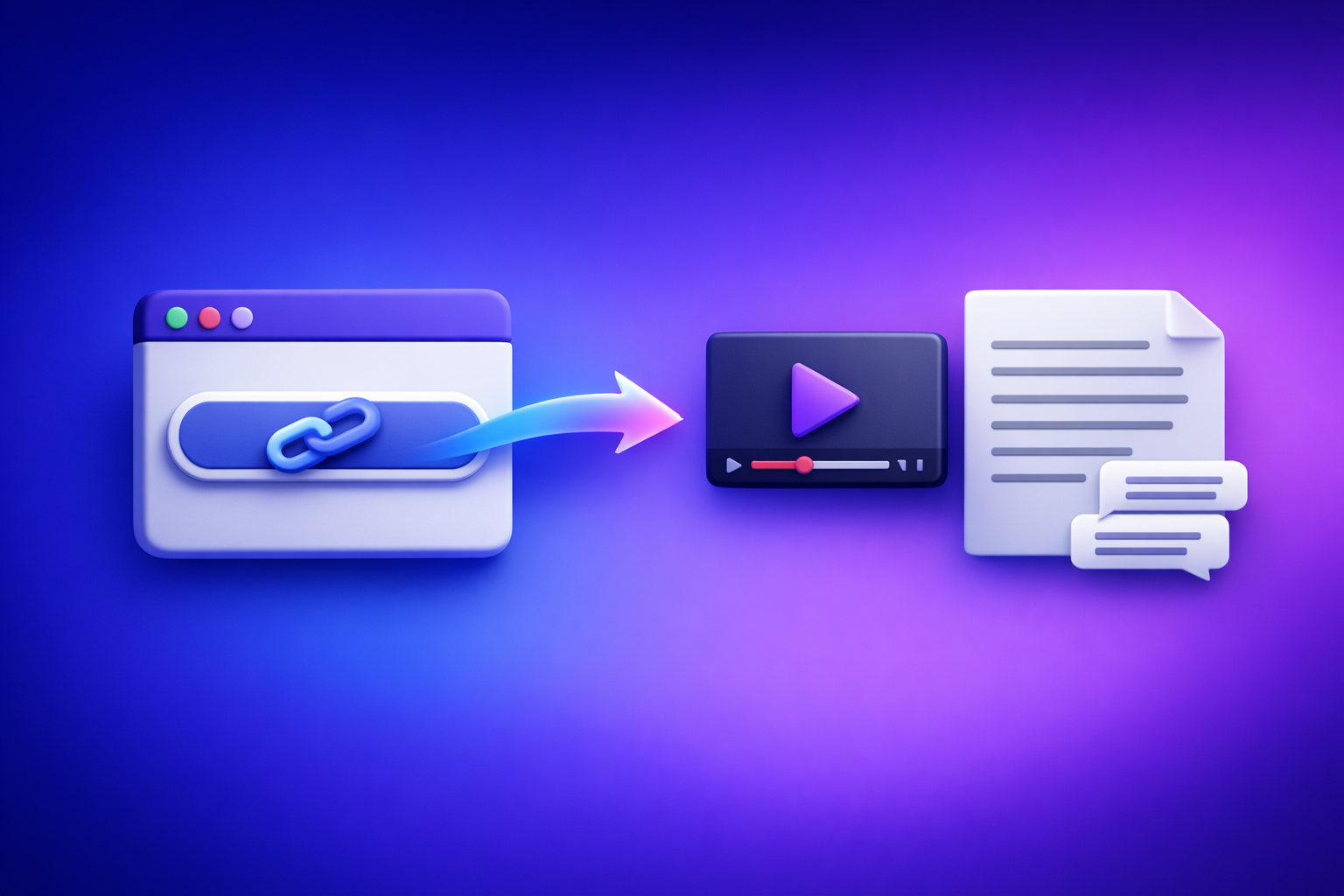
If ChatGPT shows “add files unavailable”, fix it by first isolating whether the block is chat/model-specific, workspace policy, browser/app environment, or network security. If uploads are truly blocked (policy/network), skip the dead end and use a no-upload, link → transcript/subtitles → paste into ChatGPT workflow to keep production moving.
Search intent + who this is for
- Intent: informational (“why is add files unavailable in ChatGPT and how do I fix it?”)
- Best for: anyone trying to attach PDFs, images, docs, or videos in ChatGPT (web/desktop/mobile) but seeing:
- “Add files unavailable”
- “Add file is unavailable”
- missing/greyed-out attachment controls
What “add files unavailable” means in ChatGPT (and what it does not mean)
What it means: ChatGPT’s UI is telling you that uploads are disabled in your current context. That context could be the specific chat thread, model/surface you’re using, your workspace policy, your browser/app environment, or your network.
What it usually does not mean:
- It’s not proof your file is corrupt.
- It’s not necessarily an account ban.
- It’s not always a paid-plan issue (many failures are environment/policy-related).
The 4 most common buckets of causes
- Chat surface / model / thread context
- Workspace or admin policy (ChatGPT Team/Enterprise/Edu)
- Browser/app environment (extensions, cookies, permissions)
- Network/security controls (VPN, proxy, firewall, DLP)
60-second triage: identify the cause before you change anything
Step 1 — Confirm where you’re using ChatGPT
Different surfaces can behave differently.
- Web app vs desktop app vs iOS vs Android
- On web: run a fast isolation test:
- Open incognito/private window and check if attachments appear.
- Try a second browser (Chrome/Firefox/Safari/Edge).
Why this matters: if it works in incognito or another browser, you’re likely dealing with extensions/cookies/site data.
Step 2 — Check whether the issue is thread/model-specific
- Start a new chat and re-check the attachment control.
- Switch model (if your UI allows) and re-check.
If attachments work in a new chat, you’re dealing with a thread/context limitation, not your file.
Step 3 — Determine if it’s account/policy vs device/network
Try the same account on:
- Another device (a phone is fine)
- Another network (phone hotspot is ideal)
Interpretation:
- Works on hotspot → likely network/security blocking on your main network.
- Fails everywhere → likely policy/account/surface restriction.
Step 4 — Quick “known blockers” scan
Check for these common upload killers:
- Ad blockers / privacy extensions
- Script blockers / strict tracking protection
- Corporate VPN / proxy
- Antivirus “web shield” features
Root causes (mapped to symptoms) + the exact fix flow
1) Surface/model mismatch (most common)
Symptoms
- Attachment icon is missing, greyed out, or shows “unavailable” only in certain chats.
- Uploads work in one chat but not another.
Fix (in order)
- Start a new chat
- Switch model (if available in your UI)
- Sign out/in
- Update the app (desktop/mobile) or hard refresh (web)
Verification
- Attachment control appears and accepts a small test file (e.g., a 50KB image).
2) Workspace/admin policy restrictions (Team/Enterprise/Edu)
Symptoms
- Uploads are disabled consistently across devices.
- Colleagues in the same org see similar restrictions.
Fix (in order)
- Confirm whether you’re in a managed workspace vs personal account.
- Ask your admin whether file uploads are restricted by policy.
- If permitted, test with a personal account to isolate policy vs device.
Verification
- Uploads work in a non-managed environment or after an admin policy change.
3) Browser issues (cookies, cache, permissions, extensions)
Symptoms
- Works in incognito but not normal mode.
- Works in another browser.
Fix (in order)
- Disable extensions (start with ad blockers, script blockers, privacy tools).
- Clear site data for ChatGPT (cookies + local storage).
- Allow required permissions (popups, downloads, clipboard where relevant).
- Update your browser to the latest stable version.
Verification
- Upload control returns without needing incognito.
4) Network/security blocks (VPN, proxy, firewall, DLP)
Symptoms
- Works on mobile hotspot but fails on office Wi‑Fi.
- Upload UI appears but fails immediately or shows “unavailable.”
Fix (in order)
- Disable VPN/proxy temporarily.
- Switch networks (hotspot test).
- Ask IT about firewall/DLP rules affecting file uploads.
- If you must stay on restricted networks: use a no-upload workflow (below).
Verification
- Upload works on an unrestricted network or you have a reliable alternative workflow.
5) File-specific constraints (only after you confirm uploads are enabled)
Symptoms
- Upload control works, but a specific file fails.
Fix (in order)
- Reduce file size (compress video, export smaller PDF).
- Change format (DOCX → PDF, HEIC → JPG).
- Rename file (remove special characters).
- Try a smaller “control” file to confirm the pipeline works.
Verification
- A small test file uploads successfully; then retry the target file.
Step-by-step: restore attachments on each platform
ChatGPT on web (Chrome/Edge/Firefox/Safari)
- New chat → re-check attachment icon.
- Disable extensions → refresh.
- Clear site data → sign in again.
- Try a second browser.
- Try a second network (mobile hotspot).
If you want a deeper related walkthrough, see:
- “Add Files Unavailable” in ChatGPT: What It Means, Fixes That Work, and a No-Upload Video→Text Workflow (2026)
- “Add Files Is Unavailable” in ChatGPT: Causes, Fixes (Step‑by‑Step), and a No‑Upload Video→Text Workflow
ChatGPT desktop app (macOS/Windows)
- Update the app
- Sign out/in
- Try the web app in a browser (isolates app vs account)
- Try a hotspot network
Related internal reference:
ChatGPT on iOS/Android
- Update the app
- Force close + reopen
- Switch networks (Wi‑Fi ↔ cellular)
- Reinstall app (last resort)
If you’re seeing broader attachment restrictions, also review:
If you’re blocked: a production-safe no-upload workflow (VideoToTextAI)
Downloading video files to upload them again is an outdated workflow that wastes time, bandwidth, and storage. Link-based extraction is the future of creator productivity because it turns “I have a URL” into “I have usable text + captions” without file handling.
When to bypass ChatGPT uploads
Use a no-upload workflow when:
- You’re on a restricted network/workspace policy.
- You need transcripts/subtitles now (deadlines).
- You don’t want to download/upload large video files.
Workflow: link → transcript/subtitles → paste into ChatGPT
- Copy the video link (YouTube/TikTok/Instagram/Reels or a direct MP4 link).
- Generate transcript/captions with VideoToTextAI.
- Export TXT + SRT/VTT.
- Paste the transcript into ChatGPT for summarization, rewriting, or repurposing.
Result: you avoid the “add files unavailable” bottleneck entirely, while still using ChatGPT for what it’s best at: transforming text into drafts, outlines, hooks, and structured content.
Best-fit VideoToTextAI tools (choose by source)
- YouTube transcripts/subtitles: free youtube subtitles
- Universal transcript workflow: video transcript generator
- Convert video to text (general): video to text converter
- TikTok: tiktok transcript generator
- Instagram: instagram transcript from link
- MP4 workflows:
Implementation tips (so ChatGPT outputs are consistent)
-
Paste transcript in chunks if it’s long (keep each chunk coherent: 3–8 minutes of speech per chunk is a practical starting point).
-
Use a header prompt template before the transcript:
Use the transcript below. Output: (1) 8-bullet summary, (2) 5 hooks, (3) 1 LinkedIn post, (4) 10 SEO keywords.
-
Keep timestamps when you need quote accuracy.
-
Remove timestamps for cleaner rewriting and better flow.
For the fastest path from link to usable assets, use VideoToTextAI: VideoToTextAI
Checklist: fix “add files unavailable” fast (copy/paste)
- Start a new chat and re-check attachments
- Switch model (if available)
- Test incognito/private window
- Disable extensions (ad/privacy/script blockers)
- Clear site data for ChatGPT and sign in again
- Try a different browser
- Try a different network (mobile hotspot)
- Disable VPN/proxy
- Confirm workspace/admin policy (Team/Enterprise/Edu)
- If still blocked: use link-based workflow via VideoToTextAI and paste transcript into ChatGPT
VideoToTextAI vs Competitors
Evaluate tools based on what actually breaks when “Add files” is unavailable: input method, export formats, and operational repeatability under restrictions.
Comparison criteria (what you should evaluate)
- Input method: link-based (no upload) vs file upload required
- Outputs: TXT transcript, SRT/VTT captions, structured repurposing formats
- Reliability under restrictions: works when ChatGPT uploads are disabled by policy/network
- Speed to publish: time from link → usable assets
- Workflow fit: creators/marketers vs general-purpose chat tools
High-level comparison table
| Tool | Input method | Primary outputs | Reliability when ChatGPT uploads are disabled | Best for | Where it can be weaker |
|---|---|---|---|---|---|
| VideoToTextAI | Link-based (YouTube/TikTok/Instagram/MP4 link workflows) | TXT transcript + SRT/VTT captions (exportable assets) | High (doesn’t depend on ChatGPT attachments) | Fast transcript/subtitle generation + repurposing pipeline | Not a full chat interface; you still paste text into ChatGPT for rewriting |
| ChatGPT file uploads | File attachments (when enabled) | In-chat analysis of attached docs | Low–Medium (blocked by surface/policy/network) | Analyzing documents inside the chat when attachments work | Fails hard when “Add files unavailable” appears; not optimized for caption export workflows |
| YouTube native transcripts | In-platform transcript view | Basic transcript display | Medium (independent of ChatGPT, but limited) | Quick reference for YouTube-only content | Limited formatting/export; not designed for SRT/VTT workflows |
| Descript | Import/upload into editor-first workflow | Editing + transcript in an editor | Medium (not tied to ChatGPT, but often import-dependent) | Full editing timeline and production | Heavier workflow if you only need fast text/captions from a link |
| Otter.ai | Recording/import (meeting/audio-first) | Meeting notes + transcript | Medium (not tied to ChatGPT, but upload/import dependent) | Live meeting capture + speaker workflows | Less direct for social video link → captions/subtitles pipeline |
Where VideoToTextAI wins (for this use case)
- Link-based extraction avoids “Add files unavailable” entirely. You’re not waiting on a UI toggle, admin policy, or network exception.
- Purpose-built exports (TXT + SRT/VTT) make it faster to publish subtitles/captions and reuse text across platforms.
- Faster “get text into ChatGPT” path: link → transcript → paste → repurpose. That’s operationally repeatable for teams.
Where competitors can be better
- Descript can be better when you need a full editing timeline (cutting, arranging, producing).
- Otter.ai can be better for live meeting capture and speaker-focused workflows.
- ChatGPT uploads are great for in-chat document analysis when attachments are enabled and stable.
Competitor Gap
Most guides stop at “clear cache / try another browser” and don’t provide what teams actually need to resolve this quickly and keep shipping.
What’s usually missing:
- A decision-tree triage to isolate surface vs policy vs network
- A no-upload fallback that keeps production moving when uploads are blocked
- A repeatable transcript→repurpose prompt template for consistent outputs
This post includes:
- A 60-second diagnosis flow + platform-specific steps
- A link-based transcript/subtitle workflow with export formats (TXT/SRT/VTT)
- A copy/paste checklist for teams
Related internal guides you may also want:
- Add Files Button Unavailable in ChatGPT: Why It Happens + Fixes (Step-by-Step) and a No‑Upload Video→Text Workflow
- “Add File Is Unavailable” in ChatGPT: What It Means, Fixes That Work (2026), and a No‑Upload Video→Text Workflow
FAQ
Why does ChatGPT say “Add file is unavailable”?
Because uploads are disabled in your current context—most commonly due to a chat/model mismatch, a workspace policy, a browser environment issue, or a network/security control. Confirm which bucket you’re in using the hotspot + incognito tests.
How do I enable the “Add files” button in ChatGPT?
Use this order:
- New chat → check again
- Switch model (if available)
- Incognito/private window test
- Disable extensions + clear site data
- Try another browser + another network
- If you’re in Team/Enterprise/Edu: ask your admin about upload policy
If uploads are blocked by policy/network, you can’t “enable” it locally—you need a policy change or a no-upload workflow.
Is “add files unavailable” caused by my file size or file type?
Usually no. File size/type issues typically show up after uploads are enabled (you can see the attachment control and start an upload), then a specific file fails. If the button itself is unavailable, focus on surface/policy/browser/network first.
Why does it work on my phone hotspot but not on office Wi‑Fi?
That’s a classic sign of office network controls (proxy/firewall/DLP/VPN/antivirus web shield) interfering with uploads. Hotspots bypass those controls, so the feature works.
What’s the fastest way to get a video transcript if ChatGPT uploads are disabled?
Use a link-based transcript generator to produce TXT + SRT/VTT, then paste the transcript into ChatGPT for summarizing and repurposing. This avoids downloading and re-uploading large video files—an outdated workflow that slows teams down.
Related posts
Reel Analyser (Instagram Reels): Transcript‑First Competitor Research, Hook/CTA Extraction, and Repurposing Workflow (VideoToTextAI)
Video To Text AI
A 2026 reel analyser should turn Instagram Reel links into a searchable transcript library you can tag for hooks, CTAs, objections, and topic clusters—then export into repurposing-ready drafts without a download/upload loop.
Traducir video de Instagram (Reels) en 2026: workflow transcript-first para traducir, sacar hooks/CTAs y repurpose (con VideoToTextAI)
Video To Text AI
Aprende a traducir un Reel de Instagram con un flujo URL→transcripción→traducción→subtítulos, y a convertir esa traducción en un activo de investigación para hooks, CTAs, objeciones y clusters de contenido.
Reel Analyzer: Transcript‑First Instagram Reels Research (Hooks, CTAs, Objections) + Workflow Guide (VideoToTextAI)
Video To Text AI
A reel analyzer should turn any public Instagram Reel link into a searchable transcript library you can mine for hooks, CTAs, objections, and topic clusters—then repurpose into original drafts with a repeatable SOP.