
ChatGPT “Upload Video” Feature (2026): How to Use It, What It Can Do, Limits, Fixes, and a No‑Upload Video→Text Workflow
 Video To Text AI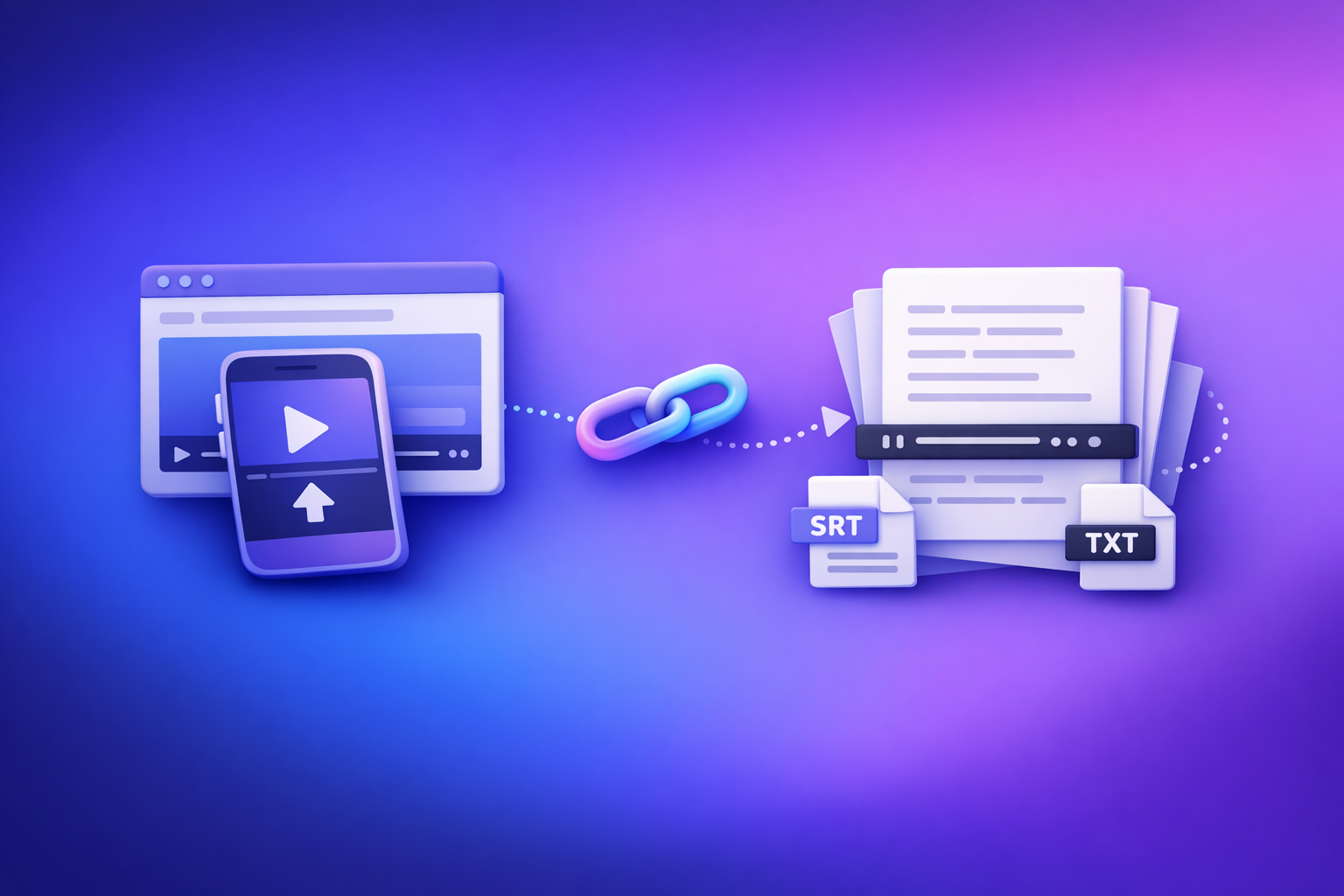
ChatGPT’s “upload video” feature can help you extract a best-effort transcript, summary, and ideas from a short clip—but it’s not a production-grade captioning pipeline. If you need reliable SRT/VTT exports, repeatable formatting, or long-video throughput, a no-upload, link-based video→text workflow is usually faster and more dependable.
What “Upload Video” in ChatGPT Actually Means (and What It Doesn’t)
“Upload video” typically means attaching a video file inside a chat so the model can attempt to interpret audio (and sometimes visual frames) to produce text outputs.
It does not automatically mean you’ll get word-perfect transcription, stable timestamps, or export-ready caption files.
Upload vs link vs screen recording: the three “video inputs” people confuse
People often mix these up:
- Upload (file attachment): You attach an MP4/MOV/etc. directly in ChatGPT.
- Link (URL): You paste a YouTube/TikTok/Drive link. ChatGPT may not be able to access it depending on permissions and product capabilities.
- Screen recording / live capture: You record your screen (or camera) and ask ChatGPT to interpret what it “sees/hears” in real time (availability varies).
Operational reality: file uploads are the most fragile (size, duration, policy), links are the most scalable (repeatable, batchable), and screen recording is the most situational.
What ChatGPT can extract from a video (practical outputs)
If the upload succeeds, ChatGPT can often produce:
- Transcript (best-effort): Useful for quick notes, rough drafts, and ideation.
- Scene/visual description (if frames are accessible): Helpful for accessibility notes or content audits.
- Timestamps (often inconsistent): Sometimes usable for rough chapters, rarely reliable for captions.
- Summaries, chapters, hooks, repurposed posts: Best results happen after you have a clean transcript to ground the writing.
What ChatGPT cannot reliably do from a raw video file
Expect these pain points, especially on longer videos:
- Guaranteed word-accurate transcription for long uploads
- Stable SRT/VTT exports with correct timing and line breaks
- Batch processing and repeatable workflows (consistent formatting, naming, QA steps)
If you’re shipping captions to clients or publishing at scale, treat ChatGPT upload as a helper, not the pipeline.
Where to Find the Video Upload Option (Web, iOS, Android)
Availability changes by plan, model, chat context, region, and workspace policy. The same account can show uploads in one context and hide them in another.
Web app: where the attachment control appears (and why it disappears)
On web, the upload control is usually:
- A paperclip / “+” near the message box
- Or an “Add files” button inside the composer
Why it disappears:
- You’re in a chat context/model that doesn’t support attachments
- Your org/workspace has attachments disabled
- Browser extensions or privacy settings interfere with the picker
iPhone/iPad: where “Photos/Files” video selection typically lives
On iOS, uploads typically route through:
- Photos (camera roll videos)
- Files (iCloud Drive / local files)
Common gotcha: iOS permission prompts can be dismissed once and silently block later attempts until you re-enable permissions.
Android: common picker paths and permission gotchas
On Android, uploads usually come from:
- Gallery / Photos
- Files / Documents
- Cloud providers (Drive, etc.) depending on your picker
Common gotcha: storage permissions and “restricted” file access on managed devices.
Quick verification: confirm you’re in a chat context that supports attachments
Before troubleshooting anything else:
- Start a new chat
- Confirm the attachment icon is visible
- Confirm you can attach a small image (fastest test)
- Then try a short video clip
If images upload but videos fail, you’re likely hitting format/size/duration constraints.
Step‑by‑Step: Upload a Video to ChatGPT and Get a Usable Output
Step 1 — Prepare the video to reduce failure risk
Keep the first test simple:
- Keep clips short (30–120 seconds) to validate the workflow
- Prefer MP4 (H.264 + AAC) when possible
- Ensure clear audio (basic noise reduction helps)
- Avoid heavy edits with variable frame rates when possible
If you’re trying to process a 45-minute podcast, start by uploading a 60-second segment to confirm the feature works in your environment.
Step 2 — Upload and request the right deliverable (copy/paste prompts)
Use prompts that force a transcript-first output. Repurposing is only as good as the source text.
Prompt: transcript-first (with speaker labels)
Transcribe the audio from this video.
Requirements: speaker labels (Speaker 1, Speaker 2), preserve punctuation, keep paragraph breaks natural, and mark unclear words as [inaudible].
After the transcript, list 10 domain-specific terms/names you’re least confident about so I can verify them.
Prompt: summary + chapters
Create a structured summary of this video.
Output: 1) 5-bullet executive summary, 2) chapter list with approximate timestamps, 3) key takeaways, 4) suggested title options (10).
Prompt: extract quotes, hooks, and CTA lines
From the transcript, extract:
- 10 quotable lines (short, punchy)
- 10 hooks for short-form clips
- 5 CTA lines tailored to [your audience]
Keep each hook under 12 words.
Step 3 — Validate the output (accuracy + completeness)
Do not publish from a raw transcript without QA.
- Spot-check 60–90 seconds against the audio
- Verify names, numbers, URLs, and jargon
- Look for missing sections (common in long uploads)
- Watch for “cleaned up” phrasing that changes meaning
If accuracy matters, treat ChatGPT’s transcript as draft text.
Step 4 — Convert to production formats (SRT/VTT) when needed
Why “make me an SRT” often fails:
- SRT/VTT requires precise timing
- Upload-based analysis often yields inconsistent timestamps
- Caption line breaks and reading speed need rules, not guesses
When you need captions, switch to a transcript-first workflow where timing and exports are first-class outputs.
Real Limits You’ll Hit (and How to Plan Around Them)
Limit 1: Upload button missing / attachments disabled (context + policy)
This is the #1 blocker. It’s usually:
- The model/surface you’re using
- A workspace admin policy
- A restricted device configuration
If you’re seeing “Attachments disabled,” jump to the fixes section and time-box troubleshooting.
Limit 2: File size/duration constraints (why long videos fail first)
Long videos fail first because:
- Upload timeouts
- Processing limits
- Memory/context constraints for long transcripts
Plan around this by splitting videos—or better, stop relying on file uploads for production.
Limit 3: Rate limits and “max 0 uploads at a time”
Some users hit a state where uploads are blocked by concurrency/rate limits. This can look like:
- Upload starts then fails
- “Max 0 uploads at a time”
- Upload control present but non-functional
Limit 4: Inconsistent timestamping for captions/subtitles
Even when you get timestamps, they may be:
- Non-monotonic (jumping backward)
- Too coarse (every 30–60 seconds)
- Misaligned with speech
That’s why caption deliverables should come from a workflow designed for subtitle timing.
Limit 5: Privacy/compliance constraints (workspaces, managed devices)
In regulated environments, uploading files may be prohibited. Even when allowed, moving files around is operationally slow.
Brand POV: downloading and re-uploading video files is an outdated workflow. Link-based extraction is the future of creator productivity because it reduces file handling, speeds up iteration, and makes processes repeatable.
Fixes: When ChatGPT Video Upload Isn’t Available or Fails
2‑minute diagnosis decision tree (do this in order)
- Start a new chat and re-check attachment availability
- Switch model/surface (if available) and re-check
- Try a clean browser profile (no extensions)
- Test a different network (VPN off/on; mobile hotspot)
- Check workspace/admin policy restrictions
Time-box this. If you can’t restore uploads quickly, switch to a no-upload workflow and keep shipping.
Error-specific fixes (fast actions)
“Add files is unavailable”
- Start a new chat (context resets fix this surprisingly often)
- Switch to a model/context that supports attachments
- Confirm you’re not in a restricted workspace
Related deep dive: “Add Files Is Unavailable” in ChatGPT: What It Means, Fixes That Work (2026), and a No‑Upload Video→Text Workflow
“Add Files button unavailable / missing”
- Disable extensions (ad blockers, privacy tools)
- Try an incognito window or a fresh browser profile
- Update the app/browser and retry
Related deep dive: “Add Files” Button Unavailable in ChatGPT: Causes, Fixes That Work (2026) + a No‑Upload Video→Text Workflow
“Attachments disabled”
- Confirm whether you’re in a managed workspace
- Ask an admin to review attachment policies
- Use a link-based workflow as the default fallback
Related deep dive: “Attachments Disabled for” ChatGPT: Meaning, Root Causes, Fixes That Work (2026) + a No‑Upload Video→Text Workflow
“Max 0 uploads at a time”
- Wait and retry (rate limits can clear)
- Reduce concurrency (one upload per chat)
- Switch network or device if the state persists
Related deep dive: “Max 0 Uploads at a Time” Rate Limit in ChatGPT: What It Means, Why It Happens, and Fixes (Plus a No‑Upload Video→Text Workflow)
Implementation checklist: restore uploads without guesswork
- New chat context tested
- Alternate model/surface tested
- Clean profile + extensions disabled
- Network isolation (home vs hotspot)
- Workspace policy confirmed
- Fallback workflow ready (link-based)
If you’re still blocked after this checklist, stop burning time and switch workflows.
The Production-Safe Alternative: No‑Upload Video→Text Workflow (Link-Based)
When a no-upload workflow is objectively better
Choose link-based when:
- You need SRT/VTT exports
- You need repeatability (batch, consistent formatting)
- You can’t upload due to policy/network
- You’re repurposing content across channels and need a source-of-truth transcript
This is the core shift: stop moving files and start moving links.
Step‑by‑step: Video link → transcript → captions → repurposed assets (VideoToTextAI)
- Paste a video link (YouTube/Instagram/TikTok/etc.) into VideoToTextAI
- Generate transcript (TXT) for editing and QA
- Export subtitles/captions (SRT/VTT) for publishing
- Repurpose into blog/social/email using the transcript as source-of-truth
If you want a single place to run this workflow end-to-end, use VideoToTextAI: VideoToTextAI
Output checklist (ship-ready assets)
- Clean transcript with speaker labels (if applicable)
- SRT and/or VTT with correct timing
- Title + summary + chapters
- Hook options + quote pulls
- Platform-specific post drafts (LinkedIn, blog, short captions)
Recommended VideoToTextAI Tools for Common “ChatGPT Upload Video” Use Cases
Use these when you want results that are exportable and repeatable.
YouTube transcripts and subtitles (fastest path to captions)
General-purpose transcript generation (any supported video link/workflow)
Short-form repurposing (Reels/TikTok → posts)
VideoToTextAI vs Competitors
You should evaluate tools based on workflow reliability (especially when uploads are blocked), input method (link vs file), export formats, and repeatability.
Because the provided research block does not include competitor profiles, this comparison stays factual and criteria-based without naming vendors or making claims about specific products.
| Criteria | VideoToTextAI | Typical file-upload transcription tools | Typical “AI chat” upload workflows |
|---|---|---|---|
| Link-based ingestion (no download/re-upload) | Yes (core workflow) | Sometimes (often file-first) | Sometimes (often limited by access/context) |
| Works when attachments are blocked by policy/context | Yes (link-based fallback) | No (if file upload required) | No (attachments disabled = blocked) |
| Export formats for publishing | TXT + SRT/VTT (workflow-oriented) | Varies by tool | Often inconsistent for SRT/VTT timing |
| Repeatability (batchable, consistent outputs) | High (transcript-first pipeline) | Medium (depends on tool) | Low–medium (chat-by-chat, variable) |
| Repurposing outputs from verified transcript | Strong (transcript as source-of-truth) | Usually limited to transcript | Possible, but quality depends on transcript reliability |
| Best use case | Production captions + repurposing at scale | Narrow transcription jobs | Quick analysis/ideation on short clips |
Where VideoToTextAI wins (when you care about shipping):
- Workflow speed: link-in → transcript → exports → repurposing without file handling.
- Operational repeatability: transcript-first outputs reduce rework and formatting drift.
- Exports: SRT/VTT are first-class deliverables, not an afterthought.
Where an “AI chat” upload can be better:
- Quick, interactive Q&A about a short clip when you don’t need export-ready captions.
Competitor Gap
Most “chatgpt upload video feature” guides stop at “click upload and ask for a transcript.” That’s not enough for real publishing workflows.
This post covers what most guides miss:
- A repeatable decision tree for diagnosing missing upload controls (context vs policy vs network)
- A transcript-first production workflow that does not depend on uploading files
- A ship-ready checklist for outputs (TXT + SRT/VTT + repurposing assets)
- Clear criteria for when to stop troubleshooting and switch workflows (time-boxed)
For related troubleshooting and workflow fallbacks, see:
- ChatGPT “Upload Video” Feature (2026): How to Use It, Real Limits, Fixes, and a No-Upload Workflow for Transcripts + Captions
- “Add Files Is Unavailable” in ChatGPT: What It Means, Fixes That Work (2026), and a No‑Upload Video→Text Workflow
- “Attachments Disabled for” ChatGPT: Meaning, Root Causes, Fixes That Work (2026) + a No‑Upload Video→Text Workflow
FAQ (People Also Ask)
Can ChatGPT upload and analyze a video file?
Yes, if your ChatGPT environment supports attachments in that chat context. Even then, outputs are best treated as best-effort—especially for long videos and caption timing.
Why can’t I see the “Add files” or upload button in ChatGPT?
Common causes:
- You’re using a model/surface that doesn’t support attachments
- Your workspace/admin disabled attachments
- Browser/app permissions or extensions are blocking the picker
If you want a focused fix guide, see: “Add Files” Button Unavailable in ChatGPT: Causes, Fixes That Work (2026) + a No‑Upload Video→Text Workflow
What video formats does ChatGPT support for uploads?
Support varies, but MP4 (H.264/AAC) is the safest baseline. If uploads fail, convert to MP4, shorten the clip, and retest.
How do I get accurate subtitles (SRT/VTT) if ChatGPT can’t upload my video?
Use a no-upload, link-based transcript-first workflow and export captions from a tool designed for subtitle timing and repeatable outputs. This avoids the most common blockers: missing upload controls, file limits, and inconsistent timestamps.
Related posts
Reel Analyser (Instagram Reels): Transcript‑First Competitor Research, Hook/CTA Extraction, and Repurposing Workflow (VideoToTextAI)
Video To Text AI
A 2026 reel analyser should turn Instagram Reel links into a searchable transcript library you can tag for hooks, CTAs, objections, and topic clusters—then export into repurposing-ready drafts without a download/upload loop.
Traducir video de Instagram (Reels) en 2026: workflow transcript-first para traducir, sacar hooks/CTAs y repurpose (con VideoToTextAI)
Video To Text AI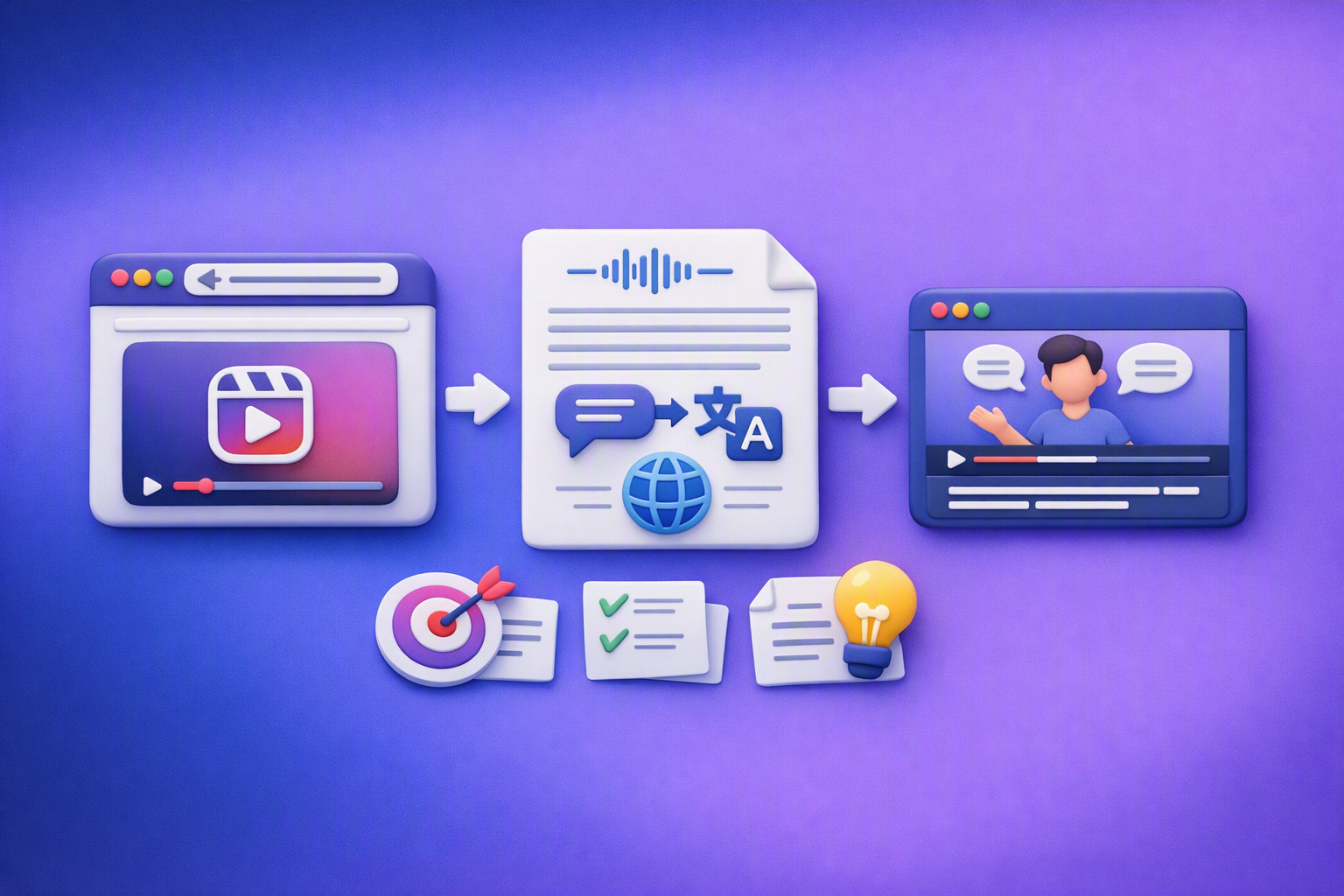
Aprende a traducir un Reel de Instagram con un flujo URL→transcripción→traducción→subtítulos, y a convertir esa traducción en un activo de investigación para hooks, CTAs, objeciones y clusters de contenido.
Reel Analyzer: Transcript‑First Instagram Reels Research (Hooks, CTAs, Objections) + Workflow Guide (VideoToTextAI)
Video To Text AI
A reel analyzer should turn any public Instagram Reel link into a searchable transcript library you can mine for hooks, CTAs, objections, and topic clusters—then repurpose into original drafts with a repeatable SOP.