
“Add Files” Button Unavailable in ChatGPT: Causes, Fixes (Step-by-Step) + No‑Upload Workarounds
 Video To Text AI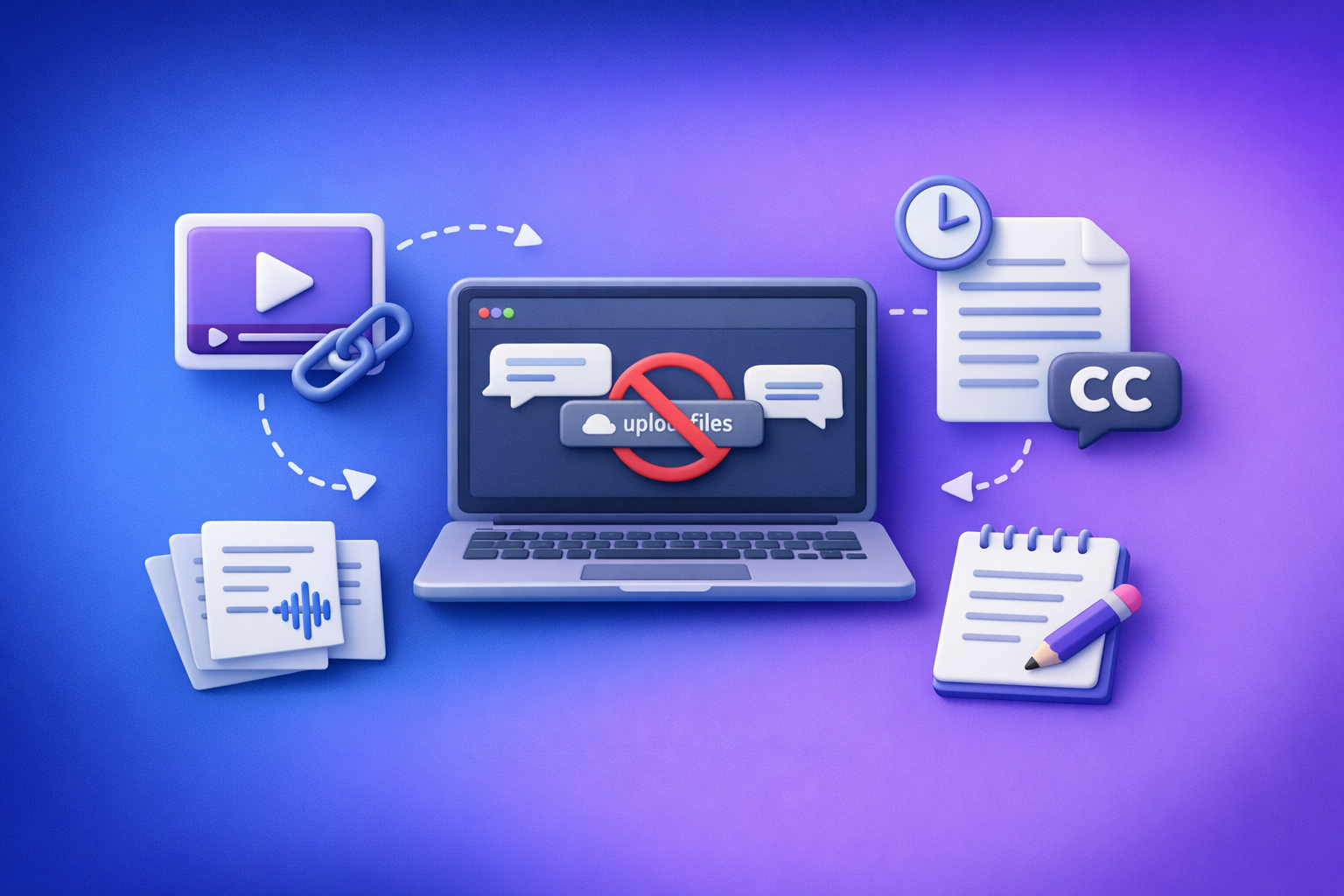
If the “add files” button is unavailable in ChatGPT, fix it fastest by resetting chat context (new chat + supported model), then isolating browser and network variables. If uploads are blocked by policy or security controls, switch to a no-upload, link-based workflow (video link → transcript/subtitles → paste text into ChatGPT).
“Add Files” Button Unavailable in ChatGPT: Causes, Fixes (Step-by-Step) + No‑Upload Workarounds
Quick Answer (What “Add files” unavailable usually means)
What’s actually blocked (button missing vs greyed out vs error toast)
Different UI states point to different root causes:
- Button missing entirely
- Often a surface/model/tool availability issue or a rollout difference on that device/app.
- Button visible but greyed out/disabled
- Often a policy restriction, thread/tool mismatch, or a permission state (browser/app).
- You click “Add files” and get an error toast (e.g., “Add files is unavailable”)
- Often a network/security block, upload endpoint blocked, or browser extension interference.
The 4 most common root causes (ranked by frequency)
- Chat surface/model/thread limitation (context mismatch)
- Workspace/admin policy (Enterprise/Teams/Edu restrictions)
- Browser environment (extensions, cookies, permissions)
- Network/security controls (VPN, proxy, DLP, SSL inspection)
60‑Second Triage (Do this before deeper troubleshooting)
Step 1: Confirm where you’re using ChatGPT (Web vs Desktop vs iOS/Android)
- Web app, desktop app, and mobile apps can have different feature rollouts.
- Write down: device + OS + app/browser version.
Step 2: Start a new chat and switch model (rules out thread/model constraints)
- Create a new chat.
- Switch to a model that supports attachments (if your plan/workspace offers it).
- Try attaching a tiny TXT file first.
Step 3: Test in a clean browser profile (rules out extensions/cookies)
- Open Incognito/Private mode.
- Log in and check whether the button appears/enables.
Step 4: Test on a different network (rules out corporate filtering)
- Switch Wi‑Fi ↔ mobile hotspot.
- Turn VPN off temporarily.
Step 5: Check account/workspace type (rules out admin restrictions)
- Are you on Enterprise/Teams/Edu?
- If yes, assume policy until proven otherwise.
Why the “Add Files” Button Becomes Unavailable (Root-Cause Map)
1) Model, tool, or chat-context mismatch
Symptoms that point to a context mismatch
- The button works in some chats but not others.
- The button appears after switching models, then disappears again.
- A specific thread behaves “stuck” even after reload.
Fix: new chat + supported model + re-enable tools (where applicable)
- Start a new chat (don’t reuse the broken thread).
- Switch models and confirm you’re on one that supports attachments in your environment.
- If your UI has tool toggles, re-enable tools and reload.
2) Workspace policy restrictions (admin-controlled)
Symptoms that point to policy blocks
- Everyone in your org sees the same limitation.
- The button is consistently disabled across devices and browsers.
- You can’t use other tools that are typically bundled with attachments.
Fix: what to ask your admin to change (exact settings to request)
Ask your admin/IT to verify:
- Attachments/file uploads are allowed for your workspace.
- Tool availability is enabled for your user group (not restricted by role).
- Data controls aren’t set to block uploads for compliance reasons.
If your org won’t allow uploads (common), skip to No‑Upload Workarounds below.
3) Browser-level causes (most fixable)
Extensions that commonly break uploads (ad blockers, privacy tools, script blockers)
These often block scripts or endpoints used by upload widgets:
- Ad blockers (aggressive filter lists)
- Privacy blockers / anti-tracking tools
- Script blockers
- “Security” extensions that disable third-party requests
Cookie/storage corruption and permission issues
- Corrupted site storage can break UI state.
- Blocked cookies/storage can prevent the upload component from initializing.
Fix: hard refresh, clear site data, disable extensions, test incognito
- Hard refresh the page.
- Clear site data for ChatGPT.
- Disable extensions and retest.
4) Network/security controls (hardest to fix)
Corporate proxy/DLP/SSL inspection patterns that block file upload endpoints
Common patterns:
- Upload endpoints blocked by URL category (e.g., “AI tools”, “file sharing”).
- DLP blocks multipart uploads or certain MIME types.
- SSL inspection breaks modern web upload flows.
Fix: switch network, disable VPN, allowlist domains, test via mobile hotspot
- Turn off VPN.
- Test on a mobile hotspot.
- If it works off-network, you need IT to allowlist required domains/endpoints.
5) Platform/app limitations and rollout differences
Why one device shows the button and another doesn’t
- App version differences.
- OS permission differences.
- Staged feature rollouts.
Fix: update app, reinstall, verify OS permissions
- Update the app.
- Reinstall if needed.
- Verify OS permissions related to file access.
Step-by-Step Fix Flow (Ordered, Minimal-Waste)
Step 1: Reproduce the issue and capture the exact state
Before you change anything, capture evidence for support/admin escalation:
- State: button missing vs disabled vs “Add files is unavailable”
- Screenshot
- Timestamp
- Platform: web/desktop/iOS/Android
- Browser/app version
- Model selected (and whether tools are enabled)
This prevents “it works on my machine” loops.
Step 2: Reset the chat context (fastest win)
- Open a new chat
- Switch to a model that supports attachments (if available in your plan/workspace)
- Reload the page/app
- Try attaching a small file (e.g., a 50KB TXT)
If a tiny TXT fails, don’t waste time testing large PDFs/videos yet.
Step 3: Eliminate browser variables (10 minutes)
- Try an incognito/private window
- Disable all extensions, then re-enable one-by-one to find the conflict
- Clear site data for ChatGPT (cookies + local storage)
- Verify browser permissions:
- file access prompts (if applicable)
- popups/redirects (some auth flows rely on them)
- downloads (for export flows)
- Try a different browser (Chrome ↔ Firefox ↔ Edge)
Step 4: Eliminate network variables (10 minutes)
- Turn off VPN
- Switch Wi‑Fi ↔ mobile hotspot
- If on corporate network: test from a personal network
- If blocked: collect evidence for IT
- blocked request URL (from devtools/network if allowed)
- error code/status
- proxy block page screenshot (if shown)
- URL category label (if your security tool displays it)
Step 5: Confirm workspace/admin policy (Enterprise/Teams)
What to check in your org:
- Are attachments allowed for your workspace?
- Are tools restricted by role/group?
- Are there data controls that disable uploads?
Copy/paste admin request template:
Subject: ChatGPT attachments disabled — request to enable or confirm policy
We’re seeing “Add files is unavailable” in ChatGPT.
Evidence: (attach screenshot), timestamp (UTC/local), user email, workspace name.
Platforms tested: (web/desktop/mobile), browsers (versions), networks (corp/personal).
Request: Please confirm whether file attachments are disabled by workspace policy and, if permitted, enable attachments/tools for our group. If blocked by network security, please allowlist required ChatGPT upload endpoints/domains.
Step 6: Escalation path if nothing works
Include in a support ticket (or internal IT ticket):
- platform + version
- model selected
- exact UI state
- timestamp
- console errors (if allowed)
- HAR file (only if your org permits capturing it)
Temporary workaround: use no-upload workflows below so work doesn’t stop.
No‑Upload Workarounds (When Attachments Are Blocked)
Uploads are increasingly unreliable in locked-down environments, and downloading video files just to re-upload them is an outdated workflow. The future of creator productivity is link-based extraction: keep media where it already lives, extract text assets from the URL, then repurpose.
Option A: Use link-based video → transcript/subtitles (production-safe)
When this is the best choice
- Corporate environments that block uploads
- Large video files that exceed limits
- You need SRT/VTT outputs for editing/publishing
Implementation: VideoToTextAI link → transcript workflow (exact steps)
- Copy the public video link (YouTube/TikTok/Instagram/Reel/etc.)
- Generate transcript/captions via VideoToTextAI
- Export the formats you need:
- TXT for editing and prompting
- SRT/VTT for captions/subtitles
- Paste outputs into ChatGPT for summarization/repurposing (no file upload required)
Recommended VideoToTextAI tool entry points (choose by source):
- YouTube subtitles: free youtube subtitles
- Video transcript generator (any supported link): video transcript generator
- Video to text converter (general workflow): video to text converter
- TikTok transcript: tiktok transcript generator
- Instagram transcript from link: instagram transcript from link
If you want a single starting point for a repeatable workflow across sources, use VideoToTextAI: VideoToTextAI
Option B: Convert your workflow to “text-first” inputs
If you can’t upload, treat ChatGPT as a text processor:
- Paste transcript text instead of uploading media.
- Chunk long transcripts (rough guideline: 1,500–3,000 words per message).
- Preserve timestamps by pasting SRT/VTT blocks (ChatGPT can rewrite while keeping timecodes if instructed).
Option C: If you must move a file, use a share link instead of upload
- Use a cloud share link (Drive/Dropbox) with explicit access settings.
- Security note: don’t share sensitive data externally if your org prohibits it.
Checklist: Fix “Add Files” Unavailable in ChatGPT (Copy/Paste)
Chat/context checklist
- New chat created
- Model switched (and tools enabled if applicable)
- Tested with a tiny TXT file
Browser checklist
- Incognito/private window test
- Extensions disabled
- Site data cleared for ChatGPT
- Different browser tested
Network checklist
- VPN off
- Different network/hotspot tested
- Corporate proxy/DLP suspected and documented
Policy checklist
- Confirmed plan/workspace type
- Admin request sent with exact symptoms + timestamp
Workaround checklist (keep shipping)
- Link-based transcript generated in VideoToTextAI
- Exported TXT + SRT/VTT
- Pasted text into ChatGPT for downstream tasks
VideoToTextAI vs Competitors
Comparison criteria (what we will evaluate)
- No-upload reliability: link-based inputs vs file attachments
- Output formats: TXT, SRT, VTT and timestamp handling
- Speed to usable assets: transcript → captions → repurposed content
- Workflow fit for blocked corporate environments: uploads disabled
Note: Competitor profiles were not provided in the research block for this brief, so this section focuses on workflow-level differences rather than naming tools or making claims about specific vendors.
| Criterion | VideoToTextAI | Typical “upload-first” transcript tools | Typical “in-chat attachment” workflows |
|---|---|---|---|
| Works when ChatGPT “Add files” is unavailable | Yes (link-based extraction) | Sometimes (often still requires file upload) | No (depends on attachments) |
| Input method | Public video link | File upload or limited link support | File upload into chat |
| Outputs for publishing | TXT + caption formats (SRT/VTT) | Varies by tool | Usually text output; caption formats vary |
| Operational repeatability | High (standard URL → export → paste) | Medium | Low when uploads are blocked |
| Best use case | Locked-down environments, creators, teams needing captions/subtitles | When you can upload and need a single-purpose tool | When attachments work and you want in-chat analysis |
Where VideoToTextAI wins for “uploads blocked” scenarios
- Link-based extraction avoids file-attachment dependency. If ChatGPT can’t accept files, your workflow still runs.
- Direct export paths for captions/subtitles (SRT/VTT) plus TXT for editing and prompting.
- Purpose-built tools by source (YouTube/TikTok/Instagram) reduce manual steps and make the process repeatable across a team.
Where competitors may be better (so you can choose correctly)
- If your environment reliably supports attachments, native in-chat file analysis can be convenient for one-off document review.
- If you only need quick notes from a small file and uploads work, an upload-first flow may be “good enough.”
Competitor Gap
What most “Add files unavailable” guides miss (and this post will include)
- A strict, ordered diagnosis flow that minimizes wasted steps (context → browser → network → policy)
- Evidence collection for IT/admin escalation (what to capture, how to describe it)
- A production-ready no-upload alternative that outputs caption formats (SRT/VTT), not just summaries
- A copy/paste checklist to standardize troubleshooting across teams
FAQ (People Also Ask)
Why is the “Add files” button missing in ChatGPT?
Most commonly: you’re in a chat/model/surface that doesn’t expose attachments, your workspace disables it, or your app version hasn’t rolled out the feature. Start with new chat + model switch, then test incognito.
Why does ChatGPT say “Add files is unavailable” even with a supported file type?
That message often indicates the upload capability itself is blocked (policy or network), not the file type. Test on a different network (hotspot) to separate security filtering from browser issues.
Can my workplace or school disable file uploads in ChatGPT?
Yes. Admin policies can disable attachments and tools, and corporate security layers (proxy/DLP/SSL inspection) can block upload endpoints even if the UI shows the button.
How do I use ChatGPT for video transcripts if uploads are blocked?
Use a link-based workflow: generate transcript/subtitles from the video URL, export TXT/SRT/VTT, then paste the text into ChatGPT for rewriting, summarizing, and repurposing. This avoids the outdated “download → upload” loop.
Does switching browsers actually fix ChatGPT attachments issues?
Yes, often. Extensions, blocked storage, or corrupted site data can break the upload UI. Incognito mode and a second browser are fast ways to confirm a browser-level cause.
Internal Link Plan
- Add Files Button Unavailable in ChatGPT: Why It Happens + Fixes (Step-by-Step) and a No‑Upload Video→Text Workflow
- “Add Files Unavailable” in ChatGPT: Meaning, Root Causes, Fixes (Step-by-Step) + a No‑Upload Video→Text Workflow
- “Add File Is Unavailable” in ChatGPT: What It Means, Fixes That Work (2026), and a No‑Upload Video→Text Workflow
- “Add Files Is Unavailable” in ChatGPT: Causes, Fixes (Step‑by‑Step), and a No‑Upload Video→Text Workflow
- “Attachments Disabled for” ChatGPT: What It Means + Fixes That Work (2026) + No‑Upload Video→Text Workflow
- ChatGPT “Upload Video” Feature (2026): How to Use It, Real Limits, Fixes, and a No-Upload Workflow for Transcripts + Captions
Related posts
Reel Analyser (Instagram Reels): Transcript‑First Competitor Research, Hook/CTA Extraction, and Repurposing Workflow (VideoToTextAI)
Video To Text AI
A 2026 reel analyser should turn Instagram Reel links into a searchable transcript library you can tag for hooks, CTAs, objections, and topic clusters—then export into repurposing-ready drafts without a download/upload loop.
Traducir video de Instagram (Reels) en 2026: workflow transcript-first para traducir, sacar hooks/CTAs y repurpose (con VideoToTextAI)
Video To Text AI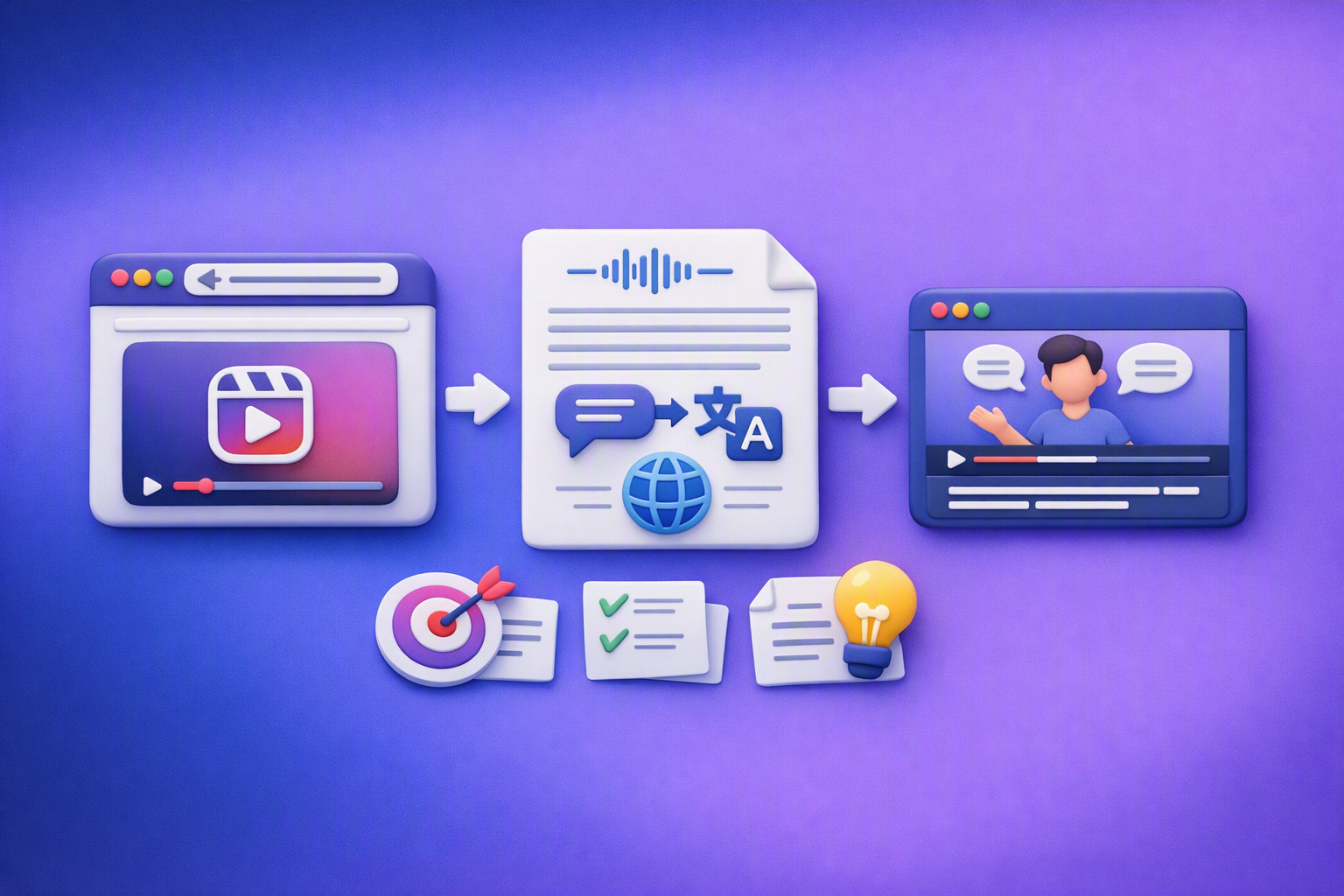
Aprende a traducir un Reel de Instagram con un flujo URL→transcripción→traducción→subtítulos, y a convertir esa traducción en un activo de investigación para hooks, CTAs, objeciones y clusters de contenido.
Reel Analyzer: Transcript‑First Instagram Reels Research (Hooks, CTAs, Objections) + Workflow Guide (VideoToTextAI)
Video To Text AI
A reel analyzer should turn any public Instagram Reel link into a searchable transcript library you can mine for hooks, CTAs, objections, and topic clusters—then repurpose into original drafts with a repeatable SOP.