
“Add File Is Unavailable” in ChatGPT: What It Means, Fixes That Work (2026), and a No‑Upload Video→Text Workflow
 Video To Text AI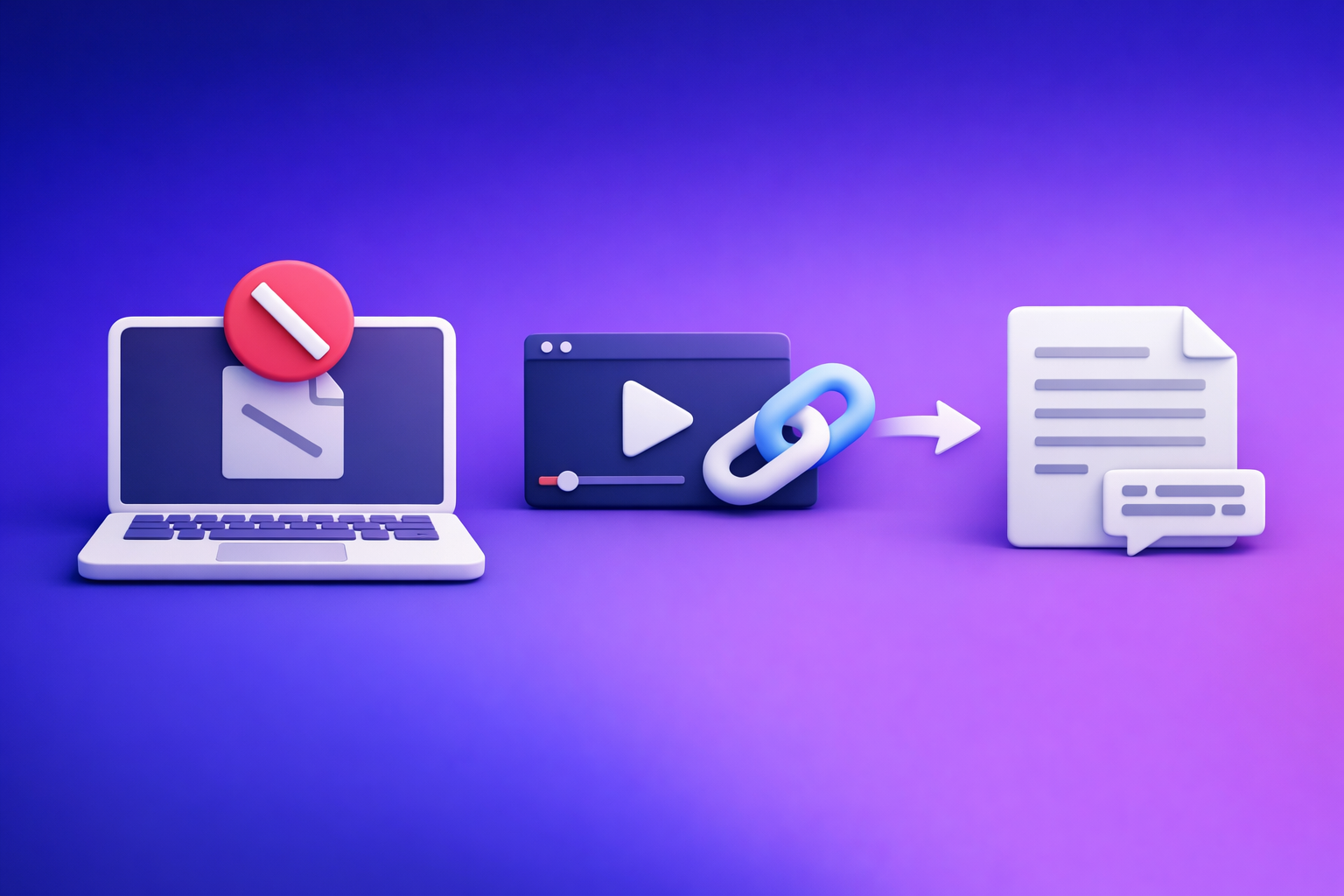
“Add File Is Unavailable” in ChatGPT: What It Means, Fixes That Work (2026), and a No‑Upload Video→Text Workflow
If ChatGPT shows “Add file is unavailable,” fix it fastest by resetting the chat context, switching surface/model, and testing in a clean browser profile. If uploads are blocked by policy or network, skip the dead-end and use a link-based video→text workflow to generate transcripts/captions you can paste into ChatGPT—no attachments required.
Quick Answer (1-minute diagnosis)
What the message usually means
In most cases, your file isn’t the problem. The message typically indicates that attachments are disabled due to one of these:
- The current chat/thread doesn’t have attachment tooling enabled.
- The surface you’re using (web vs desktop vs mobile) is missing the capability.
- Your browser, extensions, network, VPN, or workspace policy is blocking upload functionality.
The 3 fastest checks (do these first)
- Start a new chat and re-check the paperclip / “Add files” control.
- Switch to a different model/surface (web ↔ desktop ↔ mobile) and re-check.
- Test in a clean browser profile (no extensions) or Incognito/Private mode.
If you need to keep working today (bypass uploads)
If you’re trying to upload a video just to get a transcript, subtitles, or captions, uploading is an outdated workflow. Link-based extraction is the future of creator productivity because it’s faster, repeatable, and less fragile under corporate restrictions.
Use a link-based transcript/captions workflow with VideoToTextAI (no file upload to ChatGPT required), then paste the output into ChatGPT.
What “Add File Is Unavailable” means in ChatGPT (not your file)
Uploads are disabled in your current context
ChatGPT capabilities can vary by thread, model, and surface. Common causes:
- Chat surface limitations (web/app differences): one surface may lag feature availability.
- Model/tooling availability in that thread: the current model selection may not expose attachments.
- Temporary platform restrictions or feature rollouts: features can be gated, throttled, or rolled out gradually.
Uploads are blocked by your environment
Even if ChatGPT supports uploads, your environment may block them:
- Workspace/admin policy (ChatGPT Team/Enterprise): attachments can be disabled org-wide.
- Browser privacy settings or extensions: script blockers and privacy tools often break file pickers.
- Network controls (VPN, firewall, content filters): managed networks can block upload endpoints/CDNs.
Step-by-step fixes (ordered to minimize wasted time)
1) Reset the chat context (fastest)
Step 1: Start a new chat
Threads can “stick” to a capability set. Do this first:
- Open New chat
- Look for the paperclip / Add files control again
- If it appears, test with a small file (e.g., a short TXT)
Step 2: Switch models and re-check attachment support
Within the new chat:
- Switch to another available model
- Re-check whether the attachment control appears/enables
If you’re troubleshooting “add file is unavailable” chatgpt issues, model switching is one of the quickest differentiators between a thread limitation and an environment/policy block.
Step 3: Log out/in (forces capability refresh)
A full session refresh can re-sync feature flags:
- Log out of ChatGPT
- Close the tab/app
- Log back in and re-test in a new chat
2) Confirm you’re on a supported surface (web/app differences)
Web app checklist
- Update your browser (Chrome/Edge/Firefox/Safari).
- Temporarily relax strict tracking prevention for the session (privacy tools can interfere with file pickers and storage).
Also test in a second browser as a control (e.g., Chrome → Firefox).
Desktop app checklist
- Update the desktop app to the latest version.
- Try the web app as a control test.
- If web works but desktop doesn’t, you’ve isolated it to the desktop surface.
Mobile checklist (iOS/Android)
- Update the app.
- Test cellular vs Wi‑Fi to isolate network blocks.
- If cellular works but Wi‑Fi doesn’t, the issue is likely router, DNS filtering, VPN, or corporate network policy.
3) Browser-level causes (most common)
Step 1: Disable extensions that commonly break uploads
Temporarily disable (or test in Incognito with extensions off):
- Ad blockers
- Privacy blockers
- Script blockers
- Antivirus “web shield” extensions
- Download managers that hook file dialogs
Then reload ChatGPT and re-check the attachment control.
Step 2: Clear site data for ChatGPT only
Clear site-scoped data (not your whole browser history):
- Cookies
- Local storage
- Cached site data
This fixes cases where a corrupted local state prevents the UI from enabling attachments.
Step 3: Try a clean profile
Create a new browser profile:
- New Chrome profile / new Firefox profile
- No extensions
- Default settings
If uploads work there, your main profile has a conflicting extension, policy, or setting.
Step 4: Check download/upload permissions
Look for blocked prompts:
- File system access prompts
- Pop-up blockers interfering with picker dialogs
- OS-level permissions (especially on macOS managed devices)
4) Network and security controls (corporate + school networks)
Step 1: Test on a different network
Use a control network:
- Mobile hotspot
- Cellular data
If uploads work off-network, you’ve confirmed a network/security restriction.
Step 2: Disable VPN/proxy temporarily
VPNs and proxies can:
- Block upload endpoints
- Trigger bot/abuse protections
- Break large multipart uploads
Turn them off briefly and re-test.
Step 3: Ask IT for the specific allowlist items
If you’re on a managed network, ask for a policy exception for:
- ChatGPT upload endpoints
- Required CDN domains used for attachments
- Websocket/streaming endpoints if applicable
Keep the request simple: “Allow file upload functionality for ChatGPT on our network.”
Step 4: TLS inspection / DLP symptoms to look for
Data Loss Prevention (DLP) and TLS inspection often show patterns like:
- Upload UI is present but fails silently
- “Unavailable” appears only on managed devices
- Works on personal device, fails on corporate laptop
5) Account/workspace policy restrictions (Team/Enterprise)
How to tell it’s policy (not a bug)
- Multiple users in the same workspace see the same limitation
- Uploads work on a personal account but not the workspace account
- The limitation persists across browsers/devices on the managed account
What to ask your admin to check
Ask your admin to verify:
- Attachment/file upload toggles
- Data controls / retention settings that disable uploads
- Allowed tools per model/surface
If policy is the blocker, don’t burn time on browser tweaks—move to a no-upload workflow below.
6) File-specific issues (only after the above)
Common file constraints that trigger failures
If the attachment button is available but uploads fail, check:
- Unsupported file types
- File size limits
- Corrupt files / zero-byte files
Quick remediation
- Rename the file (remove special characters, keep it short)
- Re-export to a standard format (PDF, TXT, MP4)
- Compress or split large files
Implementation: No-upload workflow (VideoToTextAI) to keep shipping
When to use this workflow
Use this when:
- The upload button is missing/unavailable
- Corporate policy blocks attachments
- You need transcripts/subtitles/repurposed content fast
This is also the better long-term workflow: downloading videos just to re-upload them is outdated. Link-based extraction is more operationally repeatable for teams and creators.
Step-by-step: Link → transcript/subtitles → paste into ChatGPT
Step 1: Get a shareable link to the video
Examples:
- YouTube link
- TikTok link
- Instagram link
- Hosted MP4 link
Step 2: Generate a transcript (TXT) and captions (SRT/VTT)
Use one of these canonical tools:
- Video Transcript Generator: video transcript generator
- Video to Text Converter: video to text converter
Step 3: Export the format you need
- SRT/VTT for captions/subtitles
- TXT for editing, quoting, SEO, and repurposing
Step 4: Paste outputs into ChatGPT (no file upload)
- Paste the transcript in chunks if needed (e.g., 1,500–3,000 words at a time).
- Ask for summaries, outlines, social posts, SEO briefs, or chapter timestamps.
Copy/paste prompt you can use:
- “Here’s a transcript. Create: (1) a 10-bullet summary, (2) a blog outline with H2/H3s, (3) 5 YouTube Shorts hooks, (4) 10 tweet-style posts, and (5) an SEO keyword list with search intent.”
Platform-specific shortcuts (choose your source)
- YouTube subtitles: free youtube subtitles
- TikTok transcript: tiktok transcript generator
- Instagram transcript from link: instagram transcript from link
- MP4 → SRT: mp4 to srt
Checklist: Fix “Add File Is Unavailable” (printable)
2-minute checklist (most issues)
- New chat created; re-check attachment button
- Switched model/surface (web ↔ app)
- Incognito/clean profile test
- Extensions disabled (ad/privacy/script blockers)
- Different network test (hotspot)
- VPN/proxy off
- Workspace policy confirmed with admin
10-minute checklist (deeper isolation)
- Site data cleared for ChatGPT
- Browser/app updated
- Tested on unmanaged device
- Confirmed whether issue is account-specific or workspace-wide
- If still blocked: switched to VideoToTextAI link-based workflow
VideoToTextAI vs Competitors
Comparison criteria we will cover
- Input method (link-based vs file upload required)
- Output formats (TXT, SRT, VTT) and export speed (workflow efficiency)
- Reliability under corporate policy restrictions (no-upload workflows)
- Repurposing workflows (blog/social/summary outputs once transcript exists)
Competitor note: No competitor profiles were provided in the request context, so the table below compares workflow approaches rather than making unverifiable product claims.
| Option | Input method | Best when | Weak spot for “Add file is unavailable” |
|---|---|---|---|
| VideoToTextAI | Link-based (YouTube/TikTok/Instagram/MP4 URL) | You need transcripts/subtitles/captions fast without relying on ChatGPT uploads | If you specifically need in-chat file inspection, you’ll still paste text instead of attaching files |
| ChatGPT attachments (when available) | File upload inside chat | You want direct in-chat analysis of a document/video file | Breaks under policy/network/extension blocks; feature can be unavailable by surface/model/thread |
| Traditional “download → upload” transcription tools | Usually file upload | You already have local media files and uploads are allowed | Slower, less repeatable; fails in locked-down environments; encourages outdated workflows |
Where VideoToTextAI wins for this specific problem (“uploads unavailable”)
- Works from a link when ChatGPT attachments are blocked or missing.
- Produces transcript + captions you can paste into ChatGPT immediately (TXT/SRT/VTT outputs).
- Tool-specific workflows for common sources (YouTube/TikTok/Instagram) reduce operational friction.
Where competitors may be better (be explicit)
- If your environment allows attachments and you need direct in-chat file analysis, ChatGPT’s native upload flow can be more convenient for one-off tasks.
- If your organization is standardized on a single ecosystem, switching tools may add process overhead—though link-based extraction often still fits cleanly into existing workflows.
Competitor Gap
What most “fix” articles miss (and this post will include)
- A strict ordered isolation flow: surface → model → browser → network → policy → file (so you don’t waste time).
- A no-upload fallback that still produces production-ready assets (TXT/SRT/VTT).
- Copy/paste prompts for repurposing once you have the transcript (no attachments needed).
Add-on assets to include in the post (to outperform existing SERP results)
- Decision tree graphic: surface/model/policy branching (web vs app → model → extensions → network → admin policy).
- Printable checklist section (above).
- “IT request” template for allowlisting uploads (network/policy).
IT request template (copy/paste)
Subject: Request to enable ChatGPT file uploads (allowlist)
Body:
- We need ChatGPT attachment uploads enabled for business use.
- Uploads appear unavailable on managed devices/networks.
- Please review firewall/DLP/TLS inspection policies that may block upload endpoints/CDN delivery.
- If uploads cannot be enabled, please confirm whether workspace policy disables attachments for our org/model/surface.
FAQ (People Also Ask-aligned)
Why does ChatGPT say “Add file is unavailable”?
Because attachments are disabled in your current context (thread/model/surface), blocked by browser extensions/privacy settings, restricted by network/VPN/DLP, or turned off by workspace policy.
How do I enable file uploads in ChatGPT?
Use the ordered flow:
- New chat → 2) switch model/surface → 3) log out/in → 4) disable extensions → 5) clear site data → 6) test another network/VPN off → 7) confirm workspace policy.
Why is the “Add files” button missing on my account but not others?
That pattern usually indicates workspace policy, staged feature availability, or account-level capability differences. Test with a personal account and a different surface to isolate.
Can I still get a transcript or captions if ChatGPT won’t let me upload a video?
Yes. Generate TXT/SRT/VTT from a video link, then paste the output into ChatGPT for summaries, captions cleanup, blog drafts, and social repurposing.
Does a VPN or ad blocker cause ChatGPT uploads to disappear?
Yes. VPNs/proxies can interfere with upload endpoints, and ad/privacy/script blockers can break file picker dialogs or required scripts—especially in strict modes.
Internal Link Plan
If you’re troubleshooting adjacent upload errors, these related guides help you isolate faster:
- “Add Files Is Unavailable” in ChatGPT: Causes, Fixes (Step‑by‑Step), and a No‑Upload Video→Text Workflow
- “Add Files Unavailable” in ChatGPT: What It Means, Fixes That Work, and a No-Upload Video→Text Workflow (2026)
- “Max 0 Uploads at a Time” Rate Limit in ChatGPT: What It Means, Why It Happens, and Fixes (Plus a No-Upload Video→Text Workflow)
- ChatGPT “Upload Video” Feature (2026): How to Use It, What It Can Do, Limits, Fixes, and a No‑Upload Video→Text Workflow
- “Add Files” Button Unavailable in ChatGPT (2026): Causes, Fixes (Step-by-Step) + No-Upload Video→Text Workflow
- “Attachments Disabled for” ChatGPT: What It Means + Fixes That Work (2026) + No‑Upload Video→Text Workflow
CTA: Get unstuck without uploads (VideoToTextAI)
If “add file is unavailable” keeps blocking your work, stop waiting on uploads and switch to link-based extraction—the faster, more repeatable workflow for creators and teams. Use VideoToTextAI to generate transcripts and captions from a URL, export TXT/SRT/VTT, and paste into ChatGPT for repurposing: VideoToTextAI
Related posts
Reel Analyser (Instagram Reels): Transcript‑First Competitor Research, Hook/CTA Extraction, and Repurposing Workflow (VideoToTextAI)
Video To Text AI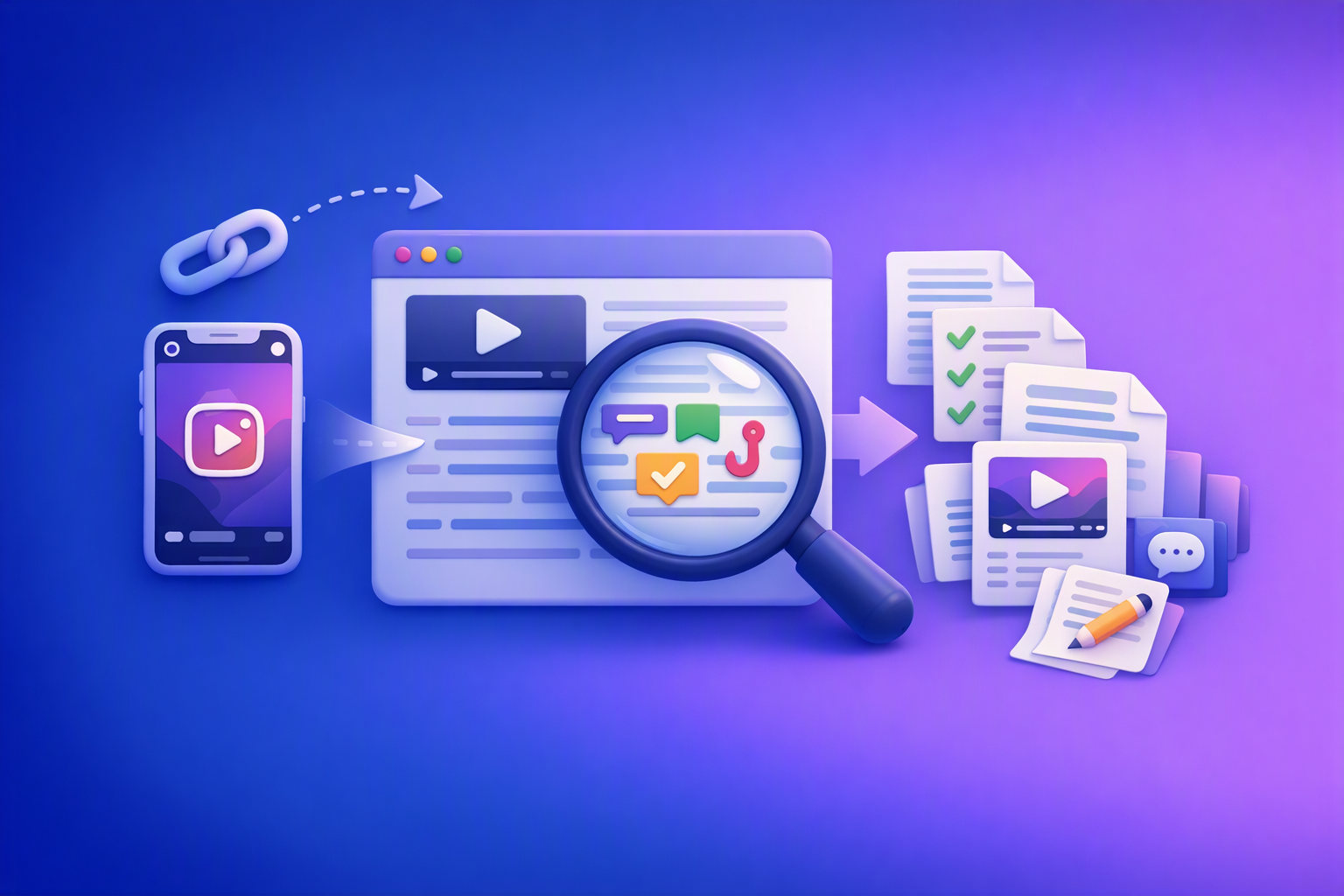
A 2026 reel analyser should turn Instagram Reel links into a searchable transcript library you can tag for hooks, CTAs, objections, and topic clusters—then export into repurposing-ready drafts without a download/upload loop.
Traducir video de Instagram (Reels) en 2026: workflow transcript-first para traducir, sacar hooks/CTAs y repurpose (con VideoToTextAI)
Video To Text AI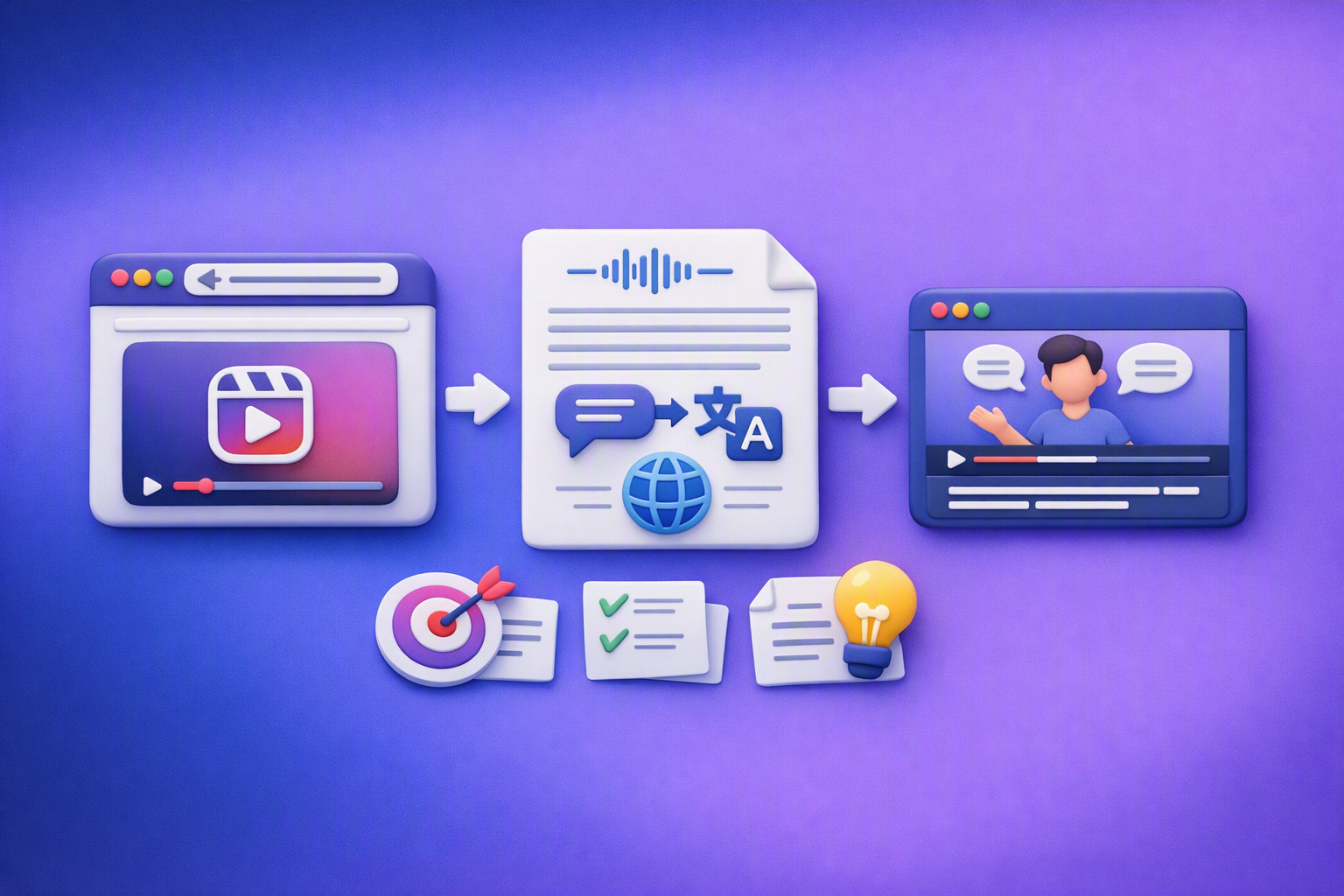
Aprende a traducir un Reel de Instagram con un flujo URL→transcripción→traducción→subtítulos, y a convertir esa traducción en un activo de investigación para hooks, CTAs, objeciones y clusters de contenido.
Reel Analyzer: Transcript‑First Instagram Reels Research (Hooks, CTAs, Objections) + Workflow Guide (VideoToTextAI)
Video To Text AI
A reel analyzer should turn any public Instagram Reel link into a searchable transcript library you can mine for hooks, CTAs, objections, and topic clusters—then repurpose into original drafts with a repeatable SOP.