
“Attachments Disabled for” ChatGPT: What It Means + Fixes That Work (2026) + No‑Upload Video→Text Workflow
 Video To Text AI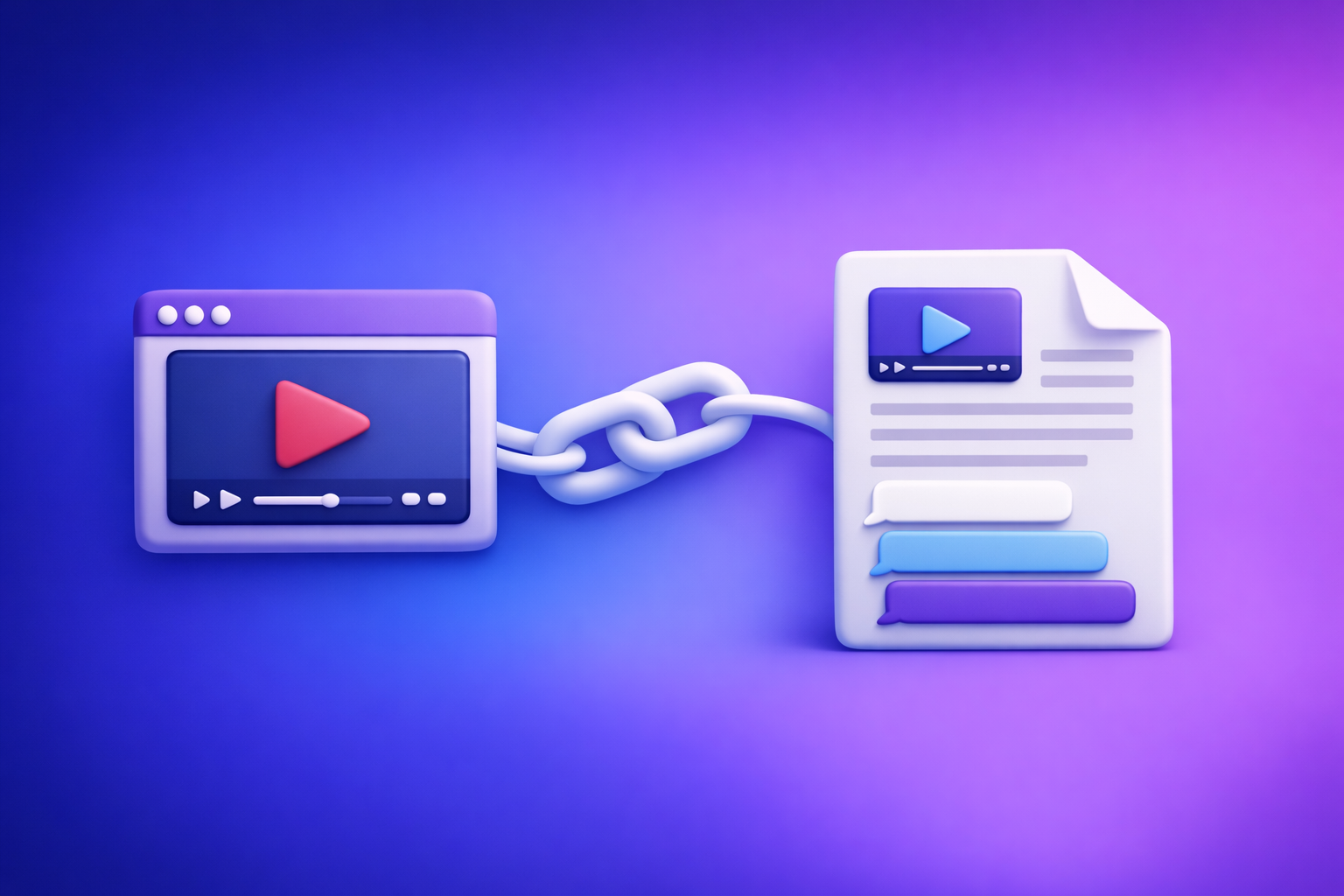
If you see “attachments disabled for …” in ChatGPT, stop trying random re-uploads—it’s almost always a model/chat-context or policy/network restriction. Use the 60‑second triage below to restore attachments, or skip uploads entirely with a link-based video→text workflow that still delivers transcripts, SRT/VTT captions, and repurposed content.
What “attachments disabled for” means in ChatGPT (and what it doesn’t)
The exact behavior you’ll see (UI states)
Common UI states that map to the same underlying issue:
- Paperclip / “Add files” missing entirely
- Upload button visible but greyed out
- An error toast like “attachments disabled for …” (often referencing a model, surface, or workspace)
What it usually indicates
In practice, the message means uploads are disabled in this specific context, such as:
- This model (some models/surfaces don’t support attachments)
- This thread (a stale chat state can “lose” upload capability)
- This environment (workspace policy, managed device controls, browser restrictions, or network security)
What it usually does not mean
Don’t assume the worst. It typically does not mean:
- A permanent account ban
- “Your file is corrupted” (unless you see a file-specific parsing error)
- Definitely a storage/quota issue (possible, but less common than context/policy blockers)
60‑second triage (decision tree)
Use this order to isolate the cause fast (and avoid wasting time on low-probability fixes).
Step 1 — Identify where you’re using ChatGPT (surface)
Attachments can vary by surface:
- Web app vs desktop app vs iOS vs Android
- On web: test an Incognito/Private window (this removes extensions and cached state)
If attachments work in Incognito: you likely have an extension/cache issue.
Step 2 — Confirm the model supports attachments in your current context
Do two things (both matter):
- Switch to a model that supports file/image uploads (if available in your plan)
- Start a new chat after switching models (don’t reuse the same thread)
If a new chat fixes it: you had a thread-level or model-context mismatch.
Step 3 — Check whether it’s a workspace/policy restriction
If you’re on ChatGPT Team/Enterprise/Edu, uploads can be disabled by admins.
- Admin policy can remove the paperclip for everyone
- Managed devices (MDM) can block file pickers or photo access
If your personal account works but workspace doesn’t: it’s policy.
Step 4 — Isolate browser/network blockers
- Try a clean browser profile
- Try a different network (mobile hotspot test)
If hotspot works: your corporate network is filtering upload endpoints.
Step 5 — If you must ship today: bypass uploads (no‑upload workflow)
If you need transcripts/captions/content today, don’t wait on IT.
- Use link-based extraction → transcript/subtitles → paste into ChatGPT
- This avoids downloading/uploading video files entirely (which is increasingly an outdated workflow)
Root causes (ordered by likelihood) + how to confirm each
Surface/model mismatch (most common)
Symptoms
- Attachments work in one chat/model but not another
- “Add files” disappears after switching models or surfaces
Confirmation test
- New chat + different model + refresh
- Check whether the paperclip returns in the new thread
Thread-level state issues (stale chat context)
Symptoms
- Uploads worked earlier in the same thread, then stopped
- UI looks “stuck” (greyed out controls)
Confirmation test
- Start a new chat in the same model
- If attachments return, the old thread state was stale
Workspace policy restrictions (Team/Enterprise/Edu)
Symptoms
- Upload controls missing for all users in the org
- Consistent behavior across browsers/devices for workspace accounts
Confirmation test
- Personal account on the same device/network works; workspace account doesn’t
- Ask a coworker to verify (same org, different machine)
Browser restrictions and extensions
Symptoms
- Upload button present but file picker never opens
- Clicking “Add files” does nothing
Confirmation test
- Incognito mode (no extensions) restores file picker
- Or a clean browser profile works immediately
Network/security controls (VPN, proxy, SSL inspection, firewall)
Symptoms
- Upload UI appears but upload fails instantly or never starts
- Works at home, fails on corporate Wi‑Fi
Confirmation test
- Mobile hotspot works; corporate Wi‑Fi fails
- VPN off changes behavior
Platform permissions (mobile OS)
Symptoms
- iOS/Android can’t access Photos/Files
- No permission prompt appears (or it was denied previously)
Confirmation test
- OS permissions show Photos/Files access is denied
- Enabling permissions restores attachment access
Rate limits / temporary service degradation
Symptoms
- Uploads disabled intermittently
- Other features also flaky (slow responses, UI errors)
Confirmation test
- Status page indicates issues
- Retry later; a new session sometimes works
Fixes that work (step‑by‑step)
Fix 1: Switch model + start a new chat (fastest)
Steps
- Open the model picker
- Select a model known to support attachments (if available in your plan)
- Click New chat
- Confirm the paperclip / “Add files” appears
- Retry upload with a small test file first (50–200 KB)
Why this works
Attachments are often enabled/disabled per model and per thread context. A new thread forces ChatGPT to reinitialize capabilities.
Fix 2: Hard refresh + clear site data (web)
Steps (Chrome/Edge)
- Copy any important prompt text out of the chat
- Clear site data for
chat.openai.com/chatgpt.com(cookies + cache) - Sign in again
- Start a new chat and re-check attachments
Verification
- Upload control appears
- File picker opens reliably
- Upload starts (progress indicator appears)
Fix 3: Disable extensions + test incognito
Steps
- Open an Incognito/Private window
- Sign in
- Start a new chat
- If attachments work: disable extensions in your normal profile one-by-one
Common culprits to test first
- Ad blockers with aggressive rules
- Privacy/script blockers
- Corporate DLP extensions
Tip: If you can’t disable corporate extensions, you may need the no-upload workflow below.
Fix 4: Remove VPN/proxy and re-test on a clean network
Steps
- Disconnect VPN
- Retry upload
- If still blocked: switch to a mobile hotspot
- If hotspot works: your network is filtering upload endpoints
What to tell IT (actionable)
- “ChatGPT file upload endpoints appear blocked; allowlisting is required for file upload functionality.”
Keep it focused on upload endpoints and file picker behavior (IT teams can act on that).
Fix 5: Check workspace/admin settings (Team/Enterprise/Edu)
Steps
- Confirm whether you’re in a managed workspace
- Ask your admin if file/image uploads are disabled by policy
- If policy can’t change: adopt a no-upload workflow (below)
What to request
- Enable attachments for approved users/groups
- Confirm any DLP rules affecting uploads
Fix 6: Mobile permissions reset (iOS/Android)
iOS steps
- Settings → ChatGPT → Photos/Files permissions
- Set to All Photos (or appropriate access)
- Force close app → reopen → retry
Android steps
- Settings → Apps → ChatGPT → Permissions
- Allow Files/Media access
- Clear cache (if needed) → retry
Implementation checklist (copy/paste)
- New chat created after switching model
- Tested in incognito/private window (web)
- Extensions disabled (or confirmed not the cause)
- VPN/proxy off; hotspot test completed
- Workspace policy confirmed (Team/Enterprise/Edu)
- Mobile OS permissions verified (if on iOS/Android)
- If still blocked: switched to link-based no-upload workflow
No‑upload workflow (ship transcripts/subtitles without attachments)
Downloading video files just to re-upload them is an outdated workflow that breaks under modern policy controls (DLP, MDM, restricted networks). Link-based extraction is the future of creator productivity because it’s faster, repeatable, and doesn’t depend on whether a specific chat surface allows attachments.
When to use this
Use this workflow when:
- Attachments are disabled by policy/network
- Upload button is missing across surfaces
- You need transcripts/captions today without waiting on IT
Workflow: Link → transcript/subtitles → paste into ChatGPT
Step 1 — Get the video link (no download)
Use a URL from:
- YouTube
- TikTok
- Direct MP4 URL (where supported)
Step 2 — Generate transcript/captions with VideoToTextAI
Pick the tool that matches your deliverable:
- Video Transcript Generator: video transcript generator
- Video to Text Converter: video to text converter
- YouTube subtitles: free youtube subtitles
Step 3 — Export in the format you need
Export based on downstream use:
- Transcript (TXT) for analysis, summarization, and rewriting
- Captions (SRT/VTT) for editing, publishing, and localization workflows
Step 4 — Paste into ChatGPT (no attachments required)
- Paste the transcript in chunks if needed
- Ask for summary, chapters, titles, hooks, repurposed posts, or an SEO outline
Step 5 — Repurpose into publish-ready assets (optional)
If your goal is content production (not just transcription):
- YouTube → blog draft: youtube to blog
- YouTube → summary: youtube to summary
VideoToTextAI vs Competitors
If ChatGPT attachments are disabled, the key question isn’t “How do I upload?”—it’s “How do I keep producing deliverables without uploads?” Tools differ sharply on link-based input, export formats, and how quickly you get publishable outputs.
Competitors to compare (and why)
- Manual transcription (DIY: YouTube auto-captions + copy/paste): workable in a pinch, but inconsistent and time-heavy.
- Descript: strong editor-first workflow for creators who want to edit audio/video and text together.
- Otter.ai: meeting-first transcription; great for live conversations, less focused on creator link-based video workflows.
- Rev: human/paid transcription service when you need maximum accuracy and can wait.
Comparison criteria this section will cover
- No-upload capability (link-based extraction vs file upload required)
- Output formats (TXT, SRT, VTT) and export speed
- Workflow reliability when ChatGPT attachments are disabled
- Repurposing readiness (blog/social outputs vs raw transcript only)
- Time-to-first-draft (minutes to usable text)
- Privacy/process fit (avoiding downloads/uploads where possible)
Comparison table
| Option | Link-based input (no upload) | Exports (TXT/SRT/VTT) | Repurposing readiness | Best fit | Where it’s weaker |
|---|---|---|---|---|---|
| VideoToTextAI | Yes (built for link workflows) | Yes (transcript + captions) | Strong (transcript → blog/summary tools) | Shipping transcripts/captions and repurposed assets fast when uploads are blocked | If you need a full timeline editor, you may still prefer an editor-first tool |
| Manual (YouTube auto-captions + copy/paste) | Sometimes (YouTube-only) | Limited/awkward (often requires extra steps) | Low (mostly raw text) | Quick one-off, zero tooling | Slow, inconsistent formatting, not operationally repeatable |
| Descript | Not primarily link-first (commonly project/import driven) | Yes (varies by workflow) | Medium–High (editing-centric) | Creators who want to edit media and transcript together | Extra steps if your constraint is “no uploads allowed” |
| Otter.ai | Not primarily link-first (meeting-first) | Yes (transcripts) | Medium (notes/summaries) | Meetings, interviews, live capture | Less aligned to link-based creator video pipelines |
| Rev | Not link-first (service workflow) | Yes (deliverables depend on order) | Low–Medium (you still repurpose elsewhere) | Highest-stakes accuracy with human review | Slower turnaround; not ideal for rapid iteration |
Why VideoToTextAI wins when attachments are disabled
- Workflow speed: link → transcript/captions → paste into ChatGPT, without debugging upload UI.
- Link-based input: avoids downloading large video files and re-uploading them (a fragile, policy-prone process).
- Exports: practical formats (TXT for analysis, SRT/VTT for publishing) so you can ship real deliverables.
- Operational repeatability: the same steps work across locked-down workspaces and restricted networks.
Fair note: Descript can be better if your primary job is editing audio/video with a timeline. Rev can be better when you need human-verified accuracy and can wait.
Competitor Gap
What most “attachments disabled for ChatGPT” guides miss
- A production-safe fallback that doesn’t depend on restoring uploads
- A repeatable decision tree that isolates model/thread vs policy vs network (in order)
- Concrete deliverables: transcript + SRT/VTT + repurposing outputs, not just “try another browser”
How this post closes the gap
- 60-second triage plus ordered root-cause isolation
- Step-by-step fixes per environment (web/mobile/workspace)
- A link-based VideoToTextAI workflow so you keep shipping even when uploads are blocked
FAQ (People Also Ask aligned)
Why does ChatGPT say “attachments disabled for” my account?
Because attachments are disabled in your current context—often the model/thread you’re in—or blocked by workspace policy, browser restrictions, or network security. It’s usually not a permanent account issue.
How do I enable attachments in ChatGPT?
Try, in order:
- Switch to a model that supports uploads (if available) and start a new chat
- Test in Incognito (extensions off)
- Clear site data and re-login
- Remove VPN/proxy and test on a hotspot
- If in Team/Enterprise/Edu, ask your admin to enable uploads
Why is the “Add files” button missing in ChatGPT?
Most commonly:
- You’re on a surface/model that doesn’t support attachments in that context
- Your workspace admin disabled uploads
- A browser extension or managed device policy is blocking the file picker
Are attachments disabled in ChatGPT Team/Enterprise by admin policy?
They can be. Many orgs disable uploads for compliance/DLP reasons. Confirm by testing a personal account or asking another user in the same workspace.
What can I do if uploads are blocked on my work network?
Use a no-upload workflow: generate transcript/subtitles from a video link, export TXT/SRT/VTT, then paste into ChatGPT. If you need a long-term fix, provide IT with a clear request to allowlist ChatGPT upload endpoints.
Related internal guides (for deeper troubleshooting)
- “Attachments Disabled for” ChatGPT: What It Means, Why It Happens, and Fixes (Plus a No-Upload Video→Text Workflow)
- “Add Files Is Unavailable” in ChatGPT: What It Means, Fixes That Work (2026), and a No‑Upload Video→Text Workflow
- “Add Files” Button Unavailable in ChatGPT (2026): Causes, Fixes (Step-by-Step) + No-Upload Video→Text Workflow
- “Max 0 Uploads at a Time” Rate Limit in ChatGPT: What It Means, Why It Happens, and Fixes (Plus a No-Upload Video→Text Workflow)
- ChatGPT “Upload Video” Feature (2026): How to Use It, What It Can Analyze, Real Limits, and a Reliable No-Upload Workflow
- Attachments Disabled in ChatGPT Image Upload: Fix It Fast + No‑Upload Workflow
One operational takeaway
If your process depends on “download a video → upload it somewhere,” you’ll keep hitting preventable blockers (policy, network filtering, device controls). Move to link-based extraction and keep your production line running—start at https://videototextai.com.
Related posts
Reel Analyser (Instagram Reels): Transcript‑First Competitor Research, Hook/CTA Extraction, and Repurposing Workflow (VideoToTextAI)
Video To Text AI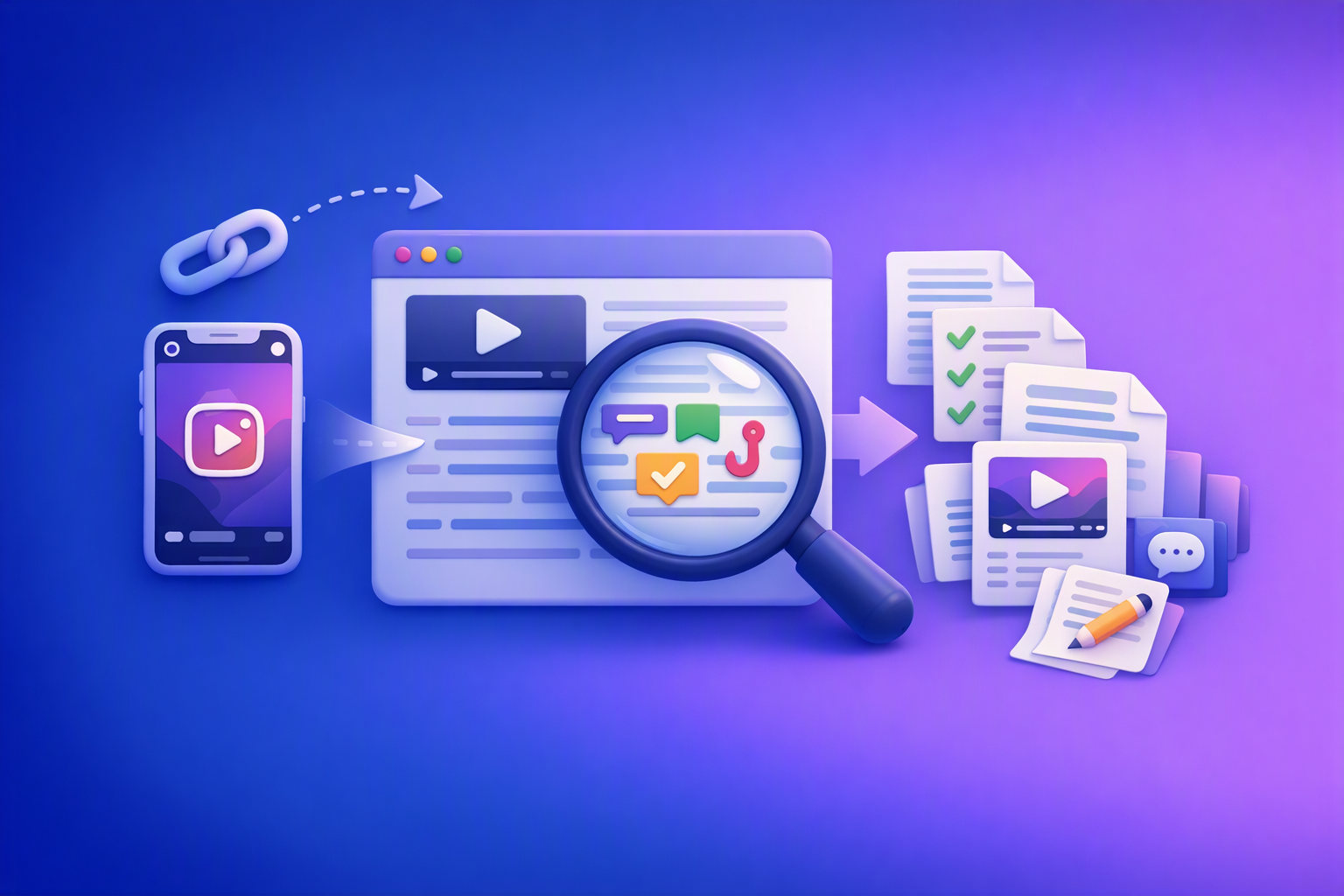
A 2026 reel analyser should turn Instagram Reel links into a searchable transcript library you can tag for hooks, CTAs, objections, and topic clusters—then export into repurposing-ready drafts without a download/upload loop.
Traducir video de Instagram (Reels) en 2026: workflow transcript-first para traducir, sacar hooks/CTAs y repurpose (con VideoToTextAI)
Video To Text AI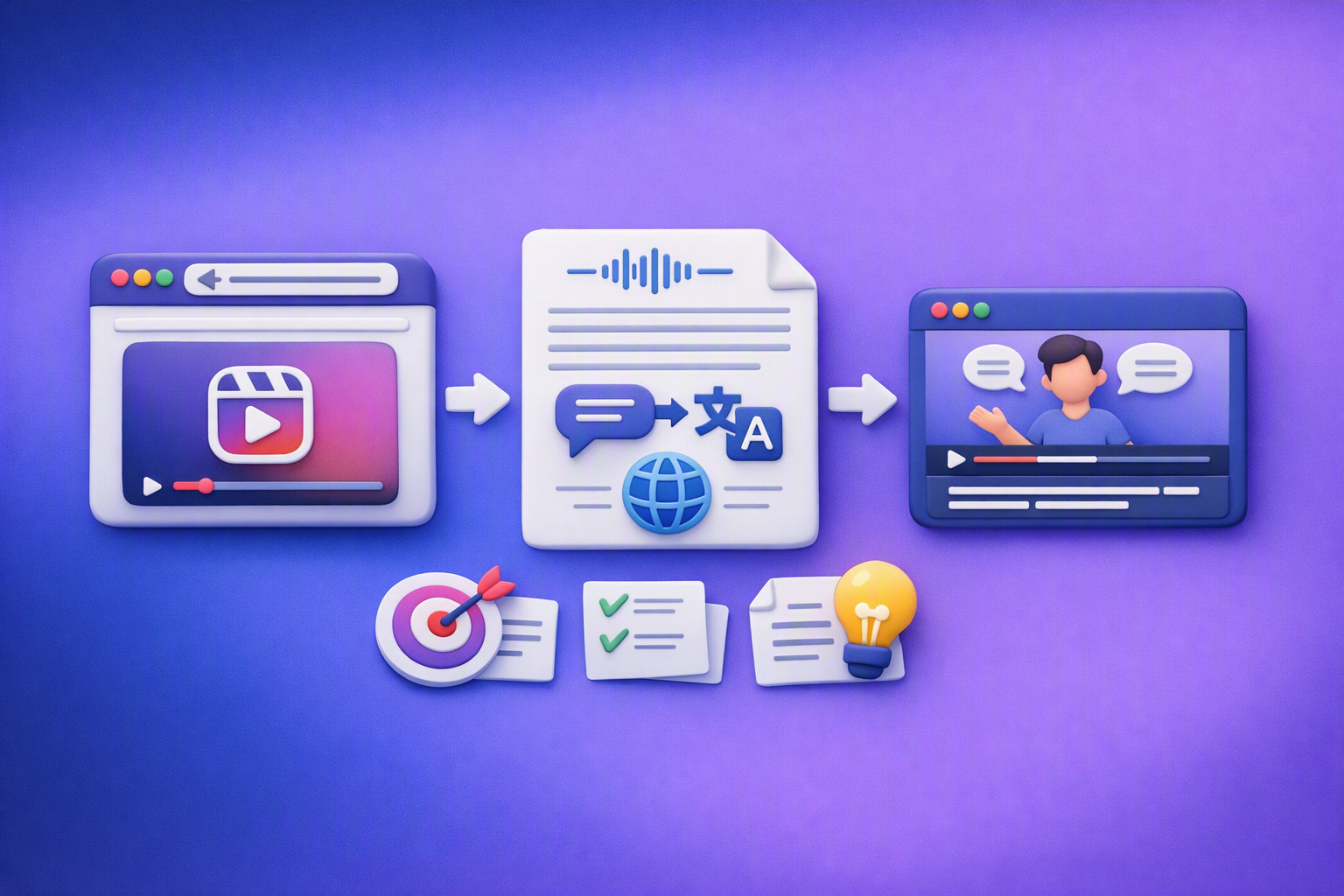
Aprende a traducir un Reel de Instagram con un flujo URL→transcripción→traducción→subtítulos, y a convertir esa traducción en un activo de investigación para hooks, CTAs, objeciones y clusters de contenido.
Reel Analyzer: Transcript‑First Instagram Reels Research (Hooks, CTAs, Objections) + Workflow Guide (VideoToTextAI)
Video To Text AI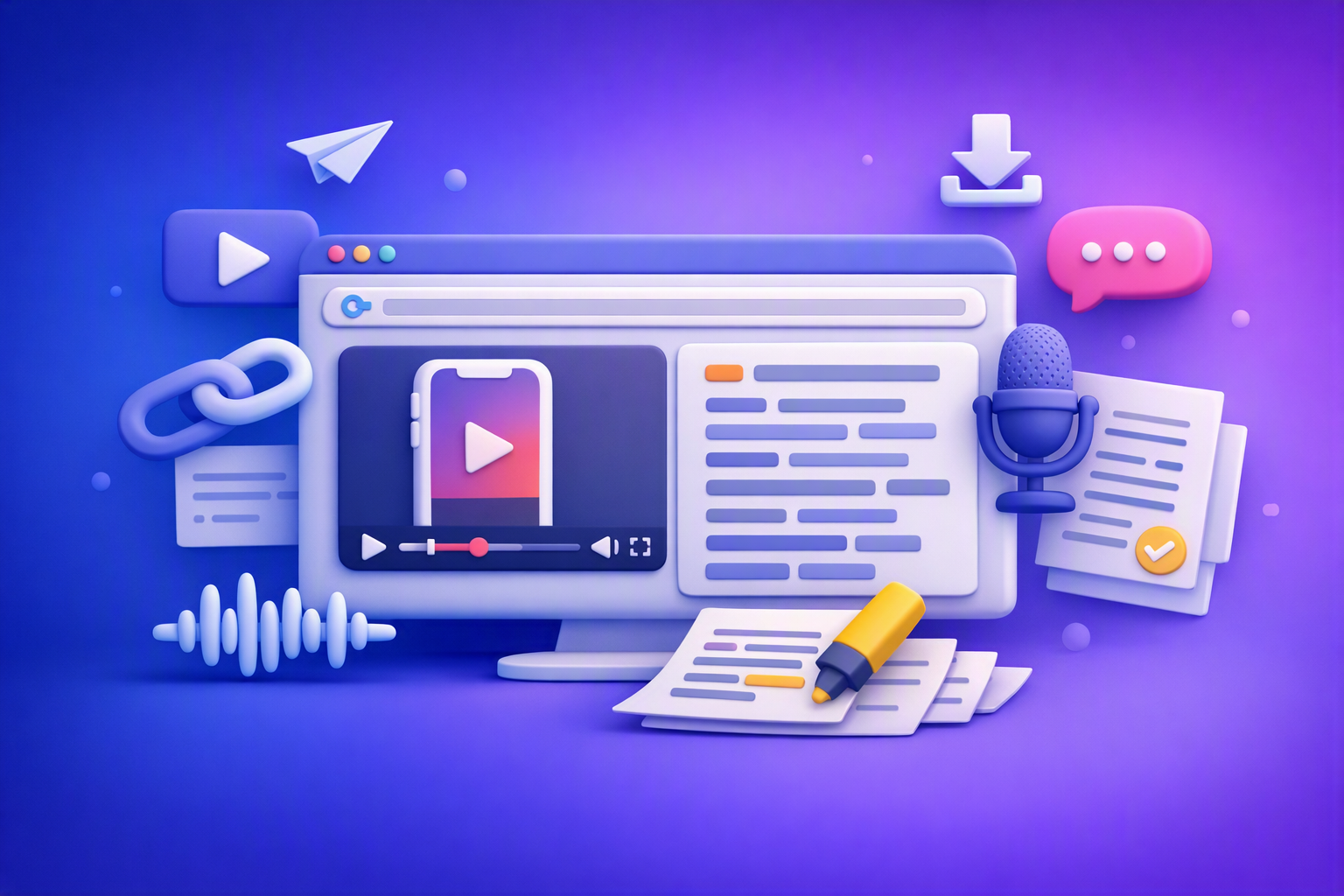
A reel analyzer should turn any public Instagram Reel link into a searchable transcript library you can mine for hooks, CTAs, objections, and topic clusters—then repurpose into original drafts with a repeatable SOP.