
“Add Files” Button Unavailable in ChatGPT (2026): Causes, Fixes (Step-by-Step) + No-Upload Video→Text Workflow
 Video To Text AI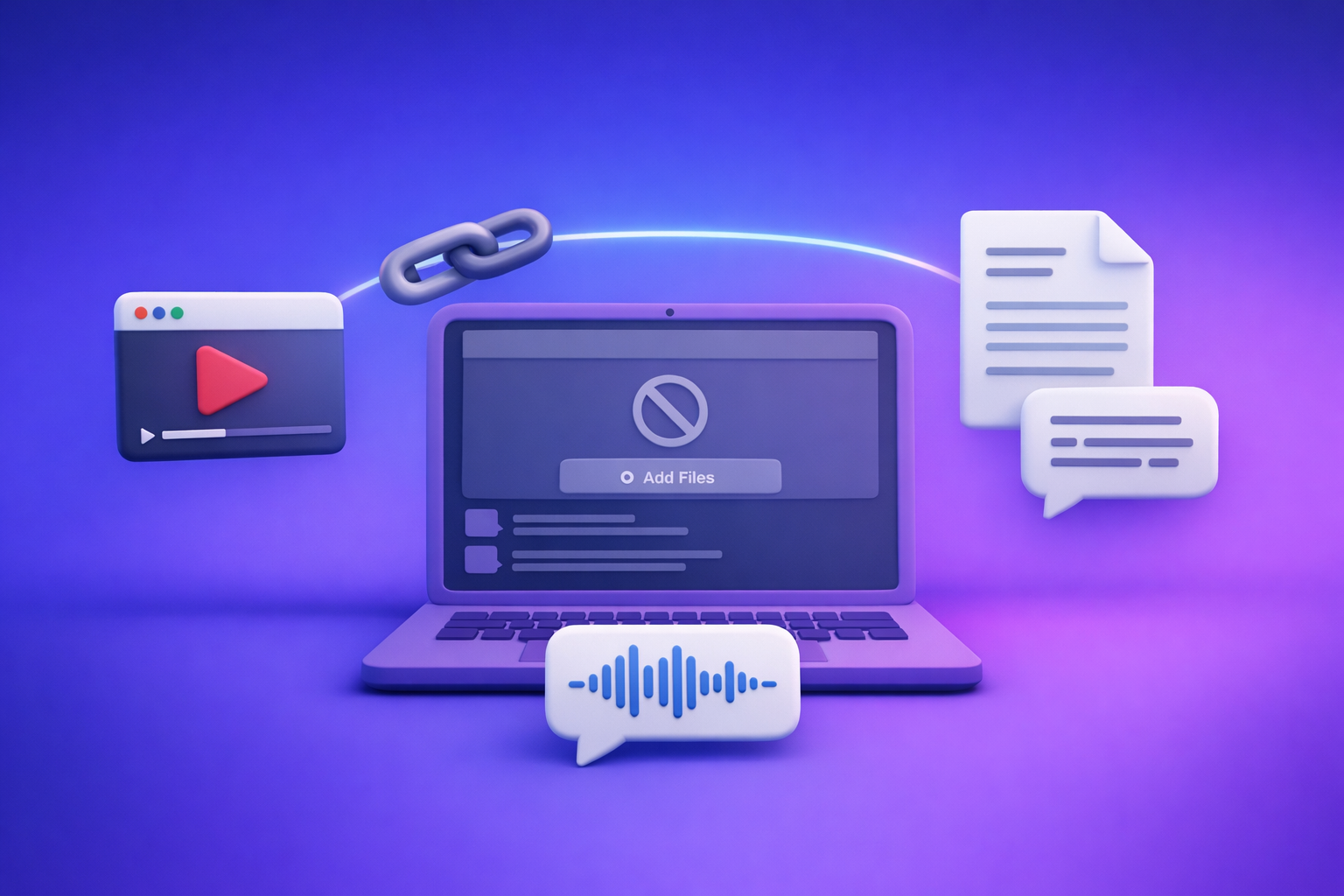
If the “add files” button is unavailable in ChatGPT, you can usually restore it in under 10 minutes by isolating surface vs model vs policy vs environment. If uploads are blocked permanently (common in work/school accounts), skip the fight and use a no-upload, link-based video→text workflow that produces TXT + SRT/VTT you can paste into ChatGPT.
What “Add Files” Button Unavailable Actually Means
When people say the “Add Files” (paperclip or “+”) button is missing or disabled, they’re typically seeing one of four root-cause buckets.
The 4 buckets that cause missing/disabled uploads
- Surface mismatch (web vs desktop wrapper vs mobile)
- In-app browsers (opened inside Gmail/Slack/LinkedIn) often break file pickers and permissions.
- Mobile web can behave differently than the native iOS/Android app.
- Model/capability mismatch (chat type doesn’t support attachments)
- Some chat modes or models don’t expose attachments/tools.
- A thread created under a different mode can “lock in” capabilities.
- Account/workspace policy (Enterprise/Edu/admin restrictions)
- Admin-managed workspaces can disable attachments for compliance/DLP.
- The UI may be hidden entirely, not just disabled.
- Environment blocks (browser, extensions, network, device storage)
- Privacy/ad/script blockers can prevent the upload control from rendering.
- Corporate proxies/VPNs can block upload endpoints.
- Device storage permissions can prevent file selection on mobile.
Fast triage: identify which bucket you’re in (60 seconds)
Answer these in order:
-
Is the paperclip/“+” missing or present-but-disabled?
- Missing usually points to surface/model/policy.
- Disabled often points to model/thread state or policy/rate.
-
Does it fail in a new chat vs only one thread?
- If only one thread: likely thread/model state.
- If every thread: likely surface/policy/environment.
-
Does it fail on another browser/device/network?
- If it works elsewhere: it’s browser extensions or network controls.
-
Are you in a workspace (admin-managed) account?
- If yes: assume policy until proven otherwise.
Step-by-Step Fix: Restore the “Add Files” Button (2–10 minutes)
Work top-down. Don’t skip steps—this is a decision tree, not a random list.
Step 1 — Confirm you’re on a surface that supports attachments
- Avoid in-app browsers. If ChatGPT opened inside another app, copy the URL and open it in Safari/Chrome directly.
- Test both:
- Desktop web app in a standard browser
- Official iOS/Android app (if available to you)
If uploads appear in one surface but not another, you’ve found the cause: surface mismatch.
Step 2 — Start a clean chat + switch model/capability
- Create a new chat (don’t reuse an old thread).
- Switch to a model/chat mode that supports file uploads in your plan (if the UI offers options).
- If you see tools toggles, ensure attachments/tools are enabled for that chat.
Why this works: attachment capability is often per-chat-mode and can be sticky per thread.
Step 3 — Hard refresh + sign out/in (eliminate stale session state)
- Do a hard reload (not a normal refresh).
- Sign out → sign in.
- Test in an incognito/private window (no cached storage, no extensions by default).
If incognito fixes it, your issue is almost always cookies/storage corruption or extensions.
Step 4 — Browser isolation (most common root cause)
Disable blockers that break upload UI
Temporarily disable, then retest:
- Ad blockers / privacy extensions
- Script blockers
- “Download managers”
- Security extensions that intercept file dialogs or rewrite requests
If the button returns after disabling one extension, you’ve identified the culprit. Keep it off for ChatGPT or add a site exception.
Clear site data (targeted, not “clear everything”)
Clear only ChatGPT site data:
- Cookies
- Local storage / site storage
- Cached files (for the domain)
Then reopen ChatGPT and test upload again.
Test a known-good baseline
Use a clean baseline to confirm it’s not your browser profile:
- Chrome or Edge
- No extensions
- Default settings (avoid experimental flags)
If baseline works, rebuild your normal setup by re-enabling extensions one-by-one.
Step 5 — Network isolation (common in workplaces/schools)
Uploads can be blocked even when the chat loads fine.
- Switch from corporate Wi‑Fi → personal hotspot
- Disable VPN/proxy temporarily
- If on a managed network: ask IT about
- blocked domains
- blocked upload endpoints
- DLP rules that disable file transfer
If hotspot fixes it, the cause is network policy, not your device.
Step 6 — Workspace/admin policy checks (when nothing else works)
If you’re in Enterprise/Edu:
- Confirm whether your org disables attachments for compliance.
- If permitted, test with a personal account to confirm it’s policy-related.
- If policy-blocked, stop burning time and jump to the no-upload workflow below.
Step 7 — File-specific constraints (only after UI is confirmed working)
Once the UI is present and clickable, isolate file constraints:
- Try a tiny file first (small TXT).
- Rename the file to remove special characters (
# % & ? / \). - Avoid uncommon formats; test PDF/TXT/JPG first.
If small common files work but your target file fails, it’s likely type/size constraints.
Error Pattern Decoder: What You See → What It Usually Means
Button missing entirely
Usually one of:
- Wrong surface (in-app browser, mobile web quirks)
- Unsupported chat mode/model for attachments
- Workspace policy hiding the control
Button present but greyed out
Usually one of:
- Current thread/model doesn’t allow attachments
- Tools/attachments toggles disabled for that chat
- Policy/rate controls active on the account/workspace
Upload dialog opens but fails
Usually one of:
- Extension interception (privacy/security/download manager)
- Network/proxy blocking upload endpoints
- File size/type constraints
Implementation Checklist (Copy/Paste)
- New chat created (not an old thread)
- Model/chat mode switched to one that supports attachments (if available)
- Tested in Chrome/Edge incognito with all extensions off
- Cleared site data for the ChatGPT domain (cookies + storage)
- Tested on a second network (hotspot) and without VPN/proxy
- Tested on a second device (phone app vs desktop web)
- Confirmed whether workspace/admin policy disables uploads
- If still blocked: used no-upload link-based workflow (below)
No-Upload Workaround: Ship Transcripts/Subtitles Without “Add Files”
Here’s the operational reality: downloading video files just to upload them again is an outdated workflow. Link-based extraction is the future of creator productivity because it’s faster, repeatable, and works even when attachment UIs are blocked by policy or networks.
When to use this
Use a no-upload workflow when:
- Upload UI is missing due to policy/network controls
- Uploads fail intermittently (extensions, proxies, unstable sessions)
- You need reliable outputs (TXT + SRT/VTT) for publishing and repurposing
Workflow A — Link → Transcript/Subtitles → Paste into ChatGPT
- Copy the public video link (YouTube/Instagram/TikTok/hosted video page).
- Generate transcript/captions with VideoToTextAI (link-based).
- Export as TXT + SRT/VTT.
- Paste the transcript into ChatGPT for:
- summarization
- repurposing into posts/scripts
- SEO drafts
- Q&A and knowledge extraction
Best-fit VideoToTextAI tools (choose by source):
- YouTube transcripts/subtitles: free youtube subtitles
- Universal transcript generation: video transcript generator
- Convert video to text (general): video to text converter
- Instagram link → transcript: instagram transcript from link
- TikTok link → transcript: tiktok transcript generator
- Turn YouTube into a publishable article: youtube to blog
Workflow B — MP4 already on disk but ChatGPT upload is blocked
If you already have the file locally and ChatGPT won’t accept uploads:
- MP4 → transcript: mp4 to text
- MP4 → captions: mp4 to srt
Then paste the transcript/captions into ChatGPT for editing, formatting, and repurposing.
Output checklist (so ChatGPT can work cleanly)
- Transcript includes speaker labels (if available/needed)
- Captions exported as SRT or VTT for publishing
- Transcript chunked into <1,500–2,000 words per paste if ChatGPT truncates
- Include the video title + link at the top for context
VideoToTextAI vs Competitors
When ChatGPT uploads are unavailable, the “best” tool is the one that keeps production moving without attachment dependencies—especially on restricted networks or admin-managed accounts.
Because the provided research block contains no competitor profiles, the only factual comparison we can make here is workflow criteria (not pricing/limits/features of specific third-party tools).
| Criteria that matters when ChatGPT uploads are unavailable | VideoToTextAI | Typical upload-dependent approach (generic) | Typical transcript-only approach (generic) |
|---|---|---|---|
| Link-based ingestion (no file upload required) | Yes (URL-first workflows) | No (requires local file selection) | Sometimes (often limited by platform/source) |
| Export formats for publishing | TXT + SRT/VTT outputs | Varies; often blocked by upload failures | Often TXT only; captions may be limited |
| Operational repeatability on restricted networks | High (works from links; fewer UI upload points) | Lower (UI + endpoint blocks common) | Medium (depends on source and export needs) |
| Repurposing workflows (video → blog/social) | Supported via dedicated tools (e.g., YouTube → blog) | Not inherent; depends on LLM attachments | Usually transcript-only; repurposing is manual |
Why VideoToTextAI wins in practice (speed + repeatability):
- No attachment UI dependency: you start from a URL, generate assets, and paste text anywhere.
- Cleaner handoff to ChatGPT: TXT for reasoning + SRT/VTT for publishing means fewer formatting failures.
- Faster team workflows: link-based extraction is easier to standardize across browsers, devices, and managed workspaces.
Where a narrower tool might be better:
If your only requirement is a quick on-platform transcript preview (no exports, no repurposing), a transcript-only solution can be sufficient. But for production outputs and repeatable ops, exports and link-based ingestion matter more.
To standardize your team’s workflow around link-based extraction (instead of downloading/uploading files), start here: VideoToTextAI
Competitor Gap
Most “fix the button” guides stop at generic advice like “clear cache” or “try another browser.” That’s not enough for teams who need predictable output.
What this post covers that most miss:
- A decision tree that isolates surface vs model vs policy vs environment in under 10 minutes
- A production-safe fallback that doesn’t depend on ChatGPT attachments at all
- Concrete export targets (TXT + SRT/VTT) and a paste-ready workflow for ChatGPT
- A checklist to prevent repeated failures across teams (browser baseline + network baseline + policy confirmation)
FAQ (People Also Ask)
Why is the “Add files” button missing in ChatGPT?
Most often you’re on an unsupported surface (in-app browser), using a chat/model mode without attachments, or your workspace admin hides attachments via policy. Less commonly, a browser extension prevents the control from rendering.
How do I enable file uploads in ChatGPT?
You can’t “force enable” uploads if your surface/model/policy doesn’t allow it. Practically, you enable uploads by: starting a new chat, switching to a mode that supports attachments (if available), and testing in a clean browser profile with extensions off.
Why does ChatGPT say uploads are unavailable even with a paid plan?
Paid plans don’t override workspace admin restrictions, network DLP/proxy blocks, or surface limitations. It can also happen due to stale session state, extension interference, or chat-mode tool toggles.
Can I still get a transcript if ChatGPT won’t let me upload a video?
Yes. Use a link-based workflow to generate a transcript and captions (TXT + SRT/VTT), then paste the text into ChatGPT for summarization, SEO drafts, repurposing, and Q&A.
Does a work/school account block ChatGPT attachments?
It can. Enterprise/Edu admins often disable attachments for compliance. If hotspot + personal account works but workspace doesn’t, it’s almost certainly policy.
Related posts (internal links)
- “Max 0 Uploads at a Time” Rate Limit in ChatGPT: What It Means, Why It Happens, and Fixes (Plus a No-Upload Video→Text Workflow)
- ChatGPT “Upload Video” Feature (2026): How to Use It, What It Can Analyze, Real Limits, and a Reliable No-Upload Workflow
- “Attachments Disabled for” ChatGPT: Meaning, Root Causes, Fixes That Work (2026) + a No-Upload Video→Text Workflow
- “Add Files Is Unavailable” in ChatGPT: Causes, Fixes (Step‑by‑Step), and a No‑Upload Video→Text Workflow
- Attachments Disabled in ChatGPT Image Upload: Fix It Fast + No‑Upload Workflow
- “Add Files” Button Unavailable in ChatGPT: Causes, Fixes That Work (2026) + a No‑Upload Video→Text Workflow
Related posts
Reel Analyser (Instagram Reels): Transcript‑First Competitor Research, Hook/CTA Extraction, and Repurposing Workflow (VideoToTextAI)
Video To Text AI
A 2026 reel analyser should turn Instagram Reel links into a searchable transcript library you can tag for hooks, CTAs, objections, and topic clusters—then export into repurposing-ready drafts without a download/upload loop.
Traducir video de Instagram (Reels) en 2026: workflow transcript-first para traducir, sacar hooks/CTAs y repurpose (con VideoToTextAI)
Video To Text AI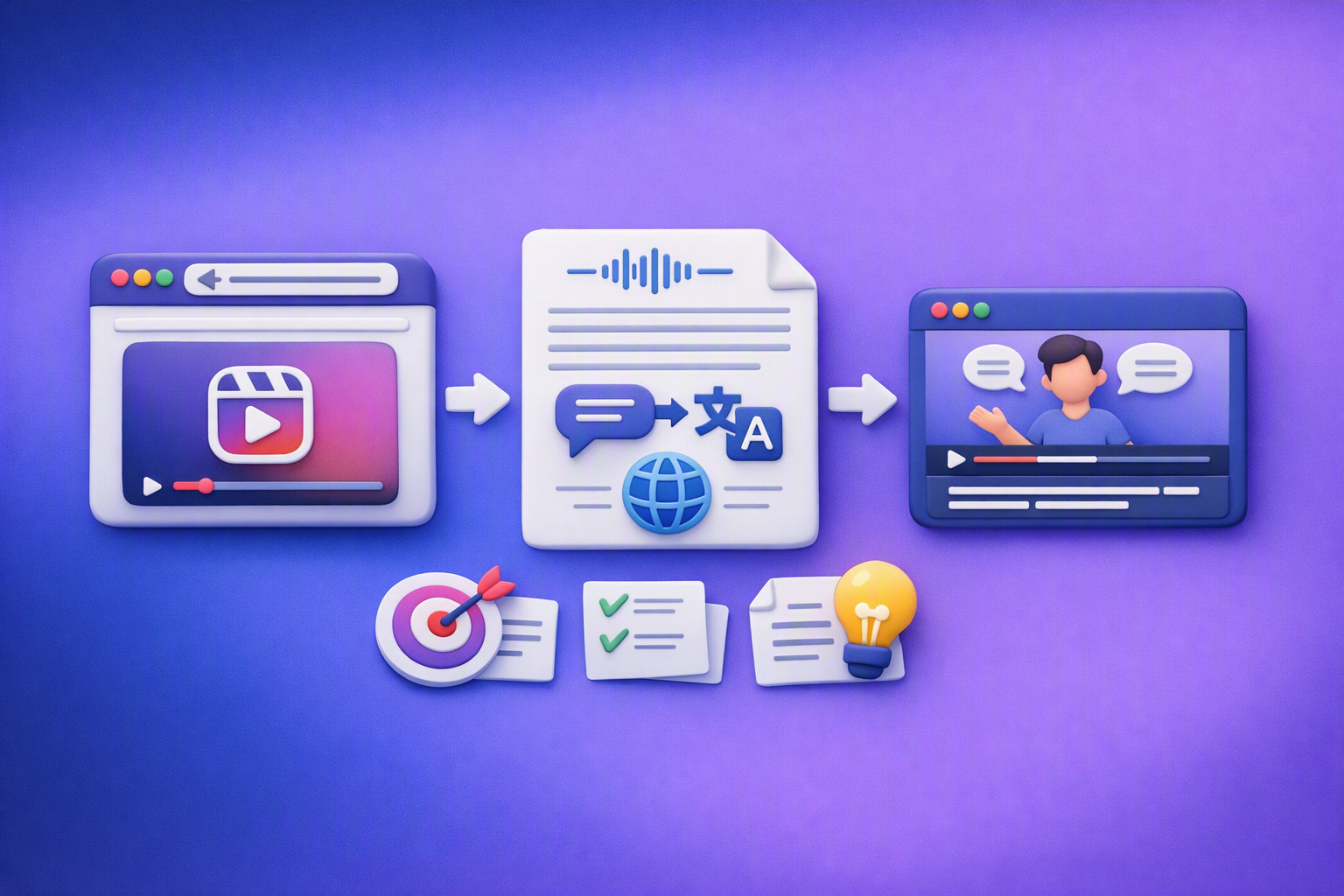
Aprende a traducir un Reel de Instagram con un flujo URL→transcripción→traducción→subtítulos, y a convertir esa traducción en un activo de investigación para hooks, CTAs, objeciones y clusters de contenido.
Reel Analyzer: Transcript‑First Instagram Reels Research (Hooks, CTAs, Objections) + Workflow Guide (VideoToTextAI)
Video To Text AI
A reel analyzer should turn any public Instagram Reel link into a searchable transcript library you can mine for hooks, CTAs, objections, and topic clusters—then repurpose into original drafts with a repeatable SOP.