
“Add Files Unavailable” in ChatGPT: What It Means, Fixes That Work, and a No-Upload Video→Text Workflow (2026)
 Video To Text AI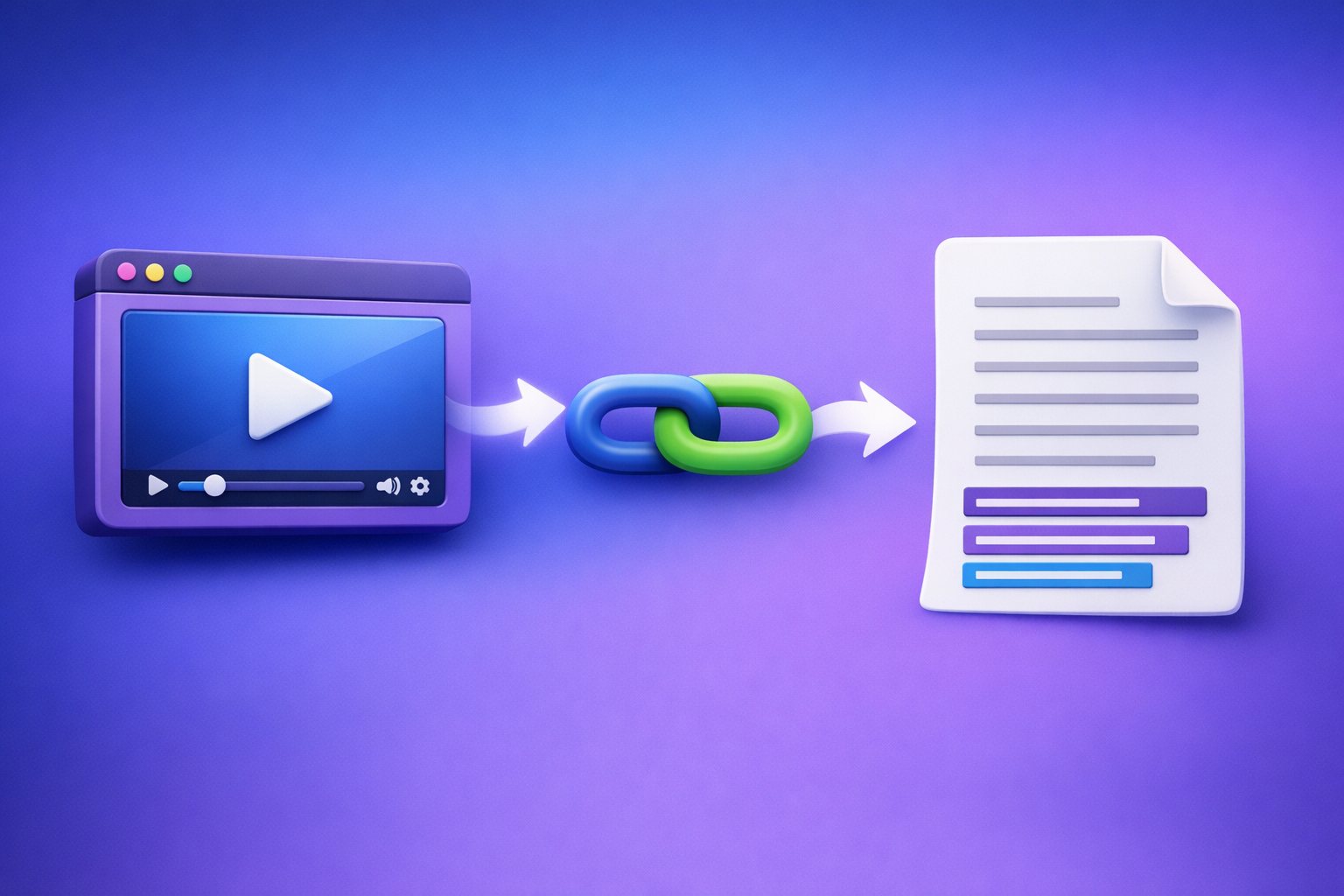
If ChatGPT says “add files unavailable”, stop retrying the same upload—uploads are disabled in your current context, so your “fix” is to change the context (model/surface/workspace/environment). Use the 2-minute isolation flow below to restore uploads fast, or skip uploads entirely with a link → transcript/captions → paste into ChatGPT workflow.
Brand POV (and why it matters): Downloading video files just to re-upload them is an outdated workflow. Link-based extraction is the future of creator productivity because it’s faster, more repeatable, and less fragile than UI-dependent uploads.
Quick answer: what “add files unavailable” usually means
The core idea: uploads are disabled in your current context (not “your file is bad”)
When you see “Add files unavailable” (or the button is missing/greyed out), it usually means ChatGPT isn’t offering file tools in this chat—or something in your environment is blocking them.
The 3 most common buckets
- Model/surface mismatch: uploads aren’t enabled in this chat, model, or app surface.
- Account/workspace entitlement or admin policy blocks: Team/Enterprise policies can disable attachments.
- Local environment blocks: browser profile issues, extensions, corporate proxy/DLP, or network filtering.
Symptoms checklist (identify your exact failure mode first)
UI states to note (each points to different root causes)
- “Add files” button missing entirely
Often model/surface limitation or workspace policy. - “Add files” greyed out / tooltip says unavailable
Often thread-level capability flag, entitlement gating, or policy restriction. - File picker opens, but upload fails (403/unknown error)
Often network/proxy/DLP, blocked endpoints, or file-level constraints. - Upload works in one chat but not another
Strong signal of thread/model/surface mismatch.
Capture evidence before changing anything (saves time)
Write down these five items first:
- App/surface: Web vs iOS vs Android vs desktop wrapper
- Model selected in the thread
- Account context: personal vs Team/Enterprise workspace
- Network type: home vs corporate vs VPN vs hotspot
- Extensions/security tooling enabled (ad blockers, privacy tools, DLP)
2-minute diagnosis: isolate the cause before you try fixes
Step 1 — Confirm you’re on a surface that supports uploads
Uploads can vary by surface.
- Web app is typically the most consistent for file tools.
- Mobile apps can differ by version and account context.
- Desktop “wrappers” (non-native shells) can break upload UI and permissions.
Fast test: open ChatGPT in a standard browser (Chrome/Safari/Firefox) and re-check the UI.
Step 2 — Start a new chat and switch models (fastest isolation test)
This is the quickest way to detect a thread-level capability flag.
- Start a new conversation.
- Switch models (if you have options) and re-check whether Add files appears.
Why a new thread matters: some capabilities are effectively “sticky” per thread.
What “works in one chat but not another” indicates: context mismatch, not your file.
Step 3 — Check whether you’re in a workspace with attachment restrictions
If you’re in a managed workspace, attachments can be disabled by policy.
How to tell you’re in Team/Enterprise:
- You see a workspace name or org context in the UI.
- You can switch between personal and workspace contexts.
What to ask an admin to verify:
- Whether attachments/file tools are enabled for ChatGPT
- Whether uploads are restricted by policy, region, or compliance settings
Step 4 — Test a clean browser state (incognito + extensions off)
Incognito/private mode is a controlled experiment:
- No (or fewer) extensions
- Fresh cookies/session storage
If uploads appear in incognito, your issue is likely:
- cached session/entitlement state, or
- an extension blocking scripts/UI.
Step 5 — Test a different network (hotspot test)
Corporate networks commonly block upload endpoints via:
- proxy inspection
- DLP tooling
- DNS filtering
- firewall rules
Fast test: switch to a phone hotspot.
If hotspot works and corporate doesn’t, it’s network-level, not account-level.
Why “Add files unavailable” happens (root causes + how to verify)
Root cause A — Model/surface limitation (uploads not enabled here)
Verification: same account shows the button on a different model or surface.
Root cause B — Plan/entitlement gating or temporary feature rollout
Features can be gated or rolled out unevenly.
Verification: feature present on one device/account but not another (with the same steps).
Root cause C — Workspace/admin policy disables attachments
Verification: only happens inside a managed workspace; personal account works.
Root cause D — Browser profile corruption (cookies/storage) or blocked scripts
Verification: incognito works; main profile fails.
Root cause E — Extensions/security tooling (ad blockers, privacy tools, DLP)
Verification: disabling extensions restores the button.
Priority suspects:
- ad blockers / privacy blockers
- script blockers
- corporate DLP/browser security extensions
Root cause F — Network restrictions (proxy, firewall, DNS filtering)
Verification: hotspot works; corporate network fails.
Root cause G — File-level constraints that look like “unavailable”
Sometimes “unavailable” is a misleading symptom of a file constraint:
- unsupported type
- encrypted/password-protected files
- oversized files
Verification: a small TXT upload succeeds; the target file fails.
Fixes: ordered playbook (fastest wins first)
1) New chat + switch to an upload-capable model/surface
Do this first. It’s the highest-leverage test and often the real fix.
- New chat
- Switch model
- Try web surface if you were on mobile/wrapper
2) Hard refresh + sign out/in (forces entitlement re-check)
- Web: hard reload (Ctrl+F5 / Cmd+Shift+R), then sign out/in
- Mobile: fully close the app, relaunch, sign out/in if needed
3) Clear site data for ChatGPT (targeted, not “nuke everything”)
Clear cookies + local storage for the ChatGPT domain only.
This resets stale capability flags without wiping your entire browser.
4) Disable extensions (priority list to test first)
Disable and retry in this order:
- ad blockers
- privacy/script blockers
- corporate security/DLP extensions
5) Try another browser/device (separates local vs account issues)
- Chrome ↔ Safari/Firefox
- Mobile ↔ web
If it works elsewhere, your account is likely fine—your environment isn’t.
6) Switch networks (hotspot test) and toggle VPN
- Try VPN off, then VPN on
- Try a hotspot
This isolates proxy/firewall/DNS filtering quickly.
7) If in a workspace: request the exact admin change
Ask your admin to verify/enable:
- Attachments / file tools for ChatGPT
- Any restrictions tied to compliance, region, or data controls
When uploads are blocked: ship anyway with a no-upload “verified text in → AI out” workflow
If uploads remain blocked, don’t stall your deliverables. Use a workflow that doesn’t depend on ChatGPT file upload UI.
What you’ll produce (deliverables that don’t require ChatGPT file upload)
- Transcript (TXT) for summarization, blog drafts, and repurposing
- Captions/subtitles (SRT/VTT) for publishing workflows
- Clean excerpts/hooks for social posts and newsletters
Step-by-step: Video link/MP4 → transcript/captions → paste into ChatGPT (production-safe)
This is the operationally repeatable alternative to “download video → upload to ChatGPT → hope it works.”
Step 1 — Generate a transcript from a link (no download/upload loop)
Use VideoToTextAI for link-based extraction from common creator sources.
Recommended entry points by source:
- video to text converter
- video transcript generator
- instagram transcript from link
- tiktok transcript generator
If your source is YouTube and you want a fast content pipeline, you can also go straight to repurposing outputs:
Step 2 — Export the right format for the job (TXT vs SRT vs VTT)
Choose based on the downstream task:
- TXT: best for ChatGPT analysis, summarization, SEO writing, and repurposing
- SRT/VTT: best for subtitles/captions and editing tools
Caption-specific exports:
Step 3 — QA the transcript quickly (2-minute accuracy pass)
Do a quick pass before you paste into ChatGPT:
- Fix proper nouns (people, brands, product names)
- Confirm speaker turns if you need attribution
- Spot-check timestamps if using SRT/VTT
This is how you keep outputs deterministic and publishable.
Step 4 — Paste transcript into ChatGPT with a deterministic prompt
Keep prompts constrained so the model stays grounded in your source.
Prompt template (repurposing):
You are an editor. Using the transcript below, produce: (1) 10-bullet summary, (2) 5 SEO titles, (3) blog outline, (4) 1,200-word draft. Keep claims grounded in transcript. Transcript: …
Prompt template (captions):
Rewrite these captions for clarity while preserving meaning. Keep line length < 42 chars, keep timestamps unchanged. Captions: …
Step 5 — Repurpose into publishable assets (fast paths)
If you’re repurposing short-form content, these are direct paths:
Implementation checklist (copy/paste)
Troubleshooting checklist (restore uploads)
- Start a new chat and re-check the “Add files” UI
- Switch model and re-check upload availability
- Confirm surface (web vs iOS/Android) and retry
- Sign out/in + hard refresh
- Incognito test (no extensions)
- Disable extensions (ad/privacy/DLP) and retry
- Hotspot test (confirm network block)
- If workspace: request admin enablement for attachments/file tools
No-upload workflow checklist (ship today)
- Paste a video link into VideoToTextAI and generate transcript
- Export TXT for ChatGPT; export SRT/VTT for captions
- Run 2-minute QA (names, terms, timestamps)
- Paste transcript/captions into ChatGPT with a constrained prompt
- Produce blog draft + social cutdowns + caption revisions
VideoToTextAI vs Competitors
The key operational difference is input method. Tools that require uploads force a fragile “download → upload” loop, while link-based extraction is faster and more repeatable for creators and teams.
| Tool | Link-based input (URL → transcript) | Upload-based workflow | Export readiness (TXT/SRT/VTT) | Best fit (based on public positioning) |
|---|---|---|---|---|
| VideoToTextAI | Yes (positioned for link-based extraction) | Optional (workflow doesn’t depend on ChatGPT uploads) | Yes (explicit tools for transcript + captions) | Fast, repeatable creator workflow: link → transcript/captions → repurpose |
| Reduct Video (reduct.video) | Not strongly signaled | Not strongly signaled publicly | Transcript export signaled; subtitle exports not strongly signaled | Teams needing collaborative transcript-based review/editing and searchable archives |
| Choppity (choppity.com) | Not strongly signaled | Yes (upload-first workflow) | Transcript + captions signaled | Creators who want an AI editing suite around uploaded videos |
| PCMag benchmark list (pcmag.com) | Not a single tool; editorial roundup | Many services are upload-based | Varies by service | Good for comparing categories (human vs automated), not a workflow product |
Why VideoToTextAI wins on workflow speed and repeatability (when uploads are unreliable):
- Link-based input removes the download/upload loop, which is the most common failure point when ChatGPT shows “add files unavailable.”
- Exportable TXT + SRT/VTT supports real publishing workflows: writing, SEO, subtitles, and caption editing.
- A transcript-first pipeline is operationally consistent across devices, browsers, and workspaces—less UI variance than ChatGPT upload availability.
Where competitors can be better (fair callouts):
- If you need a collaborative transcript-centric editing environment, Reduct Video’s positioning is stronger for team review and archive workflows.
- If you want an upload-first AI video editor that handles clipping/captions inside an editing suite, Choppity is purpose-built for that style of workflow.
Competitor Gap
Top-ranking pages about the “add files unavailable” chatgpt issue usually stop at “clear cache” and “disable extensions.” That’s incomplete for real work.
What this post includes that most pages miss:
- A 2-minute isolation flow that separates model/surface vs policy vs local environment
- A production-safe fallback that avoids ChatGPT uploads entirely (link → transcript/captions → ChatGPT)
- A format decision framework (TXT vs SRT vs VTT) tied to outcomes (blog, captions, repurposing)
- A copy/paste implementation checklist for both troubleshooting and shipping deliverables
Why this matters:
- If you’re on a managed workspace or restricted network, uploads may never work—so you need a workflow that still ships.
FAQ
Why can’t I add attachments in ChatGPT?
Because uploads are disabled in your current context. The most common causes are model/surface mismatch, workspace policy restrictions, or browser/network/security tooling blocking upload UI or endpoints.
Why can’t ChatGPT access my files?
ChatGPT can’t access local files unless the upload feature is available and functioning in your chat. If uploads are blocked, convert the content into verified text (like a transcript) and paste it into ChatGPT.
How do I add files to a ChatGPT project?
If your UI supports it, add files from the project/chat attachment control. If you don’t see it, treat it as a context/policy issue: start a new chat, switch models/surfaces, and verify workspace restrictions.
Can ChatGPT convert video to text?
Only when video upload/analysis is available and your environment allows uploads. A more reliable approach is to generate a transcript/captions first, then use ChatGPT for editing and repurposing.
What is the best program to convert video to text?
For creator productivity, the best program is the one that avoids fragile steps. Link-based extraction + exportable TXT/SRT/VTT is typically the most repeatable pipeline for transcripts, captions, and repurposing.
Internal Link Plan
- “Attachments Disabled for” ChatGPT: What It Means, Why It Happens, and Fixes (Plus a No-Upload Video→Text Workflow)
- “Max 0 Uploads at a Time” Rate Limit in ChatGPT: What It Means, Why It Happens, and Fixes (Plus a No-Upload Video→Text Workflow)
- ChatGPT “Upload Video” Feature (2026): How to Use It, What It Can Analyze, Real Limits, and a Reliable No-Upload Workflow
- “Attachments Disabled for” ChatGPT: Meaning, Causes, Fixes, and the No-Upload Workflow (2026)
- “Max 0 Uploads at a Time” ChatGPT Error: What It Means, Fixes That Work, and the No-Upload Video→Text Workflow (2026)
- ChatGPT “Upload Video” Feature (2026): How It Works, Real Limits, Fixes, and a Reliable No-Upload Workflow
If you’re done fighting upload UI variance and want a repeatable link-first pipeline, use VideoToTextAI to generate transcript/captions from a URL and paste the verified text into ChatGPT: VideoToTextAI
Related posts
“All Images” Isn’t the Real Problem: Build a Transcript‑First Instagram Reels Research Library (Hooks, CTAs, Objections) with VideoToTextAI
Video To Text AI
If you’re searching “all images,” you probably want everything in one place—but for Reels research, images alone don’t capture the messaging that drives views and leads. This guide shows how to turn Instagram Reel links into a searchable transcript library you can tag for hooks, CTAs, objections, and topic clusters using VideoToTextAI.
Instagram Reel Analytics Checker (2026): Transcript‑First Workflow to Benchmark Reels, Extract Hooks/CTAs, and Repurpose (VideoToTextAI)
Video To Text AI
An Instagram reel analytics checker tells you what happened; a transcript-first workflow tells you why it happened. Learn a metrics + transcript SOP to benchmark Reels, extract hooks/CTAs/objections, and turn competitor research into original, compliance-safe content—fast.
Reel Analyser (Instagram Reels): Transcript‑First Competitor Research, Hook/CTA Extraction, and Repurposing Workflow (VideoToTextAI)
Video To Text AI
A 2026 reel analyser should turn Instagram Reel links into a searchable transcript library you can tag for hooks, CTAs, objections, and topic clusters—then export into repurposing-ready drafts without a download/upload loop.