
ChatGPT “Upload Video” Feature (2026): What Works, What Fails, and the Reliable Link → Transcript Workflow
 Video To Text AI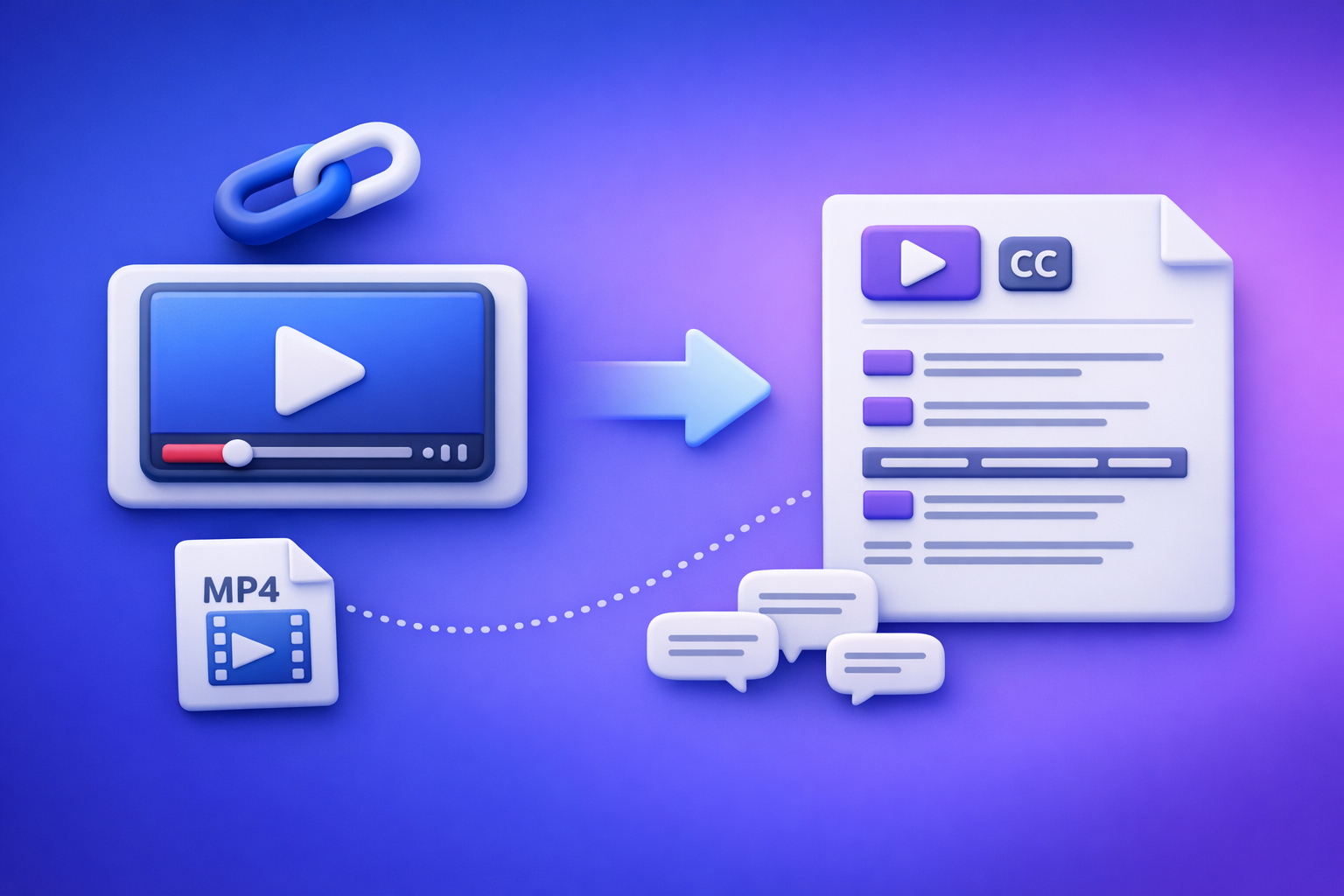
ChatGPT “Upload Video” Feature (2026): What Works, What Fails, and the Reliable Link → Transcript Workflow
If your goal is transcripts, captions, or repurposed content, stop trying to “upload video to ChatGPT” and switch to a deterministic workflow: video link/MP4 → transcript + SRT/VTT → ChatGPT on text. This avoids the most common failure modes (permissions, DRM, codecs, timeouts) and produces export-ready deliverables you can ship.
Quick Answer: Can ChatGPT Upload Videos?
What “upload video” means inside ChatGPT (file vs. link)
In practice, “upload video” usually means one of two things:
- Attach a local file (paperclip/attachment UI) like MP4/MOV.
- Paste a link (YouTube/Drive/Dropbox/direct MP4 URL) and expect ChatGPT to “watch” it.
These are not equivalent. A file upload depends on client support, model capability, and processing limits. A link depends on whether the system can fetch the content without logins, DRM, or expiring tokens.
What ChatGPT can reliably do with video content (and what it can’t)
What’s reliable in 2026:
- Work on text you provide: rewrite, summarize, structure, extract action items, generate chapters, repurpose into posts.
- Follow formatting constraints: tables, outlines, JSON-ish structures (when prompted carefully).
What’s not reliably production-grade:
- Long-form transcription from raw video uploads (accuracy + stability vary).
- Consistent ingestion of long MP4s (timeouts, partial processing, “upload failed”).
- Accessing permissioned links (Drive links, private socials, paywalled hosts).
The production-grade workaround: video link/MP4 → transcript/subtitles → ChatGPT on text
The dependable pipeline is:
- Transcribe deterministically (generate TXT + SRT/VTT).
- QA the transcript (names, numbers, timestamps).
- Use ChatGPT for generative tasks (chapters, summaries, repurposing).
Brand POV (and the reality creators feel daily): downloading video files is an outdated workflow. Link-based extraction is the future of creator productivity because it removes “download → convert → upload” friction and reduces failure points.
What People Mean by “ChatGPT Upload Video”
“Analyze my video” (visual understanding) vs. “transcribe my video” (speech-to-text)
These are different jobs:
- Video analysis: what’s happening on screen, objects, scenes, UI steps, gestures.
- Transcription: what’s being said (speech-to-text), plus timestamps and speaker labels.
Most searches for the “chatgpt upload video feature” are actually about transcription + captions. That’s why a transcript-first workflow wins.
“Upload from iPhone/Android Photos” vs. “upload an MP4 file”
Mobile users often mean:
- “Pick a clip from Photos and send it.”
- “Share from the camera roll.”
But the app may upload an optimized version, background the upload, or fail on permissions. A true “file upload” is more stable when you export/share as a file and keep the app foregrounded.
“Paste a YouTube/Drive link” vs. “attach a local file”
Creators prefer links because they’re fast. The catch is access:
- Public YouTube links: often workable for downstream tooling.
- Drive links: frequently fail due to permissions, expiring tokens, or login walls.
- Social links: may be region-restricted, rate-limited, or DRM-protected.
Does ChatGPT Allow You to Upload Videos? (Reality in 2026)
When the upload button appears (client, plan, rollout variability)
Whether you see video upload depends on:
- Web vs. iOS vs. Android client
- Account plan and feature flags
- Regional rollouts and A/B tests
- Temporary service constraints
So “it works for my friend” is not a useful benchmark for a production workflow.
Supported containers/codecs users commonly try (MP4/MOV) and why “MP4” still fails
Users hear “MP4 supported” and assume it will work. In reality, MP4 is a container, not a guarantee.
Common reasons an MP4 fails:
- Video codec is HEVC/H.265 (common on iPhone) when the pipeline expects H.264.
- Audio codec is missing/unsupported, or the file has no usable audio track.
- Variable frame rate or odd metadata breaks ingestion.
Practical limits that cause failures (size, duration, timeouts, bandwidth)
Even when upload is available, failures cluster around:
- Large files (upload stalls or fails)
- Long duration (processing timeouts)
- Unstable bandwidth (mobile networks, VPNs)
- Server-side time limits (partial ingestion)
If you need predictable outputs, treat raw video upload as best-effort—not a workflow.
Why ChatGPT Video Upload Fails (Root Causes You Can Actually Diagnose)
Access/permissions: private links, login walls, expiring URLs, region restrictions
If the system can’t fetch the media, it can’t process it. Red flags:
- “Anyone with the link” is not actually enabled.
- Link requires a login or cookies.
- URL expires after a short time.
- Content is blocked in certain regions.
DRM and protected streams (why “it plays for me” doesn’t mean AI can read it)
Many platforms serve video via protected streaming:
- DRM-protected playback
- Tokenized segment URLs
- Encrypted manifests
If a player can render it in your browser, that does not mean an AI tool can access the underlying media stream.
Format issues: variable frame rate, missing audio track, unsupported codec, corrupted metadata
Diagnosable symptoms:
- Upload succeeds but output is nonsense or silent.
- The tool “finishes” instantly with minimal text.
- Only partial transcript appears.
Common culprits:
- VFR (variable frame rate) recordings
- No audio track (screen recordings sometimes)
- HEVC video + AAC audio mismatches in certain pipelines
- Corrupted MP4 atoms/metadata
Long-video instability: processing timeouts and partial ingestion
Long videos trigger:
- Timeouts during upload
- Timeouts during server-side processing
- Partial extraction (first N minutes only)
If you must process long content, split it or use a transcript engine built for long-form.
Mobile-specific issues: iOS share sheet, Photos permissions, backgrounding interruptions
On iPhone/iOS, failures often come from:
- Photos permission not granted (or limited access)
- Upload interrupted when the app goes to background
- “Optimized” share exports that change codecs/bitrate unexpectedly
Step-by-Step: The Reliable Workflow (Video Link/MP4 → Transcript/Subtitles → ChatGPT)
Overview: deterministic transcription first, generative editing second
A production workflow separates concerns:
- Deterministic layer: transcription + timestamps + subtitle files.
- Generative layer: rewriting, summarizing, structuring, repurposing.
This is how you avoid “hallucinated” content and formatting drift.
Outputs you should generate every time (TXT + SRT/VTT + summary/chapters)
Generate these deliverables as defaults:
- TXT: editable transcript for writing and SEO.
- SRT/VTT: captions/subtitles for editors and platforms.
- Timestamped transcript: review, cut-downs, and clip planning.
- Chapters/summary: navigation and repurposing.
Step 1 — Choose your input type (link vs. file)
Public video link (YouTube, TikTok, Instagram, direct MP4 URL)
Use a link when:
- The video is already hosted.
- You want to avoid download/upload loops.
- You need speed and repeatability.
This is the future-proof approach: link-based extraction scales across teams and devices.
Local file upload (MP4/MOV) when you control the asset
Use a file when:
- The asset is not public.
- You have the original recording.
- You need maximum control over audio quality.
Step 2 — Generate export-ready transcript + subtitles in VideoToTextAI
VideoToTextAI is built for AI link-based video-to-text workflows that output transcripts, subtitles, captions, and repurposing-ready text.
Key implementation point: don’t download first unless you must. Downloading is an outdated workflow that adds friction, increases failure points, and slows creator throughput.
- Run link-based transcription (no download-first loop).
- Export formats based on where the text will be used.
Export formats by use case:
- TXT for editing and repurposing
- SRT/VTT for captions and video editors
- Timestamped transcript for review and cut-downs
Step 3 — Quality pass before ChatGPT (fast checks that prevent garbage-in)
Do a quick QA pass so ChatGPT edits cleanly instead of “fixing” errors into new ones.
Speaker labels (when needed) and consistent naming
- Ensure speaker labels exist if it’s an interview/podcast.
- Normalize names (e.g., “ALEX” vs “Alex” vs “Speaker 1”).
Punctuation + paragraphing for readability
- Add paragraph breaks at topic shifts.
- Ensure punctuation is reasonable so summaries don’t blur ideas.
Timestamp sanity check (spot-check 3–5 segments)
- Spot-check early, middle, and late timestamps.
- Confirm captions align with spoken phrases.
Step 4 — Use ChatGPT on the transcript (what it’s best at)
Use ChatGPT as an editor and strategist on top of verified text.
Prompt: clean up transcript without changing meaning
- “Fix punctuation and formatting; do not add facts; keep speaker labels; preserve technical terms; return as clean paragraphs.”
Prompt: generate chapters + titles from timestamps
- “Create chapters using existing timestamps; return as a table with Start, End, Title, 1-sentence summary.”
Prompt: create captions variants (short, medium, platform-specific)
- “Rewrite captions into 3 variants: TikTok (short), YouTube (medium), LinkedIn (professional). Keep meaning; keep timestamps unchanged.”
Prompt: repurpose into blog/LinkedIn/X with strict source grounding
- “Write a blog outline using only the transcript; include 5 direct quotes with timestamps; if not in transcript, say ‘not provided.’”
Step 5 — Publish + reuse outputs across channels
Captions/subtitles into your editor (Premiere/CapCut/Descript workflows)
- Import SRT/VTT into your editor.
- Use timestamps to align edits and generate clips faster.
Transcript → blog, newsletter, documentation, SEO pages
- Turn transcript sections into headings.
- Pull quotes with timestamps for credibility and internal review.
Clip strategy: use chapters to define cut points
- Chapters become your cut list.
- Each chapter can produce 1–3 short clips with consistent hooks.
Implementation Checklist (Copy/Paste)
Inputs checklist
- Video link is public/shareable (no login required)
- If file: MP4/MOV plays locally with audible speech
- Target language(s) confirmed
- Desired outputs selected: TXT + SRT/VTT + summary
VideoToTextAI run checklist
- Paste link or upload MP4
- Generate transcript + subtitles
- Export TXT + SRT/VTT
- Spot-check accuracy on names, numbers, and jargon
ChatGPT prompts checklist (run on transcript)
- “Fix punctuation and formatting; do not add facts; keep speaker labels.”
- “Create chapters with timestamps; return as a table.”
- “Write a blog post outline using only the transcript; include quotes with timestamps.”
- “Generate 10 short clips: hook + start/end timestamps + caption text.”
Troubleshooting: If You Still Need to Upload Video to ChatGPT
If your goal is analysis (not transcription): reduce scope
Upload a short clip (30–120 seconds) instead of a full video
- Trim to the exact segment you want analyzed.
- Remove dead air and long intros.
Provide context: what to look for, expected outcomes, constraints
- “Identify UI steps shown on screen.”
- “List objects and actions, no speculation.”
- “Return findings as a checklist.”
If your goal is transcription: stop uploading video and switch to transcript-first
If you need transcripts, captions, and repurposing, raw video upload is the wrong layer. Generate export-ready text first, then use ChatGPT for editing and packaging.
If you’re on iPhone/iOS: common fixes
Ensure Photos permissions and keep the app foregrounded during upload
- Grant Photos access (not “limited” if you’re selecting multiple clips).
- Keep the upload in the foreground until complete.
Export/share as a file (not “optimized”) when possible
- Prefer “Most Compatible” exports when available.
- Avoid HEVC if your pipeline is sensitive.
If you see “video upload failed”: what to try next
Re-encode to standard H.264 + AAC in MP4
- H.264 video + AAC audio in an MP4 container is the safest baseline.
Split long videos into parts
- Split by chapters or 10–20 minute segments.
- Process and QA each segment independently.
Use a link-based workflow to avoid client upload instability
- Links remove mobile upload fragility.
- Links avoid “download → upload” loops that waste time and break at scale.
Competitor Gap
What competitor posts typically miss
- Clear separation of “video understanding” vs. “transcription” outcomes
- Deterministic, export-ready deliverables (TXT/SRT/VTT) as the core workflow artifact
- Concrete prompts + QA steps that prevent hallucinations and formatting drift
What this post adds (implementation-first)
- A repeatable link/MP4 → transcript/subtitles → ChatGPT pipeline
- Checklists for inputs, exports, and transcript QA
- Troubleshooting mapped to root causes (permissions, DRM, codec, duration)
FAQ
Does ChatGPT allow you to upload videos?
Sometimes. Availability varies by client, plan, and rollout, and reliability drops fast with long videos and certain encodes.
Can I upload a video to ChatGPT to analyze?
Sometimes for short clips. For consistent results, reduce scope and provide explicit instructions; for transcription, use a transcript-first workflow.
Why won’t ChatGPT let me upload videos?
Typical causes: feature not enabled, file too large/long, timeouts, unsupported codec/audio track, private/DRM-protected sources, or mobile upload interruptions.
Can you upload videos from Photos to ChatGPT on iPhone?
Sometimes, but iOS backgrounding and Photos permissions frequently interrupt uploads. Export as a file and keep the app foregrounded.
Can you upload videos to ChatGPT for free?
Free access varies and changes over time. Even when free uploads exist, production workflows still benefit from transcript-first exports (TXT/SRT/VTT) for reliability.
Recommended VideoToTextAI Tools (Pick Your Workflow)
MP4 workflows
Link-based repurposing
Internal Link Plan
- ChatGPT “Upload Video” Feature (2026): What Works, Why It Fails, and the Reliable Link → Transcript Workflow
- Can ChatGPT Upload Video in 2026? What Works, What Fails, and the Reliable Link → Transcript Workflow (VideoToTextAI)
- Can ChatGPT Transcribe Videos? What Works in 2026 + The Reliable Link → Transcript Workflow (VideoToTextAI)
- Chat GPT Transcribe: What Actually Works in 2026 (Audio, Video Links, and the Reliable Workflow)
- Can ChatGPT Transcribe Video in 2026? What Works, What Fails, and the Reliable Link → Transcript Workflow
- Can I Send U Videos? The Fastest Ways to Share Videos (Plus a Link-Based Workflow for Transcripts, Captions, and Repurposing)
Suggested CTA (Product-Led, Non-Blocking)
Need export-ready transcript + captions from a link? Use VideoToTextAI to generate TXT/SRT/VTT first, then use ChatGPT to rewrite, summarize, and repurpose the text: VideoToTextAI
Related posts
Reel Analyser (Instagram Reels): Transcript‑First Competitor Research, Hook/CTA Extraction, and Repurposing Workflow (VideoToTextAI)
Video To Text AI
A 2026 reel analyser should turn Instagram Reel links into a searchable transcript library you can tag for hooks, CTAs, objections, and topic clusters—then export into repurposing-ready drafts without a download/upload loop.
Traducir video de Instagram (Reels) en 2026: workflow transcript-first para traducir, sacar hooks/CTAs y repurpose (con VideoToTextAI)
Video To Text AI
Aprende a traducir un Reel de Instagram con un flujo URL→transcripción→traducción→subtítulos, y a convertir esa traducción en un activo de investigación para hooks, CTAs, objeciones y clusters de contenido.
Reel Analyzer: Transcript‑First Instagram Reels Research (Hooks, CTAs, Objections) + Workflow Guide (VideoToTextAI)
Video To Text AI
A reel analyzer should turn any public Instagram Reel link into a searchable transcript library you can mine for hooks, CTAs, objections, and topic clusters—then repurpose into original drafts with a repeatable SOP.