
ChatGPT “Upload Video” Feature (2026): What Works, Why It Fails, and the Reliable Link → Transcript Workflow
 Video To Text AI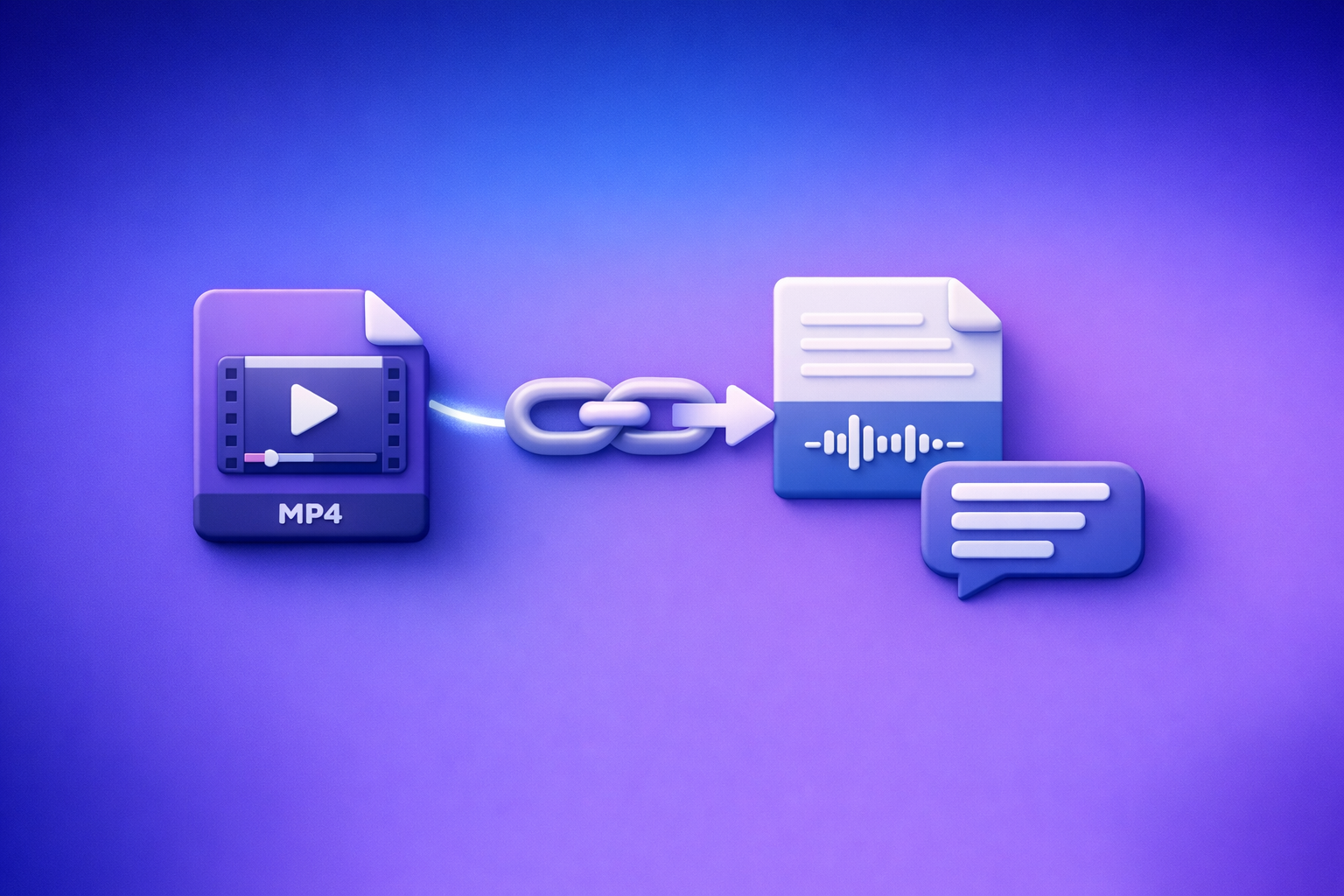
ChatGPT’s “upload video” feature is not a reliable production workflow in 2026—availability and results vary widely. The dependable approach is video link (or MP4) → transcript/subtitles → ChatGPT on text, so you get deterministic summaries, chapters, captions, and repurposed content.
ChatGPT “Upload Video” Feature (2026): What Works, Why It Fails, and the Reliable Link → Transcript Workflow
Quick Answer: Can ChatGPT Upload Video in 2026?
What “upload video” can mean (file upload vs link access vs frames)
When people say “ChatGPT upload video,” they usually mean one of these:
- Upload a video file (MP4/MOV) into the chat via an attachment button.
- Paste a video link (YouTube/Drive/IG/TikTok) and expect ChatGPT to open it.
- Upload frames/screenshots and ask visual questions (not full video comprehension).
These are different capabilities with different failure modes.
The practical reality: availability varies by client, plan, region, and rollout
In 2026, “video upload” behaves like a rolling experiment:
- Some users see it on web but not mobile, or vice versa.
- Some accounts have it temporarily, then it disappears due to feature flags or policy changes.
- Some workspaces block attachments for compliance.
If you need repeatable output for publishing, don’t build your workflow around a button that may not exist tomorrow.
Best default workflow for reliable results: video link/MP4 → transcript/subtitles → ChatGPT on text
For creator productivity, downloading and re-uploading video files is an outdated workflow. Link-based extraction is the future because it’s faster, lighter, and easier to automate.
The reliable default:
- Convert video link or MP4 into export-ready transcript + captions.
- Feed the text into ChatGPT for editing, structure, and repurposing.
This is exactly what VideoToTextAI is built for.
What Works vs. What Fails (Real-World Scenarios)
Works (most reliable)
Uploading short clips where the attachment button is available
If you have the attachment option, short clips may upload and process.
What “short” means depends on client and network, but the practical pattern is:
- Shorter duration = fewer timeouts
- Smaller file size = fewer failures
- Stable Wi‑Fi = fewer stuck uploads
Uploading screenshots/frames for visual questions (not full video understanding)
Uploading a few frames can work well for:
- UI troubleshooting (“what does this error mean?”)
- Visual QA (“is this slide readable?”)
- Object/scene questions
But frames are not the same as understanding the full audio narrative.
Pasting a transcript into ChatGPT for summaries, chapters, and repurposing
This is the most consistent “video intelligence” workflow:
- Summaries and key points
- Chapters with titles
- Action items
- Blog drafts and social posts
Text in → text out is deterministic and fast.
Often fails (or is inconsistent)
Long videos timing out, processing failing, or partial ingestion
Long videos commonly trigger:
- Upload stalls
- “Processing failed”
- Partial analysis (missing sections)
- Output that doesn’t match the full runtime
If you’re producing weekly content, this inconsistency becomes a bottleneck.
“ChatGPT can’t access this link” (YouTube/Drive/IG/TikTok permissions, geo, login walls)
Link access fails when the content is:
- Behind a login wall
- Set to private or restricted sharing
- Geo-blocked or age-gated
- Hosted on platforms that block automated fetching
Even if you can open the link, ChatGPT often can’t.
Audio not analyzed as expected (silent analysis, missing sections, no diarization)
Common complaints:
- The model responds as if it didn’t “hear” the audio
- Names and numbers are wrong
- No speaker separation (diarization) for interviews/podcasts
- Skipped segments due to noise or overlapping speech
If your goal is a transcript, you want a tool optimized for transcription first.
Mobile-specific issues (iPhone/iOS vs Android differences; app vs web)
Real-world differences that matter:
- iPhone/iOS app: file picker permissions and backgrounding can interrupt uploads.
- Android app: different file access behavior; some devices compress or rename files.
- Mobile web: attachment UI may be missing or limited compared to desktop.
Why you might not see the upload option
Account/plan limitations, feature flags, temporary outages
The upload button can be absent due to:
- Plan tier differences
- Gradual rollouts
- Temporary feature disablement
Workspace/admin restrictions and blocked attachments
In managed environments, admins may block:
- File uploads
- External link access
- Certain media types
Browser/app cache issues and file picker permissions
Quick fixes often include:
- Logging out/in
- Clearing cache
- Trying a different browser
- Re-granting file permissions to the app
Supported Formats, Limits, and Common Error Messages (What to Check First)
Typical formats users try: MP4, MOV (and why “supported” still fails)
Most users attempt:
- MP4 (best bet)
- MOV (often larger; can be less predictable)
Even if a format is “supported,” failures still happen due to codec/audio settings.
File size, duration, and network constraints (what breaks first)
The first things to break are:
- Upload bandwidth (mobile networks, VPNs, unstable Wi‑Fi)
- Duration (longer videos increase processing timeouts)
- Codec mismatch (e.g., unusual audio encoding)
If you must upload a file, re-encoding to a common baseline (H.264 video + AAC audio) reduces risk.
Privacy/security considerations before uploading any media to an LLM
Before uploading any media, confirm:
- You have rights to the content
- It doesn’t contain sensitive personal data you can’t share
- Your organization’s policy allows third-party processing
For most teams, the safest pattern is: extract text you need, then share only that text for editing and repurposing.
Step-by-Step: The Reliable Video Link/MP4 → Transcript Workflow (VideoToTextAI → ChatGPT)
Step 1 — Choose your input type (link or file)
Use a shareable link when possible (fastest, avoids huge uploads)
Link-based processing is the modern workflow:
- No downloading massive files
- No re-uploading
- Easier to repeat, automate, and scale
If you’re still downloading videos just to upload them elsewhere, you’re adding friction that doesn’t create value.
Use MP4 upload when links are restricted or private
Use an MP4 when:
- The platform is private/internal
- The link requires login
- The content is geo/age restricted
Step 2 — Generate export-ready text in VideoToTextAI
In VideoToTextAI, you can:
- Paste a video link (YouTube/Instagram/TikTok/etc.) or upload MP4
- Choose outputs designed for publishing workflows
Use this once, then reuse the text everywhere.
CTA: Convert your video link or MP4 into transcript + captions with VideoToTextAI: VideoToTextAI
Step 3 — Export in the right format for your use case
TXT for editing, summarizing, and content repurposing in ChatGPT
Use TXT when you want:
- Clean editing
- Summaries and outlines
- Blog drafts and social posts
Relevant tools and guides:
SRT/VTT for captions/subtitles and platform uploads
Use caption files when you need:
- Upload-ready subtitles
- Consistent timing blocks
Tools:
Keep a “source-of-truth” transcript version for iteration
Best practice:
- Maintain one “source-of-truth” transcript (TXT)
- Generate captions (SRT/VTT) from that source
- Avoid editing captions directly unless you preserve timing blocks
Step 4 — Use ChatGPT for post-processing (what it’s best at)
ChatGPT excels at transforming text into publishable assets:
- Clean up transcript: punctuation, paragraphs, remove filler
- Create chapters: titles + timestamp ranges
- Extract action items: decisions, owners, deadlines
- Repurpose: blog posts, LinkedIn posts, short-form scripts
If you want more on the “what works vs what fails” side, see:
Implementation Walkthrough (10–15 Minutes): From Video to Publishable Assets
Goal: Turn one video into (1) transcript, (2) captions, (3) blog draft
This is the repeatable production pipeline creators and marketing teams use to ship content weekly.
1) Input: paste link/upload MP4 in VideoToTextAI
- Prefer a shareable link (fastest, no file wrangling)
- Use MP4 only when links are blocked
For platform-specific workflows:
2) Export: download TXT + SRT (or VTT)
- TXT = editing + repurposing
- SRT/VTT = captions with timing
3) Prompt ChatGPT with the transcript (copy/paste) for:
A) SEO blog outline + draft (include headings, key takeaways, CTA)
Prompt:
- “Using the transcript below, write an SEO blog post targeting: ‘chatgpt upload video feature’. Include H2/H3 headings, a concise intro, key takeaways, and a short conclusion. Keep paragraphs short and add bullets. Transcript: …”
B) 5 short clips ideas with hooks + timestamps
Prompt:
- “From this transcript with timestamps, propose 5 short clips. For each: hook line, start/end timestamps, and a 1–2 sentence description of the payoff.”
C) Caption polish rules (line length, reading speed, profanity filter if needed)
Prompt:
- “Create caption polishing rules for SRT: max 42 characters per line, max 2 lines, avoid breaking names, keep reading speed comfortable, and apply a profanity filter. Then rewrite the transcript accordingly without changing meaning.”
4) Final QA: verify names/terms, fix caption timing if edits were made
- Spot-check proper nouns, numbers, and product names
- If you changed wording heavily, regenerate captions to keep timing accurate
Troubleshooting: “ChatGPT Video Upload Failed” (Fixes by Symptom)
“I don’t have the upload button”
Do this in order:
- Check client: web vs iOS vs Android (features differ)
- Check plan and whether you’re in a workspace with restrictions
- Try another browser/app, clear cache, and re-login
- Confirm OS permissions for file access (mobile)
If you need a workflow that doesn’t depend on UI availability, use the transcript-first pipeline.
“Upload stuck / processing failed”
Fixes that work most often:
- Reduce duration (trim intro/outro)
- Re-encode MP4 to H.264/AAC
- Retry on stable Wi‑Fi (avoid VPN if it throttles)
- Split the video into parts, process separately, then merge transcripts
“ChatGPT can’t access my YouTube/Instagram/Drive link”
Concrete fixes:
- Remove login requirements
- Set sharing to “anyone with the link”
- Avoid geo-restricted or age-gated videos
- If the platform blocks access, use a direct MP4 workflow
“Transcript is missing words / names are wrong”
Do this:
- Re-run transcription with the correct language
- Provide ChatGPT a glossary:
- “Correct spellings: {names, acronyms, product terms}”
- Ask ChatGPT to correct only those items without rewriting meaning
“Captions are out of sync after editing”
Avoid the common mistake: editing SRT/VTT text without respecting timing blocks.
- Don’t delete or merge caption blocks casually
- Edit the TXT transcript for content changes
- Regenerate SRT/VTT if timing must remain accurate
Checklist: Do This Instead of Trying to Upload Video to ChatGPT
Use this checklist to prevent wasted time and broken outputs.
Inputs
- Confirm you have a shareable link or a local MP4
- Verify permissions:
- No login wall
- “Anyone with link” if applicable
- Not geo/age restricted
Processing
- Convert video → transcript/subtitles in VideoToTextAI
- Export:
- TXT for ChatGPT
- SRT/VTT for captions
ChatGPT usage
- Paste the transcript (not the video) for deterministic results
- Ask for structured outputs:
- Chapters
- Bullets
- Tables
- Templates
Quality control
- Spot-check 2–3 sections against the audio
- Validate proper nouns, product names, and numbers
- If you changed wording heavily, regenerate captions to keep sync
Competitor Gap
What top-ranking pages miss
Most pages ranking for the “chatgpt upload video feature” query skip the operational details that cause real failures:
- Mobile-first steps (iPhone/iOS vs Android vs web) tied to actual failure modes
- Permission/link-access debugging (Drive/YouTube/IG/TikTok) with concrete fixes
- A deterministic export-ready workflow (TXT + SRT/VTT) instead of “try uploading again”
- A production checklist that prevents caption desync and transcript drift
What this post adds
This guide gives you a repeatable pipeline that doesn’t depend on unstable UI features:
- A link/MP4 → transcript/subtitles workflow (VideoToTextAI) + ChatGPT post-processing prompts
- Troubleshooting mapped to symptoms (button missing, link blocked, processing fails, sync issues)
- A creator-first POV: downloading video files is outdated; link-based extraction is the future of scalable content operations
For deeper reading:
FAQ
Can I upload a video on ChatGPT?
Sometimes. If your client shows an attachment button and your plan/workspace allows it, you may be able to upload short MP4/MOV files, but reliability varies.
Why can’t I upload video in ChatGPT?
Common reasons include missing feature rollout, plan limitations, admin restrictions, app/browser permission issues, and file size/duration timeouts.
Can ChatGPT watch videos that I upload?
Not consistently as a full “watch the entire video and understand everything” workflow. For reliable outcomes, convert video to transcript/subtitles first, then use ChatGPT on the text.
How to use the video feature on ChatGPT (iPhone vs Android vs web)?
- Web: more likely to support attachments consistently, but still varies by account.
- iPhone/iOS app: file picker permissions and backgrounding can interrupt uploads.
- Android app: device-specific file access behavior can affect uploads.
If the feature is missing or unstable on your device, use the transcript-first workflow.
Can you upload videos to ChatGPT for free?
Free access and upload capabilities vary by rollout and policy. Even when free upload is available, long videos and link access are still inconsistent—text-first processing remains the most reliable approach.
Related posts
Reel Analyser (Instagram Reels): Transcript‑First Competitor Research, Hook/CTA Extraction, and Repurposing Workflow (VideoToTextAI)
Video To Text AI
A 2026 reel analyser should turn Instagram Reel links into a searchable transcript library you can tag for hooks, CTAs, objections, and topic clusters—then export into repurposing-ready drafts without a download/upload loop.
Traducir video de Instagram (Reels) en 2026: workflow transcript-first para traducir, sacar hooks/CTAs y repurpose (con VideoToTextAI)
Video To Text AI
Aprende a traducir un Reel de Instagram con un flujo URL→transcripción→traducción→subtítulos, y a convertir esa traducción en un activo de investigación para hooks, CTAs, objeciones y clusters de contenido.
Reel Analyzer: Transcript‑First Instagram Reels Research (Hooks, CTAs, Objections) + Workflow Guide (VideoToTextAI)
Video To Text AI
A reel analyzer should turn any public Instagram Reel link into a searchable transcript library you can mine for hooks, CTAs, objections, and topic clusters—then repurpose into original drafts with a repeatable SOP.