
Can ChatGPT Upload Video? What’s Actually Possible in 2026 (Plus the Reliable Link → Transcript Workflow)
 Video To Text AI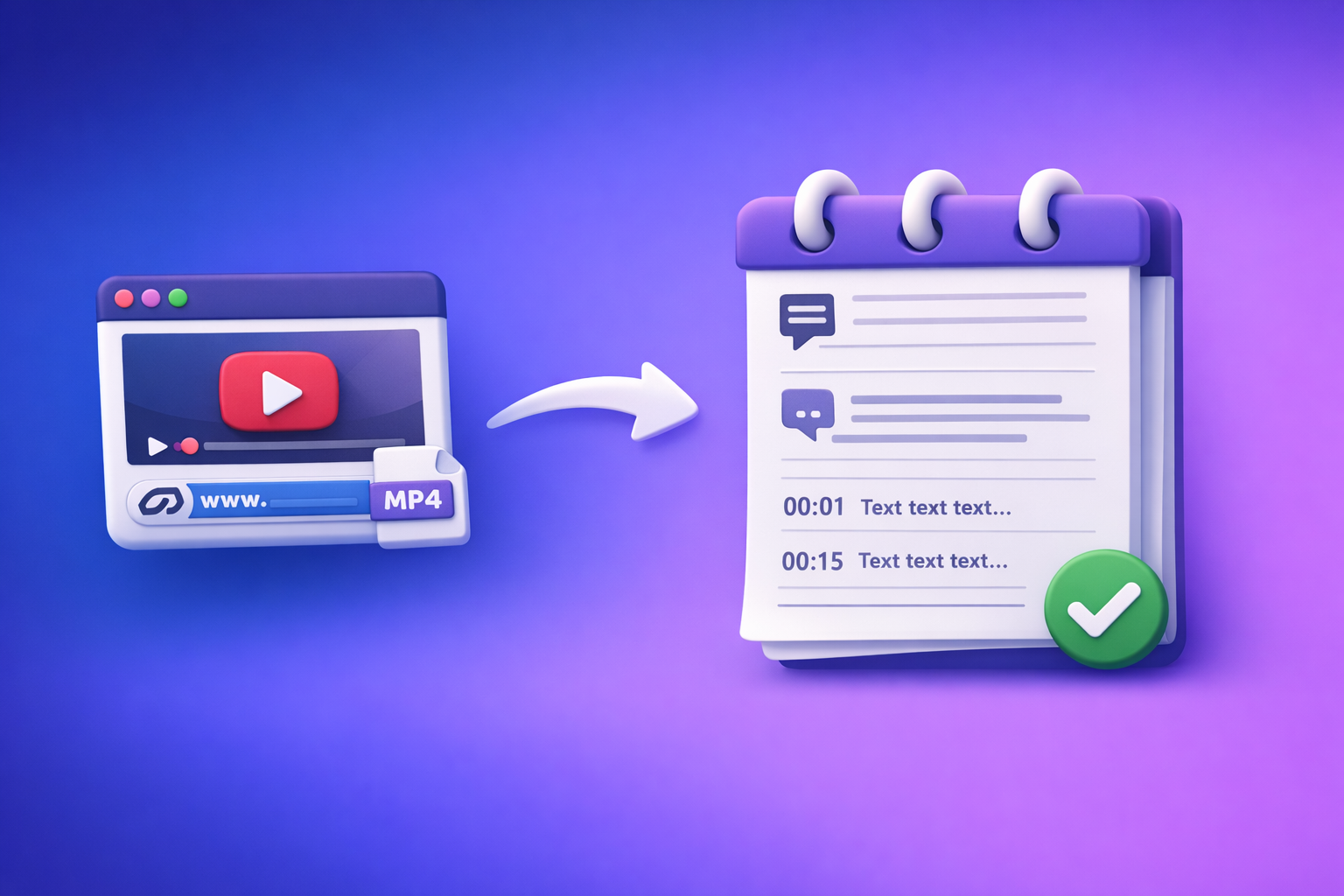
Can ChatGPT Upload Video? What’s Actually Possible in 2026 (Plus the Reliable Link → Transcript Workflow)
If your goal is to get ChatGPT to “watch” a video, don’t start by fighting video uploads—start by extracting the video into clean text + captions and then use ChatGPT on that. In 2026, the most reliable workflow is video link/MP4 → transcript/subtitles → ChatGPT for summaries, chapters, captions, and repurposed posts.
From a productivity standpoint, downloading video files is an outdated workflow for most creators and teams. Link-based extraction is the future because it’s faster, repeatable, and easier to automate across channels.
Quick Answer (So You Don’t Waste Time)
What “upload video to ChatGPT” can mean (3 different asks)
People usually mean one of these:
- Upload a video file (MP4/MOV) into ChatGPT and ask questions about it.
- Paste a video link (YouTube/Instagram/TikTok) and expect ChatGPT to watch it.
- Get a transcript/captions and then ask ChatGPT to summarize, rewrite, or repurpose.
Only #3 is consistently dependable across accounts, devices, and video lengths.
What ChatGPT can and can’t do with video files today
What’s typically possible:
- Can: work extremely well with text (transcripts, captions, notes, outlines).
- Can sometimes: accept a video file upload in certain interfaces/plans, especially for short clips.
- Can’t reliably: “watch” long videos end-to-end with consistent accuracy, especially when uploads fail, processing times out, or the interface doesn’t support it.
The reliable workaround: video link/MP4 → transcript/subtitles → ChatGPT for analysis
The dependable path is:
- Convert the video into:
- Transcript (for meaning)
- SRT/VTT (for publishing captions)
- Then prompt ChatGPT using the transcript as the source of truth.
This avoids the most common failure modes: upload limits, codec issues, and partial interpretation.
What Happens When You Try to Upload a Video to ChatGPT
Common outcomes: upload blocked, file type unsupported, processing fails, partial understanding
In real-world use, you’ll often see:
- Upload button missing (feature not enabled on your account/device).
- Unsupported file type (MOV/HEVC edge cases, odd containers).
- Processing fails (timeouts, size limits, server-side errors).
- Partial understanding (it “gets” a fragment but misses key parts, especially with long duration).
Why video is harder than docs/images (size, codecs, duration, compute limits)
Video is heavy:
- Large file sizes (hundreds of MB to multiple GB).
- Codec/container variability (H.264 vs HEVC, MOV vs MP4).
- Long duration increases compute and failure risk.
- Audio quality varies (wind noise, music beds, multiple speakers).
Text is light, stable, and easy to validate—so it’s the best “handoff format” to ChatGPT.
When it can work: short clips, specific plans, specific interfaces (varies)
Sometimes video upload works when:
- The clip is short (seconds to a few minutes).
- The file is standard MP4 (H.264/AAC).
- You’re using a specific ChatGPT interface/app version where video upload is enabled.
Even then, it’s not a repeatable production workflow for teams.
Can ChatGPT “Watch” a Video Link (YouTube/Instagram/TikTok)?
Why pasting a link usually doesn’t equal “watching the video”
A pasted link is usually just a URL string. In many cases, ChatGPT:
- Cannot fetch the video stream.
- Cannot access content behind logins, region locks, or age gates.
- Cannot reliably parse the full audio/visual timeline from a link alone.
What you can still do with a link (metadata, title/description-based help)
With only a link, ChatGPT can still help based on:
- The title and description you paste in.
- Your notes about what happens in the video.
- Any timestamps or outline you provide.
But that’s not the same as analyzing the actual spoken content.
The dependable approach: convert the link to text first
If you want accurate summaries, chapters, hooks, or SOPs:
- Convert the link → transcript + SRT/VTT first.
- Then use ChatGPT on the transcript.
This is also why link-based extraction beats downloading: you skip file handling and go straight to usable text.
Step-by-Step: The Transcript-First Workflow (VideoToTextAI → ChatGPT)
This workflow is built for creators, marketers, and ops teams who need repeatable outputs: transcripts, captions, and repurposed content.
Step 1: Choose your input type (public link vs MP4 upload)
Public video URL (YouTube/Instagram/Reels/etc.)
- Best for speed and scale.
- Ideal when the video is already published or accessible without login.
MP4 file (when you own the file or the link is private)
- Use when the video is private, internal, or not publicly accessible.
- Prefer MP4 with clear audio for best transcription accuracy.
If you’re still downloading videos “just to get text,” that’s the old way. The modern workflow is link-first, because it’s faster to run repeatedly and easier to automate.
Step 2: Generate transcript + subtitles in VideoToTextAI
Use VideoToTextAI to generate:
- Transcript (TXT/DOC-style output)
- SRT/VTT (caption files for publishing)
One tool link (the only CTA in this post): https://videototextai.com
Output guidance:
- Use timestamps when you need chapters, highlights, or editing notes.
- Use speaker labels when it’s an interview, podcast, sales call, or panel.
Step 3: Quality control before you involve ChatGPT
Garbage in → garbage out. Do a fast QA pass:
- Fix names and terms (brand, product names, people, locations).
- Normalize punctuation and paragraph breaks for readability.
- If exporting SRT/VTT, confirm timing alignment.
A 3-minute QA pass prevents 30 minutes of rework later.
Step 4: Paste the transcript into ChatGPT with a precise prompt
Keep prompts deliverable-driven. Provide:
- The transcript
- The goal
- The audience
- Constraints (length, format, tone)
Prompt template: summarize + chapters + key takeaways
You are my content analyst. Use ONLY the transcript below as the source of truth.

Deliverables:
1) 1-paragraph summary (max 120 words)
2) Chapter list with timestamps (8–12 chapters)
3) 10 key takeaways (bullets)
4) “Assumptions + unknowns” (what the transcript does not confirm)

Transcript:
[PASTE TRANSCRIPT HERE]
Prompt template: turn transcript into captions + hooks
Use the transcript below to create:
- 10 short-form hooks (max 12 words each)
- 5 caption options for Instagram (max 150 words each)
- 5 LinkedIn post openers (max 2 sentences each)
Rules:
- Keep claims faithful to transcript
- Avoid adding facts not stated
Transcript:
[PASTE TRANSCRIPT HERE]
Prompt template: extract SOP/checklist from the video
Turn this transcript into an SOP.

Output format:
- Purpose
- Preconditions
- Step-by-step procedure (numbered)
- QA checks
- Common failure modes + fixes
- Tools mentioned (only if in transcript)
Also include “Assumptions + unknowns.”

Transcript:
[PASTE TRANSCRIPT HERE]
Step 5: Export deliverables (what to save and where)
Save outputs in a predictable structure:
- Transcript (clean): your canonical source for future repurposing
- SRT/VTT (publish-ready): upload to YouTube, web players, social tools
- Repurposed assets:
- blog draft
- LinkedIn post
- tweet thread
- email newsletter outline
If you do this weekly, you’ll build a searchable library of content you can reuse without re-watching videos.
Implementation Checklist (Copy/Paste)
Inputs
- Video link is public and accessible (no login wall)
- If MP4: file plays locally and has clear audio
- Target output chosen: transcript / SRT / VTT / summary / blog
Processing + QA
- Speaker labels correct (if needed)
- Proper nouns verified (names, brands, locations)
- Captions line length readable (for SRT/VTT)
- Timestamps checked at 2–3 random points
ChatGPT Repurposing
- Provide transcript + goal + audience + format constraints
- Ask for structured output (headings, bullets, tables)
- Request “assumptions + unknowns” to avoid hallucinations
Troubleshooting: “ChatGPT Video Upload Failed” and Other Common Issues
If the upload button is missing or disabled
Common causes:
- Feature not enabled for your account/plan
- App/browser version mismatch
- Workspace/admin restrictions (teams/enterprise)
Fastest workaround: stop chasing uploads and use link/MP4 → transcript → ChatGPT.
If the video uploads but ChatGPT can’t interpret it
If it “accepts” the file but outputs vague or incorrect analysis:
- The model may not be processing the full timeline.
- Audio may be unclear (music, cross-talk, noise).
- The clip may be too long.
Fix: generate a transcript + captions first, then ask ChatGPT to work from the transcript only.
If you’re on iPhone: fastest path without fighting uploads
On iPhone, uploads can be flaky due to:
- file picker limitations
- large video sizes
- background processing interruptions
Fast path:
- Use a public link whenever possible.
- If you only have a file, export an MP4 and transcribe it, then paste the transcript into ChatGPT.
If the video is long: chunking strategy (by timestamps/sections)
For long videos:
- Export transcript with timestamps.
- Split into chunks (example: 00:00–10:00, 10:00–20:00, etc.).
- Ask ChatGPT to summarize each chunk, then ask for a combined outline.
This keeps context manageable and reduces errors.
Use Cases: What to Do Instead of Uploading Video to ChatGPT
Create accurate captions/subtitles (SRT/VTT) for publishing
Best for:
- YouTube accessibility
- SEO-friendly on-page transcripts
- Higher watch time (captions improve retention)
Workflow: generate SRT/VTT, do a quick QA pass, publish.
Turn a YouTube video into a blog post draft
Use the transcript to produce:
- H2/H3 outline
- key takeaways
- FAQ section
- callouts and examples pulled from the transcript
Related internal guide: Video to Text Workflow: Turn Any Video Link into Transcripts, Subtitles (SRT/VTT), and Repurposing
Convert an Instagram Reel into a LinkedIn post
Reels are short, but uploads still waste time. Link → transcript → post:
- 1 strong hook
- 3–5 bullets
- a practical takeaway
- a question to drive comments
Related internal guide: Free Instagram Transcript Generator (From a Link): Get Reel Transcripts Fast with VideoToTextAI
Translate an MP4 into another language (captions + transcript)
Best practice:
- Translate the transcript first
- Then generate localized SRT/VTT
- Keep line length readable and timing intact
Competitor Gap
What competitors miss (and what this post adds)
Most answers to “can chat gpt upload video” stop at “yes/no” and ignore execution. This post adds:
- A repeatable link/MP4 → transcript/SRT/VTT → ChatGPT workflow (not vague “you can’t” answers)
- A QA checklist to prevent bad transcripts and unusable captions
- Troubleshooting paths for iPhone, long videos, and upload failures
- Prompt templates tied to real deliverables (chapters, captions, repurposed posts)
It also reflects the reality of modern creator ops: downloading video files is legacy friction, while link-based extraction is the scalable path.
FAQ
Can I upload a video on ChatGPT?
Sometimes. It depends on your plan, device, and the specific ChatGPT interface you’re using, and it may fail on long or large files. For consistent results, convert the video to a transcript and captions first, then use ChatGPT on the text.
Can ChatGPT look at video files?
In some cases it can accept a video file, but reliable end-to-end understanding is inconsistent. If you need accuracy, use a transcript-first workflow and ask ChatGPT to use only the transcript as the source.
Can ChatGPT handle video?
It can help with video-related tasks (summaries, chapters, hooks, scripts) when you provide text from the video. Handling raw video directly is still variable due to file size, codecs, and processing limits.
Why can’t I upload videos to ChatGPT anymore?
Because upload features can change by rollout, plan, device, or policy, and may be temporarily disabled or unsupported. If uploads are missing or failing, use a link/MP4 → transcript/SRT/VTT workflow and proceed with ChatGPT from the transcript.
Internal Link Plan
- Can I Upload Video to ChatGPT? What’s Actually Possible (and the Fastest Workaround)
- Can ChatGPT Take Video as Input? What’s Actually Possible in 2026 + The Fast Transcript-First Workflow (VideoToTextAI)
- How to Turn Any Video Link into a Transcript, Subtitles (SRT/VTT), and Repurposed Content (Step-by-Step)
- Video2Text AI: Convert Any Video Link into Transcripts, SRT/VTT Subtitles, and Repurposed Content (VideoToTextAI)
- Free Instagram Transcript Generator (From a Link): Get Reel Transcripts Fast with VideoToTextAI
Related posts
Reel Analyser (Instagram Reels): Transcript‑First Competitor Research, Hook/CTA Extraction, and Repurposing Workflow (VideoToTextAI)
Video To Text AI
A 2026 reel analyser should turn Instagram Reel links into a searchable transcript library you can tag for hooks, CTAs, objections, and topic clusters—then export into repurposing-ready drafts without a download/upload loop.
Traducir video de Instagram (Reels) en 2026: workflow transcript-first para traducir, sacar hooks/CTAs y repurpose (con VideoToTextAI)
Video To Text AI
Aprende a traducir un Reel de Instagram con un flujo URL→transcripción→traducción→subtítulos, y a convertir esa traducción en un activo de investigación para hooks, CTAs, objeciones y clusters de contenido.
Reel Analyzer: Transcript‑First Instagram Reels Research (Hooks, CTAs, Objections) + Workflow Guide (VideoToTextAI)
Video To Text AI
A reel analyzer should turn any public Instagram Reel link into a searchable transcript library you can mine for hooks, CTAs, objections, and topic clusters—then repurpose into original drafts with a repeatable SOP.