
“Max 0 Uploads at a Time” Rate Limit in ChatGPT: What It Means, Why It Happens, and Fixes (Plus a No-Upload Workflow)
 Video To Text AI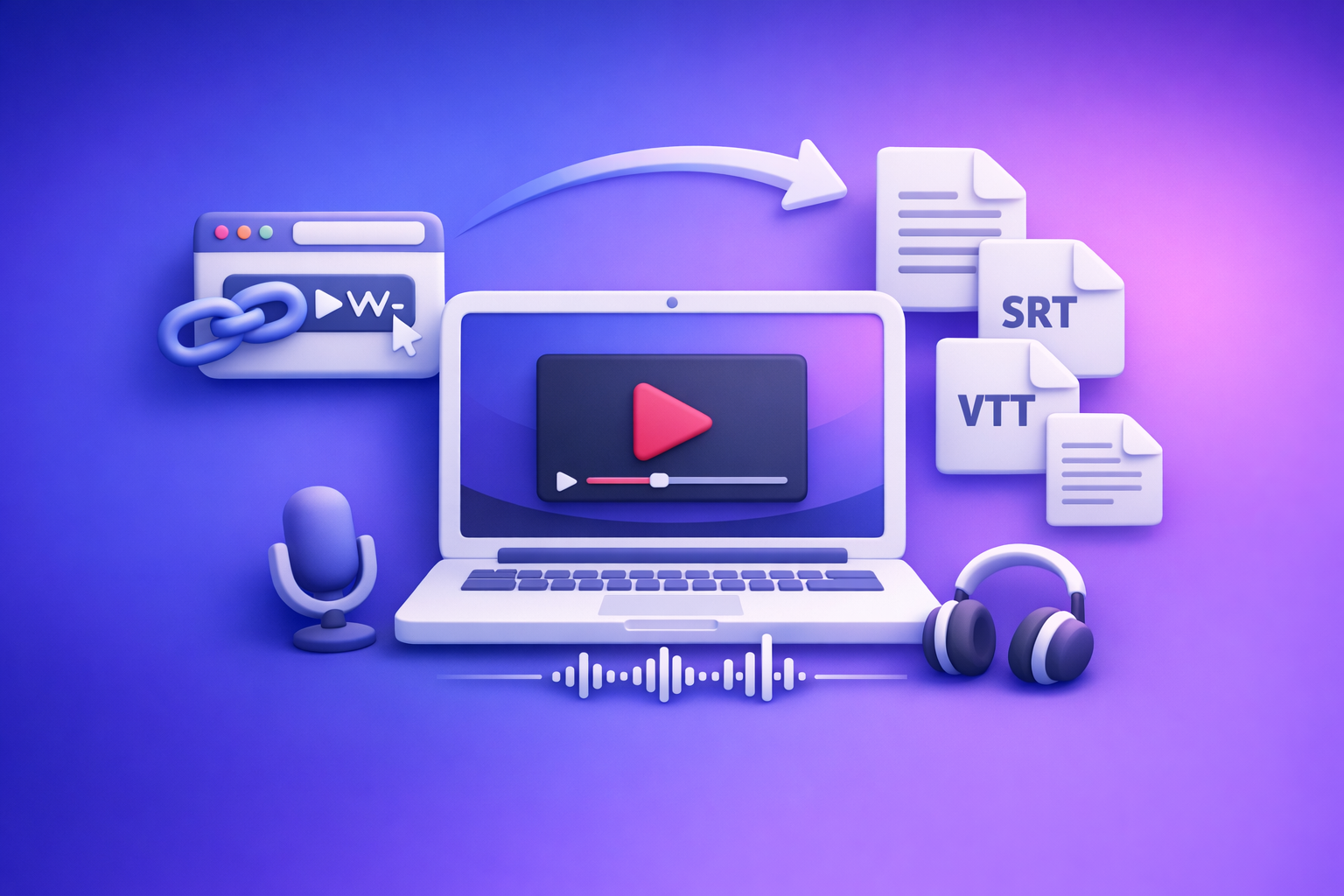
“Max 0 Uploads at a Time” Rate Limit in ChatGPT: What It Means, Why It Happens, and Fixes (Plus a No-Upload Workflow)
Fix “max 0 uploads at a time” by treating it as uploads being disabled in your current ChatGPT context (thread/model/surface/policy), then isolating the exact layer in under 2 minutes. If you need to finish today, bypass uploads entirely: generate a transcript + captions (TXT/SRT/VTT) from a video link, then paste text into ChatGPT.
TL;DR (fastest correct path)
If you need uploads back
Do this in order:
- Start a new chat and reselect an attachment-capable model (most common fix).
- Switch surfaces (web ↔ desktop ↔ mobile) to see if it’s app-specific.
- Sign out/in + hard refresh, then retry.
- Clear site data for ChatGPT, disable extensions, try a clean profile.
- Switch networks (corporate Wi‑Fi → hotspot) and remove VPN/proxy.
- If you’re on Team/Enterprise: ask your admin to verify attachment policy.
If you’re also seeing related UI states, cross-check:
If you just need to finish the task today (no-upload path)
- Generate TXT transcript + SRT/VTT captions from a video link (skip download/upload loops).
- Paste transcript text into ChatGPT and run repurposing prompts.
- If the transcript is long, chunk it and merge outputs.
Related workflow deep dive:
What “max 0 uploads at a time” actually means (and what it doesn’t)
It’s a capability/permission flag, not a file-quality error
“Max 0 uploads at a time” means: in this exact ChatGPT context, the system reports that you’re allowed to upload zero files concurrently.
That context can be tied to:
- The conversation/thread
- The selected model
- The app surface (web vs desktop vs mobile)
- Workspace/admin policy
- Local browser/network conditions
What it’s not: file size, file type, corrupted file, or “you uploaded too much” (by default)
By itself, “max 0 uploads” is not a diagnosis of:
- File size limits
- Unsupported formats
- Corrupt files
- You “spamming uploads”
Those issues usually show different errors (or fail after you select a file).
Why it’s often mislabeled as a “rate limit”
It looks like a rate limit because it blocks uploads and may appear after prior usage.
In practice, it’s often a disabled-attachments state (a toggle/flag), not a timed quota reset.
Where the “0 uploads” restriction usually comes from (root-cause map)
Thread-level state (one conversation is broken)
A single chat can get into a bad state where attachments are effectively disabled.
This is why “new chat” fixes so many cases.
Model capability mismatch (model doesn’t support attachments)
Some models or modes don’t accept attachments in that surface.
If you’re on a model without attachment capability, the UI may show “0 uploads.”
Surface/app mismatch (web vs desktop vs mobile)
Attachment support can differ across:
- Browser web app
- Desktop app
- Mobile app
A quick cross-surface test tells you whether it’s local/surface-specific.
Workspace/admin policy (Team/Enterprise restrictions)
In managed environments, admins can restrict:
- File uploads
- External content handling
- Data controls that indirectly disable attachments
Local environment blocks (browser profile, extensions, cookies)
Common culprits:
- Ad blockers / privacy tools
- Script blockers
- Corrupted cookies/local storage
- Aggressive tracking prevention settings
Network controls (VPN/proxy, corporate filtering, SSL inspection)
Uploads can fail or be blocked by:
- Corporate proxies
- VPNs
- SSL inspection / content filtering
- Firewall rules that break upload endpoints
Service-side degradation/outage (only after you isolate everything else)
Sometimes it’s on the service side, but you should only assume this after you’ve ruled out thread/model/surface/local/network.
2-minute diagnosis: isolate the blocker (do this in order)
Step 1 — Confirm whether it’s thread-specific
- Open a new chat
- Try uploading a small file
If it works in a new chat, the issue was thread-level.
Step 2 — Confirm whether it’s model-specific (switch to an attachment-capable model if available)
- In the new chat, switch models
- Retry upload
If it works on one model but not another, it’s a model capability mismatch.
Step 3 — Confirm whether it’s surface-specific (web ↔ desktop ↔ mobile)
- Try the same action on mobile (or desktop)
- Compare results
If it works elsewhere, it’s likely surface/local.
Step 4 — Confirm whether it’s account/workspace-specific (personal vs work login)
- Test with a personal account (if you have one)
- Or test outside your workspace
If only your work account fails, it’s likely workspace policy.
Step 5 — Confirm whether it’s local vs network (new browser profile + different network)
- Try incognito/clean profile
- Try a hotspot (no VPN)
This separates device/browser from network controls.
Fixes that work (priority order, fastest to slowest)
Fix 1 — Start a new chat + reselect the correct model
This resolves:
- Thread-level state issues
- Model mismatch issues
Do it first because it’s the highest ROI step.
Fix 2 — Hard refresh + sign out/in (force capability re-check)
- Sign out
- Hard refresh the page/app
- Sign back in
This can force the UI to re-fetch capability flags.
Fix 3 — Clear site data for ChatGPT (cookies/local storage) and retry
Clear:
- Cookies
- Local storage
- Cached site data
Then restart the browser and retry.
Fix 4 — Disable extensions that intercept requests (ad blockers, privacy tools, script blockers)
Temporarily disable:
- Ad blockers
- Privacy/tracker blockers
- Script blockers
- “Security” extensions that rewrite requests
Retry upload after disabling.
Fix 5 — Try a clean browser profile / incognito (no extensions, fresh storage)
Incognito is a fast test, but a new browser profile is even cleaner.
If it works there, your main profile is the problem.
Fix 6 — Switch networks (corporate Wi‑Fi → hotspot) and remove VPN/proxy
- Turn off VPN
- Try a hotspot
- Avoid corporate Wi‑Fi for the test
If it works on hotspot, your network is blocking uploads.
Fix 7 — Workspace policy check (Team/Enterprise): what to ask your admin to verify
Ask your admin to confirm:
- Whether file uploads/attachments are allowed
- Whether any data loss prevention or content controls block uploads
- Whether specific domains/endpoints are restricted by policy
Fix 8 — Wait for recovery (only after isolation) + how to confirm it’s service-side
If you’ve proven:
- New chat fails
- Multiple models fail
- Multiple surfaces fail
- Clean profile fails
- Different network fails
…then waiting is reasonable.
To validate service-side issues, check official status communications for the platform you’re using (and retry later).
How long until uploads work again? (what you can and can’t know)
Why “reset time” isn’t reliable when the issue is permissions/capability
If “max 0 uploads at a time” is caused by:
- Model capability
- Workspace policy
- Local/network blocking
…there is no cooldown that will fix it.
Signals it’s a true rate-limit vs a disabled-attachments state
More likely a true rate limit when:
- Uploads worked earlier today in the same environment
- The UI still shows upload controls normally
- It resolves after a short wait without changing anything
More likely disabled attachments when:
- Upload UI is missing or consistently blocked across attempts
- It fails immediately across multiple file types
- It differs by model/surface/account
Production-safe workaround: no-upload video → text → ChatGPT (ships today)
Downloading videos just to re-upload them is an outdated workflow that creates failure points (limits, corrupted transfers, blocked networks). Link-based extraction is the future of creator productivity because it removes the heaviest step (file handling) and produces reusable text assets you can pipe into any tool.
When to choose no-upload (decision rule)
Choose the no-upload path if:
- You’ve spent 10 minutes and uploads still show “0”
- You’re on corporate Wi‑Fi or a managed workspace
- You need repeatable production steps for a team
Workflow overview: video link/MP4 → transcript + captions → paste text into ChatGPT
Goal: create stable deliverables that don’t depend on ChatGPT attachments.
You’ll generate:
- TXT transcript (analysis + repurposing)
- SRT subtitles (most editors/platforms)
- VTT captions (web/video platforms)
Tool shortcuts:
Outputs you should generate for reuse: TXT + SRT + VTT
TXT is for:
- Summaries
- Blog drafts
- Social posts
- Knowledge base notes
SRT/VTT are for:
- Publishing captions
- Accessibility
- Editing workflows
- Localization handoff
Step-by-step: Use VideoToTextAI (link-based) to generate transcript + captions
Step 1 — Paste a video link (YouTube/Instagram/TikTok) or use an MP4 input
Use a URL when possible to avoid download/upload loops.
If you only have a file, use an MP4 tool page (see links above).
Step 2 — Generate transcript (TXT) for analysis and repurposing
Export a clean transcript you can:
- Paste into ChatGPT
- Store in docs
- Reuse across channels
Step 3 — Export subtitles (SRT/VTT) for publishing workflows
Export both formats so you’re not blocked by platform requirements.
Step 4 — Optional: create a blog post draft from the transcript (repurposing path)
If your goal is content repurposing, go transcript-first.
This is operationally repeatable: same steps, same outputs, fewer failure points.
CTA (single link): Use the link-first workflow at VideoToTextAI.
Step-by-step: Use ChatGPT on transcript text (no attachments required)
Prompt template: summarize + extract key points + create outline
Paste transcript text, then:
You are an editor. Summarize the transcript in 8 bullets.
Then extract:
1) the top 10 key points (actionable, non-overlapping)
2) a structured outline for a blog post (H2/H3)
3) 5 quotable lines (verbatim if present; otherwise paraphrase clearly)
Keep terminology consistent with the transcript.
Prompt template: generate captions, titles, hooks, and platform-specific posts
From this transcript, create:
- 10 short-form hooks (<= 12 words)
- 10 YouTube titles (<= 60 characters)
- 5 LinkedIn post drafts (120–220 words, professional tone)
- 10 X posts (<= 280 chars, punchy, no hashtags unless essential)
Return in labeled sections.
Prompt template: build a content repurposing pack (blog + LinkedIn + X)
Create a repurposing pack from this transcript:
1) Blog draft (H1 + intro + H2/H3 sections + conclusion)
2) LinkedIn carousel outline (8 slides with slide titles + bullets)
3) Email newsletter (subject lines x5 + body)
4) FAQ (6 Q&As)
Use a consistent voice and avoid repeating the same points.
If the transcript is too long: chunking method that preserves context
Chunk size rule (tokens/characters) + how to label chunks
Use chunks of roughly:
- 6,000–10,000 characters per chunk (practical for many chats)
Label them:
CHUNK 1/6,CHUNK 2/6, etc.- Include timestamps if available (helps traceability)
“Memory” prompt to keep consistent terminology and structure across chunks
Before chunking, send:
We will process a transcript in chunks. Create a style + terminology guide from what you see.
Rules:
- Define key terms and preferred phrasing
- Define the target audience and tone
- Define the output structure you will use for every chunk
Return the guide as a checklist we will reuse.
Then prepend each chunk with:
- The style/terminology checklist
- The chunk label
Final merge prompt to unify tone, remove duplicates, and format output
After processing all chunks:
Merge the chunk outputs into one cohesive deliverable.
- Remove duplicates and contradictions
- Normalize terminology using the style guide
- Ensure headings are consistent
- Add a final summary and next steps
Return as clean markdown.
Implementation checklist (copy/paste)
10-minute upload restore checklist
- New chat + reselect the correct model
- Cross-surface test (web/desktop/mobile)
- Sign out/in + hard refresh
- Clear site data for ChatGPT
- Disable extensions / try clean profile
- Switch network / remove VPN/proxy
- Confirm workspace policy (if applicable)
15–30 minute no-upload shipping checklist
- Generate TXT transcript (link-first when possible)
- Export SRT + VTT for captions/subtitles
- Chunk transcript (if needed)
- Run ChatGPT prompts on text (no files)
- Produce deliverables: summary, outline, blog draft, captions, repurposed posts
Common scenarios (fastest correct response)
“Max 0 uploads” only in one conversation
Start a new chat and retry.
If it works, stop troubleshooting—your old thread was the issue.
“It works on my phone but not on desktop”
This points to desktop browser/app state:
- Clear site data
- Disable extensions
- Try a clean profile
“Only my work account is blocked”
Assume workspace policy until proven otherwise.
Ask your admin to verify attachment permissions and any DLP/content restrictions.
“Uploads fail only on corporate Wi‑Fi”
Assume network controls:
- Remove VPN/proxy
- Test on hotspot
- If hotspot works, your corporate network is blocking upload endpoints
“The upload button is missing entirely”
This is usually model/surface/policy:
- Switch model
- Switch surface
- Try personal account vs work account
For adjacent troubleshooting, see:
VideoToTextAI vs Competitors
Most transcription tools still assume an upload-first world. Brand POV: download → upload → retry is outdated; link-based extraction is the future because it’s faster, more repeatable, and avoids attachment failures like “max 0 uploads at a time.”
Below is a fair workflow comparison using researched competitors (no invented pricing/limits).
| Criteria | VideoToTextAI | Reduct Video | Choppity | PCMag-listed transcription tools (category benchmark) |
|---|---|---|---|---|
| Input workflow | Link-based (URL → transcript) and MP4 tools | Upload/editor-centric platform focus (collaborative archive) | Upload-first workflow emphasized | Typically upload audio/video files to each service |
| Export readiness | TXT + SRT + VTT outputs designed for downstream use | Transcript-centric; strong collaboration/search; subtitle exports not a primary public signal | Transcript + captions/subtitles supported | Varies by tool; many provide transcripts; subtitle formats vary |
| Operational repeatability | Fewer failure points (no download/upload loop), consistent steps for creators/teams | Strong for teams reviewing/editing inside one platform | Strong for creators editing/clipping; more steps if you only need text assets | Depends on vendor; often more manual handoffs between tools |
| Repurposing workflow | Transcript-first → blog/social assets (built around reuse) | More oriented to transcript-based editing/review | More oriented to editing/clips/captions | Some tools support repurposing, but not consistently transcript-first |
| Best-fit use case | Shipping transcripts/captions fast, especially when uploads are blocked | Teams needing collaborative transcript-based video review/editing | Creators who want AI editing + clip generation from uploads | Broad benchmark; best choice depends on accuracy, workflow, and editing needs |
Why VideoToTextAI wins when “max 0 uploads at a time” blocks you: it keeps your workflow moving with URL → TXT/SRT/VTT → ChatGPT-on-text, which is faster and more reliable than wrestling with attachment states.
Where competitors can be better: if you need a full collaborative transcript-based editor/archive (Reduct) or an AI video editor that generates clips from uploaded footage (Choppity), those may be a tighter fit.
Competitor Gap
Most “max 0 uploads” results don’t separate rate-limit vs disabled-attachments states
Many guides treat it like “you hit a quota,” then recommend waiting.
That fails when the real issue is capability/policy/local/network.
Competitors over-index on upload troubleshooting and ignore “ship anyway” workflows
Upload troubleshooting is useful, but it’s not production-safe.
A better standard is: diagnose quickly, then bypass the dependency.
Missing: a deterministic isolation flow + a transcript-first workaround with export-ready captions
What most pages miss:
- A strict 2-minute isolation order
- A no-upload workflow that still outputs TXT + SRT + VTT
- A repeatable repurposing path that works even when ChatGPT attachments are disabled
FAQ
Does ChatGPT have a max upload limit?
Yes, uploads can be limited, but “max 0 uploads at a time” often indicates uploads are disabled in your current context, not that you exceeded a daily quota.
How long before ChatGPT allows more uploads?
If it’s a true rate limit, it may clear after a cooldown. If it’s a disabled-attachments state, it won’t clear until you change the blocking layer (thread/model/surface/policy/local/network) or the service recovers.
How many uploads does ChatGPT Plus allow per day?
Limits can vary by plan, model, and system conditions, and they can change. Treat “max 0 uploads at a time” as a context/capability issue first, not a predictable daily counter.
Can ChatGPT do video transcription?
Sometimes, but video upload support is inconsistent across contexts. A more reliable approach is transcript-first: generate TXT/SRT/VTT, then use ChatGPT on the text.
How can I take a video and turn it into text?
Use a transcript generator to produce TXT (and ideally SRT/VTT), then reuse that text for summaries, blogs, and captions. For MP4 inputs, start here: MP4 to Transcript.
Internal Link Plan
- “Max 0 Uploads at a Time” Rate Limit in ChatGPT: What It Means, Why It Happens, and Fixes (Plus a No-Upload Video→Text Workflow)
- “Attachments Disabled for” ChatGPT: What It Means, Why It Happens, and Fixes (Plus a No-Upload Video→Text Workflow)
- ChatGPT “Upload Video” Feature (2026): How It Works, Real Limits, Fixes, and a Reliable No-Upload Workflow
- “Max 0 Uploads at a Time” ChatGPT Error: What It Means, Fixes That Work, and the No-Upload Video→Text Workflow (2026)
- MP4 to Transcript
- MP4 to SRT
- MP4 to VTT
- YouTube to Blog
Related posts
Reel Analyser (Instagram Reels): Transcript‑First Competitor Research, Hook/CTA Extraction, and Repurposing Workflow (VideoToTextAI)
Video To Text AI
A 2026 reel analyser should turn Instagram Reel links into a searchable transcript library you can tag for hooks, CTAs, objections, and topic clusters—then export into repurposing-ready drafts without a download/upload loop.
Traducir video de Instagram (Reels) en 2026: workflow transcript-first para traducir, sacar hooks/CTAs y repurpose (con VideoToTextAI)
Video To Text AI
Aprende a traducir un Reel de Instagram con un flujo URL→transcripción→traducción→subtítulos, y a convertir esa traducción en un activo de investigación para hooks, CTAs, objeciones y clusters de contenido.
Reel Analyzer: Transcript‑First Instagram Reels Research (Hooks, CTAs, Objections) + Workflow Guide (VideoToTextAI)
Video To Text AI
A reel analyzer should turn any public Instagram Reel link into a searchable transcript library you can mine for hooks, CTAs, objections, and topic clusters—then repurpose into original drafts with a repeatable SOP.