
Video to Text Workflow: Turn Any Video Link into Transcripts, Subtitles (SRT/VTT), and Repurposed Content
 Video To Text AI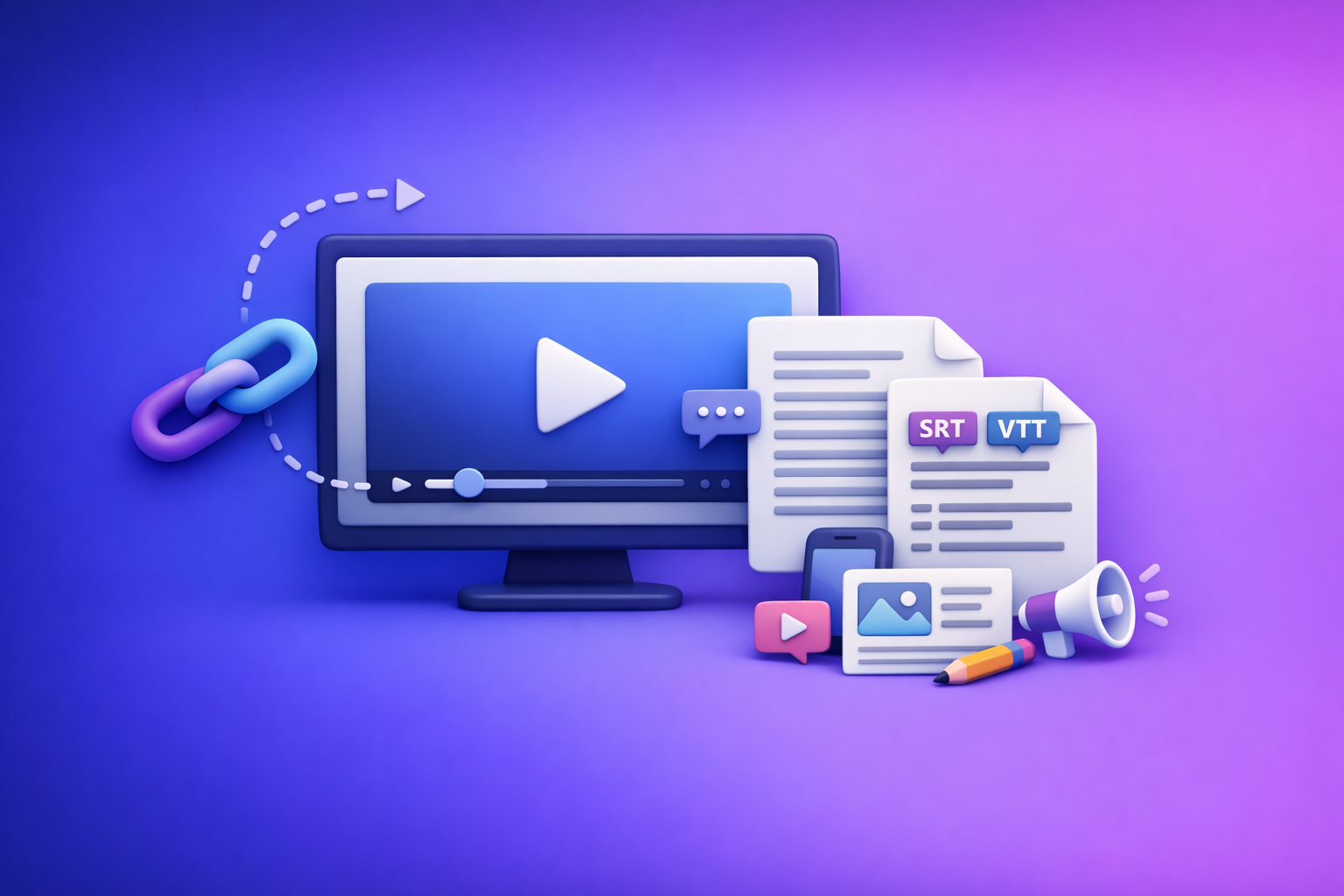
Video to Text Workflow: Turn Any Video Link into Transcripts, Subtitles (SRT/VTT), and Repurposed Content
Paste a video link, generate a transcript, clean it up, then export SRT/VTT subtitles and repurpose the text into publish-ready content. This transcript-first workflow prevents subtitle errors and saves hours compared to downloading files and re-uploading them.
At VideoToTextAI, our POV is simple: downloading video files is an outdated workflow. Link-based extraction is the future of creator productivity because it removes file handling, reduces friction, and makes transcript → subtitles → repurposing repeatable.
Who this workflow is for (and what you’ll get)
If you publish, teach, market, or podcast, you don’t need “a transcript.” You need a system that turns any video into multiple usable assets with minimal manual work.
Use cases by role
-
Creators
- Captions that match your voice
- Hook ideas and short-form scripts
- Carousel/slide copy
- LinkedIn post drafts from a single video
-
Marketing teams
- Blog drafts and SEO snippets
- Newsletter sections
- Landing page copy blocks
- Quote libraries for social and ads
-
Educators
- Lecture transcripts
- Searchable notes
- Study guides and summaries
-
Podcasters
- Show notes
- Clip timestamps and pull quotes
- Episode summaries and chapter markers
Outputs you’ll generate
- Clean transcript (editable, structured)
- Subtitle files: SRT + VTT
- Repurposed assets:
- Summary
- Blog outline/draft
- Social posts
- Translations (optional)
What “link-based video-to-text” means (and why it’s faster than uploads)
Link-based video-to-text means you paste a URL (instead of uploading a file), and the system pulls the audio/video from the source to generate text outputs.
Why it’s faster and more scalable than downloads/uploads:
- No file management: no exporting, renaming, storing, or re-uploading MP4s.
- Fewer failure points: fewer “upload stuck at 83%” problems.
- Repeatable workflows: the same link can be processed, reprocessed, and exported consistently.
- Better team handoff: a URL is easier to share than a large file.
This is why we consider file downloads an outdated workflow: they add friction without improving outcomes.
Supported sources (examples)
Common link sources include:
- YouTube links
- Instagram Reels links
- Public video URLs (hosted on a website/CDN)
If your main use case is Instagram, see: How to Get a Transcript from Any Instagram Reel in Seconds (2026 Guide).
If your goal is turning YouTube into written content, see: youtube to blog.
When you should use MP4 upload instead
Use an upload workflow when a link won’t work or shouldn’t be used:
- Private videos / restricted links (login required, unlisted with access controls)
- Local recordings (camera files, Zoom exports, phone videos)
- Compliance-controlled assets (internal training, legal review, regulated content)
If you’re starting from a file and need subtitles, use: mp4 to srt.
Step-by-step: Convert a video link into transcript + subtitles + repurposed content
This is the implementation sequence that prevents rework: Transcript → Cleanup → Subtitles → Repurpose → Translate.
Step 1 — Copy the video URL and confirm it’s accessible
Before you generate anything, confirm the link is actually usable.
-
Public access check: open the link in an incognito/private window.
- If it asks you to log in, the tool may fail.
- If it’s region-blocked, processing may fail or return partial results.
-
Audio quality quick check (60 seconds):
- Background noise (street, wind, crowd)
- Loud music under speech
- Multiple speakers talking over each other
- Low mic volume or clipping
If the audio is messy, you can still proceed, but plan for more cleanup (or switch to an upload workflow where you can use a cleaner source file).
Step 2 — Generate the transcript first (accuracy-first setup)
Your transcript is the “source of truth.” Subtitles and repurposed content should come from the corrected transcript, not raw audio.
Configure for accuracy:
-
Choose language (and dialect if available)
- Example: English (US) vs English (UK)
- Wrong language selection is a top cause of misheard words.
-
Enable speaker labels (when needed)
- Use for interviews, podcasts, panels, meetings, lectures with Q&A.
- Skip for single-speaker content to keep formatting clean.
-
Decide formatting: verbatim vs cleaned
- Verbatim: keeps filler words, false starts, repeated phrases.
- Cleaned: removes obvious filler and normalizes grammar.
- For most publishing workflows, cleaned is faster downstream.
-
Set timestamps: on/off depending on downstream use
- On: useful for clip finding, show notes, review, and subtitle alignment checks.
- Off: useful for blog drafts and written repurposing.
If your workflow is Instagram-first, you may also want: instagram to text.
Step 3 — Review and edit the transcript (the 5-minute cleanup pass)
You don’t need to “edit everything.” You need to fix the errors that break trust and downstream exports.
Focus on these high-impact fixes:
-
Fix proper nouns
- Names, brands, product names, locations
- Add consistent capitalization (e.g., “VideoToTextAI”)
-
Normalize numbers, units, and acronyms
- “ten” vs “10”
- “percent” vs “%”
- Acronyms: decide once (e.g., “SEO” not “S E O”)
-
Remove filler words (optional)
- “um,” “uh,” “like,” “you know”
- Keep them if you need verbatim compliance or legal accuracy.
-
Add paragraph breaks for readability
- Break on topic shifts, not on arbitrary sentence count.
- For speaker-labeled transcripts, break when the speaker changes.
This cleanup pass is why transcript-first wins: it prevents you from exporting subtitles that contain wrong names, broken sentences, or inconsistent terminology.
Step 4 — Export subtitles (SRT/VTT) from the corrected transcript
Export subtitles only after transcript cleanup. This reduces both wording errors and timing issues because your subtitle text is now stable.
Why transcript-first reduces subtitle errors
- Subtitles inherit text from the transcript.
- If the transcript is wrong, subtitles are wrong—then you “fix twice.”
- Correcting the transcript first means you export once and ship faster.
SRT vs VTT: when to use each
-
SRT
- Best for broad compatibility across editors and platforms
- Common for YouTube uploads, video editors, and distribution workflows
-
VTT (WebVTT)
- Best for web players and web-first publishing
- Useful when your player expects VTT or you need web caption features
For a deeper subtitle-specific walkthrough, see: How to Generate Subtitles (SRT & VTT Files) for Your Instagram Reels.
Timing sanity checks (fast QA)
Do a quick scan before publishing:
- Line length: avoid long lines that cover the screen.
- Reading speed: if it feels rushed, shorten lines or split captions.
- Overlaps: ensure captions don’t overlap or flash too quickly.
- Punctuation: add commas/periods where they improve comprehension.
Step 5 — Repurpose the transcript into publish-ready assets
Once the transcript is clean, repurposing becomes a structured writing task—not a guessing game.
Blog post draft (SEO-ready structure)
Use the transcript to generate a draft with a clear hierarchy:
-
Title options + H2 map
- Pull 3–5 candidate titles from the main promise + outcome.
- Build H2s from the transcript’s major sections.
-
Key takeaways section
- Convert the core points into 5–9 bullets.
- Keep each bullet “one idea.”
-
Quote blocks + examples
- Pull 3–7 quotable lines.
- Add context so quotes stand alone.
If you’re repurposing Reels into SEO content, see: Instagram Content Repurposing: How to Turn Reels into SEO Blog Posts.
Social posts (platform-specific)
Create platform-native variants from the same transcript sections.
-
LinkedIn: hook → insight → proof → CTA
- Hook: a contrarian statement or outcome
- Insight: the “how”
- Proof: example, metric, or mini-case
- CTA: ask a question or invite discussion (avoid hard selling)
-
X/Twitter: thread outline from sections
- 1 tweet = 1 idea
- Use the transcript’s section headers as the thread spine
- End with a recap + link to the full post/video
-
Instagram: caption variants + hashtag seed list
- Caption variant A: short, punchy, hook-heavy
- Variant B: educational mini-lesson
- Variant C: story + takeaway
- Hashtag seed list: 10–20 relevant tags (then refine per niche)
Summaries and notes
For internal sharing, meetings, or lectures:
-
3-bullet executive summary
- What it is
- Why it matters
- What to do next
-
Action items checklist
- Convert “we should” statements into tasks
- Assign owners and due dates if used for team workflows
Step 6 — Translate (optional) without breaking meaning
Translation works best when you translate cleaned text, not raw audio output.
Best practices:
-
Translate from the cleaned transcript (not raw audio)
- You’ll preserve intent and reduce nonsense phrases.
-
Preserve names/terms glossary
- Keep brand names, product names, and technical terms consistent.
- Decide what should not be translated.
-
Export translated subtitles (SRT/VTT) per language
- One file per language
- Validate line length and reading speed again after translation
Common mistakes (and how to avoid them)
Mistake: exporting subtitles before transcript cleanup
- What happens: wrong names, broken sentences, inconsistent terms end up in captions.
- Fix: edit transcript first, then regenerate/export subtitles.
Mistake: ignoring reading speed and line breaks
- What happens: captions feel “too fast” and hard to follow.
- Fix: enforce:
- max characters per line
- natural phrase breaks
- splits on punctuation
Mistake: losing formatting when repurposing
- What happens: your blog draft becomes a wall of text.
- Fix: use:
- section headers (H2/H3)
- consistent speaker labels
- short paragraphs and bullet lists
Mistake: poor results from noisy audio
- What happens: misheard words and missing phrases increase cleanup time.
- Fix: improve the source audio when possible, or use an upload workflow with a cleaner file and better control.
Troubleshooting: when transcripts/subtitles look wrong
If the transcript has many misheard words
Work through this sequence:
- Check language selection (and dialect)
- Identify heavy accents / overlapping speakers
- Re-run with different settings
- Try enabling speaker labels
- Ensure punctuation is enabled (if available)
- Consider cleaned vs verbatim based on your goal
If subtitle timing drifts
- Confirm the source video wasn’t edited after transcription (trimmed, sped up, re-uploaded).
- Re-export from the corrected transcript to ensure text and timing align.
- If drift persists, check for platform-specific caption requirements (some players are stricter about overlaps).
If the link fails to process
Common causes:
- Private/restricted content (login required)
- Region blocks
- Temporary platform throttling
- Wait and retry after a short window
- If it’s urgent, use an upload workflow from a local file
If your goal is specifically extracting text from Instagram video content, this may help: Can You Copy Text from an Instagram Video? Yes, Here is the Workaround..
Checklist: transcript → subtitles → repurposing (copy/paste)
- Video link opens in incognito
- Correct language selected
- Transcript generated with punctuation
- Proper nouns verified (names/brands/places)
- Numbers/units normalized
- Paragraph breaks added
- SRT exported and checked for line length
- VTT exported (if needed for web players)
- Summary generated (3–7 bullets)
- Blog draft created from transcript sections
- 3 social post variants created (LinkedIn/X/IG)
- (Optional) Translation exported + reviewed
Competitor Gap
What most posts miss (and what this post includes)
Most “video to text” articles stop at “generate a transcript” and ignore the real work: shipping accurate subtitles and publishable content.
This workflow closes the gap with:
- A transcript-first workflow that prevents subtitle timing/wording errors
- A complete implementation walkthrough from link → export → repurpose
- Troubleshooting for link failures, drift, and low-quality audio
- A reusable checklist for repeatable execution
- FAQ aligned to People Also Ask-style intent (copying text, SRT/VTT, accuracy, legality)
If you want to implement this as a repeatable system using link-based extraction (instead of outdated download/upload loops), use VideoToTextAI: https://videototextai.com
FAQ
How do I turn a video link into a transcript?
- Copy the public video URL and confirm it opens in incognito.
- Generate a transcript with the correct language (and speaker labels if needed).
- Do a 5-minute cleanup pass for proper nouns, numbers, and paragraphing.
- Export or repurpose from the corrected transcript.
For a full walkthrough, see: How to Turn Any Video Link into a Transcript, Subtitles (SRT/VTT), and Repurposed Content (Step-by-Step).
What’s the difference between SRT and VTT subtitle files?
- SRT is the most common subtitle format and works across many editors and platforms.
- VTT is designed for web players and web caption workflows.
Export SRT for maximum compatibility, and VTT when your web player or CMS expects it.
Why is my video transcript inaccurate, and how do I fix it?
Most inaccuracies come from:
- wrong language/dialect selection
- noisy audio or music
- overlapping speakers
- missing proper nouns (names/brands)
Fix it by selecting the correct language, enabling speaker labels when appropriate, cleaning proper nouns, and exporting subtitles only after transcript cleanup.
Can I copy text from an Instagram video or Reel?
Yes—by converting the Reel to text via a link-based workflow, then copying from the generated transcript. Start here: How to Get a Transcript from Any Instagram Reel in Seconds (2026 Guide).
Is it legal to transcribe a video from a public link?
It depends on your jurisdiction and how you use the transcript. In general, transcribing for personal use, accessibility, research, or internal workflows is often treated differently than republishing copyrighted content.
Practical guidance:
- Don’t republish full transcripts of copyrighted videos without permission.
- Use excerpts/quotes with attribution where applicable.
- For commercial reuse, get rights or use your own content.
Related posts
Reel Analyser (Instagram Reels): Transcript‑First Competitor Research, Hook/CTA Extraction, and Repurposing Workflow (VideoToTextAI)
Video To Text AI
A 2026 reel analyser should turn Instagram Reel links into a searchable transcript library you can tag for hooks, CTAs, objections, and topic clusters—then export into repurposing-ready drafts without a download/upload loop.
Traducir video de Instagram (Reels) en 2026: workflow transcript-first para traducir, sacar hooks/CTAs y repurpose (con VideoToTextAI)
Video To Text AI
Aprende a traducir un Reel de Instagram con un flujo URL→transcripción→traducción→subtítulos, y a convertir esa traducción en un activo de investigación para hooks, CTAs, objeciones y clusters de contenido.
Reel Analyzer: Transcript‑First Instagram Reels Research (Hooks, CTAs, Objections) + Workflow Guide (VideoToTextAI)
Video To Text AI
A reel analyzer should turn any public Instagram Reel link into a searchable transcript library you can mine for hooks, CTAs, objections, and topic clusters—then repurpose into original drafts with a repeatable SOP.