
Video2Text AI: Convert Any Video Link into Transcripts, SRT/VTT Subtitles, and Repurposed Content (VideoToTextAI)
 Video To Text AI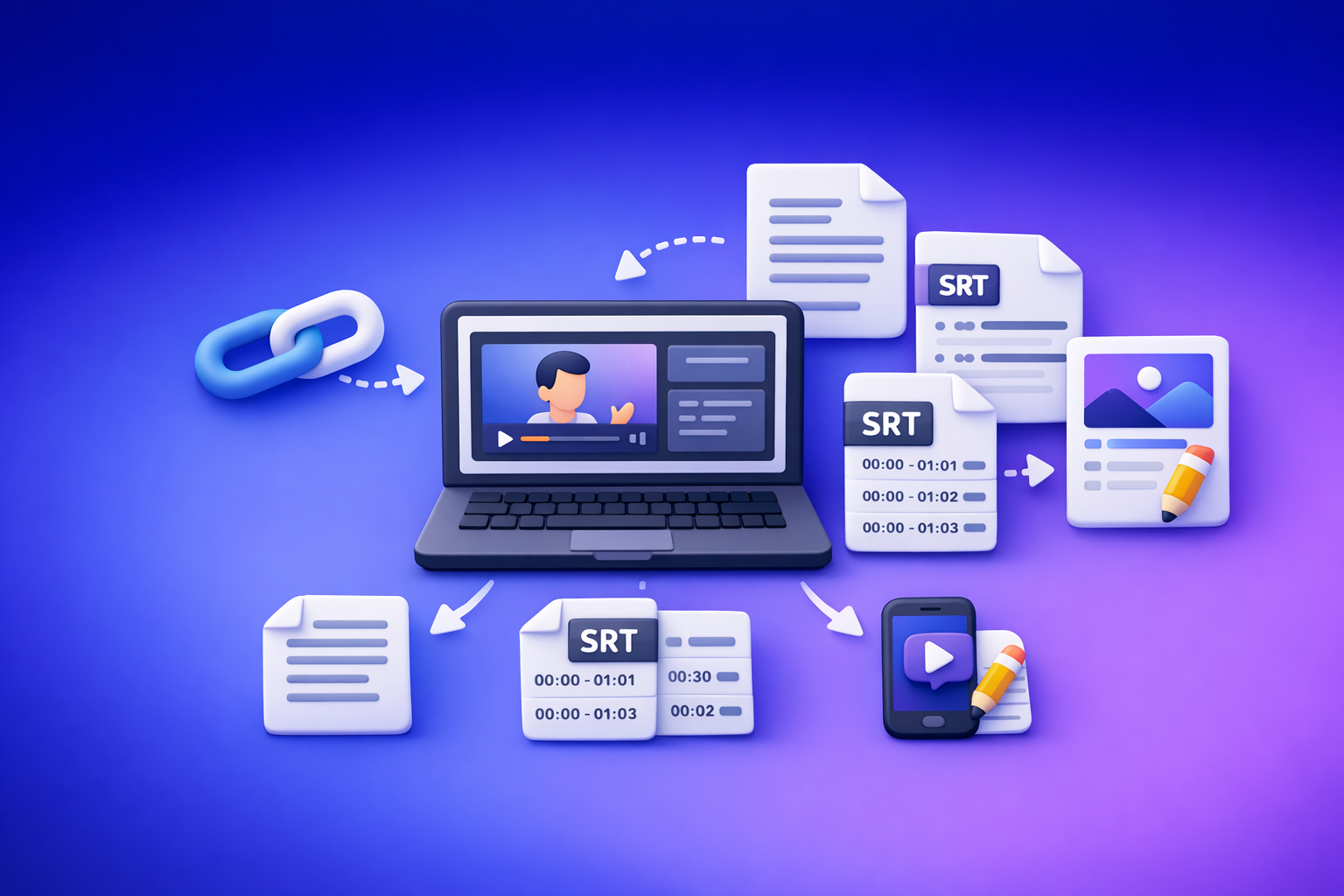
Video2Text AI: Convert Any Video Link into Transcripts, SRT/VTT Subtitles, and Repurposed Content (VideoToTextAI)
Paste a video link and generate a transcript, SRT/VTT subtitles, and repurposed content drafts in one workflow. VideoToTextAI is built for link-based video-to-text, because downloading files, renaming MP4s, and re-uploading is an outdated workflow that slows creator productivity.
What “video2text ai” Means (and What It Should Output)
“Video2text AI” is the use of speech-to-text and language models to convert spoken audio in a video into structured text outputs you can publish, search, edit, and repurpose.
If a tool only gives you a blob of text, it’s incomplete. A practical video2text AI workflow should output multiple assets from the same source.
Video-to-text outputs you should expect
At minimum, expect:
- Transcript (TXT / doc-style text) for reading, editing, and repurposing
- Subtitles files (SRT and/or VTT) for YouTube, web players, and editors
- Captions-ready text (short lines, hook-first, mobile-friendly)
- Summary + key points for fast review and distribution
- Optional: speaker labels, timestamps, and chapters/highlights
Transcript vs captions vs subtitles (SRT/VTT) vs summaries
These are not interchangeable. Treat them as different deliverables with different formatting rules.
- Transcript: readable paragraphs, punctuation, minimal timestamps, best for SEO and repurposing.
- Captions: short, punchy, often styled; optimized for silent viewing on mobile (Reels/TikTok).
- Subtitles (SRT/VTT): timed text that must sync to audio; strict line length and timestamp formatting.
- Summary: compressed meaning; good for newsletters, briefs, and “should I watch this?” decisions.
If your goal is publishing, SRT/VTT matters. If your goal is content marketing, transcript-first is the fastest reliable path.
Link-based vs upload-based workflows (when each is required)
Link-based extraction is the future of creator productivity because it removes the slowest steps: downloading, storing, and re-uploading large files.
Use link-based when:
- The video is public (YouTube, many Instagram posts, public podcast pages)
- You want speed, repeatability, and minimal file handling
- You’re processing many videos per week and need a consistent SOP
Use upload-based when:
- The link is private, geo-blocked, or behind a login wall
- You only have an MP4 locally (client sends a file, internal recordings)
- You need to transcribe raw footage not hosted anywhere
For a deeper walkthrough of link-based processing, see:
How to Turn Any Video Link into a Transcript, Subtitles (SRT/VTT), and Repurposed Content (Step-by-Step)
When to Use Video2Text AI (High-ROI Use Cases)
Video2text AI pays off when it reduces manual labor: note-taking, caption typing, blog drafting, and editing.
YouTube: tutorials, interviews, webinars, podcasts
High ROI because YouTube videos are long and information-dense.
Use cases:
- Turn tutorials into help docs and SEO blog posts
- Convert interviews into quote banks and topic clusters
- Extract webinars into chapters, FAQs, and sales enablement snippets
- Convert podcasts into show notes and newsletter summaries
Related:
Video to Text: Convert Any Video Link into a Transcript, Subtitles (SRT/VTT), and Repurposed Content
Instagram Reels: fast transcription + captioning + repurposing
Reels demand speed. The value is not just transcription—it’s caption-ready formatting and repurposing.
Typical workflow:
- Generate transcript
- Convert to short captions (hook + payoff + CTA)
- Pull 3–5 post ideas from one Reel
Related:
Free Instagram Transcript Generator (From a Link): Get Reel Transcripts Fast with VideoToTextAI
How to Generate Subtitles (SRT & VTT Files) for Your Instagram Reels
Meetings/lectures: searchable notes + highlights
For internal teams and education, video2text AI turns recordings into:
- Searchable notes (find decisions fast)
- Action items (who owns what)
- Highlights (what matters, not everything)
If you’re currently downloading recordings, uploading them to multiple tools, and copying text between apps, that’s the outdated workflow. Link-based processing keeps the pipeline clean and repeatable.
Content repurposing: blog posts, LinkedIn posts, Twitter/X threads
One video can produce:
- 1 blog post draft
- 1 LinkedIn post
- 1 email summary
- 1 thread outline
- 5–10 short caption variants
The key is to start with a clean transcript and then derive everything else from it.
VideoToTextAI Workflow (Step-by-Step, Link-Based)
This is the implementation sequence that prevents downstream errors (bad subtitles, messy formatting, unusable drafts).
If you want to run the workflow now, use VideoToTextAI: VideoToTextAI
Step 1: Choose the right input (public URL vs MP4)
Decide based on access:
- Public URL: fastest, no file handling, best for repeatable SOPs
- MP4 upload: fallback for private/blocked content or local files
Rule of thumb: If it has a stable URL, use the URL. Downloading is friction you don’t need.
Step 2: Paste the link into VideoToTextAI and select the workflow
Pick the workflow based on your end goal:
- Transcript only (repurposing, SEO, notes)
- Subtitles (SRT/VTT) (publishing, accessibility, editors)
- Transcript + repurposed drafts (marketing pipeline)
Avoid doing these in separate tools. One source transcript should feed all outputs.
Step 3: Configure output settings (timestamps, speaker labels, language)
Use settings intentionally:
- Language: set explicitly if the audio isn’t English or includes bilingual segments
- Speaker labels: enable for interviews, meetings, podcasts
- Timestamps: enable when you need subtitle sync or editing references
If you’re repurposing into a blog post, timestamps often add clutter. Keep them off unless you need them.
Step 4: Generate transcript + subtitles (SRT/VTT) + repurposed assets
Generate in one pass so everything stays consistent:
- Transcript becomes the single source of truth
- SRT/VTT inherits timing from the same processing
- Repurposed drafts stay aligned with what was actually said
Step 5: Review and edit for accuracy (names, jargon, acronyms)
Do a fast QC pass focused on high-impact errors:
- Proper nouns (people, brands, product names)
- Acronyms (SaaS terms, tools, frameworks)
- Industry jargon (medical, legal, technical)
- Numbers (prices, dates, metrics)
Don’t over-edit. Fix what would cause embarrassment or misunderstanding.
Step 6: Export formats (TXT, SRT, VTT) and publish (YouTube/CapCut/Premiere)
Export based on destination:
- TXT for docs, blogs, knowledge bases
- SRT for most editors and platforms
- VTT for web players and some workflows
Publishing examples:
- YouTube: upload subtitles file in Subtitles section
- CapCut/Premiere: import SRT, then style captions as needed
- Web players: use VTT for HTML5 video tracks
If you hit formatting issues, jump to the troubleshooting section below.
Implementation Playbook: From Video Link → Publish-Ready Assets
This playbook is designed to be repeatable across YouTube, Reels, webinars, and podcasts.
Transcript-first repurposing (the fastest reliable path)
Transcript-first works because it reduces compounding errors:
- Generate transcript
- Clean the transcript (light QC)
- Derive all other assets from the cleaned text
- Export subtitles last (or regenerate if you changed meaning)
This is also why link-based workflows win. You’re not juggling files—you’re operating on a stable source.
Turn a transcript into:
A blog post outline + draft (SEO-ready)
Use this structure:
- H1: the outcome (what the reader gets)
- Intro: 2–3 sentences that match search intent
- H2s: the main segments of the video (or the questions answered)
- Bullets: steps, tools, examples
- FAQ: pull 5–8 questions the speaker answered implicitly
Editing rules:
- Remove filler words and repeated phrases
- Convert spoken transitions into headings
- Add definitions for terms that were “obvious” in the video
If you’re building a content cluster, connect it to:
videototext.io vs VideoToTextAI: Link-Based Video-to-Text Workflows for Transcripts, Subtitles, Captions, and Repurposing (2026)
Short-form captions (hook + CTA variants)
Create 5–10 caption variants from one transcript segment.
Template:
- Hook: “If you’re still doing X, you’re wasting time.”
- Value: 1–2 lines of the key insight
- Proof: a number, result, or quick example
- CTA: “Comment ‘template’ and I’ll share it.” / “Save this.”
Formatting rules:
- Keep lines short (mobile)
- One idea per caption
- Avoid long sentences (split them)
A LinkedIn post (structure + formatting rules)
LinkedIn performs best with scannable formatting.
Structure:
- 1–2 line contrarian opener
- 3–5 bullets with specific steps
- A short example from the video
- A question to drive comments
Formatting rules:
- Use whitespace (1–2 sentences per paragraph)
- Bold only the key phrase (don’t overdo it)
- Avoid hashtags stuffing; focus on clarity
A summary + key takeaways for newsletters
Newsletter readers want compression.
Template:
- 1-sentence summary: what the video taught
- 3–7 takeaways: bullets, each actionable
- 1 recommended action: what to do next
- Optional: quote of the week from the transcript
Accuracy & Quality Controls (What Actually Improves Results)
Most “accuracy” problems are input problems. Fix the source, and transcription improves.
Audio quality checklist (noise, overlap, music, mic distance)
Before you run video2text AI, check:
- Mic proximity: closer is better; avoid room echo
- Background noise: fans, traffic, keyboard clicks
- Music beds: lower or remove if possible
- Overlapping speakers: the #1 cause of errors
- Clipping/distortion: if audio peaks, words get lost
If you can’t re-record, consider isolating vocals or using a cleaner audio track.
Speaker separation: when to use labels and when not to
Use speaker labels when:
- Interviews, podcasts, panels
- Meetings with decisions and action items
- Any content where attribution matters
Skip labels when:
- Single-speaker tutorials
- Short Reels where labels add clutter
- You’re only extracting a summary
Timestamps: when they help (subtitles, editing) vs when they clutter
Timestamps help when you need:
- Subtitle sync (SRT/VTT)
- Editing references (“cut at 03:12”)
- Highlight reels and clip selection
Timestamps clutter when you need:
- A readable transcript for repurposing
- A blog draft
- Notes for internal docs
Formatting rules for readable transcripts (paragraphing, punctuation, fillers)
A transcript becomes usable when it’s readable.
Apply these rules:
- New paragraph every topic shift (not every sentence)
- Remove filler words: “um,” “you know,” “like” (selectively)
- Normalize punctuation (especially run-on speech)
- Keep acronyms consistent (e.g., “SRT,” “VTT,” “SEO”)
Troubleshooting: Common Failures and Fixes
“The link won’t process” (private video, geo-block, login wall)
Common causes:
- Video is private/unlisted without access
- Geo-blocked in your region
- Requires login (Instagram private account, gated content)
- URL is malformed or redirects repeatedly
Fixes:
- Confirm the video is publicly accessible in an incognito window
- Use the canonical URL (not a shortened redirect)
- If access is restricted, switch to MP4 upload as a fallback
- For platform constraints, use a source that provides a stable public link
If you’re trying to push video into general AI chat tools, note the limitations here:
Can I Upload Video to ChatGPT? What’s Actually Possible (and the Fastest Workaround)
“Transcript is inaccurate” (accents, crosstalk, music) + fixes
Causes:
- Heavy accents + low bitrate audio
- Crosstalk and interruptions
- Loud music or background noise
- Speaker far from mic
Fixes:
- Enable speaker labels only if it improves clarity (otherwise it can mis-assign)
- Prefer the cleanest audio source (podcast audio track > room recording)
- If possible, reduce music bed volume
- Do a quick post-edit on names and acronyms (highest ROI)
“Subtitles are out of sync” (timing granularity, long lines) + fixes
Causes:
- Long subtitle lines that force reflow in players
- Timing granularity mismatches between tools
- Variable frame rate video causing drift in some editors
Fixes:
- Keep subtitle lines short (break long sentences)
- Export in the format your destination expects (SRT vs VTT)
- If your editor supports it, re-time captions to the audio waveform
- Avoid manual timestamp edits unless you know the format rules
“Export doesn’t work in my editor” (SRT/VTT formatting pitfalls)
Common pitfalls:
- Wrong timestamp delimiter (comma vs period)
- Bad numbering sequence in SRT
- Unsupported characters or encoding issues
- VTT missing required header (
WEBVTT)
Fixes:
- Re-export in the correct format (SRT for most editors)
- Don’t hand-edit timestamps unless necessary
- Validate the file in a simple player before importing into your editor
Checklist: Video2Text AI in 5 Minutes (Copy/Paste SOP)
Use this as a team SOP for consistent outputs.
Pre-flight (before you run the tool)
- Confirm the video is publicly accessible (open in incognito)
- Choose goal: Transcript, Subtitles, or Repurposing
- Identify special terms (names, product, acronyms) for QC
- If audio is noisy, find a cleaner source (podcast feed, original upload)
Run settings (what to toggle for each goal)
-
For repurposing (blog/newsletter):
- Timestamps: OFF (unless needed)
- Speaker labels: ON for interviews, OFF for solo
- Language: set explicitly
-
For publishing subtitles (YouTube/editors):
- Export: SRT (and VTT if needed)
- Timestamps: ON
- Keep lines short (avoid long sentences)
-
For meetings/lectures:
- Speaker labels: ON
- Timestamps: optional (ON if you need references)
- Generate summary + action items (if available)
Post-flight (QC + exports + publishing)
- Fix names, acronyms, and numbers
- Skim for obvious misheard phrases (first 2 minutes + technical sections)
- Export TXT for repurposing
- Export SRT/VTT for publishing
- Upload subtitles to destination (YouTube/CapCut/Premiere)
- Save repurposed drafts to your content calendar
Tool Shortcuts (Use These VideoToTextAI Pages)
Use dedicated entry points to reduce clicks and standardize your workflow:
Instagram link → transcript
Best for Reels transcription and caption pipelines. Pair with:
How to Generate Subtitles (SRT & VTT Files) for Your Instagram Reels
YouTube link → blog post
Best for turning long-form videos into SEO drafts and outlines. Pair with:
Video to Text: Convert Any Video Link into a Transcript, Subtitles (SRT/VTT), and Repurposed Content
MP4 → transcript / SRT / VTT
Use when links fail (private, geo-blocked, login wall). This is the exception, not the default—downloading and uploading files is the outdated workflow.
Podcast → transcription
Use for show notes, quote extraction, and newsletter summaries.
Competitor Gap
Most “video2text ai” pages rank by being short and generic. They often say “paste a link” but don’t explain how to get publish-ready outputs without breaking sync, formatting, or downstream workflows.
What competitors do (and don’t) cover
Competitors typically cover:
- Basic promise: “convert video to text”
- Minimal steps: paste URL → get text
- Light FAQ
Competitors often miss:
- Implementation walkthrough (link → settings → export → publish)
- Troubleshooting for link failures, sync issues, and formatting pitfalls
- Reusable SOP checklist and repurposing templates that teams can copy/paste
How this post closes the gap (and how VideoToTextAI supports it)
This guide focuses on execution:
- Transcript-first workflow to reduce downstream errors and rework
- Clear guidance on timestamps, speaker labels, and formatting
- Practical troubleshooting for the failures that actually happen
- Export-ready SRT/VTT plus repurposed drafts from the same source text
It also reflects the modern reality: link-based extraction is the future of creator productivity, and file downloading is unnecessary friction for most workflows.
FAQ: Video2Text AI (People Also Ask-Aligned)
Is video2text AI free?
Some tools provide free trials or limited usage. For consistent processing, longer videos, and reliable exports (SRT/VTT), most teams use a paid plan because it saves more time than it costs.
Can I convert any YouTube video to text with AI?
You can convert most public YouTube videos. If a video is private, restricted, geo-blocked, or requires login, link-based processing may fail—use an upload-based fallback if you have the file and rights.
How accurate is video-to-text AI transcription?
Accuracy depends heavily on audio quality. Clean speech with minimal overlap is typically high accuracy, while crosstalk, music, and echo reduce quality. The highest ROI fix is a quick QC pass for names, acronyms, and numbers.
What’s the difference between a transcript and SRT/VTT subtitles?
A transcript is optimized for reading and repurposing. SRT/VTT are timed subtitle formats optimized for playback; they require correct timestamps and line breaks to stay in sync across platforms.
How can I use the video-to-text results for content repurposing?
Use a transcript as the source of truth, then derive:
- Blog outline + draft
- LinkedIn post
- Newsletter summary + takeaways
- Short-form caption variants and hooks
For a full repurposing walkthrough, see:
How to Turn Any Video Link into a Transcript, Subtitles (SRT/VTT), and Repurposed Content (Step-by-Step)
Related posts
Reel Analyser (Instagram Reels): Transcript‑First Competitor Research, Hook/CTA Extraction, and Repurposing Workflow (VideoToTextAI)
Video To Text AI
A 2026 reel analyser should turn Instagram Reel links into a searchable transcript library you can tag for hooks, CTAs, objections, and topic clusters—then export into repurposing-ready drafts without a download/upload loop.
Traducir video de Instagram (Reels) en 2026: workflow transcript-first para traducir, sacar hooks/CTAs y repurpose (con VideoToTextAI)
Video To Text AI
Aprende a traducir un Reel de Instagram con un flujo URL→transcripción→traducción→subtítulos, y a convertir esa traducción en un activo de investigación para hooks, CTAs, objeciones y clusters de contenido.
Reel Analyzer: Transcript‑First Instagram Reels Research (Hooks, CTAs, Objections) + Workflow Guide (VideoToTextAI)
Video To Text AI
A reel analyzer should turn any public Instagram Reel link into a searchable transcript library you can mine for hooks, CTAs, objections, and topic clusters—then repurpose into original drafts with a repeatable SOP.