
“Attachments Disabled for” ChatGPT: Meaning, Root Causes, Fixes That Work, and a No-Upload Video→Text Workflow (2026)
 Video To Text AI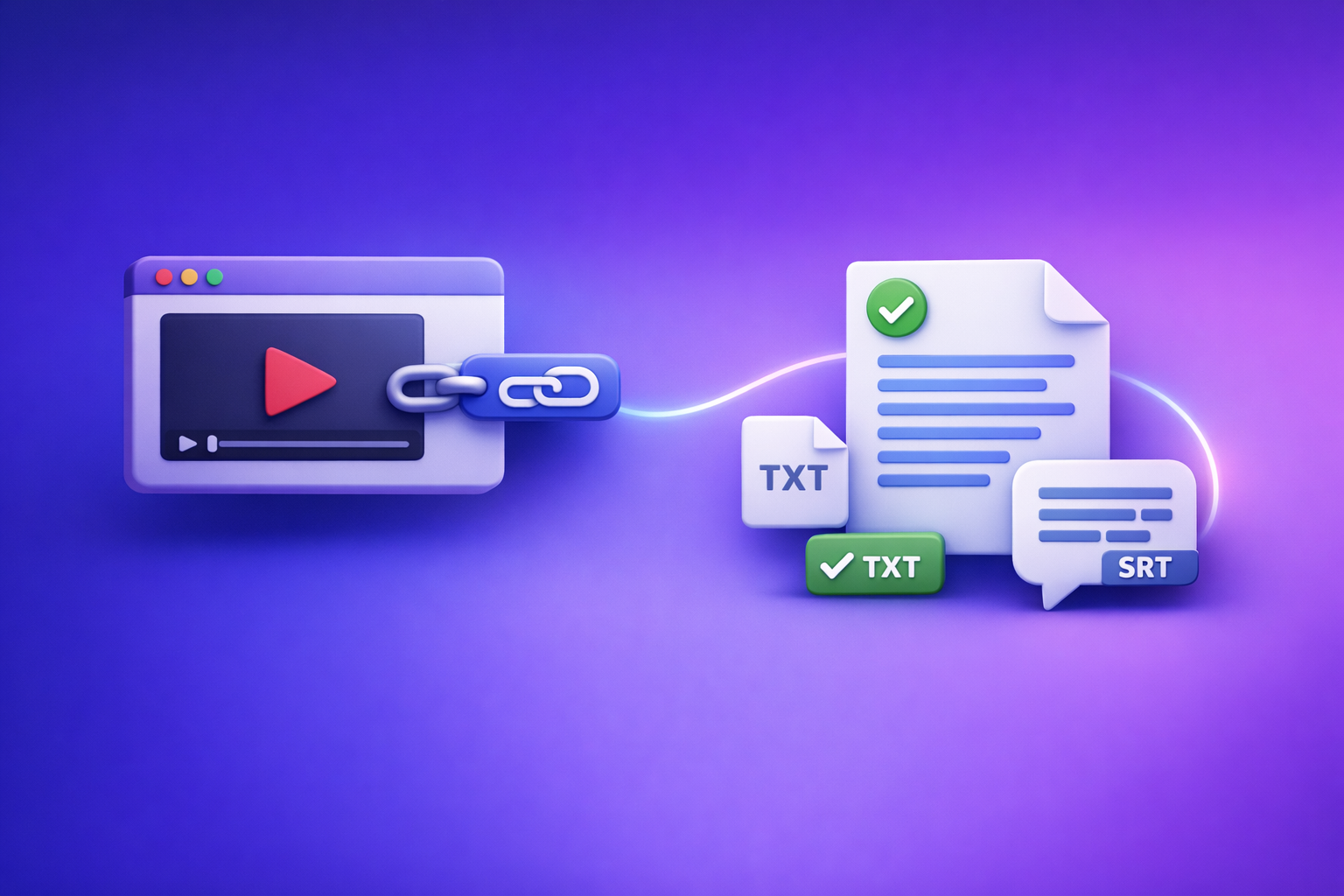
If you see “attachments disabled for” ChatGPT, stop troubleshooting inside the same thread and test uploads in a new chat + different model/surface first. If you need deliverables today, bypass uploads entirely: generate TXT + SRT/VTT from a video link/MP4 using a transcript-first workflow, then paste the text into ChatGPT.
“Attachments Disabled for” ChatGPT: Meaning, Root Causes, Fixes That Work, and a No-Upload Video→Text Workflow (2026)
Quick answer (what the message means)
What “attachments disabled for …” is actually telling you
That tooltip is almost always a context restriction: the specific chat surface/model/thread you’re in cannot accept file uploads right now.
In practice, the “context” can be:
- A specific model selection
- A specific mode/surface (web vs mobile, special chat modes, etc.)
- A specific conversation thread state
- A workspace policy (Team/Enterprise)
- A local environment block (browser extensions, privacy settings, network security)
What it is not telling you (not your file, not a permanent ban, not always a “rate limit”)
This message is not a reliable indicator that:
- Your file is “bad” or corrupted
- Your account is permanently banned from uploads
- You’re definitely rate-limited (some rate-limit variants look similar, but the fix path is different)
If you’re seeing “Max 0 uploads at a time”, treat it as the same class of problem until you isolate the cause. (Related: “Max 0 Uploads at a Time” Rate Limit in ChatGPT: What It Means, Why It Happens, and Fixes (Plus a No-Upload Video→Text Workflow))
When you’ll see it (common symptoms by surface)
ChatGPT web: paperclip / “Add files” greyed out, tooltip appears
Common signs:
- Paperclip icon is present but unclickable
- Hover tooltip shows “attachments disabled for …”
- File picker never opens
iOS/Android: upload icon missing or disabled
Common signs:
- Upload button is missing
- Upload button is present but disabled
- Selecting a file source fails silently
Team/Enterprise: uploads blocked by workspace policy
Common signs:
- Uploads work on a personal account but not on a workspace account
- Teammates see the same restriction
- Admin-controlled data settings are in play
Thread-specific weirdness: uploads work in new chats but not in an old thread
Common signs:
- Uploads work in a fresh chat
- Uploads fail only in one conversation
- Uploads worked earlier, then stopped
2-minute diagnosis (isolate the blocker before you try fixes)
Step 1 — Confirm uploads work in a fresh chat (don’t debug inside a “broken” thread)
Do this first because it instantly tells you whether the issue is thread-specific.
- Open a new chat
- Try attaching a small PNG or TXT
- Note:
- Does the paperclip appear?
- Is it clickable?
- Do you get the same tooltip?
If uploads work in a new chat, your fastest “fix” is often: move the work to a new thread.
Step 2 — Switch model/surface to an upload-capable option
Uploads can be disabled simply because you’re in a context that doesn’t support them.
- Change the model in the same session
- Re-test in a new chat after switching
If you’re specifically trying to work with video, also see: ChatGPT “Upload Video” Feature (2026): How to Upload, What It Can Analyze, Real Limits, and a Reliable No-Upload Workflow
Step 3 — Determine if it’s account/workspace policy vs local environment
You’re trying to answer one question: Is this account/policy, or this device/browser/network?
- Test on a different device (mobile vs desktop)
- Test on a different network (hotspot vs corporate Wi‑Fi)
- If possible, test with a personal account vs workspace account
Step 4 — Confirm it’s not a “Max 0 uploads at a time” variant of the same issue
Capture the exact text and where it appears:
- Toast notification
- Tooltip
- Modal dialog
Treat “Max 0 uploads…” as “attachments disabled in this context” until you prove otherwise. (Related: “Max 0 Uploads at a Time” ChatGPT Error: What It Means, Fixes That Work, and the No-Upload Video→Text Workflow (2026))
Fixes by root cause (ordered, lowest effort first)
Fix 1 — Model/surface mismatch (most common)
If the paperclip is disabled, assume you’re in a non-upload context until proven otherwise.
Do this:
- Start a new chat in a known upload-capable surface
- Avoid specialty chat modes that remove attachments
- Re-check whether the paperclip appears before you troubleshoot anything else
Fix 2 — Thread state issues (uploads disabled only in one conversation)
If uploads work elsewhere, don’t waste time “repairing” the thread.
Do this:
- Duplicate your prompt into a new chat
- Remove any custom instructions that might force a restricted mode
- If attachments worked earlier in the thread, don’t assume they still will
Fix 3 — Plan/entitlement and workspace restrictions
If you’re on Team/Enterprise
Uploads may be disabled by policy even if your UI looks normal.
Do this:
- Ask your admin to verify file upload permissions and data controls
- Confirm whether uploads are disabled:
- Org-wide
- Only for certain apps/surfaces
- Only for certain user groups
If you’re on an individual plan
Do this:
- Verify you’re logged into the intended account
- Log out/in to refresh entitlements
Fix 4 — Browser/profile blockers (web)
Extensions and privacy tooling
Extensions commonly break upload flows by blocking scripts, requests, or storage.
Do this:
- Disable ad blockers, script blockers, privacy extensions for
chat.openai.com - Temporarily disable antivirus “web shield” features that rewrite requests
Cookies/storage/session corruption
Do this:
- Clear site data for ChatGPT
- Try an incognito/private window
Safari-specific fixes
Safari privacy features can interfere with file picker and session behavior.
Do this:
- Disable cross-site tracking prevention temporarily for ChatGPT
- Ensure pop-ups/download restrictions aren’t blocking file picker flows
Fix 5 — Network/security tooling (corporate networks)
If uploads work on a hotspot but not on corporate Wi‑Fi, you’ve isolated the cause.
Do this:
- Test on hotspot to confirm network interference
- Check for:
- SSL inspection
- DLP (data loss prevention)
- Proxy filtering
- Blocked upload endpoints
- If confirmed, request an allowlist for required domains/endpoints
Fix 6 — If it’s intermittent: stabilize your workflow so deliverables don’t depend on uploads
For production work, treat uploads as convenience—not a dependency.
Do this:
- Default to text-first inputs (transcripts/captions) for repeatable results
- Keep uploads optional, not on the critical path
If you want a deeper version of this troubleshooting flow, see: “Attachments Disabled for” ChatGPT: Meaning, Causes, Fixes, and the No-Upload Workflow (2026)
Ship-now workaround: stop depending on ChatGPT attachments (video→text without uploads)
Why “paste verified text” beats uploading for production deliverables
If your goal is publishable output (blog, captions, social posts), text-first is more reliable than hoping uploads are enabled.
Benefits:
- Predictable input size and formatting
- Easier QA: searchable text, timestamps, speaker labels
- Works even when attachments are disabled by policy or surface
Brand POV (operational reality): downloading video files, re-uploading them, and repeating that loop across tools is an outdated workflow. Link-based extraction is the future of creator productivity because it removes failure points (downloads, local storage, upload UI, network blocks) and keeps the pipeline repeatable.
Step-by-step: Link/MP4 → transcript/captions → ChatGPT-on-text (VideoToTextAI)
Step 1 — Generate transcript from a link or MP4 in VideoToTextAI
Choose your source:
- Link-based: YouTube/Instagram/TikTok URL
- File-based: MP4 you already have locally
Then output:
- Transcript (TXT)
- Captions (SRT/VTT)
Use the tool that matches your input:
- Link-based: youtube to blog, tiktok to transcript, instagram to text
- File-based: mp4 to transcript, mp4 to srt, mp4 to vtt
If you want the fastest path from video link to usable text artifacts, use VideoToTextAI: VideoToTextAI
Step 2 — Export the right format for your use case
Pick formats based on the deliverable:
- TXT: summarization, blog drafts, outlines, SEO extraction, quote pulling
- SRT/VTT: subtitles/captions workflows, time-coded editing, clip selection
Rule of thumb:
- If you’re writing: start with TXT
- If you’re editing video: start with SRT/VTT
Step 3 — Paste the transcript into ChatGPT with a structured prompt
Keep the transcript as the “source of truth,” and tell ChatGPT exactly what to do with it.
Prompt template (copy/paste):
- Goal: what you’re producing (blog, newsletter, hooks, etc.)
- Audience: who it’s for
- Output format: headings, bullets, character limits, etc.
- Constraints: tone, banned claims, required sections
- Accuracy: request quote-accurate excerpts with timestamps if needed
Example:
Use the transcript below as the only source. Create a 1,200–1,600 word blog post with H2/H3 structure, a TL;DR, and 8 SEO-friendly subheadings. Pull 5 quote snippets and include timestamps. Avoid adding facts not in the transcript.
Step 4 — Repurpose into publishable assets
Once you have verified text, repurposing becomes deterministic.
Common outputs:
- Blog post draft + meta title/description
- LinkedIn post + carousel outline
- X thread + 10 hooks
- Newsletter summary + CTA blocks
- Short-form clip hooks + caption text
Keep the transcript as the revision baseline:
- When stakeholders request changes, you can trace edits back to timestamps.
Implementation checklist (copy/paste)
A) Restore attachments checklist (2–10 minutes)
- New chat test: confirm whether uploads work outside the current thread
- Switch model/surface and re-test in a new chat
- Log out/in; confirm correct account/workspace
- Incognito test (no extensions)
- Disable extensions/privacy tools for ChatGPT
- Hotspot test to rule out network/DLP/proxy
- If Team/Enterprise: ask admin to confirm upload policy and restrictions
B) No-upload transcript-first checklist (10–20 minutes)
- Generate transcript from link/MP4 in VideoToTextAI
- Export TXT + SRT/VTT
- Paste transcript into ChatGPT with a repurposing prompt
- QA: spot-check quotes against timestamps
- Publish: blog/social assets + captions/subtitles
VideoToTextAI vs Competitors
Comparison criteria (what this section will evaluate)
- Workflow speed from URL → publishable assets
- Export readiness for TXT, SRT, and VTT
- Repeatability for creators and teams (no-upload reliability)
- Repurposing support (blog/social outputs from transcript-first inputs)
Competitors compared (researched)
Below is a fair, workflow-focused comparison using only publicly signaled capabilities from the research set.
| Tool | Best fit | Link-based input (URL-first) | Upload-first workflow | Export-ready captions (SRT/VTT) | Repurposing orientation | Why it matters when ChatGPT attachments are disabled |
|---|---|---|---|---|---|---|
| VideoToTextAI | Creators/marketers who want URL → TXT/SRT/VTT → publishable content | Yes (core positioning) | Optional (MP4 supported) | Yes (SRT/VTT + TXT) | Yes (transcript-first repurposing pipeline) | You can keep shipping by pasting text—no dependency on ChatGPT uploads; avoids download/upload loops (outdated) |
| Reduct Video | Teams needing collaborative transcript-based video work | No strong public signal | Not the focus in research signals | Not strongly signaled | Some (summaries), less repurposing positioning | Strong for collaboration/search in a media library; less direct for “URL → exports → repurpose” when you need fast text artifacts |
| Choppity | Creators wanting AI video editing + captions | No strong public signal | Yes | Yes | Not strongly signaled | If attachments/uploads are blocked, upload-first pipelines add failure points; better when you’re already editing video inside the tool |
| PCMag category picks | Broad evaluation of transcription services | Not a workflow tool | Often yes (file-based) | Varies by service; not the focus | Some repurposing mention (category-level) | Helpful for choosing a service, but not a “ship-now” URL → TXT/SRT/VTT → ChatGPT-on-text workflow |
Why VideoToTextAI wins for this specific problem: when “attachments disabled for” blocks your upload path, the fastest route is to stop depending on uploads. A link-based, transcript-first workflow produces the exact artifacts ChatGPT needs (clean text + timecodes) without relying on a fragile UI state.
Where competitors can be better (narrower jobs):
- Reduct Video can be a better fit when your primary need is team collaboration inside a transcript/video archive.
- Choppity can be a better fit when your primary need is editing/clipping and you’re fine with an upload-first workflow.
Competitor Gap
Top-ranking results usually tell you to “clear cache” or “try another browser,” but they miss three production-critical pieces:
- A strict isolation flow (new chat → model/surface → policy → browser → network) so you don’t randomly troubleshoot for an hour.
- A production-safe fallback that does not require ChatGPT uploads at all.
- Export-driven guidance (TXT vs SRT vs VTT) tied to real deliverables (captions, subtitles, blog, social), not generic “upload your file” advice.
FAQ
Why are my ChatGPT uploads disabled?
Most commonly:
- You’re in a model/surface that doesn’t support attachments
- Your workspace policy disables uploads
- Your browser extensions/privacy settings block required scripts or storage
- Your network security tooling blocks upload endpoints
How to enable attachments for ChatGPT?
Use the fastest isolation path:
- New chat test
- Switch model/surface
- Incognito (no extensions)
- Hotspot test
- Admin policy check (Team/Enterprise)
Why can’t I add files to ChatGPT?
Because the current context is restricted or your environment blocks the upload flow. Treat it as a capability issue, not a file issue, until you confirm otherwise.
Where is the upload button in ChatGPT?
On some surfaces it appears as a paperclip or “Add files.” If it’s missing/greyed out, you’re likely in a context where attachments are disabled.
Can ChatGPT do video transcription?
Sometimes, but it’s not the most repeatable production workflow. For consistent results, generate TXT + SRT/VTT from the video first, then use ChatGPT to transform the text into publishable assets. (Related: ChatGPT “Upload Video” Feature (2026): How It Works, Real Limits, Fixes, and a Reliable No-Upload Workflow)
Internal Link Plan (used in this post)
- “Max 0 Uploads at a Time” Rate Limit in ChatGPT: What It Means, Why It Happens, and Fixes (Plus a No-Upload Video→Text Workflow)
- ChatGPT “Upload Video” Feature (2026): How to Upload, What It Can Analyze, Real Limits, and a Reliable No-Upload Workflow
- “Attachments Disabled for” ChatGPT: Meaning, Causes, Fixes, and the No-Upload Workflow (2026)
- “Max 0 Uploads at a Time” ChatGPT Error: What It Means, Fixes That Work, and the No-Upload Video→Text Workflow (2026)
- ChatGPT “Upload Video” Feature (2026): How It Works, Real Limits, Fixes, and a Reliable No-Upload Workflow
Related posts
Reel Analyser (Instagram Reels): Transcript‑First Competitor Research, Hook/CTA Extraction, and Repurposing Workflow (VideoToTextAI)
Video To Text AI
A 2026 reel analyser should turn Instagram Reel links into a searchable transcript library you can tag for hooks, CTAs, objections, and topic clusters—then export into repurposing-ready drafts without a download/upload loop.
Traducir video de Instagram (Reels) en 2026: workflow transcript-first para traducir, sacar hooks/CTAs y repurpose (con VideoToTextAI)
Video To Text AI
Aprende a traducir un Reel de Instagram con un flujo URL→transcripción→traducción→subtítulos, y a convertir esa traducción en un activo de investigación para hooks, CTAs, objeciones y clusters de contenido.
Reel Analyzer: Transcript‑First Instagram Reels Research (Hooks, CTAs, Objections) + Workflow Guide (VideoToTextAI)
Video To Text AI
A reel analyzer should turn any public Instagram Reel link into a searchable transcript library you can mine for hooks, CTAs, objections, and topic clusters—then repurpose into original drafts with a repeatable SOP.