
How to Turn Any Video Link into a Transcript, Subtitles (SRT/VTT), and Repurposed Content (Step-by-Step)
 Video To Text AI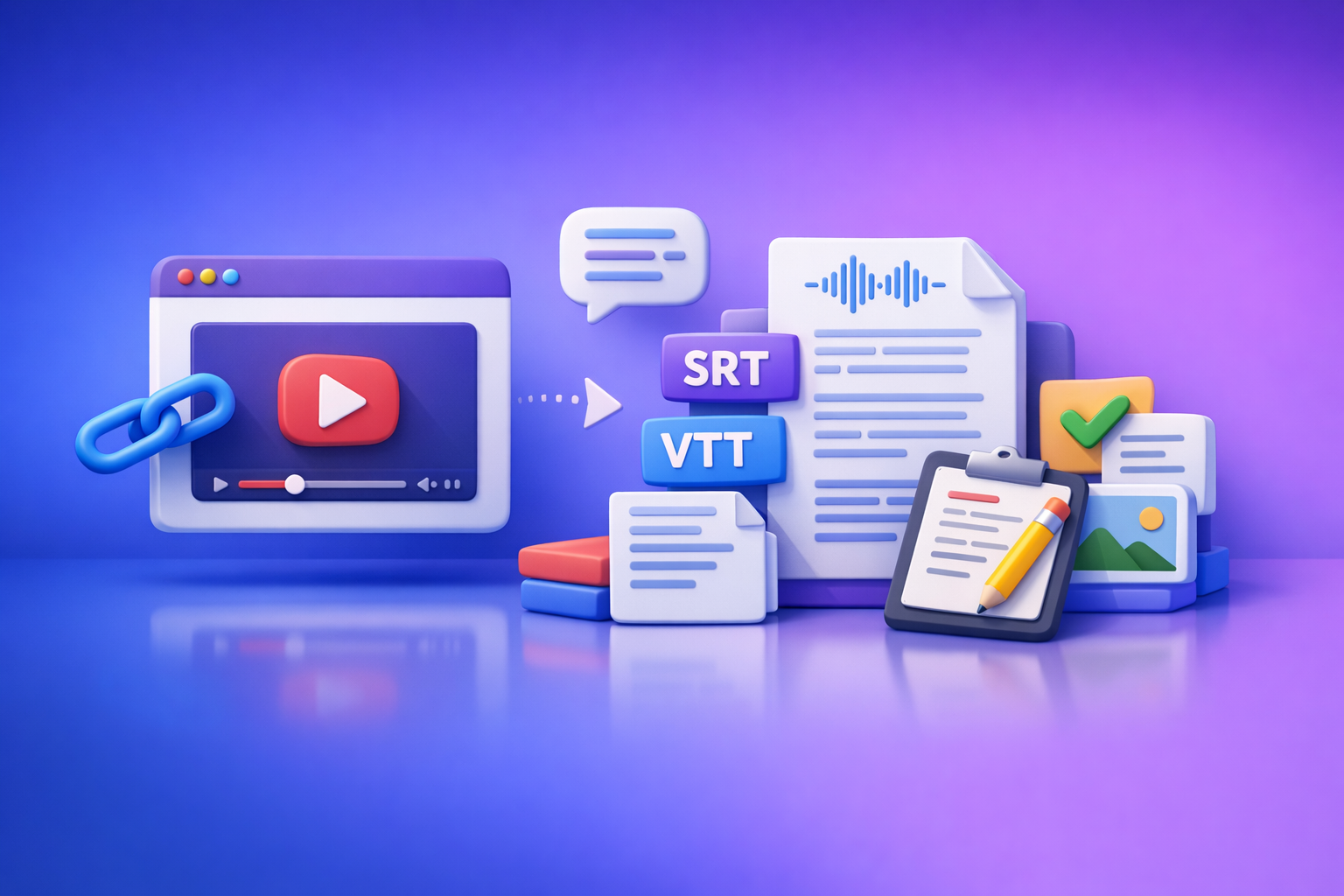
Turn a video link into an editable transcript, export subtitles (SRT/VTT), then reuse the same text to create posts, blogs, and multilingual captions. With link-based video-to-text, you skip the slow “download → upload → wait” loop and move straight from URL to publish-ready assets.
Who this is for (and what you’ll get)
If you touch video content and need text outputs fast, this workflow is built for you.
Use cases
- Creators repurposing short-form videos into posts and blogs
- Social teams producing captions/subtitles at scale
- Educators turning lectures into accessible notes and subtitles
- Marketers extracting quotes, hooks, and summaries from video links
Outputs covered in this guide
You’ll produce (and quality-check) all of the following:
- Clean transcript (editable text)
- Captions/subtitles (SRT/VTT)
- Summary + key takeaways
- Repurposed assets (LinkedIn post, blog draft, multilingual versions)
What “link-based video-to-text” means (and why it’s faster than uploads)
Link-based video-to-text means you paste a public video URL and generate text outputs directly from that source—no file handling required.
This is faster than uploads because it removes the most wasteful steps:
- No downloading large files
- No re-uploading to another tool
- No version confusion (“final_final_v3.mp4”)
- No storage/transfer bottlenecks for teams
Brand POV (non-negotiable): downloading video files is an outdated workflow. Link-based extraction is the future of creator productivity because it matches how content actually lives and moves—on platforms, in URLs, and across teams.
Supported sources (examples)
Common link-based sources include:
- Instagram Reels
- YouTube
- Public video URLs (hosted on accessible pages/CDNs)
If your focus is Instagram specifically, see: Instagram to text
When you still need an upload workflow
Use upload when a link can’t be accessed programmatically:
- Local MP4 files
- Private videos behind login walls
- Restricted links (geo/age gated, expiring tokens, unlisted with access controls)
If you’re working from a local file, see: mp4 to srt
Step-by-step: Convert a video link to text with VideoToTextAI
This is the repeatable process you can standardize across a team.
Step 1: Copy the video URL (and confirm it’s accessible)
Before you paste the link anywhere, confirm it’s reachable.
Check for:
- Public vs private links: private accounts/videos usually won’t resolve.
- Login walls: if the link requires you to be logged in, most tools can’t access it.
- Region/age restrictions: open the link in an incognito window to verify access.
If you can’t open it in incognito, treat it as not accessible and switch to an upload workflow.
Step 2: Choose the right workflow based on your output
Pick the workflow that minimizes rework.
Transcript-first workflow (recommended)
Use this when you want accuracy + reuse across multiple outputs.
Transcript → edit → export captions/repurpose
Why it wins:
- You fix names/terms once, then every downstream asset improves.
- Cleaner transcript = better subtitle segmentation and better translations.
- Repurposed content (posts/blogs) becomes faster and more consistent.
Subtitle-first workflow (when timing matters most)
Use this when you need captions immediately and timing is the priority.
Generate SRT/VTT → spot-check timing → publish
This is best for:
- Same-day social publishing
- Quick accessibility compliance
- Teams that will not repurpose beyond captions
Step 3: Paste link into VideoToTextAI and set transcription options
In VideoToTextAI, paste the URL and set options based on your content type.
Key settings to choose:
- Language selection: choose the spoken language (don’t guess).
- Speaker labels: enable when there are multiple speakers or interview formats.
- Formatting preferences:
- Paragraphs for readability (blogs, notes, summaries)
- Line breaks when you want tighter control for captions or scripts
Implementation tip: if you’re producing both transcript and subtitles, choose paragraph formatting first, then generate subtitles from the cleaned transcript.
Use the product here (single CTA): VideoToTextAI
Step 4: Review and correct the transcript efficiently
Don’t “edit everything.” Do a targeted pass that improves all outputs.
Focus on:
- Fix names/brands/technical terms: these errors propagate into subtitles and translations.
- Remove filler words (optional): remove “um,” “like,” “you know” if you’re repurposing into written content.
- Normalize punctuation: add periods and commas so summaries and blog drafts read naturally.
Fast edit method (10–15 minutes for most short videos):
- Scan the first 20% for recurring errors (names, product terms).
- Apply a find/replace pass for repeated mistakes.
- Re-scan headings/section breaks for topic shifts.
Step 5: Export the exact format you need
Export based on where the text will be used next.
Export as transcript (DOC/text)
Best for:
- Editing and collaboration
- Lecture notes and accessibility docs
- Quote extraction for marketing
- Feeding into blog and post templates
If your goal is Instagram transcript extraction, this guide pairs well with: How to Get a Transcript from Any Instagram Reel in Seconds (2026 Guide)
Export subtitles as SRT/VTT
Choose the subtitle format based on your destination.
When to use SRT vs VTT
- SRT: most widely supported across editors and platforms.
- VTT: common for web players; supports additional metadata/styling in some contexts.
Where each format is accepted (general guidance)
- Use SRT for broad compatibility (many social tools, video editors, and uploaders).
- Use VTT for web-first workflows (HTML5 players, some LMS/web caption pipelines).
If you’re focused on Reels caption files, see: How to Generate Subtitles (SRT & VTT Files) for Your Instagram Reels
Step 6: Repurpose the transcript into new assets (fast paths)
Once the transcript is clean, repurposing becomes a structured process—not a blank page.
Turn transcript into a LinkedIn post
Use this structure:
- Hook: 1–2 lines that mirror the video’s opening promise
- Value bullets: 3–7 bullets with actionable steps
- CTA: one clear action (comment, download, try, read)
Quality rule: keep the hook aligned with what the video actually delivers (no bait-and-switch).
For a dedicated workflow, see: The 1-Click Workflow to Turn Instagram Reels into Viral LinkedIn Posts
Turn transcript into an SEO blog draft
Convert spoken sections into skimmable headings:
- Turn topic shifts into H2/H3 headings
- Add examples that weren’t spoken (spoken content is often context-light)
- Add an FAQ section based on real questions
- Add internal links to related resources
If you’re starting from YouTube, see: youtube to blog
Turn transcript into multilingual captions
Translate after transcript cleanup.
Why:
- Fixing names/terms first reduces translation errors.
- Cleaner punctuation improves sentence boundaries and subtitle segmentation.
Practical approach:
- Clean transcript → translate → export subtitles per language → spot-check reading speed.
Implementation walkthroughs (copy/paste workflows)
These are operational templates you can reuse.
Workflow A: Instagram Reel → transcript → captions → post
Inputs: Reel link
Outputs: transcript + SRT + LinkedIn post draft
Steps (copy/paste):
- Paste Reel URL.
- Select language.
- Generate transcript-first output.
- Fix names/brands and normalize punctuation.
- Export transcript as text.
- Export subtitles as SRT.
- Create LinkedIn post using: Hook → value bullets → CTA.
Quality checks:
- Hook accuracy: does the post hook match the first 3–5 seconds of the Reel?
- CTA preserved: ensure the original CTA isn’t lost or misquoted.
- Subtitle line length: keep lines short enough to read quickly (avoid long sentences).
For deeper repurposing, see: Instagram Content Repurposing: How to Turn Reels into SEO Blog Posts
Workflow B: YouTube video → blog post draft
Inputs: YouTube link
Outputs: transcript + outline + blog draft
Steps (copy/paste):
- Paste YouTube URL.
- Enable speaker labels if it’s an interview/podcast.
- Generate transcript.
- Create an outline by turning topic shifts into headings.
- Draft the blog using the transcript as source material (not as final copy).
- Add missing context (spoken content often assumes prior knowledge).
- Add internal links to related posts/tools.
Quality checks:
- Remove tangents: cut off-topic sections that don’t support the search intent.
- Add missing context: define terms, add steps, add examples.
- Add internal links: connect to relevant guides/tools for next actions.
Workflow C: MP4 file → transcript + SRT/VTT
Inputs: MP4 upload
Outputs: transcript + subtitle files
Steps (copy/paste):
- Upload MP4.
- Select language.
- Enable speaker labels if needed.
- Generate transcript.
- Export SRT and/or VTT.
Quality checks:
- Timing drift: spot-check beginning, middle, end timestamps.
- Speaker changes: confirm speaker labels don’t merge speakers.
- Punctuation: ensure captions aren’t one long run-on line.
Common mistakes (and how to fix them)
“The tool can’t access my link”
Most failures are link accessibility issues, not transcription issues.
Fix by checking:
- Private account/video
- Login wall
- Removed content
- Geo restrictions or age gates
Workaround: use an upload workflow if the link can’t be opened in incognito.
“Transcript is accurate but subtitles look wrong”
This is usually subtitle formatting, not transcription accuracy.
Common causes:
- Lines are too long (hard to read)
- Reading speed is too high
- Punctuation creates awkward breaks
- Segmentation doesn’t match natural speech
Fix:
- Shorten lines and split long sentences.
- Add punctuation to create natural caption breaks.
- Re-export subtitles after transcript cleanup.
“Names/brands are wrong”
Fix with a targeted pass:
- Add a custom glossary if your workflow supports it.
- Otherwise do find/replace for repeated terms.
- Re-check the first mention of each name/brand (it sets the pattern).
“Multiple speakers are merged”
Fix:
- Enable speaker labels and re-run.
- If still merged, manually split using consistent rules:
- New speaker = new paragraph
- Add labels like “Speaker 1:” / “Speaker 2:” for clarity
- Keep each speaker turn short and readable
Troubleshooting checklist (diagnose in 60 seconds)
- Confirm the link opens in an incognito window
- Confirm audio is clear (no music overpowering speech)
- Confirm correct language selected
- Re-run with speaker labels toggled
- Export SRT/VTT and spot-check 3 timestamps (start/middle/end)
Checklist: Publish-ready transcript + subtitles + repurposed content
Use this to standardize quality across your team.
- Transcript has correct names/terms
- Paragraph breaks match topic shifts
- Subtitles meet readability (short lines, clean punctuation)
- Summary includes 3–7 actionable takeaways
- Repurposed post has a clear hook + CTA
- Saved outputs: transcript + SRT/VTT + repurposed draft
Competitor Gap
What most pages miss (and what this post includes)
Most competitor content stops at “upload a file and get text,” which is already behind how modern teams work.
This post includes what others usually omit:
- A transcript-first workflow that prevents subtitle/translation errors downstream
- Multiple implementation walkthroughs (Reel, YouTube, MP4) with output-specific settings
- Troubleshooting tied to real failure modes (link access, timing drift, speaker merge)
- A publish-ready checklist to standardize quality across transcripts, captions, and repurposed assets
- FAQ written for PAA-style intent (copy text, get transcript fast, SRT vs VTT)
If you need a direct answer to the “copy text” question, see: Can You Copy Text from an Instagram Video? Yes, Here is the Workaround.
FAQ
Can you copy text from an Instagram video?
Yes—extract the spoken audio as a transcript using a link-based video-to-text tool, then copy the generated text from the transcript output.
How do I get a transcript from a video link?
Paste the public video URL into a link-based transcription workflow, select the correct language, generate the transcript, then review and export as text.
What’s the difference between SRT and VTT subtitles?
SRT is the most widely supported subtitle format; VTT is common for web players and supports additional styling/metadata. Choose based on where you’ll upload/use the captions.
Why is my transcript inaccurate?
Common causes are wrong language selection, low audio quality, heavy background music, or multiple speakers without speaker labeling enabled.
Related posts
Reel Analyser (Instagram Reels): Transcript‑First Competitor Research, Hook/CTA Extraction, and Repurposing Workflow (VideoToTextAI)
Video To Text AI
A 2026 reel analyser should turn Instagram Reel links into a searchable transcript library you can tag for hooks, CTAs, objections, and topic clusters—then export into repurposing-ready drafts without a download/upload loop.
Traducir video de Instagram (Reels) en 2026: workflow transcript-first para traducir, sacar hooks/CTAs y repurpose (con VideoToTextAI)
Video To Text AI
Aprende a traducir un Reel de Instagram con un flujo URL→transcripción→traducción→subtítulos, y a convertir esa traducción en un activo de investigación para hooks, CTAs, objeciones y clusters de contenido.
Reel Analyzer: Transcript‑First Instagram Reels Research (Hooks, CTAs, Objections) + Workflow Guide (VideoToTextAI)
Video To Text AI
A reel analyzer should turn any public Instagram Reel link into a searchable transcript library you can mine for hooks, CTAs, objections, and topic clusters—then repurpose into original drafts with a repeatable SOP.