
Add Files Button Unavailable in ChatGPT: Why It Happens + Fixes (Step-by-Step) and a No‑Upload Video→Text Workflow
 Video To Text AI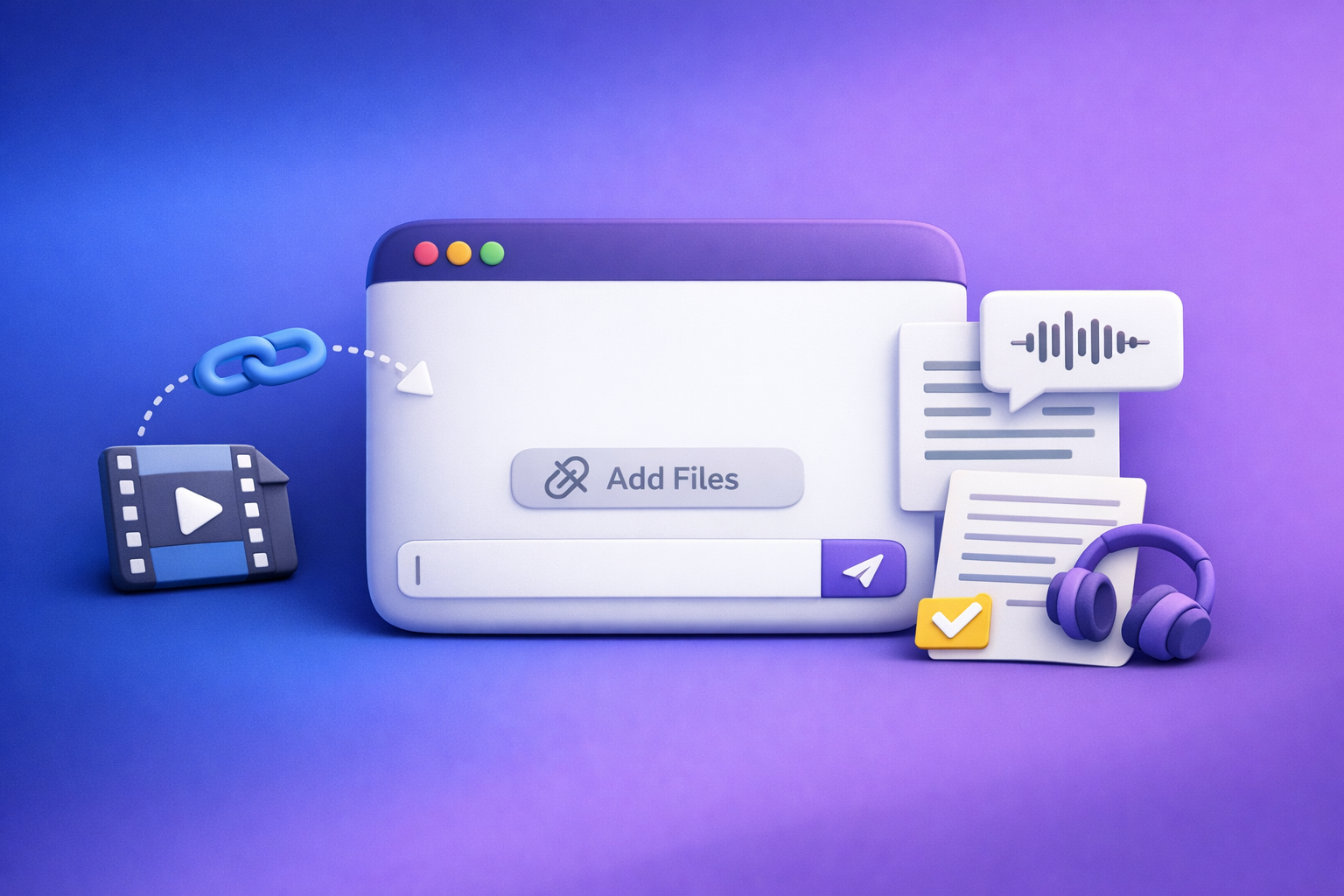
If the “add files” button unavailable ChatGPT issue is blocking you, the fastest fix is to start a new chat, switch models (if available), and test in an incognito window. If uploads are still disabled, treat it as a policy/network restriction and use the no-upload link→transcript workflow below to keep shipping.
What “Add files” Unavailable Means (and What It Doesn’t)
Common UI states you’ll see
You might see any of these:
- “Add files” button missing entirely
- “Add files is unavailable”
- Paperclip/attachment icon disabled/greyed out
- “Attachments disabled for …”
- “Max 0 uploads at a time”
What it usually indicates
In practice, this almost always points to one of these categories:
- Uploads are disabled for the current chat surface/model/thread
- A workspace/org policy is blocking attachments
- Browser/extension interference is breaking the UI or upload requests
- Network controls (proxy, firewall, DLP) are blocking upload endpoints
- Temporary service-side degradation or rollout mismatch
What it usually does not mean
Don’t waste time assuming the wrong root cause:
- Your file is “bad” (format/size issues typically show a different error)
- Your account is permanently banned from uploads (rare; usually policy/context)
60-Second Triage (Decision Tree)
Step 1 — Confirm the problem scope (surface vs account)
Run these tests in order:
- Open ChatGPT in an incognito/private window.
- Test on another browser (Chrome ↔ Firefox/Safari).
- Test on mobile app (iOS/Android) if available.
- Start a new chat (don’t reuse the same thread).
Interpretation
- Works elsewhere → local browser/extensions/cache issue.
- Works on mobile but not desktop → desktop browser/network issue.
- Fails everywhere → workspace policy, model/surface limitation, or service-side issue.
Step 2 — Identify whether it’s a model/surface limitation
Uploads can be enabled in one mode and disabled in another.
- Check if you’re in a mode that doesn’t support attachments (varies by rollout/workspace).
- Switch to a different model option (if available) and re-test in a new chat.
Step 3 — Check for policy/network blocks
If you’re on a work device or managed network, assume controls first:
- Disconnect VPN, try a personal network hotspot.
- If on a managed workspace: ask admin about attachments/file upload restrictions.
Root Causes (Ranked by Likelihood) + How to Verify Each
1) Model/Chat Surface Mismatch
How to verify
- “Add files” appears in one chat/model but not another.
- Starting a new chat restores the button.
Fix
- Start a new chat.
- Switch to a model/surface that supports uploads (if available).
- Hard refresh the page (Ctrl/Cmd+Shift+R).
2) Workspace / Team Policy Restriction
How to verify
- Button missing across browsers/devices while logged into the same workspace.
- Colleagues see the same limitation.
Fix
Ask your admin to review:
- File upload permissions / attachment controls
- Data controls / DLP rules
- Proxy filtering and allowed domains
3) Browser Extensions Blocking Upload UI or Requests
How to verify
- Incognito works (extensions disabled by default).
- Ad blockers/privacy tools present (uBlock, Ghostery, Brave Shields, script blockers).
Fix
- Disable extensions one-by-one (start with ad/privacy/script blockers).
- Whitelist ChatGPT domains in the blocker.
- Re-test in a new chat.
4) Cached Frontend / Stale Assets
How to verify
- UI elements partially load; button appears/disappears after refresh.
Fix
- Clear site data for ChatGPT (cookies + cache), then re-login.
5) Network Controls (Proxy, Firewall, DLP)
How to verify
- Works on personal hotspot but not corporate Wi‑Fi.
- DevTools Network shows blocked requests during upload attempts.
Fix
- Try a different network; if corporate-managed, request allowlisting for upload endpoints.
6) Temporary Service Degradation / Rollout
How to verify
- Multiple users report missing upload controls at the same time.
- Behavior changes without local changes.
Fix
- Wait and re-test; use the no-upload workflow below to keep shipping.
Step-by-Step Fixes (Implementation Playbook)
Fix A — Restore the button via clean environment
Use this when you need a fast “is it me or them?” answer.
- Open incognito.
- Log in.
- Start new chat.
- If fixed: remove/adjust extensions in your main browser.
Fix B — Isolate extension conflicts (fast method)
This is the quickest way to find the culprit.
- In your main browser, disable all extensions.
- Re-test uploads.
- Re-enable extensions one at a time until it breaks.
- Keep the culprit disabled or whitelist ChatGPT.
Fix C — Reset site data (targeted)
Do this when the UI looks “half-broken” or inconsistent.
- Clear cookies/cache for ChatGPT only.
- Hard refresh.
- Re-login and re-test.
Fix D — Network isolation
This is the most common fix in corporate environments.
- Disconnect VPN.
- Switch to hotspot/personal network.
- If fixed: document the network difference and request allowlisting.
Fix E — Workspace policy escalation (what to send IT)
Send an “IT-ready” packet so you don’t get stuck in back-and-forth.
- Screenshot of missing/disabled button
- Timestamp + device/browser versions
- Confirmation: works on personal network (yes/no)
- Ask specifically about: file upload permissions, DLP, proxy filtering, allowed domains
Production-Safe Workaround: No-Upload Video→Text Workflow (Ship Today)
When uploads are blocked, the real solution is to stop depending on uploads. Downloading video files just to re-upload them is an outdated workflow; link-based extraction is the future of creator productivity because it’s faster, more repeatable, and less fragile under corporate restrictions.
When to use this
Use this workflow when:
- You need transcripts/subtitles/captions now
- Upload UI is missing/disabled
- Corporate policy blocks attachments
Workflow: Link → Transcript/Subtitles → Paste into ChatGPT
- Get a public video link (YouTube/Instagram/TikTok or hosted MP4 URL).
- Generate transcript/subtitles with VideoToTextAI using a link-based workflow:
- Transcript: video to text converter
- Transcript generator: video transcript generator
- YouTube subtitles: free youtube subtitles
- Export as needed (TXT for analysis; SRT/VTT for captions).
- Paste the transcript into ChatGPT (no file upload required).
- Repurpose:
- Blog draft from YouTube: youtube to blog
- Summary: youtube to summary
If you want the fastest “link in → transcript out → repurpose” pipeline, use VideoToTextAI here: VideoToTextAI
Output checklist (so you don’t rework later)
Use this deliverables list to avoid redoing work across teams.
- Clean transcript (speaker labels if needed)
- Timecoded captions (SRT/VTT) if publishing
- Summary + key takeaways
- Quote bank + hooks for social posts
- SEO title + meta description draft
Troubleshooting Checklist (Copy/Paste)
- New chat created (not same thread)
- Different model/surface tested
- Incognito test completed
- Second browser test completed
- Extensions disabled/isolated
- Site data cleared (cookies/cache)
- Different network tested (hotspot)
- Workspace policy confirmed with admin
- No-upload workflow used to deliver transcript/subtitles
VideoToTextAI vs Competitors
Because competitor profiles were not provided in the input data, the fairest comparison is by evaluation criteria you can apply after your SERP review. The key point for this specific problem (“add files” button unavailable in ChatGPT) is that tools requiring uploads can fail under the same constraints; link-based inputs keep the workflow moving.
| Criteria | VideoToTextAI (link-based workflows) | Upload-first transcription tools | Built-in platform captions (e.g., YouTube auto-captions) |
|---|---|---|---|
| Input method | Public link → transcript (no local upload required) | Often requires file upload | Usually works only inside that platform |
| Reliability under corporate restrictions | Strong when attachments are blocked (you paste text into ChatGPT) | Can fail when uploads are blocked by policy/network | Reliable for that platform, limited portability |
| Outputs | Designed for TXT + SRT/VTT export workflows | Varies by vendor | Captions exist, exporting/formatting varies |
| Speed (operational) | Fast because you skip download→upload steps | Slower if you must download large files | Fast for platform-only use |
| Repurposing workflows | Built around transcript → blog/summary workflows | Often transcription-only | Minimal repurposing support |
| Privacy & compliance | Depends on your org’s link policies and tool settings | Depends on vendor + upload handling | Platform-dependent |
| Cost predictability | Depends on plan/usage model | Varies widely | Often “free” but limited control |
Where VideoToTextAI fits best: when you need repeatable link-based extraction for transcripts, subtitles/captions, and repurposing tied to publishing—especially when ChatGPT uploads are unreliable or blocked.
Where others can be better: if your job is strictly “transcribe a local file that cannot be hosted or linked,” an upload-first tool may be the only option (assuming your environment allows uploads).
Competitor Gap
Most “fix” articles stop at generic advice like “clear cache” or “try another browser.” That’s not enough when you’re on deadline.
This post includes what teams actually need:
- A decision tree that separates: model/surface vs policy vs browser vs network
- A repeatable isolation method (incognito → browser swap → network swap)
- A production workaround that doesn’t depend on uploads (link-based transcript/captions)
- A deliverables checklist (TXT + SRT/VTT + repurposing assets) so teams can ship on time
- A clear IT escalation packet (what evidence to send to unblock uploads)
FAQ (People Also Ask-Aligned)
Why is the “Add files” button missing in ChatGPT?
It’s typically missing because uploads are disabled for the current chat surface/model/thread, restricted by a workspace policy, blocked by extensions, or prevented by network controls. Start by testing a new chat and incognito to separate surface issues from local issues.
How do I enable file uploads in ChatGPT?
You usually can’t “toggle” uploads yourself if they’re disabled by the surface or your organization. The practical path is: new chat → switch model/surface (if available) → incognito test → extension isolation → network test → admin escalation.
Why does ChatGPT say “attachments disabled” or “add files is unavailable”?
Those messages usually indicate a capability or policy restriction, not a bad file. If it happens across devices and browsers, it’s likely workspace policy or service-side behavior rather than your machine.
Does ChatGPT file upload depend on the model or plan?
Yes—availability can vary by model/surface and by workspace rollout/policy. That’s why switching models and testing in a new chat is a core verification step.
What can I do if my workplace blocks ChatGPT attachments?
Use a no-upload workflow: generate a transcript/subtitle file from a public video link, then paste the text into ChatGPT. Also send IT the escalation packet (screenshots, timestamps, browser versions, and hotspot test results) so they can confirm DLP/proxy rules.
Related posts (internal links)
If you’re seeing a specific variant of this issue, these guides map to the exact UI message:
- “Add Files” Button Unavailable in ChatGPT (2026): Causes, Fixes (Step-by-Step) + No-Upload Video→Text Workflow
- “Add Files Is Unavailable” in ChatGPT: Causes, Fixes (Step‑by‑Step), and a No‑Upload Video→Text Workflow
- “Attachments Disabled for” ChatGPT: What It Means + Fixes That Work (2026) + No‑Upload Video→Text Workflow
- “Max 0 Uploads at a Time” Rate Limit in ChatGPT: What It Means, Why It Happens, and Fixes (Plus a No-Upload Video→Text Workflow)
- ChatGPT “Upload Video” Feature (2026): How to Use It, What It Can Do, Limits, Fixes, and a No‑Upload Video→Text Workflow
- Attachments Disabled in ChatGPT Image Upload: Fix It Fast + No‑Upload Workflow
Recommended On-Page SEO Elements (for the draft)
URL slug
/posts/add-files-button-unavailable-chatgpt
Title tag (variants)
- Add Files Button Unavailable in ChatGPT: Causes + Fixes (Step-by-Step)
- ChatGPT “Add Files” Unavailable: How to Fix It Fast + No-Upload Workaround
Meta description (≤160 chars)
Fix ChatGPT “Add files” unavailable with a 60-second triage, step-by-step browser/network/policy fixes, and a no-upload video→text workflow.
Suggested schema
FAQPage (use the FAQ questions above)
Related posts
Reel Analyser (Instagram Reels): Transcript‑First Competitor Research, Hook/CTA Extraction, and Repurposing Workflow (VideoToTextAI)
Video To Text AI
A 2026 reel analyser should turn Instagram Reel links into a searchable transcript library you can tag for hooks, CTAs, objections, and topic clusters—then export into repurposing-ready drafts without a download/upload loop.
Traducir video de Instagram (Reels) en 2026: workflow transcript-first para traducir, sacar hooks/CTAs y repurpose (con VideoToTextAI)
Video To Text AI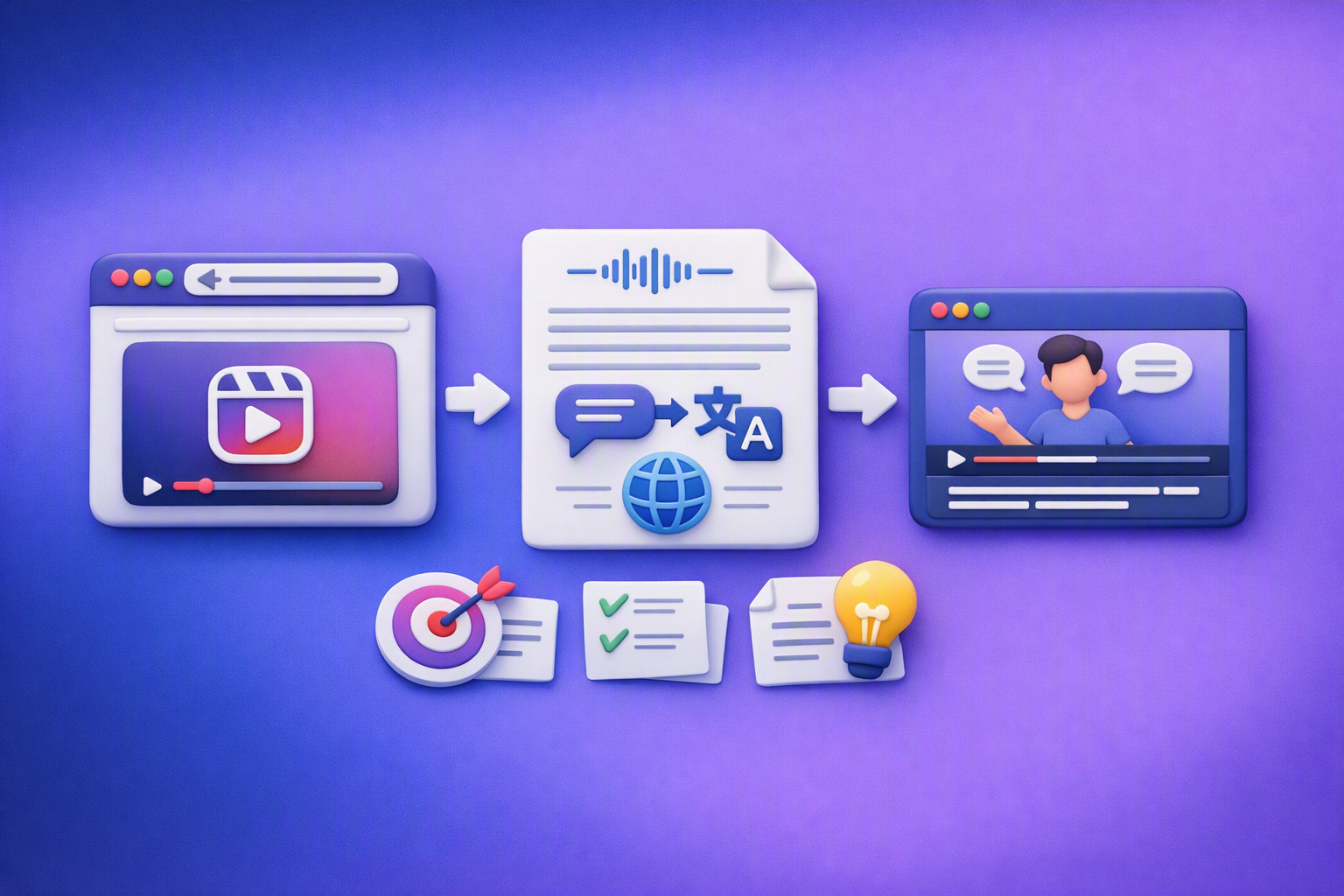
Aprende a traducir un Reel de Instagram con un flujo URL→transcripción→traducción→subtítulos, y a convertir esa traducción en un activo de investigación para hooks, CTAs, objeciones y clusters de contenido.
Reel Analyzer: Transcript‑First Instagram Reels Research (Hooks, CTAs, Objections) + Workflow Guide (VideoToTextAI)
Video To Text AI
A reel analyzer should turn any public Instagram Reel link into a searchable transcript library you can mine for hooks, CTAs, objections, and topic clusters—then repurpose into original drafts with a repeatable SOP.