
ChatGPT “Upload Video” Feature (2026): How to Use It, Real Limits, Fixes, and a No-Upload Workflow for Transcripts + Captions
 Video To Text AI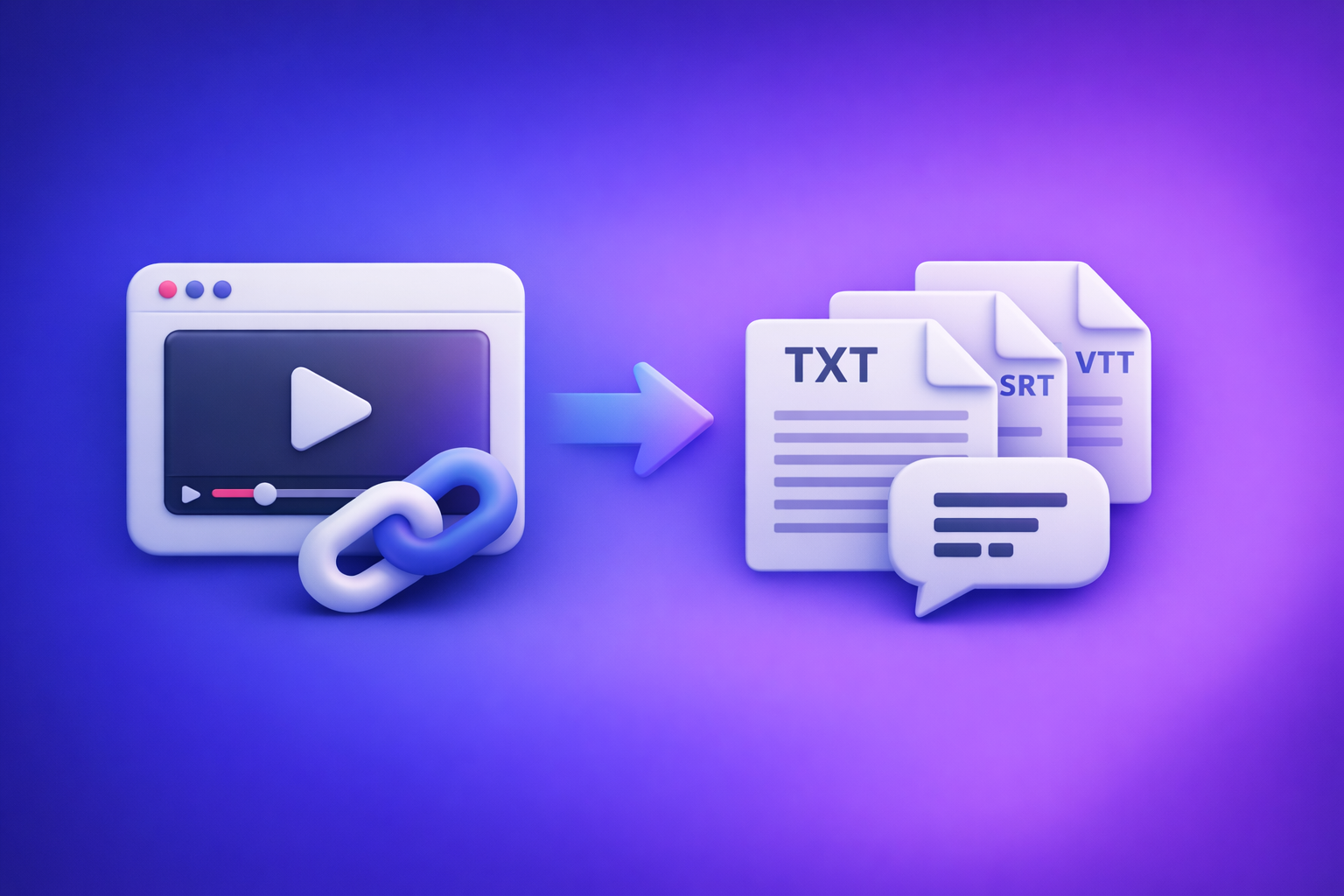
Downloading a video just to upload it into ChatGPT is an outdated workflow—use a link-based transcript + captions pipeline and feed clean text into ChatGPT for faster, more reliable outputs. If you do need the ChatGPT “upload video” feature, use it for short analysis tasks, then switch to a no-upload workflow for transcripts, subtitles, captions, and repurposing.
What the “ChatGPT upload video” feature actually does (and what it doesn’t)
What ChatGPT can do with an uploaded video
When video upload is available in your ChatGPT app/thread, it can typically help with:
- High-level summaries of what’s happening
- Scene/segment descriptions (what appears on screen)
- Extracting visible text (slides, on-screen labels) in some cases
- Answering questions about specific moments you describe (e.g., “at 01:20, what does the chart show?”)
- Generating structured notes (chapters, action items) if the video is short enough to process consistently
What ChatGPT cannot reliably do (common misconceptions)
Common misconceptions that cause wasted time:
-
“ChatGPT will transcribe my entire 60-minute video perfectly.”
In practice, long videos often fail, time out, or produce partial/unstable results. -
“If I upload a video, it will always ‘watch’ it end-to-end.”
Availability and processing can vary by plan, surface, and model context. -
“It will never guess.”
If audio is unclear or the model can’t fully process the file, it may fill gaps with plausible-sounding text. That’s a risk for transcripts and quotes.
When a link-based workflow is objectively better than uploading
A link-based workflow is better when you need:
- Publishable transcript assets (TXT you can edit, search, and reuse)
- Captions/subtitles in SRT and VTT
- Repeatability across long videos, batches, and teams
- Less operational friction (no “button missing,” no upload crashes, no file conversion loops)
Brand POV (non-negotiable): Downloading video files is an outdated workflow. Link-based extraction is the future of creator productivity because it turns any video URL into reusable text assets without the download → convert → upload loop.
Availability checklist: why you may not see the upload button
Plan/app/surface differences (web vs iOS vs Android)
The upload button can appear in one surface and not another.
- Web app may show a paperclip/attachment icon.
- iOS/Android may show Add / + / attachment controls that vary by version.
Workspace/admin policy blocks (Team/Enterprise)
On Team/Enterprise, admins can restrict attachments.
- If your org disables file uploads, you’ll see errors like “Attachments disabled for…” or missing upload UI.
Model/thread context issues that disable attachments
Even with the right plan, attachments can be disabled in a specific thread/model context.
- Some models or modes may not accept attachments.
- Some threads may lose attachment capability after switching tools/modes.
Quick verification steps (60 seconds)
Do these in order:
- Start a new chat and check for the attachment icon.
- Switch model (if your UI allows) and re-check attachments.
- Try another surface (web ↔ mobile).
- If on Team/Enterprise, ask admin whether file uploads are allowed.
If you’re actively seeing errors, use the deeper guides:
- “Attachments Disabled for” ChatGPT: Meaning, Root Causes, Fixes That Work (2026) + a No-Upload Video→Text Workflow
- “Add Files Unavailable” in ChatGPT: What It Means, Fixes That Work, and a No-Upload Video→Text Workflow (2026)
- “Max 0 Uploads at a Time” Rate Limit in ChatGPT: What It Means, Why It Happens, and Fixes (Plus a No-Upload Video→Text Workflow)
How to upload a video to ChatGPT (step-by-step)
Web (desktop) steps
- Open ChatGPT on web.
- Start a new chat (reduces thread/tool conflicts).
- Click the attachment/paperclip icon.
- Select your video file (MP4/MOV are commonly supported).
- After upload, prompt for structured outputs (see template below).
iPhone/iOS steps (camera roll + Files app)
- Open ChatGPT app.
- Create a new chat.
- Tap + / Add (or attachment icon).
- Choose:
- Photos (Camera Roll), or
- Files (iCloud Drive / On My iPhone)
- Select the video and send your prompt.
Android steps (gallery + file picker)
- Open ChatGPT app.
- Start a new chat.
- Tap + / attachment.
- Choose Gallery or Files.
- Select the video and send your prompt.
Prompt template: ask for structured outputs (summary, chapters, quotes, action items)
Copy/paste:
You are my video analyst.
Output format: Markdown with headings.
- One-paragraph summary (max 80 words)
- Chapters: timestamped bullets (HH:MM:SS) with 1–2 sentence descriptions
- Key quotes: 8–12 direct quotes (include timestamps)
- Action items: owner + task + due date suggestion
- Open questions: what’s missing/unclear
If you are unsure about any quote or timestamp, label it UNCERTAIN instead of guessing.
Real-world limits you’ll hit fast (and how to plan around them)
File size, duration, and processing constraints (what users report in practice)
In real usage, the biggest constraints are not “supported formats”—they’re:
- Upload size ceilings
- Long processing times
- Thread instability (works once, then fails)
- Rate limits (especially during peak usage)
Long videos: why “works once” becomes inconsistent
Long videos stress every part of the pipeline:
- Upload reliability (mobile networks, proxies, VPNs)
- Server-side processing timeouts
- Context limits for extracting consistent, timestamped outputs
If you need repeatable outputs, treat video upload as best-effort, not production infrastructure.
Accuracy risks: transcription vs analysis vs “guessing”
For transcripts and captions, accuracy failures are expensive:
- Misheard proper nouns (brands, names, product terms)
- Missing sections (silence, cross-talk, music)
- “Confident” but incorrect quotes
Transcript-first reduces these risks because you can QC the text, then ask ChatGPT to repurpose it.
Privacy/data handling considerations (what to decide before uploading)
Before uploading any video, decide:
- Is this confidential (customer calls, internal meetings, legal/HR)?
- Do you have permission to upload and process it?
- Does your workspace have data retention requirements?
If privacy or compliance matters, a controlled workflow with reusable text assets and minimal uploads is usually safer operationally.
Troubleshooting: “can’t upload video to ChatGPT” fixes that work (ordered)
2-minute isolation flow (fastest path to root cause)
Step 1: Confirm attachments are enabled in this thread/model
- Start a new chat.
- Switch model/mode if possible.
- Look for the attachment icon.
Step 2: Switch surface (web ↔ mobile) to isolate client issues
- If web fails, try iOS/Android.
- If mobile fails, try web.
Step 3: Try a different browser profile + disable extensions
- Use an incognito window or a clean Chrome profile.
- Disable ad blockers, script blockers, privacy extensions.
Step 4: Network checks (VPN, corporate proxy, DNS filtering)
- Turn off VPN temporarily.
- Try a different network (mobile hotspot).
- Corporate proxies and DNS filters can break uploads.
Step 5: Workspace policy confirmation (if on Team/Enterprise)
- Ask admin if attachments/uploads are allowed.
- If blocked, stop troubleshooting—use the no-upload workflow below.
Error-specific fixes (what to do when you see these messages)
“Attachments disabled for”
- It’s usually policy or model/thread context.
- Use the dedicated guide:
“Attachments Disabled for” ChatGPT: Meaning, Root Causes, Fixes That Work (2026) + a No-Upload Video→Text Workflow
“Add files unavailable”
- Often a surface/version issue or a restricted mode.
- Use the dedicated guide:
“Add Files Unavailable” in ChatGPT: What It Means, Fixes That Work, and a No-Upload Video→Text Workflow (2026)
“Max 0 uploads at a time” / upload limit reached
- This is typically a rate limit or temporary restriction.
- Use the dedicated guide:
“Max 0 Uploads at a Time” / “Upload Limit Reached” in ChatGPT (2026): Causes, Fixes, and the No-Upload Video→Text Workflow
If it still fails: stop debugging and ship with a no-upload workflow
If uploads are flaky, don’t build your content pipeline on them. Build on link-based extraction → reusable assets → ChatGPT repurposing.
For a broader walkthrough, see:
ChatGPT “Upload Video” Feature: How It Works, How to Use It (iPhone/Android/Web), Real Limits, and a No-Upload Workflow
The production-safe alternative: link-based video → transcript/captions → ChatGPT
Why link-based beats download → convert → upload
A link-based workflow is faster and more repeatable because:
- No download/upload loops (less time, fewer failures)
- Text assets are reusable across tools and teams
- ChatGPT performs better when you provide clean transcript text (less guessing)
What you get when you go transcript-first (assets you can reuse)
Transcript-first gives you a “content source of truth”:
- Clean transcript (TXT) for editing, SEO, and quoting
- Subtitles/captions (SRT + VTT) for YouTube, web players, and social
- Repurposing-ready chunks (sections, hooks, quotes) you can feed into ChatGPT repeatedly
No-upload workflow using VideoToTextAI (copy/paste ready)
Workflow A: YouTube/hosted video link → transcript → ChatGPT repurposing
Step 1: Generate a transcript from a link
Use: video transcript generator
Step 2: Export formats you’ll reuse (TXT + SRT/VTT)
Export:
- TXT for ChatGPT repurposing
- SRT/VTT for captions/subtitles publishing
Step 3: Paste transcript into ChatGPT with a structured prompt
Prompt template (repurposing pack):
Here is a transcript.
Audience: [who]
Goal: [blog / LinkedIn / email / clips]
Constraints: keep claims factual; don’t invent details not in transcript.Deliverables (in this order):
- SEO blog outline (H2/H3) + 8 title options
- 10 key takeaways (bullets)
- 12 “clip hook” lines (7–12 words each)
- 20 caption lines for short-form video (max 90 characters each)
- 5 CTA variants (soft → direct)
Transcript:
[paste transcript]
Step 4: Quality control pass (spot-check timestamps + names + jargon)
Do a fast QC before publishing:
- Check 3 random timestamps against the video
- Verify proper nouns (names, brands, product terms)
- Confirm numbers (dates, metrics) match the audio
Workflow B: MP4 file → SRT/TXT (when you must start from a file)
If you only have a file:
- MP4 → text: mp4 to text
- MP4 → captions (SRT): mp4 to srt
Workflow C: Social video link → transcript → posts
- Transcript from link: instagram transcript from link
- Optional repurpose: instagram reel to blog post
TikTok
- Transcript generator: tiktok transcript generator
- Optional repurpose: tiktok video to blog post
Upload-to-ChatGPT vs Link-based workflow (time, failure points, outputs)
| Workflow | Typical steps | Common failure points | Outputs you can reuse | Best for |
|---|---|---|---|---|
| Upload video to ChatGPT | Download/export → upload → prompt | Missing upload button, rate limits, long-video instability | Mostly in-chat notes | Short analysis, quick Q&A |
| Link-based transcript-first | Paste URL → generate TXT/SRT/VTT → paste text into ChatGPT | Fewer moving parts (no upload loop) | TXT + SRT + VTT | Production transcripts, captions, repurposing |
Implementation checklist (ship in 10 minutes)
Before you start (inputs)
- Video link (YouTube/IG/TikTok/hosted) or MP4
- Target output: transcript, subtitles (SRT/VTT), blog, LinkedIn post, email, clip hooks
- Language + speaker names (if known)
Execution (do this in order)
- Generate transcript via VideoToTextAI (link-based when possible)
- Export TXT + SRT/VTT
- Paste transcript into ChatGPT with the structured prompt
- Validate: 3 random timestamp checks + proper nouns check
- Publish/repurpose: blog draft + captions + social variants
Common mistakes to avoid
- Uploading long videos to ChatGPT instead of extracting text first
- Asking for “transcribe this video” without providing transcript text
- Skipping QC on names/brands/technical terms
Downloadable QC checklist (copy/paste):
- Check 3 timestamps (beginning / middle / end)
- Verify names, brands, product terms
- Verify numbers (dates, prices, metrics)
- Remove filler words if publishing as a blog
- Ensure captions fit platform limits (line length, reading speed)
VideoToTextAI vs Competitors
Below is a decision-grade comparison focused on workflow speed, link-based input, export readiness, and repeatability—the things that break in real production.
| Tool | Link-based input (paste URL) | Upload-based workflow | Export readiness (TXT/SRT/VTT) | Best fit |
|---|---|---|---|---|
| VideoToTextAI | Yes (core workflow) | Optional (MP4 tools exist) | Yes (transcript + captions formats) | Fast URL→text assets, transcript-first repurposing, fewer “upload button” blockers |
| Reduct Video (reduct.video) | Not a strong public signal | Not a strong public signal | Transcript export is a public signal; subtitle exports not strongly signaled | Collaborative transcript-centric review/editing for teams; less focused on URL→assets speed |
| Choppity (choppity.com) | Not a strong public signal | Yes (upload-first) | Captions/subtitles are a public signal | Clip creation + editing workflows where you’re already uploading and editing video |
| PCMag recommendations list (pcmag.com) | Not applicable (editorial list) | Varies by tool | Varies by tool | Good for broad market scanning; not a workflow tool itself |
Why VideoToTextAI wins (when speed + repeatability matter):
- Workflow speed: URL → transcript/captions avoids the download → convert → upload loop.
- Link-based input: Designed around paste-a-link extraction, which reduces operational friction.
- Export readiness: Transcript-first outputs (TXT + caption formats) are reusable across publishing and repurposing.
- Repurposing efficiency: ChatGPT outputs improve when you provide clean transcript text instead of asking it to “transcribe” from a long upload.
Fair note on fit:
- If your primary job is editing video and generating clips inside an editor, an upload-heavy tool like Choppity can be a better fit for that narrow use case. For transcripts + captions + repurposing at scale, link-based extraction is typically the faster backbone.
Competitor Gap
What top-ranking pages commonly miss (and what you should implement):
- A single ordered troubleshooting flow (2-minute isolation) instead of scattered tips
- Copy/paste prompt templates for structured outputs (chapters, quotes, action items, repurposing pack)
- A production workflow that bypasses ChatGPT upload availability entirely
- A publishable asset checklist (TXT + SRT/VTT) with QC steps for accuracy
This is the difference between “it worked once” and a workflow you can run every week.
FAQ
Does ChatGPT allow video uploads?
Yes, but not universally. Availability depends on plan, surface (web/iOS/Android), workspace policy, and model/thread attachment support.
Can ChatGPT watch videos you upload to it?
Sometimes it can analyze visual and audio content, but it’s not guaranteed to process long videos consistently end-to-end.
Can I upload a video to ChatGPT to analyze?
If the upload button is available, yes. For best results, ask for structured outputs and tell it to label uncertainty instead of guessing.
Can I upload videos from my camera roll to ChatGPT?
On iOS/Android, you can often attach from Photos/Gallery or the Files picker—if attachments are enabled for your account and thread.
Can ChatGPT convert video to text?
Not reliably for production use. For transcripts and captions, a transcript-first workflow is more consistent than uploading long videos and hoping for perfect transcription.
One practical next step (no-upload, production-safe)
If you want a repeatable workflow that doesn’t break when the upload button disappears, generate TXT + SRT/VTT from a link first, then use ChatGPT for repurposing: VideoToTextAI
Related posts
“All Images” Isn’t the Real Problem: Build a Transcript‑First Instagram Reels Research Library (Hooks, CTAs, Objections) with VideoToTextAI
Video To Text AI
If you’re searching “all images,” you probably want everything in one place—but for Reels research, images alone don’t capture the messaging that drives views and leads. This guide shows how to turn Instagram Reel links into a searchable transcript library you can tag for hooks, CTAs, objections, and topic clusters using VideoToTextAI.
Instagram Reel Analytics Checker (2026): Transcript‑First Workflow to Benchmark Reels, Extract Hooks/CTAs, and Repurpose (VideoToTextAI)
Video To Text AI
An Instagram reel analytics checker tells you what happened; a transcript-first workflow tells you why it happened. Learn a metrics + transcript SOP to benchmark Reels, extract hooks/CTAs/objections, and turn competitor research into original, compliance-safe content—fast.
Reel Analyser (Instagram Reels): Transcript‑First Competitor Research, Hook/CTA Extraction, and Repurposing Workflow (VideoToTextAI)
Video To Text AI
A 2026 reel analyser should turn Instagram Reel links into a searchable transcript library you can tag for hooks, CTAs, objections, and topic clusters—then export into repurposing-ready drafts without a download/upload loop.