
Attachments Disabled for ChatGPT Image Upload: Fixes That Work (2026) + No‑Upload Video→Text
 Video To Text AI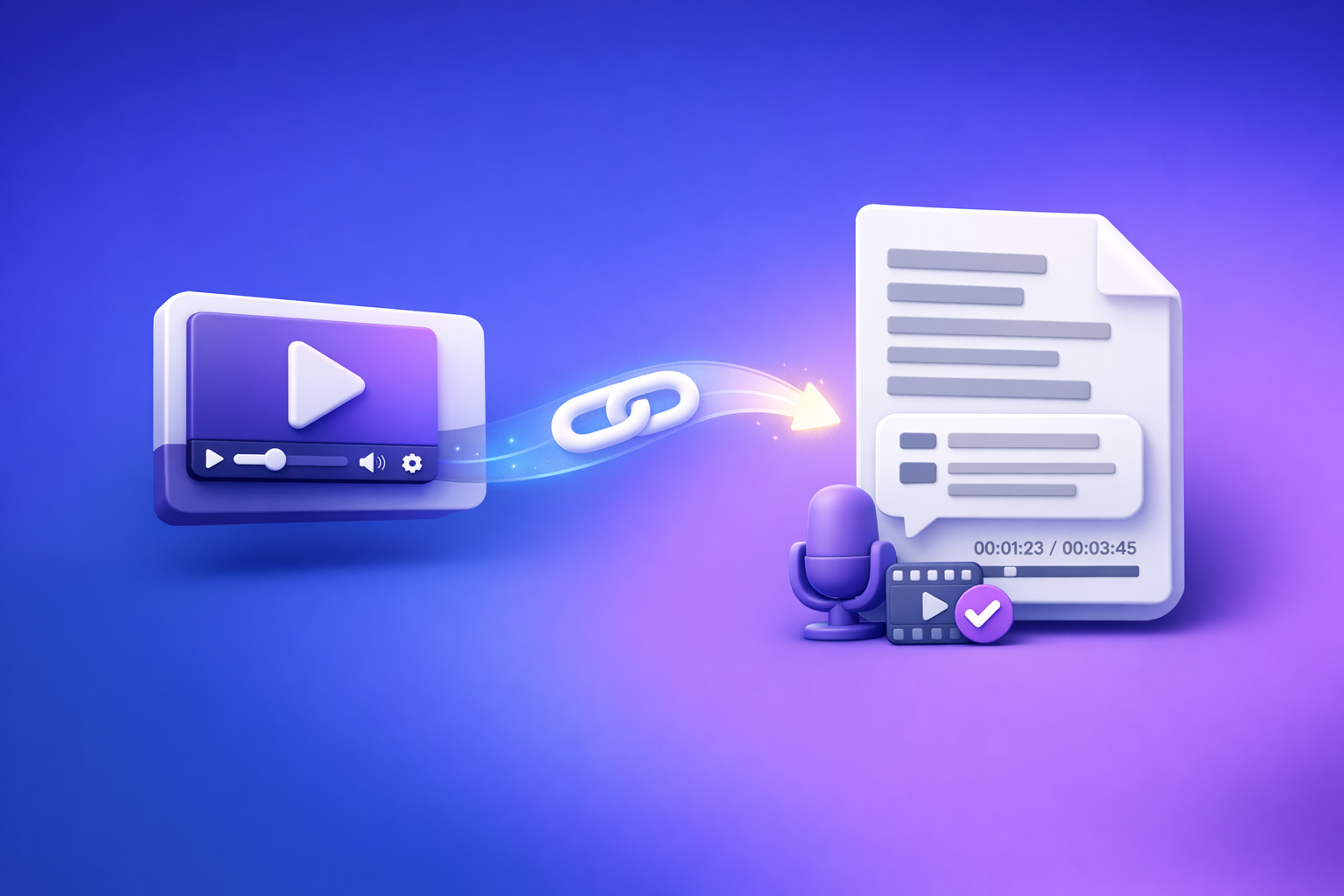
“Attachments disabled” usually clears up when you switch to a chat surface/model that supports uploads or remove the environmental blocker (workspace policy, extensions, or network controls). If you need transcripts/subtitles today, bypass uploads entirely with a link-based video→text workflow and paste the resulting text into ChatGPT.
“Attachments Disabled” for ChatGPT Image Upload: Causes, Fixes (Step-by-Step), and a No‑Upload Video→Text Workflow
Who this is for (and what “attachments disabled” actually means)
If you’re trying to use ChatGPT image upload (or any file upload) and you see “attachments disabled,” this guide is for you. It’s also for teams where uploads work on personal accounts but fail in a work workspace.
The exact error states you’ll see
You’ll typically see one of these:
- “Attachments disabled”
- “Attachments disabled for this chat”
- The paperclip / “Add files” button is missing
- Upload starts, then fails immediately (no progress)
What it means in plain terms
Uploads are being blocked by one (or more) of these:
- Chat surface/model context (this thread or mode doesn’t support attachments)
- Workspace/admin policy (Team/Enterprise/Edu restrictions)
- Browser settings/extensions (privacy tools, ad blockers, DLP extensions)
- Network controls (VPN, proxy, firewall, corporate DLP)
It is not proof your account is banned. It is not necessarily a file-size issue.
Fast 60‑second triage (do this in order)
Step 1 — Confirm you’re in a surface that supports uploads
Check the basics first:
- Web app vs mobile app: features can differ by surface and rollout.
- New chat vs existing thread: some threads/modes don’t expose attachments.
- Personal account vs Team/Enterprise workspace: workspace policy can override everything.
If you’re in a work workspace, assume policy could be the blocker until proven otherwise.
Step 2 — Check whether the model/tooling in this chat supports attachments
Treat the UI as the source of truth:
- If the paperclip / “Add files” control is missing, assume context disabled, not file-specific.
- If you can switch modes/models/tools in your UI, switch to one that clearly supports file/image inputs (when available).
Then refresh once after switching.
Step 3 — Isolate browser vs account vs network in 2 tests
Run these two tests back-to-back:
- Incognito/private window test (no extensions)
- Hotspot test (mobile hotspot or different network)
Interpretation:
- Works in incognito → extensions or cached site data are the cause.
- Works on hotspot → network security policy is the cause.
- Works on personal but not workspace → admin policy is the cause.
Step 4 — Decide: fix uploads now vs bypass uploads
If you need transcripts/subtitles/captions today, don’t block production on uploads. Use a link-based workflow (covered below) and keep moving.
Brand POV: downloading video files just to re-upload them is an outdated workflow. Link-based extraction is the future of creator productivity because it removes friction from policy, network, and device constraints.
Root causes (mapped to the symptom you see)
Use this mapping to jump to the most likely fix.
| Symptom you see | Most likely cause | What to do next |
|---|---|---|
| Paperclip / “Add files” missing | Thread/model/surface mismatch or workspace policy | Start a new chat, switch mode/model, then check workspace policy |
| “Attachments disabled for this chat” | Thread/model context disabled | New chat + switch model/tool mode + refresh |
| Upload UI present but clicking does nothing | Browser extensions/permissions | Incognito test → disable extensions → clear site data |
| Upload begins then fails instantly | Network security (VPN/proxy/DLP) or platform degradation | Hotspot test → disable VPN/proxy → retry later |
| Works on personal but not work account | Workspace/admin policy | Ask admin to enable attachments/connectors or use no-upload workflow |
Cause A — Thread/model/surface mismatch (most common)
Symptoms
- Attachments work in some chats but not others
- Button disappears after switching models or tools
Fix
- Start a new chat and check attachment controls before typing
- Switch models/tools, then refresh the page/app
Cause B — Workspace/admin policy (Team/Enterprise/Edu)
Symptoms
- Works on personal account but not work account
- Consistent block across devices on the same workspace
Fix
- Ask your admin to allow file uploads / connectors / attachments for your workspace
- If you can’t change policy, use a no-upload workflow (below)
Cause C — Browser permissions, extensions, or hardened privacy settings
Symptoms
- Upload UI is present but clicking does nothing
- Drag-and-drop fails; file picker won’t open
Fix (ordered)
- Disable extensions that can block scripts/uploads (ad blockers, privacy tools, DLP)
- Clear site data for the ChatGPT domain and reload
- Try a clean profile / incognito
- Update browser; test another browser
Cause D — Network security (VPN, proxy, firewall, DLP)
Symptoms
- Upload works on hotspot but fails on office Wi‑Fi
- Upload begins then errors instantly
Fix
- Disable VPN/proxy temporarily
- Try a different network
- If corporate network blocks uploads, use link-based extraction outside the upload path
Cause E — Temporary platform degradation / rate limiting
Symptoms
- Uploads fail intermittently across devices
- Other users report similar issues
Fix
- Wait and retry later
- Reduce concurrency (one upload at a time)
- Use a no-upload workflow to keep shipping
Step-by-step fixes (implementation playbook)
Fix 1 — Restore the attachment UI
- Open a new chat
- Confirm the paperclip / “Add files” control is visible
- If missing: switch model/tool mode, then reload
- If still missing: move to Fix 2
Tip: if attachments appear only in some threads, you’re dealing with context, not your file.
Fix 2 — Clean-browser test (fast isolation)
- Open an incognito/private window
- Log in
- Check if attachments are enabled
- If yes: extension or cached site data is the cause → disable extensions + clear site data
What to disable first:
- Ad blockers
- Script blockers
- Privacy “hardening” extensions
- Corporate DLP/browser monitoring extensions (if present)
Fix 3 — Network isolation test
- Keep the same device/browser
- Switch to mobile hotspot
- Retry upload
- If it works: network security policy is blocking uploads → escalate to IT or bypass uploads
If you’re on a corporate network, assume proxy/firewall/DLP may block file transfer endpoints even when normal browsing works.
Fix 4 — Workspace policy confirmation
- Try the same action on a personal account (if possible)
- If personal works and workspace fails: admin policy is the blocker
- Document the exact error + timestamp for admin/IT
Support-ticket details that help:
- Screenshot of the missing paperclip or the “attachments disabled” message
- Browser + version
- Network context (office Wi‑Fi vs hotspot)
- Whether incognito worked
No‑upload workaround: link-based video→text workflow (reliable for production)
When attachments are disabled, the fastest path is usually: don’t upload. Extract text from a video link, then paste the text into ChatGPT (text input is rarely blocked even when attachments are).
When to use this
- You need transcripts/subtitles/captions now
- Upload controls are missing or blocked by policy/network
- You’re repurposing content from YouTube/Instagram/TikTok without downloading files
Workflow A — Generate a transcript from a video link
- Copy the video URL (YouTube/IG/TikTok/etc.)
- Generate transcript using:
- Export the transcript for downstream use (editing, summaries, posts)
Operational advantage: link-based extraction avoids the “download → upload → fail” loop that kills turnaround time.
Workflow B — Create subtitles/captions without uploading the file
- Use link-based extraction first (same as Workflow A)
- If you need subtitle formats, use:
- mp4 to srt (for SRT output workflows when you do have MP4 access)
- free youtube subtitles (for YouTube subtitle pulls)
- Paste transcript/subtitles into your editor or ChatGPT for formatting, cleanup, or translation
Practical note: even if ChatGPT file uploads are blocked, pasting text typically works fine for summarization, rewriting, and structuring.
Workflow C — Repurpose into publish-ready content
Use the transcript as the source of truth, then generate content assets:
- YouTube → blog draft: youtube to blog
- YouTube → summary: youtube to summary
- TikTok → blog: tiktok video to blog post
- Instagram → blog: instagram reel to blog post
This is the repeatable system: link → transcript → captions → repurposed assets.
Checklist: fix “attachments disabled” (copy/paste)
- New chat: attachment control visible
- Model/tool mode supports attachments
- Hard refresh + sign out/in
- Incognito test (no extensions)
- Disable ad blockers/privacy/DLP extensions
- Clear site data + retry
- Switch network (hotspot test)
- Disable VPN/proxy
- Confirm workspace policy with admin
- If still blocked: use VideoToTextAI link-based workflow and paste text results into ChatGPT
VideoToTextAI vs Competitors
Comparison criteria (what we’ll evaluate)
- Upload dependency (file upload required vs link-based)
- Reliability under workspace/network restrictions
- Output formats (transcript, captions/subtitles, repurposed content)
- Time-to-result for production workflows
- Privacy/operational fit (sharing links vs uploading files)
Comparison table
Competitor profiles were not provided in the research block for this request, so a fair, sourced competitor table can’t be generated without risking inaccurate claims. If you share the competitor research block (names + verified capabilities), this section can be updated with a compliant, evidence-based table.
Where VideoToTextAI fits best
VideoToTextAI is strongest when your workflow is blocked by upload constraints and you still need production outputs:
- Link-first extraction for video→text when ChatGPT attachments are disabled
- Repeatable workflows for transcripts, subtitles/captions, and repurposing using:
Why it wins operationally (in practice):
- Speed: no “download file → upload file” steps.
- Repeatability: same steps work across devices and restrictive environments.
- Workflow resilience: link-based inputs are less likely to be blocked than file uploads.
If you want to stop fighting upload toggles and keep shipping, use VideoToTextAI as the no-upload backbone: VideoToTextAI
Competitor Gap
What most “attachments disabled” guides miss (and this post will cover)
Most guides stop at “try another browser.” That’s not actionable for teams.
This post adds:
- A deterministic isolation flow (surface/model vs browser vs network vs policy) with two fast tests
- A production-safe “ship anyway” path when uploads are blocked (link-based video→text)
- Concrete outputs you can use immediately (transcript → captions → repurposed posts), not just troubleshooting
Content additions that outperform typical SERP results
- Symptom → cause mapping table (UI missing vs upload fails vs workspace-only failures)
- Copy/paste checklist for support tickets to IT/admin
- No-upload workflow with tool-specific next steps and canonical URLs
FAQ
Why does ChatGPT say “attachments disabled” for image upload?
Because the current chat context (surface/model/thread) or your environment (workspace policy, browser restrictions, network controls) is blocking uploads.
How do I enable image uploads in ChatGPT again?
Start a new chat, switch to a mode that supports attachments, then isolate with:
- Incognito test (browser/extensions)
- Hotspot test (network/workspace controls)
Why is the “Add files” button missing in ChatGPT?
Most often it’s a surface/model mismatch or a workspace policy restriction. If it appears on personal but not work accounts, it’s likely admin-controlled.
Can I still generate transcripts/subtitles if uploads are disabled?
Yes—use a link-based workflow (no file upload) to generate transcripts/captions, then paste the text into ChatGPT for summarizing, rewriting, or formatting.
Related posts (internal links)
- Attachments Disabled in ChatGPT Image Upload: Fix It Fast + No‑Upload Workflow
- “Add Files” Button Unavailable in ChatGPT (2026): Causes, Fixes (Step-by-Step) + No-Upload Video→Text Workflow
- “Attachments Disabled for” ChatGPT: What It Means + Fixes That Work (2026) + No‑Upload Video→Text Workflow
- ChatGPT “Upload Video” Feature (2026): How to Use It, What It Can Do, Limits, Fixes, and a No‑Upload Video→Text Workflow
- “Max 0 Uploads at a Time” Rate Limit in ChatGPT: What It Means, Why It Happens, and Fixes (Plus a No-Upload Video→Text Workflow)
- “Add Files Unavailable” in ChatGPT: What It Means, Fixes That Work, and a No-Upload Video→Text Workflow (2026)
Suggested on-page SEO elements
Title tag (option)
Attachments Disabled for ChatGPT Image Upload: Fixes That Work (2026) + No‑Upload Video→Text
Meta description (option)
Fix “attachments disabled” in ChatGPT image upload with a step-by-step diagnosis (surface/model, browser, network, policy) and a no-upload link-based workflow to generate transcripts, subtitles, and repurposed content with VideoToTextAI.
Suggested URL slug
/attachments-disabled-chatgpt-image-upload-fix
Featured snippet targets
- What does attachments disabled mean in ChatGPT?
- How to fix attachments disabled in ChatGPT image upload
- Why is Add files missing in ChatGPT?
Related posts
Reel Analyser (Instagram Reels): Transcript‑First Competitor Research, Hook/CTA Extraction, and Repurposing Workflow (VideoToTextAI)
Video To Text AI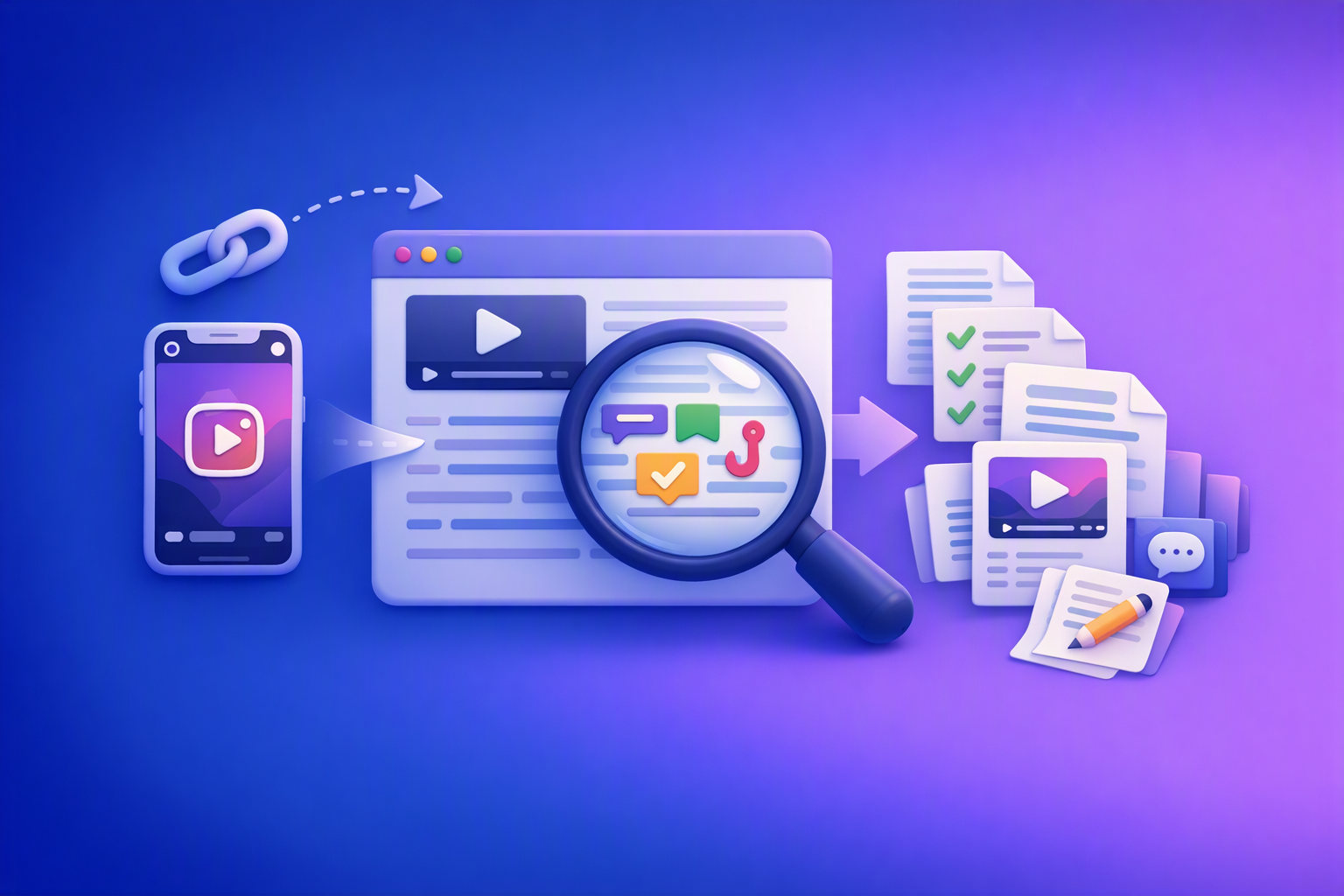
A 2026 reel analyser should turn Instagram Reel links into a searchable transcript library you can tag for hooks, CTAs, objections, and topic clusters—then export into repurposing-ready drafts without a download/upload loop.
Traducir video de Instagram (Reels) en 2026: workflow transcript-first para traducir, sacar hooks/CTAs y repurpose (con VideoToTextAI)
Video To Text AI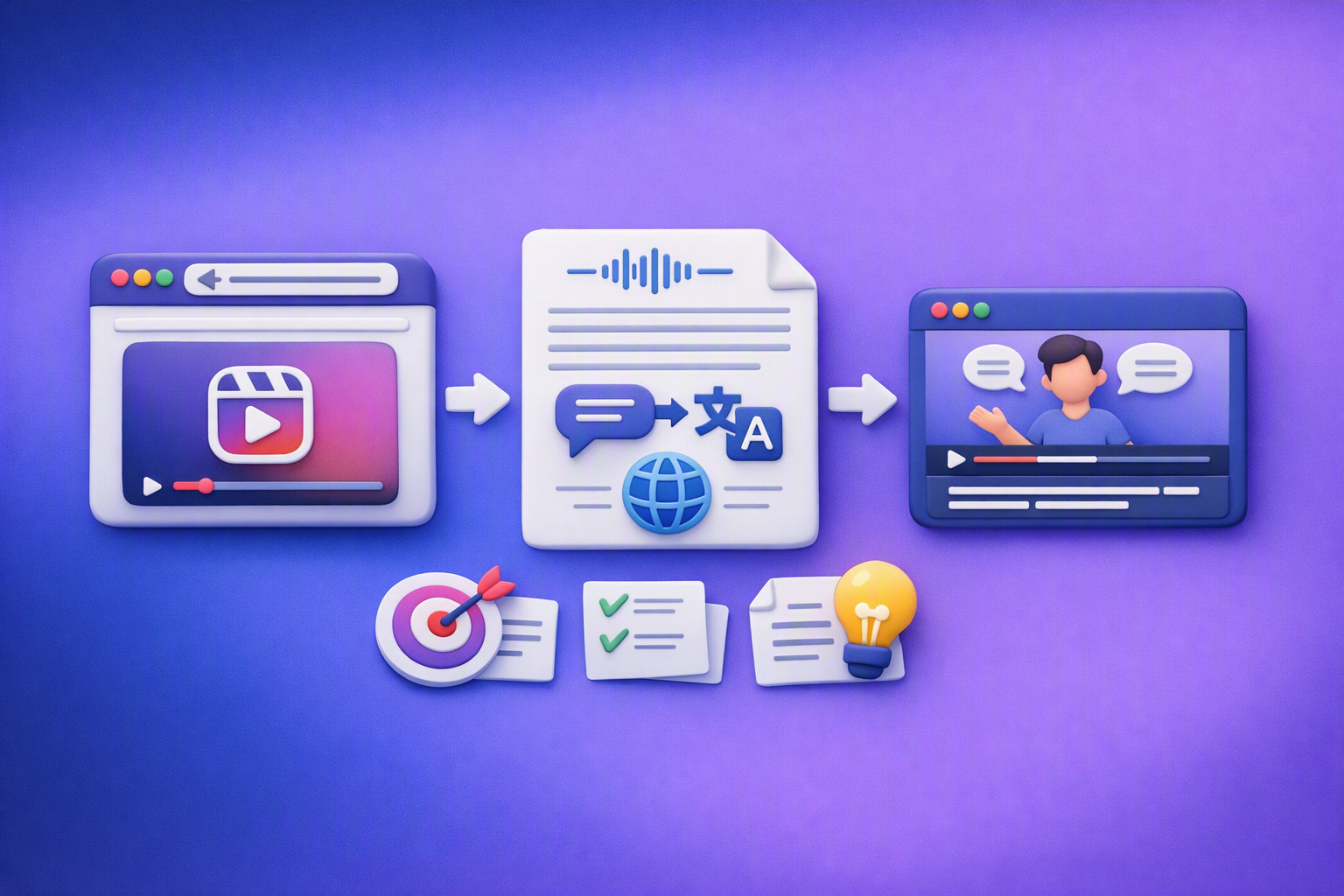
Aprende a traducir un Reel de Instagram con un flujo URL→transcripción→traducción→subtítulos, y a convertir esa traducción en un activo de investigación para hooks, CTAs, objeciones y clusters de contenido.
Reel Analyzer: Transcript‑First Instagram Reels Research (Hooks, CTAs, Objections) + Workflow Guide (VideoToTextAI)
Video To Text AI
A reel analyzer should turn any public Instagram Reel link into a searchable transcript library you can mine for hooks, CTAs, objections, and topic clusters—then repurpose into original drafts with a repeatable SOP.