
Attachments Disabled in ChatGPT Image Upload: Fix It Fast + No‑Upload Workflow
 Video To Text AI
“Attachments Disabled” in ChatGPT Image Upload: What It Means + Fixes (and a No‑Upload Video→Text Workflow)
If ChatGPT shows “attachments disabled” when you try to upload an image, the fastest fix is to switch to an attachment-capable chat/model and test in a clean browser session. If uploads are blocked by workspace policy or network security, stop burning time and use a no‑upload, link‑based workflow to get the text you need.
Quick Answer (1 minute)
What “attachments disabled” means
“Attachments disabled” means the current ChatGPT context cannot accept file uploads right now. The cause is typically one of these:
- You’re in a surface or model that doesn’t support attachments.
- Your workspace/admin policy disables uploads.
- Your browser or network is blocking upload endpoints.
- ChatGPT is experiencing temporary limits/outages.
The 3 fastest fixes to try first
- Start a new chat and switch to a model that supports attachments (then look for the paperclip/upload UI).
- Open ChatGPT in an incognito/private window (no extensions) and retry.
- Switch networks (mobile hotspot) and retry (this quickly exposes VPN/proxy/firewall/DLP issues).
When to stop troubleshooting and switch to a no‑upload workflow
Stop troubleshooting if any of these are true:
- You’re on a managed work account (Team/Enterprise/Edu) and uploads are policy-blocked.
- You’re on a corporate network with DLP/proxy controls you can’t change.
- You need transcripts/captions today and can’t wait on IT/support.
In those cases, the production-safe move is: link → transcript/subtitles → paste text into ChatGPT (no attachments required).
What Triggers “Attachments Disabled” in ChatGPT (Root Causes)
1) Surface/model mismatch (this chat can’t accept files)
Some ChatGPT surfaces, models, or chat contexts simply don’t expose attachments. You’ll see:
- No paperclip / “Add files” control, or
- A disabled upload control with an “attachments disabled” message.
2) Workspace or admin policy blocks uploads (ChatGPT Team/Enterprise/Edu)
Managed workspaces can disable file uploads for compliance. This is common in:
- Regulated industries (finance, healthcare)
- Education tenants
- Enterprises with strict data handling rules
3) Browser profile issues (extensions, cookies, corrupted storage)
Uploads can fail or be disabled due to:
- Script/privacy blockers interfering with upload UI
- Corrupted local storage/session state
- Over-aggressive cookie settings
4) Network/security tooling blocks file endpoints (VPN, proxy, firewall, DLP)
Even if the UI appears, the upload request may be blocked by:
- VPN/proxy rules
- Firewall policies
- Data Loss Prevention (DLP) tools that block file transfer endpoints
5) Temporary platform limits/outages or rate limits
Sometimes the platform temporarily disables attachments due to:
- Service degradation/outage
- Rate limiting
- Feature rollouts/experiments
6) Account/region/plan limitations (feature not enabled)
In some accounts/regions/plans, attachments may not be available or may be rolled out gradually.
Step-by-Step Fix: Restore Image Upload in ChatGPT (Ordered Diagnosis)
Step 1 — Confirm you’re on a surface that supports attachments
Web vs iOS vs Android checks
- Web: look for a paperclip/“Add files” control near the message box.
- Mobile apps: look for an attachment icon or “+” menu.
What the upload UI should look like when enabled
- A visible paperclip or Add files button
- Ability to select an image without an immediate “disabled” message
If the control is missing entirely, treat it as a surface/model/context issue first—not a file issue.
Step 2 — Start a clean chat + switch model/context
Do this before touching browser/network settings.
- Create a new chat (don’t reuse an old thread).
- Switch to a model that supports attachments (if your UI offers model selection).
- Re-check for the paperclip/upload control.
If attachments appear in a new chat, the old thread/context was the problem.
Step 3 — Hard refresh + sign out/in
Clear session glitches without “nuking everything.”
- Do a hard refresh (reload without cache).
- If still disabled, sign out and sign back in.
Fully log out when:
- The upload UI is inconsistent across chats
- You recently changed workspace/account context
- You suspect stale auth/session tokens
Step 4 — Isolate browser problems (fast)
This step finds 80% of browser-caused issues quickly.
- Incognito/private window test (extensions usually disabled).
- Disable extensions (ad blockers, privacy tools, script blockers).
- Try a second browser or a fresh browser profile (Chrome/Edge/Firefox).
- Clear site data for ChatGPT only (cookies + local storage), then re-authenticate.
If incognito works, your main profile has an extension/storage conflict.
Step 5 — Isolate network problems (fast)
Network tests are the fastest way to confirm “it’s not you.”
- Switch networks: mobile hotspot test.
- Temporarily disable VPN/proxy.
- If you’re on a corporate network, ask IT to allow:
- ChatGPT file upload/attachment endpoints
- Required domains for file transfer and UI scripts
- WebSocket/real-time connections if applicable
If hotspot works and corporate Wi‑Fi fails, it’s almost certainly network policy.
Step 6 — Check workspace/admin settings (if applicable)
If you’re in a managed workspace:
- Look for workspace security settings related to file uploads/attachments
- Confirm whether uploads are disabled globally or by group
What to request from an admin:
- Enable attachments/uploads for your user/group
- Confirm whether restrictions apply to images only or all files
- Provide an approved exception path if needed
Step 7 — Validate file-side constraints (only after steps 1–6)
Only check file constraints after you’ve proven the UI and network allow uploads.
Common failure patterns:
- Unsupported image type
- Very large images
- Unusual filenames or paths
Filename/path edge cases to avoid:
- Extremely long filenames
- Special characters (keep it simple:
image-01.png) - Uploading from restricted/sandboxed folders
Step 8 — If it still fails: capture evidence for support
Collect the minimum useful evidence:
- Screenshot of the exact “attachments disabled” message
- Surface (web/iOS/Android), model, and whether it’s a new chat
- Browser + version
- Network type (home/corp/hotspot), VPN/proxy status
- Workspace type (personal vs Team/Enterprise/Edu)
This prevents endless back-and-forth with support.
Fix Checklist (Copy/Paste)
- New chat created; model switched to an attachment-capable model
- Tested incognito/private window (no extensions)
- Tested second browser (or fresh profile)
- Cleared site data for ChatGPT and re-authenticated
- Tested alternate network (hotspot) and disabled VPN/proxy
- Confirmed workspace policy allows attachments
- Retested with a small JPG/PNG and simple filename
If You’re Uploading Images to Extract Text: Faster Alternatives Than ChatGPT Uploads
When OCR-from-image is the real goal
If your goal is extracting text from screenshots, uploads are a convenience—but they’re also fragile under policy/network restrictions.
When attachments are blocked, the practical approach is:
- Use a dedicated OCR tool locally, then paste text into ChatGPT, or
- If the “image” is actually a frame from a video, skip screenshots entirely and extract text from the source video.
When you actually need video/audio transcription + captions (SRT/VTT)
If you’re trying to get:
- A full transcript
- Subtitles/captions with timestamps (SRT/VTT)
- Content repurposing outputs
…then image upload is the wrong workflow. Downloading files, taking screenshots, and re-uploading is an outdated pipeline. Link-based extraction is the future of creator productivity because it’s faster, more repeatable, and less likely to be blocked.
Why link-based workflows are more reliable than file uploads
Link-based workflows typically:
- Avoid attachment UI limitations entirely
- Reduce failures caused by browser storage/extensions
- Work better in restricted environments (where downloads/uploads are monitored)
No‑Upload Workflow: Turn a Video Link Into Transcript/Subtitles (Production-Safe)
Use case: “ChatGPT image upload is blocked, but I still need text assets today”
This workflow bypasses attachments completely and still gets you shippable text assets.
Step 1 — Get the video URL (YouTube/TikTok/Instagram/Reels)
Copy the public link from the platform. Don’t download the file.
Step 2 — Generate transcript/subtitles from the link in VideoToTextAI
Pick the tool that matches your source:
- YouTube/general link conversion: video to text converter
- Transcript generation: video transcript generator
- Free YouTube subtitles: free youtube subtitles
- TikTok transcript: tiktok transcript generator
- Instagram transcript from link: instagram transcript from link
If you want the platform-level overview of the product (and why link-based workflows beat downloads), use this single CTA: VideoToTextAI.
Step 3 — Export formats you can ship (TXT + SRT/VTT)
Export what your workflow needs:
- TXT for editing, summaries, and repurposing
- SRT/VTT for captions/subtitles with timestamps
Step 4 — Paste transcript into ChatGPT for summarizing/repurposing (no attachments needed)
Now you’re using ChatGPT for what it’s best at:
- Summaries
- Rewrites
- Tone adjustments
- Outline generation
No uploads required—just text.
Step 5 — Repurpose into deliverables (blog, LinkedIn, hooks)
Turn the transcript into publishable assets:
- YouTube to blog: youtube to blog
- TikTok video to blog post: tiktok video to blog post
- Instagram reel to blog post: instagram reel to blog post
- Reel to post converter: reel to post converter
This is the operationally repeatable path: generate assets first, then use ChatGPT for writing.
No‑Upload Workflow Checklist
- Video link copied (not downloaded)
- Transcript generated from link
- Captions exported (SRT/VTT)
- Transcript pasted into ChatGPT for editing/ideation
- Final assets produced (blog/social/captions)
VideoToTextAI vs Competitors
When uploads are blocked, what matters is how fast you can get usable text assets without attachments. The key criteria are link-based ingestion, export formats, and whether the workflow supports repeatable content ops.
Competitor note: the prompt did not include competitor profiles/research data. To keep comparisons fair and factual, the table below focuses on workflow criteria without pricing/limits claims.
| Criteria (when uploads are blocked) | VideoToTextAI | OpenAI Whisper (self-host / local) | Descript | Otter.ai |
|---|---|---|---|---|
| Link-based ingestion (no file upload required) | Yes (video link → text) | No (typically requires audio/video file input) | Limited (commonly file/project import) | Limited (commonly recording/import) |
| Exports for delivery (TXT + SRT/VTT) | Yes (transcripts + captions formats) | Possible, but requires tooling/scripts to format | Yes (caption/subtitle workflows available) | Transcript export; caption formats vary by workflow |
| Speed/reliability under workspace/network restrictions | High when links are allowed (bypasses attachment UI) | Depends on local setup; reliable once configured | Depends on app access and imports | Depends on app access and imports |
| Repurposing outputs from same source | Built for repurposing (blog/social converters) | Not included (you build the pipeline) | Editing-centric; repurposing varies | Meeting notes-centric; repurposing varies |
| Best fit | Creators/marketers who need repeatable link→assets workflows | Technical users who want local control | Teams doing heavy audio/video editing | Meeting transcription and summaries |
Why VideoToTextAI wins in this scenario (uploads blocked):
- Workflow speed: you skip downloading, converting, and uploading files—paste a link and generate assets.
- Link-based input: avoids the entire “attachments disabled” failure mode.
- Exports you can ship: transcript plus SRT/VTT supports real caption delivery.
- Operational repeatability: “link → transcript/captions → repurpose” is a consistent content ops pipeline.
Where a competitor can be better:
- Whisper can be ideal if you must keep media fully local/offline and have technical resources.
- Descript can be better if your primary need is timeline editing rather than fast link-based extraction.
Competitor Gap
Most “attachments disabled” guides stop at “try another browser” and leave you stuck when the real blocker is policy or network controls. This post adds:
- A strict, ordered isolation flow (surface → model → browser → network → policy) to avoid random guessing.
- A production-safe fallback that bypasses uploads entirely (link → transcript/captions → paste).
- Deliverable-first outputs (SRT/VTT + repurposed content) instead of just “get the upload button back.”
- Checklists you can run in under 10 minutes.
FAQ (People Also Ask)
Why does ChatGPT say “attachments disabled” when I try to upload an image?
Because the current chat context can’t accept files, or uploads are blocked by workspace policy, browser issues, network security tooling, or temporary platform limits.
How do I enable image upload in ChatGPT?
You usually can’t enable it via a single toggle. Fix it by:
- Starting a new chat
- Switching to an attachment-capable model/surface
- Testing in incognito (no extensions)
- Switching networks and checking VPN/proxy/workspace policy
Is “attachments disabled” caused by my account, my browser, or my network?
Any of the three. The fastest way to isolate:
- Incognito works: browser profile/extensions/storage issue
- Hotspot works: network/VPN/proxy/firewall/DLP issue
- Personal account works but work account fails: workspace policy issue
Why is the “Add files”/paperclip button missing in some chats?
Common reasons:
- That chat is using a model/context that doesn’t support attachments
- You’re in a restricted workspace
- The UI didn’t load correctly due to extensions or blocked scripts
What can I do if my workplace blocks uploads to ChatGPT?
If you can’t get an exception from IT/admin, don’t fight the policy. Use a no-upload workflow: generate transcript/captions from a video link, export TXT/SRT/VTT, then paste text into ChatGPT.
Internal Link Plan
If you’re troubleshooting adjacent upload issues, these related posts help you narrow the cause faster:
- “Attachments Disabled” in ChatGPT Image Upload (2026): What It Means, Fixes + No‑Upload Video→Text Workflow
- Attachments Disabled in ChatGPT Image Upload: What It Means, Fast Fixes (2026), and a No-Upload Video→Text Workflow
- “Attachments Disabled for” ChatGPT: Meaning, Root Causes, Fixes That Work (2026) + a No‑Upload Video→Text Workflow
- “Max 0 Uploads at a Time” Rate Limit in ChatGPT: What It Means, Why It Happens, and Fixes (Plus a No‑Upload Video→Text Workflow)
- “Add Files” Button Unavailable in ChatGPT: Causes, Fixes That Work (2026) + a No‑Upload Video→Text Workflow
- “Add Files Is Unavailable” in ChatGPT: Causes, Fixes (Step‑by‑Step), and a No‑Upload Video→Text Workflow
Suggested On-Page SEO Elements
Title tag options (pick one)
- Attachments Disabled in ChatGPT Image Upload: Fix It Fast + No‑Upload Workflow
- ChatGPT “Attachments Disabled” (Image Upload): Causes, Fixes, and a Link‑Based Alternative
Meta description (155–160 chars)
Fix “attachments disabled” in ChatGPT image upload with an ordered diagnosis (model, browser, network, policy) plus a no‑upload link→transcript/captions workflow.
URL slug
/posts/attachments-disabled-chatgpt-image-upload-fixes
Featured snippet targets
- What does attachments disabled mean in ChatGPT?
- How to fix attachments disabled in ChatGPT (steps)
- No-upload workflow for transcript/subtitles from a link
Related posts
Reel Analyser (Instagram Reels): Transcript‑First Competitor Research, Hook/CTA Extraction, and Repurposing Workflow (VideoToTextAI)
Video To Text AI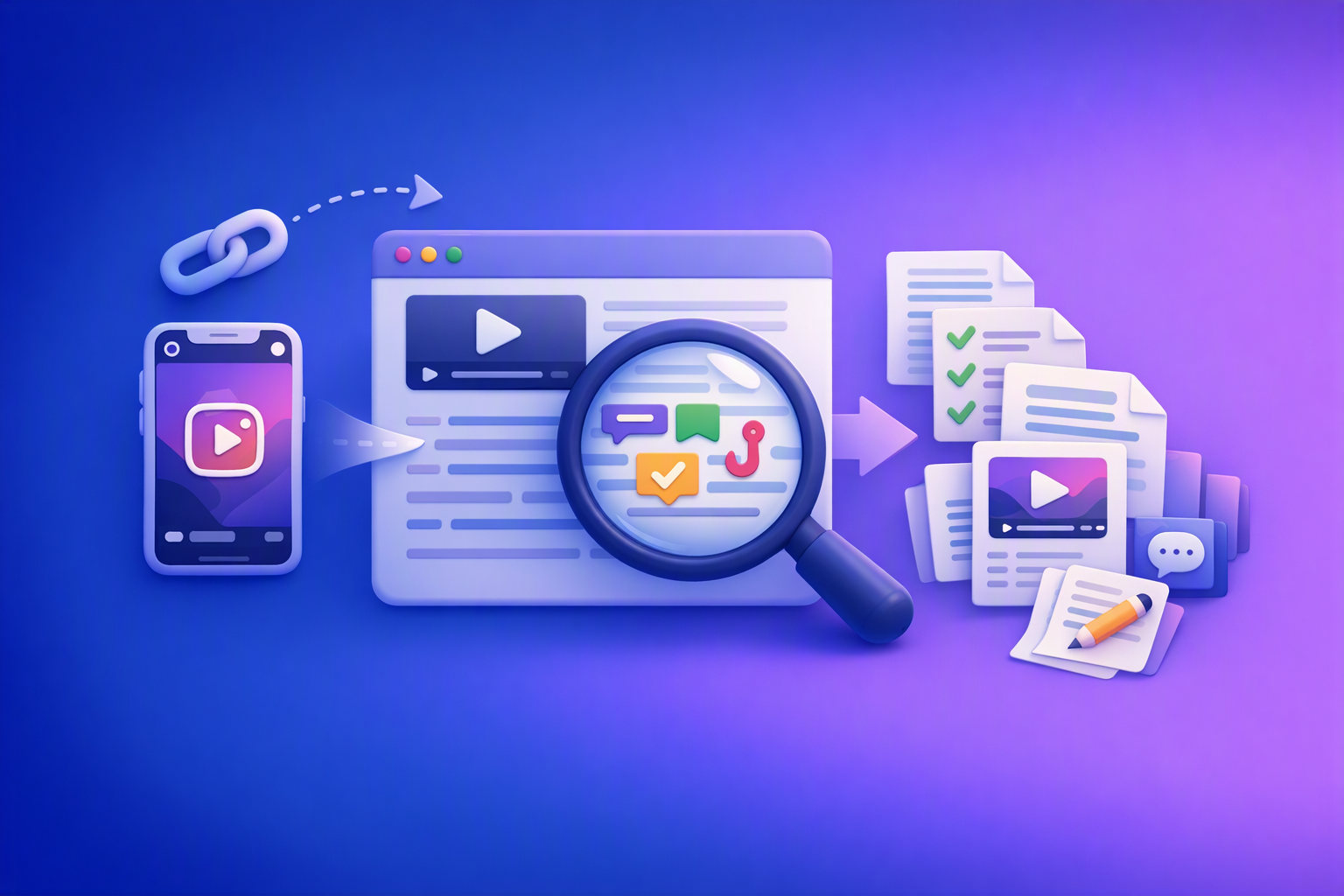
A 2026 reel analyser should turn Instagram Reel links into a searchable transcript library you can tag for hooks, CTAs, objections, and topic clusters—then export into repurposing-ready drafts without a download/upload loop.
Traducir video de Instagram (Reels) en 2026: workflow transcript-first para traducir, sacar hooks/CTAs y repurpose (con VideoToTextAI)
Video To Text AI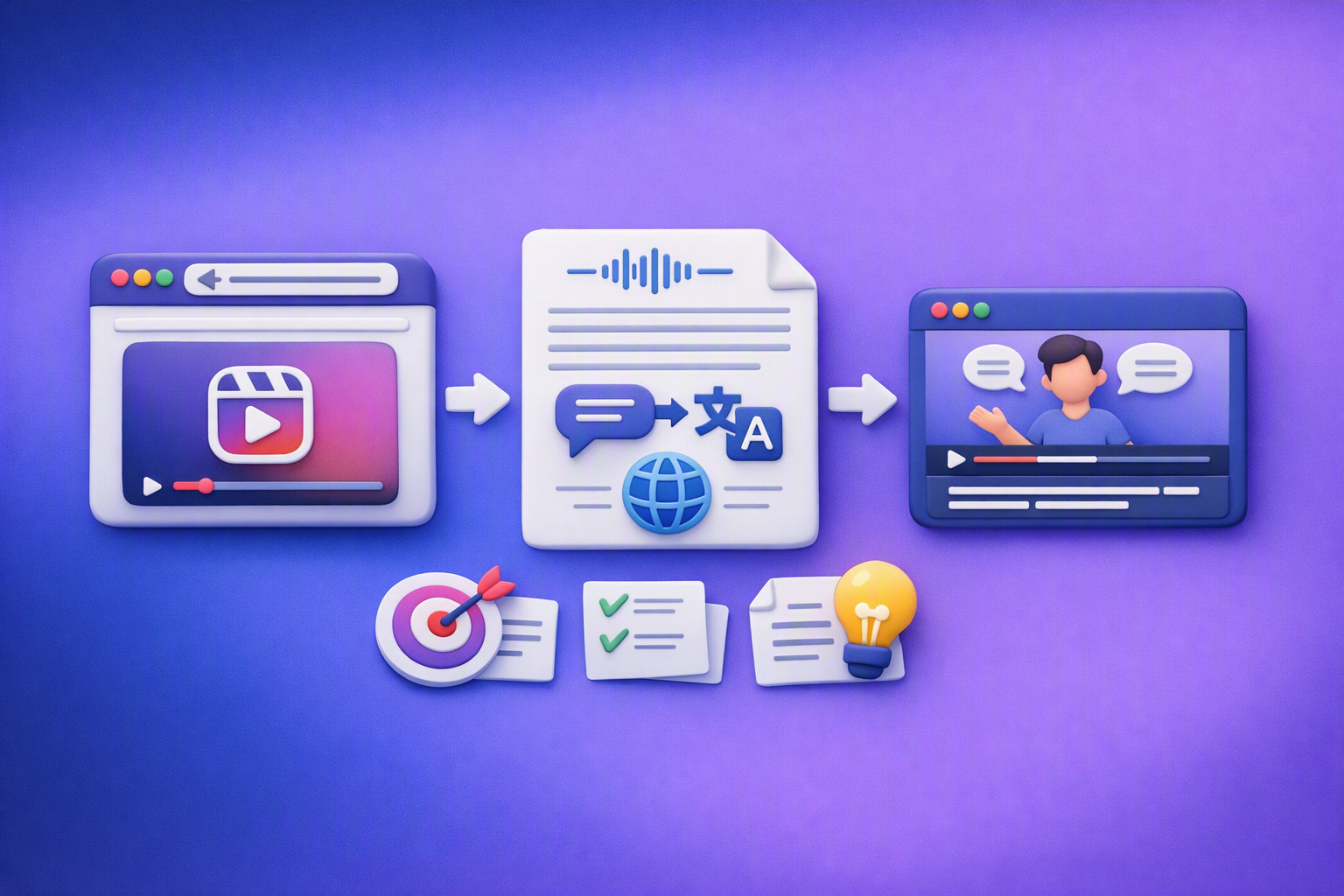
Aprende a traducir un Reel de Instagram con un flujo URL→transcripción→traducción→subtítulos, y a convertir esa traducción en un activo de investigación para hooks, CTAs, objeciones y clusters de contenido.
Reel Analyzer: Transcript‑First Instagram Reels Research (Hooks, CTAs, Objections) + Workflow Guide (VideoToTextAI)
Video To Text AI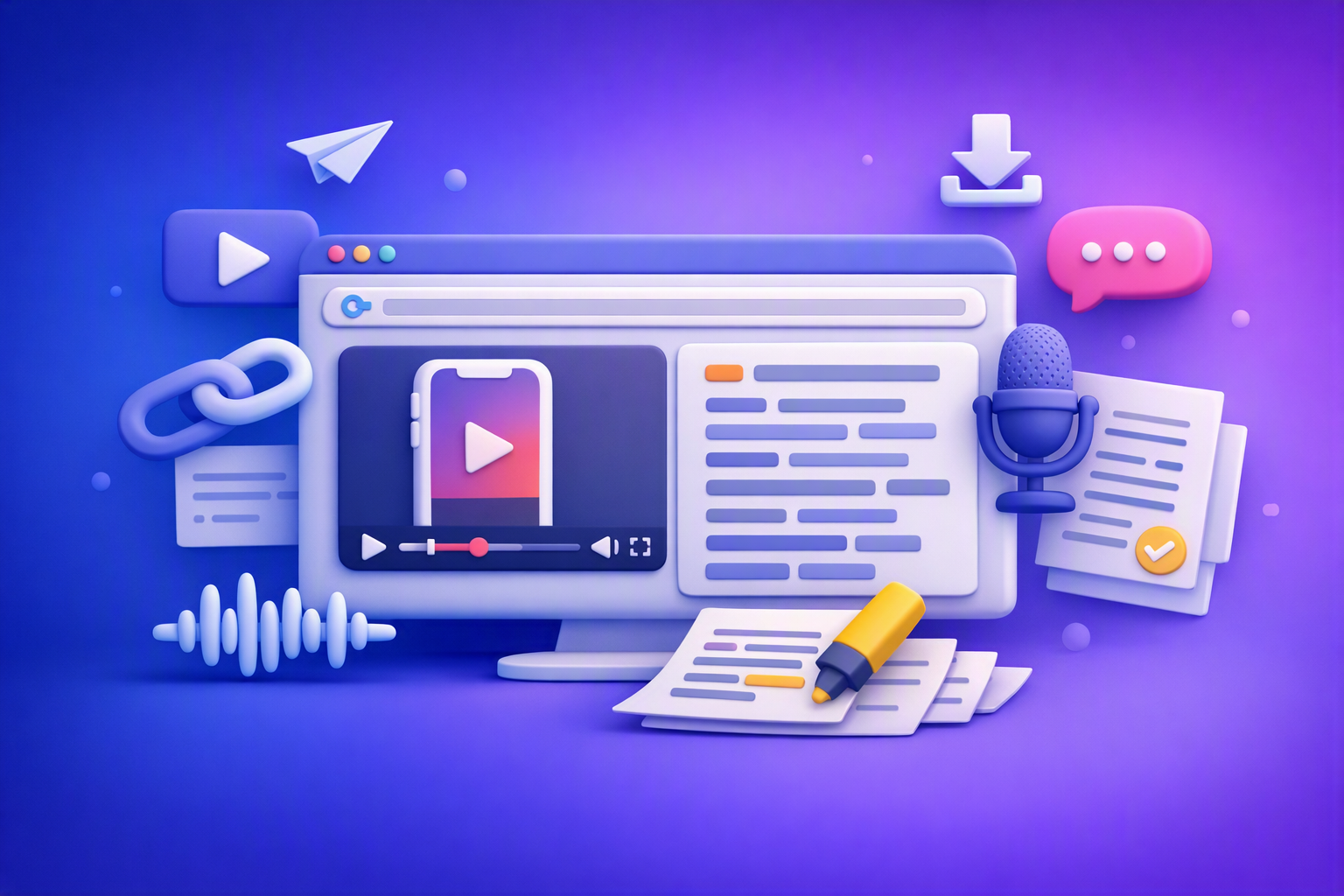
A reel analyzer should turn any public Instagram Reel link into a searchable transcript library you can mine for hooks, CTAs, objections, and topic clusters—then repurpose into original drafts with a repeatable SOP.