
“Add Files” Button Unavailable in ChatGPT: Causes, Fixes That Work (2026) + a No‑Upload Video→Text Workflow
 Video To Text AI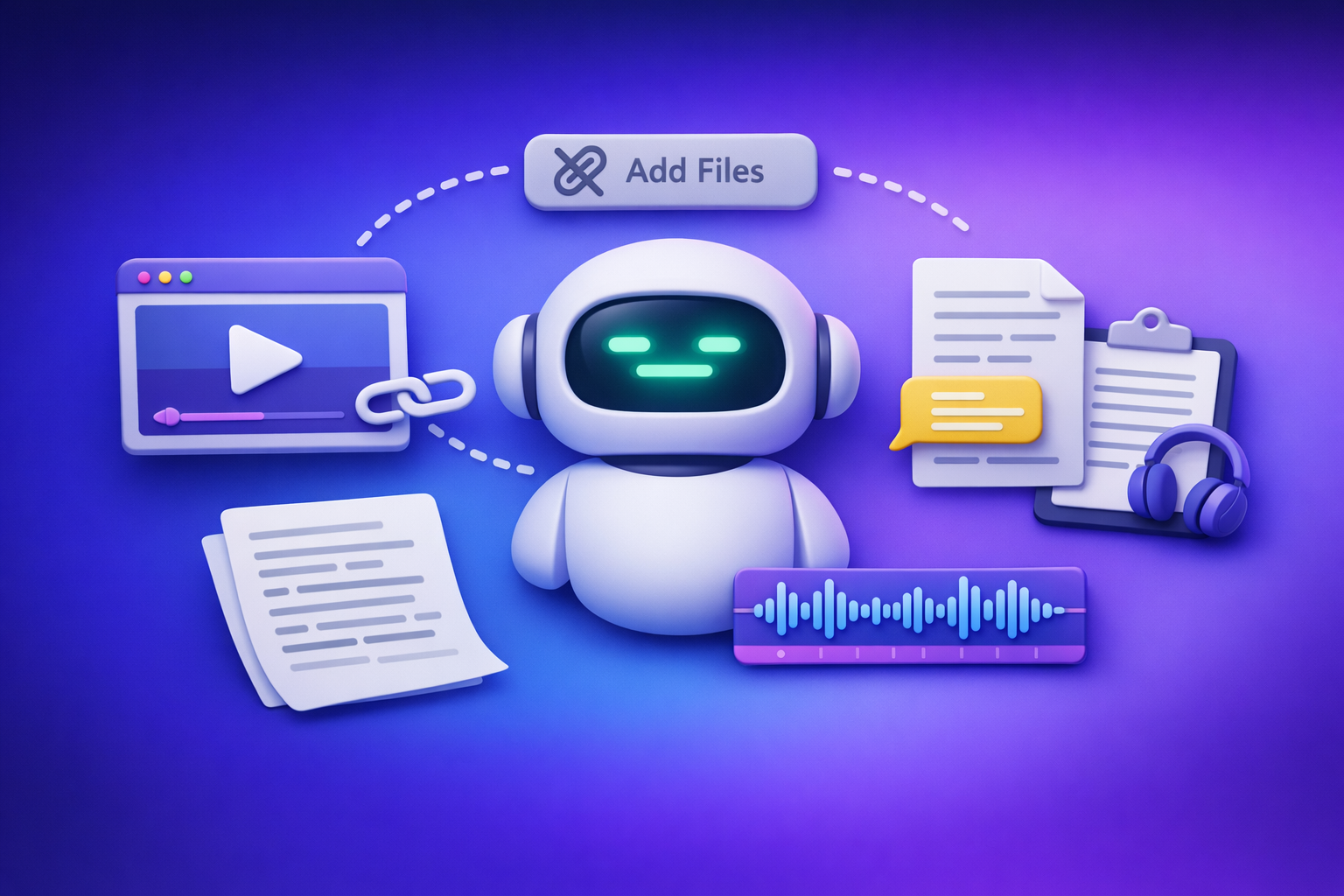
If the “Add files” button is unavailable in ChatGPT, fix it fastest by starting a new chat and switching models, then testing in incognito and on a hotspot to isolate browser vs network vs policy. If uploads still won’t return, you can still ship transcripts/captions using a no‑upload, link-based video→text workflow (outlined below).
What “Add files” button unavailable actually means (and what it doesn’t)
What’s happening under the hood
The upload UI (paperclip / “Add files”) is gated by multiple controls, and any one of them can remove the button:
- Surface: web vs desktop app vs mobile app can differ.
- Model: some models/chats support attachments; others don’t.
- Workspace policy: Team/Enterprise/Edu admins can disable attachments.
- Account state: feature rollouts, temporary restrictions, or plan changes can affect availability.
- Network/browser controls: script blockers, DLP tools, proxies, VPNs, and strict privacy settings can break the UI.
What it does not mean
Missing uploads is frustrating, but it’s usually not catastrophic:
- Not automatically a ban.
- Not proof your file is corrupt.
- Not always a size/format issue (those typically show an error after you try uploading, not a missing button).
2‑Minute Diagnosis (decision tree)
Use this order because it eliminates the most common causes first.
Step 1 — Confirm you’re in a chat context that supports uploads
- Start a New chat (don’t troubleshoot inside an older thread).
- Switch models (if your UI allows model selection).
- Re-check whether the paperclip / “Add files” returns.
If it returns only in the new thread/model, you’ve confirmed a surface/model mismatch.
Step 2 — Is it account/workspace policy?
If you’re on ChatGPT Team/Enterprise/Edu, assume policy first.
Quick test:
- Try the same account on a personal network (hotspot) and a personal browser profile.
- If uploads work on personal but not work network, it’s likely policy/DLP/network.
Step 3 — Is it browser/UI state?
- Hard refresh the page.
- Sign out/in.
- Try a Private/Incognito window.
Then check:
- Does the button appear in incognito but not your main profile? That points to extensions/cookies.
Step 4 — Is it network/security tooling?
- Try a mobile hotspot.
- If you’re on corporate Wi‑Fi/VPN: test off VPN, or switch VPN endpoint.
If the button returns on hotspot, your network path is interfering (proxy/DLP/VPN/DNS filtering).
Step 5 — Is it a temporary platform limitation?
Symptoms that suggest temporary limitations:
- Button disappears and reappears across refreshes.
- Adjacent issues like “max 0 uploads at a time” behavior.
Fix:
- Wait 10–30 minutes, then retry in a fresh thread.
Related troubleshooting: “Max 0 Uploads at a Time” Rate Limit in ChatGPT: What It Means, Why It Happens, and Fixes (Plus a No-Upload Video→Text Workflow)
Root causes (mapped to fixes)
Surface/model mismatch (most common)
Symptom
- “Add files” is missing only in certain chats/models, but appears elsewhere.
Fix
- Start a new chat → select a model known to support attachments → re-check the UI.
Workspace/admin restrictions
Symptom
- Button missing for multiple people in the org.
- Works on a personal account or outside the org network.
Fix
- Ask your admin to enable attachments.
- Provide: timestamp, screenshot, device, browser version, and whether you’re on VPN.
Browser extensions and blocked scripts
Symptom
- Button appears briefly, then disappears.
- Only fails in one browser profile.
- UI elements glitch or don’t respond.
Fix
- Disable extensions → whitelist ChatGPT domain in blockers → test in a clean profile.
Cache/cookies/session corruption
Symptom
- Upload UI broke after an update.
- Other UI elements behave inconsistently.
Fix
- Clear site data for ChatGPT (cookies + cache) → re-login → test.
VPN/proxy/DLP filtering
Symptom
- Button missing on work network; returns on hotspot.
- Works off VPN or on a different VPN endpoint.
Fix
- Bypass proxy/VPN where allowed.
- Ask IT to allowlist required domains and remove upload-blocking rules for approved users.
Rate limits / feature rollouts
Symptom
- Intermittent availability.
- Upload-related limits show up in adjacent errors.
Fix
- Wait and retry.
- Reduce concurrent tabs/sessions.
- Use the no-upload workflow below to keep shipping.
Step-by-step fixes (in the fastest order)
Fix 1 — New thread + model switch (60 seconds)
- Open ChatGPT in a new tab.
- Click New chat.
- Switch to a different model (if available).
- Look for the paperclip / “Add files”.
- If it returns, upload in that thread (don’t go back to the broken one).
Fix 2 — Clean browser profile test (2 minutes)
- Open an Incognito/Private window.
- Log in.
- Check if “Add files” is available.
- If yes: the issue is extensions/cookies in your main profile.
Fix 3 — Extension isolation (3–5 minutes)
- Disable all extensions.
- Reload ChatGPT.
- Re-enable extensions one-by-one until the button disappears.
- Keep the culprit disabled for ChatGPT or add an allowlist rule.
Common culprits:
- Script blockers
- Privacy/ad blockers
- Download managers
- Corporate security extensions
Fix 4 — Network isolation (3 minutes)
- Switch to a mobile hotspot.
- Reload ChatGPT.
- If it works: your network/VPN/proxy/DLP is blocking upload capability.
Fix 5 — Workspace policy confirmation (5 minutes)
- Ask a teammate to check the same feature.
- If missing for multiple users: escalate to admin with:
- affected users
- device/browser versions
- timestamp
- screenshot showing missing UI
If your org confirms uploads are intentionally disabled, stop burning time on browser tweaks and move to a no-upload workflow.
Implementation checklist (copy/paste)
- New chat created and tested
- Model switched and re-tested
- Incognito/private window test completed
- Extensions disabled and isolated
- Site data cleared (ChatGPT cookies/cache)
- Hotspot test completed (VPN off)
- Workspace/admin policy confirmed
- Alternative no-upload workflow ready (below)
When you can’t restore uploads: a production-safe no‑upload workflow (VideoToTextAI)
Downloading video files is an outdated workflow. It’s slow, it breaks on device limits, and it’s often blocked by workplace policies. Link-based extraction is the future of creator productivity because it’s faster to run, easier to repeat, and less dependent on fragile upload UI.
Why a no-upload workflow is faster than fighting the UI
- You can still deliver transcripts, captions, and repurposed drafts even when ChatGPT attachments are disabled.
- Link-based ingestion avoids local upload failures and many policy blocks.
- You get clean text outputs you can paste into ChatGPT for editing, summarizing, and formatting.
If you want a single home base for link-based video→text workflows, use VideoToTextAI: VideoToTextAI
Workflow A — Get a transcript from a video link (TXT)
- Copy the video URL (YouTube/TikTok/Instagram Reel, etc.).
- Generate a transcript using VideoToTextAI:
- Export as TXT (or copy to clipboard).
- Paste the transcript into ChatGPT for:
- summaries
- rewriting
- topic extraction
- outlines and scripts
Workflow B — Generate subtitles/captions (SRT/VTT) without ChatGPT uploads
If you have an MP4 and need subtitles:
If you need YouTube subtitles fast:
Then:
- Paste SRT/VTT into Premiere/CapCut/Descript, or into ChatGPT for cleanup (typos, speaker labels, line length).
Workflow C — Repurpose into publish-ready content (blog/social)
Use the same source link and generate drafts you can refine in ChatGPT:
- YouTube → blog draft: youtube to blog
- YouTube → summary: youtube to summary
- TikTok → blog: tiktok video to blog post
- Instagram Reel → blog: instagram reel to blog post
- Reel → LinkedIn post: instagram reel to linkedin post
Operationally, this is more repeatable than “download → upload → hope the button exists,” especially for teams.
VideoToTextAI vs Competitors
Competitor profiles were not supplied in this brief, so the comparison below is criteria-based and does not claim pricing, limits, or features for named vendors.
| Criteria | VideoToTextAI | Typical file-upload-only transcript tools | Typical “all-in-one editor” tools |
|---|---|---|---|
| Input method reliability | Link-based ingestion (designed for URL-first workflows) | Dependent on local uploads; fails when upload UI/policies break | Often supports uploads; link support varies by tool and source |
| Export formats | Built for transcript + caption workflows (e.g., TXT/SRT/VTT use cases) | Exports vary; may require extra steps for captions | Often strong exports, but may be tied to the editor workflow |
| Workflow speed | Fast path: URL → transcript/captions → paste into ChatGPT | Slower: download file → upload → wait → export | Can be fast once imported, but import/upload is still a dependency |
| Repurposing outputs | Purpose-built tools for blog/social conversions from the same source link | Usually transcript-only; repurposing is manual | Repurposing may exist, but often inside the editor ecosystem |
| Operational resilience | Works when ChatGPT attachments are disabled because you paste text outputs | Breaks when uploads are blocked by policy/network | Still impacted by upload restrictions if the editor requires file import |
| Compliance controls (process-level) | Link-first reduces handling of local files and repeated uploads | Requires moving files around (harder in restricted environments) | Can be compliant, but depends on org policy and deployment model |
Why VideoToTextAI wins in practice (when uploads are flaky):
- Link-based input avoids the single point of failure: the ChatGPT “Add files” UI.
- Operational repeatability is higher: the workflow is “URL in → text out,” which is easier to standardize across a team.
- Repurposing is built-in: you can generate drafts (blog/social) from the same link, then use ChatGPT for final polish.
Where a competitor may be better (narrow use case):
- If you need a full timeline editor with heavy post-production features, an all-in-one editor tool can be better for that specific job. The tradeoff is you’re still dependent on import/upload steps.
Competitor Gap
What most “fix the button” articles miss (and this post includes)
- A 2-minute decision tree that isolates surface/model vs policy vs browser vs network (in that order).
- A copy/paste checklist so you don’t repeat the same troubleshooting loop.
- A no-upload fallback that still produces deliverables (transcripts + SRT/VTT) when ChatGPT can’t accept files.
- Clear mapping from symptom → root cause → fastest fix, so you can stop guessing.
For related attachment issues, see:
- “Add Files Unavailable” in ChatGPT: What It Means, Fixes That Work, and a No-Upload Video→Text Workflow (2026)
- “Add Files Is Unavailable” in ChatGPT: What It Means, Fixes That Work (2026), and a No‑Upload Video→Text Workflow
- “Add Files” Button Unavailable in ChatGPT: Causes, Fixes That Work (2026) + a No‑Upload Video→Text Workflow
FAQ (People Also Ask-aligned)
Why is the “Add files” button missing in ChatGPT?
Most often it’s one of these:
- You’re in a model/chat context that doesn’t support attachments.
- Your workspace admin disabled uploads.
- A browser extension or blocked script removed the UI.
- Your network/VPN/DLP blocks upload capability.
Start with New chat + model switch, then test incognito and hotspot.
How do I enable file upload in ChatGPT?
You may not be able to enable it yourself.
Do this in order:
- New chat → switch model → re-check.
- Test in incognito (rules out extensions/cookies).
- Test on hotspot (rules out network controls).
- If you’re on Team/Enterprise/Edu, ask your admin to confirm attachments policy.
Is “Add files unavailable” a ban or account restriction?
Not by default. A missing button is more commonly:
- a surface/model mismatch
- a workspace policy
- a browser/network issue
- a temporary rollout/rate limit
If it’s account-specific, you’ll usually see other account-level symptoms too (plan/feature changes, repeated access issues across devices).
Why does it work on mobile but not on desktop (or vice versa)?
That usually indicates:
- Different surface/app behavior (mobile app vs web).
- Desktop browser extensions interfering.
- Desktop network path (VPN/proxy/DLP) blocking scripts or endpoints.
Use the incognito + hotspot tests to pinpoint which.
What can I do if my workplace blocks ChatGPT uploads?
Treat it as a policy decision first:
- Confirm with a teammate.
- Escalate to admin with a timestamp + screenshot + environment details.
If uploads remain blocked, switch to a no-upload workflow:
- Generate transcript/subtitles from a video link (TXT/SRT/VTT).
- Paste text into ChatGPT for editing and repurposing.
- This avoids the outdated “download video → upload file” loop and keeps production moving.
Related posts
“All Images” Isn’t the Real Problem: Build a Transcript‑First Instagram Reels Research Library (Hooks, CTAs, Objections) with VideoToTextAI
Video To Text AI
If you’re searching “all images,” you probably want everything in one place—but for Reels research, images alone don’t capture the messaging that drives views and leads. This guide shows how to turn Instagram Reel links into a searchable transcript library you can tag for hooks, CTAs, objections, and topic clusters using VideoToTextAI.
Instagram Reel Analytics Checker (2026): Transcript‑First Workflow to Benchmark Reels, Extract Hooks/CTAs, and Repurpose (VideoToTextAI)
Video To Text AI
An Instagram reel analytics checker tells you what happened; a transcript-first workflow tells you why it happened. Learn a metrics + transcript SOP to benchmark Reels, extract hooks/CTAs/objections, and turn competitor research into original, compliance-safe content—fast.
Reel Analyser (Instagram Reels): Transcript‑First Competitor Research, Hook/CTA Extraction, and Repurposing Workflow (VideoToTextAI)
Video To Text AI
A 2026 reel analyser should turn Instagram Reel links into a searchable transcript library you can tag for hooks, CTAs, objections, and topic clusters—then export into repurposing-ready drafts without a download/upload loop.