
“Attachments Disabled” in ChatGPT Image Upload (2026): What It Means, Fixes + No‑Upload Video→Text Workflow
 Video To Text AI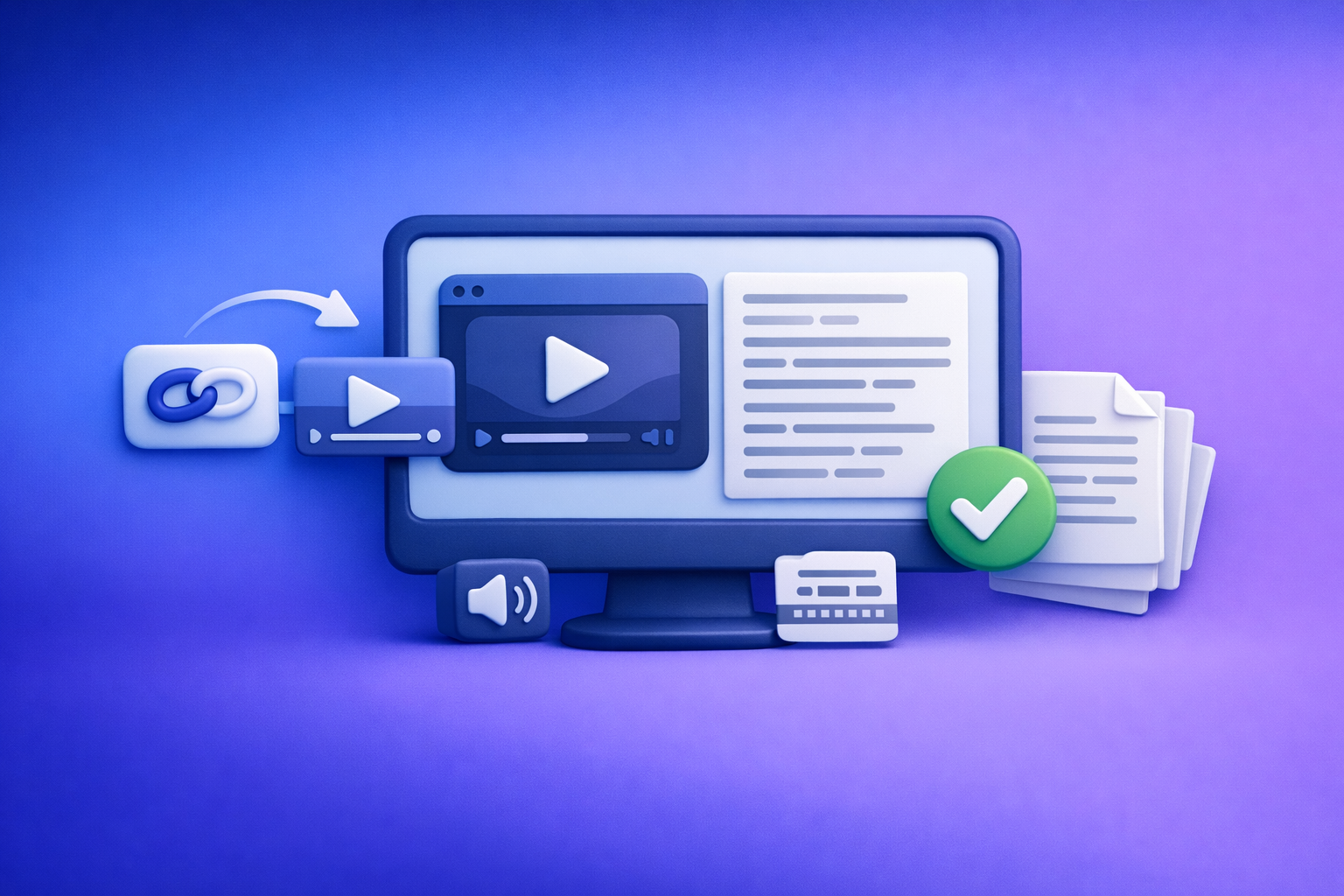
“Attachments disabled” in ChatGPT image upload is almost always a context, policy, browser, or network restriction—not a mystery file problem. Use the 2‑minute diagnosis below to isolate the cause, then apply the fastest fix or switch to a no‑upload link → transcript/subtitles workflow to keep shipping.
What “attachments disabled” means (and what it doesn’t)
The exact behaviors you’ll see
When attachments are disabled, ChatGPT typically behaves in one (or more) of these ways:
- Paperclip/upload button missing or greyed out
- “Attachments disabled” toast/banner in the composer
- Drag-and-drop blocked (no drop zone appears)
- Upload starts then instantly fails (often a context-level block, not your file)
These signals usually point to feature availability (model/surface), workspace policy, or environmental blocking (extensions/network).
What it does not mean
Don’t assume the worst. “Attachments disabled” is commonly not:
- Proof your account is banned
- Necessarily a file-size/format problem
- Always a temporary outage (it’s often context/policy)
Fast 2-minute diagnosis (decision tree)
Use this quick decision tree to pinpoint whether the block is caused by surface, chat context, browser, or network/workspace policy.
Step 1 — Confirm the surface you’re using (30 seconds)
Different ChatGPT surfaces can expose different capabilities.
- Identify where you are:
- Web app vs iOS vs Android vs a desktop wrapper
- If on web:
- Test in Incognito/Private window
- Test on a different device:
- Phone vs desktop is the fastest “environment swap”
If uploads work on another device/surface, your issue is likely browser state, extensions, or network tooling.
Step 2 — Confirm the chat context supports attachments (30 seconds)
Attachments can be disabled per thread or per mode/model.
- Start a new chat (don’t reuse an old thread)
- Switch to a model/mode that supports uploads (if your UI offers options)
- If you’re on Team/Enterprise/Edu, consider workspace restrictions
If a new chat restores the paperclip, the issue was likely thread/context-level.
Step 3 — Isolate browser + extensions (30 seconds)
Extensions are a top cause because uploads rely on scripts and endpoints that blockers can break.
- Disable:
- Ad blockers
- Privacy extensions
- Script blockers
- Try a clean browser profile (new Chrome/Firefox profile)
- Temporarily turn off “strict” tracking protection:
- Firefox Enhanced Tracking Protection
- Safari cross-site protections (for testing)
If a clean profile fixes it, you’ve confirmed an extension/state issue.
Step 4 — Isolate network/security tooling (30 seconds)
Corporate networks often block uploads via DLP/CASB rules.
- Try a different network:
- Home Wi‑Fi ↔ mobile hotspot
- Disable VPN/proxy temporarily
- If on corporate network:
- Check firewall/DLP/CASB policies that block uploads
If hotspot works but corporate Wi‑Fi fails, it’s almost certainly network policy.
Root causes (mapped to fixes)
Cause A: Model/surface mismatch (uploads not supported in this context)
Some contexts simply don’t expose attachments.
Fixes
- Create a new chat and re-check the attachment icon
- Switch to a supported model/mode (if your UI offers options)
- Update the app (mobile) or hard refresh (web)
Cause B: Workspace policy restriction (Team/Enterprise/Edu)
Admins can disable uploads to reduce data risk.
Fixes
- Ask your admin to allow file/image uploads for your workspace
- Test with a personal account on a personal network/device to confirm it’s policy
Cause C: Browser state issues (cookies, cache, corrupted local storage)
Broken site data can hide UI elements or break upload flows.
Fixes
- Clear site data for the ChatGPT domain:
- Cookies + local storage
- Log out/in
- Try a different browser (Chrome ↔ Firefox ↔ Safari)
Cause D: Extensions blocking upload endpoints
Blockers can prevent the upload UI from initializing or stop requests.
Fixes
- Disable extensions one-by-one:
- Start with ad blocker + privacy tools
- Allowlist the ChatGPT domain in the blocker
- Use a clean profile dedicated to AI tools
Cause E: Network blocks (VPN, proxy, firewall, DLP)
Uploads are a common target for security tooling.
Fixes
- Switch networks (home Wi‑Fi ↔ hotspot)
- Disable VPN/proxy
- If corporate network:
- Request allowlisting for upload endpoints (admin/security team)
Cause F: Rate limits / temporary service constraints
Sometimes uploads are temporarily constrained.
Fixes
- Wait 10–30 minutes and retry in a new chat
- Reduce concurrent uploads (one at a time)
- Use the no-upload workflow below to ship work immediately
Step-by-step fixes that work (ordered for speed)
1) New chat + model/mode switch (fastest)
- Open a new chat
- Confirm the attachment icon appears
- If your UI supports it, switch to a mode that allows images/files
Why this works: many “attachments disabled” cases are thread/context-level.
2) App/browser update + hard reload
- Web:
- Hard refresh (and ensure your browser is current)
- Mobile:
- Update the app
- Force quit
- Reopen and test
Why this works: UI capability flags and cached assets can get out of sync.
3) Clean browser profile test (high-signal)
- Create a new browser profile
- Install no extensions
- Log in and test image upload
If it works here, you can fix the original profile by removing/allowlisting the blocking extension(s).
4) Network isolation test (proves policy vs environment)
- Test on a mobile hotspot
- Test on a personal device/account if possible
This is the fastest way to confirm whether you’re dealing with corporate policy.
5) Admin/policy path (if you’re on a managed workspace)
When you escalate, make it easy for IT/security to act:
- Capture:
- Screenshot of “attachments disabled”
- Time/date
- Device + OS
- Browser/app version
- Network (corp Wi‑Fi vs hotspot)
- Ask admin to confirm:
- Upload permissions
- DLP/CASB rules impacting uploads
Implementation: No-upload workflow (ship transcripts/captions even when ChatGPT can’t accept images/files)
If your goal is transcripts, subtitles, captions, and repurposed content, file uploads into ChatGPT are a fragile dependency. Downloading video files is an outdated workflow—it adds friction, breaks under policy, and slows production. Link-based extraction is the future of creator productivity because it’s repeatable, fast, and resilient when attachments are disabled.
When to use this
Use a no-upload workflow when:
- You need transcripts/subtitles/captions now
- Upload UI is blocked by policy/network
- You’re repurposing video content and don’t want file handling overhead
Workflow A — Link → transcript (TXT) → paste into ChatGPT
- Get the video link (YouTube/Instagram/TikTok/Reels)
- Generate transcript from the link (no file upload to ChatGPT required)
- Export as TXT (or copy transcript)
- Paste transcript into ChatGPT for summarization, rewriting, or repurposing
Recommended tools (choose by source):
- video to text converter
- video transcript generator
- instagram transcript from link
- tiktok transcript generator
Operational tip: store the transcript as your “source of truth,” then generate every downstream asset (captions, hooks, blog, newsletter) from that text.
Workflow B — Link → subtitles (SRT/VTT) → captions + repurposing
- Generate subtitles (SRT/VTT)
- Use SRT/VTT in editors (Premiere/CapCut/Descript) or upload to platforms
- Paste key sections into ChatGPT for hooks, titles, and posts
Subtitle-focused tools:
Why this is production-safe: SRT/VTT are standard deliverables that keep moving even if a chat tool changes UI or policies.
Workflow C — Link → blog post / summary (skip ChatGPT uploads entirely)
If you want direct repurposing outputs (and don’t want to depend on ChatGPT uploads at all), generate drafts from the link:
Checklist: Fix “attachments disabled” + keep production moving
Quick checks (2 minutes)
- New chat created (not an old thread)
- Different device tested (phone/desktop)
- Clean browser profile tested (no extensions)
- Different network tested (hotspot)
- App/browser updated
Environment checks (5–15 minutes)
- Extensions disabled/allowlisted
- Site data cleared (cookies + local storage)
- VPN/proxy disabled
- Corporate firewall/DLP confirmed (admin)
Delivery fallback (immediate)
- Transcript generated from a link (no ChatGPT upload required)
- TXT/SRT/VTT exported and used downstream
- Repurposed assets produced without ChatGPT uploads
VideoToTextAI vs Competitors
You should evaluate tools based on input method, export formats, and whether the workflow stays reliable when attachments are disabled. The core strategic point: link-based workflows beat file-based workflows for speed and operational repeatability.
Competitor note: your prompt did not include a competitor research block (“competitorProfiles”). To avoid inventing claims, the table below compares workflow categories rather than naming specific vendors.
| Criteria | VideoToTextAI | File-upload transcription tools | In-chat upload-first AI tools |
|---|---|---|---|
| Input method | Link-based (video URL) | Usually requires downloading/uploading files | Requires attachments to be enabled |
| Works when ChatGPT says “attachments disabled” | Yes (paste transcript text) | Sometimes (still depends on upload permissions elsewhere) | No (blocked by the same restriction) |
| Exports for production | TXT + SRT/VTT workflows | Varies by tool | Often not export-first |
| Repurposing pipeline | Transcript-first → posts/blog/captions | Often transcript-only | Chat-first; can be brittle |
| Best fit | Creator/marketing ops that need repeatable publishing | Teams already managing media files | Cases needing in-chat image reasoning (when uploads work) |
Where VideoToTextAI wins (when attachments are disabled):
- Workflow speed: link → transcript/subtitles → paste text → publish.
- Link-based input: avoids downloading, renaming, and re-uploading files.
- Exports: TXT/SRT/VTT support editors and platform pipelines.
- Operational repeatability: the workflow doesn’t break when a chat UI changes.
Where alternatives may fit better:
- If you specifically need in-chat image reasoning and uploads are available, an upload-first chat tool can be faster for that narrow task.
For the link-first approach, use VideoToTextAI here (single CTA): https://videototextai.com
Competitor Gap
Most “attachments disabled” guides stop at “try another browser” or “wait and retry.” That advice is incomplete because it doesn’t separate context vs environment vs policy, and it doesn’t protect your production schedule.
What this post covers that most guides miss:
- A decision-tree diagnosis that isolates:
- chat context vs browser vs network vs workspace policy
- A production-safe fallback that doesn’t depend on ChatGPT uploads
- Concrete deliverables:
- TXT + SRT/VTT outputs for editors and publishing pipelines
- A repeatable repurposing pipeline:
- transcript-first instead of “chat-first”
FAQ (People Also Ask-aligned)
Why does ChatGPT say “attachments disabled” when I try to upload an image?
Because uploads are disabled in your current environment—most commonly due to:
- The chat context (old thread or mode/model mismatch)
- A workspace policy (Team/Enterprise/Edu restrictions)
- Browser issues (cookies/local storage) or extensions blocking upload scripts
- Network/security tooling (VPN, proxy, firewall, DLP/CASB)
How do I enable image uploads in ChatGPT?
Try these in order:
- Start a new chat
- Switch to a model/mode that supports uploads (if available)
- Update the app/browser and hard refresh
- Test in a clean browser profile with no extensions
- If on a managed workspace, ask an admin to enable uploads
Is “attachments disabled” caused by my account, my browser, or my workplace policy?
Use isolation tests:
- Works on hotspot but not office Wi‑Fi → workplace network policy
- Works in clean profile but not your main profile → extensions/browser state
- Works in a new chat but not old thread → chat context
- Never works on managed workspace but works on personal account → workspace policy
What can I do if uploads are blocked but I still need a transcript or captions today?
Run a no-upload pipeline:
- Generate transcript/subtitles from a video link
- Export TXT/SRT/VTT
- Paste transcript text into ChatGPT for rewriting, summaries, hooks, and posts
This keeps production moving even when attachments are disabled.
Internal Link Plan (related posts)
- Attachments Disabled in ChatGPT Image Upload: What It Means, Fast Fixes (2026), and a No-Upload Video→Text Workflow
- “Attachments Disabled for” ChatGPT: Meaning, Root Causes, Fixes That Work (2026) + a No-Upload Video→Text Workflow
- “Add Files Is Unavailable” in ChatGPT: What It Means, Fixes That Work (2026), and a No‑Upload Video→Text Workflow
- “Add Files” Button Unavailable in ChatGPT: Causes, Fixes That Work (2026) + a No-Upload Video→Text Workflow
- “Max 0 Uploads at a Time” Rate Limit in ChatGPT: What It Means, Why It Happens, and Fixes (Plus a No-Upload Video→Text Workflow)
- ChatGPT “Upload Video” Feature (2026): How to Use It, Real Limits, Fixes, and a No-Upload Workflow for Transcripts + Captions
Suggested on-page SEO elements (for implementation)
URL slug
/posts/attachments-disabled-chatgpt-image-upload-fixes
Title tag (options)
- Attachments Disabled in ChatGPT Image Upload (2026): Causes, Fixes + No‑Upload Workflow
- ChatGPT “Attachments Disabled” for Image Upload: Fast Fixes + Link‑Based Transcript Workflow
Meta description (≤160 chars)
- Fix “attachments disabled” in ChatGPT image upload with a 2‑minute diagnosis, proven fixes, and a no‑upload link→transcript/captions workflow.
Featured snippet targets
- What does “attachments disabled” mean in ChatGPT?
- How to fix attachments disabled in ChatGPT (steps)
- No-upload transcript workflow (link → TXT/SRT/VTT)
Related posts
“All Images” Isn’t the Real Problem: Build a Transcript‑First Instagram Reels Research Library (Hooks, CTAs, Objections) with VideoToTextAI
Video To Text AI
If you’re searching “all images,” you probably want everything in one place—but for Reels research, images alone don’t capture the messaging that drives views and leads. This guide shows how to turn Instagram Reel links into a searchable transcript library you can tag for hooks, CTAs, objections, and topic clusters using VideoToTextAI.
Instagram Reel Analytics Checker (2026): Transcript‑First Workflow to Benchmark Reels, Extract Hooks/CTAs, and Repurpose (VideoToTextAI)
Video To Text AI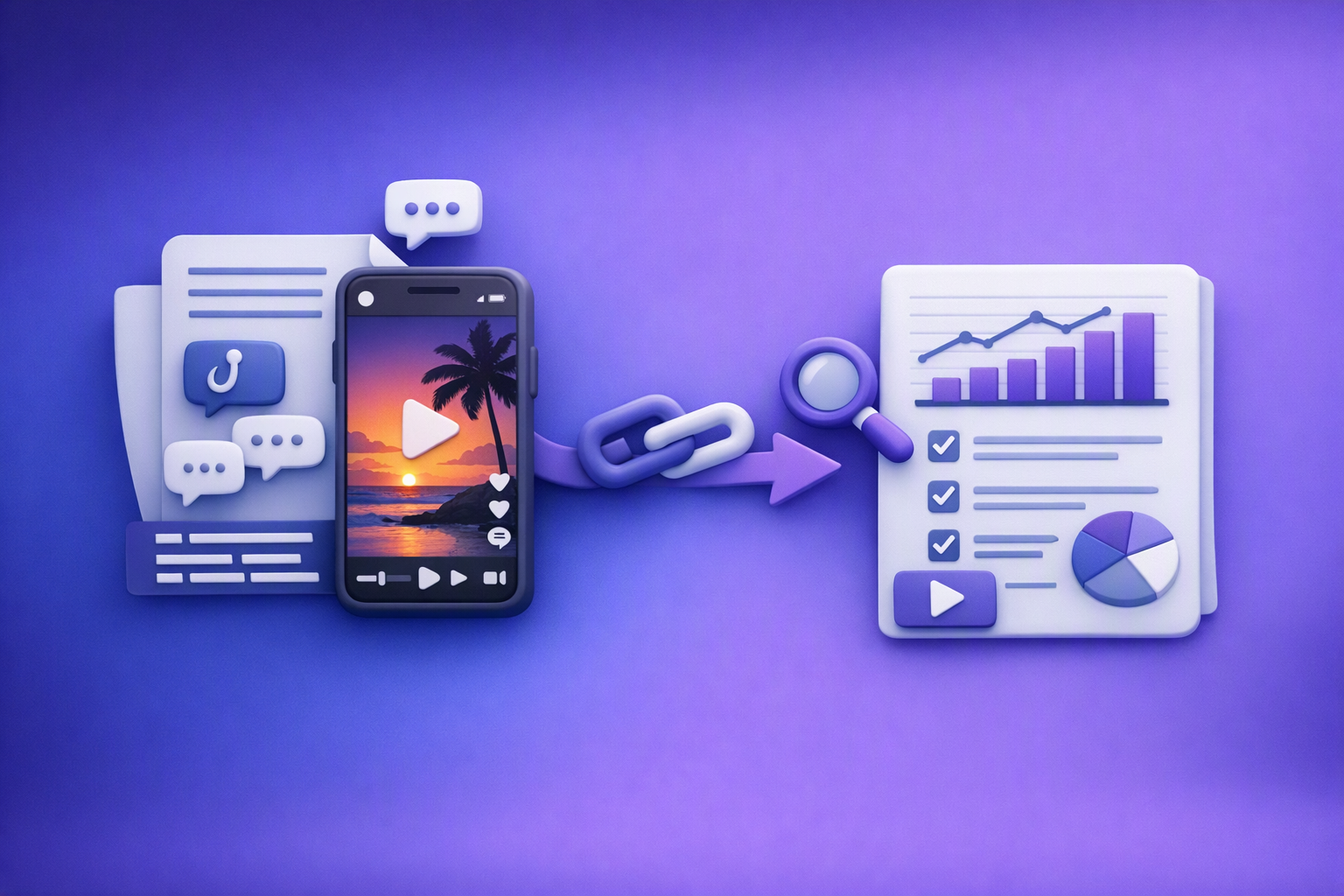
An Instagram reel analytics checker tells you what happened; a transcript-first workflow tells you why it happened. Learn a metrics + transcript SOP to benchmark Reels, extract hooks/CTAs/objections, and turn competitor research into original, compliance-safe content—fast.
Reel Analyser (Instagram Reels): Transcript‑First Competitor Research, Hook/CTA Extraction, and Repurposing Workflow (VideoToTextAI)
Video To Text AI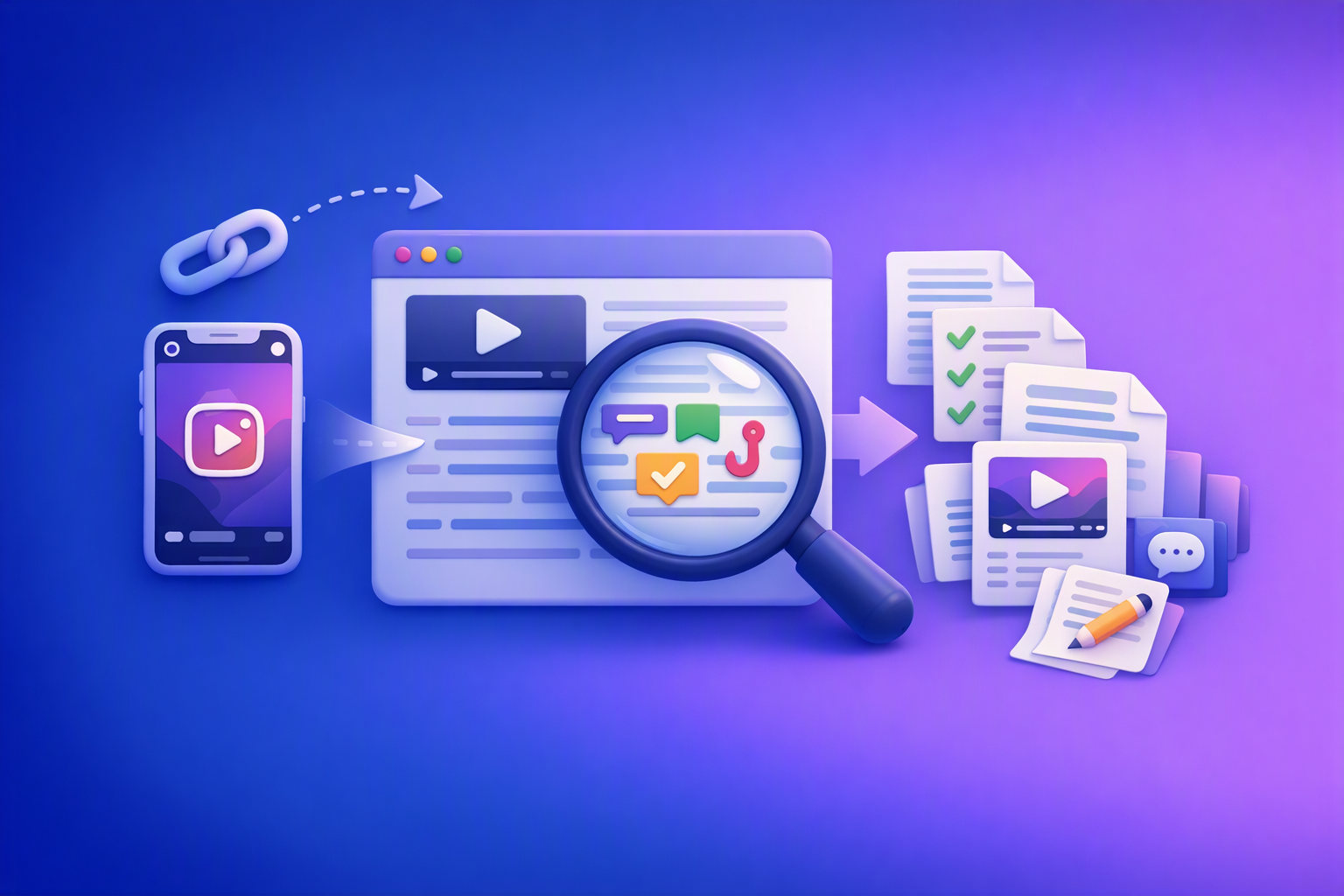
A 2026 reel analyser should turn Instagram Reel links into a searchable transcript library you can tag for hooks, CTAs, objections, and topic clusters—then export into repurposing-ready drafts without a download/upload loop.