
“Add Files” Button Unavailable in ChatGPT: Causes, Fixes That Work (2026) + a No-Upload Video→Text Workflow
 Video To Text AI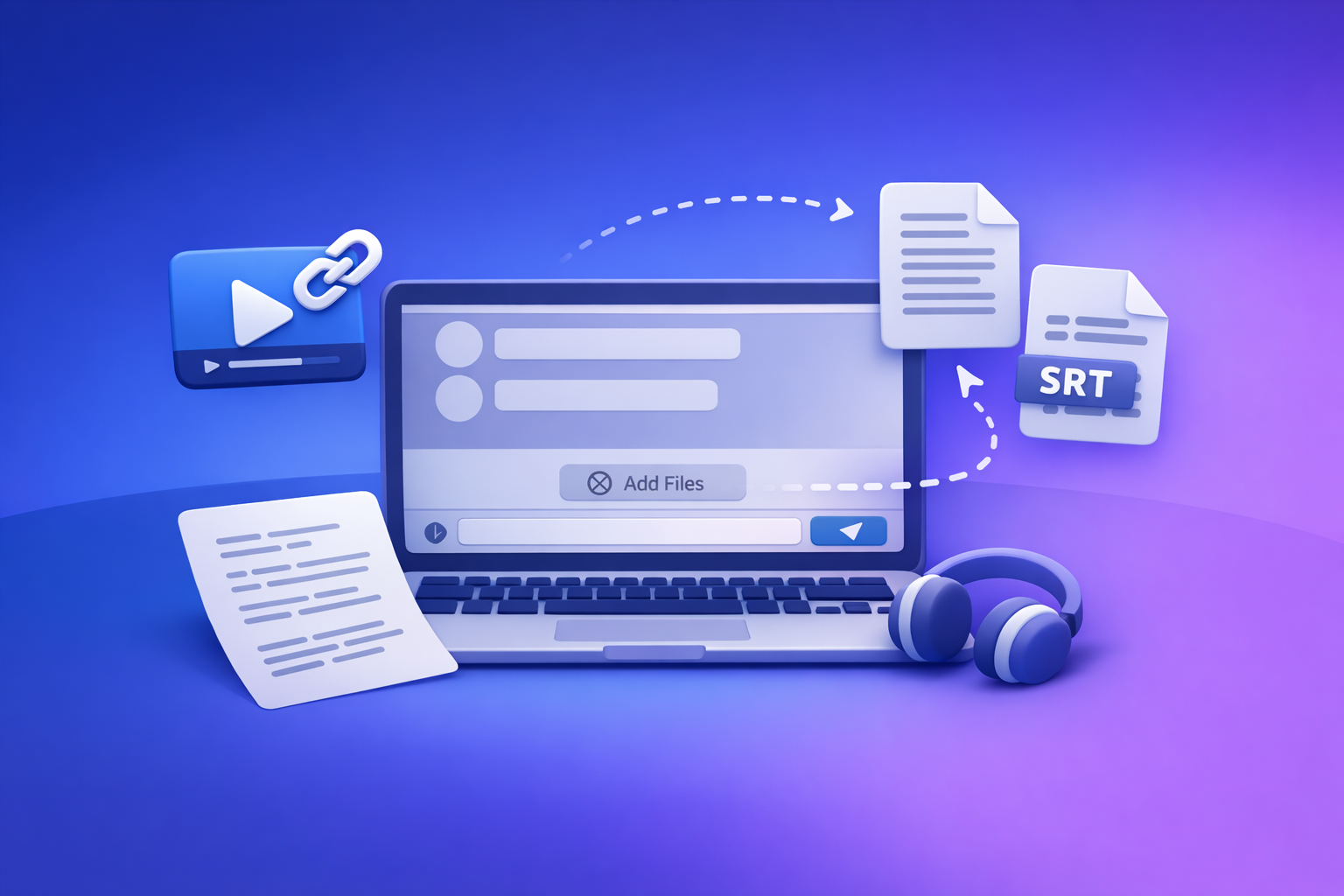
If the “add files” button is unavailable in ChatGPT, the fix is usually to change the context (new chat + model switch) or remove an environment blocker (workspace policy, browser extensions, or network filtering). If you can’t restore uploads quickly, skip the upload entirely by using a link-based video→text workflow (TXT + SRT/VTT) and paste text into ChatGPT.
What “Add files” button unavailable means (and what it doesn’t)
What’s actually happening in ChatGPT
When the attachment UI disappears or is disabled, it typically means uploads are turned off for the current:
- Context
- Surface/app (web vs iOS vs Android vs desktop wrapper)
- Selected model
- Current thread state (some tools/modes disable attachments)
- Environment
- Workspace/admin policy
- Browser session/cookies
- Extensions blocking scripts
- Network security tooling (VPN/proxy/DLP/firewall)
In other words, the UI is reacting to where and how you’re using ChatGPT—not necessarily what you’re trying to upload.
What it does not mean
A missing “Add files” button is not automatically:
- Proof your file is “bad” or unsupported
- Evidence your account is banned
- Always a storage/quota issue (those usually show as explicit errors)
Fast 2-minute diagnosis (do this in order)
Step 1 — Confirm the surface: Web vs iOS vs Android vs Desktop wrapper
Goal: isolate whether this is device/app-specific.
- Check the same account on another device (phone vs desktop).
- If it appears elsewhere, you’re dealing with browser/profile/network on the failing device.
Step 2 — Start a brand-new chat and re-check the attachment icon
Some threads/models/tools disable uploads.
- Open a new chat
- Look for the attachment icon immediately (before changing anything else)
Step 3 — Switch model (and re-check the UI)
Uploads can depend on the selected model and your plan/workspace.
- Switch to another available model
- Re-check whether the attachment icon appears or becomes clickable
Step 4 — Check plan/workspace constraints (Personal vs Team/Enterprise)
If you’re in a managed workspace, uploads may be disabled by policy.
- If you can: test the same login outside the workspace context
- Or test a personal account on the same device/network
Step 5 — Rule out browser issues in 30 seconds
Quick isolation steps:
- Open an incognito/private window
- Disable extensions (especially ad blockers, privacy tools, script blockers)
- Try a different browser profile (or another browser)
Step 6 — Rule out network/security tooling
Uploads can be blocked at the network layer.
- Turn VPN/proxy off
- Test on mobile hotspot (or mobile data)
- If it works off-network, it’s likely corporate firewall/DLP filtering upload endpoints
Step 7 — Check service status and regional rollout
Feature availability can vary by rollout or temporary incidents.
- If it’s intermittent across devices and models, assume platform degradation and use the no-upload workflow below.
Root causes (mapped to the exact symptom you see)
Cause A — Uploads disabled for the current model/tooling
Symptom
- No “Add files” button, or it’s greyed out only on certain models
Fix
- Start a new chat
- Switch models
- Remove conflicting tools/modes (if your UI indicates a tool is active)
Cause B — Workspace/admin policy blocks attachments
Symptom
- Button missing across devices for the same workspace account
Fix
- Test a personal account
- Ask your admin to enable attachments (or confirm they’re intentionally disabled)
Cause C — Browser storage/cookies/session corruption
Symptom
- Button missing only in one browser/profile, but works elsewhere
Fix
- Clear site data for ChatGPT
- Sign out/in
- Use a fresh browser profile
Cause D — Extensions interfering with upload UI
Symptom
- Button appears in incognito (where extensions are off) but not in your normal profile
Fix
- Disable extensions one-by-one
- Whitelist ChatGPT domain in blockers
- Remove script-blocking rules that break UI components
Cause E — Network filtering (VPN, proxy, corporate security)
Symptom
- Works on mobile data but not office Wi‑Fi
Fix
- Switch networks
- Request allowlisting from IT/security for required endpoints
Cause F — Temporary platform degradation
Symptom
- Intermittent availability; upload fails across contexts
Fix
- Wait and retry later
- Use the no-upload workflow so you can ship today
Fixes that work (step-by-step, lowest effort → highest certainty)
Fix 1 — New chat + model switch (60 seconds)
- Open a new chat
- Select a different model
- Refresh the page/app
- Re-check the attachment icon
This resolves most “context” issues fast.
Fix 2 — Hard refresh + sign out/in (2 minutes)
- Sign out
- Close all ChatGPT tabs/windows
- Reopen and sign in
- Test in a new chat
If the UI was stuck in a bad session state, this often clears it.
Fix 3 — Incognito test + extension isolation (3 minutes)
- Open an incognito/private window
- Log in
- If the button appears: disable extensions one-by-one in your main profile until it stays stable
Prioritize disabling:
- Ad blockers
- Privacy/script blockers
- “Security” extensions that rewrite requests
Fix 4 — Browser profile reset (5 minutes)
- Create a fresh browser profile
- Log in
- Test uploads
If it works in a clean profile, your main profile has corrupted storage or an extension conflict.
Fix 5 — Network isolation (5 minutes)
- Turn off VPN/proxy
- Switch to hotspot/mobile data
- If it works: request allowlisting from IT/security
This is the fastest way to prove it’s a network control, not your account.
Fix 6 — Workspace policy confirmation (variable)
- Test the same account outside the workspace (if possible)
- Test a personal account
- Ask admin whether file uploads are disabled
If policy is the blocker, you won’t “fix” it locally.
If you still can’t upload: the production-safe “no-upload” workflow (VideoToTextAI)
When uploads are flaky, blocked, or policy-disabled, the fastest path is to stop relying on file attachments entirely.
Brand POV: downloading video files and re-uploading them is an outdated workflow. Link-based extraction is the future of creator productivity because it’s faster, repeatable, and less likely to break under policy/network constraints.
When to use this workflow
Use this when:
- You need transcripts/captions today
- You’re blocked by policy, network, or inconsistent UI
- You’re working from links (YouTube, TikTok, Instagram, podcasts)
Workflow overview (link → transcript/subtitles → paste into ChatGPT)
- Generate transcript/subtitles from a link in VideoToTextAI
- Export as TXT + SRT/VTT
- Paste transcript (or key segments) into ChatGPT for summarization/repurposing
- Ship captions/subtitles without relying on ChatGPT uploads
If you want to standardize this across a team, keep the workflow link-first and export-driven so it’s operationally repeatable.
Step-by-step implementation (copy/paste ready)
Step 1 — Create a transcript from a video link
Use: https://videototextai.com/tools/video-to-text-converter
- Input: a shareable video URL
- Output: a clean transcript you can edit and prompt from
If your transcript is long, plan to paste it into ChatGPT in chunks (e.g., 1,500–3,000 words per message depending on your workflow).
Step 2 — If you need subtitles/captions, export SRT/VTT
Use one of these depending on your deliverable:
- Subtitle format needs: https://videototextai.com/tools/mp4-to-srt
- Transcript-first workflows: https://videototextai.com/tools/video-transcript-generator
Deliverables to standardize:
- TXT for prompting, editing, and documentation
- SRT/VTT for YouTube, TikTok editors, and caption pipelines
Step 3 — Repurpose into publishable assets (without uploads)
Use link-based repurposing tools (no local files required):
- YouTube → blog draft: https://videototextai.com/tools/youtube-to-blog
- YouTube → summary: https://videototextai.com/tools/youtube-to-summary
- TikTok → blog draft: https://videototextai.com/tools/tiktok-video-to-blog-post
- Instagram → transcript: https://videototextai.com/tools/instagram-transcript-from-link
This is where link-based workflows win: you can go from URL → transcript → publishable draft without waiting on attachment UI.
Step 4 — Prompt ChatGPT using text-only inputs (example prompt blocks)
Paste your transcript (or a chunk), then use prompts like:
Prompt A — Repurpose pack
Here’s the transcript (below). Create:
- 10 short captions (<= 120 characters)
- 5 hooks (<= 12 words)
- a 600-word blog outline (H2/H3)
- a LinkedIn post (<= 1,200 characters)
Keep claims grounded in transcript quotes. If something isn’t in the transcript, say “not stated.”
Prompt B — Timestamped highlights
From the transcript, extract 8 highlight moments with: (a) a title, (b) the exact quote, (c) the timestamp range if present, (d) why it matters.
Prompt C — Caption QA
Review these SRT captions for spelling, names, and punctuation. Don’t change meaning. Return corrected SRT blocks only.
No-upload workflow checklist (ship-ready)
- Confirm you have a shareable video link (YouTube/TikTok/Instagram/etc.)
- Generate transcript in VideoToTextAI
- Export TXT for prompting + SRT/VTT for captions/subtitles
- Paste transcript into ChatGPT (split into chunks if long)
- Generate repurposed assets (blog, captions, hooks, summaries)
- QA: names, numbers, timestamps, and any claims against transcript
- Publish (and store TXT + SRT/VTT as your source-of-truth artifacts)
Edge cases: why the button is missing only sometimes
“It works on mobile but not desktop”
Most likely:
- Desktop browser extensions
- Profile/session corruption
- Desktop network filtering (office Wi‑Fi)
Fix path:
- Incognito test → extension isolation → hotspot test
“It works in one chat but not another”
Likely:
- Thread/model/tool context differences
- A specific chat state disabling attachments
Fix path:
- New chat + model switch
“It works for colleagues but not me”
Likely:
- Workspace policy targeting (role/group-based)
- Account rollout differences
- Local browser/network differences
Fix path:
- Test on another device + another network, then confirm workspace policy
VideoToTextAI vs Competitors
If your goal is transcripts, subtitles, captions, and content repurposing, evaluate tools on operational reliability—not just “can it upload today.”
Comparison criteria (what you should evaluate)
- Link-based ingestion (no local upload required)
- Export formats (TXT, SRT, VTT) for production workflows
- Reliability when ChatGPT uploads are disabled
- Repurposing outputs (blog, summary, social posts) from the same source
- Speed to publish (time-to-first-usable transcript/captions)
Comparison table (workflow-focused)
| Tool | Link-based input (no local upload) | Export formats (TXT/SRT/VTT) | Repurposing outputs | Best fit | Where it may be better than VideoToTextAI |
|---|---|---|---|---|---|
| VideoToTextAI | Yes (core workflow) | Yes (TXT + SRT/VTT) | Yes (blog/summary/social from links) | Teams and creators who need repeatable URL→text→publish pipelines when ChatGPT attachments are unreliable | If you only need occasional, manual transcription and already have a stable editor pipeline, you may not need the extra repurposing tools |
| ChatGPT (attachments) | Sometimes (depends on surface/model/policy) | Not a dedicated export pipeline | Strong rewriting/ideation from provided text | Text transformation once you already have the transcript | When uploads work, it can analyze documents directly inside the chat |
| YouTube built-in transcripts | Yes (YouTube videos) | Limited (copy text; not a robust export workflow) | No | Quick, free rough transcript for YouTube-only content | Fastest for a basic transcript when you don’t need SRT/VTT or multi-platform support |
| Descript | Not primarily link-first (project-based) | Strong captioning/editing features (app workflow) | Some repurposing via editing workflows | Editing-heavy teams doing audio/video post-production | Better if your main need is timeline editing and you want transcription inside an editor |
Why VideoToTextAI wins for “uploads unavailable” scenarios: it’s designed around link-based input and exportable deliverables (TXT + SRT/VTT). That makes the workflow faster and more repeatable when ChatGPT’s attachment UI is missing, blocked, or inconsistent.
If you want to standardize a no-upload pipeline across a team, start here (single CTA): https://videototextai.com
Competitor Gap
Most “add files button missing” articles stop at generic troubleshooting. What they usually fail to include (and what you can implement immediately):
- A time-boxed diagnosis flow (2 minutes) that isolates surface/model/policy/network
- A no-upload fallback that still produces production deliverables (TXT + SRT/VTT)
- A repurposing path (blog/summary/social) that doesn’t depend on attachments
- A checklist to move from “blocked” to “shipped” without waiting on UI fixes
FAQ (People Also Ask aligned)
Why is the “Add files” button unavailable in ChatGPT?
Because uploads are disabled for your current surface/model/thread context, or blocked by workspace policy, browser issues, extensions, or network security. Start with a new chat + model switch, then isolate browser and network.
How do I enable file uploads in ChatGPT?
You can’t always enable it manually. Do this instead:
- New chat → switch model → refresh
- Test incognito (extensions off)
- Test another device/network
- Confirm workspace admin policy if you’re on Team/Enterprise
Does ChatGPT allow file uploads on all plans and devices?
Not consistently. Availability can vary by plan, workspace policy, model, surface/app, and rollout. That’s why a link-first workflow is safer for production.
What can I do if my workplace blocks ChatGPT attachments?
Treat it as a policy/network constraint:
- Prove it with a hotspot test
- Ask IT to confirm whether uploads are blocked
- Use a no-upload workflow: generate transcript + SRT/VTT from a link, then paste text into ChatGPT
Can I still generate transcripts and captions without uploading a video?
Yes. Use a URL-based transcript generator, export TXT + SRT/VTT, and paste the transcript into ChatGPT for repurposing. This avoids the attachment UI entirely and is more repeatable for creator workflows.
Internal Link Plan
- “Add Files Unavailable” in ChatGPT: What It Means, Fixes That Work, and a No-Upload Video→Text Workflow (2026)
- “Attachments Disabled for” ChatGPT: Meaning, Root Causes, Fixes That Work (2026) + a No-Upload Video→Text Workflow
- “Max 0 Uploads at a Time” Rate Limit in ChatGPT: What It Means, Why It Happens, and Fixes (Plus a No-Upload Video→Text Workflow)
- ChatGPT “Upload Video” Feature (2026): How to Use It, Real Limits, Fixes, and a No-Upload Workflow for Transcripts + Captions
- Attachments Disabled in ChatGPT Image Upload: What It Means, Fast Fixes (2026), and a No-Upload Video→Text Workflow
Related posts
“All Images” Isn’t the Real Problem: Build a Transcript‑First Instagram Reels Research Library (Hooks, CTAs, Objections) with VideoToTextAI
Video To Text AI
If you’re searching “all images,” you probably want everything in one place—but for Reels research, images alone don’t capture the messaging that drives views and leads. This guide shows how to turn Instagram Reel links into a searchable transcript library you can tag for hooks, CTAs, objections, and topic clusters using VideoToTextAI.
Instagram Reel Analytics Checker (2026): Transcript‑First Workflow to Benchmark Reels, Extract Hooks/CTAs, and Repurpose (VideoToTextAI)
Video To Text AI
An Instagram reel analytics checker tells you what happened; a transcript-first workflow tells you why it happened. Learn a metrics + transcript SOP to benchmark Reels, extract hooks/CTAs/objections, and turn competitor research into original, compliance-safe content—fast.
Reel Analyser (Instagram Reels): Transcript‑First Competitor Research, Hook/CTA Extraction, and Repurposing Workflow (VideoToTextAI)
Video To Text AI
A 2026 reel analyser should turn Instagram Reel links into a searchable transcript library you can tag for hooks, CTAs, objections, and topic clusters—then export into repurposing-ready drafts without a download/upload loop.