
“Attachments Disabled for” ChatGPT: Meaning, Root Causes, Fixes That Work (2026) + a No-Upload Video→Text Workflow
 Video To Text AI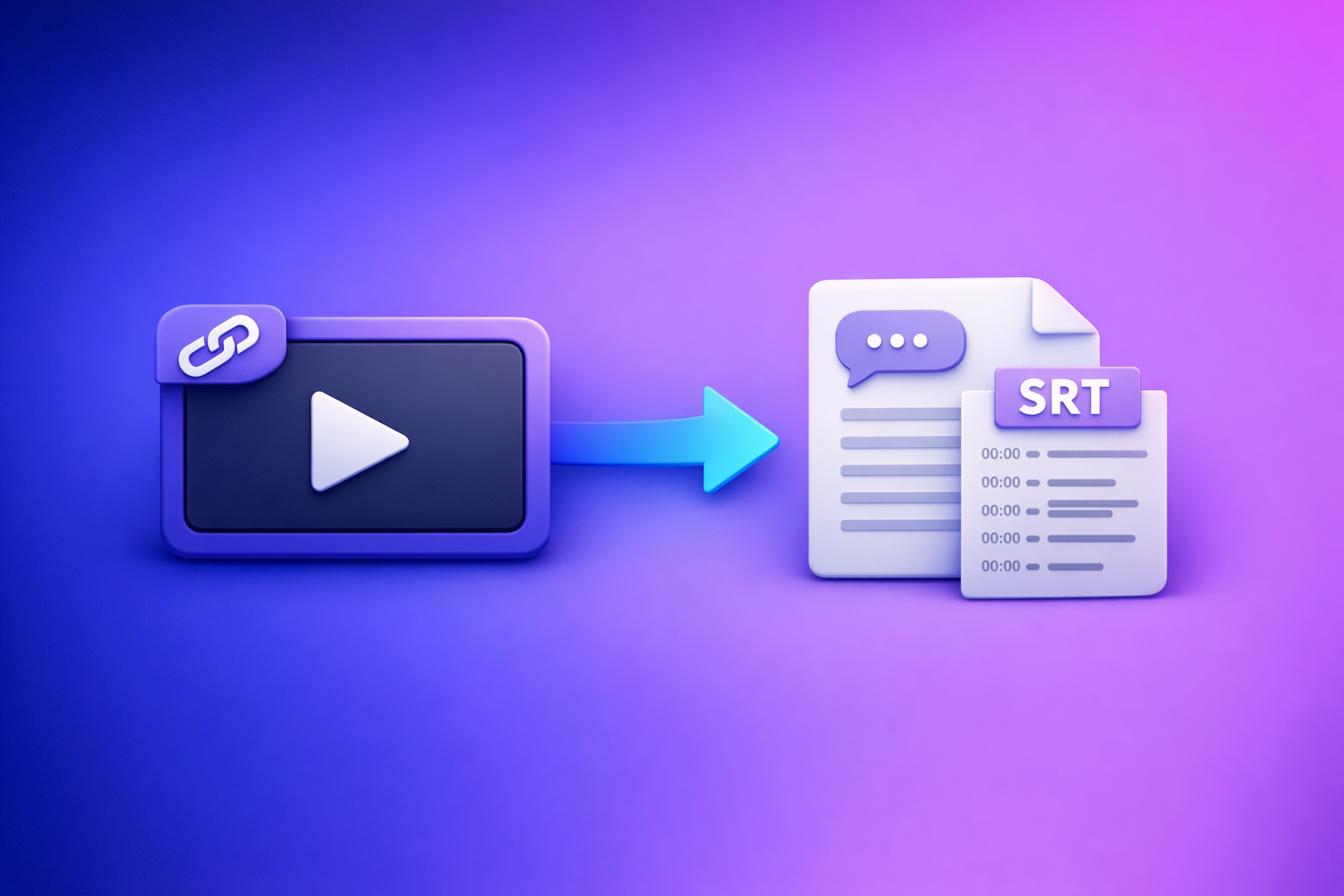
Fix “attachments disabled for” in ChatGPT by starting a new chat and switching to an upload-capable model, then isolating whether the block is thread-level, model-level, policy-level, client-side, or network-level. If you need deliverables today, stop debugging and use a no-upload workflow: generate TXT + SRT/VTT from a video link/MP4, then paste verified text into ChatGPT.
“Attachments Disabled for” ChatGPT: Meaning, Root Causes, Fixes That Work (2026) + a No-Upload Video→Text Workflow
TL;DR (Decision Rule in 30 Seconds)
If you need uploads back
Do this in order:
- New chat → check if the paperclip exists.
- Switch model to one that supports uploads → re-check paperclip.
- Incognito/private window test → proves browser profile/extension issues fast.
- If you’re in Team/Enterprise, assume admin policy until proven otherwise.
If you need deliverables today (skip uploads entirely)
Downloading video files and re-uploading them is an outdated workflow. The future of creator productivity is link-based extraction: URL → transcript/captions → paste text into ChatGPT for repurposing.
(You’ll find a step-by-step workflow below.)
What “attachments disabled for” means (and what it doesn’t)
What the message is actually indicating (capability, not account status)
“Attachments disabled for” is a capability signal: the current chat context can’t accept uploads right now.
Typical causes:
- The selected model doesn’t support attachments in that context.
- The thread is locked into a non-upload state (even if other chats work).
- A workspace policy disables uploads.
- Your browser/app/network is blocking upload requests.
What it is not indicating (not a ban, not permanent, not “your file is bad”)
In most cases, it’s not:
- A permanent account restriction
- A “ban”
- Proof your file is corrupted
- A file-size issue (you’d usually see a different error)
Common UI symptoms you’ll see
Upload/paperclip button missing
The attachment icon simply isn’t present in the composer.
Upload button greyed out + tooltip “attachments disabled for…”
Hovering shows a tooltip like “attachments disabled for …” (often truncated).
“Add files unavailable” / “Max 0 uploads at a time” variants
These are closely related symptoms. See also:
- “Add Files Unavailable” in ChatGPT: What It Means, Fixes That Work, and a No-Upload Video→Text Workflow (2026)
- “Max 0 Uploads at a Time” Rate Limit in ChatGPT: What It Means, Why It Happens, and Fixes (Plus a No-Upload Video→Text Workflow)
Where this happens most (surfaces + contexts)
ChatGPT Web (Chrome/Edge/Firefox/Safari)
Most common: thread/model mismatch, extensions, or Safari privacy settings.
ChatGPT iOS / Android apps
Most common: app version mismatch, auth/session issues, or workspace policy.
Team / Enterprise workspaces (admin policy)
Uploads can be disabled by policy even if you personally have a paid plan.
Specific thread/model contexts (why one chat is “broken” but another works)
A key pattern: one thread is broken, another works.
That usually means:
- The thread was started under a model/context without attachments.
- Switching models inside the same thread doesn’t fully re-enable the upload capability.
2-minute diagnosis (do this before trying random fixes)
Step 1 — Confirm it’s not just this thread
Open a new chat and check if attachments are enabled there
- If uploads work in a new chat: your issue is likely thread-level or model-level.
- If uploads don’t work anywhere: suspect policy, client, or network.
Step 2 — Confirm model capability in the current chat
Switch to an upload-capable model (then re-check the paperclip)
- Switch models, then look for the paperclip again.
- If it appears in a new chat but not in the old one, treat the old thread as “stuck.”
Related deep dive:
Step 3 — Confirm account/workspace restrictions
Personal account vs Team/Enterprise: what to check
- Are you inside a workspace (Team/Enterprise) vs personal?
- If yes, assume admin controls may be disabling attachments.
Step 4 — Isolate client-side blockers fast
Incognito/private window test (fastest proof)
- Open an incognito/private window.
- Log in and check for the paperclip.
- If it works in incognito: your normal profile likely has an extension, cookie/storage, or permission issue.
Try a different browser profile/device
- Different browser profile is faster than reinstalling.
- Different device helps separate device vs account/policy.
Step 5 — Isolate network/security tooling
Corporate VPN, proxy, DLP, content filters: how they break uploads
Uploads can fail or be disabled when security tools:
- Block file upload endpoints
- Strip auth headers
- Break cross-site requests
- Enforce DLP rules that disable attachments on certain domains
Quick test: switch to a mobile hotspot (no corporate network).
Fixes by root cause (ordered: lowest effort → highest certainty)
Fix 1 — Start a new chat + switch model (most common)
- Create a new chat.
- Select an upload-capable model.
- Re-check the paperclip.
Why switching models inside the same thread may not restore uploads
Some threads retain the original capability set. If the thread started without attachments, it can remain “attachment-disabled” even after switching models.
Fix 2 — Update the app / hard refresh the web client
Web: hard refresh + sign out/in
- Hard refresh the page.
- Sign out and sign back in.
- Re-test in a new chat.
Mobile: update app + re-auth
- Update the app.
- Force close and reopen.
- Log out/in if needed.
Fix 3 — Remove local blockers (extensions + privacy settings)
Disable extensions that commonly interfere (ad blockers, script blockers, privacy tools)
Temporarily disable:
- Ad blockers
- Script blockers
- Privacy/security extensions
- “Cookie auto-delete” tools
Re-test in a new chat.
Browser settings that can break uploads (cookies/storage/site permissions)
Check:
- Blocked cookies/storage for the site
- Site permissions (popups, downloads, etc.)
- Cleared/blocked local storage
Fix 4 — Browser-specific fixes (including Safari)
Safari: cross-site tracking, content blockers, and site permissions
Safari is frequently implicated when:
- Cross-site tracking prevention is strict
- Content blockers interfere with scripts
- Site permissions are restricted
Test Safari vs Chrome on the same Mac to confirm.
Chrome/Edge: profile corruption and storage reset
If incognito works but normal doesn’t:
- Create a fresh profile
- Or clear site data for the domain and re-auth
Fix 5 — Workspace policy path (Team/Enterprise)
What to ask your admin to verify (uploads/attachments controls)
Ask your admin to confirm:
- Whether file uploads/attachments are disabled at the workspace level
- Whether specific data controls restrict uploads for certain users/groups
How to prove it’s policy (personal account test on same device/network)
- Log into a personal account on the same device/network.
- If uploads work personally but not in the workspace: it’s almost certainly policy.
Fix 6 — If it’s intermittent: stabilize your workflow
When to stop debugging and switch to a no-upload workflow
If uploads are intermittent, your production workflow is fragile.
For creators and teams, downloading video files and re-uploading them is an outdated workflow. The future is link-based extraction that produces export-first deliverables (TXT + SRT/VTT) you can reuse across tools—even when ChatGPT uploads are blocked.
Step-by-step: No-upload workflow (video link → transcript/captions → ChatGPT)
Why “paste verified text” beats uploading for production work
Pasting verified text is:
- More reliable than uploads (no paperclip dependency)
- Faster than download → upload loops
- More reusable (TXT for analysis + SRT/VTT for publishing)
- More repeatable for teams (standard steps, consistent outputs)
If you want a single place to run link-based video→text workflows, use VideoToTextAI: VideoToTextAI
Workflow A — YouTube/Podcast → transcript + captions → repurpose
Step 1: Generate transcript from a link
Use the right tool for the source:
- General video links: video transcript generator
- Podcasts: podcast transcription
- YouTube subtitle-first extraction: free youtube subtitles
Step 2: Export formats you can reuse everywhere
Export based on downstream use:
- TXT for analysis/repurposing in ChatGPT
- SRT/VTT for captions/subtitles in editors and platforms
Step 3: Paste transcript into ChatGPT with a structured prompt
Prompt template: summarize + extract hooks + create repurposed assets
You are my content repurposing editor. Use the transcript below.

Goals:
1) 10-bullet executive summary
2) 8 scroll-stopping hooks (<= 12 words each)
3) 5 tweet-length insights
4) 1 LinkedIn post (150–220 words) with a strong opening line
5) 1 blog outline with H2/H3s

Constraints:
- Keep claims faithful to the transcript.
- If something is unclear, mark it as [uncertain] instead of guessing.

Transcript:
[PASTE TRANSCRIPT HERE]
Prompt template: generate chapters + titles + descriptions
Create YouTube chapters and metadata from this transcript.

Output:
- 8–12 chapters with timestamps in mm:ss
- 5 title options (<= 70 characters)
- 1 SEO description (150–200 words) + 8 tags

Transcript:
[PASTE TRANSCRIPT HERE]
Workflow B — MP4 file on disk → text outputs (when links aren’t available)
Step 1: Convert MP4 to text
Step 2: Generate subtitle files for publishing
Workflow C — Social video (TikTok/Instagram/Reels) → transcript → posts
TikTok
Instagram/Reels
Implementation checklist (copy/paste)
Checklist 1 — Restore ChatGPT attachments (2–10 minutes)
- New chat test (rules out thread-level lock)
- Switch to an upload-capable model and re-check paperclip
- Try incognito/private window
- Disable extensions and retry
- Try another browser/device
- Remove VPN/proxy and retry (or switch networks)
- If Team/Enterprise: confirm admin policy for uploads
Checklist 2 — Ship-now no-upload workflow (10–20 minutes)
- Generate transcript from a link (choose the right tool page)
- Export TXT + SRT/VTT (as needed)
- Paste transcript into ChatGPT with a structured prompt
- Generate: summary, outline, blog draft, captions, hooks, and repurposed posts
- Save outputs as reusable templates for the next video
VideoToTextAI vs Competitors
Comparison criteria (what this section will evaluate)
- Workflow speed from URL to publishable assets
- Export readiness for TXT, SRT, VTT
- Repeatability for creators/teams (consistent steps)
- Reliability when ChatGPT uploads are blocked (no-upload path)
Comparison table (research-based, no invented claims)
| Tool | Primary workflow signal | Link-based input | Upload-heavy | Transcript export | Subtitle/caption outputs | Team/collab signal | Best fit |
|---|---|---|---|---|---|---|---|
| VideoToTextAI | Link-based video→text workflows | Yes | Optional (MP4 tools exist) | Yes (TXT) | Yes (SRT/VTT via tool exports) | Yes (repeatable workflows) | Fast URL→transcript/captions→repurpose, especially when ChatGPT uploads are blocked |
| Reduct Video | Collaborative transcript-based video platform | No strong public signal | Not emphasized as link-first | Yes | Weak public signal for subtitle workflow | Yes | Research/analysis and collaborative transcript workflows |
| Choppity | AI video editor with transcription/captions | No strong public signal | Yes | Yes | Yes | Yes | Clip editing + captions inside an editing workflow |
| PCMag “best transcription services” category | Editorial list of transcription services | Not a workflow tool | Often upload-based | Yes (varies by service) | Not the focus | Not the focus | Choosing a transcription vendor/service category |
What this means in practice (fair, operationally specific)
- If your problem is “attachments disabled for” ChatGPT, the winning move is to stop depending on uploads.
- VideoToTextAI wins on workflow speed and repeatability when you can start from a URL and immediately export TXT + SRT/VTT, then paste text into ChatGPT.
- Choppity can be better if your primary job is editing/clipping inside an AI editor and you’re fine with an upload-first flow.
- Reduct Video can be better for teams doing deep review, search, and collaboration on transcripts across a library.
- PCMag-style “best service” lists help you pick vendors, but they don’t solve the operational issue: ChatGPT uploads can be blocked by model/thread/policy/client/network.
Competitor Gap
What top-ranking results cover (and why it’s insufficient)
Most top results (especially community threads) do one of these:
- Identify the symptom (“paperclip greyed out”)
- Suggest a single fix (“switch models”)
- Stop there—no isolation flow, no production fallback
What they miss (this post must include)
This guide fills the missing pieces:
- A 2-minute diagnosis that isolates thread vs model vs policy vs client vs network
- A production-safe fallback that doesn’t depend on ChatGPT uploads
- Export-first deliverables (TXT + SRT/VTT) that plug into editing + publishing
- Copy/paste checklists and prompt templates for repeatable execution
Related internal deep dives:
- “Max 0 Uploads at a Time” / “Upload Limit Reached” in ChatGPT (2026): Causes, Fixes, and the No-Upload Video→Text Workflow
- ChatGPT “Upload Video” Feature: How It Works, How to Use It (iPhone/Android/Web), Real Limits, and a No-Upload Workflow
- “Max 0 Uploads at a Time” Rate Limit in ChatGPT: What It Means, Why It Happens, and Fixes (Plus a No-Upload Video→Text Workflow)
FAQ
Why are my ChatGPT uploads disabled?
Usually because the current chat context can’t accept attachments (model/surface/thread), a Team/Enterprise policy blocks uploads, or your browser/network is interfering.
How do I enable attachments for ChatGPT?
Use the ordered flow:
- New chat → switch to an upload-capable model
- Incognito test → disable extensions → reset site permissions/storage
- If in a workspace: ask admin to verify upload policy
Why can’t I add files to ChatGPT?
Common reasons:
- Upload icon missing due to model/surface limitations
- Thread started in a non-upload state
- Workspace policy disables attachments
- Browser extensions or strict privacy settings block upload scripts
See also:
Where is the upload button in ChatGPT?
On supported contexts, it’s typically a paperclip near the message composer. If it’s missing or greyed out, run the 2-minute diagnosis above.
Can ChatGPT convert video to text?
Sometimes, if uploads are available and the model supports it. For reliable production output, use a transcript-first approach: generate TXT + SRT/VTT, then paste the transcript into ChatGPT for summaries, chapters, and repurposed content.
Related posts
“All Images” Isn’t the Real Problem: Build a Transcript‑First Instagram Reels Research Library (Hooks, CTAs, Objections) with VideoToTextAI
Video To Text AI
If you’re searching “all images,” you probably want everything in one place—but for Reels research, images alone don’t capture the messaging that drives views and leads. This guide shows how to turn Instagram Reel links into a searchable transcript library you can tag for hooks, CTAs, objections, and topic clusters using VideoToTextAI.
Instagram Reel Analytics Checker (2026): Transcript‑First Workflow to Benchmark Reels, Extract Hooks/CTAs, and Repurpose (VideoToTextAI)
Video To Text AI
An Instagram reel analytics checker tells you what happened; a transcript-first workflow tells you why it happened. Learn a metrics + transcript SOP to benchmark Reels, extract hooks/CTAs/objections, and turn competitor research into original, compliance-safe content—fast.
Reel Analyser (Instagram Reels): Transcript‑First Competitor Research, Hook/CTA Extraction, and Repurposing Workflow (VideoToTextAI)
Video To Text AI
A 2026 reel analyser should turn Instagram Reel links into a searchable transcript library you can tag for hooks, CTAs, objections, and topic clusters—then export into repurposing-ready drafts without a download/upload loop.