
“Add Files Is Unavailable” in ChatGPT: What It Means, Fixes That Work (2026), and a No‑Upload Video→Text Workflow
 Video To Text AI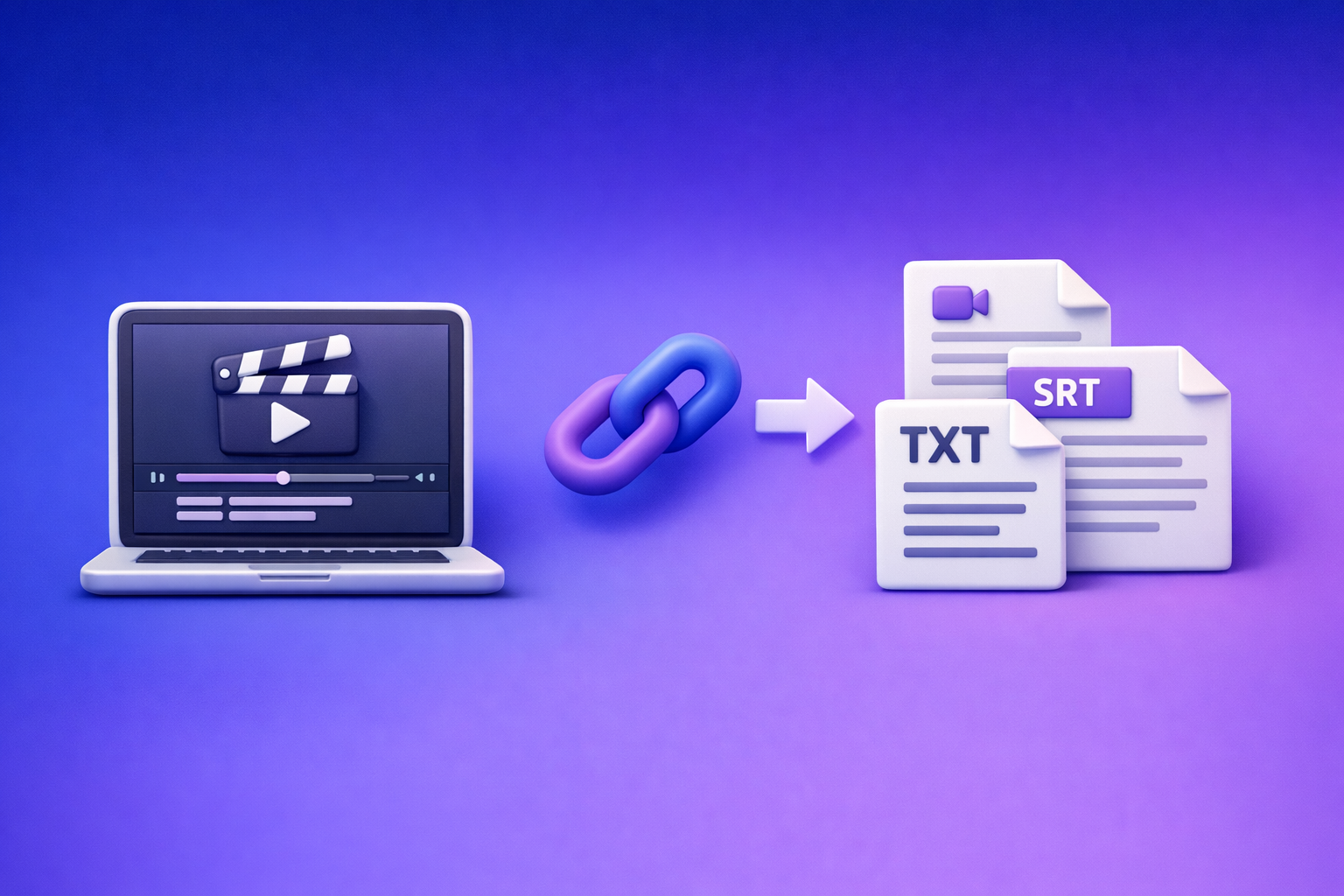
If ChatGPT shows “add files is unavailable”, stop troubleshooting the file—the attachment control is usually disabled by model/thread/surface or blocked by your environment. Use the 90‑second diagnosis below to restore uploads, or bypass uploads entirely with a link-based video→text workflow that still delivers TXT + SRT/VTT today.
“Add Files Is Unavailable” in ChatGPT: What It Means, Fixes That Work (2026), and a No‑Upload Video→Text Workflow
TL;DR (2-minute fix path)
If you need uploads right now
- Start a new chat → switch to a model that supports attachments → retry
- Try ChatGPT web in an incognito window (no extensions) → retry
- Switch network (mobile hotspot) → retry
- If on workspace/enterprise, ask admin to enable attachments for your surface/model
If you just need the content from a video
- Generate TXT + SRT/VTT from a link (no file upload to ChatGPT required)
- Paste transcript/captions into ChatGPT for summarizing, repurposing, and formatting
Brand POV: Downloading video files just to re-upload them is an outdated workflow. Link-based extraction is the future of creator productivity because it removes the upload UI as a single point of failure.
What “add files is unavailable” means in ChatGPT (not a file problem)
The message usually indicates a context restriction
In practice, “add files is unavailable” typically means attachments are disabled for one of these reasons:
- The current surface (web vs iOS vs Android) doesn’t expose attachments in your context
- The selected model or chat mode doesn’t support attachments in that thread
- The thread type is “stuck” in a state where attachments are off (common in older chats)
- A workspace/enterprise policy disables attachments for your role, model, or surface
- Your environment blocks the upload control:
- browser extensions (ad/script/privacy blockers)
- corrupted site data
- network filtering (proxy, SSL inspection, DLP)
What it does not mean (common misconceptions)
- Your file is “corrupt” (usually not)
- Your account is permanently banned (rare)
- ChatGPT is down globally (possible, but not the default)
Fast diagnosis: identify the exact blocker in 90 seconds
Step 1 — Confirm where you’re using ChatGPT (surface)
Check your current surface:
- Web app (desktop browser)
- iOS app
- Android app
- Workspace/Enterprise tenant vs personal account
Decision rule: If it works on one surface but not another, it’s a surface/app policy or local environment issue.
Step 2 — Check the model + chat mode
Do two quick tests:
- Switch models and see whether the attachment UI appears
- Start a new chat (don’t reuse an older thread)
Decision rule: If attachments appear only on certain models/threads, it’s a model/thread capability mismatch.
Step 3 — Isolate local browser causes (web)
Run a clean-room test:
- Open an incognito/private window
- Disable extensions (ad blockers, script blockers, privacy tools)
- Clear site data for ChatGPT (cookies + local storage)
- Try a different browser profile (or a different browser)
Decision rule: If incognito works, it’s almost always extensions or corrupted site data.
Step 4 — Isolate network/security causes
Rule out filtering:
- Try a mobile hotspot
- Try a different Wi‑Fi network
- If on corporate network: consider proxy, SSL inspection, DLP, firewall rules
Decision rule: If hotspot works, it’s network filtering.
Step 5 — Workspace policy check (Teams/Enterprise)
If you’re in a managed workspace, ask your admin whether attachments are disabled for:
- your user group
- the specific model
- the specific surface (web vs mobile)
Decision rule: If multiple users in the same workspace see it, it’s admin policy.
Fixes that work (ordered by speed + success rate)
Fix 1 — Start a new chat + switch models
Steps
- Click New chat
- Select a model known to support attachments in your plan
- Look for the paperclip/“Add files” UI
- Retry upload
Why it works: Threads can retain a context where attachments are disabled.
Fix 2 — Use ChatGPT web in a clean environment (incognito)
Steps
- Open an incognito/private window
- Log in
- Retry “Add files”
- If it works, disable extensions one-by-one in your main profile to find the culprit
Most common culprits
- Ad blockers
- Script blockers
- Privacy hardening extensions
- Corporate endpoint security browser plugins
Fix 3 — Clear site data + hard refresh (web)
Steps
- Clear cookies + local storage for the ChatGPT domain
- Hard refresh
- Log in again
- Retry upload
Why it works: Broken cached app state can hide or disable UI controls.
Fix 4 — Switch networks (rule out filtering)
Steps
- Disconnect from current network
- Connect to a mobile hotspot
- Retry “Add files”
- If fixed, escalate to IT with: timestamp, browser, URL, and a screenshot
Why it works: Corporate proxies/DLP can block file transfer endpoints or scripts.
Fix 5 — Update app / reinstall (mobile)
Steps
- Update the ChatGPT app
- Force close + reopen
- Re-login
- If still broken, reinstall
Why it works: Mobile builds can lag features or carry corrupted local state.
Fix 6 — Workspace admin remediation (Teams/Enterprise)
What to request
- Confirm attachments are enabled for your role
- Confirm the selected model supports attachments under policy
- Confirm DLP/SSO rules aren’t blocking file transfer
Tip for admins: Ask for a reproducible test case (user, model, surface, timestamp) and whether the issue reproduces on hotspot.
Step-by-step workaround: no-upload workflow for video→text (production-safe)
When to use this
Use this workflow when:
- You need transcripts/captions today
- Upload UI is missing or blocked
- You’re working from video links (YouTube, TikTok, Instagram, Reels)
This is the operationally repeatable approach: extract text from the link, then use ChatGPT for transformation. It avoids the “attachment UI” dependency entirely.
Workflow A — Link → transcript/captions → paste into ChatGPT
- Generate transcript from a link using VideoToTextAI
- Export:
- TXT (summaries, blogs, repurposing)
- SRT/VTT (subtitles/captions workflows)
- Paste the transcript into ChatGPT with a structured prompt (examples below)
Recommended tool entry points (choose by source)
- General: video to text converter
- Transcript generator: video transcript generator
- YouTube subtitles: free youtube subtitles
- TikTok: tiktok to transcript
- Instagram: instagram transcript from link
Why this works better than downloading video files
- Links are stable inputs; uploads are fragile UI states.
- You get deliverables (TXT + SRT/VTT) that plug into editors, CMS, and caption tools.
- You can still use ChatGPT for what it’s best at: rewriting, structuring, and repurposing.
Workflow B — Link → blog draft (skip ChatGPT uploads entirely)
- Convert the video to a blog-ready draft
- Edit for brand voice, add screenshots, publish
Tool
Copy/paste prompts (so you don’t need file uploads)
Prompt 1 — Clean transcript into sections + timestamps
Paste your transcript, then:
“Here’s a transcript. Create an outline with H2/H3 sections, keep key timestamps, and list 10 pull quotes.”
Prompt 2 — Turn transcript into captions (platform-specific)
“Convert this transcript into 12 short captions for TikTok/IG Reels. Keep each under 120 characters. Include 5 hook options.”
Prompt 3 — Create SRT/VTT QA checklist
“Review this SRT text for timing issues, long lines, and missing punctuation. Output a fix list.”
Implementation note: If your transcript is long, paste it in chunks and ask ChatGPT to maintain a running outline and style rules.
Implementation checklist (use this to resolve the issue or bypass it)
Upload restoration checklist
- New chat created
- Model switched
- Web incognito test completed
- Extensions disabled test completed
- Site data cleared
- Network hotspot test completed
- Mobile app updated/reinstalled
- Workspace admin policy confirmed
No-upload delivery checklist (VideoToTextAI workflow)
- Link-based transcript generated (TXT)
- Captions exported (SRT/VTT)
- Transcript pasted into ChatGPT with a structured prompt
- Final output saved to CMS / subtitle editor
VideoToTextAI vs Competitors
The core difference is workflow dependency: file-based tools (or file-based habits) break when attachments are unavailable, while link-based extraction keeps production moving. That’s why “download → upload → wait” is increasingly outdated for creators and teams shipping content weekly.
Competitor note: A competitor comparison table requires a provided research block with competitor profiles. None was included in the prompt, so the table below is limited to workflow categories rather than brand claims.
| Criteria | VideoToTextAI (link-based video→text) | File-upload transcription tools (category) | Built-in platform captions (YouTube/IG/TikTok) |
|---|---|---|---|
| Input reliability when ChatGPT says “add files is unavailable” | High (works from a URL; no ChatGPT upload dependency) | Medium (often requires local file handling or separate upload flows) | High (no extra tools), but limited control |
| Best input type | Video links (YouTube/TikTok/Instagram/Reels) | Local files | Platform-native videos |
| Export formats for downstream work | TXT + SRT/VTT for repurposing and subtitle pipelines | Varies by tool | Often limited or requires extra steps |
| Repurposing speed (transcript → captions → blog) | Fast (deliverables-first workflow) | Medium (extra upload steps) | Medium/low (captions may need cleanup/export) |
| Operational repeatability | High (link in → assets out) | Medium (more moving parts) | Medium (platform-specific constraints) |
| When the alternative is better | — | If you already have local files and no link exists | If you only need basic captions inside that platform |
Where VideoToTextAI wins (practically)
- Workflow speed: link in → transcript/captions out → paste into ChatGPT for formatting.
- Link-based input: avoids attachment UI failures and “where did my file go?” handling.
- Exports: TXT + SRT/VTT are the deliverables you actually ship (CMS + subtitle editors).
- Operational repeatability: consistent steps your team can document and run every week.
If you want to standardize this pipeline across your team, use VideoToTextAI as the link-based extraction layer: VideoToTextAI
Competitor Gap
Most “add files is unavailable” fixes stop at generic advice (“clear cache, try another browser”). That’s not enough when you have deadlines.
This post adds what most fix articles miss:
- A decision-tree diagnosis that isolates model/thread/surface vs browser vs network vs workspace policy
- A production-safe bypass that doesn’t depend on ChatGPT attachments at all
- A deliverables-first approach (TXT + SRT/VTT) so work ships even during upload outages
- Copy/paste prompts designed for pasted transcripts (not uploaded files)
- A checklist you can hand to IT/admins with clear reproduction steps
FAQ (People Also Ask aligned)
Why is “Add files” unavailable in ChatGPT?
Because attachments are disabled in your current context—commonly due to the selected model, thread type, surface (web/app), workspace policy, or local blocking (extensions, cached site data, network filtering).
How do I enable file upload in ChatGPT?
Try this sequence:
- New chat → switch models → check if the paperclip appears
- Test in incognito (no extensions)
- Clear site data and retry
- If you’re on Teams/Enterprise, ask your admin to enable attachments for your role/model/surface
Does ChatGPT allow video uploads?
Sometimes, depending on plan, model, and surface—but relying on video uploads is fragile. For production, a link-based transcript/captions workflow is more repeatable than downloading and uploading large video files.
Why does it work on mobile but not on desktop (or vice versa)?
That points to a surface difference:
- Desktop browsers are more affected by extensions, cached site data, and corporate proxies.
- Mobile apps can lag features or have app-state issues that require updates/reinstall.
Is “add files unavailable” caused by my file size or format?
Usually no. File size/format issues typically appear after you start uploading (errors during upload/processing). “Add files is unavailable” usually means the upload UI is disabled or blocked before upload begins.
Internal Link Plan
- “Add Files Unavailable” in ChatGPT: What It Means, Fixes That Work, and a No-Upload Video→Text Workflow (2026)
- “Add Files” Button Unavailable in ChatGPT: Causes, Fixes That Work (2026) + a No-Upload Video→Text Workflow
- “Attachments Disabled for” ChatGPT: Meaning, Root Causes, Fixes That Work (2026) + a No-Upload Video→Text Workflow
- “Max 0 Uploads at a Time” Rate Limit in ChatGPT: What It Means, Why It Happens, and Fixes (Plus a No-Upload Video→Text Workflow)
- ChatGPT “Upload Video” Feature (2026): How to Use It, Real Limits, Fixes, and a No-Upload Workflow for Transcripts + Captions
- Attachments Disabled in ChatGPT Image Upload: What It Means, Fast Fixes (2026), and a No-Upload Video→Text Workflow
Related posts
“All Images” Isn’t the Real Problem: Build a Transcript‑First Instagram Reels Research Library (Hooks, CTAs, Objections) with VideoToTextAI
Video To Text AI
If you’re searching “all images,” you probably want everything in one place—but for Reels research, images alone don’t capture the messaging that drives views and leads. This guide shows how to turn Instagram Reel links into a searchable transcript library you can tag for hooks, CTAs, objections, and topic clusters using VideoToTextAI.
Instagram Reel Analytics Checker (2026): Transcript‑First Workflow to Benchmark Reels, Extract Hooks/CTAs, and Repurpose (VideoToTextAI)
Video To Text AI
An Instagram reel analytics checker tells you what happened; a transcript-first workflow tells you why it happened. Learn a metrics + transcript SOP to benchmark Reels, extract hooks/CTAs/objections, and turn competitor research into original, compliance-safe content—fast.
Reel Analyser (Instagram Reels): Transcript‑First Competitor Research, Hook/CTA Extraction, and Repurposing Workflow (VideoToTextAI)
Video To Text AI
A 2026 reel analyser should turn Instagram Reel links into a searchable transcript library you can tag for hooks, CTAs, objections, and topic clusters—then export into repurposing-ready drafts without a download/upload loop.