
“Add Files” Button Unavailable in ChatGPT: Why It Happens + Fixes (and a Ship-Now Workflow)
 Video To Text AI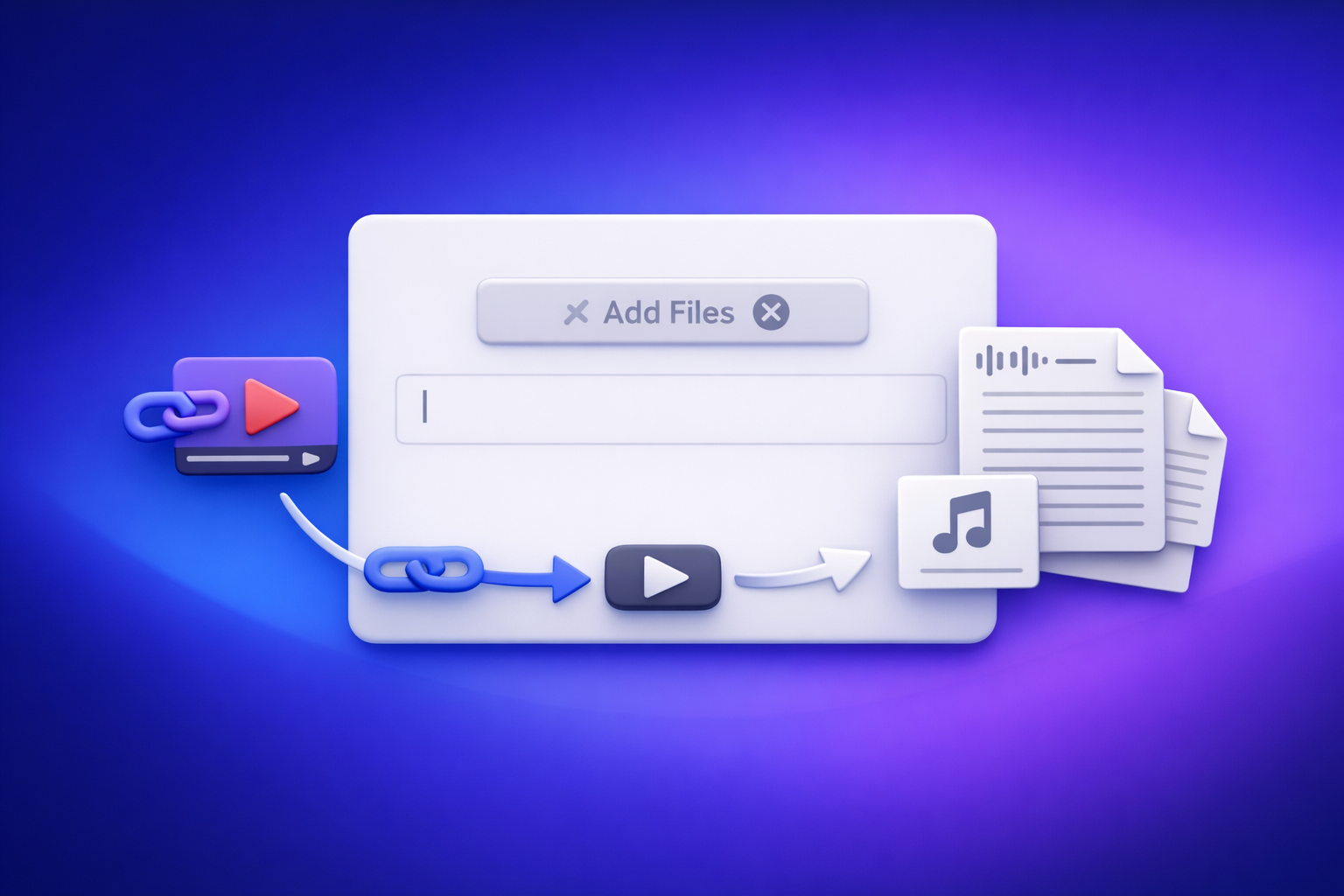
If the “add files” button unavailable ChatGPT message is blocking you, stop guessing: identify whether it’s a model/surface, plan entitlement, workspace policy, or local/network issue. If you’re on a deadline, bypass uploads entirely with a transcript-first workflow (link/MP4 → transcript/captions → paste text into ChatGPT).
What “Add files is unavailable” actually means (and what it doesn’t)
When ChatGPT shows “Add files is unavailable”, it usually means the current chat context cannot accept attachments right now—not that your file is “bad” or that your account is permanently broken.
The UI states you’ll see (greyed-out + tooltip variants)
Common states:
- Greyed-out “+” / paperclip with tooltip like “Add files is unavailable”
- Tooltip variants like “Attachments disabled for …” (often policy or surface-related)
- Upload button visible but fails with an error after selecting a file (often network, file constraints, or endpoint blocking)
The 4 root-cause buckets: model/surface, entitlement, workspace policy, local/network
Think in these buckets (in this order):
- Model/surface mismatch: the model or the app surface you’re using doesn’t support uploads in that context.
- Entitlement/plan: the feature isn’t enabled for your account, or it’s temporarily unavailable.
- Workspace policy (Team/Enterprise): admin settings can disable attachments.
- Local/network: extensions, privacy settings, VPN/proxy/firewall/DLP, or OS/app permissions interfere.
Quick decision: fix uploads vs bypass uploads (when you’re on a deadline)
Use this decision rule:
- If you need to ship in the next 30–60 minutes, bypass uploads and work from text.
- If you need uploads for a longer-term workflow, do the 2-minute triage below and apply the exact fix.
If your “file” is a video, downloading and re-uploading media is an outdated workflow—link-based extraction is the future of creator productivity because it reduces friction, failures, and rework.
2-minute triage: identify the root cause before you try random fixes
Do these steps in order. Each step narrows the cause quickly.
Step 1 — Confirm where you’re using ChatGPT (web vs desktop vs mobile)
- Web app is the best control test because it’s the most consistent surface.
- If you’re on mobile/desktop, test the same account on web to isolate “surface” issues.
Step 2 — Check the selected model (upload-capable vs not)
Uploads are model/surface dependent.
- Switch to an upload-capable model (where available in your UI).
- Start a new chat after switching models (some chats keep old capability states).
Step 3 — Verify account/plan entitlements (Plus/Team/Enterprise differences)
Confirm you’re logged into the right identity:
- Personal account vs work account (SSO) confusion is common.
- Team/Enterprise can look “enabled” but be policy-disabled.
Step 4 — Test a clean environment (incognito + no extensions + different network)
Fast isolation tests:
- Incognito/private window (no extensions)
- Disable content blockers temporarily
- Hotspot test (phone tether) to rule out corporate network controls
Step 5 — Determine if it’s workspace policy (Team/Enterprise) vs local device issue
If uploads fail on:
- Every device + every browser + every network (for the same workspace account) → likely policy/entitlement
- Only one browser/profile → likely extensions/corrupt site data
- Only one network → likely VPN/proxy/firewall/DLP
For related troubleshooting, see:
- “Attachments Disabled” in ChatGPT: What It Means, Fast Fixes, and a Production-Safe Link → Transcript Workflow (2026)
- “Attachments Disabled for” ChatGPT: What It Means, Why It Happens, and How to Fix It (Ship-Now Workflow Included)
Causes + exact fixes (ordered from most common to least common)
1) You’re on a model/surface that doesn’t support uploads
This is the #1 cause of the greyed-out button.
Fix: switch to an upload-capable model and start a new chat
- Switch models to one that supports attachments in your UI.
- Start a new chat (don’t reuse an old thread that may have different capabilities).
- Hard refresh the page after switching.
Fix: try the web app if mobile/desktop UI is missing the control
- If the control is missing or disabled in the app, sign in on the web and retest.
- If web works, the issue is likely app version, permissions, or surface rollout.
Related deep dive:
2) Your plan/entitlement doesn’t include file uploads (or is temporarily unavailable)
Even if you “should” have uploads, feature availability can vary by account state and rollout.
Fix: confirm you’re logged into the correct account and subscription is active
- Verify the email/account shown in settings.
- If you have multiple accounts, log out fully and log back into the correct one.
Fix: test in a fresh chat and check for feature rollouts/temporary degradation
- Start a fresh chat and re-check the button state.
- If it changed recently, it may be a temporary degradation or staged rollout; retry later after local isolation tests.
3) Workspace policy disables attachments (Team/Enterprise)
If you see tooltips like “Attachments disabled for …”, policy is a prime suspect.
Fix: confirm with admin which policies block uploads (and what’s allowed instead)
Ask your admin:
- Are attachments disabled globally?
- Are certain data types restricted (documents vs media)?
- Is there an approved alternative (approved storage links, internal tools)?
Fix: use a text-first workflow that doesn’t require attachments
If policy blocks uploads, don’t fight it—adapt:
- Generate transcript/captions outside ChatGPT.
- Paste text into ChatGPT for editing, summarizing, and repurposing.
This is exactly why download/upload loops are outdated: modern creator ops should be link-based and policy-resilient.
4) Browser extensions or privacy settings break the upload control
Upload UI often depends on scripts/endpoints that blockers disrupt.
Fix: disable content blockers (ad blockers, script blockers, privacy extensions)
Temporarily disable:
- Ad blockers
- Script blockers
- “Privacy” extensions that rewrite requests
- Corporate browser security add-ons (if you can)
Fix: clear site data for ChatGPT and re-authenticate
- Clear cookies/site storage for the ChatGPT domain.
- Sign in again and test in a new chat.
Fix: test a new browser profile (Chrome/Edge/Firefox) to isolate corruption
- Create a clean profile with zero extensions.
- If it works there, migrate settings carefully (don’t re-enable everything at once).
5) Network/security tooling blocks upload endpoints (VPN, proxy, firewall, DLP)
Symptoms include upload failures, 403/blocked requests, or the control never enabling.
Fix: switch networks (hotspot test) to confirm network-level blocking
- Test on a phone hotspot.
- If hotspot works and office Wi‑Fi fails, it’s network tooling.
Fix: allowlist required domains/endpoints (IT checklist)
Provide IT a simple checklist:
- Confirm no SSL inspection/DLP rule is blocking file upload endpoints.
- Allowlist the required ChatGPT/OpenAI domains used by your environment.
- Confirm proxy/VPN rules allow large POST uploads and WebSocket traffic (if applicable).
6) Device/OS constraints (iPhone/Android app quirks, storage permissions)
Mobile OS permissions can silently break file pickers.
Fix: update app, re-grant permissions, and test web as control
- Update the app.
- Re-grant Files/Photos permissions.
- Test the same action on web to confirm it’s not account-level.
Fix: offload the file to a link-based workflow to avoid device upload limits
If your device is the bottleneck, stop pushing files through it. Use a shareable link or a hosted MP4 and run a link-based extraction workflow.
7) File-specific constraints (size, type, corruption)
Sometimes the button is available, but the upload fails after selection.
Fix: re-export the file, compress, or convert to a supported format
- Re-export from the source tool (corruption happens).
- Convert to a common format (PDF/DOCX/PNG/JPG for docs/images; MP4 for video).
- Compress large files.
Fix: split large files into smaller segments (practical thresholds + why)
Practical approach:
- Split long videos into 5–15 minute segments.
- Smaller segments reduce timeout risk and make downstream editing faster (you can parallelize summarization and repurposing).
Ship-now workaround: stop relying on uploads (Transcript-first workflow)
When uploads are flaky, blocked, or policy-disabled, the fastest path is: turn media into clean text + captions first, then use ChatGPT for what it’s best at—rewriting, structuring, and repurposing.
When this is the best option (deadlines, policy blocks, repeated failures)
Use this workflow when:
- You’re under a deadline and troubleshooting is burning time.
- Your workspace blocks attachments.
- Uploads fail repeatedly across devices/networks.
- Your “file” is a video (where download/upload loops are the slowest, most failure-prone path).
For the full system view, see:
- A Production-Safe Link-Based Video-to-Text Workflow (Transcripts, SRT/VTT Captions, and Repurposing)
Step-by-step: link/MP4 → transcript/captions → paste into ChatGPT
Step 1 — Get a shareable video link (YouTube, Drive, Loom, etc.) or MP4
- Prefer a shareable link whenever possible.
- If you only have an MP4, keep it local—but avoid re-uploading to multiple tools.
Step 2 — Generate clean text + captions with VideoToTextAI (TXT, SRT, VTT)
This is the “ship-now” move: extract TXT + SRT/VTT so you can publish and repurpose without fighting attachment UI.
Use VideoToTextAI here (single CTA): https://videototextai.com
Step 3 — QA the transcript (names, jargon, timestamps, speaker turns)
Do a fast QA pass:
- Proper nouns (names, brands, product terms)
- Acronyms and jargon
- Speaker turns (if needed)
- Caption timing sanity check (for SRT/VTT)
Step 4 — Paste transcript into ChatGPT with a structured prompt (templates below)
Best practice:
- Paste the transcript in chunks if it’s long.
- Tell ChatGPT exactly what to produce (format, tone, audience, SEO requirements).
Step 5 — Export deliverables: blog draft, show notes, chapters, captions, repurposed posts
Typical outputs:
- Blog post + SEO metadata
- YouTube description + chapters
- Show notes + key takeaways
- Caption cleanup rules (line length, casing)
- Social threads and hooks
Related:
- “Add Files” Button Unavailable in ChatGPT: Causes, Fixes, and a Ship-Now Transcript Workflow (2026)
- “Add Files” Button Unavailable in ChatGPT: Causes, Fixes, and a Transcript-First Workflow (VideoToTextAI)
Copy/paste prompt templates (ready to use)
Template A — Turn transcript into a blog post with headings + SEO metadata
You are an expert SaaS content editor and technical SEO. Using the transcript below, create:
1) A blog post (H1 + H2/H3 structure) written for [target audience].
2) An SEO title (60 chars max), meta description (155 chars max), and 5 internal link suggestions.
3) A TL;DR summary (5 bullets) and a “Key Takeaways” section.

Rules:
- Keep paragraphs to 1–3 sentences.
- Use bullets where helpful.
- Preserve technical accuracy; do not invent details.
- If the transcript is missing info, add a “What’s missing” section with questions.

Transcript:
[PASTE TRANSCRIPT]
Template B — Create SRT/VTT improvements (punctuation, casing, line length rules)
You are a caption editor. Improve the captions below for readability.

Rules:
- Sentence-case (or specify style), correct punctuation, fix obvious mishears.
- Max 42 characters per line, max 2 lines per caption.
- Keep timestamps unchanged unless a line clearly overflows.
- Do not remove meaning; keep speaker intent.

Captions (SRT or VTT):
[PASTE SRT/VTT]
Template C — Repurpose into LinkedIn/Twitter threads + hook variants
You are a social content strategist. From the transcript below, create:
- 5 hook options (short, punchy, non-clickbait)
- 1 LinkedIn post (120–220 words) with 3 bullets and a strong opening line
- 1 X/Twitter thread (8–12 tweets) with a clear narrative arc
- 10 quote-worthy one-liners

Constraints:
- No invented claims or metrics.
- Keep it specific and actionable.
- Use the speaker’s voice where possible.

Transcript:
[PASTE TRANSCRIPT]
Implementation Checklist (printable)
Diagnose
- Confirm surface (web/desktop/mobile) and start a new chat
- Switch to an upload-capable model
- Verify correct account + active plan
- Incognito test (no extensions)
- Network swap test (hotspot)
- Ask admin about workspace attachment policy (if applicable)
Fix
- Disable blockers / clear site data / new browser profile
- Update app/OS and re-grant permissions
- Convert/compress/split file if file-specific
Ship anyway
- Generate TXT + SRT/VTT via VideoToTextAI
- QA transcript quickly (names, key terms, timestamps)
- Paste verified text into ChatGPT and produce deliverables
VideoToTextAI vs Competitors
If your goal is reliable video-to-text outputs you can immediately repurpose, the key decision isn’t “which tool has uploads.” It’s which workflow avoids upload failures and produces export-ready assets—because download/upload loops are an outdated workflow and link-based extraction is the future of creator productivity.
Below is a fair, decision-focused comparison using only signals present in the research.
| Criteria | VideoToTextAI | Reduct Video | Otter.ai | PCMag (aggregator benchmark) |
|---|---|---|---|---|
| Primary workflow | Link-based video-to-text workflows (positioned for transcripts, subtitles/captions, repurposing) | Transcript-based collaborative video platform (research highlights collaboration + transcript) | Video-to-text via upload-oriented flow (page emphasizes converting video to text) | Editorial benchmark of “best transcription services” expectations |
| Workflow speed (avoid download/upload loops) | High: link-first approach reduces handling and repeated uploads | Strong for teams working inside its platform; not positioned as link-first in research | Strong for quick transcription; research emphasizes “upload a video file” | Not a tool; helps set expectations (accuracy, editing, privacy, tiers) |
| Export readiness (TXT + SRT/VTT) | Designed for transcript + caption exports (product context includes subtitles/captions) | Transcript export is a clear strength; subtitle/caption export not strongly signaled in research | Transcript output is core; subtitle/caption export not strongly signaled in research | Varies by tool reviewed; not a workflow itself |
| Repeatability for teams | Standardized, link-based steps (less variance across devices/policies) | Strong: collaboration and shared archive are central | Team workflows mentioned | Not applicable |
| Repurposing (transcript → blog/social without re-uploading media) | Strong: transcript-first repurposing is core positioning | Less public positioning around blog/social repurposing (research whitespace) | Less public positioning around blog/social repurposing (research whitespace) | Mentions repurposing as a general expectation in the category |
Where VideoToTextAI wins (based on the problem you’re solving):
- Workflow speed under failure conditions: When ChatGPT attachments are blocked, a link-based transcript-first workflow keeps moving because you’re operating on text, not media.
- Operational repeatability: Teams can standardize “link → transcript/captions → paste into ChatGPT,” which is more resilient than “download → upload → retry.”
- Export readiness for publishing: The product context is explicitly built around transcripts, subtitles, captions, and repurposing, which maps to real deliverables (not just raw text).
Where a competitor may be better (narrower fit):
- Reduct Video can be a better fit if you need a collaborative transcript-based video archive with team review/editing inside one platform.
- Otter.ai can be a better fit if your primary need is quick automated transcription in a tool that’s widely recognized for meeting notes and summaries.
Competitor Gap
Top-ranking discussions about the “add files” button unavailable ChatGPT problem usually stop at “try another browser” or “switch models.” That’s not enough when you’re shipping content.
What this post adds (and why it matters):
- Ordered diagnostic sequence (2-minute triage) → reduces random fixes and wasted time.
- Root-cause mapping to exact fixes (model vs entitlement vs policy vs network) → faster resolution.
- Production-safe fallback that doesn’t depend on ChatGPT uploads → transcript-first workflow that keeps output moving.
- Reusable templates + printable checklist → execution-ready, not just theory.
- Export-ready caption workflow (SRT/VTT) → because “just a transcript” isn’t enough for publishing.
FAQ
Why can’t I add files in ChatGPT Plus?
Because Plus doesn’t guarantee the upload button will be available in every context. The most common causes are model/surface mismatch, temporary feature degradation, or local/network blocking (extensions, VPN/proxy, firewall).
Can you no longer upload files to ChatGPT?
Uploads can still exist, but availability varies by model, surface, account entitlements, and workspace policy. If it’s blocked, use a text-first workflow and paste content instead of attaching it.
Why is the upload button greyed out in ChatGPT?
Usually one of these:
- You’re using a model/surface that doesn’t support uploads in that chat.
- Your workspace policy disables attachments.
- A browser extension/privacy setting breaks the upload UI.
- Your network security tooling blocks upload endpoints.
How do I add a file in ChatGPT?
- Use the web app as a control test.
- Switch to an upload-capable model and start a new chat.
- If it’s still unavailable, run incognito + hotspot tests to isolate extensions/network.
- If you’re on Team/Enterprise, confirm attachment policy with your admin.
Can ChatGPT do video transcription?
ChatGPT is excellent for editing and repurposing text, but video transcription is more reliable via a dedicated workflow that outputs clean TXT + SRT/VTT, then you paste the transcript into ChatGPT.
Internal Link Plan
- “Add Files” Button Unavailable in ChatGPT: Causes, Fixes, and a Ship-Now Transcript Workflow (2026)
- “Attachments Disabled for” ChatGPT: What It Means, Why It Happens, and How to Fix It (Ship-Now Workflow Included)
- ChatGPT “Upload Video” Feature (2026): What Works, Limits, Fixes, and a Production-Safe Video-to-Text Workflow
- A Production-Safe Link-Based Video-to-Text Workflow (Transcripts, SRT/VTT Captions, and Repurposing)
- “Add Files” Button Unavailable in ChatGPT: Causes, Fixes, and a Transcript-First Workflow (VideoToTextAI)
- “Attachments Disabled” in ChatGPT: What It Means, Fast Fixes, and a Production-Safe Link → Transcript Workflow (2026)
Recommended VideoToTextAI tools to complete the ship-now workflow
MP4 → transcript/text exports
/tools/mp4-to-transcript/tools/mp4-to-text
MP4 → caption exports
/tools/mp4-to-srt/tools/mp4-to-vtt
Repurposing from video assets
/tools/youtube-to-blog/tools/podcast-transcription
Related posts
Reel Analyser (Instagram Reels): Transcript‑First Competitor Research, Hook/CTA Extraction, and Repurposing Workflow (VideoToTextAI)
Video To Text AI
A 2026 reel analyser should turn Instagram Reel links into a searchable transcript library you can tag for hooks, CTAs, objections, and topic clusters—then export into repurposing-ready drafts without a download/upload loop.
Traducir video de Instagram (Reels) en 2026: workflow transcript-first para traducir, sacar hooks/CTAs y repurpose (con VideoToTextAI)
Video To Text AI
Aprende a traducir un Reel de Instagram con un flujo URL→transcripción→traducción→subtítulos, y a convertir esa traducción en un activo de investigación para hooks, CTAs, objeciones y clusters de contenido.
Reel Analyzer: Transcript‑First Instagram Reels Research (Hooks, CTAs, Objections) + Workflow Guide (VideoToTextAI)
Video To Text AI
A reel analyzer should turn any public Instagram Reel link into a searchable transcript library you can mine for hooks, CTAs, objections, and topic clusters—then repurpose into original drafts with a repeatable SOP.