
“Add Files” Button Unavailable in ChatGPT: Causes, Fixes, and a Ship-Now Transcript Workflow (2026)
 Video To Text AI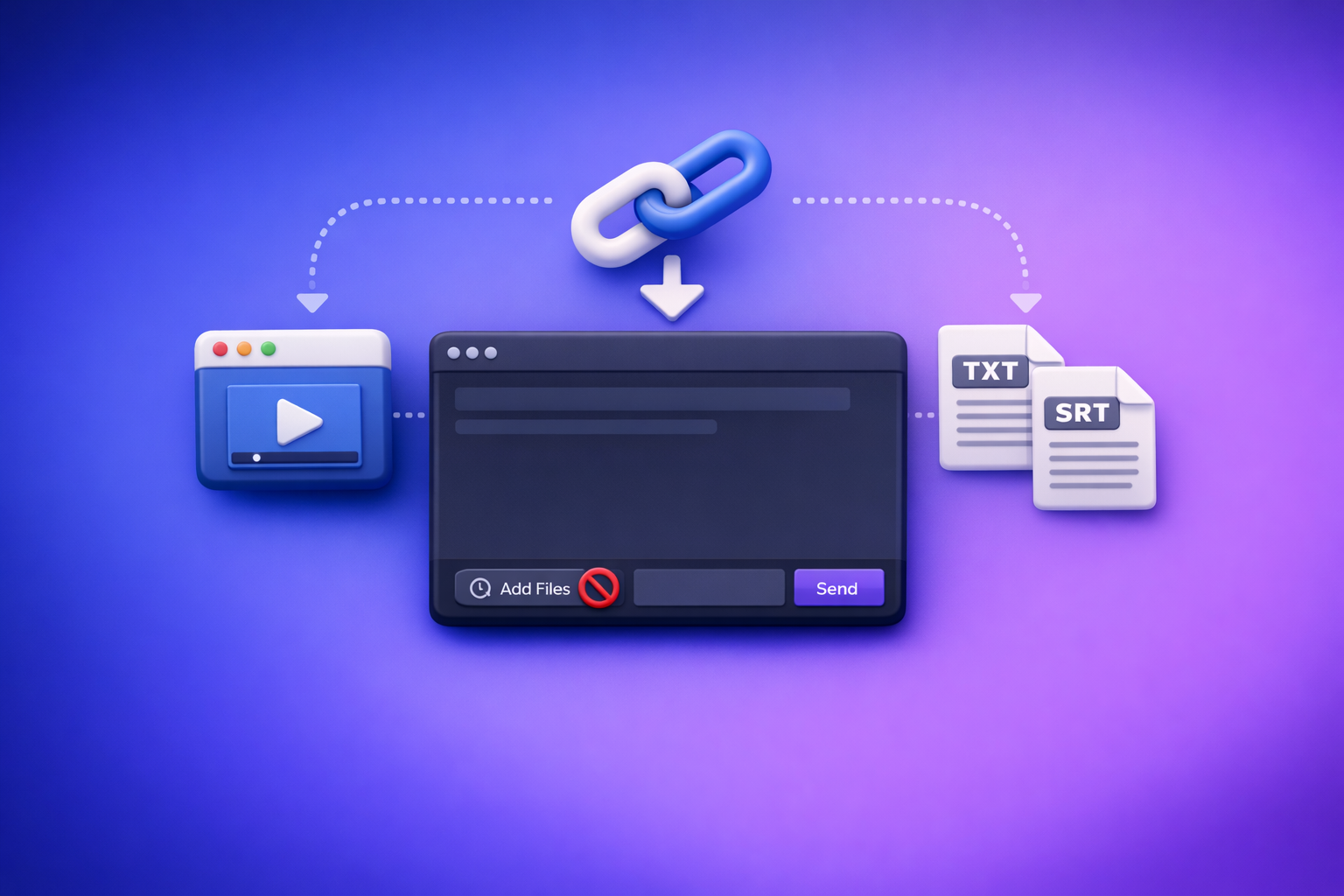
If the “add files” button is unavailable in ChatGPT, stop guessing and classify the failure in 2 minutes: model/surface, entitlement/policy, client, or network. If uploads stay blocked, you can still ship by generating TXT/SRT/VTT from a video link/MP4 and pasting the verified text into ChatGPT.
Brand POV: Downloading video files just to re-upload them is an outdated workflow. Link-based extraction is the future of creator productivity because it removes friction, reduces failure points, and produces export-ready assets you can QA and reuse.
What “Add files is unavailable” actually means
ChatGPT’s upload control is not a single global feature. It’s a capability that depends on the surface (web/desktop/mobile), the chat context, the selected model, and your workspace policies.
The UI states you’ll see (and what each implies)
-
“Add files is unavailable” tooltip on the + button
Usually: the current chat/model/surface doesn’t support uploads or uploads are disabled for that chat context. -
“Attachments disabled for …” banner/tooltip
Usually: workspace/admin policy or a restricted environment where attachments are turned off. -
Upload starts then fails (e.g., unknown error, 403, max 0 uploads)
Usually: network/security controls, browser extensions, or a transient entitlement/session mismatch.
What’s not happening
-
Your account isn’t necessarily “banned.”
Most cases are configuration, policy, or client/network interference. -
ChatGPT isn’t “down” in every case.
Uploads can fail while chat works fine, especially when the issue is surface/model/policy-specific.
Fast triage (2 minutes): identify the failure class before you troubleshoot
Do these in order. The goal is to avoid 45 minutes of random toggling.
Step 1: Confirm the surface you’re using (Web vs Desktop vs Mobile)
- Web app behavior can differ from iOS/Android and desktop wrappers.
- If you’re on a managed browser profile (work Google profile, MDM device), assume policies/extensions are in play.
Action: Try the same account on another surface (e.g., web on personal laptop vs mobile app).
Step 2: Confirm the model/surface supports uploads
Uploads can be model- and chat-context dependent.
- Verify you can see an upload control before you type a long prompt.
- If the model picker is missing/locked, you may be in a restricted workspace or a surface that limits switching.
Action: Start a new chat and check whether the + control is active immediately.
Step 3: Determine if it’s entitlement vs workspace policy
Look for signals you’re in a managed environment:
- You’re in a Team/Enterprise workspace (company name, managed domain, admin controls).
- You see language like “disabled by admin” or consistent “attachments disabled” messaging.
Action: Test the same action in a personal account/workspace if possible.
Step 4: Check if it’s a local client issue (browser/profile)
Fast isolation tests:
- Incognito/private window test (no extensions by default).
- New browser profile test (fresh cookies/storage).
If uploads work there, you’re dealing with extensions, cookies, or corrupted site data.
Step 5: Check if it’s a network/security block
Common in corporate environments:
- Proxy, firewall rules, DLP/CASB, SSL inspection.
- Upload requests blocked or rewritten.
Action: Do a hotspot test (mobile data).
If it works on hotspot but not office Wi‑Fi, it’s almost certainly network controls.
Root causes (ordered by likelihood) and exact fixes
1) Model/surface mismatch (uploads not supported in this chat)
This is the #1 cause when the UI says “unavailable” immediately.
Fix steps
- Start a new chat.
- Switch to an upload-capable model/surface (if available in your account).
- Re-check the + / Add files control before composing the prompt.
Common mistake
- Switching models after starting the chat and assuming uploads will appear.
In many cases, the chat context is already created without upload capability.
2) Plan entitlement or feature rollout limitations
Even with a paid plan, features can be rolled out gradually or behave inconsistently across devices.
Fix steps
- Confirm you’re logged into the correct account (especially if you have multiple).
- Log out/in and re-check availability.
- Test on another device to rule out cached entitlement state.
What to document for support
- Account email (redacted), plan type, timestamp
- Device + OS, browser/app version
- Exact UI message (“add files unavailable” vs “attachments disabled”)
3) Workspace/admin policy disables attachments
In Team/Enterprise environments, admins may disable attachments for compliance.
Fix steps
- Confirm whether you’re in a managed workspace.
- Try the same action in a personal workspace/account.
- Ask your admin which policy controls file uploads/attachments.
Workaround when policy won’t change
- Use a text-first workflow (see “Ship-now workflow” below).
This is often the only compliant path in regulated environments.
4) Browser extensions or privacy settings breaking uploads
Upload flows often rely on scripts, storage, and request patterns that privacy tools can disrupt.
Fix steps
- Disable ad blockers, script blockers, privacy extensions.
- Allow third-party cookies temporarily and retry.
- Clear site data for ChatGPT and reload.
Extensions most likely to interfere
- Ad blockers / tracker blockers
- Corporate security extensions
- Download managers / “privacy hardening” tools
5) Network/security controls (proxy, firewall, DLP, SSL inspection)
If you see 403, blocked requests, or uploads that start then fail consistently, suspect the network.
Fix steps
- Switch networks (hotspot) to confirm.
- If confirmed, request allowlisting from IT/security.
- Use a non-upload workflow to keep deliverables moving.
Indicators it’s network-related
- Works on mobile data but not office Wi‑Fi
- Consistent 403/blocked behavior during upload
6) App/device constraints (especially Android/iOS)
Mobile apps can lag behind web capabilities or have OS-level file picker issues.
Fix steps
- Update the app.
- Force close + relaunch.
- Try the web app in a mobile browser as a control test.
Ship-now workflow (no ChatGPT uploads required): link/MP4 → transcript/captions → ChatGPT-on-text
When uploads are blocked, the fastest path is to stop fighting the UI and switch to a workflow that produces deterministic, export-ready text assets.
When to use this
- Upload button greyed out
- Attachments disabled by workspace policy
- You need captions/subtitles you can QA and publish
Step-by-step: VideoToTextAI workflow (production-safe)
Step 1: Provide a video link or MP4
- Prefer a public URL when possible to avoid download/upload loops.
- If you have an MP4, keep it as the single source of truth (don’t create multiple re-encoded copies).
If you need specific conversions, use:
Step 2: Generate export-ready text assets
Produce outputs you can reuse across tools and teams:
- TXT transcript for analysis, editing, and repurposing
- SRT/VTT captions for YouTube, podcasts, LMS, and social publishing
This is where link-based workflows win: video exists → usable text assets, without brittle upload steps.
Step 3: QA the transcript quickly (minimum viable checks)
Do a fast pass that prevents downstream rework:
- Names/brands/technical terms (add a short glossary if needed)
- Speaker turns (if applicable)
- Timecode alignment for captions (spot-check 3–5 segments)
Step 4: Paste verified text into ChatGPT (instead of uploading files)
Treat the transcript as the canonical input.
- Paste the relevant section (or chunk it if long).
- Specify objective + constraints + output format.
For a full production approach, see:
- A Production-Safe Link-Based Video-to-Text Workflow (Transcripts, SRT/VTT Captions, and Repurposing)
Step 5: Produce deliverables
From the verified transcript, generate:
- Blog drafts and outlines
- Show notes and summaries
- Social posts and hooks
- Caption style fixes and translations
If your goal is content repurposing from YouTube specifically, use:
One-link CTA: Run the link-based workflow at VideoToTextAI.
Copy/paste prompt templates (so you can execute immediately)
Use these after you’ve generated and QA’d your transcript.
Template A: Clean transcript → publishable blog outline
Paste into ChatGPT:
You are an editor. Using the transcript below, create a publishable blog outline.
Goal: [audience + outcome]
Constraints: keep claims faithful to transcript; no invented facts; include H2/H3 structure; include a short intro and conclusion; include 5–8 key takeaways.
Output format: Markdown outline with headings and bullet points.
Transcript:
[PASTE VERIFIED TRANSCRIPT]
Template B: Transcript → short-form clips + hooks + titles
You are a content producer. From the transcript below, identify 10 short-form clip moments.
For each: timestamp range (if available), hook (1 sentence), title (max 60 chars), and why it will perform.
Constraints: no clickbait that contradicts the transcript; prioritize strong openings and clear payoffs.
Transcript:
[PASTE VERIFIED TRANSCRIPT]
Template C: Transcript + SRT/VTT → caption fixes and style rules
You are a caption editor. Improve readability and consistency using the transcript and captions below.
Rules: keep meaning identical; fix punctuation/casing; standardize speaker labels; keep line length readable; do not change timecodes unless a line is clearly misaligned.
Output: revised captions in the same format (SRT or VTT).
Transcript:
[PASTE VERIFIED TRANSCRIPT]
Captions:
[PASTE SRT/VTT]
Checklist: fix uploads fast or ship without them
Diagnostic checklist (do in order)
- Start a new chat + confirm an upload-capable model/surface
- Test incognito/private window
- Disable extensions + retry
- Switch network (hotspot test)
- Confirm workspace policy/entitlement
Related deep-dives:
- “Add Files” Button Unavailable in ChatGPT: Causes, Fixes, and a Production-Safe Upload Alternative
- “Attachments Disabled for” ChatGPT: What It Means, Why It Happens, and How to Fix It (Ship-Now Workflow Included)
- ChatGPT “Upload Video” Feature (2026): How It Works, Limits, Fixes, and a Production-Safe Video-to-Text Workflow
Shipping checklist (when uploads stay blocked)
- Generate TXT transcript
- Export SRT and/or VTT
- QA key terms + spot-check timecodes
- Paste transcript into ChatGPT with a structured prompt
- Export final assets (blog/social/captions) and archive source transcript
VideoToTextAI vs Competitors
If your bottleneck is “add files button unavailable chatgpt,” the practical question isn’t “which tool has the most features.” It’s: which workflow still ships when uploads are blocked.
Below is a fair comparison using only publicly signaled workflow capabilities from the researched sources.
| Criteria | VideoToTextAI | Reduct Video | Otter.ai | PCMag roundup (selection framework) |
|---|---|---|---|---|
| Link-based processing (paste a URL) | Yes (core workflow) | No strong public signal | No strong public signal | Not a tool |
| Upload-heavy dependency | No (designed to avoid download/upload loops) | More upload/editor oriented | Upload oriented | N/A |
| Export-ready outputs | TXT + SRT + VTT | Transcript export (subtitle exports not strongly signaled) | Transcript focus (subtitle exports not strongly signaled) | N/A |
| Repurposing workflow | Yes (transcript-first → blog/social/captions) | Limited public positioning | Limited public positioning | Discusses repurposing generally |
| Team/process repeatability | High (deterministic exports you can QA) | Strong collaboration/editor workflow | Strong meeting/team workflow | N/A |
Why VideoToTextAI wins (when uploads are blocked)
- Workflow speed & friction: Link-based input removes the “download → re-upload → fail” loop that causes most production delays.
- Export readiness: TXT + SRT + VTT outputs are operational assets, not just “a transcript,” so you can publish captions and reuse text everywhere.
- Repeatability: A transcript-first pipeline is deterministic: generate → QA → paste into ChatGPT → ship. That’s resilient when ChatGPT attachments are disabled by policy.
Where competitors may be better (narrower jobs)
- Reduct Video can be a better fit if you need a collaborative transcript-based editing environment and team review inside a dedicated platform.
- Otter.ai can be better if your primary need is meeting transcription and summaries in a meeting-centric workflow.
- PCMag’s roundup is useful as a selection framework if you’re comparing many transcription categories (human vs AI, pricing models), but it’s not a workflow tool.
Competitor Gap
Most top-ranking pages and forum threads stop at “try another browser” or “switch models.” That’s incomplete for real production.
This post fixes the gaps:
- Ordered diagnosis that separates model/surface vs policy vs client vs network (so you don’t waste time).
- A production-safe fallback that doesn’t depend on ChatGPT uploads.
- Execution assets: checklists + copy/paste prompt templates to ship immediately.
- Emphasis on export-ready captions (SRT/VTT), not just a raw transcript.
FAQ
Why is ChatGPT telling me “adding files is unavailable”?
Because the current chat is running in a context where uploads aren’t enabled: wrong surface/model, attachments disabled by workspace policy, or a client/network block. Start with a new chat, verify the + control is active, then isolate client vs network with incognito and hotspot tests.
Why doesn’t ChatGPT let me attach files even with Plus?
Plus doesn’t guarantee attachments in every workspace or surface, and admins can disable uploads. Also, entitlement can appear inconsistent across devices due to cached sessions. Test another device and confirm you’re not in a managed workspace with attachments disabled.
Why is the upload button greyed out in ChatGPT?
Most commonly: (1) the chat/model doesn’t support uploads, (2) attachments are disabled by policy, or (3) extensions/network controls are blocking the upload flow. Use the diagnostic checklist above to classify it quickly.
Can ChatGPT transcribe video to text?
ChatGPT can help with text you provide, but reliable transcription is best handled by a dedicated workflow that outputs TXT + SRT/VTT. The production-safe approach is: video link/MP4 → transcript/captions → paste verified text into ChatGPT.
How can I take a video and turn it into text?
Use a link-based video-to-text workflow to generate a TXT transcript and SRT/VTT captions, QA key terms/timecodes, then repurpose the verified transcript into blogs, summaries, and social content. Start with MP4 to Transcript or YouTube to Blog.
Related posts
Reel Analyser (Instagram Reels): Transcript‑First Competitor Research, Hook/CTA Extraction, and Repurposing Workflow (VideoToTextAI)
Video To Text AI
A 2026 reel analyser should turn Instagram Reel links into a searchable transcript library you can tag for hooks, CTAs, objections, and topic clusters—then export into repurposing-ready drafts without a download/upload loop.
Traducir video de Instagram (Reels) en 2026: workflow transcript-first para traducir, sacar hooks/CTAs y repurpose (con VideoToTextAI)
Video To Text AI
Aprende a traducir un Reel de Instagram con un flujo URL→transcripción→traducción→subtítulos, y a convertir esa traducción en un activo de investigación para hooks, CTAs, objeciones y clusters de contenido.
Reel Analyzer: Transcript‑First Instagram Reels Research (Hooks, CTAs, Objections) + Workflow Guide (VideoToTextAI)
Video To Text AI
A reel analyzer should turn any public Instagram Reel link into a searchable transcript library you can mine for hooks, CTAs, objections, and topic clusters—then repurpose into original drafts with a repeatable SOP.