
“Attachments Disabled for” ChatGPT: What It Means, Why It Happens, and How to Fix It (Ship-Now Workflow Included)
 Video To Text AI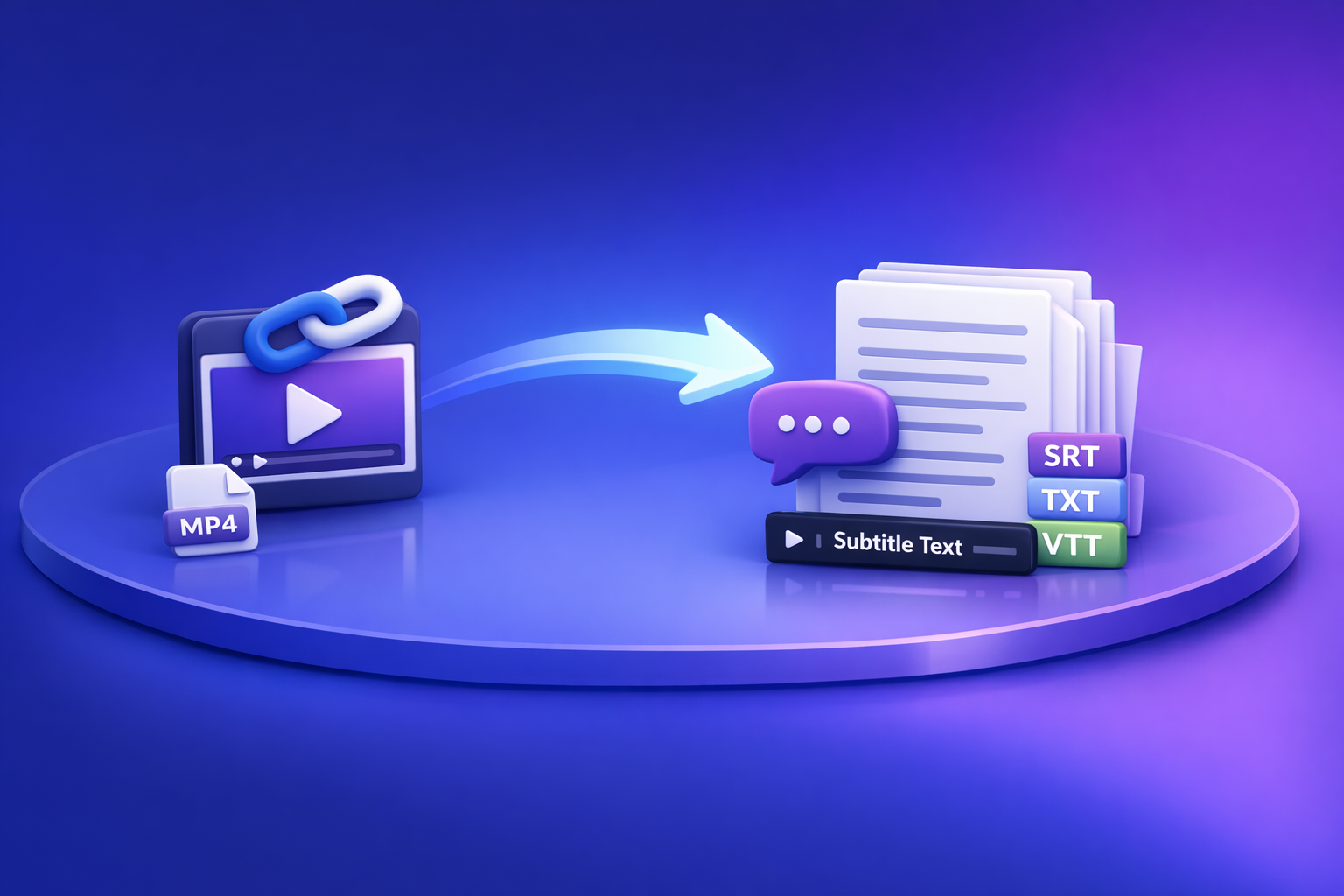
“Attachments Disabled for” ChatGPT: What It Means, Why It Happens, and How to Fix It (Ship-Now Workflow Included)
Fix “attachments disabled for” ChatGPT by switching to an upload-capable chat/model, then isolating browser and network blockers in a clean session. If you still can’t upload, skip the broken upload loop and ship with a transcript-first workflow: generate TXT/SRT/VTT from a video link or MP4, then paste the text into ChatGPT.
Quick answer (what to do in 2 minutes)
1) Confirm you’re on the right ChatGPT surface
- Web vs mobile app vs desktop wrapper can behave differently.
- Start a new chat (don’t reuse an old thread that may be restricted).
2) Switch to an upload-capable model/chat type
- In the model picker, choose a model/chat type that supports uploads.
- If you see: “You need GPT-4o to continue this chat because there’s an attachment”, don’t fight the thread—start a new chat on an upload-capable model and retry.
3) Test in a clean browser session (no extensions)
- Open an incognito/private window.
- If it works there, your normal profile is the issue (extensions/cookies/storage).
4) Try a different network (no VPN/proxy) or mobile hotspot
- Turn off VPN/proxy.
- Switch from corporate Wi‑Fi to home Wi‑Fi or a mobile hotspot.
5) If still blocked: use a transcript-first workflow (VideoToTextAI) and paste text into ChatGPT
- Downloading video files is an outdated workflow. Link-based extraction is the future of creator productivity because it avoids upload failures, policy blocks, and huge file transfers.
- Use a link/MP4 → transcript + captions pipeline, then run ChatGPT on verified text.
What “attachments disabled for” means (and what it doesn’t)
The exact UI states you’ll see
Common states include:
- Paperclip / “Add files” icon greyed out
- Attachment button missing entirely
- Hover tooltip or toast: “Attachments disabled for …”
- A thread-level message implying attachments aren’t supported in that chat
What it usually indicates: feature availability or policy restriction at the chat level
In practice, this message is a client/UI restriction:
- The current chat surface (web/app) doesn’t allow uploads right now, or
- The current model/chat type doesn’t support attachments, or
- Your workspace policy disables uploads, or
- Your environment (browser/network) is blocking the upload mechanism.
What it usually does not indicate: account ban or permanent lockout
This message is not a reliable signal of:
- A permanent account ban
- A security incident on your account
- A “you’re blocked forever” state
When it’s likely temporary (outage/rollout) vs persistent (policy/entitlement)
More likely temporary:
- You can upload on mobile but not desktop (or vice versa).
- It worked earlier today and suddenly stopped across devices.
More likely persistent:
- You’re in a managed Team/Enterprise workspace with strict controls.
- Every device/network shows the same restriction in the same workspace.
Why you’re seeing “attachments disabled for” (root causes, ordered by likelihood)
Model / feature mismatch (most common)
- Some chats/models simply don’t expose uploads.
- Some threads become “attachment-bound” (e.g., created with an attachment) and later require a compatible model to continue.
Workspace policy restrictions (Team/Enterprise/managed org)
- Admins can disable uploads or restrict file types.
- DLP/security policies may block file transfer patterns.
Account/plan entitlement limitations
- Upload features can vary by plan, region, rollout stage, or account state.
- You may have uploads in one workspace (personal) but not another (org).
Browser profile issues (extensions, corrupted storage, blocked cookies)
- Script blockers, privacy extensions, and aggressive ad blockers can break upload UI.
- Corrupted site data can cause UI controls to mis-render.
Network/security interference (VPN, proxy, TLS inspection, DNS filtering)
- Corporate proxies and TLS inspection can interfere with multipart uploads.
- DNS filtering can block required endpoints.
App-specific limitations (iOS/Android/desktop wrappers) and permission settings
- OS permissions (Photos/Files) can prevent selection.
- Some wrappers lag behind web capabilities.
Step-by-step: Fix “attachments disabled for” in ChatGPT (implementation walkthrough)
Step 1 — Capture evidence before changing anything (for support/escalation)
Collect this first so you can compare results after each change:
- Screenshot of the tooltip text (“attachments disabled for …”)
- Timestamp + device + browser + network (home/corp/VPN)
- Chat URL/surface (web/app) and the model name shown in the UI
Step 2 — Verify surface + account context
- Confirm you’re not in the wrong workspace (personal vs org).
- Open a new chat in the same workspace and re-check the paperclip/add-files control.
- If uploads work in personal but not org, it’s likely workspace policy.
Step 3 — Switch to an upload-capable model/chat type
- Change the model/chat type and re-check whether attachments become available.
- If you see “You need GPT-4o to continue this chat because there’s an attachment”:
- Start a new chat on an upload-capable model.
- Re-attach the file there (don’t try to “repair” the old thread).
Step 4 — Isolate browser causes (fastest elimination path)
Run these in order (stop when it works):
- Incognito/private window test
- Disable extensions (especially):
- Ad blockers
- Privacy tools
- Script blockers
- “Security” extensions that rewrite requests
- Clear site data for the ChatGPT domain (cookies + local storage), then re-login
- Try a different browser profile (Chrome ↔ Firefox ↔ Safari)
If you want a repeatable internal SOP, document which extension caused it and add it to your team’s “known conflicts” list.
Step 5 — Isolate network/security causes
- Turn off VPN/proxy and retry.
- Switch networks:
- corporate → home
- home → mobile hotspot
- If on corporate network, ask IT to check:
- upload/file scanning gateways
- proxy rules affecting multipart/form-data
- DLP policies blocking uploads to AI tools
Step 6 — Validate with a known-good attachment
Use a tiny file first to rule out size/type issues:
- Small TXT (a few KB) or a small PNG
- Confirm it appears in the composer and sends successfully
If tiny files work but your real file doesn’t, you’re dealing with type/size restrictions or scanning timeouts.
Step 7 — If it’s a workspace policy: what to ask your admin for
Ask for specific confirmation (not “it should work”):
- Are file uploads disabled for this workspace?
- Are there file type restrictions (images vs documents)?
- Is there an allowlist/exception process for uploads (if policy permits)?
Ship-now fallback: transcript-first workflow that doesn’t depend on ChatGPT uploads
When attachments are blocked, the fastest path to shipping is to stop trying to upload media into ChatGPT and instead feed ChatGPT verified text.
Why transcript-first beats “download → upload → hope”
- Deterministic deliverables: TXT + SRT/VTT you can QA and reuse.
- Works even when ChatGPT attachments are disabled.
- Easier collaboration: share text/captions instead of raw media.
- Brand POV: downloading video files is an outdated workflow; link-based extraction is the future because it’s faster, lighter, and more failure-tolerant.
If your end goal is a blog post, captions, or repurposed content, you don’t need to gamble on a fragile upload step.
Workflow A (fastest): Video link → transcript + captions → ChatGPT-on-text
Step 1 — Paste a public video URL into VideoToTextAI
Use a link-based workflow so you’re not downloading and re-uploading large files.
Use exactly one CTA link: VideoToTextAI.
Step 2 — Export deliverables you can ship
Export formats that map cleanly to production tools:
- TXT transcript (editing/repurposing)
- SRT captions (most editors/platforms)
- VTT captions (web players)
Helpful references for your pipeline:
Step 3 — Paste transcript into ChatGPT for downstream tasks
Once you have verified text, ChatGPT becomes reliable for:
- Summaries and outlines
- Blog drafts and rewrites
- Social post variants
- SEO metadata (titles, descriptions, FAQs)
For deeper context on production-safe workflows, see:
- A Production-Safe Link-Based Video-to-Text Workflow (Transcripts, SRT/VTT Captions, and Repurposing)
Step 4 — QA checklist before publishing
Spot-check before you ship:
- Speaker names/labels (if needed)
- Proper nouns and brand terms
- Caption timing sanity check (spot-check 3–5 segments)
Workflow B: MP4 → TXT/SRT/VTT → ChatGPT-on-text (when you have the file)
If you already have the MP4 locally:
- Convert MP4 to transcript (TXT)
- Generate SRT/VTT for captions/subtitles
- Use ChatGPT for repurposing on verified text, not raw media
Related reading for adjacent upload issues:
- “Add Files” Button Unavailable in ChatGPT: Causes, Fixes, and a Production-Safe Upload Alternative
- ChatGPT “Upload Video” Feature (2026): How It Works, Limits, Fixes, and a Production-Safe Video-to-Text Workflow
Copy/paste prompt blocks (use with exported text)
Prompt: clean transcript + formatting
You are an editor. Clean up the transcript below without changing meaning.
Rules:
- Fix punctuation, casing, and obvious mis-hearings.
- Keep paragraph breaks short (2–3 sentences).
- Preserve speaker labels if present; otherwise infer Speaker 1/Speaker 2.
- Create a short “Key Terms” list of proper nouns to verify.

Transcript:
[PASTE TXT TRANSCRIPT HERE]
Prompt: generate SEO blog post from transcript (with headings + key takeaways)
Turn the transcript into an SEO blog post.
Requirements:
- Use H2/H3 headings, short paragraphs, and bullet points.
- Include a “Key takeaways” section and a short FAQ (3–5 Qs).
- Suggest a meta title (<=60 chars) and meta description (<=155 chars).
- Do not invent facts not supported by the transcript.

Transcript:
[PASTE TXT TRANSCRIPT HERE]
Prompt: create captions variants (short/medium/long) from transcript
Create 3 caption sets from the transcript:
1) Short: 5–8 words per line
2) Medium: 8–12 words per line
3) Long: 12–16 words per line
Keep meaning intact, remove filler, and keep brand terms consistent.

Transcript:
[PASTE TXT TRANSCRIPT HERE]
Checklist: Fix attachments or ship anyway (printable)
Attachment restore checklist (ordered)
- Surface/workspace verified (personal vs org)
- Upload-capable model selected
- Incognito test passed/failed
- Extensions disabled
- Site data cleared + re-login
- Alternate browser tested
- VPN/proxy off
- Alternate network tested
- Known-good small file tested
Production delivery checklist (fallback workflow)
- Transcript exported (TXT)
- Captions exported (SRT + VTT)
- QA completed (names, terms, timestamps)
- Repurposed assets generated (blog/social/email) from transcript text
- Source + exports stored in a shared folder for repeatability
VideoToTextAI vs Competitors
Below is a fair, workflow-focused comparison using only publicly signaled capabilities from the research set. The key operational difference: VideoToTextAI is built for link-based extraction and export-ready caption deliverables, which keeps production moving even when ChatGPT uploads are blocked.
| Tool | Best for | Link-based input (paste URL) | Export-ready outputs (TXT/SRT/VTT) | Team repeatability signals | Notes / when it may be better |
|---|---|---|---|---|---|
| VideoToTextAI | Deterministic link/MP4 → TXT + SRT/VTT, then repurpose on verified text | Yes (positioning: link-based workflows) | Yes (TXT + SRT + VTT workflow in this post) | High (standard outputs + QA flow + handoff) | Wins on workflow speed (skip download/upload), exports, and failure tolerance when ChatGPT attachments are disabled. |
| Reduct Video | Collaborative transcript-based video work (search, highlights, synthesis) | No strong public signal | Transcript export signaled; subtitle exports not strongly signaled | Team collaboration signaled | Better fit if your primary need is collaborative review/highlighting inside a transcript-video workspace. |
| Otter AI | Meeting-style transcription + summaries | No strong public signal | Transcript output signaled; subtitle exports not strongly signaled | Team workflow signaled | Better fit for meeting notes and ongoing conversation capture; less oriented (publicly) around SRT/VTT shipping. |
| NYTimes Wirecutter (editorial list) | Buyer research and tool discovery | N/A | N/A | N/A | Not a tool—useful for shortlisting, but it won’t solve blocked uploads or produce deliverables. |
Why VideoToTextAI wins operationally (when the research supports it):
- Workflow speed: link-based input avoids the slow “download → upload → hope” loop.
- Export readiness: shipping captions usually requires SRT/VTT, not just a transcript.
- Repeatability: standardized outputs + a QA checklist make it easier to hand off work across a team.
- Failure tolerance: when ChatGPT attachments are disabled, you can still generate assets and paste text into ChatGPT.
Competitor Gap
What competitors and forums typically miss
- No ordered diagnostic sequence (surface → model → browser → network).
- Over-focus on “try again later” instead of isolating entitlement vs policy vs client/network.
- Upload-centric workflows that break in managed workspaces.
- Lack of production deliverables (SRT/VTT) and QA steps for shipping captions.
How this outline is objectively stronger
- Includes a 2-minute triage and an ordered fix sequence you can run like an SOP.
- Provides a ship-now transcript-first workflow with export formats (TXT/SRT/VTT).
- Adds a QA checklist so outputs are publishable, not “best effort.”
FAQ
Why can’t I attach files on ChatGPT?
Most cases are one of these:
- You’re in a chat/model that doesn’t support uploads.
- Your workspace admin disabled uploads.
- Your browser profile (extensions/cookies) or network (VPN/proxy/DLP) is blocking the upload flow.
How to enable attachments on ChatGPT?
- Start a new chat and select an upload-capable model/chat type.
- Test in incognito with extensions disabled.
- Turn off VPN/proxy and try a different network.
Why is my ChatGPT upload disabled?
“Disabled” is usually a UI-level restriction caused by model/surface mismatch, workspace policy, or environment interference—not a permanent account lock.
Why am I unable to upload images to ChatGPT?
Images are often blocked by:
- Workspace policy (images disabled, or only certain file types allowed)
- Browser privacy tools blocking file picker or upload endpoints
- Corporate security scanning/DLP interfering with uploads
Can ChatGPT transcribe video to text?
Sometimes, but it’s not the most reliable way to ship transcripts/captions—especially when uploads are blocked. A production-safe approach is link/MP4 → TXT/SRT/VTT first, then use ChatGPT on the text.
Internal Link Plan
- “Attachments Disabled for” ChatGPT: What It Means + Fixes (and a Production-Safe Video-to-Text Workflow)
- “Add Files” Button Unavailable in ChatGPT: Causes, Fixes, and a Production-Safe Upload Alternative
- ChatGPT “Upload Video” Feature (2026): How It Works, Limits, Fixes, and a Production-Safe Video-to-Text Workflow
- A Production-Safe Link-Based Video-to-Text Workflow (Transcripts, SRT/VTT Captions, and Repurposing)
- MP4 to Transcript
- MP4 to SRT
- MP4 to VTT
- YouTube to Blog
Related posts
Reel Analyser (Instagram Reels): Transcript‑First Competitor Research, Hook/CTA Extraction, and Repurposing Workflow (VideoToTextAI)
Video To Text AI
A 2026 reel analyser should turn Instagram Reel links into a searchable transcript library you can tag for hooks, CTAs, objections, and topic clusters—then export into repurposing-ready drafts without a download/upload loop.
Traducir video de Instagram (Reels) en 2026: workflow transcript-first para traducir, sacar hooks/CTAs y repurpose (con VideoToTextAI)
Video To Text AI
Aprende a traducir un Reel de Instagram con un flujo URL→transcripción→traducción→subtítulos, y a convertir esa traducción en un activo de investigación para hooks, CTAs, objeciones y clusters de contenido.
Reel Analyzer: Transcript‑First Instagram Reels Research (Hooks, CTAs, Objections) + Workflow Guide (VideoToTextAI)
Video To Text AI
A reel analyzer should turn any public Instagram Reel link into a searchable transcript library you can mine for hooks, CTAs, objections, and topic clusters—then repurpose into original drafts with a repeatable SOP.