
“Add Files” Button Unavailable in ChatGPT: Causes, Fixes, and a Transcript-First Workflow (VideoToTextAI)
 Video To Text AI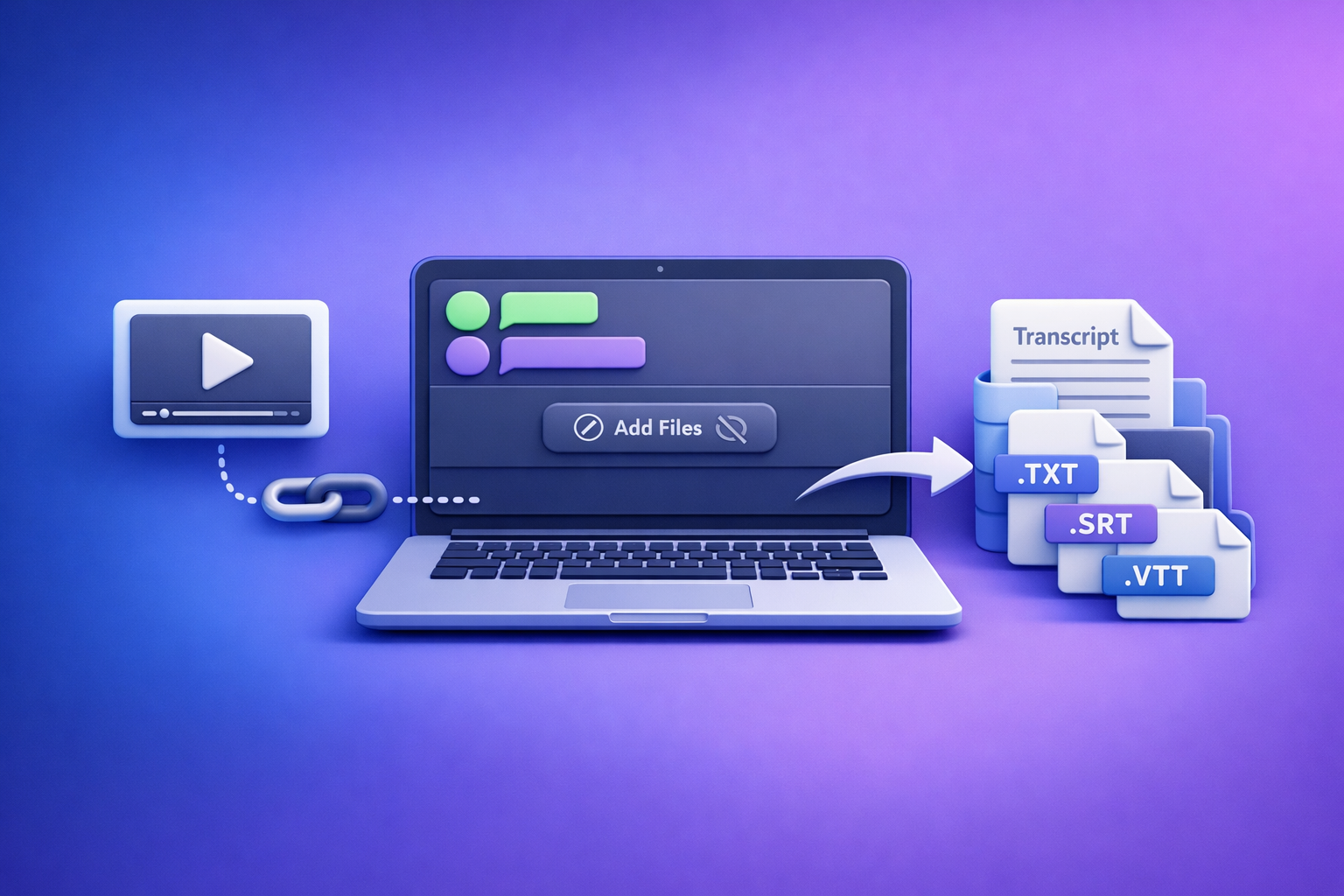
If the “add files” button unavailable ChatGPT message appears, don’t “try everything”—first identify whether it’s a model, workspace policy, entitlement/limits, client bug, or network control issue. Use the 2-minute triage below, then follow the ordered fix sequence to restore uploads—or skip the roulette entirely with a transcript-first, link-based workflow.
“Add Files” Button Unavailable in ChatGPT: Causes, Fixes, and a Transcript-First Workflow (VideoToTextAI)
Quick Answer (What “Add files unavailable” usually means)
When ChatGPT says “Add files is unavailable”, it typically means your current chat surface/model/workspace cannot accept attachments right now—even if your account can in other contexts.
The 4 most common root causes
- Wrong model selected (you’re on a model/surface that doesn’t support uploads).
- Workspace policy (Team/Enterprise/Edu admins can disable attachments).
- Entitlement/limits (plan gating, usage caps, temporary restrictions).
- Client/network interference (extensions, strict privacy settings, VPN/proxy/DNS filtering).
What to do in the next 2 minutes (triage map)
- If the paperclip is missing everywhere: suspect workspace policy or entitlement.
- If it’s present on mobile but not web: suspect browser extensions/privacy.
- If it works on home Wi‑Fi but not corporate: suspect proxy/DNS/SSL inspection.
- If it worked yesterday and not today across devices: suspect limits or platform incident.
What You’re Seeing: “Add files is unavailable” vs “Attachments disabled” vs missing paperclip
Different UI states point to different failure classes.
UI states and what each one implies
- “Add files is unavailable” (button greyed out):
- Often model mismatch, temporary restriction, or feature flag not applied correctly.
- “Attachments disabled”:
- Strong signal of workspace/admin policy or security controls.
- Paperclip / “Add files” missing entirely:
- Often surface limitation, workspace policy, or UI not loading due to blockers.
Why the same account can behave differently across devices/surfaces
ChatGPT features can vary by:
- Surface: web vs desktop app vs mobile app.
- Workspace: Personal vs Team/Enterprise/Edu.
- Model availability: model picker choices can differ per surface/workspace.
- Policy + network: corporate controls can affect only certain devices or networks.
2-Minute Triage: Identify the Failure Class Before You “Try Everything”
Treat this like debugging: classify first, then fix.
Step 1: Confirm surface + workspace (Personal vs Team/Enterprise/Edu)
- Check whether you’re chatting in Personal or a managed workspace.
- If you’re in Team/Enterprise/Edu, assume admin policy until proven otherwise.
Fast test: open a new chat in your Personal workspace (if you have access). If uploads appear there, it’s likely workspace policy.
Step 2: Confirm model supports uploads (and you’re actually using it)
- Open the model picker and confirm you’re on an upload-capable model.
- Don’t assume “latest” or “fastest” equals “supports attachments.”
Fast test: switch models, start a new chat, and check whether the paperclip appears.
Step 3: Confirm feature entitlement/limits (plan, usage caps, temporary restrictions)
Uploads can be limited by:
- Plan entitlements
- Rate limits / usage caps
- Temporary restrictions triggered by repeated failures
Fast test: wait 10–20 minutes, then try again on a different surface (mobile is often the quickest check).
Step 4: Confirm client-side breakage (browser/app, extensions, cache)
Common causes:
- Ad blockers and privacy extensions blocking scripts or upload endpoints
- Strict tracking protection breaking session state
- Corrupted cache/service worker
Fast test: try an incognito/private window with all extensions disabled.
Step 5: Confirm network controls (VPN, corporate proxy, DNS filtering, SSL inspection)
Uploads are frequently blocked by:
- Corporate proxies
- DNS filtering
- SSL inspection / “secure web gateway” policies
- VPN exit nodes flagged or restricted
Fast test: switch to a phone hotspot. If it works, it’s network policy.
Fix Sequence (Ordered): Restore the “Add files” Button Fast
Follow this order to minimize time and avoid destructive “random resets.”
1) Switch to an upload-capable model (and verify it stuck)
How to verify in the model picker
- Open the model picker.
- Select a model that supports attachments on your account.
- Start a new chat and confirm the paperclip/Add files control is visible and clickable.
What to do if the picker is missing/locked
- You may be in a managed workspace with restricted models.
- Switch to Personal workspace (if available) to confirm whether it’s policy-driven.
2) Change surface: Web ↔ Desktop ↔ Mobile (to isolate policy vs client bug)
This isolates “account/policy” from “device/browser.”
Web app checks (chat.openai.com vs app)
- Try the web app in a different browser.
- If desktop app works but web doesn’t, suspect extensions/privacy settings.
Mobile-specific notes (iOS/Android permission prompts)
- Ensure the app has Files/Photos permissions.
- If the picker opens but fails to attach, check OS-level permissions first.
3) Hard refresh + sign-out/in (to clear stale feature flags)
Feature flags can get “stuck” per session.
Web: hard reload steps
- Windows: Ctrl + Shift + R
- Mac: Cmd + Shift + R
- Then sign out and sign back in.
App: force quit + relaunch steps
- Force quit the app completely.
- Relaunch and start a new chat.
4) Disable blockers that break uploads
Extensions to pause (ad blockers, privacy tools, script blockers)
Temporarily disable:
- Ad blockers
- Tracker blockers
- Script blockers
- “Security” extensions that rewrite requests
Browser settings that commonly interfere (third-party cookies, strict tracking protection)
- Allow cookies for the session (or at least for ChatGPT).
- Reduce tracking protection from “strict” to “standard” for a test.
5) Try a clean environment
You’re testing whether your current profile is corrupted.
- Incognito/private window test (no extensions by default).
- New browser profile test (fresh cookies/storage).
- Different browser test (Chrome/Edge/Firefox/Safari).
If uploads work in a clean environment, the issue is almost always extensions, cookies, or cached state.
6) Remove network interference
- Turn off VPN temporarily.
- Switch networks (home Wi‑Fi vs hotspot vs corporate Wi‑Fi).
If you’re on a managed network, ask IT to:
- Allowlist ChatGPT/OpenAI web access required for file uploads
- Exempt the service from SSL inspection if uploads consistently fail
(Exact domains/endpoints can change; IT should base allowlisting on your organization’s security tooling logs for blocked requests.)
7) Validate file constraints (when the button works but upload fails)
If the button is back but uploads error out, check the file itself.
- File type sanity check: try a simple TXT or small PDF first.
- File size/time sanity check: test with a tiny file to rule out limits.
- Rename + re-export: re-export the file (especially videos) to eliminate container corruption.
- Avoid special characters in filenames during testing.
8) When it’s not you: status/outage confirmation
Signals of a platform-side issue:
- Multiple devices + networks fail the same way
- The UI changes suddenly across sessions
- Errors appear after successful uploads earlier the same day
What to capture for support:
- Timestamp + timezone
- Surface (web/desktop/mobile)
- Workspace (Personal vs managed)
- Model selected
- Exact error text and any request IDs shown
Common Mistakes That Keep the Button Unavailable
Assuming Plus/paid always equals uploads
Paid access doesn’t guarantee uploads on every model/surface/workspace. Treat uploads as a capability that can vary.
Troubleshooting in the wrong workspace
If your Team/Enterprise/Edu workspace disables attachments, no amount of cache clearing will fix it.
Confusing “upload video” with “analyze video reliably”
Even when uploads work, video analysis via file upload can be inconsistent depending on model behavior, file size, and network conditions.
Repeated retries that trigger temporary restrictions
Rapid-fire retries can look like abuse and may trigger short-term restrictions. Slow down and switch surfaces/networks instead.
Production-Safe Fallback: Ship Without ChatGPT Uploads (Transcript-First)
If your job depends on shipping transcripts, captions, and repurposed content, don’t tie delivery to a UI button. A transcript-first workflow is more repeatable, reviewable, and portable.
Brand POV: downloading video files just to re-upload them is an outdated workflow. Link-based extraction is the future of creator productivity because it removes download/upload loops and standardizes outputs.
Why transcript-first beats upload roulette for video work
- Repeatability: same input link → same transcript/caption artifacts.
- QA: you can review text + timestamps before publishing.
- Portability: TXT/SRT/VTT work across editors, players, and platforms.
Workflow A (fastest): Video link → transcript/captions → ChatGPT-on-text
Step-by-step
- Copy the video URL (YouTube/TikTok/Instagram/etc.).
- Generate transcript + captions in VideoToTextAI.
- Export TXT for analysis + SRT/VTT for publishing.
- Paste transcript into ChatGPT for summarization, outlines, repurposing, and QA notes.
Use these internal tools/pages as your “always-works” pipeline:
What to paste into ChatGPT (prompt template)
Copy/paste this:
Here is the transcript (with timestamps if present).
Create:
- a 7-bullet executive summary,
- chapter titles with timestamps,
- 10 short-form clip candidates (hook + start/end timestamp + why it works),
- an SEO blog outline (H2/H3),
- caption fixes (remove filler, keep meaning, preserve names/terms).
Constraints: keep claims faithful to the transcript; flag unclear audio as [inaudible].
Workflow B (when you have a file): MP4 → TXT/SRT/VTT → ChatGPT-on-text
Step-by-step
- Upload MP4 to VideoToTextAI.
- Export TXT + SRT/VTT.
- Use ChatGPT for edits, hooks, titles, and repurposed assets.
If you’re currently stuck because the add files button unavailable ChatGPT issue blocks your process, this workflow keeps production moving without waiting on UI state.
Checklist: Transcript-First Deliverables (what “done” looks like)
- Clean TXT transcript (speaker labels if needed)
- SRT captions for editors/platforms
- VTT captions for web players
- Summary + key takeaways
- Repurposed assets (blog, LinkedIn, X, email)
Use Cases: What to Do After You Have the Transcript
Turn a video into a blog post (SEO-ready)
- Extract a keyword-focused outline from the transcript.
- Add missing context, definitions, and examples (without inventing claims).
- Build internal links and a FAQ section from the transcript’s questions.
Related internal reading:
Create subtitles/captions you can publish today
- Publish SRT to YouTube and many editors.
- Publish VTT to web players and accessibility workflows.
- Use the transcript to fix names, acronyms, and jargon before shipping.
Repurpose into social posts and hooks
- Pull 10–20 “hookable” moments from the transcript.
- Generate platform-specific variants (short, medium, long).
- Keep a “clip bank” with timestamps so editors can cut fast.
VideoToTextAI vs Competitors
Below is a fair comparison based on publicly visible workflow signals in the research block (no invented pricing/limits).
Comparison criteria (what we’ll evaluate)
- Input speed: paste a link vs download/upload loops
- Export readiness: TXT, SRT, VTT outputs
- Reliability under restricted ChatGPT upload environments
- Repurposing workflows: blog/social outputs from transcript
| Tool | Link-based input (paste URL) | Upload-based workflow | Export-ready outputs (TXT/SRT/VTT) | Repurposing focus | Best fit |
|---|---|---|---|---|---|
| VideoToTextAI | Yes (core workflow) | Yes (optional) | Yes (TXT/SRT/VTT) | Yes (transcript → content workflows) | Creators/teams who want repeatable, production-safe transcript + captions + repurposing without download/upload loops |
| Canva (Video to Text) | No strong signal | Yes | Transcript supported; subtitle export not strongly signaled | Not a primary focus | Designers already in Canva who want quick captions inside a design/video editor |
| Reduct Video | No strong signal | Not strongly signaled | Transcript export + summaries signaled | Not a primary focus | Teams doing transcript-centric review, search, and collaboration on talking-head content |
| Zapier’s recommended transcription stack (tooling approach) | No strong signal | Not strongly signaled | Varies by tool | Not strongly signaled | Teams that want automation across many apps and can assemble/maintain a multi-tool stack |
Why VideoToTextAI wins for operational speed and repeatability: the link-based workflow removes the slowest, most failure-prone step (downloading and re-uploading video files). When ChatGPT uploads are blocked, you still ship because your pipeline outputs portable artifacts (TXT/SRT/VTT) that work everywhere.
When a competitor is a better fit (edge cases):
- If you’re already editing inside Canva and only need lightweight captions in that environment, Canva can be convenient.
- If your team needs deep collaborative transcript review/search across a library, Reduct’s collaboration positioning may fit better.
If you want to standardize a transcript-first pipeline that doesn’t depend on ChatGPT’s attachment UI, use VideoToTextAI here: https://videototextai.com
Competitor Gap
Most top-ranking pages and forum threads focus on generic “refresh your browser” advice. This post fixes the gaps that actually waste time in production.
-
Missing: a 2-minute failure-class triage (policy vs model vs client vs network)
You now have a fast classification map before you start changing settings. -
Missing: ordered fix sequence (fastest-first, least-destructive-first)
The steps above prioritize model/surface checks before cache nukes. -
Missing: production-safe fallback that outputs TXT/SRT/VTT consistently
Transcript-first workflows keep shipping even when uploads are disabled. -
Missing: copy/paste prompt templates + “definition of done” checklist
You can move from transcript → deliverables without improvising.
FAQ
Why is ChatGPT saying adding files is unavailable?
Usually because you’re on a model or surface that doesn’t support uploads, your workspace policy disables attachments, your entitlement/limits are restricting uploads, or your browser/network is blocking upload endpoints.
Why doesn’t ChatGPT let me attach files?
The most common blockers are:
- You’re in the wrong workspace (managed policy)
- You’re not using an upload-capable model
- Extensions/privacy settings break the upload UI
- VPN/proxy/DNS filtering blocks upload requests
Can you no longer upload files to ChatGPT?
Uploads still exist, but availability can vary by workspace, model, device surface, and temporary limits/incidents. If you need guaranteed delivery, use a transcript-first pipeline and work on text.
Why are attachments unavailable in ChatGPT?
“Attachments unavailable” often indicates admin policy (Team/Enterprise/Edu), or a security/network control (proxy/SSL inspection), or a session/UI state issue that clears with surface switching and a clean browser profile.
Internal Link Plan
- “Add Files” Button Unavailable in ChatGPT (2026): Causes, Fixes, and a Production-Safe Transcript Workflow
- “Attachments Disabled” in ChatGPT: Causes, Fixes, and a Production-Safe Transcript Workflow (2026)
- ChatGPT “Upload Video” Feature (2026): What Works, Why It Fails, and the Production-Safe Transcript Workflow
- Upload Video in ChatGPT (2026): What Works, What Breaks, and the Production-Safe Transcript Workflow
- MP4 to Transcript
- MP4 to SRT
- MP4 to VTT
- YouTube to Blog
Related posts
Reel Analyser (Instagram Reels): Transcript‑First Competitor Research, Hook/CTA Extraction, and Repurposing Workflow (VideoToTextAI)
Video To Text AI
A 2026 reel analyser should turn Instagram Reel links into a searchable transcript library you can tag for hooks, CTAs, objections, and topic clusters—then export into repurposing-ready drafts without a download/upload loop.
Traducir video de Instagram (Reels) en 2026: workflow transcript-first para traducir, sacar hooks/CTAs y repurpose (con VideoToTextAI)
Video To Text AI
Aprende a traducir un Reel de Instagram con un flujo URL→transcripción→traducción→subtítulos, y a convertir esa traducción en un activo de investigación para hooks, CTAs, objeciones y clusters de contenido.
Reel Analyzer: Transcript‑First Instagram Reels Research (Hooks, CTAs, Objections) + Workflow Guide (VideoToTextAI)
Video To Text AI
A reel analyzer should turn any public Instagram Reel link into a searchable transcript library you can mine for hooks, CTAs, objections, and topic clusters—then repurpose into original drafts with a repeatable SOP.