
“Attachments Disabled” in ChatGPT: What It Means, Fast Fixes, and a Production-Safe Link → Transcript Workflow (2026)
 Video To Text AI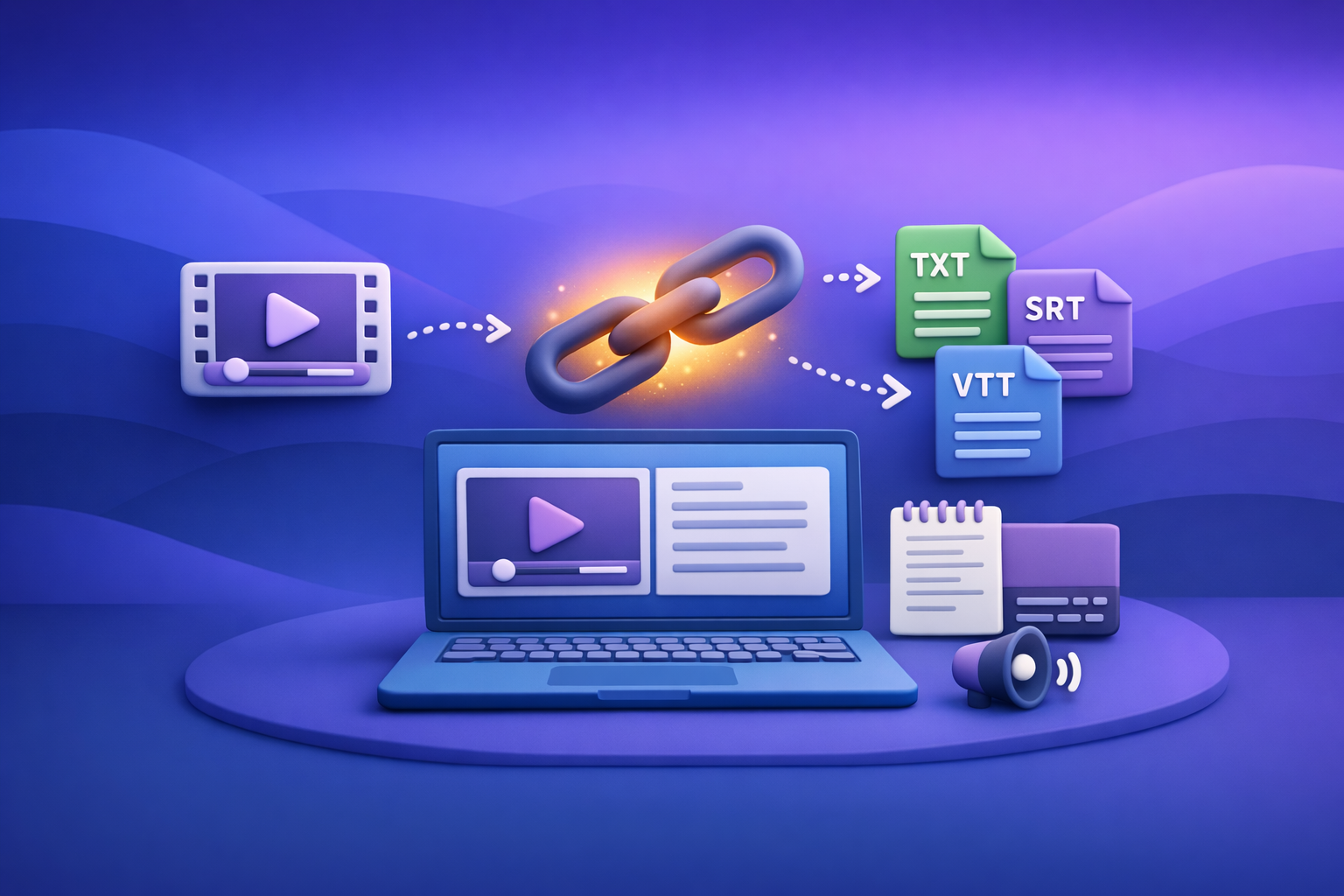
If ChatGPT says “attachments disabled”, treat it as a permissions/policy/UI/network signal—not a mystery error—and diagnose it in the right order. If you can’t restore uploads in 10 minutes, switch to a text-first, link → transcript workflow so transcripts/captions ship on time without depending on ChatGPT attachments.
Why you’re seeing “attachments disabled” in ChatGPT (what the message actually indicates)
“Attachments disabled” means the upload capability is unavailable in your current context. That context can be your plan/model entitlement, your workspace rules, your client (browser/app), or your network.
The 4 root-cause buckets (diagnose before you “try random fixes”)
- Plan/model entitlement
- Your current model or ChatGPT surface may not support file/image uploads.
- Some accounts see uploads in one context but not another (e.g., personal vs managed workspace).
- Workspace/admin policy
- In Team/Enterprise/Edu, admins can disable file/image uploads or restrict tools.
- Policies can apply to specific users, groups, or data-control modes.
- Client-side breakage
- Extensions can break the upload UI (DOM manipulation, script blocking, request filtering).
- Corrupted cookies/local storage can hide controls or block session features.
- Outdated browser/app versions can fail feature flags or UI rendering.
- Network/security controls
- VPNs, proxies, SSL inspection, and firewalls can block upload endpoints.
- Corporate networks often allow browsing but block file transfer routes.
Common variants of the message (and what each usually maps to)
- “Attachments disabled”
- Often entitlement or workspace policy; sometimes client-side UI breakage.
- “Attachments disabled for this conversation”
- Thread-level restriction, model mismatch, or a conversation state that doesn’t allow uploads.
- “Add files unavailable”
- Common in managed workspaces or when a model/surface doesn’t support uploads.
- Missing paperclip / upload UI not rendering
- Frequently browser extensions, cached site data, or UI rendering issues.
2-minute triage: confirm the cause in the right order (fastest path to resolution)
Step 1 — Confirm you’re on the correct ChatGPT surface/account/workspace
- Verify whether you’re in a managed workspace (Team/Enterprise/Edu) or a personal account.
- Start a new chat (some threads can be restricted even when new ones aren’t).
- If you have multiple profiles, confirm you’re not accidentally in the locked-down workspace.
Step 2 — Verify model capability (uploads are model/surface dependent)
- Switch to another available model in the model picker.
- After switching, confirm whether the paperclip (or upload control) appears.
- If the control appears only on certain models, you’ve found an entitlement/surface mismatch.
Step 3 — Rule out browser/app issues (most common “false negatives”)
Do these quickly, in order:
- Hard refresh the page, then sign out/in.
- Test in an incognito/private window.
- Test another browser (Chrome/Edge/Firefox/Safari).
- Disable extensions that touch requests/DOM:
- Ad blockers
- Privacy tools
- Script blockers
- “Reader mode” / UI modifiers
- Corporate security extensions
Step 4 — Rule out network controls (most common in corporate environments)
- Try a different network (mobile hotspot is the fastest test).
- Disable VPN temporarily.
- If on a corporate network, ask IT whether proxy/SSL inspection is blocking upload endpoints.
Fix sequence (ordered, implementation-focused)
Fix 1 — Switch model/surface to restore upload capability
What to click/check
- Open the model picker and select a model that supports uploads (if your account offers one).
- Start a new chat after switching models to avoid thread-level restrictions.
How to confirm it’s fixed
- The paperclip returns.
- Drag-and-drop works.
- The UI shows an upload progress state rather than immediately failing.
If you can’t make the upload control appear on any model/surface, move on—don’t loop.
Fix 2 — Resolve workspace policy restrictions (Team/Enterprise/Edu)
If you’re in a managed workspace, assume policy until proven otherwise.
What to ask your admin to verify
- Whether file uploads and/or image uploads are disabled.
- Whether tool access is restricted by:
- user group
- data control mode
- compliance settings
- Whether there are conversation-level restrictions or DLP rules affecting uploads.
What evidence to provide
- Screenshot showing missing upload UI or the “attachments disabled” message.
- Timestamp and timezone.
- Whether it happens in:
- new chat vs existing chat
- multiple browsers
- multiple networks
Fix 3 — Browser remediation checklist (do these in order)
- Clear site data for
chat.openai.com
- Clear cookies + local storage (site-specific, not “clear everything” unless needed).
- Disable extensions (binary search)
- Disable half your extensions.
- Test.
- Repeat until you find the culprit.
- Update browser + OS
- Update to current stable versions.
- Restart the browser after updating.
- Desktop app (if applicable)
- Update the app.
- If still broken, reinstall.
Fix 4 — Network remediation checklist (do these in order)
- Test on a clean network
- Mobile hotspot is the fastest “known good” baseline.
- Identify proxy/SSL inspection
- If uploads fail only on corporate Wi‑Fi, assume proxy/inspection until IT confirms otherwise.
- Whitelist requirements (IT handoff checklist: domains/categories to allow)
- Ask IT to allowlist ChatGPT upload-related traffic for your environment.
- Provide:
- the exact error message
- affected device/browser
- whether text chat works but uploads fail (common with file-transfer blocks)
When you should stop troubleshooting and ship anyway (decision rule)
The “10-minute rule” for production work
If uploads aren’t restored in 10 minutes, stop burning cycles and switch to a workflow that doesn’t depend on attachments.
Operational rule: deliverables (transcripts/captions) should not be gated by a UI control that can disappear due to entitlement, policy, or network changes.
This is why downloading video files and “uploading into ChatGPT” is an outdated workflow. Link-based extraction is the future of creator productivity because it’s faster, more repeatable, and less fragile.
Production-safe workaround: Link/MP4 → TXT/SRT/VTT → ChatGPT-on-text (no attachments required)
What you produce (deliverables that survive tool/UI changes)
- TXT transcript (clean, searchable source of truth)
- SRT captions (platform-ready for YouTube/LinkedIn and many editors)
- VTT captions (web-ready for HTML5 players)
- Optional downstream assets:
- summaries
- blog drafts
- social posts
- multilingual versions
Step-by-step workflow using VideoToTextAI
Step 1 — Start with a link (or MP4) instead of an upload to ChatGPT
- Prefer a video URL (public or permissioned) whenever possible.
- If you only have a file, run an MP4-to-text pipeline outside ChatGPT, then bring the text back.
This avoids the “attachments disabled” bottleneck entirely.
Step 2 — Generate transcript + captions in VideoToTextAI
In VideoToTextAI, generate:
- TXT (transcript)
- SRT (captions)
- VTT (captions)
Quality control options to apply as needed:
- Speaker labels (for interviews/podcasts)
- Timestamps (for editorial referencing)
- Punctuation (for readability)
- Profanity handling (based on brand requirements)
Use this approach when you need production artifacts that can be versioned, reviewed, and reused.
Step 3 — Paste transcript into ChatGPT for analysis/repurposing
Once you have TXT, you can use ChatGPT without attachments.
Prompt pattern (copy/paste):
Use the transcript below as the only source. Do not assume missing audio. When referencing a section, cite the nearest timestamp.
Transcript:
[PASTE TRANSCRIPT]
This keeps output grounded and makes reviews faster.
Step 4 — Export final assets (captions + repurposed content)
- Captions:
- Upload SRT/VTT to YouTube/LinkedIn or your web player.
- Repurposing:
- Blog post draft
- LinkedIn post
- X thread
- Email newsletter
- Translations/localizations
Exactly one CTA (if you want the workflow now): VideoToTextAI.
Implementation checklist (copy/paste)
- Confirm “attachments disabled” is not a temporary UI glitch (new chat + model switch)
- If still blocked, generate TXT transcript from link/MP4 in VideoToTextAI
- Generate SRT and VTT for distribution
- QA transcript (names, acronyms, key terms)
- Use ChatGPT on the transcript text for summaries/repurposing
- Publish captions + content; archive transcript as the source of truth
Common scenarios (and the fastest recommended path)
Scenario A — You need to extract text from a YouTube video but ChatGPT uploads are disabled
Fastest path:
- Use link-based transcription → generate TXT
- Paste transcript into ChatGPT for summarization and repurposing
This avoids downloading the video and avoids attachment gating.
Scenario B — You need captions for an MP4 today (client deliverable)
Fastest path:
- Generate SRT/VTT directly from the MP4
- Deliver captions + transcript as the production artifacts
- Use ChatGPT only for text edits (no uploads required)
Scenario C — Your company workspace blocks attachments permanently
Fastest path:
- Standardize on transcript-first artifacts (TXT/SRT/VTT)
- Add internal QA steps (names, product terms, compliance language)
- Use downstream LLM usage on text only
This is the operationally repeatable approach for teams.
VideoToTextAI vs Competitors
When ChatGPT shows attachments disabled, the real question is: can your workflow still ingest video reliably and output production-ready artifacts?
Because competitor profiles were not provided in the research block, the only fair comparison is criteria-based (no invented pricing/limits). The table below focuses on what matters operationally when uploads are blocked.
| Criteria (when ChatGPT attachments are disabled) | VideoToTextAI | In-chat ChatGPT uploads | Manual download + local transcription apps |
|---|---|---|---|
| Input reliability | Link-based ingestion (designed to avoid fragile in-chat uploads) | Can fail due to entitlement/policy/UI/network (“attachments disabled”) | Depends on file transfer + local environment; often slow and inconsistent across machines |
| Production exports | TXT + SRT + VTT as primary artifacts | Not guaranteed; depends on upload availability and session behavior | Varies by app; exports may require extra steps or conversions |
| Workflow repeatability | Transcript-first artifacts enable QA, versioning, re-runs | Harder to standardize when uploads disappear or differ by model/workspace | Repeatable but operationally heavy (file handling, storage, handoffs) |
| Repurposing readiness | Transcript is ready to paste into ChatGPT for summaries/posts (no attachments) | Strong when uploads work; blocked when they don’t | Possible, but slower due to file logistics |
| Time-to-ship | Fast: link → transcript/captions → publish | Fast only when upload UI is available | Often slow: download, move files, transcribe, convert formats |
Where VideoToTextAI fits in the stack
- Use VideoToTextAI to generate production artifacts (TXT/SRT/VTT).
- Use ChatGPT to edit, summarize, and repurpose the text—without relying on attachments.
Fair note: if your only task is quick brainstorming and uploads are working, in-chat uploads can be convenient. For production deliverables under deadlines, link-based transcript artifacts are more operationally stable.
Competitor Gap
Competitor profiles and People Also Ask data were not provided (SERP API limit reached). This post closes typical SERP gaps anyway by including:
- A 2-minute triage that isolates entitlement vs policy vs client vs network
- An ordered fix sequence (not a list of guesses)
- A production-safe fallback workflow that outputs TXT/SRT/VTT
- A ship checklist for teams and client deliverables
Tool-driven pathways (choose the fastest route)
If you have an MP4:
- Use: /tools/mp4-to-transcript, /tools/mp4-to-srt, /tools/mp4-to-vtt
If you’re repurposing into written content:
- Use: /tools/mp4-to-blog-post or /tools/youtube-to-blog
If you’re working with short-form social video:
- Use: /tools/tiktok-to-transcript or /tools/instagram-to-text
FAQ (People Also Ask-aligned)
Why does ChatGPT say “attachments disabled”?
Most commonly:
- Your current model/surface doesn’t support uploads
- Your workspace admin disabled attachments
- Your browser/extensions broke the upload UI
- Your network blocks upload endpoints (proxy/SSL inspection/firewall)
How do I enable attachments in ChatGPT?
Enablement depends on the cause:
- Switch to a model/surface that supports uploads (if available).
- If you’re in Team/Enterprise/Edu, ask your admin to enable uploads.
- Clear site data and disable extensions if the UI is missing.
- Test a clean network to rule out proxy/firewall blocks.
Why is the “Add files” button missing in ChatGPT?
Usually one of:
- Model/surface mismatch (uploads not supported there)
- Workspace policy restriction
- Client-side UI breakage (extensions/cached data)
- Network filtering that prevents the upload UI from initializing correctly
Can I still summarize a video if I can’t upload it to ChatGPT?
Yes:
- Generate a TXT transcript (preferably from a link-based workflow).
- Paste the transcript into ChatGPT.
- Ask for summaries, outlines, quotes, and repurposed drafts with timestamp citations.
Is “attachments disabled” caused by my browser or my account?
It can be either. Use the triage order:
- account/workspace context
- model capability
- browser/app health
- network controls
If you need a deeper dive on related failure modes, see:
- “Add Files” Button Unavailable in ChatGPT: Causes, Fixes, and a Transcript-First Workflow (VideoToTextAI)
- ChatGPT “Upload Video” Feature (2026): What Works, Why It Fails, and the Production-Safe Transcript Workflow
- Upload Video to ChatGPT (2026): What Actually Works + a Production-Safe Transcript & Captions Workflow
- A Production-Safe Link-Based Video-to-Text Workflow (Transcripts, SRT/VTT Captions, and Repurposing)
- “Attachments Disabled for” ChatGPT: What It Means, Why It Happens, and How to Fix It (2026)
- “Attachments Disabled” in ChatGPT: Causes, Fixes, and a Production-Safe Transcript Workflow (2026)
Related posts
Reel Analyser (Instagram Reels): Transcript‑First Competitor Research, Hook/CTA Extraction, and Repurposing Workflow (VideoToTextAI)
Video To Text AI
A 2026 reel analyser should turn Instagram Reel links into a searchable transcript library you can tag for hooks, CTAs, objections, and topic clusters—then export into repurposing-ready drafts without a download/upload loop.
Traducir video de Instagram (Reels) en 2026: workflow transcript-first para traducir, sacar hooks/CTAs y repurpose (con VideoToTextAI)
Video To Text AI
Aprende a traducir un Reel de Instagram con un flujo URL→transcripción→traducción→subtítulos, y a convertir esa traducción en un activo de investigación para hooks, CTAs, objeciones y clusters de contenido.
Reel Analyzer: Transcript‑First Instagram Reels Research (Hooks, CTAs, Objections) + Workflow Guide (VideoToTextAI)
Video To Text AI
A reel analyzer should turn any public Instagram Reel link into a searchable transcript library you can mine for hooks, CTAs, objections, and topic clusters—then repurpose into original drafts with a repeatable SOP.