
“Max 0 Uploads at a Time” ChatGPT Error: What It Means, Fixes That Work, and the No-Upload Video→Text Workflow (2026)
 Video To Text AI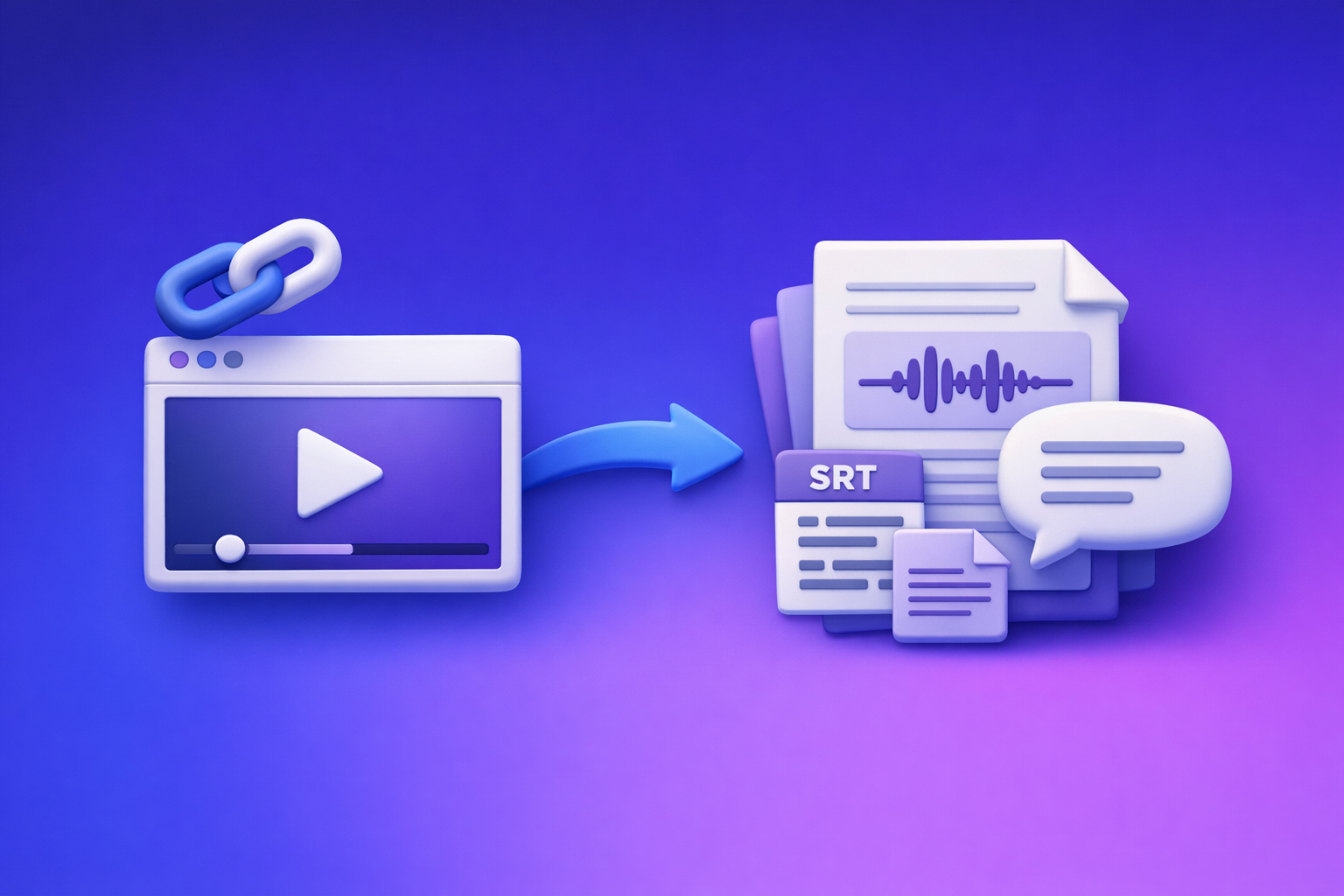
If you see the “max 0 uploads at a time” ChatGPT error, stop retrying the same upload—attachments are disabled in your current context (model/surface/policy/network) more often than not. Use the fast isolation flow below to re-enable uploads, or bypass uploads entirely by converting video → transcript/captions and working in ChatGPT on text.
TL;DR (Fast Fix Path)
If you need uploads working in the next 2 minutes
- Confirm you’re in a chat/model/surface that supports attachments.
- Start a new chat and switch model (if you have a model picker).
- Hard refresh (web) or relaunch the app (desktop/mobile).
- Test another browser profile (no extensions) and another network.
- If still blocked: use a no-upload workflow (video link/MP4 → transcript/captions → paste text into ChatGPT).
If you also see “upload limit reached,” compare this guide with:
What “Max 0 Uploads at a Time” Actually Means
It’s not your file (most of the time)
This message usually means the UI is telling you: attachments are currently disabled.
“0 uploads” typically indicates feature availability or policy, not a temporary queue or a file-size issue.
Where the limit is enforced (the 5 common layers)
Uploads can be blocked at multiple layers. You’ll fix it faster if you isolate the layer first:
- Thread state (the current conversation is “stuck”)
- Model capability (some models/surfaces don’t allow attachments)
- Surface/app (web vs desktop vs mobile behave differently)
- Workspace/org policy (Enterprise/Edu can disable attachments)
- Network/device controls (VPN/proxy/DLP/browser policies)
Related: if you’re seeing “attachments disabled” messaging, use:
Common Root Causes (Ranked by Frequency)
1) Attachments disabled for the current model/surface
Some ChatGPT experiences show an attachment icon but still return “max 0 uploads” when the selected model or surface doesn’t support attachments.
What to look for:
- Upload works in one model but not another.
- Upload works on mobile but not web (or vice versa).
2) Workspace policy blocks file uploads
If you’re in an Enterprise/Edu workspace, admins can disable attachments globally or restrict certain file types.
Signals:
- Everyone in your org reports the same issue.
- Upload works in a personal account/workspace but not the org workspace.
3) Browser extensions or privacy settings break the uploader
Uploaders are sensitive to:
- Script blockers
- Aggressive privacy tools
- Cookie restrictions
- Content security modifications
If the UI loads but uploads fail instantly, suspect extensions first.
4) Network restrictions (VPN/proxy/DLP)
Corporate networks can block upload endpoints or intercept traffic for inspection. That can manifest as “0 uploads” or “upload limit reached.”
Signals:
- Works on mobile hotspot, fails on office Wi‑Fi.
- Works on personal device, fails on managed device.
5) Temporary platform degradation
During partial outages, upload features can degrade in ways that look like limits.
If you suspect this, don’t stall production—use the no-upload workflow below.
Step-by-Step Diagnosis (Ordered Isolation Flow)
Step 1 — Confirm it’s not thread-specific (30 seconds)
- Open a new chat.
- Try attaching a tiny file (like a small
.txt). - If it works in a new chat: the original thread is the blocker.
If you need more context on “rate limit” vs “permissions,” see:
Step 2 — Switch model/surface (60 seconds)
- If a model picker exists: switch to a model known to support attachments (in your account).
- Test web app vs mobile app vs desktop app.
Outcome mapping:
- Works on one surface only → surface/app issue.
- Fails everywhere → policy/network/account issue.
If you’re specifically trying to upload video, also read:
Step 3 — Eliminate browser causes (2 minutes)
- Open an incognito/private window.
- Disable extensions (especially ad blockers/script blockers).
- Clear site data for ChatGPT (cookies + local storage).
- Try a different browser profile.
If incognito works, your fix is almost always extensions or site data.
Step 4 — Eliminate network causes (2 minutes)
- Switch networks (mobile hotspot vs office Wi‑Fi).
- Disable VPN/proxy temporarily.
- If on a managed device: test on a personal device to confirm DLP/policy.
Step 5 — Confirm account/workspace policy (as needed)
- If you’re in a workspace: ask the admin whether attachments are disabled.
- If you have multiple workspaces: test in a personal workspace (if allowed).
Fixes That Work (Implementation Playbook)
Fix A — Reset the upload context
Do these in order:
- New chat → retry attachment
- Switch model → retry attachment
- Log out/in (forces capability refresh)
- Relaunch app (desktop/mobile) or hard refresh (web)
This resolves a large share of “thread state” and “surface state” issues.
Fix B — Browser hardening checklist (copy/paste)
- Disable extensions:
- Ad blocker
- Script blocker
- Privacy tools
- Allow cookies needed for the session (if your setup blocks them).
- Clear site data and cache for ChatGPT.
- Update browser to latest stable.
- Try a clean browser profile.
Fix C — Network remediation
- Remove VPN/proxy.
- Use a different network.
- If corporate: request allowlisting for upload endpoints (admin action).
If you can’t change network policy quickly, skip to the no-upload workflow and keep shipping.
Fix D — When it’s truly a platform issue
- Check the platform status page (if available).
- Retry later.
- Use the no-upload workflow below to deliver transcripts/captions now.
The Reliable No-Upload Workflow (Ship Transcripts/Captions Today)
Why “no-upload” beats troubleshooting
When “max 0 uploads at a time” is caused by model/surface/policy gating, troubleshooting can burn hours.
A transcript-first workflow:
- Avoids attachment gating (policy/model/surface)
- Works with long videos where uploads often fail
- Produces export-ready formats (TXT + SRT/VTT) for editing and publishing
Brand POV: Downloading video files just to re-upload them is an outdated workflow. Link-based extraction is the future of creator productivity because it’s faster, repeatable, and less fragile than UI upload paths.
Workflow: Video link/MP4 → transcript/captions → ChatGPT-on-text
Step 1 — Generate text outputs with VideoToTextAI
Input options:
- A YouTube/Instagram/TikTok link
- Or an MP4
Outputs you want:
- Transcript (TXT)
- Subtitles/captions (SRT/VTT)
- Optional: summary/key points for faster repurposing
If you want specific outputs, these tools map cleanly to deliverables:
When you’re ready to run the workflow end-to-end without fighting uploads, use VideoToTextAI: https://videototextai.com
Step 2 — Use ChatGPT on the transcript (not the video)
Paste the transcript into ChatGPT and ask for what you actually need:
- Blog outline and draft
- Chapter titles and sections
- Hooks and short-form posts
- FAQs and metadata
This is operationally repeatable because text is portable across tools and policies.
Step 3 — Export + publish
- Use SRT/VTT for captions in editors and platforms.
- Use the transcript for blog/SEO assets and internal content libraries.
- Store outputs so you don’t re-process the same video later.
Best-practice prompts (designed for transcript-first workflows)
- “Turn this transcript into a blog post with H2/H3s, key takeaways, and a TL;DR.”
- “Extract timestamps + chapter titles from this transcript.”
- “Create 10 short clip ideas with hooks and on-screen captions from this transcript.”
Checklist: Fix or Bypass “Max 0 Uploads at a Time”
10-minute troubleshooting checklist
- New chat test (tiny TXT)
- Switch model (if available)
- Try another surface (web/mobile/desktop)
- Incognito + extensions off
- Clear site data
- Different browser/profile
- Different network / disable VPN
- Confirm workspace policy
- If still blocked: run no-upload workflow
Production checklist (no-upload workflow)
- Generate TXT transcript
- Generate SRT or VTT captions
- Create summary + key points
- Repurpose into blog + social posts
- Store transcript + captions in your content library
VideoToTextAI vs Competitors
When uploads are blocked, the deciding factor isn’t “who has the nicest uploader.” It’s input flexibility (links), export formats, and repeatable repurposing workflows.
Competitor research block status: competitorProfiles not provided (SERP research disabled). To keep comparisons factual and compliant, the table below compares workflow criteria without naming specific competitors.
| Criteria that matters when ChatGPT uploads are blocked | VideoToTextAI | Typical file-only transcription tools | Typical in-app AI uploaders |
|---|---|---|---|
| Link-based ingestion (YouTube/social URLs) | Yes (designed for link-first workflows) | Often limited or inconsistent | Usually no (expects upload) |
| No-upload operational path | Yes (video → text outputs → paste into ChatGPT) | Sometimes (still often requires file handling) | No (blocked when attachments disabled) |
| Export-ready captions (SRT/VTT) | Yes | Varies by tool | Not the focus |
| Transcript-first repurposing (blog/social from text) | Strong fit (text outputs feed downstream AI) | Depends on workflow | Limited when upload gating occurs |
| Best suited for | Creators/teams who want repeatable, link-first production | Teams already managing local files | Quick analysis when uploads are available |
Fair note: if your only goal is to attach a small document inside ChatGPT and uploads are enabled, an in-app uploader can be the fastest. When uploads are disabled (the “max 0 uploads at a time” scenario), a link-based transcript-first workflow is more reliable.
Competitor Gap
Most “fix” articles stop at “clear cache” and “try another browser,” which doesn’t help when the real blocker is model capability, workspace policy, or network controls.
What this post adds:
- An ordered isolation flow that distinguishes: thread vs model vs surface vs policy vs network.
- A production-safe bypass: transcript-first workflow that doesn’t depend on ChatGPT attachments.
- Export-ready deliverables (TXT/SRT/VTT) plus repurposing steps, not just troubleshooting.
- Two checklists: 10-minute fix + publish-ready no-upload checklist.
FAQ (People Also Ask)
Why does ChatGPT say “max 0 uploads at a time”?
Because attachments are disabled in your current context—commonly the selected model/surface, a workspace policy, or network controls. It’s usually not your file.
How do I enable uploads in ChatGPT when it says “upload limit reached”?
First isolate the layer: new chat → switch model → try another surface → incognito with extensions off → change network/VPN. If you’re in an org workspace, confirm whether admins disabled attachments.
Is “max 0 uploads at a time” a rate limit or a permissions issue?
Most often it’s a permissions/capability issue (0 allowed), not a throughput rate limit. Rate limits usually show a non-zero cap or a time-based reset behavior.
Why can I upload in one chat but not another?
A specific thread can get into a blocked state. Testing a new chat with a tiny file is the fastest way to confirm thread-specific issues.
What’s the fastest way to get a transcript if uploads are disabled?
Use a no-upload pipeline: generate a transcript and SRT/VTT from a video link/MP4, then paste the transcript into ChatGPT for summarizing and repurposing. This avoids attachment gating entirely.
Related posts
Reel Analyser (Instagram Reels): Transcript‑First Competitor Research, Hook/CTA Extraction, and Repurposing Workflow (VideoToTextAI)
Video To Text AI
A 2026 reel analyser should turn Instagram Reel links into a searchable transcript library you can tag for hooks, CTAs, objections, and topic clusters—then export into repurposing-ready drafts without a download/upload loop.
Traducir video de Instagram (Reels) en 2026: workflow transcript-first para traducir, sacar hooks/CTAs y repurpose (con VideoToTextAI)
Video To Text AI
Aprende a traducir un Reel de Instagram con un flujo URL→transcripción→traducción→subtítulos, y a convertir esa traducción en un activo de investigación para hooks, CTAs, objeciones y clusters de contenido.
Reel Analyzer: Transcript‑First Instagram Reels Research (Hooks, CTAs, Objections) + Workflow Guide (VideoToTextAI)
Video To Text AI
A reel analyzer should turn any public Instagram Reel link into a searchable transcript library you can mine for hooks, CTAs, objections, and topic clusters—then repurpose into original drafts with a repeatable SOP.