
“Attachments Disabled” in ChatGPT: Causes, Fixes, and a Production-Safe Transcript Workflow (2026)
 Video To Text AI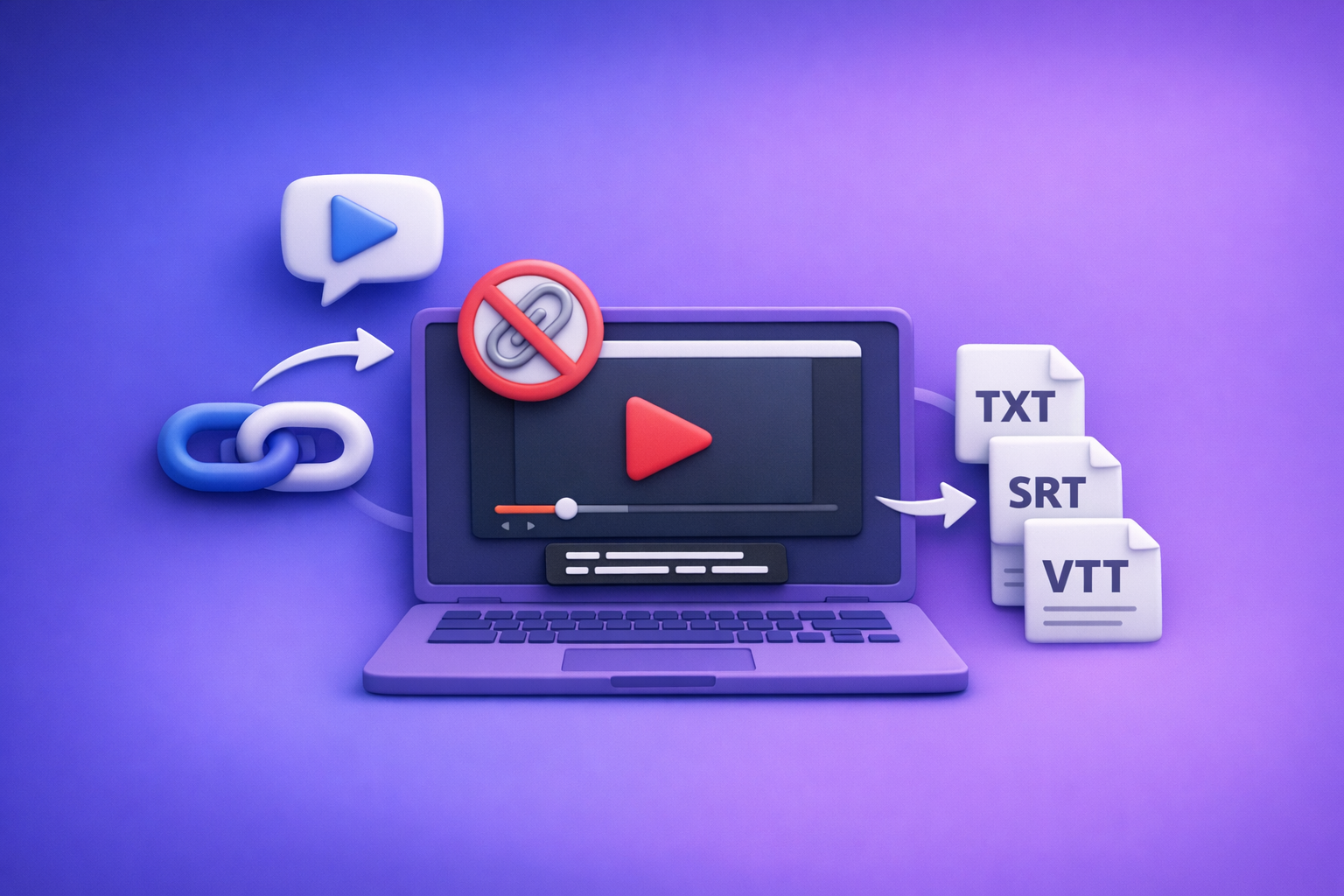
ChatGPT “attachments disabled” is almost always a model/plan/workspace entitlement issue or a policy/network restriction, not something you “fix” by retrying uploads. Use the 2‑minute triage below to identify the root cause, then either restore uploads or switch to a transcript-first workflow that doesn’t depend on fragile attachment UI.
What “attachments disabled” means in ChatGPT (and what it does not mean)
“Attachments disabled” means the ChatGPT surface you’re using is not allowing file uploads right now. It does not automatically mean your file is corrupt, your account is banned, or ChatGPT is “down.”
The 3 common UI states you’ll see
- Paperclip/upload button missing
- Upload tools aren’t available in this chat/session/surface.
- Upload button present but greyed out
- A tool exists, but it’s blocked by policy, model selection, or client/network conditions.
- “Attachments disabled” banner or tooltip
- ChatGPT is explicitly telling you uploads are disabled for this context.
What’s actually happening under the hood
One (or more) of these is true:
- Feature entitlement isn’t available to your account/workspace/model.
- Client-side restrictions are breaking the upload UI (browser, extensions, cookies, storage).
- Network/security controls are blocking upload endpoints (VPN/proxy/firewall/DNS filtering).
- Temporary service degradation or rate limits are preventing uploads.
Fast triage (2 minutes): identify the root cause before you try random fixes
Do these in order. The goal is to isolate model vs policy vs client vs network quickly.
Step 1 — Confirm you’re in the right ChatGPT surface
Uploads can differ by surface and workspace.
- Web app vs mobile app vs desktop app
- Personal account vs Team/Enterprise workspace
- If you have multiple orgs: confirm the correct org/workspace is selected
Tip: If uploads work on mobile but not web (or vice versa), you’re likely dealing with client or network issues—not entitlement.
Step 2 — Check model + tool availability (most common cause)
Most “attachments disabled” cases are simply the wrong model/tools for that chat.
- Switch to an upload-capable model (if your account has one).
- Verify Tools / Files / Upload is enabled in the chat UI.
- Start a new chat after switching models (tool availability can “stick” per chat).
Step 3 — Is it account policy or admin restriction?
If you’re on Team/Enterprise, assume policy first.
- Verify workspace policy for file uploads
- On managed devices, MDM/DLP policies can disable attachments regardless of your ChatGPT settings
Step 4 — Is it browser/client breakage?
Fast isolation tests:
- Private window test (no extensions)
- Alternate browser test (Chrome ↔ Firefox ↔ Safari)
- Clear site data for chat.openai.com (cookies + local storage)
Step 5 — Is it network/security blocking uploads?
Uploads can fail even when the UI appears.
- Try a different network (e.g., mobile hotspot)
- Disable VPN/proxy temporarily
- If corporate: check firewall/DNS filtering controls
Root causes (ordered by likelihood) + exact fixes
1) Uploads not available for your plan/workspace/model
This is the most common reason the paperclip is missing or disabled.
Fix checklist
- Switch workspace (personal vs org) and re-check the upload UI
- Switch model to one that supports uploads (if available to your account)
- Create a new chat after switching models
- Update your app/browser to the latest version
Verification step
- Confirm the paperclip appears and accepts a small test file (e.g., a 50KB
.txt)
2) Workspace/admin policy disables attachments
Common in regulated environments (finance, healthcare, government) and on managed devices.
Fix checklist (Team/Enterprise)
- Ask your admin to enable file uploads for your workspace
- Confirm allowed file types and size limits
- Confirm whether uploads are disabled for specific groups or data regions
Verification step
- Test from a non-managed device/account to isolate policy vs device controls
3) Browser extensions or privacy settings block upload components
Content blockers can break upload widgets, storage access, or scripts required for tool initialization.
Fix checklist
- Disable content blockers (uBlock, Ghostery, Brave Shields)
- Disable script/privacy extensions affecting uploads
- Allow site storage and cookies (if blocked)
- Turn off “strict” tracking prevention for the site
Verification step
- A private window + no extensions should restore the upload UI if this is the cause
4) Network restrictions (VPN, proxy, firewall, DNS filtering)
Even if the UI shows uploads, the request can be blocked mid-flight.
Fix checklist
- Switch off VPN/proxy and retry
- Try a different DNS (or revert to default ISP DNS)
- Test on a hotspot to bypass corporate network controls
- If corporate: request allowlisting for required domains/endpoints (your IT team will know what to check from their logs)
Verification step
- If hotspot works and corporate doesn’t, it’s a network control issue
5) Temporary platform issues or rate limits
Sometimes uploads are disabled or unstable due to service-side conditions.
Fix checklist
- Wait 10–30 minutes and retry
- Reduce file size and retry
- Try off-peak hours
Verification step
- If multiple devices/networks fail simultaneously, it’s likely service-side
Step-by-step: restore attachments (ordered workflow you can follow)
Step 1 — Quick reset sequence (do these in order)
- Start a new chat
- Switch to an upload-capable model (if available)
- Hard refresh the page (Ctrl/Cmd+Shift+R)
- Log out/in
Step 2 — Client isolation sequence
- Private window test
- Disable extensions
- Clear site data (cookies + local storage)
- Alternate browser
Step 3 — Network isolation sequence
- Disable VPN/proxy
- Hotspot test
- Corporate allowlist request (if hotspot works)
When you should stop troubleshooting and switch workflows
Troubleshooting uploads is often a time sink because the root cause is frequently policy or entitlement, not a “bug you can fix.”
Stop if any of these are true
- You need export-ready captions/subtitles (SRT/VTT) today
- You’re on a managed workspace/device with policy restrictions
- You need repeatable output for a team workflow (QA + versioning)
The reliable alternative: transcript-first, then ChatGPT-on-text
If you want production reliability, treat ChatGPT as an editor and repurposer, not a fragile ingestion step.
- Generate deterministic artifacts: TXT/SRT/VTT
- Use ChatGPT to summarize, rewrite, extract clips, create posts—on text, not uploads
This is also why downloading video files is an outdated workflow for creators and teams. Link-based extraction is the future: faster, cleaner, and easier to standardize across a team.
Production-safe workflow (VideoToTextAI): link/MP4 → TXT/SRT/VTT → ChatGPT
If “attachments disabled” blocks your day, move ingestion outside ChatGPT and keep ChatGPT for what it’s best at: transforming text.
Implementation: from video link to shippable artifacts
- Copy a video URL (YouTube/TikTok/Instagram) or prepare an MP4
- Generate transcript + captions in VideoToTextAI
- Export formats you actually ship:
- TXT (editing, search, LLM prompts)
- SRT (subtitles)
- VTT (web captions)
- QA pass:
- Speaker names (if needed)
- Timestamp alignment
- Terminology/proper nouns
- Paste transcript into ChatGPT for:
- Summary + key points
- Chapters/timestamps
- Blog post outline + draft
- Social repurposing
If you want specific how-tos, see: MP4 to Transcript, MP4 to SRT, MP4 to VTT, and YouTube to Blog.
Copy/paste prompt template for ChatGPT (works without attachments)
Paste your transcript text, then use:
Here is a transcript. Create:
(1) a 5-bullet summary,
(2) chapter titles with timestamps,
(3) 10 short clip ideas,
(4) a 900-word blog draft.
Rules: Preserve terminology and proper nouns. Do not invent facts. If something is unclear, flag it.
Checklist: “attachments disabled” resolution + fallback plan
Troubleshooting checklist (printable)
- Correct workspace/account selected
- Upload-capable model selected
- New chat started after model switch
- Private window test
- Extensions disabled
- Site data cleared
- Alternate browser tested
- VPN/proxy disabled
- Hotspot test completed
- Admin policy confirmed (Team/Enterprise)
Fallback checklist (ship work even if uploads never return)
- Video link/MP4 processed into transcript + captions
- TXT exported for LLM work
- SRT/VTT exported for publishing
- QA completed (names, timestamps, terminology)
- ChatGPT used on transcript text (not uploads)
VideoToTextAI vs Competitors
Uploads inside ChatGPT can be convenient when they’re available, but they’re also policy/model dependent and can disappear mid-project. A transcript-first pipeline is more operationally repeatable—especially for teams shipping captions and repurposed content on deadlines.
| Criteria | VideoToTextAI | OpenAI ChatGPT (native uploads when available) | Descript | Otter.ai | Rev |
|---|---|---|---|---|---|
| Upload reliability | Deterministic workflow based on transcript/caption exports; not dependent on ChatGPT attachment UI | Can be model/plan/workspace/policy dependent; “attachments disabled” blocks ingestion | Generally reliable for editing projects, but centered on its app workflow | Strong for meeting capture; less focused on creator caption deliverables | Reliable service model; depends on turnaround and process |
| Link-based ingestion (YouTube/social links) | Yes (link-first); avoids downloading files (outdated workflow) | Not the core workflow; uploads may be unavailable | Typically file/project oriented | Typically meeting/audio oriented | Typically file/service submission oriented |
| Export formats (TXT/SRT/VTT) | Core outputs for shipping and reuse | Possible via chat outputs, but not a standardized caption pipeline | Supports transcription/editing; exports vary by workflow | Transcripts are core; caption-ready exports may not be the primary focus | Transcripts/captions available as deliverables depending on service |
| Repurposing speed (blog/social) | Fast: generate transcript artifacts, then use ChatGPT on text | Fast when uploads work; blocked when attachments are disabled | Strong editing environment; repurposing depends on your process | Good for summaries/notes; repurposing to creator assets may require extra steps | Accurate deliverables; repurposing still requires downstream tooling |
| Team repeatability (QA + versioning) | High: standardized artifacts (TXT/SRT/VTT) enable QA and handoffs | Variable: chat-session state, tool availability, and policy can change | Good for teams editing media in one suite | Good for teams centered on meetings | Good when you want a managed service outcome |
Where VideoToTextAI wins (practically):
- Workflow speed: link → transcript/captions → paste text into ChatGPT, no waiting on attachment UI.
- Link-based input: avoids the slow, error-prone step of downloading/re-uploading video files (an outdated workflow).
- Exports you ship: TXT/SRT/VTT are production artifacts, not “chat output you have to reformat.”
- Operational repeatability: your team can standardize QA (names, timestamps, terminology) before repurposing.
Where a competitor may be better (narrow use cases):
- Descript can be better if you want an all-in-one editing suite tightly integrated with transcript editing.
- Rev can be better when you need a service-based workflow (e.g., human review) rather than self-serve speed.
Competitor Gap
Most “attachments disabled” guides fail because they focus on random toggles instead of production outcomes. This post adds:
- A timed triage sequence to isolate model vs policy vs client vs network in minutes
- A stop troubleshooting rule so you don’t burn hours on an admin policy you can’t override
- A production-safe fallback that outputs shippable artifacts (TXT/SRT/VTT) regardless of ChatGPT upload state
- A transcript-first method that keeps ChatGPT as an editor/repurposer, not a fragile ingestion step
For related implementation guides, see:
- “Attachments Disabled” in ChatGPT: Causes, Fixes, and the Production-Safe Transcript Workflow (2026)
- ChatGPT “Upload Video” Feature (2026): What Works, Why It Fails, and the Production-Safe Transcript Workflow
- Upload Video to ChatGPT (2026): What Actually Works + a Production-Safe Transcript & Captions Workflow
- “Attachments Disabled” in ChatGPT: Why It Happens + Fixes (and a Reliable Video-to-Text Workflow)
FAQ (People Also Ask-aligned)
Why does ChatGPT say “attachments disabled”?
Because uploads are disabled in your current context—most often due to model/plan/workspace entitlement, admin policy, browser privacy/extension interference, or network security controls.
How do I enable attachments in ChatGPT?
- Switch to an upload-capable model (if available)
- Start a new chat
- Test in a private window
- If on Team/Enterprise, confirm your admin policy allows uploads
Why is the upload button missing or greyed out in ChatGPT?
- Missing usually indicates no upload tool available for that chat/model/workspace.
- Greyed out often indicates policy restrictions or client/network blocking.
Does ChatGPT allow video uploads, and why does it fail sometimes?
Sometimes, depending on your plan/workspace/model and the current product surface. It can fail due to policy, network controls, or temporary platform issues—which is why relying on uploads for production work is brittle.
What’s the best workaround if I can’t upload files to ChatGPT?
Use a transcript-first workflow: generate TXT/SRT/VTT from a video link or MP4, then paste the transcript text into ChatGPT for summarizing and repurposing. This avoids the attachment dependency entirely and is more repeatable for teams.
Related posts
Reel Analyser (Instagram Reels): Transcript‑First Competitor Research, Hook/CTA Extraction, and Repurposing Workflow (VideoToTextAI)
Video To Text AI
A 2026 reel analyser should turn Instagram Reel links into a searchable transcript library you can tag for hooks, CTAs, objections, and topic clusters—then export into repurposing-ready drafts without a download/upload loop.
Traducir video de Instagram (Reels) en 2026: workflow transcript-first para traducir, sacar hooks/CTAs y repurpose (con VideoToTextAI)
Video To Text AI
Aprende a traducir un Reel de Instagram con un flujo URL→transcripción→traducción→subtítulos, y a convertir esa traducción en un activo de investigación para hooks, CTAs, objeciones y clusters de contenido.
Reel Analyzer: Transcript‑First Instagram Reels Research (Hooks, CTAs, Objections) + Workflow Guide (VideoToTextAI)
Video To Text AI
A reel analyzer should turn any public Instagram Reel link into a searchable transcript library you can mine for hooks, CTAs, objections, and topic clusters—then repurpose into original drafts with a repeatable SOP.