
Upload Video to ChatGPT (2026): What Actually Works + a Production-Safe Transcript & Captions Workflow
 Video To Text AI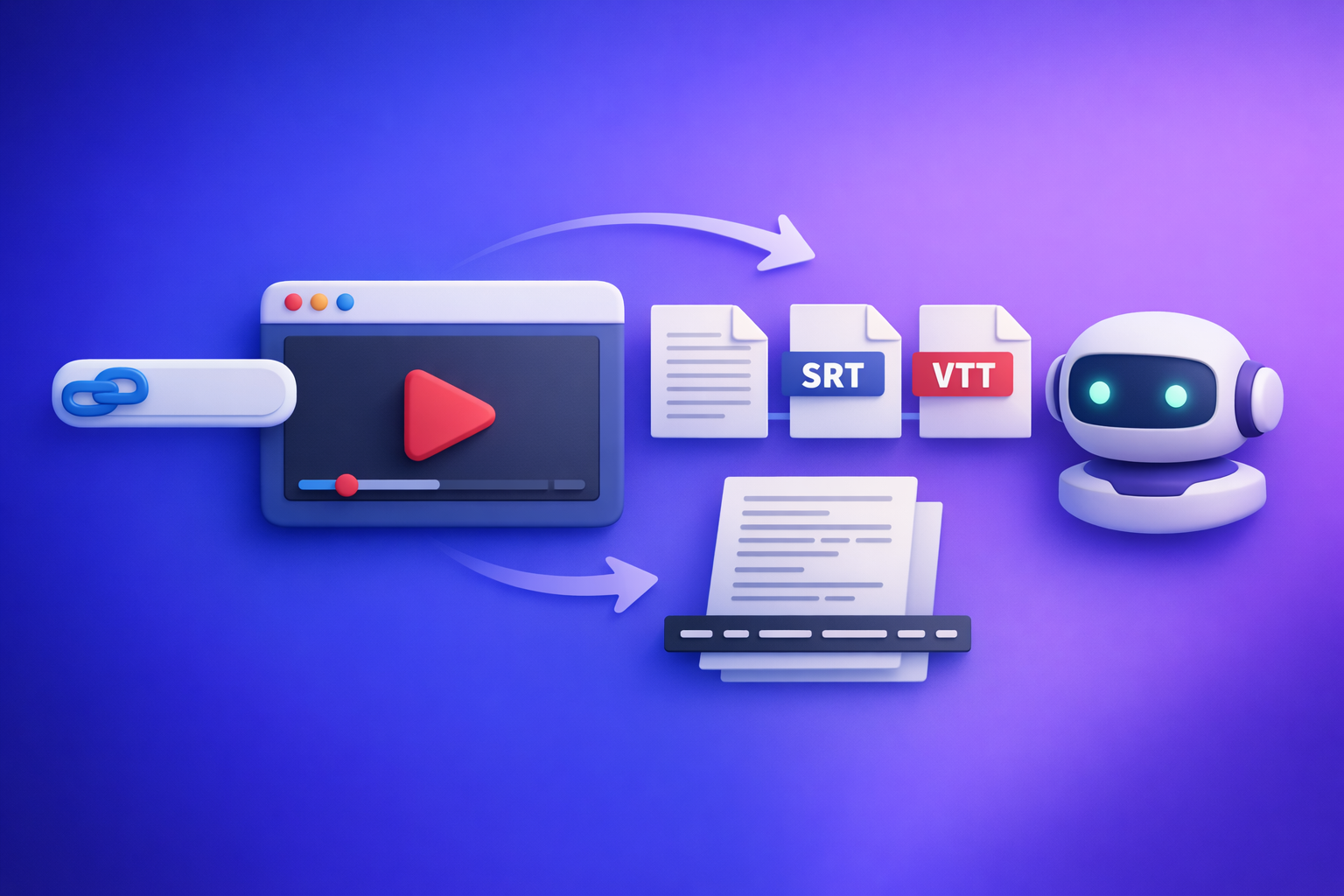
Upload Video to ChatGPT (2026): What Actually Works + a Production-Safe Transcript & Captions Workflow
If ChatGPT lets you attach an MP4, you can use it for quick analysis—but it’s not the most reliable way to get export-ready transcripts or captions. The production-safe approach is video link/MP4 → transcript/captions (TXT/SRT/VTT) → ChatGPT-on-text so you always have shippable artifacts even when uploads fail.
Search Intent + Outcome
- Intent: informational (“how to upload video to ChatGPT” + troubleshoot + get usable outputs)
- Reader goal: analyze a video with ChatGPT and/or produce export-ready transcript/captions (TXT/SRT/VTT)
- Outcome promised: a workflow that still works when ChatGPT upload fails: video link/MP4 → transcript/captions → ChatGPT on text
If you want deeper context on the feature itself, see: ChatGPT “Upload Video” Feature (2026): What Works, Why Uploads Fail, and the Production-Safe Link → Transcript Workflow.
Definitions: What “Upload Video” Means in ChatGPT
ChatGPT can “see” video in different ways (not all are true uploads)
Depending on your account and UI, “upload video” can mean:
- Uploading a video file (attachments enabled): you attach an MP4 directly in chat.
- Sharing a link (YouTube/Drive/etc.): ChatGPT may not actually fetch or “watch” the video end-to-end.
- Uploading frames/screenshots: useful for visual interpretation, not full video comprehension.
- Providing transcript/captions: the most reliable path for summaries, chapters, repurposing, and SEO assets.
Key takeaway: if your deliverable is text (transcript/captions), treat the transcript as the source of truth and use ChatGPT to transform it.
When ChatGPT is the wrong tool for the job
ChatGPT is excellent for rewriting and structuring, but it’s not designed to be your primary captioning pipeline when you need:
- Deterministic artifacts you can ship: TXT, SRT, VTT
- Timecodes, speaker labels, and caption formatting rules (line length, reading speed)
- A workflow that survives account/model/browser variability
If you’re repeatedly hitting upload issues, also read: “Attachments Disabled” in ChatGPT: Causes, Fixes, and the Production-Safe Transcript Workflow (2026).
Prerequisites: Before You Try to Upload a Video
Account + model requirements to check
Before troubleshooting anything else, confirm:
- You’re in the correct account/workspace where attachments are allowed.
- You’ve selected an upload-capable model (if your UI offers model switching).
- You’re not in a restricted environment (enterprise policy, managed device, locked-down browser).
If you’re seeing “attachments disabled” specifically, this related guide can help: “Attachments Disabled” in ChatGPT Image Upload: Causes, Fixes, and a Production-Safe Video-to-Text Workflow (2026).
File constraints to validate (before troubleshooting)
Even when uploads are enabled, file issues can cause failures or low-quality outputs:
- Format: MP4 is the safest default.
- Size/duration: keep a short test clip (30–60 seconds) for diagnostics.
- Audio quality: low volume, heavy noise, or crosstalk increases transcription errors in any tool.
Step-by-Step: Upload Video to ChatGPT (Web + Mobile)
Web app steps (fast path)
- Open a new chat.
- Confirm the attachment/upload control is visible.
- Upload the MP4.
- Prompt for the output you want (analysis vs transcript vs captions).
- Verify output quality (spot-check quotes, sections, and any timestamps provided).
Reality check: even if ChatGPT accepts the file, it may not produce publish-ready SRT/VTT with accurate timecodes. Treat this as “analysis-first,” not “deliverables-first.”
Mobile app steps (fast path)
- Start a new chat.
- Tap the attachment control.
- Select the video from your device.
- Request the deliverable (summary, key moments, claims, etc.).
- Export/copy results (note limitations for SRT/VTT and timecodes).
Prompts that reduce rework (copy/paste)
Use prompts that constrain the output and reduce hallucinations:
- Summary + quotes
- “Summarize this video in 10 bullets, then extract 5 quotable lines with timestamps if available.”
- Chapters
- “Create a chapter outline with titles + 1–2 sentence summaries per chapter.”
- Claims audit
- “List claims made in the video and flag anything that sounds uncertain or unsupported.”
If your goal is a blog post from a YouTube video, a transcript-first workflow is faster and more consistent: YouTube to Blog.
Why “Upload Video” Fails: Root Causes + Fixes (Ordered Triage)
2-minute triage checklist (do these in order)
- Refresh + start a new chat (UI state can be stale).
- Switch model (if available) and re-check the attachment button.
- Try incognito/private window (rules out extensions/cookies).
- Disable ad/script blockers for the session.
- Try a different network (rules out firewall/proxy interference).
- Try the mobile app (rules out desktop browser constraints).
Common failure modes and what they usually mean
- “Attachments disabled”
- Usually: account/workspace policy, model limitation, or client/network restriction.
- Upload button missing/greyed out
- Usually: model/UI mismatch or policy restriction.
- Upload stalls
- Usually: network instability, file too large, or extension interference.
- Output is unusable
- Usually: missing timecodes, invented details, or incomplete coverage.
At this point, don’t keep fighting the UI. Switch to a deliverables-first pipeline.
The Production-Safe Workflow (Recommended): Link/MP4 → Transcript/Captions → ChatGPT-on-Text
Why this workflow is more reliable than uploading video to ChatGPT
This approach is “production-safe” because it creates artifacts you can QA and reuse:
- Produces exportable files (TXT/SRT/VTT) you can review and ship.
- Works even when ChatGPT attachments are disabled.
- Lets ChatGPT do what it’s best at: rewriting, structuring, repurposing, and generating SEO assets.
Brand POV (operational reality): downloading video files just to move them between tools is an outdated workflow. Link-based extraction is the future of creator productivity because it reduces friction, avoids storage churn, and makes repeatable pipelines possible.
Implementation: VideoToTextAI workflow (end-to-end)
Here’s the repeatable workflow teams use when they need consistent outputs:
- Input: paste a video link or upload an MP4 in VideoToTextAI.
- Generate a transcript (TXT) for editing and QA.
- Generate captions (SRT/VTT) for publishing.
- Run a quick QA pass (names, numbers, jargon, timestamps).
- Paste transcript into ChatGPT for:
- summaries, chapters, hooks, blog posts, social threads
- SEO metadata (titles, descriptions) grounded in the transcript
If you want direct tool entry points for common deliverables:
When you’re ready to run the link-based workflow end-to-end, use VideoToTextAI: VideoToTextAI
QA checklist (ship-ready transcript/captions)
Use this before publishing or handing off to clients:
- Speaker names correct (or consistently “Speaker 1/2”)
- Proper nouns verified (people, brands, locations)
- Numbers checked (prices, dates, metrics)
- Captions line length reasonable (readability)
- Timecodes align with scene changes (spot-check 3–5 points)
- Profanity/PII policy check (if publishing)
Use Cases: What to Do After You Have the Transcript
Repurpose into SEO content
Once you have a clean transcript, ChatGPT becomes a high-leverage editor:
- Turn transcript into a structured article (H2/H3, key takeaways, FAQs).
- Extract quotes and “definition” blocks for featured snippets.
- Build a “key moments” section that maps to chapters.
Tip: keep the transcript as the canonical source, then regenerate derivative assets when the video changes.
Repurpose into social content
From the same transcript, generate:
- LinkedIn post with a strong hook + 3 takeaways
- X thread with numbered insights
- Short-form hooks (first 2 seconds) and caption-ready overlays
- Carousel copy (slide titles + body text)
Repurpose into multilingual content
Transcript-first localization is simpler to QA than video-first localization:
- Translate the transcript.
- Regenerate captions for localized publishing.
- Keep language versions in version control (or at least dated exports).
VideoToTextAI vs Competitors
Below is a fair, workflow-focused comparison of common options people use when they search “upload video to ChatGPT.”
| Criteria | VideoToTextAI | ChatGPT video upload (native attachments) | YouTube auto-captions | Descript | Otter.ai |
|---|---|---|---|---|---|
| Reliability (works when uploads are disabled) | High (link/MP4 → text artifacts) | Variable (depends on account/model/policy) | High (inside YouTube) | High (app-based) | High (service-based) |
| Output formats (TXT/SRT/VTT) + export control | Designed for exportable artifacts | Not guaranteed as deterministic exports | Captions available, but workflow is platform-tied | Strong editing/export features | Strong transcript capture/export features |
| Timestamp accuracy + caption readiness | Caption-first workflow (SRT/VTT) | Often missing or inconsistent timecodes | Good baseline, may need cleanup | Good for editing, depends on project setup | Good for meeting-style audio; varies by source |
| QA workflow (editability, deterministic artifacts) | Artifacts you can QA + version | Chat output can drift; harder to “lock” | Limited QA controls; edits live in YouTube | Strong editor for polishing | Strong for review/collaboration in its environment |
| Speed + repeatability for teams | Repeatable link-based pipeline | Fast when it works; not operationally consistent | Fast for YouTube-only | Great for editing-heavy teams | Great for conversation/meeting capture |
| Link-based ingestion (YouTube/hosted video) vs file-only | Link-based supported (future-proof) | Link analysis often limited | YouTube-only | Typically project/file workflow | Often recording/import workflow |
Why VideoToTextAI wins (operationally):
- Workflow speed: you stop debugging uploads and start from a transcript/captions artifact you can reuse.
- Link-based input: avoids the outdated “download → re-upload” loop and supports modern creator pipelines.
- Exports + repeatability: TXT/SRT/VTT outputs are easier to QA, store, and rerun than chat-only outputs.
- Repurposing: once you have clean text, ChatGPT becomes a consistent repurposing layer.
Where competitors can be better (narrow use cases):
- YouTube auto-captions can be the quickest baseline if you only publish on YouTube and accept platform-bound editing.
- Descript is strong if your primary need is editing audio/video in a full editor.
- Otter.ai is often a fit for meetings and live conversations rather than video publishing pipelines.
- ChatGPT uploads are fine for quick analysis, but not a dependable captioning/export system.
Competitor Gap
Most “upload video to ChatGPT” guides miss the part that matters in production:
- A production-safe fallback when attachments are disabled (not just “try another browser”).
- A deliverables-first approach: transcript/captions as artifacts you can QA and ship.
- A repeatable checklist for troubleshooting + QA (not generic tips).
- A clear separation between:
- quick analysis (fine for ChatGPT)
- export-ready transcript/captions (needs a dedicated workflow)
If you want the long-form breakdown of what’s actually happening behind the UI, see: Upload Video to ChatGPT (2026): What Actually Works, Why Uploads Fail, and the Production-Safe Link → Transcript Workflow.
FAQ (People Also Ask-aligned)
Can you upload a video to ChatGPT?
Yes, sometimes—if your account/workspace and selected model support attachments. If it doesn’t work, use a transcript-first workflow and ask ChatGPT to operate on the text.
Why does ChatGPT say “attachments disabled” when I try to upload?
It’s typically a policy or capability mismatch: workspace restrictions, model limitations, managed device rules, or network controls. Run the triage checklist, then switch to transcript/captions generation if it remains blocked.
What video formats does ChatGPT support for uploads?
MP4 is the safest choice across tools and platforms. If you’re troubleshooting, test with a short MP4 clip to isolate whether the issue is format, size, or policy.
What’s the best way to get an accurate transcript and captions from a video?
Use a deliverables-first pipeline: generate TXT for editing and SRT/VTT for publishing, then QA names/numbers/timecodes. After that, use ChatGPT to summarize, structure, and repurpose from the verified transcript.
Can ChatGPT generate SRT or VTT captions reliably?
ChatGPT can format captions, but it’s not a deterministic caption generator and may produce inconsistent timing or invented timestamps. For publish-ready captions, generate SRT/VTT first, then use ChatGPT for rewriting and repurposing.
Implementation Checklist (Copy/Paste)
- Decide goal: analysis vs transcript/captions deliverables
- Attempt ChatGPT upload (use a short test clip)
- If upload fails: run 2-minute triage (new chat/model/incognito/extensions/network/mobile)
- If still blocked: generate TXT/SRT/VTT via a transcript-first workflow
- QA transcript/captions (names/numbers/timecodes/line length/PII)
- Use ChatGPT on transcript for summaries, posts, SEO assets
- Store artifacts (TXT/SRT/VTT) for reuse and versioning
Internal Link Plan
- ChatGPT “Upload Video” Feature (2026): What Works, Why Uploads Fail, and the Production-Safe Link → Transcript Workflow
- Upload Video to ChatGPT (2026): What Actually Works, Why Uploads Fail, and the Production-Safe Link → Transcript Workflow
- “Attachments Disabled” in ChatGPT: Causes, Fixes, and the Production-Safe Transcript Workflow (2026)
- “Attachments Disabled” in ChatGPT Image Upload: Causes, Fixes, and a Production-Safe Video-to-Text Workflow (2026)
- MP4 to Transcript
- MP4 to SRT
- MP4 to VTT
- YouTube to Blog
Related posts
Reel Analyser (Instagram Reels): Transcript‑First Competitor Research, Hook/CTA Extraction, and Repurposing Workflow (VideoToTextAI)
Video To Text AI
A 2026 reel analyser should turn Instagram Reel links into a searchable transcript library you can tag for hooks, CTAs, objections, and topic clusters—then export into repurposing-ready drafts without a download/upload loop.
Traducir video de Instagram (Reels) en 2026: workflow transcript-first para traducir, sacar hooks/CTAs y repurpose (con VideoToTextAI)
Video To Text AI
Aprende a traducir un Reel de Instagram con un flujo URL→transcripción→traducción→subtítulos, y a convertir esa traducción en un activo de investigación para hooks, CTAs, objeciones y clusters de contenido.
Reel Analyzer: Transcript‑First Instagram Reels Research (Hooks, CTAs, Objections) + Workflow Guide (VideoToTextAI)
Video To Text AI
A reel analyzer should turn any public Instagram Reel link into a searchable transcript library you can mine for hooks, CTAs, objections, and topic clusters—then repurpose into original drafts with a repeatable SOP.