
“Attachments Disabled for” ChatGPT: What It Means, Why It Happens, and How to Fix It (2026)
 Video To Text AI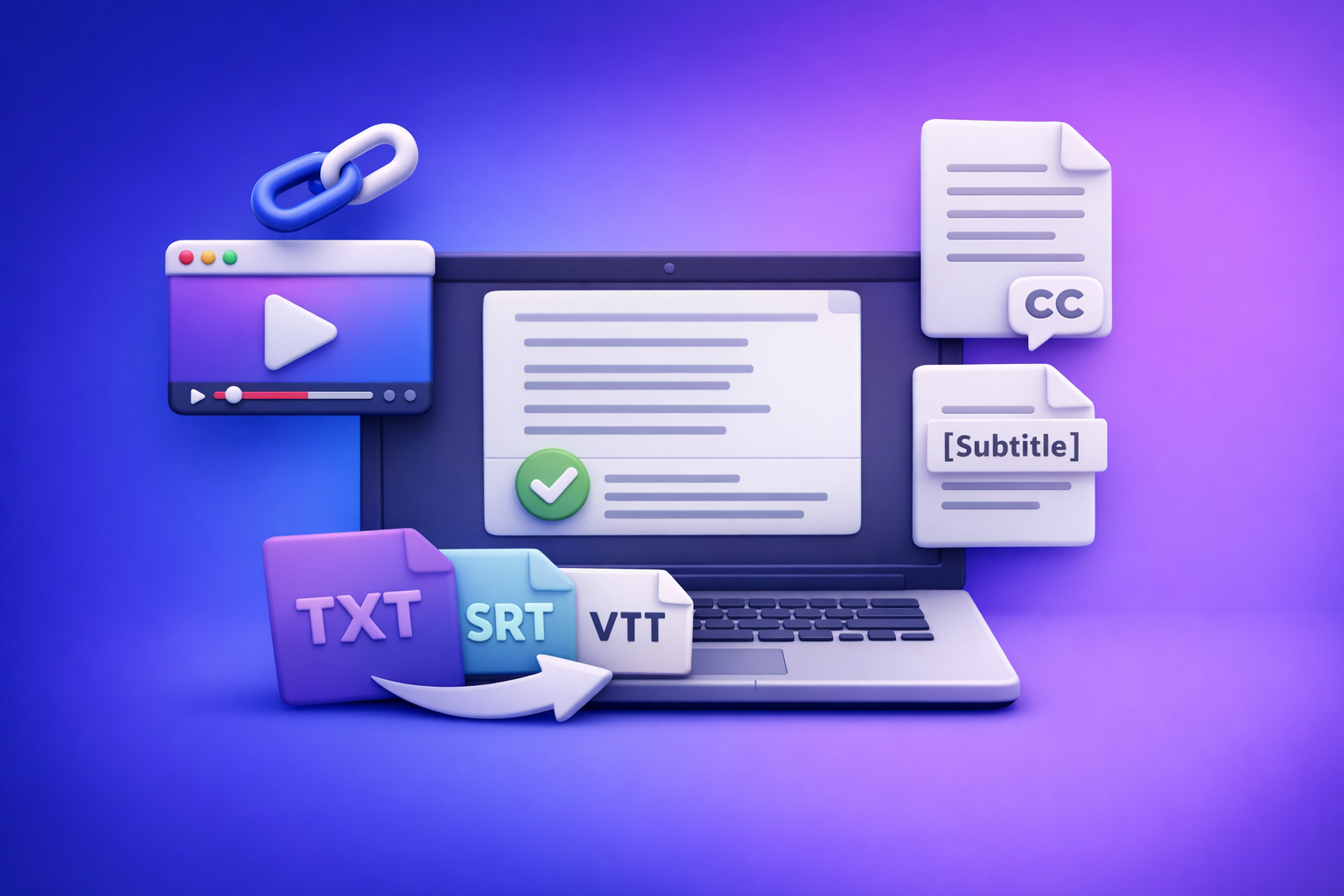
“Attachments Disabled for” ChatGPT: What It Means, Why It Happens, and How to Fix It (2026)
Fix “attachments disabled for” ChatGPT by checking the surface/workspace you’re in, switching to an upload-capable model, and testing in a clean browser/network. If you still can’t upload, stop waiting and ship via a transcript-first workflow (link/MP4 → TXT/SRT/VTT → ChatGPT-on-text).
Quick answer (what to do in the next 2 minutes)
If you need uploads right now
Run this in order (each step isolates a different root cause):
- Try another surface: same account, same chat—test mobile app or another browser.
- Confirm workspace: personal vs Team/Enterprise (managed policies often disable uploads).
- Switch model: pick a model that supports attachments in your environment, then re-check the paperclip.
- Clean test: open an incognito/private window with no extensions and retry.
- Network test: turn VPN off, then try a different network (mobile hotspot).
If you want a deeper version of this diagnostic flow, see: “Attachments Disabled” in ChatGPT: Causes, Fixes, and the Production-Safe Transcript Workflow (2026).
If you just need the work done (no uploads required)
Use a production-safe approach that doesn’t depend on ChatGPT uploads:
- Generate TXT + SRT/VTT from a video link or MP4 first.
- Paste the transcript into ChatGPT for summaries, repurposing, SEO drafts, and edits.
This is the modern workflow: downloading video files is outdated, and link-based extraction is the future of creator productivity—faster, repeatable, and easier to QA.
Related: Upload Video in ChatGPT (2026): What Works, What Breaks, and the Production-Safe Transcript Workflow
What “attachments disabled for” means in ChatGPT (and what it doesn’t)
“Attachments disabled for …” is a client/UI restriction: the chat surface won’t let you add files/images in that context. It’s usually caused by policy, model capability, client breakage, or network controls.
Common UI states (and what each one implies)
- Greyed-out paperclip / “Add files” disabled
- Attachments are not available in this chat context or the client can’t initialize upload features.
- “Attachments disabled for …” tooltip (often truncated)
- A feature gate is being applied (workspace policy, model mismatch, or surface limitation).
- Upload button missing entirely
- Often indicates a surface/model mismatch, a managed workspace policy, or a client rendering/script issue.
What it does not mean
- Not automatically an account ban
- Not proof of a platform-wide outage
- Not necessarily a billing problem
If you’re seeing “Add files” specifically, this companion guide is useful: “Add Files” Button Unavailable in ChatGPT (2026): Causes, Fixes, and a Production-Safe Transcript Workflow
2-minute triage: identify the root cause fast (ordered)
Step 1 — Confirm surface: web vs mobile app vs desktop wrapper
What to test
- Same account, same chat:
- Web browser
- Mobile app
- Another browser profile (or another device)
How to interpret results
- Works on mobile but not desktop: likely browser profile/extensions or desktop network controls.
- Works in one browser but not another: likely extensions, site data, or browser version.
Step 2 — Confirm account + workspace context (personal vs Team/Enterprise)
How to verify you’re in the intended workspace
- Check the workspace selector (personal vs org-managed).
- Confirm the chat is created under the workspace you expect.
Why managed workspaces disable uploads by policy
- Team/Enterprise admins can restrict uploads for compliance, DLP, or security.
- The UI will often show “disabled” rather than a detailed policy message.
Step 3 — Switch to an upload-capable model (then re-check the paperclip)
What “model mismatch” looks like
- Paperclip is disabled only in certain chats/models.
- Starting a new chat and changing model makes the paperclip reappear.
Validation test
- Try attaching a tiny TXT or small PNG (fastest way to rule out size/format issues).
For video-specific constraints, also see: ChatGPT “Upload Video” Feature (2026): What Works, Why It Fails, and the Production-Safe Transcript Workflow
Step 4 — Test a clean browser profile (fast isolation)
- Use Incognito/Private mode.
- Disable extensions:
- Ad blockers
- Privacy tools
- Script blockers
- Try a second browser (Chrome/Edge/Firefox/Safari).
Step 5 — Isolate network interference
- Toggle VPN on/off.
- If you’re on corporate Wi‑Fi:
- Proxy / SSL inspection can break upload initialization.
- DNS filtering/security gateways can block required endpoints.
- Test on a different network (mobile hotspot is the fastest control).
Step 6 — Check for temporary service degradation
Outage-like symptoms
- Upload UI appears/disappears across devices.
- Errors change rapidly, intermittent failures.
Persistent restriction symptoms
- Same tooltip every time, across sessions, for the same workspace/model.
Evidence to capture before retrying
- Screenshot of the tooltip
- Timestamp
- Surface (web/app), browser version, workspace name
Root causes (most common) + exact fixes
Account / plan / workspace restrictions
Symptoms
- Uploads disabled only in an org workspace.
- Other users in the same org report the same limitation.
- Paperclip missing/greyed out consistently in that workspace.
Fix sequence
- Switch to personal workspace (if available).
- Ask your admin to enable file uploads (Team/Enterprise policy).
- Log out/in after policy changes (forces entitlement refresh).
Model / feature mismatch
Symptoms
- Uploads work in some chats but not others.
- Starting a new chat changes attachment availability.
Fix sequence
- Start a new chat.
- Select a model known to support attachments in your environment.
- Re-test with a known-good small file (TXT/PNG).
Browser/client issues (most common on desktop)
Symptoms
- Works on mobile but not desktop.
- Works in incognito but not your normal profile.
- Upload button missing after an update or extension change.
Fix sequence
- Hard refresh + clear site data for ChatGPT.
- Disable extensions (start with ad blockers/script blockers).
- Try a clean browser profile.
- Update browser to latest stable.
Network/security tooling blocking uploads
Symptoms
- Upload UI loads, but attaching fails or never starts.
- Works on hotspot but not on office Wi‑Fi.
- Only fails behind VPN/proxy.
Fix sequence
- Disable VPN.
- Try alternate network.
- IT action item: whitelist required domains in firewall/proxy and relax SSL inspection for upload endpoints (where policy allows).
App-specific issues (iOS/Android/Safari)
Symptoms
- iOS Safari shows disabled states while Chrome works.
- App UI missing upload controls after OS update.
Fix sequence
- Update app / iOS/Android version.
- Reinstall app.
- Use web on an alternate browser as a control test.
Step-by-step: restore attachments (implementation walkthrough)
Step 1 — Capture evidence (so you don’t loop)
Capture this once, then troubleshoot:
- Screenshot of tooltip text (“attachments disabled for …”)
- Timestamp
- Browser/app version
- Workspace name (personal vs org)
Step 2 — Run the ordered triage (no skipping)
Use the triage order above to isolate:
- Surface issue (web vs mobile)
- Workspace policy issue
- Model mismatch
- Browser profile/extension issue
- Network/security issue
Skipping steps usually causes wasted time because different failures look identical in the UI.
Step 3 — Apply the matching fix
- Account/policy fix: switch workspace or ask admin.
- Model fix: new chat + upload-capable model.
- Browser fix: clear site data + disable extensions + update.
- Network fix: VPN off + alternate network + IT whitelist.
Step 4 — Validate with a known-good attachment
Validate with a tiny TXT or PNG first.
This avoids false positives caused by:
- file size limits
- unsupported formats
- slow networks
Step 5 — If still blocked: switch to a production-safe workflow (below)
If you’re blocked by policy or corporate controls, you may not be able to “fix” uploads locally. In that case, the fastest path is to remove the dependency on ChatGPT attachments.
The production-safe fallback: Link/MP4 → TXT/SRT/VTT → ChatGPT-on-text
Why this works when ChatGPT attachments are disabled
- Removes dependency on ChatGPT upload entitlements/policies.
- Produces export-ready artifacts you can QA and ship (TXT/SRT/VTT).
- Keeps ChatGPT focused on text tasks: summaries, repurposing, SEO drafts, editing.
This is also why download/upload loops are outdated: they add friction, break in managed environments, and don’t produce consistent deliverables. Link-based extraction is the creator-speed default going forward.
If your end goal is content, start with text outputs: MP4 to Transcript, MP4 to SRT, and MP4 to VTT.
Workflow A (fastest): paste a video link → get transcript + captions
Steps
- Copy the video URL (YouTube/TikTok/Instagram/Reels).
- Generate transcript + captions (TXT/SRT/VTT).
- QA: spot-check timestamps + speaker turns (if applicable).
- Paste transcript into ChatGPT for analysis/repurposing.
Deliverables to export
- TXT (editing + SEO)
- SRT/VTT (captions/subtitles)
For turning a video into a publishable post quickly, see: YouTube to Blog.
Workflow B: upload MP4 → export transcript/subtitles
Steps
- Upload MP4.
- Export TXT + SRT + VTT.
- QA and finalize.
- Use ChatGPT on the exported text (not the video).
Copy/paste prompt blocks (use ChatGPT without attachments)
Prompt: clean transcript + fix punctuation
You are an editor. Clean this transcript for readability without changing meaning.
- Fix punctuation and capitalization
- Remove filler words only when it improves clarity
- Keep speaker labels (if present)
- Preserve timestamps if included

Transcript:
[PASTE HERE]
Prompt: generate YouTube description + chapters from timestamps
Create:
1) A YouTube description (150–250 words) with a clear hook, summary, and 3 bullet takeaways
2) Chapters using the timestamps already in the transcript (MM:SS format)
3) 10 SEO-friendly tags

Transcript:
[PASTE HERE]
Prompt: repurpose into blog outline + LinkedIn post + X thread
Repurpose this transcript into:
1) A blog outline with H2/H3s and key points per section
2) A LinkedIn post (120–180 words) with a strong opening and 1 CTA line
3) An X thread (8–12 tweets) with a clear narrative arc

Transcript:
[PASTE HERE]
Checklist: fix “attachments disabled for” or ship anyway
Troubleshooting checklist (attachments)
- Confirm surface (web vs mobile)
- Confirm workspace/account (personal vs Team/Enterprise)
- Switch model and re-test
- Clean browser profile / disable extensions
- Alternate network / disable VPN
- Validate with small TXT/PNG
Delivery checklist (production-safe transcript workflow)
- Transcript exported as TXT
- Captions exported as SRT + VTT
- QA pass completed (names, jargon, timestamps)
- Repurposed assets generated from transcript (blog/social/email)
If you need more context on attachment failures across scenarios, see: “Attachments Disabled” in ChatGPT: Causes, Fixes, and the Production-Safe Transcript Workflow (2026).
VideoToTextAI vs Competitors
When ChatGPT uploads are disabled or unreliable, the winning strategy is to stop depending on in-chat attachments and move to link-based, export-ready transcription. That’s where VideoToTextAI fits: it’s built for AI link-based video-to-text workflows that output TXT/SRT/VTT you can QA, ship, and reuse.
Below is a fair comparison using only publicly signaled capabilities from the research block.
| Tool | Link-based input (paste URL) | Upload-based input | Export-ready outputs (TXT/SRT/VTT) | Repurposing support | Best fit |
|---|---|---|---|---|---|
| VideoToTextAI | Yes (URL-first workflow) | Yes (MP4 workflow) | Yes (TXT/SRT/VTT focus) | Yes (transcript → content workflows) | Fast, repeatable creator/team delivery when uploads are blocked or you need shippable captions |
| Reduct Video (reduct.video) | No strong public signal | Not clearly positioned as link-first | Transcript export (subtitle exports not strongly signaled) | Summaries are signaled; repurposing not strongly positioned | Collaborative transcript-based review/editing for teams working with talking-head content |
| Canva (canva.com) | No strong public signal | Yes | Transcript/captions features are signaled; export specifics vary by workflow | Not strongly positioned for blog/social repurposing from transcripts | Design-first teams who want captions inside a broader creative suite |
| Zapier (zapier.com) | No strong public signal | Not a transcription tool itself | Depends on connected apps | Automation platform; transcription is indirect | Teams automating multi-app workflows (when transcription is one step among many) |
Why VideoToTextAI wins (when the goal is shipping content fast):
- Workflow speed: URL-first beats download/upload loops. A paste-a-link workflow removes file handling, reduces failure points, and is easier to repeat across a team.
- Export readiness: production deliverables like TXT + SRT/VTT are what you actually ship (captions, subtitles, SEO-ready text), not just “a transcript in a UI.”
- Operational repeatability: consistent artifacts (files you can store, QA, and version) are more reliable than hoping a chat surface allows attachments today.
- Repurposing leverage: once you have clean text outputs, ChatGPT becomes a downstream editor—summaries, SEO drafts, and social posts—without needing uploads.
Where competitors can be better (narrower jobs):
- If you need a design suite around captions, Canva can be a better fit.
- If you need collaborative transcript review/editing in a dedicated environment, Reduct may fit better.
If you want to move to the URL-first workflow and stop fighting attachment gates, use VideoToTextAI once here: https://videototextai.com
Competitor Gap
What top results and forums typically miss
- No ordered triage that isolates account vs model vs browser vs network.
- Little guidance on validating with a known-good file to avoid false positives.
- Over-reliance on “try again later” instead of a ship-ready fallback.
What this post adds (differentiators)
- A 2-minute diagnostic sequence with interpretation rules (so you stop guessing).
- An implementation walkthrough + two fallback workflows.
- A delivery checklist focused on export-ready transcript/captions.
FAQ
Why are attachments disabled on ChatGPT?
Most commonly: workspace policy restrictions, model/feature mismatch, browser/client issues, or network/security tooling interfering with uploads. The UI message is often generic and truncated, so you need the ordered triage to isolate the class of failure.
Why are my ChatGPT uploads disabled?
Uploads are frequently disabled in managed Team/Enterprise workspaces or in certain surfaces/models. If it works on mobile but not desktop, suspect extensions, cached site data, or corporate proxy/VPN interference.
Why am I not able to attach files in ChatGPT?
Start by confirming you’re in the right workspace, then switch to a model that supports attachments in your environment. If that fails, test incognito/no extensions and an alternate network; those two steps catch the majority of desktop upload failures.
Why are my ChatGPT attachments greyed out?
A greyed-out paperclip usually means attachments aren’t available in that chat context (policy/model) or the client can’t initialize upload features due to extensions, blocked scripts, stale site data, or network inspection.
Internal Link Plan
- “Attachments Disabled” in ChatGPT: Causes, Fixes, and the Production-Safe Transcript Workflow (2026)
- “Add Files” Button Unavailable in ChatGPT (2026): Causes, Fixes, and a Production-Safe Transcript Workflow
- Upload Video in ChatGPT (2026): What Works, What Breaks, and the Production-Safe Transcript Workflow
- ChatGPT “Upload Video” Feature (2026): What Works, Why It Fails, and the Production-Safe Transcript Workflow
- MP4 to Transcript
- MP4 to SRT
- MP4 to VTT
- YouTube to Blog
Related posts
Reel Analyser (Instagram Reels): Transcript‑First Competitor Research, Hook/CTA Extraction, and Repurposing Workflow (VideoToTextAI)
Video To Text AI
A 2026 reel analyser should turn Instagram Reel links into a searchable transcript library you can tag for hooks, CTAs, objections, and topic clusters—then export into repurposing-ready drafts without a download/upload loop.
Traducir video de Instagram (Reels) en 2026: workflow transcript-first para traducir, sacar hooks/CTAs y repurpose (con VideoToTextAI)
Video To Text AI
Aprende a traducir un Reel de Instagram con un flujo URL→transcripción→traducción→subtítulos, y a convertir esa traducción en un activo de investigación para hooks, CTAs, objeciones y clusters de contenido.
Reel Analyzer: Transcript‑First Instagram Reels Research (Hooks, CTAs, Objections) + Workflow Guide (VideoToTextAI)
Video To Text AI
A reel analyzer should turn any public Instagram Reel link into a searchable transcript library you can mine for hooks, CTAs, objections, and topic clusters—then repurpose into original drafts with a repeatable SOP.