
ChatGPT “Upload Video” Feature: What Works in 2026 (and the Reliable Link → Transcript Workflow)
 Video To Text AI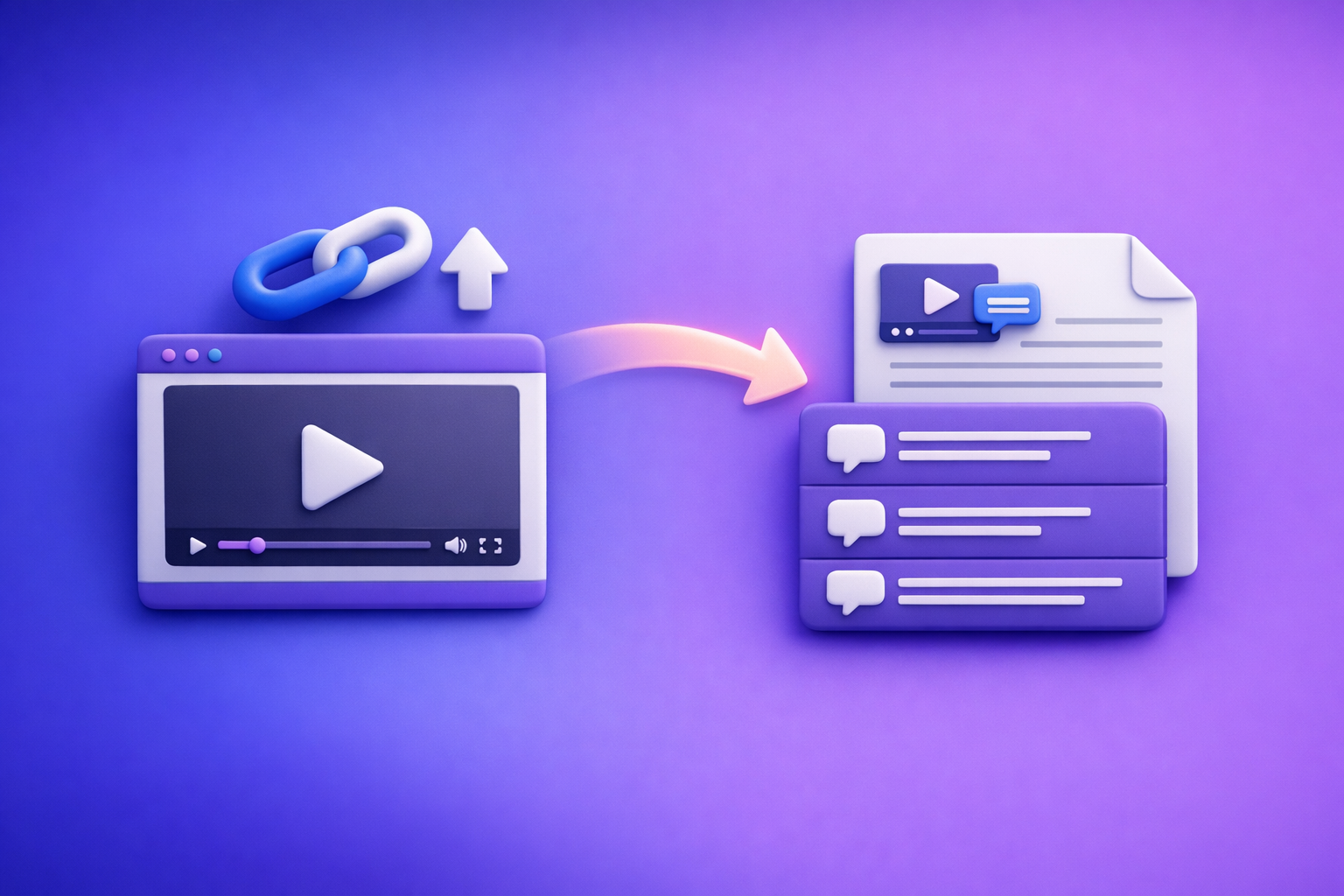
ChatGPT’s “upload video” feature is not a reliable way to get transcripts, subtitles, or captions in production. The dependable path in 2026 is video link/MP4 → transcript/SRT/VTT → ChatGPT on text for summaries, chapters, and repurposing.
Search intent + promise (what you’ll get from this guide)
If you’re trying to “upload a video to ChatGPT,” you’re usually aiming for one of three outcomes: analysis, transcription, or repurposing. Each outcome needs different inputs and produces different deliverables.
This guide shows what “upload video” really means in 2026, why it fails in real workflows, and the repeatable link-based workflow teams use to ship transcripts and captions consistently.
Who this is for (creators, marketers, ops, support, researchers)
- Creators & podcasters who need captions, chapters, and clip plans
- Marketing teams repurposing webinars into blogs, emails, and social posts
- Ops & enablement documenting calls, demos, and trainings
- Support & CX turning screen recordings into searchable knowledge
- Researchers extracting quotes and evidence from long recordings
What you’ll learn
- What ChatGPT video upload can do reliably vs. what it can’t
- The most common failure modes (and how to troubleshoot fast)
- A production workflow that outputs TXT + SRT/VTT and then uses ChatGPT for writing
Quick Answer: Can ChatGPT upload video?
Yes—sometimes—but availability and reliability vary by account, app, workspace settings, and rollout. Even when you can attach a video, it’s best treated as a best-effort analysis input, not a deterministic transcription pipeline.
When video upload is available
Video upload tends to depend on:
- Client: web vs. iOS vs. Android can differ
- Workspace: enterprise/admin settings may restrict uploads
- Feature rollouts: not all accounts get the same input modes at the same time
- Model/tool mode: some modes accept richer media; others don’t
What ChatGPT can reliably do with video today (and what it can’t)
Reliable (when upload works):
- High-level scene understanding (what’s happening, what’s shown)
- Q&A about visible elements in short clips
- Drafting ideas if you provide context and constraints
Not reliable for production:
- Word-for-word transcription with consistent timestamps
- Export-ready SRT/VTT captions
- Long video processing without timeouts or truncation
- Repeatable outputs for teams (versioning, handoff, re-runs)
The production-grade alternative
Use a deterministic pipeline:
- Video link or MP4 → transcript + subtitles (SRT/VTT)
- ChatGPT on the transcript for summaries, chapters, SEO content, and repurposing
This is also the brand POV: downloading video files as the default is outdated. Link-based extraction is the future of creator productivity because it’s faster to share, easier to automate, and more repeatable across teams.
What people mean by “ChatGPT upload video”
“Upload video” is overloaded. Clarify the job-to-be-done first.
Use case 1: “Analyze this clip” (scene understanding)
You want ChatGPT to answer questions like:
- What objects/actions appear?
- What’s the sequence of events?
- What’s wrong with this UI recording?
Best input: short clip or selected frames + a precise question.
Use case 2: “Transcribe this video” (word-for-word + timestamps)
You want:
- Accurate words
- Speaker labels (sometimes)
- Timestamps
- Export formats (SRT/VTT) for publishing
Best input: a transcription workflow that outputs deterministic text artifacts.
Use case 3: “Summarize and repurpose”
You want:
- Chapters and titles
- Blog post drafts
- LinkedIn/X threads
- Email newsletter copy
- Clip ideas with cut points
Best input: a clean transcript (with timestamps if you need chapters/clips).
Why these require different inputs and outputs
Video understanding is probabilistic and compute-heavy. Text artifacts (transcripts, SRT/VTT) are deterministic deliverables you can edit, version, search, and reuse—making them the correct “source of truth” for production workflows.
How to upload a video to ChatGPT (what to try, step-by-step)
If you still want to try ChatGPT video upload, here are the practical options.
Option A — Upload a local file (MP4/MOV) in ChatGPT
This is the most likely to work, but it’s still not guaranteed for long videos.
Step-by-step (web)
- Open ChatGPT in your browser.
- Start a new chat.
- Click the attachment/upload icon (if available).
- Select an MP4/MOV file.
- Add a prompt like:
“Analyze this 45-second clip. List key actions and any on-screen text.” - Send and wait for processing.
Step-by-step (iOS/Android) + common UI differences
- Open the ChatGPT app.
- Tap New chat.
- Tap + / attachment (varies by app version).
- Choose video from Photos or Files.
- Add a short, specific prompt (avoid “transcribe the whole thing”).
- Send.
Common differences:
- Some apps show Photos but not Files
- Some accounts show images only, not video
- Some workspaces disable attachments entirely
Option B — Share a link (YouTube/Drive) and why it often fails
Pasting a link is convenient, but it fails frequently because ChatGPT may not be able to fetch or decode it.
Public vs. unlisted vs. private links
- Public: best chance, still not guaranteed
- Unlisted: may work if no login is required
- Private: usually fails (login wall)
Permissions, geo-restrictions, DRM, and signed URLs
Links often fail due to:
- DRM (streaming platforms)
- Geo restrictions
- Signed URLs that expire
- Robots/anti-bot protections
- Drive/Dropbox permissions not accessible to the model
Option C — Upload frames/short clips + context (best-effort “analysis” workflow)
If your goal is analysis, reduce risk by constraining the input.
How to reduce failure risk
- Keep clips under 60–90 seconds
- Use lower resolution if upload fails
- Ensure audio is clear (if you’re asking about spoken content)
- Provide context: who/what/why, and the exact output format you want
Why ChatGPT video uploads fail (real-world causes + fixes)
Most failures aren’t “user error.” They’re predictable constraints.
Limits: file size, duration, processing timeouts
Symptoms:
- Upload stalls
- Processing never completes
- Partial output
Fixes:
- Trim to a shorter clip
- Upload fewer segments
- Switch to transcript-first workflow for anything long-form
Format/container issues: codec, audio track, variable frame rate
Symptoms:
- “Unsupported format”
- No audio detected
- Garbled results
Fixes:
- Re-export to H.264 MP4 with a standard audio track
- Avoid variable frame rate when possible
Access issues: private links, login walls, expiring tokens
Symptoms:
- “I can’t access that link”
- Hallucinated summary of a video it didn’t actually fetch
Fixes:
- Test the link in an incognito window
- Prefer public URLs or direct MP4 links
- Avoid expiring signed URLs for production
Client differences: web vs. mobile vs. enterprise workspaces
Symptoms:
- Upload button missing on one device
- Works on mobile but not web (or vice versa)
Fixes:
- Try another client
- Check workspace/admin restrictions
- Don’t build a team workflow on a UI-only capability
Policy/safety blocks and restricted content
Symptoms:
- Refusal messages
- Upload blocked
Fixes:
- Remove restricted content
- Use compliant clips
- For transcription needs, use a dedicated tool that outputs text artifacts you can review
Troubleshooting decision tree (symptom → likely cause → next action)
- No upload button → rollout/workspace restriction → try another client or account; don’t depend on it
- Upload fails instantly → file too large/unsupported → re-export to H.264 MP4 or trim
- Link “can’t be accessed” → permissions/DRM → use a public link or direct MP4
- Output is vague or wrong → model didn’t truly process video → switch to transcript-first workflow
- Need SRT/VTT → ChatGPT isn’t a caption exporter → generate subtitles first, then edit
The reliable workflow: Link/MP4 → Transcript/Subtitles → ChatGPT (VideoToTextAI)
If you need deliverables you can publish, edit, and hand off, transcribe first.
Why “transcribe first” wins
- Repeatability: same input → consistent outputs
- Exports: TXT/DOC + SRT/VTT are standard deliverables
- Team handoff: editors, marketers, and SEO can work from the same source
- SEO: transcripts become indexable content and FAQ material
- Speed: link-based extraction avoids the “download, re-upload, fail” loop
Downloading video files as the default is an outdated workflow. The future is link-based video-to-text: share a URL, generate artifacts, and reuse them everywhere.
What you get at the end (deliverables)
TXT/Doc transcript for editing + search
- Clean text for docs, wikis, and knowledge bases
- Searchable source of truth for future reuse
SRT/VTT captions for publishing
- Upload-ready captions for YouTube and players
- Timestamped segments for editing and clip selection
Repurposed assets (blog, LinkedIn, X, email, chapters)
- Content drafts generated from the transcript (not from raw video)
Step-by-step implementation (VideoToTextAI → ChatGPT)
This is the workflow teams standardize because it’s deterministic.
Step 1 — Choose your input type (video URL or MP4)
Supported sources to prioritize
- Public video URLs (fastest for teams)
- Direct MP4 links (most deterministic)
- YouTube links when publicly accessible
What to avoid
- Permissioned Drive links without verified access
- DRM platforms and paywalled streams
- Expiring signed URLs
Run the transcription using VideoToTextAI (single CTA): https://videototextai.com
Step 2 — Generate export-ready outputs in VideoToTextAI
Output selection: transcript + SRT + VTT (when to export each)
- Transcript (TXT/DOC): editing, summarizing, SEO, internal docs
- SRT: YouTube captions and many editors
- VTT: web players and some platforms that prefer WebVTT
Timestamp strategy (sentence-level vs. segment-level)
- Sentence-level: best for chapters, clip planning, quote extraction
- Segment-level: fine for basic captions, faster review
Step 3 — Quality pass before ChatGPT (2-minute checklist)
- Speaker labels: add if it’s an interview/panel or sales call
- Punctuation/paragraphs: fix obvious run-ons for better summarization
- Terminology: correct product names, acronyms, and proper nouns
Step 4 — Use ChatGPT on the transcript (copy/paste prompt pack)
Paste the transcript (or sections) and use prompts like these.
Prompt: clean up transcript without changing meaning
You are editing a transcript. Fix punctuation, paragraph breaks, and obvious transcription errors without rewriting. Preserve speaker labels and timestamps exactly as provided. Output the cleaned transcript only.
Prompt: create chapters + timestamps (from transcript timestamps)
Using the timestamps in this transcript, create 6–10 chapters. Each chapter must include: start timestamp, title (max 8 words), and 1-sentence summary. Do not invent timestamps—only use ones present in the transcript.
Prompt: extract key quotes, stats, and takeaways
Extract: (1) 10 quotable lines with timestamps, (2) any numbers/stats mentioned with timestamps, (3) 7 key takeaways as bullets. If a quote lacks a timestamp, skip it.
Prompt: generate a blog post outline + draft from transcript
Create an SEO blog post from this transcript. Provide: H1, meta description, H2/H3 outline, and a first draft. Keep claims grounded in the transcript; do not add facts not stated. Include an FAQ section with 5 Q&As derived from the transcript.
Prompt: create short-form clips plan (hooks + cut list from timestamps)
Create a short-form clips plan: 12 clip ideas. For each: hook line, start/end timestamps, on-screen caption text (max 12 words), and why it will perform. Use only timestamps from the transcript.
Step 5 — Publish + reuse (where each artifact goes)
YouTube captions (SRT/VTT)
- Upload SRT (or VTT if preferred) to improve accessibility and retention
- Keep the transcript as your editable master
Blog SEO (transcript sections, FAQs, schema-ready Q&A)
- Turn transcript sections into H2s
- Add FAQ answers pulled from the transcript
- Create internal links to related posts (see below)
Social repurposing (LinkedIn/X threads from transcript highlights)
- Pull 5–10 highlights with timestamps
- Convert to threads, carousels, and newsletter sections
Implementation Checklist (copy/paste)
Inputs checklist
- Link opens in an incognito browser (no login required)
- No DRM/geo restriction blocks access
- If uploading MP4: H.264 MP4, standard audio track, reasonable duration
- Audio is clear (minimal background noise)
VideoToTextAI run checklist
- Export Transcript + SRT + VTT
- Use consistent naming:
Project_Date_Source_V1 - Store transcript as the source of truth
- Keep a “cleaned transcript” version separate from the raw output
ChatGPT workflow checklist
- Run cleanup prompt first (no rewriting)
- Run chapters/clips prompts using timestamps
- Run repurposing prompts (blog/social/email)
- Human review: names, numbers, and claims
Publishing checklist
- Upload captions (SRT/VTT) to the platform
- Add transcript-derived FAQs to the blog post
- Add internal links to related resources
- Archive transcript + exports for future reuse
Common mistakes (and how to avoid them)
Expecting ChatGPT to fetch and decode a video link reliably
If the model can’t access the link, you’ll get vague output or hallucinations. Transcribe from a link using a dedicated workflow, then use ChatGPT on text.
Skipping subtitle exports and losing timestamps for editing
If you only keep a summary, you lose editability. Always export SRT/VTT so you can cut clips and publish captions.
Mixing transcription accuracy with rewriting (do them in separate passes)
First pass: accuracy (clean transcript, preserve meaning).
Second pass: style (blog voice, social hooks, email tone).
Using private links without verifying access from a clean browser session
If you can’t open it in incognito, assume ChatGPT can’t either. Prefer public links or direct MP4 URLs.
Not storing the transcript as the source of truth for future reuse
Your transcript is the asset that compounds. Store it, version it, and reuse it across channels.
Competitor Gap
Most guides stop at “how to upload” and ignore what teams actually need: production deliverables and a repeatable workflow.
What’s usually missing:
- Deterministic outputs (TXT/SRT/VTT) instead of best-effort chat responses
- A link-based workflow that avoids downloading/re-uploading files
- A team checklist for repeatable runs, naming, and versioning
- A prompt pack designed for transcript-first workflows (the reliable path)
- A troubleshooting decision tree tied to real failure modes (permissions, DRM, codecs)
Recommended VideoToTextAI tools (pick your workflow)
MP4 → transcript/captions
/tools/mp4-to-transcript/tools/mp4-to-srt/tools/mp4-to-vtt
Video → content repurposing
/tools/mp4-to-blog-post/tools/youtube-to-blog
FAQ
Does ChatGPT allow you to upload videos?
Sometimes. Availability varies by account, client, and rollout, and it’s not dependable for long videos or export-ready captions.
Can I upload a video to ChatGPT to analyze?
Yes, when the upload option is available. Keep clips short and ask specific questions for best results.
Why won’t ChatGPT let me upload videos?
Common reasons include missing feature access, file size/duration limits, unsupported codecs, timeouts, policy blocks, or inaccessible links (private/DRM/expired).
Can you upload videos to ChatGPT for free?
It depends on current plan limits and feature availability. Even when free upload works, it’s not a production caption/transcript pipeline.
How to upload a video to ChatGPT from iPhone (iOS)?
In the iOS app, tap New chat → +/attachment → Photos/Files → select video → send with a clear prompt. If you don’t see video options, your account/client may not have the feature enabled.
Internal Link Plan
- ChatGPT “Upload Video” Feature (2026): What Works, What Fails, and the Reliable Link → Transcript Workflow
- ChatGPT “Upload Video” Feature: What Works in 2026 + The Reliable Link → Transcript Workflow (VideoToTextAI)
- Chat GPT Transcribe: What Actually Works in 2026 (Audio, Video Links, and the Reliable Workflow)
- Can ChatGPT Transcribe Videos? What Works in 2026 + The Reliable Link → Transcript Workflow (VideoToTextAI)
- Can ChatGPT Upload Video in 2026? What Works, What Fails, and the Reliable Link → Transcript Workflow (VideoToTextAI)
- Can ChatGPT Transcribe Videos? What Works in 2026 (and the Reliable Link → Transcript Workflow)
Suggested on-page SEO elements (for the writer)
Title tag variants (pick one)
- ChatGPT “Upload Video” Feature (2026): What Works + Reliable Transcript Workflow
- Can ChatGPT Upload Video in 2026? What Works, What Fails, and the Transcript Path
- ChatGPT Upload Video: Limits, Fixes, and the Link → Transcript Workflow (2026)
Meta description (1–2 options)
- ChatGPT video upload can work for short analysis, but it’s not reliable for transcripts. Use a link/MP4 → transcript/SRT/VTT workflow, then use ChatGPT to summarize and repurpose.
- Trying to upload video to ChatGPT? Learn what works in 2026, why links fail, and the reliable way to generate transcript + subtitles (SRT/VTT) for publishing.
Featured snippet targets
- Definition snippet: “What does ‘ChatGPT upload video’ mean?”
- Step list snippet: “How to upload a video to ChatGPT (web/iOS)”
- Process snippet: “Link/MP4 → transcript/SRT/VTT → ChatGPT on text”
Suggested schema targets
- FAQPage (use the FAQ section questions/answers above)
Related posts
Reel Analyser (Instagram Reels): Transcript‑First Competitor Research, Hook/CTA Extraction, and Repurposing Workflow (VideoToTextAI)
Video To Text AI
A 2026 reel analyser should turn Instagram Reel links into a searchable transcript library you can tag for hooks, CTAs, objections, and topic clusters—then export into repurposing-ready drafts without a download/upload loop.
Traducir video de Instagram (Reels) en 2026: workflow transcript-first para traducir, sacar hooks/CTAs y repurpose (con VideoToTextAI)
Video To Text AI
Aprende a traducir un Reel de Instagram con un flujo URL→transcripción→traducción→subtítulos, y a convertir esa traducción en un activo de investigación para hooks, CTAs, objeciones y clusters de contenido.
Reel Analyzer: Transcript‑First Instagram Reels Research (Hooks, CTAs, Objections) + Workflow Guide (VideoToTextAI)
Video To Text AI
A reel analyzer should turn any public Instagram Reel link into a searchable transcript library you can mine for hooks, CTAs, objections, and topic clusters—then repurpose into original drafts with a repeatable SOP.