
ChatGPT “Upload Video” Feature (2026): What Works, What Fails, and the Reliable Link → Transcript Workflow
 Video To Text AI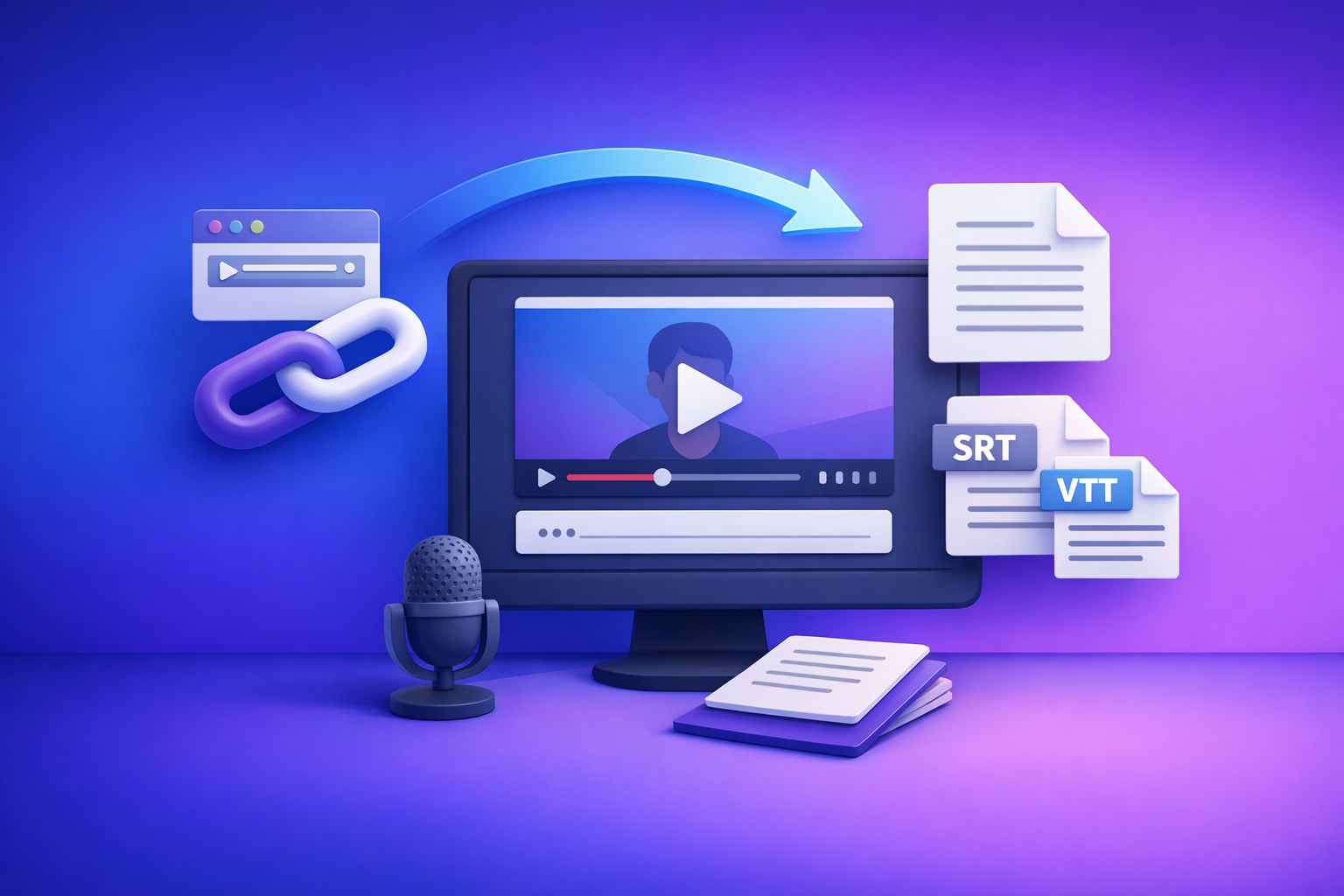
ChatGPT’s “upload video” feature is not a production-safe way to transcribe or caption video in 2026. The reliable workflow is video link/MP4 → export-ready transcript + SRT/VTT → ChatGPT for editing, chapters, and repurposing.
ChatGPT “Upload Video” Feature (2026): What Works, What Fails, and the Reliable Link → Transcript Workflow
Quick Answer: Can ChatGPT Upload Video?
Sometimes, but not consistently—and not in a way you can operationalize for teams. If your goal is transcripts, subtitles, captions, or content repurposing, treat “upload video” as a convenience feature, not a workflow.
When the “upload video” option appears (and why it may not)
The “upload” UI can vary by:
- Client: web vs iOS vs Android
- Rollout variance: features appear gradually and can disappear
- Account context: plan, region, org settings, or policy constraints
- Mode selection: some modes accept files; others don’t
If you don’t see an upload button, it’s usually not “user error”—it’s availability.
What ChatGPT can reliably do with video once you have text
Once you provide clean text (transcript, notes, captions), ChatGPT is reliably strong at:
- Summaries (executive, bullet, narrative)
- Chapters and titles
- SEO descriptions and metadata drafts
- Repurposing into blog posts, newsletters, and social threads
- Tone/style rewrites without changing meaning (when instructed)
The production-grade alternative: video link/MP4 → transcript/subtitles → ChatGPT
For creator productivity, downloading video files is an outdated workflow. The future is link-based extraction: paste a URL, generate deterministic outputs (TXT/SRT/VTT), then use ChatGPT on the text.
This is exactly what VideoToTextAI is built for—link-based video-to-text workflows that ship export-ready assets.
What People Mean by “ChatGPT Upload Video”
Most searches for the “chatgpt upload video feature” are really asking for one of three outcomes: analysis, transcription, or summarization. These are not the same task, and the tooling requirements differ.
Uploading a local file (MP4/MOV) vs. sharing a link (YouTube/Drive)
- Local file upload (MP4/MOV): depends on client support, file limits, and encoding.
- Link sharing: often fails because the model can’t access private links, permissioned drives, or restricted content.
Link-based extraction tools solve this by ingesting the video directly (when accessible) and producing deterministic text outputs.
“Analyze my video” vs. “Transcribe my video” vs. “Summarize my video”
- Analyze: identify scenes, objects, on-screen text, or actions (harder; often needs frames/clips).
- Transcribe: convert speech to text with timestamps (best done with transcript-first tools).
- Summarize: compress content into key points (best done after transcription).
Why most “upload video” requests are actually transcription + repurposing
In practice, teams want:
- Accurate transcript
- Captions/subtitles (SRT/VTT)
- A summary
- Repurposed content (blog/social/email)
That’s a pipeline problem, not a single “upload” button problem.
What Works in 2026 (Realistic Use Cases)
ChatGPT video upload can work, but only in narrow, non-critical scenarios.
Short clips for high-level summaries (when it succeeds)
If the upload succeeds and the clip is short, you can sometimes get:
- A high-level summary
- A list of key points
- Suggested hooks or titles
This is fine for quick ideation, not for captioning or compliance-grade transcripts.
Extracting key moments from a clip you can actually upload
When upload works, you can ask for:
- “List the top 5 moments and why they matter.”
- “Pull quotes that would work as social captions.”
But you’ll still hit limitations around timestamps and repeatability.
Q&A on a transcript you provide (most reliable path)
The most reliable pattern is:
- Generate transcript + timestamps externally
- Paste the transcript into ChatGPT
- Ask questions, extract insights, and repurpose
This avoids ingestion failures and keeps outputs consistent.
Why ChatGPT Video Uploads Fail (Root Causes You Can Diagnose)
When “upload video” fails, it’s usually one of these categories.
Feature availability: client differences (web vs iOS/Android) and rollout variance
Symptoms:
- Upload button missing on mobile but present on web (or vice versa)
- Upload works in one account but not another
- Feature disappears after an update
Diagnosis: not fixable by prompts. Use a transcript-first workflow.
File constraints: size, duration, codecs/containers, audio track issues
Common failure triggers:
- Large files or long durations
- Unsupported or uncommon codecs/containers
- Variable frame rate edge cases
- Audio track issues (missing, muted, or multi-track confusion)
If you can’t predict whether a file will ingest, you can’t operationalize it.
Processing constraints: timeouts, stalled uploads, partial ingestion
Symptoms:
- Upload reaches 100% then errors
- Model responds with partial understanding
- Long processing time then “something went wrong”
This is why deterministic transcription first is the safer architecture.
Access constraints: private links, permissioned drives, DRM/restricted content
Symptoms:
- “I can’t access that link”
- “The content is unavailable”
- Silent failure or generic error
If the content is behind authentication, DRM, or platform restrictions, link ingestion will fail unless you use a tool designed for that access pattern.
Output constraints: no deterministic SRT/VTT, inconsistent timestamps/speaker labels
Even when you get a “transcript-like” output, it’s often:
- Missing SRT/VTT formatting
- Inconsistent timestamps
- Unreliable speaker labels
- Hard to import into editors/platforms
For publishing workflows, you need export-ready caption formats every time.
The Reliable Workflow: Link/MP4 → Export-Ready Transcript + Captions → ChatGPT
Why “deterministic transcription first” beats “upload video and hope”
A production workflow needs:
- Predictable ingestion
- Repeatable outputs
- Export formats that editors accept
- A canonical transcript you can reuse across channels
That’s why the modern approach is link-based extraction (no downloading, no re-uploading) and transcription first.
Outputs you should generate every time (TXT + SRT + VTT + summary-ready text)
Generate these on every run:
- TXT transcript (canonical version for reuse)
- SRT (subtitles for most editors/platforms)
- VTT (web captions, some platforms prefer it)
- Summary-ready text (clean paragraphs, minimal artifacts)
Where ChatGPT fits: editing, chapters, titles, repurposing (not raw ingestion)
Use ChatGPT for:
- Cleaning and formatting the transcript
- Creating chapters and takeaways
- Writing SEO metadata and descriptions
- Repurposing into blog + social + email
Avoid using ChatGPT as the primary ingestion/transcription layer if you need reliability.
Step-by-Step Implementation (VideoToTextAI → ChatGPT)
This is the workflow that consistently ships transcripts, subtitles, captions, and repurposed content.
Step 1 — Choose your input type
Option A: Public video link (YouTube, TikTok, Instagram, etc.)
Best for speed and scale:
- No file management
- No re-uploads
- Easy to standardize across a team
This is the direction creator workflows are going: links, not downloads.
Option B: Upload an MP4 file
Use this when:
- The video is not publicly accessible
- You have raw exports from an editor
- You need to process local recordings
For a single, reliable entry point to both link and MP4 workflows, use VideoToTextAI: https://videototextai.com
Step 2 — Generate transcript + subtitles in VideoToTextAI
Set language, speaker labels, and timestamp granularity
Set these upfront to reduce rework:
- Language (and dialect if applicable)
- Speaker labels (if multiple speakers)
- Timestamp granularity (sentence-level vs chunk-level)
Export formats to produce (TXT + SRT + VTT)
Export all three:
- TXT for editing and repurposing
- SRT for editors and platforms
- VTT for web captioning workflows
Step 3 — Quality pass (fast, repeatable)
Fix speaker names, punctuation, and obvious mishears
Do a quick pass for:
- Names, brands, acronyms
- Punctuation around long sentences
- Repeated filler words (optional)
Keep the transcript meaning intact; don’t rewrite yet.
Confirm timestamps align to edits (for captions/subtitles)
If the video was edited after transcription, timestamps can drift. Confirm:
- Captions align at the start, middle, and end
- No systematic offset
- Speaker changes aren’t mis-timed
Step 4 — Use ChatGPT on the transcript (copy/paste prompts)
Paste the transcript (or sections) and run prompts like these.
Prompt: clean transcript without changing meaning
You are editing a transcript for readability. Fix punctuation, capitalization, and obvious mishears. Do not paraphrase or change meaning. Preserve speaker labels and timestamps if present. Output as clean text.
Prompt: create chapters with timestamps
Create 6–12 chapters from this transcript. Each chapter must include a timestamp (mm:ss) taken from the transcript and a short title (max 8 words). Then list 3 key takeaways.
Prompt: generate YouTube description + SEO title variants
Write a YouTube description (150–250 words) based on this transcript. Include: a 1-sentence hook, 5 bullet takeaways, and a short CTA line. Then generate 10 SEO-friendly title variants (max 70 characters each).
Prompt: repurpose into blog outline + social posts
Turn this transcript into: (1) a blog outline with H2/H3 headings, (2) a LinkedIn post (max 1,200 characters), (3) a 10-tweet/X thread, and (4) a newsletter intro (max 120 words). Keep claims factual and aligned to the transcript.
Step 5 — Publish and reuse outputs across channels
Captions/subtitles for editing tools
- Import SRT/VTT into your editor/platform
- Keep the TXT transcript as the canonical source
Blog + newsletter + LinkedIn/Twitter from the same transcript
This is where link-based extraction wins: one URL becomes a reusable content asset library.
For related workflows, see:
- Chat GPT Transcribe: What Actually Works in 2026 (Audio, Video Links, and the Reliable Workflow)
- Can ChatGPT Transcribe Videos? What Works in 2026 + The Reliable Link → Transcript Workflow (VideoToTextAI)
- Can ChatGPT Upload Video in 2026? What Works, What Fails, and the Reliable Link → Transcript Workflow (VideoToTextAI)
- Can ChatGPT Transcribe Videos? What Works in 2026 (and the Reliable Link → Transcript Workflow)
Implementation Checklist (Copy/Paste)
Inputs
- Video URL or MP4 ready
- Target language(s)
- Speaker list (if known)
- Desired outputs: TXT, SRT, VTT, plus repurposing assets
VideoToTextAI run
- Generate transcript with timestamps
- Export TXT + SRT + VTT
- Save a canonical transcript version (single source of truth)
ChatGPT run (on text)
- Clean + format transcript (no meaning changes)
- Create chapters + key takeaways
- Produce repurposed assets (blog, LinkedIn, X, email)
Publishing
- Upload SRT/VTT to platform/editor
- Store transcript + prompts in a shared doc for repeatability
Troubleshooting: If You Still Need to Use ChatGPT With Video
If the upload button is missing
- Switch clients (web vs mobile)
- Update the app
- Try a different mode (some modes don’t accept files)
- If it’s still missing, assume feature unavailability and use transcript-first
If the upload fails mid-way
- Re-encode to a standard MP4 (H.264 + AAC) if possible
- Shorten the clip (test with 30–60 seconds)
- Check network stability
- If failures persist, stop debugging prompts—move to deterministic transcription
If the model “can’t access” your link
- Confirm the link is publicly accessible
- Avoid permissioned drives without public sharing
- Avoid DRM/restricted content
- Use a link-based extraction workflow designed for ingestion and export
If you need analysis (not transcription): extract a short clip or frames + provide context
For “analysis” tasks, reduce scope:
- Provide a short clip (10–60 seconds) or key frames
- Add context: what to look for, what decisions you’re making
- Ask targeted questions (e.g., “Is the on-screen text readable?”)
Competitor Gap
Most guides stop at “how to upload” and ignore the operational reality: uploads are inconsistent, outputs aren’t export-ready, and teams need repeatability.
What’s usually missing:
- Failure modes you can diagnose (availability, codecs, timeouts, permissions)
- A deterministic workflow that always produces TXT + SRT + VTT
- A repeatable team process: checklist + prompts + canonical transcript
This post’s differentiator is the pipeline: link/MP4 → transcript/subtitles → ChatGPT repurposing—because creator productivity is moving toward link-based extraction, not downloading and managing files.
FAQ
Does ChatGPT allow you to upload videos?
Sometimes. Availability varies by client and rollout, and it’s not reliable enough to be your primary transcription/caption workflow.
Can I upload a video to ChatGPT to analyze?
For short clips, sometimes. For consistent results, extract a transcript (and optionally frames/clips) and ask ChatGPT targeted questions on the text and context.
Why won’t ChatGPT let me upload videos?
Usually one of: missing feature rollout, file size/duration/codec issues, timeouts, private/restricted links, or limitations producing deterministic caption formats.
Can you upload videos to ChatGPT for free?
Free capabilities vary. If you need consistent outputs, don’t anchor your workflow to a feature that can change—use transcript-first and then apply ChatGPT to the text.
Recommended VideoToTextAI Tools (Pick Your Workflow)
MP4 workflows
Link-based repurposing workflows
Internal Link Plan
- ChatGPT “Upload Video” Feature: What Works in 2026 + The Reliable Link → Transcript Workflow (VideoToTextAI)
- ChatGPT “Upload Video” Feature (2026): What Works, What Fails, and the Reliable Link → Transcript Workflow
- Chat GPT Transcribe: What Actually Works in 2026 (Audio, Video Links, and the Reliable Workflow)
- Can ChatGPT Transcribe Videos? What Works in 2026 + The Reliable Link → Transcript Workflow (VideoToTextAI)
- Can ChatGPT Upload Video in 2026? What Works, What Fails, and the Reliable Link → Transcript Workflow (VideoToTextAI)
- Can ChatGPT Transcribe Videos? What Works in 2026 (and the Reliable Link → Transcript Workflow)
Related posts
Reel Analyser (Instagram Reels): Transcript‑First Competitor Research, Hook/CTA Extraction, and Repurposing Workflow (VideoToTextAI)
Video To Text AI
A 2026 reel analyser should turn Instagram Reel links into a searchable transcript library you can tag for hooks, CTAs, objections, and topic clusters—then export into repurposing-ready drafts without a download/upload loop.
Traducir video de Instagram (Reels) en 2026: workflow transcript-first para traducir, sacar hooks/CTAs y repurpose (con VideoToTextAI)
Video To Text AI
Aprende a traducir un Reel de Instagram con un flujo URL→transcripción→traducción→subtítulos, y a convertir esa traducción en un activo de investigación para hooks, CTAs, objeciones y clusters de contenido.
Reel Analyzer: Transcript‑First Instagram Reels Research (Hooks, CTAs, Objections) + Workflow Guide (VideoToTextAI)
Video To Text AI
A reel analyzer should turn any public Instagram Reel link into a searchable transcript library you can mine for hooks, CTAs, objections, and topic clusters—then repurpose into original drafts with a repeatable SOP.