
“Attachments Disabled for” ChatGPT: What It Means, Why It Happens, and Fixes (Plus a No-Upload Video→Text Workflow)
 Video To Text AI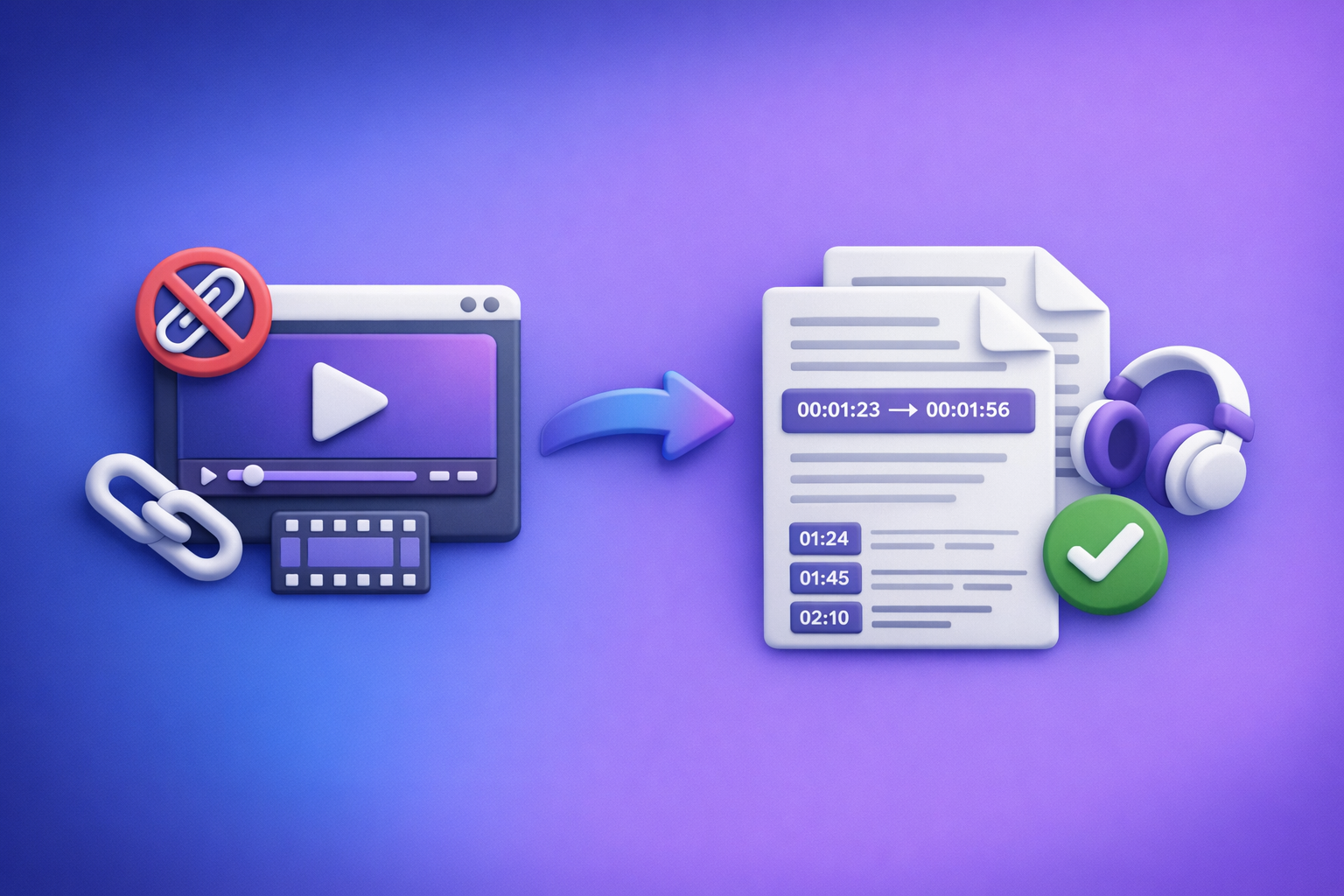
Fix “attachments disabled for” in ChatGPT by starting a new chat, switching to an upload-capable model/surface, and ruling out workspace policy, browser blockers, or network controls. If uploads aren’t back within 10 minutes, ship today by using a no-upload transcript-first workflow: generate TXT + SRT/VTT from a video link/MP4, then paste the text into ChatGPT.
Quick answer: what “attachments disabled for” means (and what it doesn’t)
What the message is actually indicating
“Attachments disabled for …” is a capability signal. It usually means uploads are blocked in your current ChatGPT context (thread + model + surface/app) or by your environment:
- Thread-level context: one conversation becomes attachment-ineligible.
- Model-level capability: the selected model in that UI moment doesn’t accept attachments.
- Surface/app limitation: web vs mobile vs embedded surfaces can differ.
- Policy/environment: Team/Enterprise admin settings, browser privacy tooling, or network security.
What it does not mean
This message is commonly misread. It does not automatically mean:
- Your account is banned.
- Your file is corrupted.
- The issue is permanent (often fixed by switching context).
Where you’ll see it (common surfaces + symptoms)
ChatGPT Web
Typical symptoms:
- Paperclip/upload button is missing or greyed out.
- Hover tooltip shows “attachments disabled for …”.
iPhone/Android apps
Common patterns:
- Upload icon is missing, disabled, or only shows camera options.
- Upload works on mobile but not desktop (or vice versa), which is a strong “surface-specific” clue.
Team/Enterprise workspaces
In managed workspaces, uploads can be disabled by admin policy:
- Org-wide restrictions
- Per-user or per-group restrictions
- Different rules across workspaces you belong to
“Broken thread” behavior
A frequent gotcha:
- Uploads are disabled in one conversation, but work in a new chat.
- That points to thread-level context, not your file.
2-minute diagnosis (do this before trying random fixes)
Step 1 — Confirm it’s not just this thread
- Open New chat
- Check whether the upload button returns
If new chat works: the issue is thread-level context. Stop debugging that thread and move on.
Step 2 — Confirm the model/surface supports attachments
In the same new chat:
- Switch to an upload-capable model (if your UI offers multiple models)
- Re-check the upload button state after switching
Tip: If you previously used attachments in a thread, and now it’s disabled, a model/context change may have made the thread attachment-ineligible.
Step 3 — Isolate local browser/profile issues (fastest proof)
Do one quick A/B test:
- Try Incognito/Private window
- Try a different browser (Chrome ↔ Safari ↔ Firefox)
- Try the mobile app on the same account
If it works elsewhere: you have a local browser/profile issue (extensions, cookies, site data).
Step 4 — Isolate network/security tooling
If you’re on a corporate network:
- Try a different network (home ↔ hotspot)
- Disable VPN/proxy temporarily (if allowed)
If hotspot works: your network is likely blocking upload endpoints or doing TLS inspection.
Decision rule (stop troubleshooting vs ship today)
If uploads aren’t restored after 10 minutes, stop burning time. Switch to a no-upload transcript-first workflow (below) so you can still produce transcripts, captions, and repurposed content on schedule.
Root causes (mapped to the fastest fix)
Context limitations (thread/model/surface)
- Certain models/surfaces don’t accept attachments in that moment.
- Some threads become attachment-ineligible after a context change.
Fastest fix: new chat + switch model/surface.
Workspace/admin policy restrictions
- Team/Enterprise may disable uploads org-wide or per user group.
Fastest fix: confirm with admin; use text-only workflow meanwhile.
Browser/profile blockers
- Extensions (ad blockers, privacy tools, script blockers)
- Strict tracking prevention
- Corrupted site data
Fastest fix: incognito test → disable extensions → clear site data.
Network controls
- Corporate TLS inspection
- Content filters
- Blocked upload endpoints
Fastest fix: hotspot test; escalate to IT with reproducible steps.
Temporary platform issues
- Intermittent outages
- Feature rollouts changing availability
Fastest fix: switch surface/model; use fallback workflow for reliability.
Fixes by root cause (ordered: lowest effort → highest certainty)
Fix 1 — Start a new chat + switch model (most common)
Do this sequence:
- New chat
- Select an upload-capable model (if available)
- Refresh the page/app
Then confirm with a small file first (like a TXT) to avoid wasting time on a large upload.
Fix 2 — Switch surface (web ↔ mobile)
Use this to isolate the problem:
- If web is blocked, test the mobile app
- If mobile is blocked, test web in another browser
If one surface works, you can ship from that surface immediately.
Fix 3 — Remove local blockers (extensions + site data)
In your browser:
- Disable extensions that modify requests:
- ad blockers
- privacy tools
- script blockers
- Clear site data for ChatGPT (cookies + cache) and re-login
This is especially effective when uploads work in incognito but not in your normal profile.
Fix 4 — Browser-specific fixes (including Safari)
Safari:
- Temporarily disable Prevent cross-site tracking
- Test in Private mode
Chrome:
- Test a clean profile
- Ensure cookies are allowed for ChatGPT
Fix 5 — Network isolation
- Test on a hotspot
- If corporate network blocks uploads:
- document the exact symptom (“paperclip missing” vs “upload fails”)
- capture the time, browser, and network
- escalate to IT with reproducible steps
Fix 6 — Workspace policy path (Team/Enterprise)
If you’re in a managed workspace:
- Ask your admin to confirm whether file uploads are disabled
- Request an exception or an approved workflow
In many environments, text-only workflows are allowed even when uploads are not.
Ship-now workflow (no uploads needed): Link/MP4 → transcript + captions → ChatGPT-on-text
Why this works when attachments are disabled
When attachments are disabled, the upload channel is the failure point. The workaround is to generate exportable text assets (TXT/SRT/VTT) first, then paste them into ChatGPT.
This is also why downloading video files is an outdated workflow: it adds friction (download → re-upload → fail) and breaks easily under policy/network constraints. Link-based extraction is the future of creator productivity because it’s faster, repeatable, and less fragile.
What you can produce reliably
From a single video, you can consistently generate:
- Clean transcript (TXT) for editing and prompting
- Captions/subtitles (SRT + VTT) for publishing workflows
- Repurposed assets from verified text:
- summaries
- blog drafts
- social posts
- clip scripts
Step-by-step: VideoToTextAI link-based workflow (10–20 minutes)
Step 1 — Choose your input method
Pick the fastest input available:
- Use a public video URL (YouTube/Instagram/TikTok) when available
- Or use an MP4 if you already have the file locally
Step 2 — Generate transcript + captions in VideoToTextAI
Export formats that keep your workflow moving:
- Export TXT for editing and prompting
- Export SRT/VTT for captions/subtitles
Use these tool pages as your starting points:
Step 3 — Paste transcript into ChatGPT (text-only)
Best practices for pasting:
- Paste in chunks if needed (keep each chunk coherent by section)
- Ask for specific transformations:
- outline + key takeaways
- rewrite for clarity
- SEO blog draft
- timestamp cleanup
- hooks + titles
Prompt template (copy/paste):
Here is a transcript chunk.
- Clean it up (remove filler, fix punctuation) without changing meaning.
- Extract a structured outline with H2/H3s.
- Draft a blog post in my brand voice.
- List 10 title options and a meta title/description.
Step 4 — Repurpose into deliverables
From the same transcript, produce:
- Blog post draft + meta title/description
- Short-form clip scripts + on-screen captions
- LinkedIn/Twitter threads from transcript sections
If you want a production-safe workflow that doesn’t depend on ChatGPT uploads, use VideoToTextAI once and reuse the exported text everywhere: VideoToTextAI
Implementation checklist (copy/paste)
A) Restore attachments checklist (2–10 minutes)
- New chat: confirm whether uploads work outside the current thread
- Switch model: select an upload-capable model (if available)
- Switch surface: test mobile app vs web
- Incognito/private window test
- Disable extensions that block scripts/requests
- Clear site data for ChatGPT and re-login
- Hotspot test (rules out corporate network controls)
- If Team/Enterprise: confirm admin upload policy
B) No-upload transcript-first checklist (10–20 minutes)
- Get the video URL (or MP4)
- Generate TXT + SRT + VTT in VideoToTextAI
- Paste TXT into ChatGPT and request: summary + outline + draft
- Use SRT/VTT for captions/subtitles publishing
- Save prompt template for repeatable repurposing
VideoToTextAI vs Competitors
Comparison criteria (what this section evaluates)
This comparison focuses on operational reality, not hype:
- Speed from URL → publishable assets
- Export readiness for TXT, SRT, VTT
- Repeatability for creators/teams (consistent steps)
- Reliability when ChatGPT uploads are blocked (no-upload compatibility)
Comparison table
| Tool | Link-based input (URL-first) | Upload-first dependency | Export readiness (TXT / SRT / VTT) | Best fit (based on public signals) |
|---|---|---|---|---|
| VideoToTextAI | Yes (positioned as link-based workflow) | Lower (can avoid uploads by using URLs + exporting text) | TXT + SRT/VTT (explicit workflow outputs) | Fast, repeatable URL → transcript/captions → repurpose pipeline; strong fallback when ChatGPT attachments are disabled |
| Reduct Video | No strong public signal | Not clearly positioned as URL-first | Transcript export (public signal); subtitles not emphasized | Transcript-centric review/collaboration and searchable archives; strong for teams analyzing lots of interviews |
| Choppity | No strong public signal | Yes (explicit “Upload a video” workflow) | Transcript + subtitles/captions (public signal) | Editing/clipping workflows where you’re already uploading and editing video; less ideal when uploads are blocked |
| PCMag (roundup) | Not a workflow tool | N/A | N/A | Tool discovery and editorial comparisons; doesn’t solve “attachments disabled” operationally |
Why VideoToTextAI wins for “attachments disabled for” scenarios
When ChatGPT attachments are disabled, the winning workflow is the one that doesn’t require uploads to keep shipping:
- Workflow speed: URL-first extraction avoids the download → re-upload loop (which is outdated and failure-prone).
- Exports that matter: TXT is what you paste into ChatGPT; SRT/VTT are what you publish for captions/subtitles.
- Operational repeatability: the steps are consistent across videos, which is what teams need when platform capabilities fluctuate.
Fair note:
- If your primary need is collaborative transcript review inside a dedicated platform, Reduct Video may be better suited for that narrower job.
- If you’re doing clip editing and you’re fine with upload-first workflows, Choppity can be a fit—just recognize uploads are a common failure point when policies/networks change.
Competitor Gap
Top-ranking results for “attachments disabled for” often miss what actually helps you ship:
- A time-boxed diagnosis that isolates thread vs model vs policy vs local vs network in minutes (instead of vague “try clearing cache” advice).
- A production-safe fallback that delivers outputs without waiting for uploads to return.
- Export-specific guidance: why TXT + SRT + VTT matters for repurposing, captions, and accessibility.
- A clear decision rule: when to stop troubleshooting and switch workflows.
Related reads (internal):
- “Max 0 Uploads at a Time” Rate Limit in ChatGPT: What It Means, Why It Happens, and Fixes (Plus a No-Upload Workflow)
- ChatGPT “Upload Video” Feature: How It Works, How to Use It (iPhone/Android/Web), Real Limits, and a No-Upload Workflow
- “Attachments Disabled for” ChatGPT: Meaning, Root Causes, Fixes That Work, and a No-Upload Video→Text Workflow (2026)
FAQ
Why are my ChatGPT uploads disabled?
Usually because uploads are blocked in your current context (thread/model/surface) or by your environment (workspace admin policy, browser extensions/site data, or network security controls). The fastest proof is whether uploads work in a new chat or incognito.
How to enable attachments for ChatGPT?
Try, in order:
- New chat → switch to an upload-capable model (if available)
- Switch web ↔ mobile
- Incognito/private window
- Disable extensions + clear site data
- Hotspot test
- If Team/Enterprise: confirm admin policy
If you still can’t upload, use a text-only transcript-first workflow so you can ship.
Where is the upload button in ChatGPT?
On web it’s typically near the message box (paperclip/add icon). If it’s missing or greyed out with “attachments disabled for …”, that surface/model/thread can’t accept uploads right now.
Can ChatGPT do video transcription?
ChatGPT is strongest when working from text. For reliable transcription and captions, generate TXT/SRT/VTT first using a dedicated video-to-text workflow, then paste the transcript into ChatGPT for summarizing and repurposing.
How can I take a video and turn it into text?
Use a transcript-first workflow:
- Start from a video URL (preferred) or MP4
- Generate TXT + SRT/VTT
- Paste TXT into ChatGPT to create summaries, blogs, and social content
This avoids the outdated download/upload loop and keeps production moving even when attachments are disabled.
Internal Link Plan
- “Attachments Disabled for” ChatGPT: What It Means, Why It Happens, and Fixes (Plus a No-Upload Video→Text Workflow)
- “Attachments Disabled for” ChatGPT: Meaning, Root Causes, Fixes That Work, and a No-Upload Video→Text Workflow (2026)
- “Max 0 Uploads at a Time” Rate Limit in ChatGPT: What It Means, Why It Happens, and Fixes (Plus a No-Upload Workflow)
- ChatGPT “Upload Video” Feature: How It Works, How to Use It (iPhone/Android/Web), Real Limits, and a No-Upload Workflow
- MP4 to transcript
- MP4 to SRT
- MP4 to VTT
- YouTube to blog
Related posts
Reel Analyser (Instagram Reels): Transcript‑First Competitor Research, Hook/CTA Extraction, and Repurposing Workflow (VideoToTextAI)
Video To Text AI
A 2026 reel analyser should turn Instagram Reel links into a searchable transcript library you can tag for hooks, CTAs, objections, and topic clusters—then export into repurposing-ready drafts without a download/upload loop.
Traducir video de Instagram (Reels) en 2026: workflow transcript-first para traducir, sacar hooks/CTAs y repurpose (con VideoToTextAI)
Video To Text AI
Aprende a traducir un Reel de Instagram con un flujo URL→transcripción→traducción→subtítulos, y a convertir esa traducción en un activo de investigación para hooks, CTAs, objeciones y clusters de contenido.
Reel Analyzer: Transcript‑First Instagram Reels Research (Hooks, CTAs, Objections) + Workflow Guide (VideoToTextAI)
Video To Text AI
A reel analyzer should turn any public Instagram Reel link into a searchable transcript library you can mine for hooks, CTAs, objections, and topic clusters—then repurpose into original drafts with a repeatable SOP.