
ChatGPT “Upload Video” Feature (2026): What Works, What Breaks, and the Reliable No-Upload Workflow
 Video To Text AI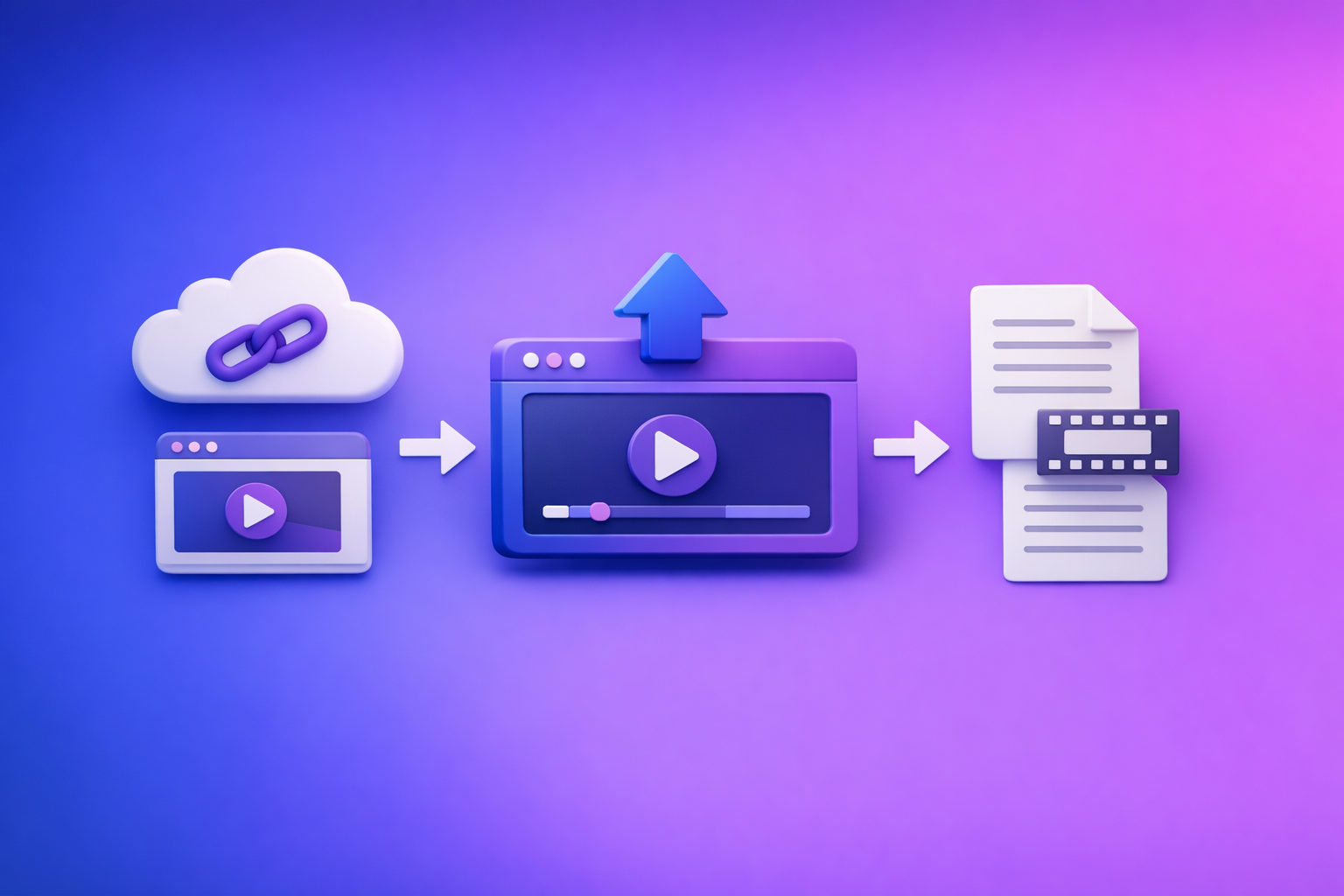
ChatGPT “Upload Video” Feature (2026): What Works, What Breaks, and the Reliable No-Upload Workflow
If you need export-ready TXT + SRT/VTT today, don’t bet your deadline on the ChatGPT “upload video” feature. Use a link/MP4 → transcript/captions → ChatGPT-on-text workflow so you can QA artifacts and ship.
Downloading video files to “feed the AI” is an outdated workflow. Link-based extraction is the future of creator productivity because it removes download/convert/upload loops and keeps outputs repeatable.
Why people search “ChatGPT upload video feature” (the real job-to-be-done)
Most searches aren’t about novelty. They’re about getting from video → usable text with minimal friction.
The 3 common outcomes users want
-
Understand a clip fast
- “What happened?”
- “Summarize this segment.”
- “Pull the key points.”
-
Turn video into deliverables
- Transcript (TXT)
- Captions/subtitles (SRT/VTT)
- Speaker turns, names, and clean punctuation
-
Repurpose content
- Blog post, newsletter, LinkedIn post
- YouTube chapters, clip list, hooks
Why “upload video” is often the wrong tool for transcripts/captions
ChatGPT uploads are best treated as a convenience layer for quick analysis, not a deliverables layer.
For production work, you need:
- Deterministic exports (TXT, SRT, VTT)
- Timestamp integrity
- A QA path (spot-checks, speaker/jargon verification)
- A workflow that doesn’t break when a file is large, long, or encoded oddly
Does ChatGPT allow video uploads in 2026? (capabilities + constraints)
Where video upload is available (surface/model/plan variability)
In 2026, “video upload” is not a single universal feature. Availability commonly varies by:
- Surface: desktop web vs iOS vs Android
- Selected model: some models accept attachments; others don’t
- Plan/entitlements: free vs paid tiers can differ
- Workspace policy: business/education admins can disable attachments
If you don’t see the attachment option, jump to the diagnosis section or the dedicated fixes:
- “Add Files Is Unavailable” in ChatGPT: Fixes That Work + a No-Upload Video→Text Workflow (VideoToTextAI)
- “Attachments Disabled for” ChatGPT: What It Means, Why It Happens, and the Fastest Fix (Plus a No-Upload Video→Text Workflow)
What ChatGPT can do with uploaded video (safe expectations)
Set expectations to what’s low-risk:
- Summarize a short clip
- Identify obvious objects/scenes in frames
- Answer questions about visible text (when legible)
- Provide a rough outline of what’s happening
What ChatGPT is not reliable for (deliverables)
Export-ready transcripts (TXT)
ChatGPT may produce a transcript-like output, but it’s not designed as a repeatable transcription pipeline. You can see:
- Missing lines
- Paraphrasing instead of verbatim text
- Dropped speaker turns
Timecoded captions (SRT/VTT)
SRT/VTT requires precise timestamps and consistent segmentation. ChatGPT can generate a format, but it’s not consistently reliable for:
- Accurate timecodes
- Stable line breaks and reading speed
- Long videos where drift accumulates
If captions are the goal, use dedicated tools:
Long-form videos and multi-speaker accuracy
Uploads are most fragile when you combine:
- Long duration
- Multiple speakers
- Cross-talk / noise
- Technical jargon
That’s exactly when you need a workflow with exports + QA.
How to upload a video to ChatGPT (step-by-step)
Desktop web (paperclip/attachment flow)
- Start a new chat (reduces “stuck state” issues).
- Select an upload-capable model (if your UI offers model selection).
- Click the paperclip/attachment icon.
- Choose your video file and wait for processing.
- Ask a narrow question first (e.g., “Summarize the first 60 seconds.”).
Tip: Always test with a 2–3 minute control clip before uploading a long file.
iPhone/iOS (what to check before you try)
- Confirm the app is updated.
- Start a new chat and check for the attachment icon.
- If you’re on a managed device (MDM), attachments may be restricted.
Android (what to check before you try)
- Update the app.
- Test on cellular vs Wi‑Fi (some networks block uploads).
- If you’re in a work profile, admin policy may disable attachments.
Supported formats and practical limits (what usually triggers failures)
Even when “supported,” uploads commonly fail due to:
- Large file size (timeouts)
- Long duration (processing stalls)
- Codec/container quirks (e.g., unusual encodes)
- Variable frame rate (can cause analysis drift)
- Network/VPN interference
Can ChatGPT “watch” a video you upload? How analysis actually works
What “watching” means in practice (frames/audio understanding limits)
“Watching” typically means the model can:
- Interpret selected frames and visual cues
- Use audio understanding to infer content (when enabled and clear)
- Combine signals into a response
It does not mean you get a deterministic, export-grade transcript/caption pipeline.
When results drift: why hallucinations happen with video/audio
Hallucinations are more likely when:
- Audio is muffled or overlapping
- The clip is long and context is compressed
- Visual details are ambiguous (small text, fast cuts)
- The prompt asks for certainty (“exact quote,” “exact timestamp”) without a verified transcript
Why you can’t upload video on ChatGPT (fast diagnosis tree)
1) Feature not enabled for your surface/model
- Switch model (if available).
- Try another surface (web vs mobile).
- Start a new chat.
2) Workspace/admin policy blocks attachments
- If you’re in a business/edu workspace, attachments may be disabled.
- Test with a personal account or non-managed environment.
3) Browser profile/extensions interfering
- Try an incognito window.
- Disable privacy/script-blocking extensions.
- Use a clean browser profile.
4) Network/security tooling blocking uploads
- Corporate VPNs and secure gateways commonly break uploads.
- Switch networks (home Wi‑Fi or cellular hotspot).
5) File constraints (size/codec/duration) and timeouts
- Re-encode to a standard MP4 (H.264/AAC).
- Trim to a short control clip.
- If you need deliverables, stop and switch workflows.
Common ChatGPT video upload errors (and exact fixes)
“Add files is unavailable”
Fix sequence (2–5 minutes): new chat → switch model/surface → browser profile → network
- Open a new chat.
- Switch to an upload-capable model/surface.
- Try a clean browser profile (no extensions).
- Switch networks (disable VPN; try hotspot).
“Attachments disabled for …”
Fix sequence (under 2 minutes): new chat → upload-capable model → policy isolation
- Start a new chat.
- Select a model that supports attachments (if selectable).
- If it persists in a managed workspace, assume policy and isolate by testing outside that workspace.
“Upload failed” / stuck processing
Fix sequence: smaller control clip → re-encode → alternate client → stop and switch workflow
- Upload a 2–3 minute control clip.
- Re-encode to a standard MP4.
- Try another client (web vs mobile).
- If you need TXT/SRT/VTT today, stop and switch workflows.
10-minute triage: decide whether to keep troubleshooting or switch workflows
If you need a quick understanding of a short clip (keep trying ChatGPT)
Keep troubleshooting if:
- The clip is short (a few minutes)
- You only need a summary or quick Q&A
- You can tolerate occasional drift
If you need deliverables today (switch immediately)
Switch immediately if you need:
- TXT transcript
- SRT/VTT captions
- A repeatable QA path
Deliverables definition: TXT + SRT/VTT + QA path
A production workflow is “done” only when:
- You can export TXT + SRT/VTT
- You can spot-check timestamps and speaker turns
- You can hand off files to editors/publishers without rework
The production-safe workflow: Link/MP4 → TXT + SRT/VTT → ChatGPT-on-text (VideoToTextAI)
Why link-first beats download → convert → upload loops
Downloading videos just to re-upload them is friction you don’t need:
- It adds time (download + storage + conversion)
- It adds failure points (codec issues, timeouts, VPN blocks)
- It’s hard to standardize across a team
Link-first extraction is the future of creator productivity because it turns “video access” into a simple input, then outputs deterministic artifacts you can QA.
If you want to implement this workflow end-to-end, use VideoToTextAI once here: VideoToTextAI
Step-by-step implementation (VideoToTextAI)
Step 1: Choose input type (YouTube/Instagram/TikTok link or MP4)
- Use a link when the video is hosted (fastest).
- Use MP4 upload when the video is local or private.
For repurposing from YouTube specifically, pair with: YouTube to blog
Step 2: Generate transcript (TXT) for editing/QA
- Export a TXT transcript.
- Make corrections once, upstream, before repurposing.
Step 3: Export captions (SRT/VTT) for publishing
- Export SRT for most editors/platforms.
- Export VTT for web players and some platforms.
Step 4: Paste verified transcript into ChatGPT for repurposing (not for transcription)
Use ChatGPT where it’s strongest:
- Summaries, structure, rewriting, SEO formatting
- Chapters, clip lists, hooks, and social variants
Use a transcription tool where it’s strongest:
- Deterministic transcript + timecodes + exports
QA rules that prevent bad captions
Spot-check timestamps at 0:30 / 5:00 / end
- Confirm captions align with spoken words at:
- ~00:30
- ~05:00
- final 30 seconds
Verify speaker turns, names, and jargon
- Fix speaker labels (especially interviews/podcasts).
- Correct product names, acronyms, and industry terms.
Normalize punctuation for captions vs blog text
- Captions: shorter lines, fewer commas, readable pacing.
- Blog: full punctuation, headings, paragraphs, quotes.
Copy/paste checklist (ship-ready)
Upload feature checklist (when you insist on ChatGPT upload)
- Confirm upload-capable surface/model
- Test with a 2–3 minute control clip
- Disable extensions / try clean browser profile
- Switch networks (corp VPNs commonly break uploads)
- Stop at 10 minutes if you need deliverables
No-upload workflow checklist (VideoToTextAI → ChatGPT)
- Paste link or upload MP4 into VideoToTextAI
- Export TXT + SRT (and/or VTT)
- QA transcript + timecodes
- Paste transcript into ChatGPT with a structured prompt
- Export final assets: blog draft, chapters, clip list, social posts
Prompt pack: what to ask ChatGPT after you have the transcript
Use these prompts only after you have a verified transcript (TXT) and, if needed, captions (SRT/VTT).
Transcript → summary + action items (stakeholder-ready)
You are an executive assistant. Summarize this transcript in 8 bullets. Then list action items with an owner role and due date placeholder. Finally, list open questions.
Transcript → chapters + titles (YouTube)
Create YouTube chapters from this transcript. Output timestamps in MM:SS, a short title, and a 1-sentence description per chapter. Keep titles under 45 characters.
Transcript → clip/cut list (editor handoff)
Create a clip list of 10 moments. For each: start time, end time, hook line, why it works, and suggested on-screen caption. Optimize for short-form.
Transcript → SEO blog post (outline + draft)
Turn this transcript into an SEO blog post targeting: [keyword]. Provide: H1, meta description, outline (H2/H3), then a draft. Use short paragraphs and include a FAQ section.
Transcript → captions polish rules (line length, reading speed, profanity handling)
Rewrite these captions for readability. Rules: max 42 characters per line, max 2 lines, avoid breaking names, keep reading speed comfortable, and replace profanity with [bleep] unless context requires exact quote.
VideoToTextAI vs Competitors
Below is a fair, workflow-focused comparison using only publicly signaled capabilities from the research set.
| Tool | Link-first input (paste URL) | Upload input | Export-ready outputs (TXT/SRT/VTT) | Repurposing support (transcript-first) | Best fit |
|---|---|---|---|---|---|
| VideoToTextAI | Yes (core workflow) | Yes (MP4) | Yes (TXT + SRT/VTT workflow) | Yes (built for transcript → content workflows) | Teams shipping transcripts/captions + repurposed assets fast |
| VideoTranscriber.ai | Yes | Not a strong public signal | Transcript + subtitles (signals present) | Limited public positioning | Quick URL-based transcription with timestamps/translation signals |
| Choppity | No strong public signal | Yes | Transcript + captions (signals present) | Limited public positioning | Creators who want AI-assisted clipping/editing workflows |
| Reduct Video | No strong public signal | Product is collaboration-centric; upload/link not clearly signaled | Transcript export (signal present) | Not a core public positioning | Collaborative transcript review and team research workflows |
Why VideoToTextAI wins (when your job is “ship deliverables”)
- Workflow speed: link-first avoids download/convert/upload loops that slow teams down.
- Input flexibility: supports URL-first and MP4, so you can standardize across sources.
- Export readiness: the workflow is built around TXT + SRT/VTT, not “best-effort” output.
- Operational repeatability: you can define QA steps and handoffs (editor, PM, marketer) without redoing work.
- Repurposing: transcript-first outputs make ChatGPT more reliable because you’re prompting on verified text, not asking it to infer speech from a fragile upload.
Where competitors can be a better fit
- If you need collaborative transcript editing and research workflows, Reduct’s positioning is strong.
- If you want AI video editing + clipping as the primary job, Choppity’s positioning is aligned.
- If you want a simple URL transcription tool with translation/timestamp signals, VideoTranscriber.ai may fit lightweight needs.
Competitor Gap
Top-ranking pages tend to miss the operational reality: “analyze in ChatGPT” is not the same job as “generate deliverables.”
What this post covers (and most don’t):
- A real decision rule: use ChatGPT for short-clip understanding; use a dedicated workflow for TXT/SRT/VTT deliverables
- A deterministic no-upload pipeline with QA steps: Link/MP4 → TXT + SRT/VTT → ChatGPT-on-text
- Error-specific fixes tied to root causes: surface/model vs policy vs browser vs network
- Copy/paste checklists + prompt pack for post-transcript repurposing
If you want the expanded troubleshooting paths, see:
- “Add Files Is Unavailable” in ChatGPT: Fixes That Work + a No-Upload Video→Text Workflow (VideoToTextAI)
- ChatGPT “Upload Video” Feature (2026): What Works, What Breaks, and the Production-Safe Link → Transcript Workflow
FAQ (People Also Ask)
Does ChatGPT allow video uploads?
Sometimes. It depends on surface, model, plan, and workspace policy—so availability can differ across accounts and devices.
Can ChatGPT watch videos you upload to it?
It can analyze parts of a video, but it’s not a deterministic “watch everything perfectly” system. Expect drift on long clips, noisy audio, and multi-speaker content.
Can I upload a video to ChatGPT to analyze?
Yes, when attachments are enabled. For best results, upload a short control clip first and ask narrow questions.
Why am I not able to upload video on ChatGPT?
Most causes fall into five buckets: feature not enabled, admin policy, browser/extensions, network/VPN/security tooling, or file constraints/timeouts.
Can you upload videos to ChatGPT for free?
It varies by plan and rollout. If you don’t see the attachment option, treat it as unavailable for your account/surface and use a no-upload workflow for deliverables.
Internal Link Plan
- “Add Files Is Unavailable” in ChatGPT: Fixes That Work + a No-Upload Video→Text Workflow (VideoToTextAI)
- “Attachments Disabled for” ChatGPT: What It Means, Why It Happens, and the Fastest Fix (Plus a No-Upload Video→Text Workflow)
- ChatGPT “Upload Video” Feature (2026): What Works, What Breaks, and the Production-Safe Link → Transcript Workflow
- “Add Files” Button Unavailable in ChatGPT (2026): Root Causes, Exact Fixes, and a No-Upload Transcript Workflow
- MP4 to transcript
- MP4 to SRT
- MP4 to VTT
- YouTube to blog
Related posts
Reel Analyser (Instagram Reels): Transcript‑First Competitor Research, Hook/CTA Extraction, and Repurposing Workflow (VideoToTextAI)
Video To Text AI
A 2026 reel analyser should turn Instagram Reel links into a searchable transcript library you can tag for hooks, CTAs, objections, and topic clusters—then export into repurposing-ready drafts without a download/upload loop.
Traducir video de Instagram (Reels) en 2026: workflow transcript-first para traducir, sacar hooks/CTAs y repurpose (con VideoToTextAI)
Video To Text AI
Aprende a traducir un Reel de Instagram con un flujo URL→transcripción→traducción→subtítulos, y a convertir esa traducción en un activo de investigación para hooks, CTAs, objeciones y clusters de contenido.
Reel Analyzer: Transcript‑First Instagram Reels Research (Hooks, CTAs, Objections) + Workflow Guide (VideoToTextAI)
Video To Text AI
A reel analyzer should turn any public Instagram Reel link into a searchable transcript library you can mine for hooks, CTAs, objections, and topic clusters—then repurpose into original drafts with a repeatable SOP.