
“Add Files Is Unavailable” in ChatGPT: Fix It Fast (and Use a No-Upload Video→Text Workflow)
 Video To Text AI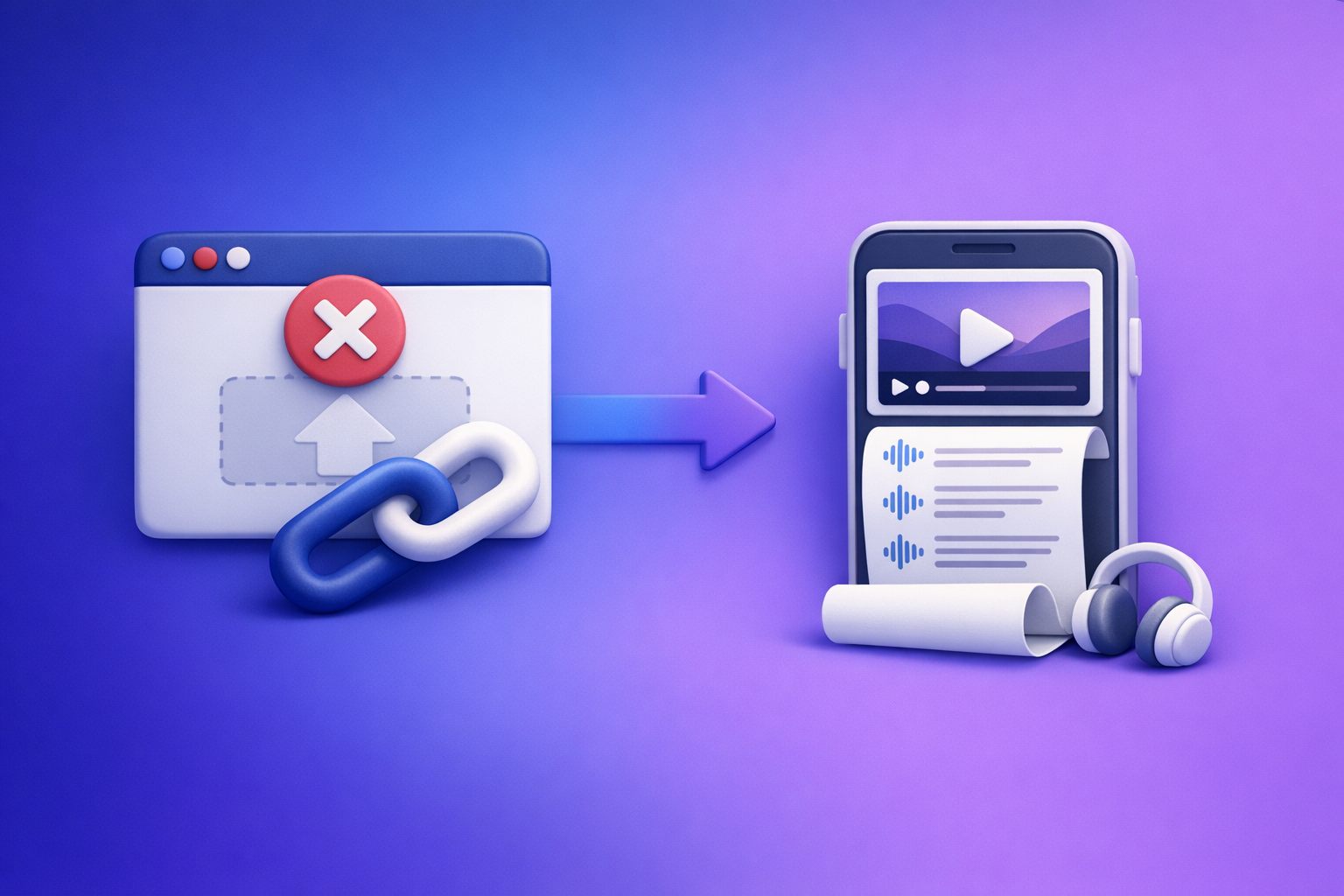
ChatGPT file uploads break most often because you’re in the wrong surface/model context or your workspace blocks attachments. Follow the 2-minute diagnosis below, apply fixes in order, and if your goal is video transcription/captions, switch to a no-upload, link→transcript workflow for reliability.
What “Add files is unavailable” means (and what it does not mean)
“Add files is unavailable” is a UI/tooling state, not a verdict on your file. In practice, it means the current ChatGPT experience you’re using can’t accept attachments right now—because of surface limitations, model/tool configuration, plan entitlements, or admin policy.
What it usually does not mean:
- Your file is corrupted
- Your video is “too large” (that can cause upload failures, but not usually this specific “unavailable” state)
- You need to rename the file or change formats (again: that’s for upload errors, not missing/disabled controls)
The exact UI states you’ll see (button missing vs greyed out vs error toast)
You’ll typically see one of these:
-
Paperclip / “Add files” button missing
Most common when you’re on a surface/model/tools context that doesn’t expose attachments. -
Button present but greyed out / disabled
Often indicates a policy restriction, a temporary tooling state, or a conversation context where tools aren’t enabled. -
Clicking “Add files” triggers an error toast
More likely a browser/network/security issue (blocked endpoints, extensions, corporate proxy/DLP).
Why this is usually a surface/model/permission issue—not your file
Uploads in ChatGPT are not a single feature toggle. They depend on:
- Which app/surface you’re using (web vs mobile vs desktop wrapper)
- Which model/tools are active in the current chat
- Your plan entitlements and workspace policies
- Browser profile health (extensions, cookies, session state)
- Network controls (proxy, DLP/CASB, SSL inspection)
That’s why random “try another file” rarely helps.
2-minute diagnosis (find the root cause before trying random fixes)
Use this decision path to identify the category of failure quickly.
Step 1: Confirm you’re on an upload-capable ChatGPT surface
Check where you’re using ChatGPT:
- Web app (recommended for troubleshooting): usually the most consistent UI.
- Mobile app: can differ by OS version and app build; some controls appear/disappear.
- Desktop wrapper (Electron/3rd-party): can lag behind web features or break attachment UI.
Also confirm account context:
- Personal account vs Team/Enterprise workspace
Workspace policies can disable attachments even if your personal account supports them.
Step 2: Check the model/tooling context in the current chat
Attachments can vary by conversation context.
-
New chat vs existing thread:
Existing threads can retain a tool configuration that doesn’t support attachments. -
Tools enabled/disabled in that conversation:
If the chat is in a mode that doesn’t expose file tools, the button may be missing or disabled.
Practical test: create a new chat and see if the control returns (details below).
Step 3: Identify entitlement and policy constraints
Two common constraints:
- Plan limitations: your account may not have attachment capability enabled.
- Workspace admin restrictions: your org may disable uploads/attachments for compliance.
If you’re on a managed device or corporate workspace, assume policy first.
Step 4: Isolate browser/profile interference
Browser issues often present as:
- UI controls not rendering
- Clicking upload does nothing
- Upload modal opens but never completes
Common culprits:
- Aggressive ad/script blockers
- Privacy extensions that block storage/cookies
- Download managers that intercept file dialogs
- Enterprise security extensions (managed Chrome profiles)
Step 5: Rule out network/security blocks
If it works on one network and not another, it’s not “your file.”
Look for patterns like:
- Works on mobile hotspot, fails on office Wi‑Fi
- Works at home, fails on VPN
- Upload UI appears, but requests fail silently
This usually points to proxy/DLP/CASB rules blocking upload endpoints.
Fixes in priority order (do these in sequence)
Do these in order to minimize time-to-resolution.
1) Switch to a new chat + upload-capable model/tool set
This is the fastest “reset” that fixes many cases.
- Create a new chat
- Re-select a model that supports attachments (if your account offers that)
- Check whether the paperclip/“Add files” control appears
If the button appears in a new chat, the old thread likely had a tooling context that doesn’t allow attachments.
2) Hard refresh + sign out/in (session reset)
Session state can get stuck.
- Sign out of ChatGPT
- Close all ChatGPT tabs/windows
- Sign back in
- Test again in a fresh chat
If you’re seeing inconsistent UI across tabs, this often resolves it.
3) Try a clean browser profile (fastest way to confirm extension/cookie issues)
Don’t guess—prove it.
- Open an incognito/private window
- Log in
- Test uploads in a new chat
If it works in incognito, the cause is almost certainly:
- An extension
- Corrupted cookies/site storage
- A managed profile policy
4) Disable likely-breaking extensions (one-by-one, not all at once)
Disable extensions one at a time so you can identify the exact blocker.
Start with:
- Ad blockers (uBlock, AdBlock, etc.)
- Script blockers (NoScript-type tools)
- Privacy tools (tracker blockers, cookie auto-deleters)
- Download managers
- Enterprise security extensions (common on managed devices)
Retest after each change in a new chat.
5) Clear site data for ChatGPT (targeted, not “clear everything”)
Avoid nuking your whole browser history.
- Clear cookies + cache for the ChatGPT domain only
- Re-login
- Retest in a new chat
If you have multiple profiles, confirm you’re clearing the correct one.
6) Test a different network path
This isolates corporate network controls quickly.
- Switch to a mobile hotspot
- Retest uploads
If it works on hotspot but not office Wi‑Fi/VPN:
- Document the behavior (time, network, device, browser)
- Escalate to IT with specifics (see Step 7)
7) Workspace/admin policy path (when you can’t fix it yourself)
If you’re in a Team/Enterprise workspace, you may be blocked by policy.
Ask your admin to check:
- Whether attachments/uploads are disabled at the workspace level
- Whether specific file types are blocked
- Whether DLP/CASB rules are preventing upload endpoints
Provide evidence:
- Screenshot of the missing/disabled button
- Browser + version, OS, device type
- Workspace name (if applicable)
- Time of occurrence
- Network context (office Wi‑Fi vs hotspot)
If you’re trying to upload video: stop fighting uploads (use a deterministic workflow)
If your end goal is transcription, subtitles, captions, or repurposing, uploading video into ChatGPT is the fragile path.
Brand POV (VideoToTextAI): downloading and shuttling video files around is an outdated workflow. Link-based extraction is the future of creator productivity because it’s faster, more repeatable, and less dependent on UI permissions.
Why ChatGPT uploads are fragile for video transcription/captions
Video is the worst-case input for attachment workflows:
- UI availability varies by surface/model/policy
- Large files and long videos are the most failure-prone
- Corporate environments often block uploads entirely
- Even when upload works, you still need export-ready caption formats (SRT/VTT) for editors and platforms
The production-safe alternative: Link/MP4 → transcript/captions → ChatGPT-on-text
The reliable pattern is:
- Generate transcript/captions in a tool built for video-to-text
- Use ChatGPT on the text, not the file
Step-by-step workflow (VideoToTextAI)
- Paste a video link (or upload MP4 where supported) into VideoToTextAI
- Export TXT for editing + SRT/VTT for captions/subtitles
- Paste the transcript into ChatGPT for summarization, repurposing, and formatting
- Iterate on text (not files) for speed, versioning, and reliability
If you want to implement this immediately, start here (single CTA): VideoToTextAI
What you get (deliverables)
- Clean transcript (TXT) for editing, SEO, and documentation
- Captions/subtitles (SRT, VTT) ready for YouTube, editors, and social platforms
- Repurposed assets (blog draft, LinkedIn post, X thread, hooks) generated from the transcript
Related internal tools and guides:
- MP4 to transcript
- MP4 to SRT
- MP4 to VTT
- YouTube to blog
- ChatGPT “Upload Video” Feature (2026): What Works, What Breaks, and the Reliable Link → Transcript Workflow
Implementation checklist (copy/paste)
ChatGPT upload troubleshooting checklist
- New chat created
- Upload-capable surface confirmed (web/app)
- Model/tool context supports attachments
- Signed out/in and retested
- Incognito/private window test completed
- Extensions tested/disabled (one-by-one)
- Site data cleared for ChatGPT domain
- Alternate network tested (hotspot)
- Workspace policy confirmed with admin (if applicable)
No-upload transcript workflow checklist (VideoToTextAI)
- Video link collected (YouTube/TikTok/Instagram/etc.)
- Transcript exported as TXT
- Captions exported as SRT or VTT
- Transcript pasted into ChatGPT for editing/repurposing
- Final assets saved + caption file delivered to editor/platform
For deeper troubleshooting variants, see:
- “Add Files Is Unavailable” in ChatGPT: Causes, Fixes, and a No-Upload Transcript Workflow (VideoToTextAI)
- “Attachments Disabled for” ChatGPT: What It Means, Why It Happens, and the Fastest Fix (Plus a No-Upload Video-to-Text Workflow)
VideoToTextAI vs Competitors
You should evaluate tools based on input method, export formats, reliability under policy constraints, and how fast they get you to usable text. If your workflow depends on ChatGPT attachments, you’re inheriting UI variability and admin/network risk.
Comparison criteria (what you should evaluate)
- Input methods: link-first vs upload-only
- Export formats: TXT + SRT + VTT availability
- Reliability: avoids ChatGPT attachment/UI variability
- Workflow speed: transcript-first → repurpose on text
- Use cases: transcripts, subtitles/captions, content repurposing outputs
Comparison table
| Criteria | VideoToTextAI | ChatGPT file uploads | Descript | Otter.ai |
|---|---|---|---|---|
| Link-first input (no download) | Yes (core workflow) | No (attachment-dependent) | Varies by plan/workflow | Limited (primarily meeting/audio workflows) |
| Upload required | Optional (MP4 where supported) | Yes | Often yes | Often yes |
| Export-ready captions (SRT/VTT) | Yes (SRT + VTT) | Not a dedicated caption export workflow | Yes (captioning-focused) | Not primarily caption-export focused |
| Reliability in locked-down workspaces | High (link-based reduces upload friction) | Low–medium (blocked by policy/network/UI) | Medium (still often upload/account dependent) | Medium (depends on org policies and integrations) |
| Best fit | Repeatable video→text ops + repurposing | Quick analysis of small docs when uploads work | Captioning/editing workflows | Meetings, calls, notes, summaries |
Where VideoToTextAI wins operationally: it’s built around link-based extraction + exportable deliverables (TXT/SRT/VTT), so your workflow doesn’t collapse when “Add files is unavailable” appears. Transcript-first also makes repurposing faster because you iterate on text, not media files.
Where a competitor may be better: if you need a dedicated caption editor UI or a specialized captioning pipeline, a caption-first tool like Descript can be a strong fit. If you’re primarily transcribing meetings and calls, Otter.ai is often more aligned.
Competitor Gap
Most “fix” posts stop at generic tips (“clear cache,” “try another browser”) and ignore the real operational problem: uploads are a brittle dependency.
This post covers what most miss:
- A root-cause decision tree (surface/model vs entitlement vs policy vs browser vs network)
- Ordered fixes that minimize time-to-resolution
- A ship-today fallback that doesn’t depend on ChatGPT uploads
- Export-ready caption formats (SRT/VTT) plus a transcript-first repurposing workflow
If you want another angle on the same issue, also see:
FAQ
Why does ChatGPT say “Add files is unavailable”?
Because the current ChatGPT context doesn’t allow attachments—most commonly due to surface differences, model/tools configuration, plan entitlements, or workspace policy restrictions. Less commonly, it’s caused by browser extensions or network security controls.
How do I enable file uploads in ChatGPT?
You can’t always “enable” it yourself. The practical path is:
- Use an upload-capable surface (often the web app)
- Start a new chat and select a model/tools context that supports attachments (if available)
- If you’re in a workspace, ask your admin to confirm attachments aren’t disabled
Why is the “Add files” button missing in one chat but not another?
Chats can retain different tool contexts. A new chat may default to a configuration that exposes attachments, while an older thread may not.
Fix: create a new chat, then re-check the paperclip/“Add files” control.
Can I transcribe a video without uploading it to ChatGPT?
Yes. Generate a transcript and captions outside ChatGPT, then paste the transcript into ChatGPT for editing and repurposing. This avoids attachment UI variability and is more production-safe for long videos.
What’s the fastest way to get SRT/VTT captions if ChatGPT uploads are blocked?
Use a video-to-text workflow that exports SRT/VTT directly, then use ChatGPT on the transcript for summaries, hooks, and repurposed drafts. For direct exports, see: MP4 to SRT and MP4 to VTT.
Related posts
Reel Analyser (Instagram Reels): Transcript‑First Competitor Research, Hook/CTA Extraction, and Repurposing Workflow (VideoToTextAI)
Video To Text AI
A 2026 reel analyser should turn Instagram Reel links into a searchable transcript library you can tag for hooks, CTAs, objections, and topic clusters—then export into repurposing-ready drafts without a download/upload loop.
Traducir video de Instagram (Reels) en 2026: workflow transcript-first para traducir, sacar hooks/CTAs y repurpose (con VideoToTextAI)
Video To Text AI
Aprende a traducir un Reel de Instagram con un flujo URL→transcripción→traducción→subtítulos, y a convertir esa traducción en un activo de investigación para hooks, CTAs, objeciones y clusters de contenido.
Reel Analyzer: Transcript‑First Instagram Reels Research (Hooks, CTAs, Objections) + Workflow Guide (VideoToTextAI)
Video To Text AI
A reel analyzer should turn any public Instagram Reel link into a searchable transcript library you can mine for hooks, CTAs, objections, and topic clusters—then repurpose into original drafts with a repeatable SOP.