
“Attachments Disabled for” ChatGPT: What It Means, Why It Happens, and the Fastest Fix (Plus a No-Upload Video-to-Text Workflow)
 Video To Text AI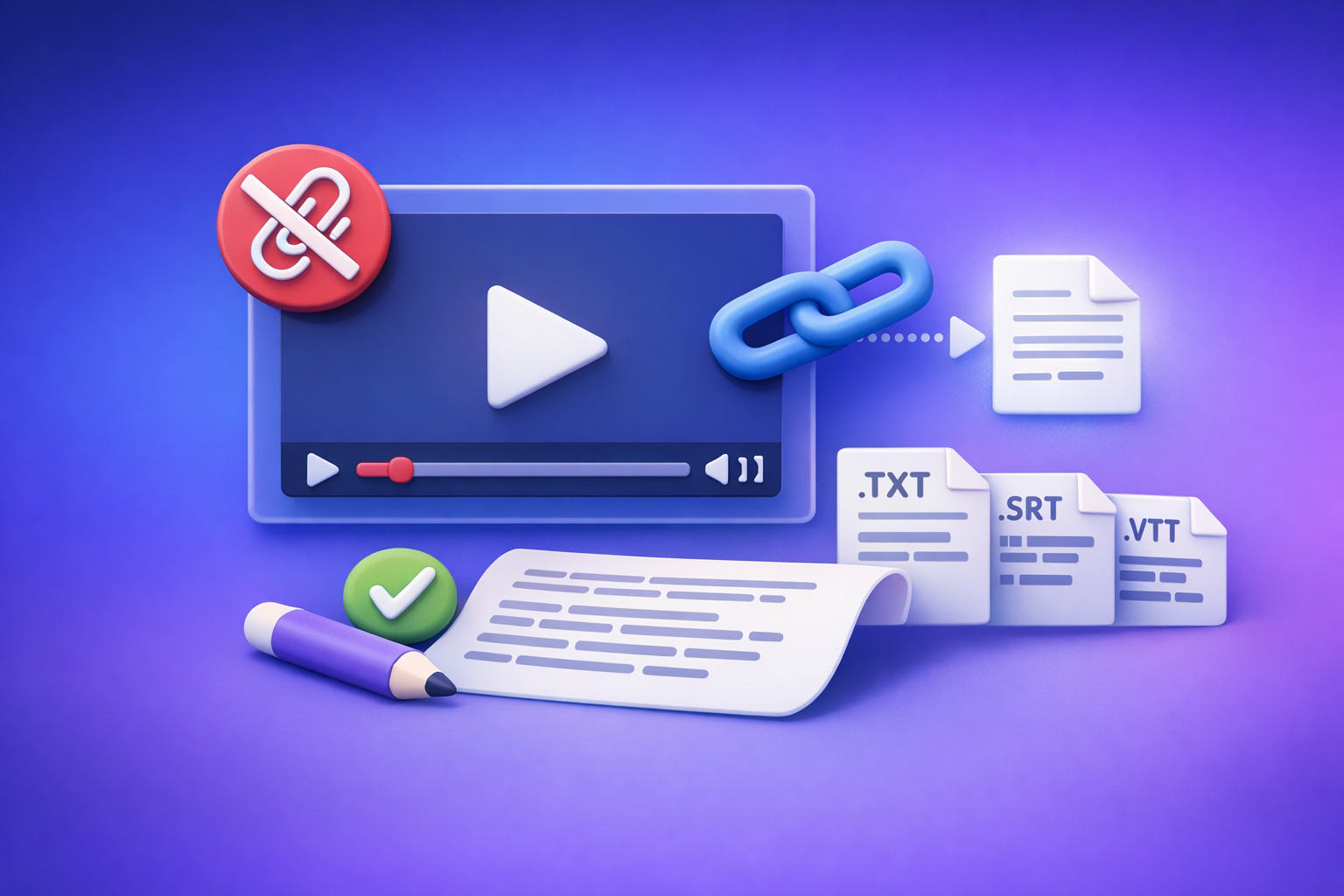
Fix “attachments disabled for” ChatGPT by starting a new chat and selecting an upload-capable model/surface, then isolate whether the block is workspace policy, browser profile, or network security. If you can’t restore uploads in 10 minutes, switch to a no-upload workflow: generate TXT + SRT/VTT from a link/MP4 and paste text into ChatGPT to keep shipping.
Downloading video files just to re-upload them is an outdated workflow. Link-based extraction is the future of creator productivity because it removes UI dependencies, file-size friction, and “upload button missing” failures.
“Attachments Disabled for” ChatGPT: What It Means, Why It Happens, and the Fastest Fix (Plus a No-Upload Video-to-Text Workflow)
Who this is for (and what you’ll fix in 10 minutes)
If you’re seeing “Attachments disabled for …” and you need to upload a doc, image, or video right now, this guide is for you.
Common scenarios
- The paperclip icon is missing or greyed out.
- You see a banner: “Attachments disabled for …”
- The composer says “Add files is unavailable”
- Uploads work in one place (mobile) but not another (browser).
- Uploads work in your personal account but not in a Team/Enterprise workspace.
What “fixed” looks like (paperclip returns, Add files enabled, uploads complete)
You’re done when:
- The paperclip is visible and clickable.
- Add files is enabled in the composer.
- A test upload completes (small PDF/image) without errors.
What “Attachments Disabled for …” means (and what it does not mean)
It’s usually chat-context + surface/model capability, not a permanent account ban
In most cases, the message means: uploads are disabled in this specific context (this chat thread, this model, this surface, this workspace policy, or this environment).
It usually does not mean:
- Your account is permanently banned from uploads.
- ChatGPT is “broken” globally.
- You did something wrong in the last message.
Typical UI states you’ll see
Banner message (“Attachments disabled for …”)
A top-of-chat banner or tooltip that appears when you try to attach.
Paperclip missing or greyed out
Either the icon is absent (feature not available in that context) or present but disabled (policy/environment restriction).
“Add files is unavailable” in the composer
A direct hint that the current chat/model/surface can’t accept uploads.
What can be blocked (files vs images vs video) and why that matters
Different contexts can block different attachment types:
- Files (PDF/DOCX/CSV) may be blocked while text input still works.
- Images may be blocked even if files are allowed (or vice versa).
- Video is often the most restricted due to size, processing, and policy.
This matters because a text-first workflow (transcript pasted into chat) remains reliable even when uploads are blocked.
2-minute diagnosis (before you change anything)
Step 1: Confirm where you’re using ChatGPT
- Web vs desktop vs mobile app
- Personal account vs Team/Enterprise workspace
Write down: surface + account/workspace. This alone often explains the restriction.
Step 2: Confirm whether this specific chat supports attachments
- Test a new chat (don’t troubleshoot inside the same thread).
- Look for model/surface mismatch signals:
- Missing paperclip
- “Add files unavailable”
- Attachments worked earlier but not in this thread now
Step 3: Identify the most likely root-cause bucket
- Entitlement/plan limitation
- Workspace/admin policy
- Browser profile breakage
- Network/security filtering
- Temporary service degradation
Step 4: Run a fast isolation test (the quickest truth table)
Do these in order:
- Incognito/private window
- Different network (hotspot)
- Official mobile app
If it works in any one of these, you’ve narrowed the cause dramatically.
Root causes (ranked) + how to confirm each
1) Model/surface mismatch (uploads not supported in this context)
Confirmation: upload UI absent only in certain chats/models
- Paperclip missing in one chat/model, present in another.
- New chat behaves differently than the existing thread.
Fix: start a new chat + select an upload-capable model/surface
- Create a new chat
- Re-select a model/surface that shows the paperclip/Add files controls
- Retry with a small test file first
Related reading: ChatGPT “Upload Video” Feature (2026): What Works, What Breaks, and the Production-Safe Link → Transcript Workflow
2) Plan/entitlement limitations (feature not enabled on your account)
Confirmation: uploads missing across devices/surfaces
- Missing on web, mobile, and desktop for the same account.
Fix: verify plan, sign out/in, test another account
- Sign out/in (refresh entitlements)
- Test a second account (if available) to confirm it’s account-level
3) Workspace/admin policy (Team/Enterprise restrictions)
Confirmation: works in personal account but not workspace (or vice versa)
- Personal account: uploads available
- Workspace: uploads disabled (or restricted by file type)
Fix: request policy change (copy/paste admin message)
Send this to your admin:
We’re blocked by “Attachments disabled for …” in ChatGPT. Please confirm whether file/image uploads are restricted by workspace policy (DLP/data controls) and enable attachments for our group or allowlist the required upload capability for ChatGPT.
4) Browser profile breakage (extensions, cookies/storage, corrupted site data)
Confirmation: works in incognito but not normal profile
Incognito typically disables extensions and uses fresh cookies—if uploads return there, your profile is the issue.
Fix: disable extensions, clear site data, allow cookies/storage
- Disable extensions (start with blockers)
- Ensure cookies/storage are allowed for ChatGPT
- Clear site data (see fix sequence below)
5) Network/security blocks (VPN, proxy, firewall, DLP, content filters)
Confirmation: works on hotspot but not corporate network
If hotspot works, your corporate network is filtering uploads.
Fix: remove VPN/proxy, switch DNS/network, ask IT to allow required endpoints
- Turn off VPN/proxy
- Try a different network
- Ask IT about DLP/content filters blocking file uploads
6) Temporary service degradation
Confirmation: status incidents + widespread reports
If multiple users report the same issue at the same time, it may be transient.
Fix: wait + use the fallback workflow below
Don’t stall production—ship via transcript-first.
Step-by-step fix sequence (fastest-to-verify first)
1) Start clean: new chat + reselect an upload-capable model
- Create a new chat
- Confirm the paperclip exists
- Upload a small file to validate
2) Switch surfaces: test the official mobile app to rule out browser-only issues
- If mobile works, stop troubleshooting the account—focus on browser/network.
3) Incognito/private window test (no extensions, fresh cookies)
- If incognito works, your normal browser profile is the culprit.
4) Disable common upload breakers (ordered)
Disable and retest after each:
- Ad blockers / privacy blockers
- Script blockers
- Cookie auto-delete tools
5) Clear site data for ChatGPT and re-authenticate
Clear site-specific data for ChatGPT:
- Cookies
- Local storage / site data
Avoid changing unrelated browser settings that add noise (don’t “reset everything” unless you must).
6) Network test: remove VPN/proxy + try a different network (hotspot)
- Corporate networks often block uploads via DLP.
- A hotspot test is the fastest confirmation.
7) Workspace path: what to send your admin (copy/paste request)
Use the admin message above and include:
- Surface (web/mobile)
- Whether incognito/hotspot works
- Whether personal account works
8) Stop troubleshooting at minute 10: switch to the no-upload workflow (ship anyway)
If uploads are still blocked, you need a workflow that doesn’t depend on ChatGPT’s attachment UI.
Ship-now fallback: no-upload transcript workflow (works even when attachments are disabled)
Why this works
ChatGPT can reliably process pasted text even when uploads are blocked
Even when attachments are disabled, plain text input typically remains available.
Text-first eliminates file-size limits and UI fragility
Text avoids:
- Upload UI changes
- File-size limits
- Network upload filtering (often stricter than normal browsing)
This is why downloading video files to re-upload is an outdated workflow. Link-based extraction is the future because it’s faster, more repeatable, and less fragile.
Production-safe workflow (URL/MP4 → TXT + SRT/VTT → ChatGPT-on-text)
Step 1: Generate a transcript from a link or MP4 in VideoToTextAI
Use link-based extraction whenever possible (YouTube/hosted video), or upload an MP4 once to generate deterministic outputs.
Tools:
If your source is YouTube and your goal is content repurposing, start here:
Step 2: Export deliverables (TXT + SRT + VTT) for editing/publishing
Export all three so you can ship across platforms:
- TXT for editing, summaries, blogs, knowledge base
- SRT for captions on most video platforms/editors
- VTT for web players and accessibility workflows
Step 3: Paste transcript into ChatGPT for summarization, outlines, and repurposing
You’re no longer blocked by attachments—ChatGPT works on the transcript text.
Step 4: Validate outputs against timestamps (avoid hallucinated quotes)
Use SRT/VTT cues to verify:
- Quotes are exact
- Claims match the transcript
- Chapters align with real moments
For deeper context on why this is production-safe, see:
- “Attachments Disabled for” ChatGPT: What It Means, Why It Happens, and the Fastest Fix (Plus a No-Upload Transcript Workflow)
- “Add Files Is Unavailable” in ChatGPT: Causes, Fixes, and a No-Upload Transcript Workflow (VideoToTextAI)
Copy/paste prompt templates (use with transcript text)
Paste your transcript, then add one of these prompts.
Template: accurate summary + key takeaways (no invented details)
You are given a transcript. Summarize it accurately with no invented details.
Output: (1) 5-bullet summary, (2) 10 key takeaways, (3) 5 direct quotes copied verbatim from the transcript with their timestamps if present.
If something is unclear, say “Not stated in transcript.”
Template: chapterization with timestamps (use SRT/VTT cues)
Using the transcript and timestamps, create 8–12 chapters.
Each chapter must include: start timestamp, title, 1–2 sentence description, and 3 bullet highlights.
Do not create chapters for content that doesn’t exist.
Template: blog post draft from transcript (preserve claims + add structure)
Turn this transcript into a blog post.
Requirements: keep all factual claims aligned to the transcript, add headings, add a short intro, and end with a practical checklist.
Do not add statistics, quotes, or product claims not present in the transcript.
Template: social clips + hooks (pull exact quotes, keep attribution)
Identify 10 short clip candidates.
For each: hook line, exact quote (verbatim), suggested clip start/end timestamps, and a caption.
If timestamps are missing, infer approximate sections but label them as “approximate.”
If you want the fastest “ship anyway” path without relying on ChatGPT uploads, use VideoToTextAI for link-based transcript/caption exports: VideoToTextAI
Checklist: fix or fallback (print this)
Upload restoration checklist (7 checks)
- New chat created
- Upload-capable surface/model selected
- Mobile app test completed
- Incognito test completed
- Extensions disabled/tested
- Site data cleared + re-login
- Network/VPN/hotspot test completed
Transcript-first shipping checklist (deliverables)
- Transcript exported as TXT
- Captions exported as SRT
- Web captions exported as VTT
- Transcript pasted into ChatGPT for repurposing
- Final copy verified against transcript (no invented quotes)
Common mistakes that keep attachments disabled
- Troubleshooting inside the same restricted chat thread (start a new chat instead).
- Assuming “Plus” guarantees uploads in every model/surface/workspace.
- Clearing the wrong browser data (or leaving cookie blockers on).
- Staying on a corporate network with DLP upload restrictions and never testing a hotspot.
VideoToTextAI vs Competitors
Below is a fair, workflow-focused comparison using only publicly signaled capabilities from the research set. The key operational difference: VideoToTextAI is built for link-based, export-ready deliverables so you can keep shipping even when ChatGPT attachments are disabled.
| Criteria | VideoToTextAI | Reduct Video | Canva | Videotranscriber AI |
|---|---|---|---|---|
| Link-based input (paste a URL) | Yes (product context: link-based workflows) | No strong public signal for link-based workflow | No strong public signal for link-based workflow | Yes (supports link input) |
| Upload dependency risk (ChatGPT UI changes, missing paperclip) | Low (exports TXT/SRT/VTT, then paste text) | Medium (platform workflow; link-first not emphasized) | Medium (upload-centric creative suite) | Low–Medium (link-based, but repurposing loop not emphasized) |
| Export readiness (TXT + SRT + VTT) | Yes (transcripts + captions/subtitles outputs) | Transcript export emphasized; subtitle exports not strongly signaled | Transcript/captions emphasized; export-ready subtitle workflow not strongly signaled | Transcript + subtitles signaled |
| Repurposing consistency (transcript → blog/social) | Strong fit (product context: repurposing workflows) | Summaries signaled; repurposing positioning weaker | General content creation suite; repurposing positioning not core | Summaries signaled; repurposing positioning weaker |
| Best fit use case | Creators/marketers who need repeatable link → assets → publish | Teams doing collaborative transcript-based review/editing | Design-first teams already living in Canva | Quick link-based transcription/translation needs |
Why VideoToTextAI wins for operational repeatability: you generate deterministic deliverables (TXT/SRT/VTT) and run ChatGPT on text, so you’re not blocked by “attachments disabled for” or upload UI changes.
When a competitor may be better:
- Choose Reduct Video if your priority is a collaborative transcript-centric review environment for teams.
- Choose Canva if you need transcription inside a broader design/video creation suite.
- Choose Videotranscriber AI if you want a simple link-based transcription tool and translation, and repurposing is secondary.
Competitor Gap
Most “fix” guides stop at troubleshooting and don’t provide a production-safe fallback.
Upload-heavy tools and upload-dependent workflows create avoidable failure points:
- File limits and processing constraints
- UI changes (paperclip missing, “add files unavailable”)
- Corporate network/DLP restrictions
- Browser extension interference
What’s often missing is a deterministic loop:
- Link/MP4 → TXT/SRT/VTT → ChatGPT-on-text repurposing
- Repeatable outputs you can store, edit, and validate against timestamps
That’s why downloading video files to re-upload is outdated. Link-first workflows keep shipping even when ChatGPT attachments are disabled.
FAQ
Why are my ChatGPT uploads disabled?
Most commonly: you’re in a chat/model/surface that doesn’t support uploads right now, or uploads are blocked by workspace policy, browser profile issues, or network security controls.
Why are my ChatGPT attachments greyed out?
A greyed-out paperclip typically indicates a restriction at the chat context, workspace policy, or environment level (extensions/cookies/network filtering). Confirm via incognito + hotspot tests.
Why are add files unavailable in ChatGPT Plus?
Plus can still be limited by model/surface, thread context, workspace admin policy, or browser/network restrictions. Treat it as a context issue first: new chat + different surface.
Where is the upload button in ChatGPT?
If the upload button/paperclip is missing, start a new chat and check a different surface (mobile app). If it appears in incognito but not your normal browser, disable extensions and clear site data.
Internal Link Plan
- “Attachments Disabled for” ChatGPT: What It Means, Why It Happens, and the Fastest Fix (Plus a No-Upload Transcript Workflow)
- “Add Files Is Unavailable” in ChatGPT: Causes, Fixes, and a No-Upload Transcript Workflow (VideoToTextAI)
- ChatGPT “Upload Video” Feature (2026): What Works, What Breaks, and the Production-Safe Link → Transcript Workflow
- Attachments Disabled in ChatGPT Image Upload: Causes, Fixes, and a No-Upload Video-to-Text Workflow (2026)
- MP4 to transcript
- MP4 to SRT
- MP4 to VTT
- YouTube to blog
Related posts
Reel Analyser (Instagram Reels): Transcript‑First Competitor Research, Hook/CTA Extraction, and Repurposing Workflow (VideoToTextAI)
Video To Text AI
A 2026 reel analyser should turn Instagram Reel links into a searchable transcript library you can tag for hooks, CTAs, objections, and topic clusters—then export into repurposing-ready drafts without a download/upload loop.
Traducir video de Instagram (Reels) en 2026: workflow transcript-first para traducir, sacar hooks/CTAs y repurpose (con VideoToTextAI)
Video To Text AI
Aprende a traducir un Reel de Instagram con un flujo URL→transcripción→traducción→subtítulos, y a convertir esa traducción en un activo de investigación para hooks, CTAs, objeciones y clusters de contenido.
Reel Analyzer: Transcript‑First Instagram Reels Research (Hooks, CTAs, Objections) + Workflow Guide (VideoToTextAI)
Video To Text AI
A reel analyzer should turn any public Instagram Reel link into a searchable transcript library you can mine for hooks, CTAs, objections, and topic clusters—then repurpose into original drafts with a repeatable SOP.