
“Add Files Is Unavailable” in ChatGPT: Causes, Fixes, and a No-Upload Transcript Workflow (VideoToTextAI)
 Video To Text AI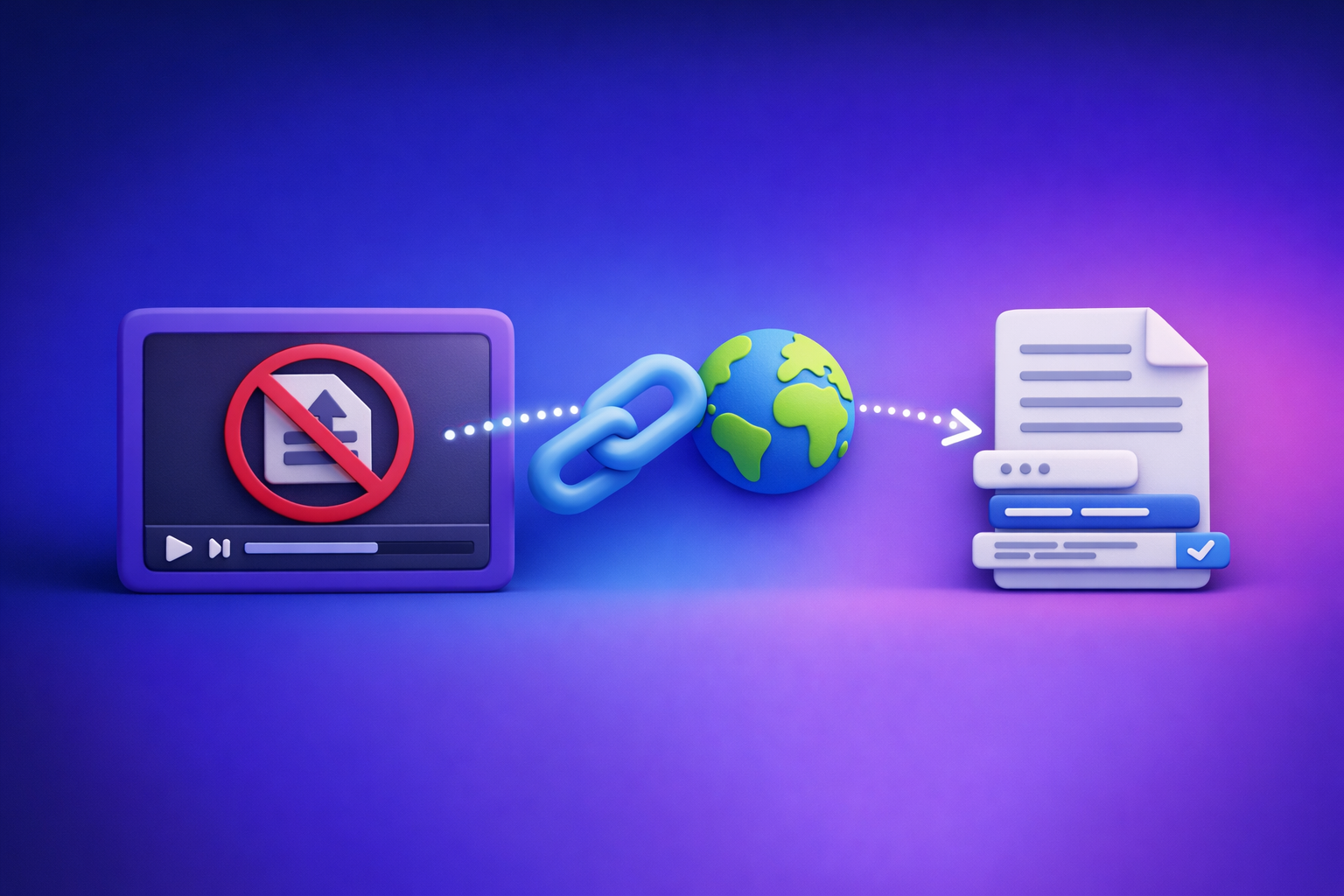
Fix “add files is unavailable” in ChatGPT by first confirming you’re in an upload-capable ChatGPT surface, then isolating whether the block is policy, browser, or network. If uploads are disabled (common in managed workspaces), skip the dead-end and use a no-upload transcript workflow: link/MP4 → TXT + SRT/VTT → ChatGPT-on-text.
“Add Files Is Unavailable” in ChatGPT: Causes, Fixes, and a No-Upload Transcript Workflow (VideoToTextAI)
Search intent + who this is for
- Intent: informational troubleshooting + workaround
- Best for: users who need to upload video/audio/PDF/images to ChatGPT but see “Add files is unavailable”
- Outcome: restore uploads or ship transcripts/captions without ChatGPT uploads using a transcript-first workflow (generate text + caption files, then prompt ChatGPT on text)
If you’re trying to “upload a video to ChatGPT,” treat that as a convenience—not a dependable production workflow. Downloading files, re-uploading them, and hoping the UI works is an outdated loop; link-based extraction and text-first repurposing is the future of creator productivity.
What “Add files is unavailable” means (and what it doesn’t)
What the message indicates
“Add files is unavailable” typically indicates that the current ChatGPT surface/model/account context does not allow file uploads right now.
Common examples:
- You’re in a ChatGPT experience where attachments are not enabled.
- You’re in a managed workspace where attachments are disabled by policy.
- The UI can’t load the upload capability due to browser/network interference.
What it does not mean
In most cases, it does not mean:
- Your file is corrupt.
- Your file format is unsupported (you usually see a different error for that).
- ChatGPT is fully down (platform issues happen, but configuration/policy is more common).
Fast 2-minute diagnosis (decision tree)
Use this quick decision tree to stop guessing and identify the root cause.
Step 1 — Confirm you’re on an upload-capable surface
- Look for an attachment/paperclip icon or an Add files control.
- If you’re in a restricted surface (some embedded experiences, wrappers, or limited contexts), uploads may be disabled.
If you want a deeper explainer on missing controls, see: “Add Files” Button Unavailable in ChatGPT: Why It Happens + Exact Fixes (and a No-Upload Workflow)
Step 2 — Check account/workspace restrictions
- Are you in a Personal workspace or a Team/Enterprise workspace?
- In managed workspaces, attachments can be disabled by admin policy.
Step 3 — Isolate browser vs network vs account
Test the same action in:
- Another browser profile (fresh profile, no extensions)
- Incognito/private window
- Another network (mobile hotspot)
Interpretation:
- Works elsewhere → local issue (browser/extensions/network).
- Fails everywhere → account/surface/policy (or temporary platform degradation).
Root causes (ordered by likelihood) + exact fixes
1) Surface/model mismatch (uploads not supported in that context)
Sometimes you’re simply in a context where attachments aren’t available—even if your account can upload elsewhere.
Fix checklist
- Start a new chat and check if the upload control appears.
- Refresh the page and re-open ChatGPT (forces a capability re-check).
- If you’re using a third-party wrapper/embedded view, open ChatGPT directly in the primary web app.
If your goal is video work specifically, also read: ChatGPT “Upload Video” Feature (2026): What Works, What Breaks, and the Production-Safe Link → Transcript Workflow
2) Workspace/admin policy disables attachments
This is extremely common in corporate environments due to compliance, DLP, or data handling policies.
Fix checklist
- Switch to a personal workspace (if available) and re-check the upload controls.
- Ask your admin to enable file uploads/attachments:
- Include a screenshot of the message
- Include timestamp + workspace name
- If you can’t change policy: use the no-upload workflow below and keep moving.
3) Browser extensions or privacy settings blocking upload UI
Upload controls can be blocked by script blockers, privacy tools, or aggressive security extensions.
Fix checklist (fastest first)
- Disable extensions that commonly interfere:
- ad blockers
- script blockers
- privacy tools
- corporate security extensions
- Clear site data for the ChatGPT domain (cookies + local storage), then sign in again.
- Try a clean browser profile with zero extensions.
4) Network/security filtering (corporate proxy, DLP, firewall)
Some networks block upload endpoints or related services.
Fix checklist
- Test on a different network (mobile hotspot is the fastest proof).
- If corporate network is required:
- Ask IT whether file upload endpoints are blocked
- Request allowlisting for the relevant upload endpoints
- Provide a HAR file if your IT team requests it
5) App cache issues (desktop/mobile apps)
If you’re using a desktop/mobile app, cached state can cause missing controls.
Fix checklist
- Update the app to the latest version.
- Force quit + restart.
- Log out/in.
- If still blocked, use the web app in a clean browser profile.
6) Temporary platform degradation
Sometimes it really is a transient issue.
Fix checklist
- Retry after 10–30 minutes.
- Don’t miss deadlines: use the no-upload workflow below so your pipeline doesn’t depend on UI availability.
Step-by-step: ship results without ChatGPT uploads (VideoToTextAI workflow)
When to use this
Use this when:
- You’re trying to upload video/audio to get transcripts, subtitles, captions, summaries, or repurposed content.
- Upload UI is blocked by policy or keeps failing.
- You need repeatable exports (TXT + SRT/VTT) that don’t depend on ChatGPT attachments.
This is the modern approach: stop downloading and re-uploading media. Link-based extraction is faster, more repeatable, and easier to operationalize across teams.
Workflow overview (deterministic)
- Provide a video link or MP4 to VideoToTextAI
- Export TXT transcript + SRT/VTT captions
- Paste transcript into ChatGPT for:
- summaries, chapters, hooks, posts, blog drafts, SEO metadata
- Publish with captions/subtitles from SRT/VTT (no dependency on ChatGPT uploads)
If you want tool-specific entry points, these internal pages map to common deliverables:
Implementation steps (copy/paste ready)
Step 1 — Generate transcript + captions
Generate:
- Transcript (TXT)
- Subtitles (SRT)
- Web captions (VTT)
One CTA (use once): Try the link-based workflow at VideoToTextAI.
Step 2 — Validate transcript quality before prompting ChatGPT
Do a quick spot-check so you don’t waste time “prompting around” errors:
- Speaker turns: are speakers separated consistently?
- Timestamps: do SRT/VTT timestamps align with the audio?
- Proper nouns: names, brands, product terms, locations
Fix obvious issues once, then reuse the cleaned transcript for every downstream asset.
Step 3 — Prompt ChatGPT on text (not files)
Paste the transcript and specify outputs precisely.
Example prompt (chapters + hooks):
- Input: “Here is the transcript: …”
- Output format: “Return 10 YouTube chapters with timestamps in
MM:SS.” - Constraints: “Use a direct tone, no clickbait, keep each chapter title under 52 characters.”
- Extras: “Also return 5 hook options for Shorts.”
Example prompt (blog + SEO metadata):
- “Turn this transcript into a 1,200-word blog post with H2/H3 headings, a TL;DR, and a meta title + meta description. Audience: B2B marketers.”
Step 4 — Repurpose into deliverables
- Captions: publish using SRT/VTT directly.
- Content: generate:
- blog drafts
- social posts
- email sequences
- show notes
- quote pull-outs
- FAQ sections
For a repurposing example, see: Reel Summary: How to Summarize an Instagram Reel (Accurately) + Turn It Into Captions, Posts, and a Blog
Troubleshooting checklist (printable)
- Tried a new chat + confirmed upload UI exists
- Switched workspace (personal vs managed) to test policy restriction
- Tested incognito / clean profile (no extensions)
- Tested another browser
- Tested another network (hotspot)
- Updated app / cleared cache (if using mobile/desktop)
- If still blocked: used link/MP4 → TXT + SRT/VTT → ChatGPT-on-text
Common scenarios (what to do in each)
“I need to upload a video to get subtitles today”
- Don’t wait on ChatGPT uploads.
- Generate SRT/VTT via a transcript-first pipeline and publish.
- Use ChatGPT afterward on the transcript for titles, descriptions, and chapters.
“My company workspace blocks attachments”
- Confirm it’s a policy restriction (test personal workspace or hotspot + personal account).
- Use the transcript-first workflow immediately.
- Request admin enablement later with a screenshot + timestamp.
“The button is missing only on one device”
- Treat it as a local issue:
- clean profile
- disable extensions
- clear site data
- test another browser
VideoToTextAI vs Competitors
Competitor profiles were not provided in the research block (competitorProfiles missing), so this section avoids tool-by-tool claims that would require verified data.
What you can compare reliably at the workflow level:
-
VideoToTextAI workflow advantage (operational):
- Link-based ingestion supports modern creator pipelines where the source is already a URL (YouTube, social, hosted files).
- Deterministic exports (TXT + SRT/VTT) create repeatable deliverables that don’t depend on ChatGPT’s attachment UI.
- Repurposing-friendly: once you have verified text, ChatGPT becomes a transformation layer (summaries, posts, SEO), not a fragile ingestion step.
-
When an upload-only tool may be better (narrower job):
- If your media is strictly local-only and you’re required to keep it offline until the last moment, an upload-only flow can be acceptable—assuming uploads are permitted and stable.
| Criteria | VideoToTextAI | Upload-to-ChatGPT-only workflow |
|---|---|---|
| Input method | Link-based or MP4 (designed for URL-first workflows) | Often UI-dependent attachments |
| Export formats | TXT + SRT/VTT for publishing | Captions may require extra steps or may not be export-first |
| Reliability | Repeatable pipeline independent of attachment availability | Breaks when “Add files is unavailable” appears |
| Speed to publish | Faster when source is already a link; fewer manual steps | Slower when you must download/re-upload and troubleshoot UI |
| Repurposing | Clean transcript becomes the source of truth for many assets | Repurposing depends on successful file ingestion each time |
| Compliance constraints | Works even when attachments are blocked (text-only into ChatGPT) | Often blocked by workspace policy/network filtering |
Competitor Gap
Most “add files is unavailable” guides stop at UI troubleshooting and don’t provide a production-safe fallback when uploads are blocked by policy/network.
Most transcription workflows that rely on ChatGPT file uploads are fragile for:
- repeatable caption exports (SRT/VTT)
- deadline-driven publishing
- team environments with managed policies
This post closes the gap with:
- a 2-minute decision tree
- ordered fixes by root cause
- a no-upload transcript/caption pipeline (link/MP4 → TXT + SRT/VTT → ChatGPT-on-text)
FAQ (People Also Ask-aligned)
Why does ChatGPT say “Add files is unavailable”?
Because the current ChatGPT context you’re using doesn’t allow attachments right now—most often due to surface limitations or workspace policy. Less commonly, it’s caused by browser/network interference or a temporary platform issue.
How do I enable file uploads in ChatGPT?
- Confirm you’re in an upload-capable experience (paperclip/Add files control visible).
- Switch workspaces (personal vs managed) to test whether it’s policy-related.
- If managed: ask your admin to enable attachments.
- If local: disable extensions, clear site data, and test another network.
Is “Add files is unavailable” caused by my browser or my account?
Use isolation tests:
- If it works in incognito/another browser → likely browser extensions/cache.
- If it works on hotspot but not corporate Wi‑Fi → likely network filtering.
- If it fails everywhere in a managed workspace → likely policy/account context.
What can I do if my workspace/admin disabled attachments?
Treat uploads as unavailable and move to a text-first workflow:
- generate transcript + captions outside ChatGPT
- paste transcript into ChatGPT for summaries/repurposing
- request admin enablement later if needed
Can I still transcribe a video if ChatGPT uploads don’t work?
Yes. Generate a TXT transcript plus SRT/VTT captions first, then use ChatGPT on the transcript for chapters, summaries, posts, and SEO metadata. This avoids attachment failures entirely.
Internal Link Plan
- “Add Files Is Unavailable” in ChatGPT: Causes, Fixes, and a No-Upload Transcript Workflow (2026)
- “Add Files” Button Unavailable in ChatGPT: Why It Happens + Exact Fixes (and a No-Upload Workflow)
- “Attachments Disabled for” ChatGPT: What It Means, Why It Happens, and the Fastest Fix (Plus a No-Upload Transcript Workflow)
- ChatGPT “Upload Video” Feature (2026): What Works, What Breaks, and the Production-Safe Link → Transcript Workflow
- Reel Summary: How to Summarize an Instagram Reel (Accurately) + Turn It Into Captions, Posts, and a Blog
- mp4 to transcript
- mp4 to srt
- mp4 to vtt
Suggested on-page elements (to improve CTR + task completion)
Title tag options
- Add Files Is Unavailable in ChatGPT: Fix It Fast + No-Upload Transcript Workflow
- ChatGPT “Add Files Is Unavailable”: Causes, Fixes, and the Reliable Link → Transcript Method
Meta description (≤160 chars)
Fix “Add files is unavailable” in ChatGPT with a 2-minute diagnosis, ordered fixes, and a no-upload workflow for transcripts + SRT/VTT using VideoToTextAI.
Featured snippet targets
What it means (definition):
“Add files is unavailable” means the ChatGPT experience you’re currently using doesn’t support attachments right now—often due to workspace policy or surface limitations. It usually isn’t a file corruption issue.
2-minute decision tree:
- Confirm the upload UI exists (paperclip/Add files).
- Switch workspace (personal vs managed) to test policy.
- Test incognito/clean profile and another network to isolate browser vs network vs account.
Printable checklist:
Use the “Troubleshooting checklist (printable)” section above as the snippet-friendly list.
Related posts
Reel Analyser (Instagram Reels): Transcript‑First Competitor Research, Hook/CTA Extraction, and Repurposing Workflow (VideoToTextAI)
Video To Text AI
A 2026 reel analyser should turn Instagram Reel links into a searchable transcript library you can tag for hooks, CTAs, objections, and topic clusters—then export into repurposing-ready drafts without a download/upload loop.
Traducir video de Instagram (Reels) en 2026: workflow transcript-first para traducir, sacar hooks/CTAs y repurpose (con VideoToTextAI)
Video To Text AI
Aprende a traducir un Reel de Instagram con un flujo URL→transcripción→traducción→subtítulos, y a convertir esa traducción en un activo de investigación para hooks, CTAs, objeciones y clusters de contenido.
Reel Analyzer: Transcript‑First Instagram Reels Research (Hooks, CTAs, Objections) + Workflow Guide (VideoToTextAI)
Video To Text AI
A reel analyzer should turn any public Instagram Reel link into a searchable transcript library you can mine for hooks, CTAs, objections, and topic clusters—then repurpose into original drafts with a repeatable SOP.