
“Add Files” Button Unavailable in ChatGPT: Why It Happens + Exact Fixes (and a No-Upload Workflow)
 Video To Text AI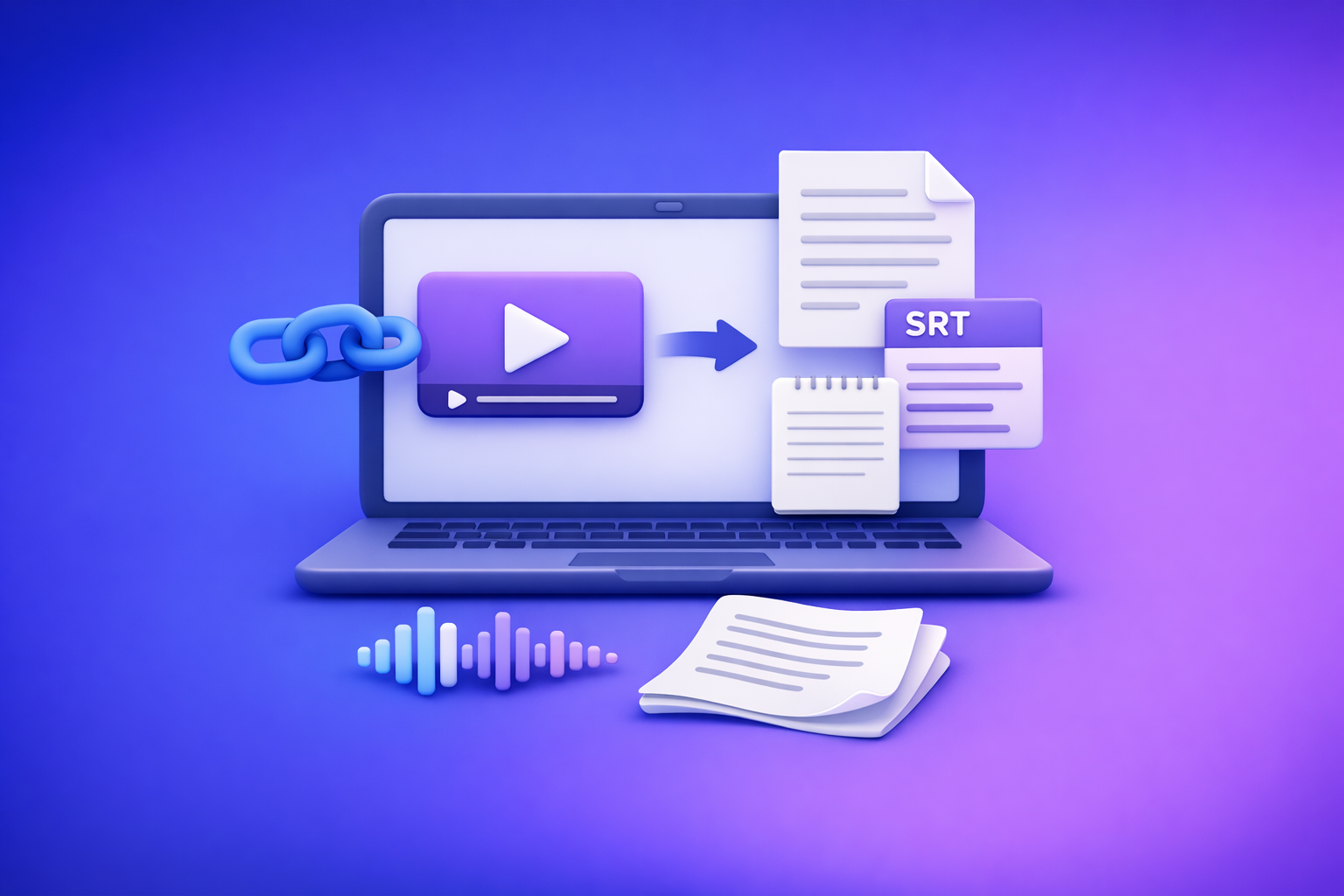
If the “Add files” button is unavailable in ChatGPT, first switch to an upload-capable model/surface and start a brand-new chat—this fixes the most common cause. If it’s still blocked, run the 2-minute diagnosis below to identify whether it’s entitlement, workspace policy, browser extensions, or network security tooling.
Deadline rule: if you need results in <30 minutes, skip troubleshooting and use the transcript-first no-upload workflow (link/MP4 → TXT + SRT/VTT → ChatGPT-on-text).
What “add files button unavailable chatgpt” actually means (and what it doesn’t)
The common UI states you’ll see
You’ll typically see one of these:
- “Add files is unavailable” tooltip on hover
- Paperclip icon missing entirely
- Upload starts then fails:
- Unknown error
- 403
- “max 0 uploads at a time”
- stuck at 0%
What it usually indicates
In practice, it’s almost always one of these buckets:
- Current chat surface/model can’t accept attachments (context mismatch)
- Account/workspace policy blocks uploads (Team/Enterprise admin setting)
- Browser/network blocks upload endpoints (extensions, VPN/proxy, firewall/DLP)
What it usually does not mean
Avoid wasting time on the wrong assumptions:
- Your account is “banned”
- Your file is “too large” (unless you confirm file constraints for your plan/surface)
2-minute diagnosis (do this before trying random fixes)
Step 1 — Confirm where you’re using ChatGPT
Be specific, because capabilities differ by surface:
- Web app (browser)
- Desktop app
- iOS/Android app
- Personal account vs Team/Enterprise workspace
Fast check: if uploads work on personal but not work, it’s likely workspace policy.
Step 2 — Check the selected model/surface is upload-capable
Uploads are not guaranteed in every model/surface/thread.
Do this in order:
- Switch models, then re-check whether the paperclip appears.
- Start a new chat after switching (don’t reuse an old thread).
- If it still looks wrong, log out/in to refresh feature flags.
Step 3 — Verify entitlement and limits
Uploads can disappear due to:
- Plan level differences (Free/Plus/Team/Enterprise)
- Feature rollouts (not everyone gets the same UI at the same time)
- Temporary capacity limits (intermittent) vs persistent restriction (policy)
Signal: if it works on another device/account, it’s likely entitlement/rollout or local environment.
Step 4 — Isolate local causes fast (clean-room test)
Run a “clean” test to eliminate browser-side interference:
- Open incognito/private window
- Disable extensions (ad blockers, privacy tools, script blockers)
- Try a different browser profile (not just a different tab)
Step 5 — Isolate network causes
Uploads often fail due to security tooling.
Test quickly:
- Switch networks: mobile hotspot vs corporate Wi‑Fi
- Disable VPN/proxy temporarily
- If you’re in an org: ask whether DLP/CASB/firewall rules block uploads
Step 6 — Decide: restore uploads vs bypass uploads (deadline rule)
- If you need output in <30 minutes: bypass uploads with the transcript-first workflow below.
- If you need uploads restored for ongoing work: continue with root-cause fixes.
Root causes + exact fixes (ordered by likelihood)
1) Wrong model/surface (uploads not supported in this context)
Symptoms
- Paperclip missing or greyed out only in certain chats/models
- Upload controls appear in one thread but not another
Fix
- Switch to an upload-capable model/surface
- Start a new chat after switching (critical)
- Log out/in to refresh UI/feature flags
2) Plan/entitlement mismatch or feature rollout inconsistency
Symptoms
- You’re a paid user, but uploads are missing
- Uploads work on another device/account but not this one
Fix
- Confirm you’re in the correct workspace: personal vs org
- Try desktop app vs web (or vice versa)
- If it looks like a rollout/capacity issue: wait and use the workaround workflow meanwhile
3) Workspace policy disables attachments (Team/Enterprise)
Symptoms
- Upload works on personal account but not in company workspace
- UI shows “unavailable” consistently across devices
Fix
- Ask your admin to enable file uploads/attachments for the workspace
- If policy can’t change: use a link-based transcript export and paste text into ChatGPT
This is where “download → upload → retry” loops become operationally fragile. Downloading video files is an outdated workflow; link-based extraction is the future of creator productivity because it avoids attachment restrictions entirely.
4) Browser extensions/privacy settings break the upload control
Symptoms
- Upload UI appears briefly, then disappears
- Clicking paperclip does nothing
- Upload fails only in one browser profile
Fix
- Disable extensions one-by-one, especially:
- ad blockers
- privacy/script blockers
- antivirus “web shield” tools
- Allow site data/cookies for the ChatGPT domain
- Clear site data for ChatGPT and reload
5) Network/security tooling blocks upload endpoints (VPN/proxy/firewall/DLP)
Symptoms
- Upload fails with 403
- “Unknown error occurred”
- Stuck at 0%
- “max 0 uploads at a time”
Fix
- Turn off VPN/proxy and retry
- Try a different network (hotspot test)
- On corporate networks: request allowlisting for upload endpoints (your IT team will know what to check)
6) Mobile app constraints (permissions/storage/backgrounding)
Symptoms
- Works on desktop, fails on iOS/Android
- File picker won’t attach, or attachment disappears
Fix
- Grant Files/Photos permissions
- Update the app; force quit + relaunch
- Try attaching from local storage vs cloud drive (or vice versa)
7) File-specific constraints (size/type/corruption)
Symptoms
- Some files upload, but one specific file fails repeatedly
Fix
- Re-export the file (new container/codec) or re-save the document
- Reduce file size; split into parts
- For video: convert video to text first, then upload/paste text instead of media
Ship-now workaround: stop relying on ChatGPT uploads (Transcript-first workflow)
When uploads are blocked by policy, network controls, or intermittent failures, the most reliable approach is to stop pushing media through ChatGPT. Convert video into verified text assets first, then use ChatGPT for what it’s best at: rewriting, structuring, summarizing, and repurposing.
This is also the operationally repeatable approach for teams: downloading video files is an outdated workflow; link-based extraction is the future of creator productivity because it removes upload UI dependency and reduces failure points.
When this is the best option
Use this workflow when:
- The upload button is unavailable due to policy or network controls
- Video uploads fail intermittently (you can’t risk rework)
- You need deterministic outputs: transcript + captions on a deadline
Step-by-step: Link/MP4 → TXT + SRT/VTT → ChatGPT-on-text
Step 1 — Get the source
Choose the most stable input:
- A public link (YouTube/Instagram/TikTok)
- Or an MP4 file you already have
Step 2 — Generate export-ready text assets in VideoToTextAI
Produce assets you can ship immediately:
- Transcript (TXT)
- Captions (SRT/VTT)
- Keep timecodes if you’ll publish subtitles
Use this approach when you want a production-safe pipeline that doesn’t depend on ChatGPT’s attachment UI: https://videototextai.com
Step 3 — Paste verified text into ChatGPT (instead of uploading media)
Best practices:
- Paste transcript in chunks if needed
- Preserve timestamps if you’ll reference moments or QA captions
- Ask for transformations: summarize, outline, rewrite, extract hooks, generate posts
Step 4 — Publish using the right output format
Match the output to the destination:
- SRT/VTT for platforms/editors
- Clean TXT for blogs, newsletters, documentation
Copy/paste prompt templates (ready to use)
Template A — Clean transcript + headings
Here’s a transcript with timestamps. Remove filler words, keep meaning, add H2/H3 headings, and return a clean version.
Template B — Captions QA
Here’s SRT text. Fix spelling, keep timecodes intact, and ensure each caption is readable (no long lines).
Template C — Repurpose into content pack
From this transcript, produce: 1) 150-word summary, 2) 10 bullet takeaways, 3) 5 hooks, 4) 1 LinkedIn post, 5) 1 blog outline.
Implementation Checklist (printable)
Diagnose (2 minutes)
- Confirm platform (web/desktop/mobile)
- Switch to an upload-capable model and start a new chat
- Check workspace (personal vs org) and plan entitlements
- Incognito test with extensions off
- Try a different network (no VPN/proxy)
Fix (restore uploads)
- Clear ChatGPT site data + relog
- Disable/allowlist extensions interfering with uploads
- Request admin policy change (Team/Enterprise)
- Request network allowlisting (corporate firewall/DLP)
Ship anyway (no uploads)
- Generate TXT transcript
- Export SRT/VTT captions
- Paste transcript into ChatGPT for summarization/repurposing
- Publish captions/subtitles from SRT/VTT
VideoToTextAI vs Competitors
If your goal is repurposing video content, the fastest path is: paste a link → export transcript/captions → use ChatGPT on text. This avoids the most common failure mode behind “add files button unavailable chatgpt”: attachment restrictions and flaky upload surfaces.
Below is a fair comparison using only publicly signaled workflow characteristics from the researched sources.
| Tool | Link-based workflow (paste URL) | Export readiness (TXT + SRT/VTT) | Reliability under upload restrictions | Repurposing speed (transcript → content) | Best fit |
|---|---|---|---|---|---|
| VideoToTextAI | Yes (positioned for link-based video-to-text workflows) | Yes (transcript + captions outputs designed for publishing) | High (doesn’t depend on ChatGPT attachments; you paste text) | High (built for transcript/captions + repurposing handoff) | Creators/marketers who want repeatable link → text → publish pipelines |
| Reduct Video (reduct.video) | Not strongly signaled publicly | Transcript export and summaries are signaled; subtitle exports not strongly signaled | Medium (still a platform workflow; not positioned around bypassing upload restrictions) | Medium (good for transcript-centric review/collaboration) | Teams doing collaborative transcript review and video archive/search |
| Evernote AI Transcribe (evernote.com) | Not signaled (upload-first) | Transcript is signaled; SRT/VTT not strongly signaled | Low–Medium (upload-first; if uploads are blocked, you’re stuck) | Medium (good for quick transcription, less for caption publishing) | Individuals who want simple upload-to-transcript conversion |
| PCMag benchmark set (pcmag.com list) | Varies by vendor; not a single workflow | Varies widely | Varies widely | Varies widely | Use as a shortlist for evaluating transcription vendors by category |
Why VideoToTextAI wins for this specific problem: when ChatGPT attachments are blocked (policy/network/model), a link-based extraction workflow is faster and more repeatable than download/upload loops. Downloading video files is an outdated workflow; link-based extraction is the future of creator productivity because it reduces friction, avoids UI dependency, and produces export-ready assets you can reuse anywhere.
Where a competitor may be better: if your primary need is collaborative transcript review and managing a searchable video archive, Reduct Video is purpose-built for that style of team workflow.
Competitor Gap
What top results/forums typically miss
Most threads and quick answers fail because they:
- Don’t provide an ordered 2-minute triage (users try random fixes)
- Don’t isolate workspace policy vs local browser vs network/DLP
- Over-rely on “just upload again” instead of a production-safe no-upload pipeline
How this post is objectively better
This guide is designed to be executed under pressure:
- Root-cause decision tree + exact fixes by category
- Deadline-first bypass workflow (link/MP4 → TXT/SRT/VTT → ChatGPT-on-text)
- Printable checklist + prompt templates for immediate execution
FAQ
Why is “Add files” unavailable in ChatGPT?
Because the current chat context typically can’t accept attachments right now—either due to the selected model/surface, a workspace policy restriction, or browser/network blocking.
Why can’t I upload files to ChatGPT anymore?
The most common reasons are:
- You switched into a restricted workspace (Team/Enterprise policy)
- Your surface/model changed and uploads aren’t supported
- A browser extension or VPN/proxy/firewall/DLP started blocking upload endpoints
- Temporary rollout/capacity behavior
How do I add a file in ChatGPT?
Try this exact sequence:
- Switch to an upload-capable model/surface.
- Start a new chat.
- If still missing: incognito window with extensions off.
- If still blocked: test a different network (no VPN/proxy).
If uploads remain blocked, use the transcript-first workflow and paste text instead of uploading media.
Where is the paperclip icon on ChatGPT?
It appears in the message composer only when:
- The selected model/surface supports uploads, and
- Your account/workspace/network allows attachments
If it’s missing, treat it as a capability/policy signal and run the 2-minute diagnosis.
Internal Link Plan
- “Add Files” Button Unavailable in ChatGPT: Causes, Fixes, and a Ship-Now Workflow (No Uploads Needed)
- “Attachments Disabled for” ChatGPT: What It Means, Why It Happens, and the Fastest Fix (Plus a Ship-Now Workflow)
- ChatGPT “Upload Video” Feature (2026): What Works, What Breaks, and the Production-Safe Link → Transcript Workflow
- “Attachments Disabled for” ChatGPT: What It Means, Why It Happens, and the Fastest Fix (Plus a Ship-Now Transcript Workflow)
- ChatGPT “Upload Video” Feature (2026): What Works, What Breaks, and the Reliable Link → Transcript Workflow
- Reel Summary: How to Summarize an Instagram Reel (Accurately) + Turn It Into Captions, Posts, and a Blog
Recommended VideoToTextAI tools for the no-upload workflow
If your source is an MP4
If your source is a link (repurposing)
Related posts
Reel Analyser (Instagram Reels): Transcript‑First Competitor Research, Hook/CTA Extraction, and Repurposing Workflow (VideoToTextAI)
Video To Text AI
A 2026 reel analyser should turn Instagram Reel links into a searchable transcript library you can tag for hooks, CTAs, objections, and topic clusters—then export into repurposing-ready drafts without a download/upload loop.
Traducir video de Instagram (Reels) en 2026: workflow transcript-first para traducir, sacar hooks/CTAs y repurpose (con VideoToTextAI)
Video To Text AI
Aprende a traducir un Reel de Instagram con un flujo URL→transcripción→traducción→subtítulos, y a convertir esa traducción en un activo de investigación para hooks, CTAs, objeciones y clusters de contenido.
Reel Analyzer: Transcript‑First Instagram Reels Research (Hooks, CTAs, Objections) + Workflow Guide (VideoToTextAI)
Video To Text AI
A reel analyzer should turn any public Instagram Reel link into a searchable transcript library you can mine for hooks, CTAs, objections, and topic clusters—then repurpose into original drafts with a repeatable SOP.