
ChatGPT “Upload Video” Feature (2026): What Works, What Breaks, and the Production-Safe Link → Transcript Workflow
 Video To Text AI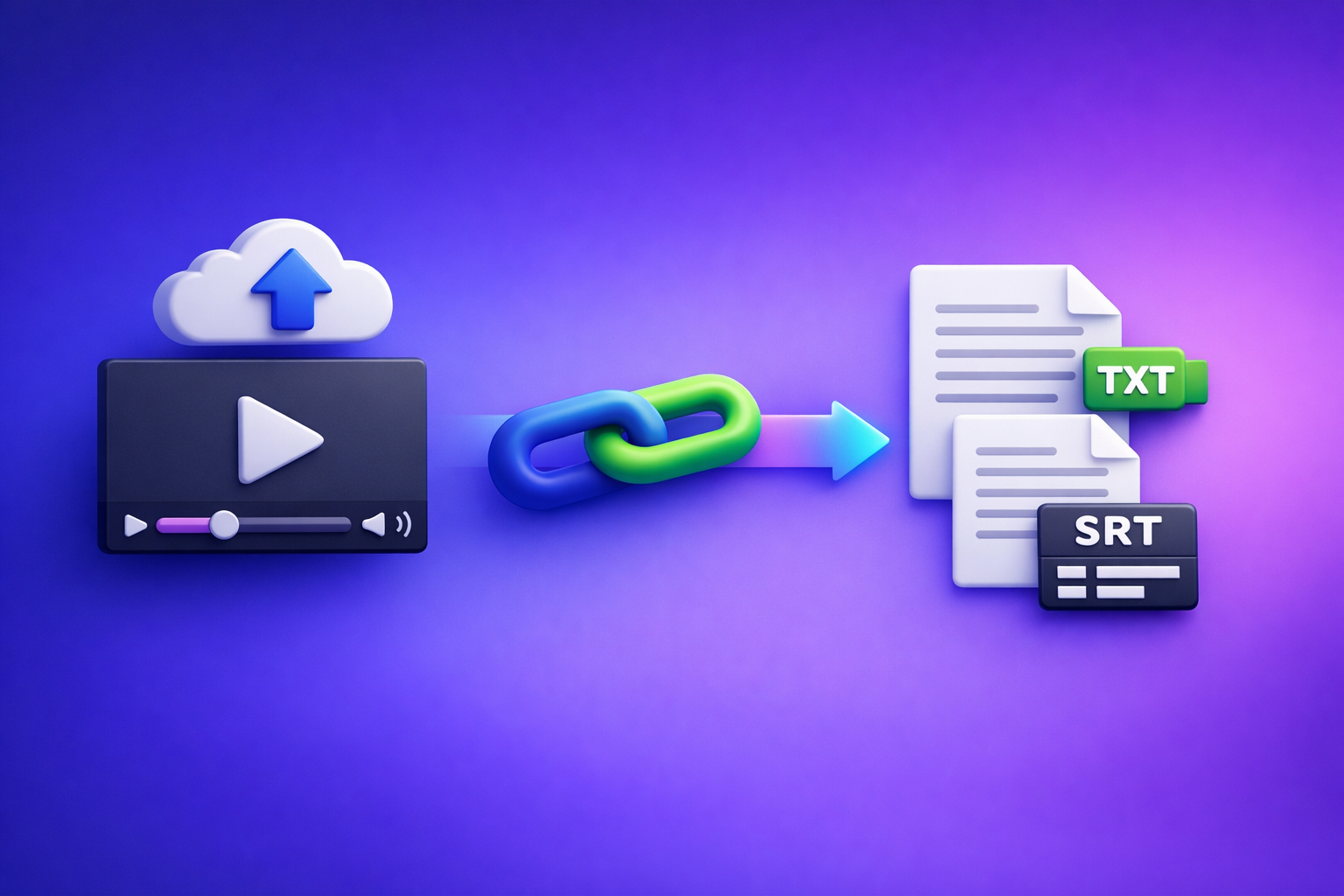
If you need export-ready transcripts (TXT) and captions (SRT/VTT), don’t bet your deadline on the ChatGPT “upload video” feature. Use a link/MP4 → transcript/captions → ChatGPT-on-text workflow so you can QA artifacts and ship.
Downloading video files is an outdated workflow for creators and teams. Link-based extraction is the future of creator productivity because it removes download/upload loops and produces deterministic outputs you can reuse everywhere.
Why people search “ChatGPT upload video feature” (and what they actually need)
Most searches aren’t about novelty—they’re about turning video into usable text fast. The phrase “upload video” sounds like a pipeline, but it often behaves like an experiment.
The 4 real jobs-to-be-done behind the query
People usually want one of these outcomes:
- Understand a clip quickly (what’s happening, what’s being said).
- Extract the spoken content (a readable transcript).
- Publish captions/subtitles (SRT/VTT for YouTube, web, editors).
- Repurpose content (blog, social posts, email, chapters, clip list).
“Analyze a video” vs “ship transcripts/captions” (two different outcomes)
These are not the same job.
- Analyze a video: “Tell me what’s going on” (rough, interpretive, low-stakes).
- Ship transcripts/captions: “Give me clean TXT + accurate timecodes” (deterministic, QA-able, production-safe).
When ChatGPT is the wrong tool for the job (deliverables, timecodes, scale)
ChatGPT can be helpful, but it’s not designed as a deliverables engine.
It’s the wrong tool when you need:
- Consistent formatting across many videos.
- Accurate timing for captions (SRT/VTT).
- Long-form processing (podcasts, webinars, courses).
- Operational repeatability for teams publishing weekly.
If you’re hitting “upload” because you want transcripts, you’re already one step late. Start with transcript-first.
What the ChatGPT “upload video” feature can do (and its hard limits)
What “upload video” typically means in practice (file upload vs link vs frames)
In practice, “upload video” can mean different things depending on the client and tool availability:
- File upload: you attach an MP4/MOV and ask questions.
- Link: you paste a URL (often not truly “watched” unless the system can access it).
- Frames/stills: you share screenshots or extracted frames (common workaround).
Because these modes vary, reliability varies too.
Best-fit use cases (low-stakes)
Use ChatGPT video upload when the cost of being wrong is low.
Quick understanding of a short clip
- “What’s the main idea?”
- “What happens first/next?”
- “What’s the tone?”
Scene/object descriptions and rough notes
- “Describe what’s on screen.”
- “List visible objects or steps.”
Drafting questions to investigate in the footage
- “What should I verify?”
- “What are potential compliance issues to check?”
Not reliable for production outputs
If you need deliverables, assume you’ll hit inconsistencies.
Export-ready transcripts (TXT) with consistent formatting
Common failure modes:
- Missing lines
- Inconsistent paragraphing
- Speaker turns not preserved
Subtitles/captions with accurate timing (SRT/VTT)
Captions require time alignment and format compliance. A “best effort” response is not enough.
Long videos, multi-speaker audio, noisy environments
Long duration + overlapping speakers + background music is where upload-based analysis tends to break first.
How to upload a video to ChatGPT (Web, iPhone, Android)
Availability changes by account, workspace policy, and model/tools. If you don’t see the control, skip ahead to diagnosis.
Web app: where the upload control appears (and why it sometimes doesn’t)
On web, uploads typically appear as:
- A paperclip / attachment icon near the message box, or
- An “Add files” button in the composer.
If it’s missing, it’s usually model/surface or workspace policy (not your file).
iPhone (iOS): uploading from camera roll vs Files app
Typical paths:
- Camera Roll/Photos: choose a recent clip quickly.
- Files app: better for MP4s saved from exports or shared drives.
If iOS share sheets behave oddly, save the video to Files first, then attach.
Android: uploading from gallery vs file picker
Typical paths:
- Gallery: fast for recorded clips.
- File picker: better for downloaded MP4s or exports.
Android failures are often codec/container-related (see prep below).
Pre-upload prep that prevents failures
Do this before you troubleshoot anything else:
Trim to a 2–3 minute test clip
- You’re testing feature availability and stability, not processing a full webinar.
Use a common container/codec (MP4/H.264 + AAC)
- MP4 container
- H.264 video
- AAC audio
This combination reduces “it uploads but won’t process” issues.
Ensure audio is clear (speech > music)
- If speech is buried under music, transcription quality drops everywhere.
- If possible, export an audio-forward version.
Why you can’t upload video to ChatGPT (fast diagnosis by root cause)
1) Feature not available in your surface/model
Symptoms
- No paperclip
- “Add files is unavailable”
- Attachment UI appears in some chats but not others
Fix
- Switch model/tools (if available)
- Test in a new chat
- Try another surface (web vs mobile)
2) Workspace/policy restrictions
Symptoms
- “Attachments disabled for…”
- Upload UI exists but is blocked for your org
Fix
- Try a personal account
- Try a different workspace
- Ask an admin to change policy
3) Browser/profile issues
Symptoms
- Upload button present but fails silently
- File picker opens, then nothing happens
Fixes
- Disable extensions (ad blockers, privacy tools)
- Try incognito
- Clear site data for ChatGPT
- Try a different browser profile
Related: “Add Files” Button Unavailable in ChatGPT: Why It Happens + Exact Fixes (and a No-Upload Workflow)
4) Network/security blocks
Symptoms
- Upload stalls at 0%
- Errors on submit
- Works on mobile data but not corporate Wi‑Fi
Fixes
- Switch networks
- Disable VPN
- Check corporate proxy rules (uploads/attachments often blocked)
5) File constraints
Symptoms
- “File too large”
- Long processing times
- Timeouts
Fixes
- Compress
- Shorten
- Split into segments
- If allowed, upload audio-only (faster and smaller)
10-minute triage: decide whether to keep trying ChatGPT or switch workflows
Step 1: Run a control test (known-good 2–3 minute MP4)
If the control clip fails, stop blaming your “real” video. You likely have a surface/policy/network issue.
Step 2: Define your required outputs (TXT vs SRT/VTT vs both)
Be explicit:
- TXT transcript (readable, editable, repurposable)
- SRT/VTT captions (timecoded, export-ready)
- Both (common for publishing pipelines)
Step 3: If you need deliverables, stop troubleshooting and move to transcript-first
If your goal is to ship captions/transcripts, continuing to debug uploads is usually wasted time. Use a workflow designed for outputs, not a chat attachment feature.
The production-safe workflow: Link/MP4 → TXT + SRT/VTT → ChatGPT-on-text (VideoToTextAI)
This is the workflow that holds up when attachments are blocked, videos are long, and teams need repeatable outputs. It also aligns with the reality that downloading video files is an outdated workflow—link-first is faster and cleaner.
Why transcript-first beats video upload for reliability
Deterministic exports (TXT/SRT/VTT) you can QA
You get artifacts that:
- can be reviewed,
- can be corrected,
- and can be reused across tools.
Faster iteration: edit text, not media
Text is lightweight:
- faster to revise,
- easier to diff,
- easier to version and approve.
Works even when ChatGPT attachments are blocked
If your org disables attachments, transcript-first still works because you can paste text (or use exported files in your own pipeline).
Step-by-step implementation (copyable)
Step 1: Choose your input type
Option A: Paste a video link (YouTube/Instagram/TikTok/etc.)
Link-based extraction avoids download/upload loops and is the most scalable path for creators.
Option B: Upload an MP4 (when you control the file)
Use this when the video is private, internal, or not publicly accessible by URL.
Step 2: Generate artifacts in VideoToTextAI
Create the deliverables you actually need:
- Export transcript (TXT)
- Export captions (SRT)
- Export captions (VTT)
If you’re starting from a file, these tools map directly:
Step 3: QA the transcript before using ChatGPT
Do a fast QA pass so ChatGPT works from verified inputs.
Spot-check timestamps and speaker turns
- Verify the first 60 seconds against the audio.
- Confirm speaker changes aren’t merged incorrectly.
Fix obvious proper nouns/brand terms
- Product names
- People names
- Acronyms
Remove intros/outros if repurposing
- Cut sponsor reads, housekeeping, repeated calls-to-action (unless needed).
Step 4: Use ChatGPT on verified text (not raw video)
Now ChatGPT becomes what it’s best at: transforming text into structured outputs.
Use cases:
- Summarize for stakeholders
- Extract chapters/titles
- Create clip list with timestamps (from SRT/VTT)
- Draft blog/social/email from the transcript
For a direct URL-to-content path, see: YouTube to blog
One CTA: Run your next video through a link-first workflow at VideoToTextAI.
Implementation checklist (ship-ready)
Inputs checklist
- Video link accessible (no private/geo-blocked restrictions) OR MP4 available
- Audio intelligible (speech not buried under music)
- Target outputs defined: TXT, SRT, VTT, plus repurposing goals
Processing checklist (VideoToTextAI)
- Generate TXT transcript
- Generate SRT captions
- Generate VTT captions
- Save naming convention:
project_platform_date_language
QA checklist
- Verify first 60 seconds against audio
- Confirm punctuation and paragraphing for readability
- Confirm caption timing alignment (SRT/VTT)
Repurposing checklist (ChatGPT-on-text)
- Provide transcript + goal + audience + constraints
- Request structured outputs (headings, bullets, CTA blocks)
- Ask for 2 variants (short/long) and a fact-check pass
Practical prompt pack (use after you have TXT/SRT/VTT)
Use these prompts only after you’ve generated and QA’d your transcript/captions.
Transcript → accurate summary (no hallucinated details)
You are summarizing only what is explicitly stated in the transcript below. If a detail is not in the transcript, write “Not stated.”
Output: 10 bullet summary + 5 key quotes (verbatim) + 3 action items.
Transcript:
[paste TXT]
Transcript → SEO blog outline + draft (with quotes and sections)
Create an SEO blog post outline and a first draft based only on the transcript.
Requirements: H2/H3 structure, short paragraphs, include 6–10 verbatim quotes, and a “Key Takeaways” section.
Audience: [who]
Goal: [what]
Transcript:
[paste TXT]
SRT/VTT → clip/cut list for editors (timestamp-driven)
Using the captions below, propose 8–12 clip candidates.
Output a table: Clip title | Start timestamp | End timestamp | Hook line | Why it works.
Captions:
[paste SRT or VTT]
Transcript → captions rewrite (platform-specific character limits)
Rewrite the captions for: [TikTok/Reels/Shorts].
Constraints: max 32 characters per line, max 2 lines, keep meaning, preserve proper nouns.
Transcript:
[paste TXT]
Transcript → multilingual versions (translate + preserve proper nouns)
Translate into [language]. Preserve proper nouns exactly as written.
Output: translated transcript + glossary of preserved terms.
Transcript:
[paste TXT]
VideoToTextAI vs Competitors
The key operational difference: VideoToTextAI is built for link-based extraction and export-ready artifacts, which makes it easier to run repeatable publishing workflows. Many alternatives are strong tools, but often default to upload-heavy or suite-based flows that slow teams down.
| Tool | Link-based input (URL-first) | Export-ready artifacts (TXT/SRT/VTT) | Best fit (based on public positioning) | Where it may be weaker / not the point |
|---|---|---|---|---|
| VideoToTextAI | Yes (core workflow) | Yes (deliverables-first) | URL → transcript/captions → repurposing pipelines; operational repeatability for weekly publishing | Not positioned as a collaborative transcript editing suite |
| Reduct Video (reduct.video) | No strong public signal | Transcript export emphasized; subtitle exports not strongly signaled | Collaborative, transcript-based video workflows for teams; searchable archives | Not clearly URL-first; less focused on “paste link → exports → repurpose” execution |
| Canva (canva.com) | Upload-first | Transcript/captions features exist; export specifics vary by workflow | Design-first caption overlays and creative suite workflows | Not URL-first; can introduce extra steps if your goal is pure exports + repurposing |
| VideoTranscriber.ai (videotranscriber.ai) | Yes | Transcript + subtitles signaled | Fast, no-login style conversions; simple link-based transcription | Less team/process positioning; less explicit repurposing workflow focus |
Why VideoToTextAI wins (when the job is shipping outputs)
When research signals align, VideoToTextAI wins on:
- Workflow speed: URL-first means fewer download/upload loops.
- Link-based input: built for YouTube/Instagram/TikTok-style pipelines.
- Exports: deliverables-first artifacts (TXT/SRT/VTT) you can QA.
- Repurposing readiness: clean transcript formatting that works directly in ChatGPT prompts.
- Operational repeatability: consistent steps for teams publishing weekly.
Where competitors may fit better (objective constraints)
Keep it fair:
- Choose Reduct Video if you need a collaborative transcript editing suite and shared research workflows.
- Choose Canva if you need design-first caption overlays inside a creative suite.
- Choose VideoTranscriber.ai if you want no-login quick conversions and minimal setup.
Competitor Gap
What top-ranking pages and tools commonly miss
Across many “upload video to ChatGPT” answers and tool pages, the gaps are consistent:
- No decision framework: “keep troubleshooting uploads” vs “switch to transcript-first”
- No production checklist for TXT/SRT/VTT QA
- Weak coverage of mobile-specific upload failure modes (iOS/Android)
- Over-reliance on upload-heavy workflows instead of link-first execution
How this post closes the gap
This guide adds what production teams actually need:
- A 10-minute triage path + deterministic fallback
- Step-by-step implementation + ship-ready checklist
- A prompt pack designed for transcript-first accuracy
For deeper troubleshooting paths, see:
- “Attachments Disabled for” ChatGPT: What It Means, Why It Happens, and the Fastest Fix (Plus a No-Upload Transcript Workflow)
- ChatGPT “Upload Video” Feature (2026): What Works, What Breaks, and the Production-Safe Link → Transcript Workflow
FAQ
Will ChatGPT let me upload a video?
Sometimes. It depends on your client (web/iOS/Android), enabled tools/model, and workspace policies.
If you don’t see attachments, assume it’s a surface/policy issue and use transcript-first.
Can I upload a video to ChatGPT to analyze?
In supported contexts, yes—best for short clips and rough understanding.
If you need deliverables, generate TXT/SRT/VTT first and then use ChatGPT on the text.
Can ChatGPT watch videos that I upload?
It may process video in limited ways depending on the toolchain available, but it’s not a production captioning system.
Treat it as analysis assistance, not a deterministic export pipeline.
Can you add videos from your camera roll to ChatGPT?
On mobile, you may be able to attach from Photos/Gallery or Files, depending on permissions and app state.
If it fails, test with a short MP4 control clip and switch workflows if you need outputs.
Why can’t I upload video to ChatGPT (and how do I fix it)?
Most failures fall into five buckets:
- Feature/model not enabled
- Workspace restrictions
- Browser/profile issues
- Network/security blocks
- File constraints
Use the root-cause diagnosis above, and if your goal is transcripts/captions, move to a link-first, deliverables-first workflow.
Related posts
Reel Analyser (Instagram Reels): Transcript‑First Competitor Research, Hook/CTA Extraction, and Repurposing Workflow (VideoToTextAI)
Video To Text AI
A 2026 reel analyser should turn Instagram Reel links into a searchable transcript library you can tag for hooks, CTAs, objections, and topic clusters—then export into repurposing-ready drafts without a download/upload loop.
Traducir video de Instagram (Reels) en 2026: workflow transcript-first para traducir, sacar hooks/CTAs y repurpose (con VideoToTextAI)
Video To Text AI
Aprende a traducir un Reel de Instagram con un flujo URL→transcripción→traducción→subtítulos, y a convertir esa traducción en un activo de investigación para hooks, CTAs, objeciones y clusters de contenido.
Reel Analyzer: Transcript‑First Instagram Reels Research (Hooks, CTAs, Objections) + Workflow Guide (VideoToTextAI)
Video To Text AI
A reel analyzer should turn any public Instagram Reel link into a searchable transcript library you can mine for hooks, CTAs, objections, and topic clusters—then repurpose into original drafts with a repeatable SOP.