
“Attachments Disabled for” ChatGPT: What It Means, Why It Happens, and the Fastest Fix (Plus a No-Upload Transcript Workflow)
 Video To Text AI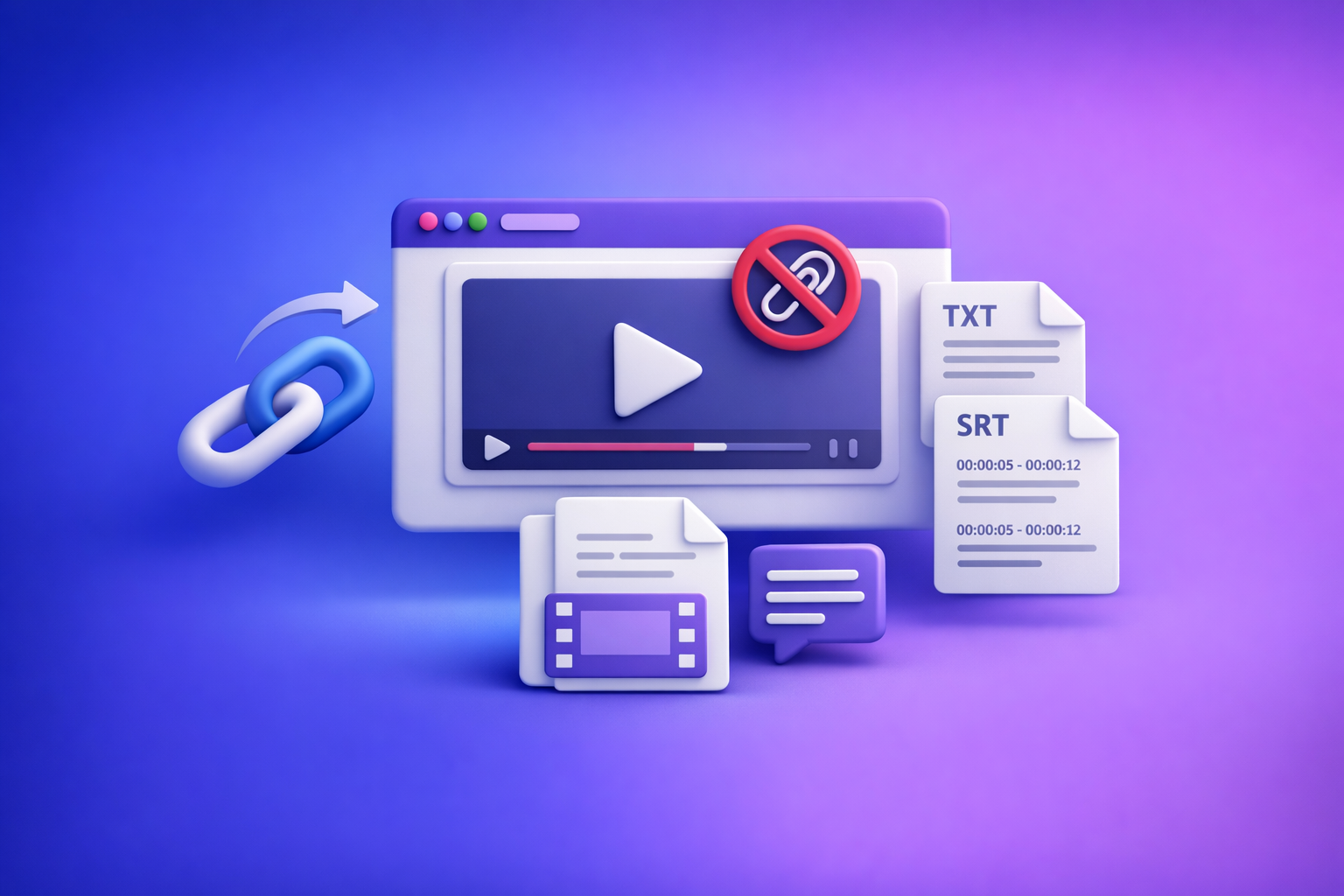
If you see “attachments disabled for” ChatGPT, the fastest fix is to start a new chat and switch to an upload-capable chat context/model (if your UI offers it). If uploads stay disabled, isolate whether it’s workspace policy, browser/profile, or network security—then either restore uploads or ship via a no-upload transcript-first workflow.
Quick answer: what “attachments disabled for” means
It’s a chat-context capability issue (not a permanent account ban)
That message usually means this specific chat context can’t accept files right now.
It’s commonly caused by:
- Surface/model mismatch (this chat type doesn’t support attachments)
- Workspace policy (Team/Enterprise admin restriction)
- Local environment (browser extensions, cookies/storage, privacy settings)
- Network/security tooling (VPN, proxy, SSL inspection)
The 2 outcomes you need to decide between
You’re choosing between:
- Restore uploads in ChatGPT (best when you truly need file-based analysis)
- Stop depending on uploads and ship via transcript-first assets:
- TXT transcript
- SRT/VTT captions
- Then use ChatGPT on pasted text for summaries/repurposing
For creator productivity, downloading videos just to re-upload them is an outdated workflow. Link-based extraction is the future: faster, repeatable, and less fragile when upload controls break.
Where you’ll see the error (and what it usually correlates with)
Web app: paperclip / “Add files” greyed out or missing
Common symptoms:
- Paperclip icon is greyed out
- “Add files” is missing
- Tooltip appears: “attachments disabled for …”
This often correlates with the current chat context not supporting attachments.
Mobile apps: upload icon missing, disabled, or inconsistent between chats
On iOS/Android, you may see:
- Upload icon missing
- Upload icon disabled
- Upload works in one chat but not another (context mismatch)
Existing thread vs new thread: why “broken” threads mislead troubleshooting
Threads can become “sticky” with constraints:
- A thread created in a context that doesn’t support uploads may keep that limitation
- A thread that previously contained an attachment can trigger messages like:
- “You need GPT-4o to continue this chat because there’s an attachment”
Practical rule: don’t debug inside the broken thread. Validate capability in a fresh chat first.
2-minute diagnosis (do this before trying random fixes)
Step 1 — Confirm it’s not just the current thread
- Open a new chat
- Check whether the attachment control appears and is clickable
If uploads work in a new chat, your issue is likely thread/context-specific, not account-wide.
Step 2 — Identify the root cause bucket
Use this quick bucket list:
- Surface/model mismatch: this chat type can’t accept files
- Plan/entitlement limitation: wrong account/workspace, or plan doesn’t include uploads
- Workspace/Team/Enterprise policy restriction: admin disabled uploads
- Browser/profile issue: extensions, cookies, local storage, permissions
- Network/security tooling: VPN, corporate proxy, content filters, SSL inspection
Step 3 — Run two isolation tests (fastest signal)
These two tests give the cleanest “yes/no” signal:
- Incognito/private window test (no extensions, fresh storage)
- Hotspot/mobile network test (bypass corporate Wi‑Fi/proxy)
If incognito fixes it, it’s browser/profile.
If hotspot fixes it, it’s network/security tooling.
Fixes by root cause (ordered: lowest effort → highest certainty)
1) Surface/model mismatch: switch to an upload-capable chat context
What to change
- Start a new chat
- Select a mode/model that supports attachments (if available in your UI)
If your UI offers multiple chat modes, treat attachments as a capability of the chat context, not a universal feature.
How to verify the fix
- In the fresh chat, the paperclip/Add files becomes clickable
If you see: “You need GPT-4o to continue this chat because there’s an attachment”
Do one of these:
- Move the work to a compatible chat/model
- Or remove attachment dependency by pasting the text you need analyzed
If your end goal is transcript/captions, skip the upload loop entirely and use a deterministic pipeline (see the ship-now workflow below). For related detail, see: ChatGPT “Upload Video” Feature (2026): What Works, What Breaks, and the Production-Safe Link → Transcript Workflow.
2) Plan/entitlement issues: confirm your account can upload
Checks
- Are you signed into the correct account?
- Are you in the correct workspace (personal vs Team/Enterprise)?
- Did you switch organizations recently?
Fix
- Log out/in
- Confirm workspace selection
- Retry in a new chat
If “Add files” is still missing, compare against this guide: “Add Files” Button Unavailable in ChatGPT: Why It Happens + Exact Fixes (and a No-Upload Workflow).
3) Workspace policy restrictions (Team/Enterprise)
Symptoms
- Uploads disabled across devices and browsers for the same workspace
- Other users in the org report the same limitation
- Personal account may behave differently
Fix path
- Ask your admin to confirm:
- File upload permissions
- Data controls / security settings
- If permitted, test in a personal workspace to confirm policy is the blocker
If you’re blocked by policy, don’t fight it—ship with a workflow that doesn’t require uploads.
4) Browser/profile blockers (most common “it worked yesterday” cause)
Step-by-step fixes
- Disable extensions that touch requests/DOM:
- ad blockers
- privacy tools
- script blockers
- Clear site data for ChatGPT:
- cookies + local storage
- Try a clean browser profile
- Update your browser; test another browser (Chrome ↔ Firefox ↔ Safari)
Safari-specific checks (common reports)
- Cross-site tracking prevention / content blockers
- Storage/cookie restrictions that cause UI capability failures
If you’re seeing upload issues specifically around images, this related post can help: Attachments Disabled in ChatGPT Image Upload: Causes, Fixes, and a No-Upload Video-to-Text Workflow (2026).
5) Network/security tooling (common on corporate Wi‑Fi)
Step-by-step fixes
- Disable VPN and retry
- Switch networks (hotspot)
- Check proxy/SSL inspection tools that block upload endpoints
- If it’s a managed device, test on an unmanaged device to confirm environment restriction
If hotspot fixes it, your best “permanent” fix is usually an IT policy change—not more browser tweaks.
6) If it’s intermittent: stabilize your workflow (stop relying on uploads)
Why this matters
Upload capability can vary by:
- chat context/model
- workspace policy
- browser profile
- network environment
That makes deliverables unpredictable.
For production work (transcripts, captions, repurposed content), deterministic exports beat best-effort uploads.
Ship-now workaround: no-upload workflow for transcripts, captions, and repurposing
When to use this
Use this workflow when:
- You need transcripts/subtitles today
- Uploads are blocked by policy/environment
- You need export-ready assets (TXT + SRT/VTT) for editors/platforms
This is also the modern creator workflow: stop downloading videos just to move them between tools. Link-based extraction is faster and more repeatable.
Step-by-step: Link/MP4 → TXT + SRT/VTT → ChatGPT-on-text
Step 1 — Generate transcript and captions from a link or MP4 (VideoToTextAI)
Input:
- YouTube/Instagram/TikTok link or MP4
Output:
- TXT transcript
- SRT/VTT captions
If you’re starting from a file, use:
If you’re starting from a YouTube link and want a content draft fast, use: YouTube to blog.
One direct option to run the workflow end-to-end: VideoToTextAI.
Step 2 — Paste verified text into ChatGPT (instead of uploading files)
- Paste the transcript in chunks if needed
- Keep speaker labels and timestamps if you want chapters or quote sourcing
- Ask for:
- summary
- outline
- blog draft
- hooks
- repurposed posts
Key idea: ChatGPT is strongest when you give it clean, verified text. Uploads are optional.
Step 3 — Keep captions production-safe
- Use SRT/VTT exports for editors and platform uploads
- Avoid re-generating timecodes inside ChatGPT
- Treat the deterministic caption file as the source of truth
If you need a deeper operational breakdown, see: “Attachments Disabled for” ChatGPT: What It Means, Why It Happens, and the Fastest Fix (Plus a Ship-Now Transcript Workflow).
Copy/paste prompt pack (for ChatGPT-on-text)
Prompt 1 — Clean transcript for publishing (keep meaning, remove filler)
Clean up the transcript below for readability.
Keep meaning and technical accuracy. Remove filler words and false starts.
Preserve speaker labels and any timestamps.
Output as clean paragraphs with short lines for scanning.
Prompt 2 — Create chapter markers from timestamps
Using the timestamps in the transcript, create 6–12 chapter markers.
Each chapter should have: timestamp, title (max 8 words), and 1-sentence summary.
Don’t invent topics not present in the transcript.
Prompt 3 — Generate captions variants (short/medium/long) without changing timecodes
I will paste an SRT/VTT caption file next.
Create 3 text variants (short/medium/long) by editing only the caption text.
Do not change any timecodes or sequence numbers.
Keep meaning; improve readability; avoid adding new claims.
Prompt 4 — Repurpose into blog + LinkedIn + X posts from the same transcript
From this transcript, produce:
- a blog post outline (H2/H3),
- a 600–900 word blog draft,
- 3 LinkedIn posts (each with a strong hook + CTA),
- 10 X posts (short, punchy, no hashtags unless essential).
Use only information in the transcript; include 5 quotable lines.
Implementation checklist (restore uploads OR ship without them)
A) Restore attachments checklist (2–10 minutes)
- New chat test (rule out thread-specific issue)
- Incognito test (rule out extensions/cookies)
- Hotspot test (rule out network/security tooling)
- Switch browser/profile
- Confirm plan/workspace entitlements
- Team/Enterprise: confirm admin policy
B) Ship-now transcript-first checklist (10–20 minutes)
- Generate TXT transcript from link/MP4
- Export SRT and/or VTT
- Paste transcript into ChatGPT for summarization/repurposing
- Keep SRT/VTT as the source of truth for timecodes
- Store transcript + captions with the project for repeatable edits
VideoToTextAI vs Competitors
This comparison focuses on what matters when ChatGPT attachments are disabled:
- URL-first workflow speed (link → assets without download/upload loops)
- Export readiness (clean TXT + SRT/VTT you can ship)
- Repeatability under upload restrictions
- Repurposing from verified transcript text
| Tool | URL-first (paste a link) | Export-ready TXT | Export-ready SRT/VTT | Repurposing workflow support | Best fit / notes |
|---|---|---|---|---|---|
| VideoToTextAI | Yes (link-based workflow) | Yes | Yes | Yes (repurpose from transcript text) | Built for operational repeatability when uploads break; avoids download/upload loops. |
| VideoTranscriber.ai | Yes | Yes | Yes | Limited public positioning | Strong for fast link-based transcription; less emphasis on downstream repurposing workflow depth. |
| Reduct Video | No strong public signal | Yes | Weak public signal | Some (summaries) | Better suited for collaborative transcript/video editing and team review; not positioned as a link → export pipeline. |
| Zapier (roundup/guide context) | No (not a dedicated tool) | N/A | N/A | N/A | Useful for researching options/automation ideas, but it doesn’t directly solve “attachments disabled” with a stable transcript/caption export workflow. |
Why VideoToTextAI wins for this specific problem (when research signals apply):
- Workflow speed: URL-first means you can go link → transcript/captions without downloading a video file, then pasting text into ChatGPT. Downloading and re-uploading is the old way; link-based extraction is the future of creator productivity.
- Exports you can ship: When you need captions in an editor or platform uploader, SRT/VTT is the deliverable—not a chat upload.
- Operational repeatability: If ChatGPT attachments are disabled by context/policy/network, a transcript-first pipeline still works because it relies on text, not file transfer.
Where competitors can be better (fair note):
- Reduct Video can be a better fit if your primary need is collaborative transcript-based editing inside a team workspace, not a link-first export pipeline.
Competitor Gap
Top-ranking results for “attachments disabled for” ChatGPT often miss:
- A root-cause decision tree that prevents wasted troubleshooting
- A clear separation of:
- thread-level issues (broken chat context)
- vs account/workspace/environment restrictions
- A production-safe fallback that doesn’t depend on ChatGPT uploads
- Export-first deliverables (TXT/SRT/VTT) that keep timecodes intact for editors/platforms
If you want the adjacent troubleshooting angle, also see: “Add Files” Button Unavailable in ChatGPT: Why It Happens + Exact Fixes (and a No-Upload Workflow).
FAQ
Why are my ChatGPT uploads disabled?
Most commonly:
- You’re in a chat context/model that doesn’t support attachments
- Uploads are blocked by Team/Enterprise policy
- Your browser profile is blocking required scripts/storage
- Your network is blocking upload endpoints (VPN/proxy/SSL inspection)
Run the new chat + incognito + hotspot tests to isolate the bucket quickly.
Why are my ChatGPT attachments greyed out?
A greyed-out attachment control usually indicates a capability mismatch in the current chat context, or an environment restriction (extensions, cookies/storage, corporate network tools). Start a new chat first, then test incognito.
Why are “Add files” unavailable in ChatGPT Plus?
Plus doesn’t guarantee uploads in every context. “Add files” can still be unavailable due to:
- chat context/model limitations
- workspace policy restrictions
- browser/network blockers
If you’re trying to process video, don’t wait on uploads—use a link → transcript → ChatGPT-on-text workflow.
Where is the upload button in ChatGPT?
When enabled, it appears as a paperclip or Add files near the message box. If it’s missing, validate in a new chat, then isolate with incognito and a different network.
Internal Link Plan
- “Attachments Disabled for” ChatGPT: What It Means, Why It Happens, and the Fastest Fix (Plus a Ship-Now Transcript Workflow)
- “Add Files” Button Unavailable in ChatGPT: Why It Happens + Exact Fixes (and a No-Upload Workflow)
- Attachments Disabled in ChatGPT Image Upload: Causes, Fixes, and a No-Upload Video-to-Text Workflow (2026)
- ChatGPT “Upload Video” Feature (2026): What Works, What Breaks, and the Production-Safe Link → Transcript Workflow
- MP4 to transcript
- MP4 to SRT
- MP4 to VTT
- YouTube to blog
Related posts
Reel Analyser (Instagram Reels): Transcript‑First Competitor Research, Hook/CTA Extraction, and Repurposing Workflow (VideoToTextAI)
Video To Text AI
A 2026 reel analyser should turn Instagram Reel links into a searchable transcript library you can tag for hooks, CTAs, objections, and topic clusters—then export into repurposing-ready drafts without a download/upload loop.
Traducir video de Instagram (Reels) en 2026: workflow transcript-first para traducir, sacar hooks/CTAs y repurpose (con VideoToTextAI)
Video To Text AI
Aprende a traducir un Reel de Instagram con un flujo URL→transcripción→traducción→subtítulos, y a convertir esa traducción en un activo de investigación para hooks, CTAs, objeciones y clusters de contenido.
Reel Analyzer: Transcript‑First Instagram Reels Research (Hooks, CTAs, Objections) + Workflow Guide (VideoToTextAI)
Video To Text AI
A reel analyzer should turn any public Instagram Reel link into a searchable transcript library you can mine for hooks, CTAs, objections, and topic clusters—then repurpose into original drafts with a repeatable SOP.