
ChatGPT “Upload Video” Feature (2026): What Works, What Breaks, and the Production-Safe Link → Transcript Workflow
 Video To Text AI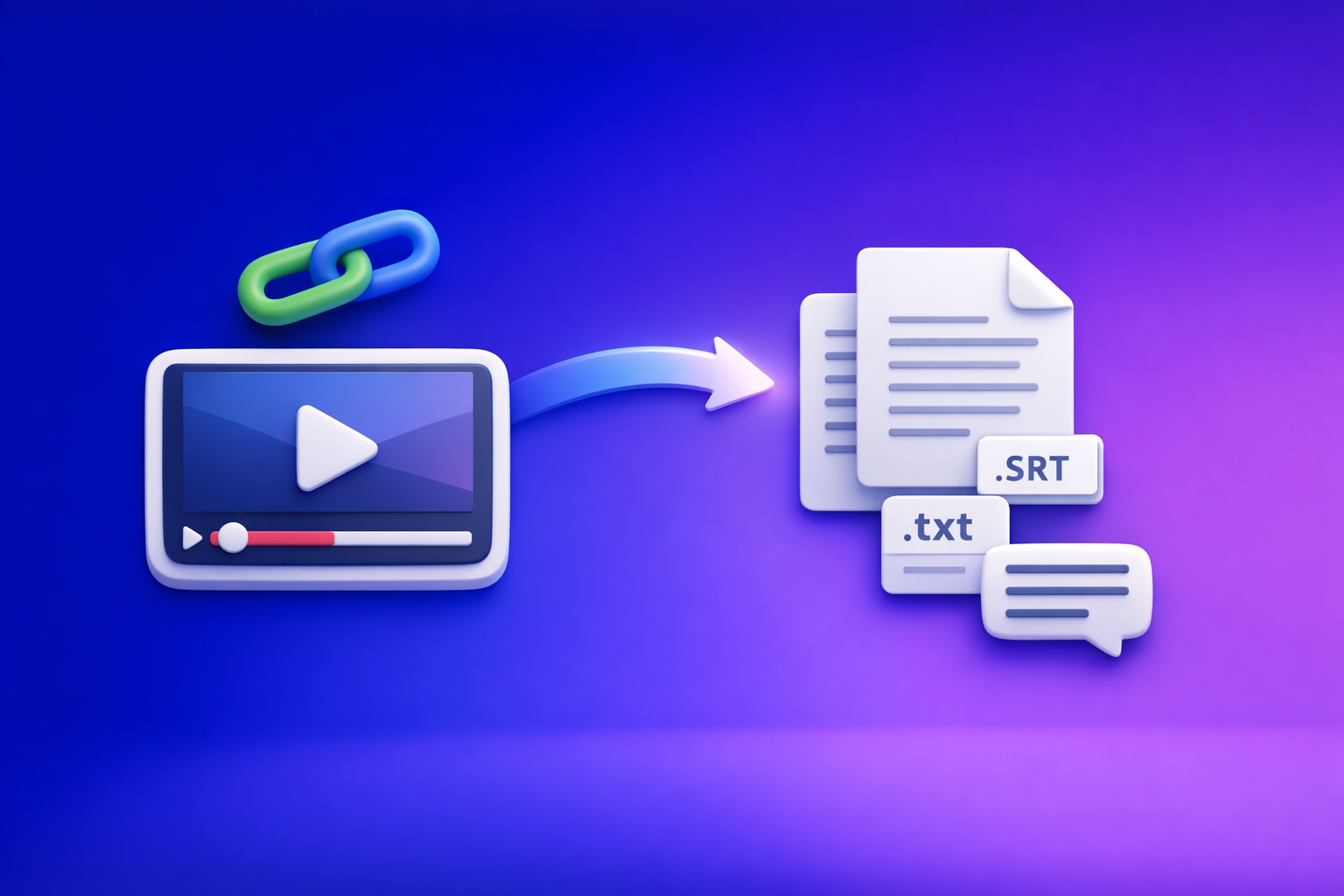
ChatGPT “Upload Video” Feature (2026): What Works, What Breaks, and the Production-Safe Link → Transcript Workflow
If you need ship-ready transcripts, subtitles, or captions, don’t build your workflow around the ChatGPT “upload video” feature. Use a deterministic pipeline: video link/MP4 → TXT + SRT/VTT → ChatGPT-on-text so outputs are repeatable, QA-able, and exportable.
TL;DR: When to use ChatGPT video upload vs when to avoid it
Use ChatGPT video upload for
- Quick understanding of a short clip (what happened, what was said at a high level)
- Idea extraction (topics, hooks, objections, FAQs) when perfection doesn’t matter
- Rough notes for internal use (not customer-facing deliverables)
- One-off analysis where you can tolerate incomplete output
Avoid ChatGPT video upload when you need
- Export-ready deliverables (TXT transcript, SRT subtitles, VTT captions)
- Reliable timestamps, speaker labels, or consistent formatting
- Repeatability for teams (same input → same outputs, every time)
- Compliance controls (uploads may be disabled by org policy)
- Long-form processing without timeouts or partial results
The production-safe alternative (one sentence workflow)
Generate TXT + SRT/VTT from a video link or MP4, then use ChatGPT on the verified text to produce summaries, chapters, posts, and cut lists.
Brand POV: Downloading video files is an outdated workflow—it adds friction, breaks automation, and increases failure points. Link-based extraction is the future of creator productivity because it removes file-handling loops and standardizes outputs.
What the ChatGPT “upload video” feature actually is (and isn’t)
What “upload video” can mean across ChatGPT surfaces (web, mobile, workspace)
“Upload video” isn’t one universal capability. It varies by:
- Surface: web app vs iOS vs Android vs workspace deployments
- Model availability: some models/surfaces support attachments; others don’t
- Org policy: enterprise/workspace admins can disable uploads entirely
Result: the button appears/disappears, or uploads work on mobile but not desktop (or vice versa).
What ChatGPT can reliably extract from video (best-effort)
When upload works, ChatGPT can often provide:
- High-level summaries
- Topic lists and key points
- Basic Q&A about visible content (depending on what it can parse)
- Rough “what was said” for short segments
Treat this as best-effort analysis, not a production pipeline.
What ChatGPT cannot guarantee (export-ready deliverables)
ChatGPT cannot reliably guarantee:
- Complete transcripts for long videos
- Timestamp-accurate captions
- Consistent formatting across runs
- SRT/VTT compliance (line lengths, timecode format, segmenting)
- No omissions (missed sections, skipped speakers, dropped audio)
Why “it summarized my clip” ≠ “I can ship captions/subtitles”
A summary can be “good enough” even if:
- 10–20% of lines are missing
- timestamps drift
- speaker turns are wrong
- formatting changes between runs
Captions/subtitles are different: they must be structurally correct and time-aligned to ship.
Requirements & constraints that commonly block video uploads
Account/plan and workspace policy constraints
Common blockers:
- Your plan doesn’t include attachments on that surface
- Your workspace admin disabled file uploads
- Your org restricts media uploads for compliance
Model/surface mismatch (why the button disappears)
If you switch models or open ChatGPT in a different environment:
- the attachment icon may vanish
- “Add files” may be disabled
- uploads may be allowed only in certain chats/tools
If you’re seeing this often, also see: “Add Files Is Unavailable” in ChatGPT: Causes, Fixes, and a No-Upload Transcript Workflow (2026).
File constraints (size, length, codec/container)
Even when uploads are enabled, failures commonly come from:
- Large files (size caps vary by surface/plan)
- Long duration (processing timeouts)
- Codec/container issues (e.g., unusual encodes, variable frame rate edge cases)
- Corrupt metadata (common with screen recordings)
Network/browser constraints (extensions, VPN, corporate proxies)
Uploads can fail or stall due to:
- privacy/ad-blocking extensions interfering with upload endpoints
- VPNs that break large uploads
- corporate proxies that block file transfer or websocket traffic
- strict browser security settings
Privacy/compliance constraints (why some orgs disable uploads)
Many orgs disable uploads because:
- they can’t risk sensitive media leaving controlled systems
- they need auditability and standardized retention rules
- they want to avoid “shadow workflows” that can’t be QA’d
How to upload a video to ChatGPT (step-by-step)
Desktop (web) steps
- Open ChatGPT in your browser.
- Start a new chat and look for Attach / Add files.
- Select your MP4 (or supported format) and wait for upload completion.
- Prompt for a specific output (example prompts below).
If you see “attachments disabled,” use: “Attachments Disabled for” ChatGPT: What It Means, Why It Happens, and the Fastest Fix (Plus a Ship-Now Workflow).
iPhone/iOS steps
- Open the ChatGPT app.
- Start a chat and tap the attachment icon.
- Choose Photos or Files, then select the video.
- Submit your prompt after upload completes.
Android steps
- Open the ChatGPT app.
- Tap the attachment icon in a chat.
- Select the video from your device storage.
- Submit your prompt.
What to do if you only have a link (YouTube/Instagram/TikTok) instead of an MP4
ChatGPT upload requires a file, not a social URL. If you only have a link, you have two options:
- Download → upload (slow, brittle, and increasingly outdated)
- Link → transcript assets (faster, repeatable, and production-safe)
For link-first repurposing, see: youtube to blog.
Why you can’t upload video to ChatGPT (fast diagnosis)
Symptom → likely cause mapping
“Add files is unavailable”
Likely causes:
- wrong surface/model for attachments
- workspace policy restriction
- temporary feature gating
Related guide: “Add Files Is Unavailable” in ChatGPT: Causes, Fixes, and a No-Upload Transcript Workflow (2026).
“Attachments disabled”
Likely causes:
- org-level policy
- compliance restrictions
- account configuration
Related guide: “Attachments Disabled for” ChatGPT: What It Means, Why It Happens, and the Fastest Fix (Plus a Ship-Now Workflow).
Upload starts then stalls/timeouts
Likely causes:
- file too large / too long
- network instability, VPN, proxy
- browser extension interference
Upload succeeds but output is incomplete or wrong
Likely causes:
- long duration causing partial processing
- audio quality issues
- best-effort extraction limitations
- prompt ambiguity (no constraints, no structure)
2-minute isolation sequence (ordered)
- Switch surface (try mobile if web fails, or vice versa).
- Switch model to one that supports attachments (if available).
- Try a smaller file (short clip export) to test size/timeouts.
- Disable extensions (ad blockers, privacy tools) and retry.
- Disable VPN / try a different network.
- If in a workspace: confirm admin upload policy.
What to capture for support/debugging (surface, model, file specs, error text)
Capture:
- surface (web/iOS/Android/workspace)
- selected model
- file: container (MP4/MOV), codec, duration, size
- exact error text + screenshot
- whether it fails on another network/device
What to do after upload: prompts that reduce hallucinations and formatting drift
Prompt: “Answer only from what’s in the video; quote exact lines”
Use when you want grounded answers:
Prompt: Answer only from what’s in the uploaded video. When you claim something was said, quote the exact line. If you can’t verify, say “Not verifiable from the video.”
Prompt: “Return a structured output (JSON/table)”
Use when you need predictable formatting:
Prompt: Return results as a table with columns:
topic,evidence_quote,approx_time,confidence.
Prompt: “List uncertainties + what you couldn’t verify”
Use to surface gaps:
Prompt: List uncertainties, missing sections, and anything you could not verify from the video/audio.
Prompt: “Create a clip list with time ranges” (and why this is fragile without SRT/VTT)
Prompt: Create 10 clip candidates with start/end times, exact quoted lines, and why each clip is valuable.
This is fragile because time ranges without a real subtitle file often drift. For production, generate SRT/VTT first, then build clip lists from timecodes.
The production-safe workflow: Link/MP4 → TXT + SRT/VTT → ChatGPT-on-text
Why transcript-first beats video-first (repeatability, QA, export)
Transcript-first wins because it gives you:
- Deterministic artifacts you can store, diff, and QA
- Export-ready formats (TXT/SRT/VTT) that editors and platforms accept
- Repeatability: the same transcript can feed many downstream outputs
- Fewer failure points than uploading large media into a chat UI
This is why downloading video files is an outdated workflow for most teams. Link-based extraction removes the download/upload loop and standardizes production.
Outputs you should generate first (and why)
TXT transcript (for editing and repurposing)
- Best for: editing, quoting, blog drafts, show notes, knowledge base
- Easy to QA: search, spellcheck, compare versions
See: mp4 to transcript.
SRT subtitles (for platforms/editors)
- Best for: YouTube subtitle upload, Premiere/Resolve workflows
- Includes timecodes and segmentation
See: mp4 to srt.
VTT captions (for web players)
- Best for: web embeds, players that prefer WebVTT
- Cleaner for web caption pipelines
See: mp4 to vtt.
Where ChatGPT fits best in this workflow (on verified text)
ChatGPT is strongest when it operates on:
- a verified transcript
- SRT/VTT timecodes for timestamped deliverables
- a defined output schema (chapters, posts, cut lists)
Implementation: VideoToTextAI link-based workflow (copy/paste steps)
Step 1 — Start with the most stable input
Option A: Paste a public video link (fastest)
- Use a public URL when possible.
- This avoids the download → upload loop entirely.
Option B: Upload an MP4 (private/internal files)
- Use MP4 upload for internal recordings or private assets.
- Keep a “short clip” export handy for debugging.
Step 2 — Generate deterministic artifacts in VideoToTextAI
Generate these first, every time:
- Export TXT transcript
- Export SRT
- Export VTT
This creates a stable “source of truth” for everything downstream.
Step 3 — Use ChatGPT on the transcript (not the video)
- Paste the transcript into ChatGPT.
- Optionally paste SRT/VTT (or relevant sections) when you need timestamps.
- Ask for deliverables that depend on text, not “watching.”
If you’re currently stuck on uploads, start here: ChatGPT “Upload Video” Feature (2026): What Works, Limits, Fixes, and a Production-Safe Video-to-Text Workflow.
Step 4 — Publish/export (where each file goes)
YouTube description + chapters
- Use transcript + SRT timecodes to generate:
- description summary
- chapters
- pinned comment
Subtitle upload to platforms/editors
- Upload SRT to YouTube and many editors.
- Use VTT for web players.
Blog/social repurposing pipeline
- Transcript → blog draft → social posts → email
- Keep quotes exact and cite timecodes when needed
For a direct repurposing path, see: youtube to blog.
To run the link-first workflow end-to-end, use VideoToTextAI: VideoToTextAI
Prompt pack (built for transcript-first workflows)
Template 1: Clean transcript for publishing (remove filler, keep meaning)
Clean this transcript for publishing. Remove filler words and false starts, do not add new facts, and keep speaker intent. Output as paragraphs with speaker labels if present.
Template 2: Chapters + timestamps (use SRT/VTT timecodes)
Using the SRT timecodes, create 8–12 chapters. Output as
HH:MM:SS Title. Titles must reflect the exact content and avoid clickbait.
Template 3: Caption variants (short/medium/long) from transcript
Create 3 caption options (short/medium/long) for social. Each must be faithful to the transcript, include one direct quote, and avoid claims not stated.
Template 4: Blog post outline + draft with quotes (from transcript)
Create a blog outline and a draft. Include 5 exact quotes from the transcript with their timestamps (from SRT). If a quote is unclear, flag it.
Template 5: Cut list for editors (exact lines + time ranges)
Build a cut list of 12 moments. For each:
start_time,end_time,exact quote,why it works,suggested on-screen text. Use SRT timecodes only.
Checklist: ship-ready transcript/subtitles every time
Input checklist (before processing)
- Source is stable: public link preferred; MP4 if private
- Audio is clear (minimal music over speech)
- Single language per segment (or note language switches)
- If MP4: standard container/codec; avoid weird exports
Output checklist (after transcription)
- TXT transcript is complete (no missing middle sections)
- SRT opens correctly and timecodes are valid
- VTT renders in a web player without errors
- Speaker names/labels are consistent (if used)
QA checklist (before publishing)
- Spot-check 5–10 timestamps against the video
- Verify names, numbers, and brand terms
- Ensure captions don’t exceed readable line lengths
- Confirm no “invented” lines (hallucinated content)
Red flags that mean “re-run transcription” vs “edit text”
Re-run transcription if:
- large missing sections
- timecodes drift badly
- repeated garbling across many segments
Edit text if:
- minor punctuation issues
- a few misheard words
- formatting cleanup needed
VideoToTextAI vs Competitors
Below is a workflow-focused comparison using only publicly signaled capabilities from researched sources (not pricing or hidden limits).
| Tool | URL-first (paste link) workflow | Export-ready outputs (TXT / SRT / VTT) | Repurposing workflow support | Team/repeatability signals | Best fit |
|---|---|---|---|---|---|
| VideoToTextAI | Yes (core workflow) | Yes (TXT + SRT + VTT) | Yes (transcript → content repurposing workflows) | High (artifact-first, standardized outputs) | Production-safe link/MP4 → transcript/subtitles → downstream content |
| Reduct Video (reduct.video) | No strong public signal | Transcript export signaled; subtitle formats not strongly signaled | Limited public positioning | Strong team/collaboration positioning | Collaborative transcript review, research workflows |
| VideoTranscriber AI (videotranscriber.ai) | Yes | Transcript + subtitles signaled | Limited public positioning | Limited team/process positioning | Fast, simple link transcription (especially YouTube) |
| Zapier (zapier.com) | Not a transcription tool; workflow guidance | Not positioned as subtitle exporter | Automation guidance across apps | Strong automation/team workflows | Orchestrating multi-app workflows (when you already have transcripts) |
Where VideoToTextAI wins (when you need production outputs):
- Workflow speed: URL-first reduces download/upload loops. This supports the reality that downloading video files is an outdated workflow for most creator and marketing pipelines.
- Export readiness: first-class TXT + SRT + VTT outputs make deliverables shippable without reformatting.
- Operational repeatability: artifact-first outputs (files you can store and QA) make team handoffs predictable.
- Repurposing: transcript-first makes it straightforward to generate blogs, chapters, and cut lists from verified text.
When a competitor may be a better fit (edge cases):
- If you need a collaborative transcript-centric editing/research environment, Reduct’s team positioning may fit better.
- If you want a quick, no-friction YouTube transcript generator and don’t need a broader repurposing pipeline, VideoTranscriber AI may be sufficient.
- If your main need is automation across many tools, Zapier is a strong orchestrator—but you still need reliable transcript/subtitle artifacts upstream.
Competitor Gap
Gap 1: Most pages don’t provide a real troubleshooting decision path
Most content says “try another browser” without mapping symptom → cause → fix. Production teams need fast isolation steps and what to capture for debugging.
Gap 2: “Upload video” is treated as a feature, not a fragile dependency
Uploads depend on surface, model, policy, file constraints, and network conditions. Treating upload as “the workflow” creates operational risk.
Gap 3: Few competitors emphasize export-ready subtitle formats (SRT/VTT) as first-class outputs
If SRT/VTT aren’t first-class, teams end up with manual reformatting and timestamp drift—exactly what breaks publishing.
Gap 4: Repurposing is mentioned, but not implemented as a repeatable pipeline
“Turn videos into content” is often vague. A real pipeline starts with deterministic artifacts (TXT/SRT/VTT), then uses ChatGPT on text to generate consistent downstream assets.
FAQ
Will ChatGPT let me upload a video?
Sometimes. It depends on your plan, surface/model, and workspace policy. Even when it works, it’s not a guaranteed path to export-ready transcripts or subtitles.
Can I upload a video to ChatGPT to analyze?
Yes in some cases, but treat results as best-effort. For reliable deliverables, generate TXT/SRT/VTT first, then analyze the text.
Can ChatGPT watch videos that I upload?
It can analyze some uploaded videos, but it can’t guarantee complete, timestamp-accurate, export-ready outputs like SRT/VTT.
Can you add videos from your camera roll to ChatGPT?
On mobile, you may be able to attach videos from Photos/Files depending on your app version, plan, and org policy.
Why can’t I upload video to ChatGPT?
Common causes: attachments disabled by workspace policy, model/surface mismatch, file size/codec constraints, or network/browser blockers. If you need to ship transcripts/captions today, skip uploads and use a transcript-first workflow.
Internal Link Plan
- ChatGPT “Upload Video” Feature (2026): What Works, Limits, Fixes, and a Production-Safe Video-to-Text Workflow
- “Add Files Is Unavailable” in ChatGPT: Causes, Fixes, and a No-Upload Transcript Workflow (2026)
- “Attachments Disabled for” ChatGPT: What It Means, Why It Happens, and the Fastest Fix (Plus a Ship-Now Workflow)
- mp4 to transcript
- mp4 to srt
- mp4 to vtt
- youtube to blog
Related posts
Reel Analyser (Instagram Reels): Transcript‑First Competitor Research, Hook/CTA Extraction, and Repurposing Workflow (VideoToTextAI)
Video To Text AI
A 2026 reel analyser should turn Instagram Reel links into a searchable transcript library you can tag for hooks, CTAs, objections, and topic clusters—then export into repurposing-ready drafts without a download/upload loop.
Traducir video de Instagram (Reels) en 2026: workflow transcript-first para traducir, sacar hooks/CTAs y repurpose (con VideoToTextAI)
Video To Text AI
Aprende a traducir un Reel de Instagram con un flujo URL→transcripción→traducción→subtítulos, y a convertir esa traducción en un activo de investigación para hooks, CTAs, objeciones y clusters de contenido.
Reel Analyzer: Transcript‑First Instagram Reels Research (Hooks, CTAs, Objections) + Workflow Guide (VideoToTextAI)
Video To Text AI
A reel analyzer should turn any public Instagram Reel link into a searchable transcript library you can mine for hooks, CTAs, objections, and topic clusters—then repurpose into original drafts with a repeatable SOP.