
“Attachments Disabled for” ChatGPT: What It Means, Why It Happens, and the Fastest Fix (Plus a Ship-Now Transcript Workflow)
 Video To Text AI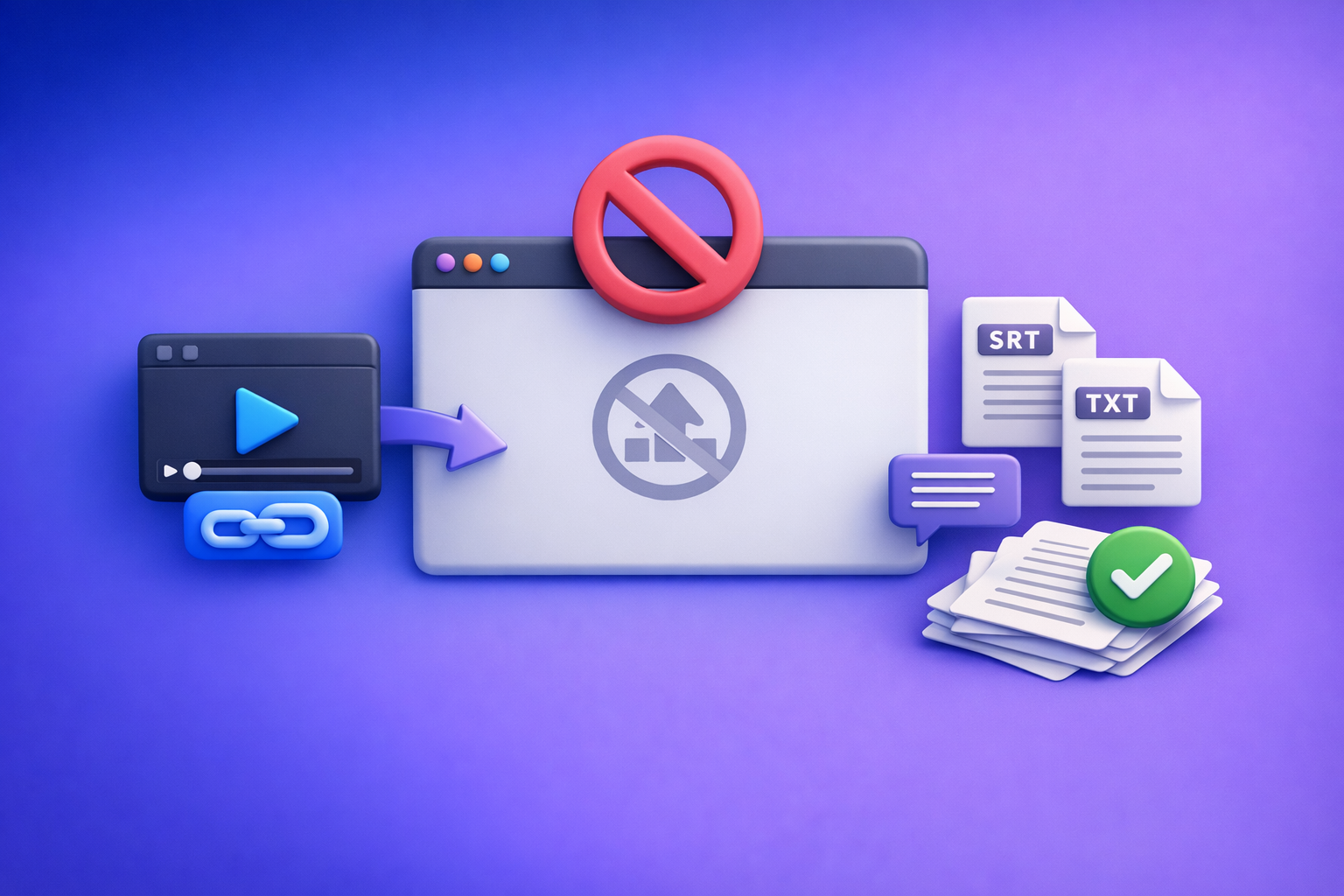
Fix “attachments disabled for” by starting a new chat and switching to an upload-capable model/surface—then confirm it’s not a workspace policy or a browser/network blocker. If you need deliverables today, stop depending on uploads and use a transcript-first workflow: generate TXT + SRT/VTT from a link/MP4, then paste verified text into ChatGPT.
“Attachments Disabled for” ChatGPT: What It Means, Why It Happens, and the Fastest Fix (Plus a Ship-Now Transcript Workflow)
Quick answer: what “attachments disabled for” means (and what it doesn’t)
What the message is actually indicating (thread/surface/model can’t accept uploads)
“Attachments disabled for” is a capability signal, not a verdict on your account.
It typically means this specific chat context can’t accept uploads right now because of one of these:
- Thread-level limitation (the current conversation is stuck in a state that doesn’t accept attachments)
- Surface/model limitation (the model or UI surface you’re using doesn’t support uploads)
- Workspace policy (Team/Enterprise admin disabled uploads)
- Local/network blocking (extensions, privacy settings, corporate security tools)
What it is not indicating (not a ban; not permanent; not “your account is broken”)
This message is not:
- A ban
- A permanent restriction
- Proof your account is “broken”
In many cases, uploads work again immediately in a new chat with the right model.
The fastest decision rule: fix uploads vs switch to a no-upload workflow
Use this rule to avoid wasting time:
- If you can restore the paperclip in 2–10 minutes, fix uploads.
- If you can’t, ship without uploads: generate transcript/captions externally, then use ChatGPT on plain text.
For production work, relying on uploads is fragile. Downloading video files and re-uploading them is an outdated workflow; link-based extraction is the future of creator productivity because it’s faster, repeatable, and less failure-prone.
Where you’ll see the error (common surfaces + symptoms)
ChatGPT web: paperclip missing/greyed out + tooltip
Common symptoms:
- Paperclip icon missing
- “Add files” greyed out
- Tooltip shows “attachments disabled for …”
Mobile apps: upload icon missing or disabled
On iOS/Android you may see:
- Upload icon missing entirely
- Upload icon present but disabled
- Upload opens, then fails immediately
Team/Enterprise workspaces: admin policy blocks uploads
In managed workspaces, uploads can be disabled by policy even if your personal account supports them.
This often looks like:
- Uploads work on personal account
- Uploads fail only inside the workspace
Existing thread vs new thread: why “broken” chats stay broken
A key gotcha: some threads stay non-uploadable even after you change settings.
Practical rule: don’t debug inside the broken thread. Validate in a fresh chat first.
2-minute diagnosis (do this before trying random fixes)
Step 1 — Confirm the chat surface/model supports attachments
Do these in order:
- Start a new chat
- Switch to an upload-capable model
- Verify the paperclip / Add files control appears and is clickable
If the control appears in a new chat, your issue is likely thread-level (the old chat is the problem).
Step 2 — Confirm entitlement/workspace restrictions
Check where you’re logged in:
- Personal plan vs Team/Enterprise workspace
- If you’re in a workspace, assume policy until proven otherwise
Fast confirmation:
- If uploads work on a personal account but not in the workspace, it’s likely admin policy.
Step 3 — Isolate local browser/profile issues (fastest proof)
Run quick A/B tests:
- Incognito/private window test
- Different browser test (Chrome vs Safari vs Firefox)
If incognito works, the culprit is usually:
- Extensions
- Cached site data
- Cookie/tracking settings
Step 4 — Isolate network/security tooling
Network controls can block upload endpoints.
Test:
- Hotspot test (bypass corporate network)
- VPN on/off test
Common blockers:
- Content filters
- DLP tools
- Privacy/security middleware
- Aggressive DNS filtering
Fixes by root cause (ordered: lowest effort → highest certainty)
Fix 1 — Switch to an upload-capable model/surface (most common)
Do this first because it’s the highest-leverage fix.
- Create a new chat and re-select the model
- Avoid continuing in a thread that previously had attachments
If the paperclip returns in the new chat, stop troubleshooting—your “fix” is simply: use a new thread.
Fix 2 — Remove local blockers (extensions + privacy settings)
Extensions frequently break upload UI and request flows.
Try:
- Disable ad blockers, script blockers, privacy extensions
- Retry in a normal window (not just incognito)
If applicable, allow site data/cookies for the ChatGPT domain so the UI can persist capability state.
Fix 3 — Browser-specific fixes (including Safari)
Browser privacy features can interfere with attachment flows.
Safari tests
- Temporarily disable cross-site tracking prevention (test)
- Allow pop-ups (test)
- Clear site data for ChatGPT, then reload
Chrome/Edge tests
- Clear site data for ChatGPT
- Temporarily disable enhanced tracking/privacy features (test)
- Re-test in a clean profile if possible
Fix 4 — Workspace policy path (Team/Enterprise)
If you suspect policy, don’t burn time on browser tweaks.
Ask your admin to check:
- Workspace setting for uploads/attachments
- Data controls that restrict file handling
- Any DLP rules that block file transfer
How to confirm it’s policy:
- Works on personal account + hotspot
- Fails only inside the workspace (even on hotspot)
Fix 5 — If it’s intermittent: stabilize your workflow
If uploads work “sometimes,” treat that as a production risk.
Stabilize by:
- Stop relying on uploads for production deliverables
- Use deterministic exports (TXT + SRT/VTT)
- Paste verified text into ChatGPT for summarization/repurposing
This is also where link-based workflows win: download/upload loops add failure points and slow teams down.
Ship-now workflow (no uploads needed): Link/MP4 → transcript + captions → ChatGPT-on-text
Why “paste verified text” beats uploading for production work
For production deliverables, text-first is more reliable than attachment-first.
Benefits:
- Predictable inputs (text) vs variable attachment handling
- Easier QA: review transcript/captions before prompting
- Reusable assets:
- TXT for summaries, blogs, newsletters
- SRT/VTT for YouTube, Shorts, Reels, LMS platforms
This is the modern creator workflow: link-based extraction instead of downloading files, renaming them, and re-uploading them across tools.
Step-by-step implementation (10–20 minutes)
Step 1 — Generate transcript from a link or MP4 in VideoToTextAI
Input options:
- YouTube/Instagram/TikTok URL or
- MP4 upload (when you truly need it)
Output assets:
- Transcript (TXT)
- Captions (SRT/VTT)
If your goal is speed and repeatability, prefer link-based input over download/upload loops. That’s the direction creator operations are going.
Use this once to set up your pipeline, then reuse it for every video: MP4 to transcript, MP4 to SRT, MP4 to VTT, and Instagram to text.
Step 2 — Export deliverables you can ship
Export both formats so you’re not redoing work later:
- TXT for editing, summarization, repurposing
- SRT/VTT for captions/subtitles workflows
If you’re turning long-form into written content, this pairs well with: YouTube to blog.
Step 3 — Paste transcript into ChatGPT with a structured prompt
Paste the transcript (or chunks) and use a prompt that forces structured output.
Prompt template (copy/paste)
- Task: Summarize and repurpose the transcript below.
- Output:
- 5-sentence executive summary
- 10 key points (bullets)
- 5 pull quotes
- 3 short-form hooks (≤120 chars)
- 1 LinkedIn post (150–250 words)
- 1 blog outline with H2/H3
- If timestamps exist: list 6 “clip moments” with timestamps and why they matter
- Constraints: Preserve names, numbers, and brand terms exactly. Flag uncertain words.
This avoids attachment fragility while keeping ChatGPT in the loop where it’s strongest: transforming text.
Step 4 — QA checklist before publishing
Do a fast QA pass before you ship.
- Names/terms: people, products, acronyms
- Numbers: dates, prices, metrics, counts
- Brand phrases: taglines, legal wording, claims
Caption sanity check (spot-check):
- Review 3–5 segments across the video (start/middle/end)
- Confirm line breaks and timing feel natural
Platform formatting:
- YouTube often prefers full captions; Shorts/Reels often need tighter phrasing and fewer characters per line
If you want deeper context on why uploads break and how to avoid them operationally, see:
- “Add Files” Button Unavailable in ChatGPT: Causes, Fixes, and a Ship-Now Workflow (No Uploads Needed)
- ChatGPT “Upload Video” Feature (2026): What Works, What Breaks, and the Reliable Link → Transcript Workflow
Implementation checklist (copy/paste)
A) Restore attachments checklist (2–10 minutes)
- Start a new chat (don’t debug inside the broken thread)
- Switch to an upload-capable model
- Test in incognito/private window
- Disable extensions (ad/script/privacy) and retry
- Try a different browser (Chrome ↔ Safari)
- Test on hotspot / different network
- If Team/Enterprise: confirm workspace upload policy
B) Ship-now transcript-first checklist (10–20 minutes)
- Generate transcript from URL/MP4 in VideoToTextAI
- Export TXT + SRT/VTT
- Paste TXT into ChatGPT and run repurposing prompts
- QA transcript + captions (spot-check)
- Publish captions (SRT/VTT) and reuse text for posts/blog
VideoToTextAI vs Competitors
Comparison criteria (what this section will evaluate)
We’ll compare tools on what matters when ChatGPT uploads fail:
- Workflow speed from URL → publishable assets
- Export readiness: TXT, SRT, VTT (not just plain text)
- Repeatability for creators/teams (consistent outputs you can QA)
- Link-based execution vs download/upload loops
Competitors compared (researched)
Below are capability signals based on the research provided (no invented pricing/limits).
| Tool | Link-based input (URL-first) | Upload-heavy workflow | Export-ready captions (SRT/VTT) | Repurposing workflow focus | Team/collaboration focus | Best fit |
|---|---|---|---|---|---|---|
| VideoToTextAI | Yes (core positioning: link-based workflows) | Optional | Yes (TXT + SRT/VTT outputs in workflow) | Yes (transcript + captions → content repurposing) | Yes (repeatable workflow) | Fast fallback when ChatGPT attachments are disabled; creators/teams shipping captions + written assets |
| Reduct Video | No strong public signal | Not emphasized | No strong public signal | Limited public positioning | Yes | Transcript-centric collaboration and research workflows |
| Evernote AI Transcribe | No | Yes | No strong public signal | Not emphasized | Not emphasized | Simple file upload transcription (when uploads are fine) |
| PCMag (roundup) | N/A | N/A | N/A | N/A | N/A | Buyer-intent research; not a workflow tool |
Where VideoToTextAI fits (positioning for “attachments disabled”)
When ChatGPT shows “attachments disabled for,” the winning move is to remove uploads from the critical path.
VideoToTextAI fits because it’s designed as a deterministic fallback:
- Link/MP4 → TXT + SRT/VTT → ChatGPT-on-text
- Outputs are export-ready, so you can publish captions and repurpose content without waiting on ChatGPT upload stability
Fair note:
- If your primary need is collaborative transcript review and research, Reduct Video can be a better fit.
- If you only need a quick transcription from a file upload and uploads are working fine, Evernote AI Transcribe is straightforward.
If you want to implement the link-first workflow now, use VideoToTextAI here: https://videototextai.com
Competitor Gap
What top-ranking results miss (and this post must include)
Most pages about “attachments disabled for” focus on generic troubleshooting and skip operational reality.
This post includes what’s usually missing:
- A 2-minute diagnosis sequence (model/surface vs policy vs local vs network) before fixes
- A production-safe fallback that doesn’t depend on ChatGPT uploads
- Export-ready deliverables: SRT/VTT (not just “a transcript”)
- Clear separation of:
- Thread-level limitation (broken chat)
- Account/workspace policy
- Browser/network blocks
The bigger gap: many workflows still assume you should download video files and move them around manually. That’s outdated. Link-based extraction is faster, cleaner, and more repeatable for creator productivity.
FAQ
Why are my ChatGPT uploads disabled?
Usually one of four causes:
- You’re in a non-upload-capable model/surface
- The thread is stuck (new chat fixes it)
- Your workspace admin disabled uploads
- Your browser/network is blocking upload functionality
Why are “Add files” unavailable in ChatGPT Plus?
Plus doesn’t guarantee uploads in every context. “Add files” can still be unavailable due to:
- Model/surface mismatch
- Thread-level limitation
- Workspace policy (if you’re using a managed workspace)
- Local/network blocking
Where is the upload button in ChatGPT?
On supported chats, it appears as a paperclip or Add files near the message box. If it’s missing/greyed out, start a new chat and switch models before trying deeper fixes.
What does “You need GPT-4o to continue this chat because there’s an attachment” mean?
It means the current thread contains (or expects) an attachment and requires a model/surface that supports that attachment context. The fastest fix is often:
- Start a new chat (clean context)
- Use text-first: paste transcript text instead of attaching files
Is “attachments disabled for” a permanent restriction?
Typically no. It’s commonly:
- Thread-level (that chat stays broken)
- Policy-level (workspace setting)
- Environment-level (browser/network)
If you need a reliable workaround, use a transcript-first pipeline and keep ChatGPT focused on text transformation. For related guidance, see:
- “Attachments Disabled for” ChatGPT: What It Means, Why It Happens, and the Fastest Fix (Plus a Ship-Now Workflow)
- “Add Files” Button Unavailable in ChatGPT: Causes, Fixes, and a Ship-Now Workflow (No Uploads Needed)
Internal Link Plan
- “Attachments Disabled for” ChatGPT: What It Means, Why It Happens, and the Fastest Fix (Plus a Ship-Now Workflow)
- “Add Files” Button Unavailable in ChatGPT: Causes, Fixes, and a Ship-Now Workflow (No Uploads Needed)
- ChatGPT “Upload Video” Feature (2026): What Works, What Breaks, and the Reliable Link → Transcript Workflow
- MP4 to transcript
- MP4 to SRT
- MP4 to VTT
- Instagram to text
- YouTube to blog
Related posts
Reel Analyser (Instagram Reels): Transcript‑First Competitor Research, Hook/CTA Extraction, and Repurposing Workflow (VideoToTextAI)
Video To Text AI
A 2026 reel analyser should turn Instagram Reel links into a searchable transcript library you can tag for hooks, CTAs, objections, and topic clusters—then export into repurposing-ready drafts without a download/upload loop.
Traducir video de Instagram (Reels) en 2026: workflow transcript-first para traducir, sacar hooks/CTAs y repurpose (con VideoToTextAI)
Video To Text AI
Aprende a traducir un Reel de Instagram con un flujo URL→transcripción→traducción→subtítulos, y a convertir esa traducción en un activo de investigación para hooks, CTAs, objeciones y clusters de contenido.
Reel Analyzer: Transcript‑First Instagram Reels Research (Hooks, CTAs, Objections) + Workflow Guide (VideoToTextAI)
Video To Text AI
A reel analyzer should turn any public Instagram Reel link into a searchable transcript library you can mine for hooks, CTAs, objections, and topic clusters—then repurpose into original drafts with a repeatable SOP.