
ChatGPT “Upload Video” Feature (2026): What Works, What Breaks, and the Production-Safe Link → Transcript Workflow
 Video To Text AI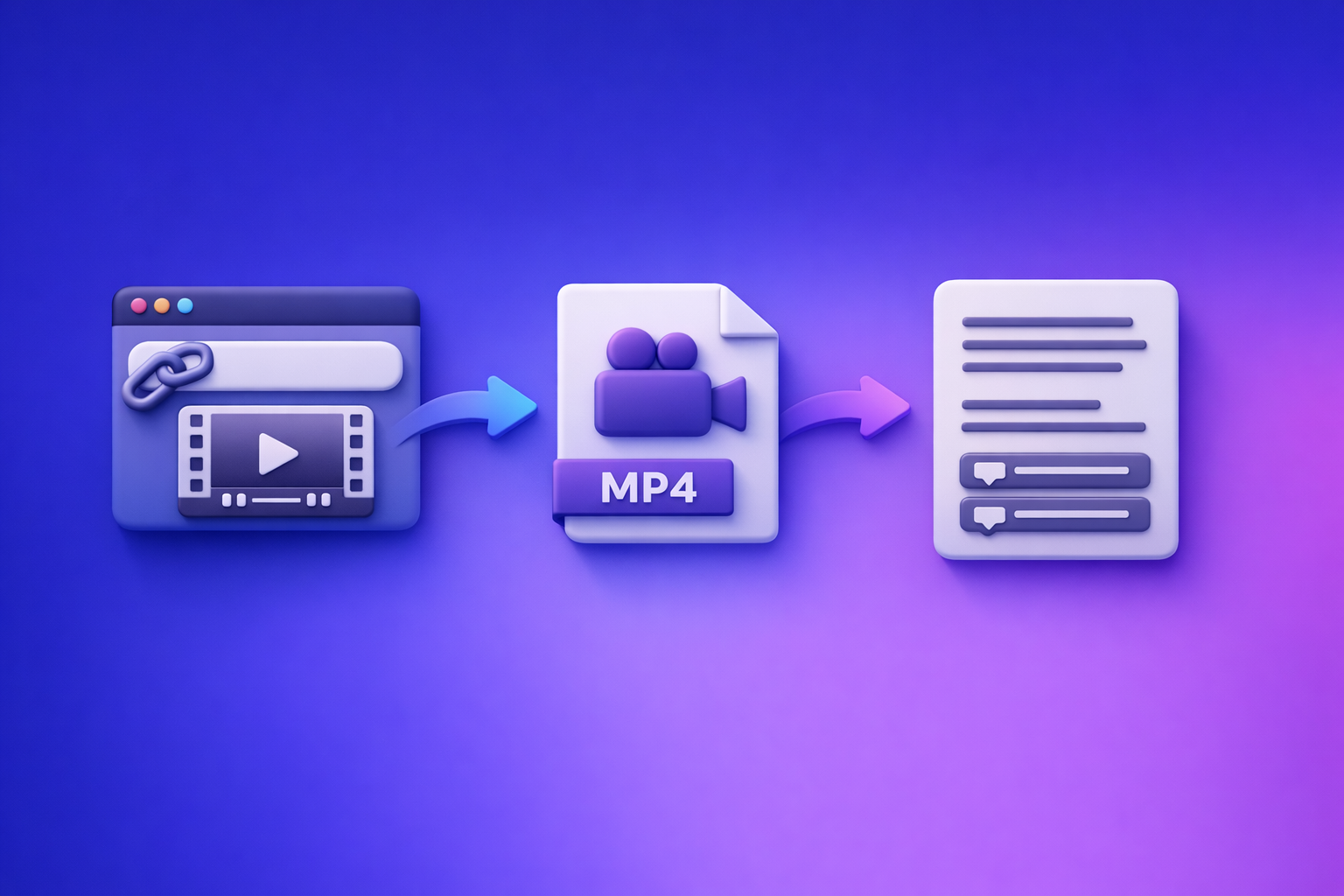
ChatGPT “Upload Video” Feature (2026): What Works, What Breaks, and the Production-Safe Link → Transcript Workflow
If you need reliable transcripts, SRT/VTT captions, and repurposed content, don’t build your workflow around ChatGPT’s “upload video” button. Use a production-safe pipeline: video link (or MP4) → export-ready transcript/captions → ChatGPT on verified text.
Quick answer: can you upload a video to ChatGPT?
Sometimes—but it’s inconsistent across devices, plans, and chat surfaces, and it’s not designed as an export-ready transcription tool.
What “upload video” can mean (and why it matters)
People use “upload video” to describe three different things:
-
File upload (MP4/MOV) via attachment button
You attach a local file and ask questions about it. -
Pasting a video link (YouTube/Drive/Instagram/TikTok)
You paste a URL and expect ChatGPT to fetch and analyze it. -
Asking about a video using frames/screenshots + context
You provide stills (or key frames) and describe what’s happening.
These are different capabilities with different failure modes. Treat them as separate workflows.
When it works vs when it fails (real-world reliability)
Works best when:
- The clip is short.
- Audio is clean.
- You only need best-effort understanding (summary, themes, ideas).
Fails or becomes unreliable when:
- You need export-ready deliverables (accurate transcript, SRT/VTT, consistent timecodes).
- The video is long, noisy, or multi-speaker.
- Access requires login, permissions, or the platform blocks automated fetching.
Why “it worked yesterday” is common:
- Feature rollouts change by region, plan, model, and client (web vs iOS vs Android).
- Workspace policies can disable attachments without warning.
- Some surfaces/models support uploads; others don’t.
If you ship content weekly, variability is the enemy.
What ChatGPT can (and can’t) do with uploaded video
ChatGPT is strongest after you already have text.
What it’s good at after you have text
Once you paste a transcript, ChatGPT is excellent for:
- Summaries (short, medium, executive)
- Chapters and structure (especially if you provide timecodes)
- Titles, hooks, and thumbnails text
- Outlines for blogs, newsletters, scripts
- Repurposing into platform-specific posts
- Cleaning transcripts:
- punctuation
- paragraphing
- speaker labels
- removing filler words (when appropriate)
What it’s not production-safe for
If your output must be consistent and publishable, don’t rely on ChatGPT for:
- Deterministic transcription accuracy
- Timecodes and subtitle sync (SRT/VTT generation you can trust)
- Long videos (timeouts, truncation, inconsistent processing)
- Noisy audio / overlapping speakers (higher error rates, speaker confusion)
Bottom line: ChatGPT can help you use a transcript. It’s not the most reliable way to create one.
Requirements & limits users hit first (formats, size, duration, device)
Common formats people try
- MP4
- MOV
Even when “supported,” uploads still fail due to size, duration, encoding, or network constraints.
Typical constraints that cause failures
Common breakpoints:
- File size/duration caps (varies by plan/surface; can change)
- Network timeouts during upload or processing
- Background processing limits (mobile OS suspends tasks; browser tab sleeps)
- Mobile app vs web differences:
- iPhone/iOS may behave differently than Android
- web may allow attachments when mobile doesn’t (or vice versa)
Privacy/security considerations before uploading media
Before uploading any footage:
- Avoid uploading sensitive, confidential, or regulated content unless your org has approved it.
- Assume media may be retained per provider/workspace settings.
Safer default:
- Generate the transcript externally, then paste only the text you need into ChatGPT.
Why you might not see the upload option in ChatGPT
Surface/model mismatch
Not every ChatGPT surface is upload-capable. You can be logged in and still be on a surface that doesn’t support attachments.
Plan/workspace restrictions
Common blockers:
- Free vs paid entitlements (availability varies)
- Workspace admin policies disabling attachments (common in enterprise)
If you see messages like “attachments disabled,” treat it as a policy issue, not a user error. (Related: “Attachments Disabled for” ChatGPT: What It Means, Why It Happens, and How to Fix It (Plus a Ship-Now Transcript Workflow))
Local blockers
If the feature should exist but doesn’t:
- Browser extensions (privacy/ad blockers) can break upload widgets
- Strict tracking prevention can interfere with embedded components
- Corporate network/DLP/proxy can block uploads or link fetching
If you’re stuck, also see: “Add Files” Button Unavailable in ChatGPT: Causes, Fixes, and a Ship-Now Workflow (No Uploads Needed)
Step-by-step: the reliable workflow (Video link/MP4 → transcript/captions → ChatGPT on verified text)
This is the production-safe approach we recommend at VideoToTextAI: stop downloading videos as a default. Download/upload loops are an outdated workflow; link-based extraction is the future of creator productivity.
Step 1 — Choose your input type (fastest path)
-
Use a public video URL when available
This avoids downloading, re-uploading, and re-encoding. -
Use MP4 upload only when you must
Example: private recordings, local camera files, internal meetings.
Step 2 — Generate export-ready outputs in VideoToTextAI
Generate:
- Clean transcript (TXT)
- Subtitles (SRT/VTT)
Include:
- punctuation + paragraphs
- optional speaker separation (when needed for editing/repurposing)
Exactly one CTA: generate your transcript and captions here: VideoToTextAI.
Step 3 — Export the right format for the job
- TXT for summarization, repurposing, and editing in ChatGPT
- SRT/VTT for captions/subtitles in editors and platforms
Helpful tools:
Step 4 — Use ChatGPT for post-processing (prompts that map to deliverables)
Use ChatGPT where it’s strongest: transforming verified text into publishable assets.
Common deliverables:
- transcript → summary + key takeaways
- transcript → chapters (use existing timecodes)
- transcript → caption variants (short/medium/long)
- transcript → blog draft + social posts
For Instagram workflows, see: Reel Summary: How to Summarize an Instagram Reel (Accurately) + Turn It Into Captions, Posts, and a Blog and instagram to text.
Implementation walkthrough (10–15 minutes): from video to publishable assets
Goal: ship (1) transcript, (2) captions, (3) blog draft without relying on ChatGPT video uploads.
Inputs
- Video URL (YouTube/Instagram/TikTok) or MP4
- Target outputs: TXT + SRT/VTT + blog outline
Processing in VideoToTextAI
- Generate transcript (TXT)
- Generate subtitles (SRT/VTT)
- Quick QA pass:
- names (people, products, companies)
- jargon/acronyms
- obvious missing words around crosstalk or music
ChatGPT post-processing on text (copy/paste-ready prompt blocks)
Paste your TXT transcript into ChatGPT, then use prompts like these.
Prompt A — Summary + bullets + titles
You are an editor. Create:
1) a 150-word summary,
2) 5 key takeaways (bullets),
3) 3 SEO-friendly titles (<= 60 characters),
from the transcript below.

Transcript:
[PASTE TRANSCRIPT]
Prompt B — Chapters using existing timecodes
Create chapters for this video using the timecodes already present in the transcript.
Rules:
- Keep 6–10 chapters.
- Each chapter title must be <= 7 words.
- Output as a list: [timestamp] — [chapter title] — [1-sentence description].

Transcript:
[PASTE TRANSCRIPT WITH TIMECODES]
Prompt C — Captions + hooks + LinkedIn post
From the transcript below, create:
- 10 short captions (<= 120 characters each)
- 5 hooks (first line only)
- 1 LinkedIn post (120–180 words) with a clear takeaway and CTA to comment

Transcript:
[PASTE TRANSCRIPT]
Troubleshooting: “ChatGPT video upload failed” fixes by symptom
Symptom: no “Add files” / upload button
Try in this order:
- Switch surface/model; try web vs mobile
- Check workspace policy; try a personal account
- Disable extensions; try incognito/new browser profile
If you need a ship-now alternative, use the transcript-first workflow above.
Symptom: upload stuck / processing failed
- Reduce file size (trim clip, re-encode)
- Try stronger network; avoid VPN/proxy
- Upload shorter segment; process in parts
Symptom: ChatGPT can’t access my link (YouTube/Drive/Instagram)
Common causes:
- Private/age-restricted/geo-blocked content
- Auth-required links (Drive permissions)
- Platform blocks automated fetching
Fix:
- Use a transcript-first workflow (link/MP4 → TXT/SRT/VTT), then paste text.
Symptom: transcript quality is inconsistent
- Improve audio (denoise), then re-run transcription
- Use VideoToTextAI transcript + manual spot-check, then ChatGPT cleanup for formatting
Symptom: captions out of sync after edits
- Re-export SRT/VTT from the final cut
- Avoid editing video after generating subtitles (or regenerate)
Checklist: ship without relying on ChatGPT video uploads
Inputs checklist
- Confirm video is accessible (public link or local MP4)
- Identify deliverables (TXT, SRT, VTT, blog, social)
Processing checklist (VideoToTextAI)
- Generate transcript (TXT)
- Generate subtitles (SRT/VTT)
- Spot-check names/terms + obvious omissions
ChatGPT checklist (on verified text)
- Summarize + extract key points
- Create chapters/outline
- Repurpose into platform-specific posts
- Final QA for claims, names, and formatting
VideoToTextAI vs Competitors
Below is a fair, workflow-focused comparison using only publicly signaled capabilities from the researched sources. The key operational point: download/upload loops are slow and fragile; link-based extraction is the scalable default for creators and teams.
| Tool | Link-based workflow (URL → transcript) | Export-ready subtitles (SRT/VTT) | Best at | Where it may be better |
|---|---|---|---|---|
| VideoToTextAI | Yes (product focus: link-based video-to-text workflows) | Yes (SRT/VTT + TXT) | Fast URL→assets pipeline; repeatable transcript-first repurposing | If you need deep video editing inside the same app, you may still use an editor after export |
| Reduct Video (reduct.video) | Not strongly signaled (positioning emphasizes platform/editor) | Not strongly signaled | Collaborative transcript-based review, searchable video archive, team workflows | Better fit when you need collaborative review/editing around interviews/research inside one platform |
| PCMag recommendations list (pcmag.com) | Not applicable (editorial list, not a tool) | Not applicable | Broad overview of transcription services and tradeoffs | Better for initial market research across many vendors |
| Zapier transcription roundup (zapier.com) | Not applicable (editorial roundup) | Not applicable | Overview of transcription apps and automation context | Better for discovering app categories and automation ideas |
Why VideoToTextAI wins for production speed and repeatability (when you need to ship):
- Link-first input reduces steps: no downloading, no re-uploading, fewer failures.
- Export-ready outputs (TXT + SRT/VTT) match real deliverables for editors and platforms.
- Transcript-first repurposing is operationally stable: once text is verified, ChatGPT becomes predictable for summaries, chapters, and posts.
Fair note: tools like Reduct can be a stronger fit for teams that want a collaborative, transcript-centered workspace for reviewing and editing talking-head footage. If your primary goal is URL → transcript/captions → publishable assets, VideoToTextAI is purpose-built for that pipeline.
Competitor Gap
What top-ranking pages/forums miss
- A clear separation of:
- best-effort video understanding (LLM analysis)
- vs export-ready transcription/captions (TXT/SRT/VTT you can ship)
- Ordered troubleshooting by root cause:
- surface/model → entitlement → policy → browser → network
- A deterministic workflow that ships even when ChatGPT uploads are unavailable
What this post adds (differentiators)
- A production-safe link/MP4 → TXT + SRT/VTT → ChatGPT-on-text pipeline
- A 10–15 minute walkthrough that ends with publishable assets
- A ship-now checklist + symptom-based fix playbook
FAQ
Will ChatGPT let me upload a video?
Sometimes. Availability varies by client (web/iOS/Android), model/surface, plan, region, and workspace policy.
Can ChatGPT view videos you upload?
In some cases it can analyze content at a best-effort level, but it’s not a reliable substitute for an export-ready transcript/subtitle workflow.
Can you upload videos from your camera roll to ChatGPT?
Sometimes on mobile, but it depends on the app version, permissions, and whether attachments are enabled for your account/workspace.
What video format can you upload to ChatGPT?
Commonly attempted formats are MP4 and MOV, but “supported” doesn’t guarantee success due to size, duration, encoding, and network constraints.
Why can’t I upload video on ChatGPT?
Most common causes:
- You’re on a non-upload-capable surface/model
- Your plan/workspace has attachments disabled
- Browser extensions or strict privacy settings block uploads
- Corporate network/DLP/proxy interferes
Internal Link Plan
- ChatGPT “Upload Video” Feature (2026): What Works, Limits, Fixes, and a Production-Safe Video-to-Text Workflow
- “Add Files” Button Unavailable in ChatGPT: Causes, Fixes, and a Ship-Now Workflow (No Uploads Needed)
- “Attachments Disabled for” ChatGPT: What It Means, Why It Happens, and How to Fix It (Plus a Ship-Now Transcript Workflow)
- Reel Summary: How to Summarize an Instagram Reel (Accurately) + Turn It Into Captions, Posts, and a Blog
- mp4 to transcript
- mp4 to srt
- mp4 to vtt
- instagram to text
Related posts
Reel Analyser (Instagram Reels): Transcript‑First Competitor Research, Hook/CTA Extraction, and Repurposing Workflow (VideoToTextAI)
Video To Text AI
A 2026 reel analyser should turn Instagram Reel links into a searchable transcript library you can tag for hooks, CTAs, objections, and topic clusters—then export into repurposing-ready drafts without a download/upload loop.
Traducir video de Instagram (Reels) en 2026: workflow transcript-first para traducir, sacar hooks/CTAs y repurpose (con VideoToTextAI)
Video To Text AI
Aprende a traducir un Reel de Instagram con un flujo URL→transcripción→traducción→subtítulos, y a convertir esa traducción en un activo de investigación para hooks, CTAs, objeciones y clusters de contenido.
Reel Analyzer: Transcript‑First Instagram Reels Research (Hooks, CTAs, Objections) + Workflow Guide (VideoToTextAI)
Video To Text AI
A reel analyzer should turn any public Instagram Reel link into a searchable transcript library you can mine for hooks, CTAs, objections, and topic clusters—then repurpose into original drafts with a repeatable SOP.