
ChatGPT “Upload Video” Feature (2026): How It Works, Common Failures, and a Production-Safe Transcript Workflow
 Video To Text AI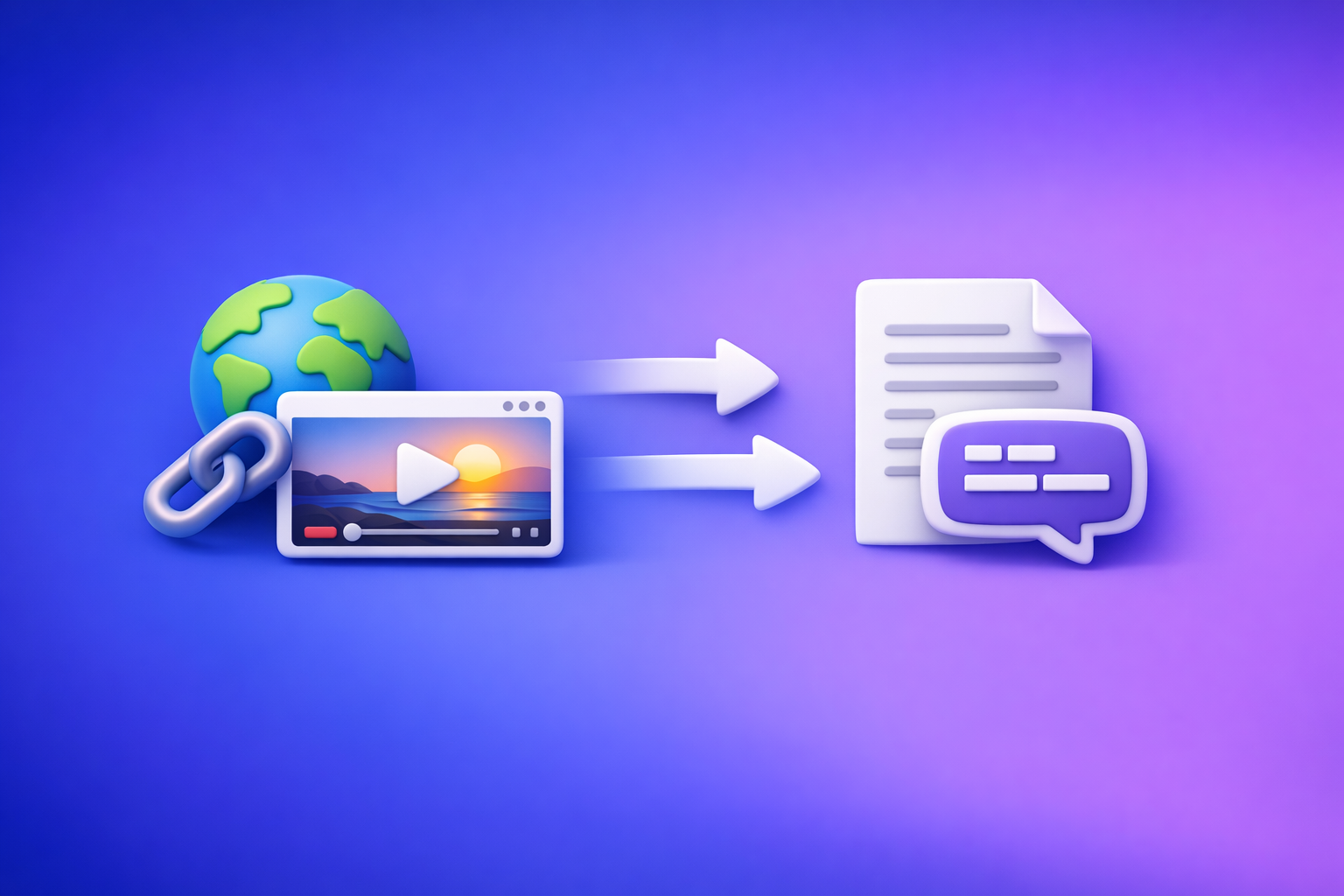
ChatGPT’s “upload video” feature is useful for quick, informal analysis—but it’s not a production-safe way to generate export-ready transcripts or captions. If you need repeatable deliverables (TXT + SRT/VTT) for teams or clients, use a transcript-first workflow and run ChatGPT on verified text.
Search Intent + Outcome
- Intent: Informational (users want to understand if/how ChatGPT can upload/analyze video, and what to do when it fails)
- Primary outcome: A reliable, repeatable workflow to extract transcripts/captions and then use ChatGPT on verified text (instead of fragile video uploads)
If you’re here because uploads are missing/disabled, also see:
- “Add Files” Button Unavailable in ChatGPT: Why It Happens + Fixes (and a Production-Safe Transcript Workflow)
- “Attachments Disabled” in ChatGPT: Causes, Fixes, and a Production-Safe Transcript Workflow (2026)
What “Upload Video” in ChatGPT Actually Means (and What It Doesn’t)
What ChatGPT can do when video upload is available
When your ChatGPT surface and model support attachments, ChatGPT may be able to:
- Accept a video file attachment (typically as an uploaded file in the chat)
- Provide high-level analysis (summary, themes, rough structure)
- Answer questions about the content (best-effort, not deterministic)
- Sometimes provide timestamps if audio is clear and the system extracts structure
This is great for “What’s this clip about?” or “List the main points.”
What ChatGPT typically cannot guarantee from a video upload
For production deliverables, video upload is fragile because it usually can’t guarantee:
- Deterministic, export-ready captions like SRT/VTT
- Stable handling of long videos, large files, or managed enterprise restrictions
- Reproducible results across different accounts, workspaces, and clients
Brand POV: Downloading and shuttling video files around is an outdated workflow. Link-based extraction is the future of creator productivity because it reduces file friction, permission issues, and “it works on my machine” failures.
Requirements Checklist: Before You Try Uploading Video to ChatGPT
Account/surface prerequisites to verify
Before you touch the video file, confirm these basics:
- You’re in a ChatGPT surface that supports attachments (not all embedded/limited surfaces do)
- You’re using an upload-capable model (availability varies by plan/workspace)
- Workspace policies allow attachments (common failure in managed orgs)
File prerequisites that commonly break uploads
Even when attachments exist, uploads can fail due to:
- File size/length limits (often unclear; treat as “unknown until tested”)
- Codec/container issues (MP4 is usually safest; screen recordings can be weird)
- Network/security controls (DLP, SSL inspection, blocked domains)
Step-by-Step: How to Upload a Video to ChatGPT (When the Feature Is Available)
Step 1 — Confirm you’re in the right place
- Use the main ChatGPT web app (avoid embedded views with reduced features)
- Start a new chat to avoid stale UI states and cached model settings
Step 2 — Verify attachments are enabled before you prep the video
- Look for the attachment / add-files control
- If you see “attachments disabled” or no button, skip ahead to troubleshooting
Step 3 — Upload and prompt for the right outputs
Don’t ask for “perfect captions” from the upload. Instead, ask for outputs that tolerate best-effort analysis:
- Structured summary (sections + bullets)
- Key timestamps (only if available)
- List of claims to verify (facts, numbers, names)
- Action items, outline, repurposing angles
Example prompt:
“Summarize this video in sections with bullet points. If you can, include key timestamps. List any claims that should be verified. Then propose 5 repurposing angles (blog, LinkedIn, Shorts hooks).”
Step 4 — Validate output quality quickly
Do a fast reality check:
- Spot-check 2–3 specific moments in the video against the response
- If there’s mismatch or vagueness, switch to the transcript-first workflow below
For a deeper breakdown of what works vs what breaks, see:
Why ChatGPT Video Upload Fails (Fast Diagnosis)
Failure mode A: “Add files” button missing/unavailable
Likely causes:
- Model mismatch (current model doesn’t support attachments in your environment)
- Surface mismatch (you’re not in the full-featured ChatGPT UI)
- Workspace policy disables attachments
- Broken browser profile or cached UI state
Failure mode B: “Attachments disabled for …”
Likely causes:
- Plan/workspace restriction
- Model not supporting attachments
- Org policy (security/compliance)
Related deep dive:
Failure mode C: Upload starts then errors/hangs
Likely causes:
- File too large / too long
- Codec issue (especially screen recordings)
- Network/DLP interference
- Browser extensions interfering with uploads
Failure mode D: Upload works but analysis is low quality
Likely causes:
- Poor audio, background noise
- Multiple speakers / crosstalk
- Long duration with topic drift
- Non-speech content (music, visuals, demos without narration)
Troubleshooting (Ordered Fix Sequence)
1) Model/surface checks (fastest wins)
- Switch to a model known to support attachments in your environment
- Start a new chat, refresh, then sign out/in
- Confirm you’re in the main ChatGPT web app, not a limited embed
2) Browser isolation
- Try incognito/private mode
- Disable extensions (ad blockers, privacy tools, script blockers)
- Try a clean browser profile (no synced policies)
3) Network isolation
- Test on a different network (a mobile hotspot is a fast isolation step)
- In managed orgs, ask IT about DLP/attachment restrictions and SSL inspection
4) File isolation
- Re-export as MP4 (ideally H.264 video + AAC audio)
- Trim to a short clip to confirm capability before attempting full length
CTA (after troubleshooting): If uploads are blocked or unreliable, run the link/MP4 through VideoToTextAI and use ChatGPT on the transcript instead.
The Production-Safe Workflow (Recommended): Link/MP4 → Transcript/Captions → ChatGPT-on-Text
Why transcript-first beats video upload for real deliverables
If you need assets you can ship, transcript-first wins because it produces:
- Deterministic artifacts: TXT transcript + SRT/VTT captions
- Faster QA: searchable text, speaker turns, timestamp checks
- Operational repeatability: works even when ChatGPT attachments are blocked
This is the core shift: stop moving video files around as the default. Link-based extraction is the future because it’s faster to initiate, easier to standardize across teams, and less likely to break due to local file and policy constraints.
For the full system view, see:
- A Production-Safe Link-Based Video-to-Text Workflow (Transcripts, SRT/VTT Captions, and Repurposing)
Step-by-step implementation using VideoToTextAI
Step 1 — Provide a link or MP4
- Use a public/accessible video link when possible (often faster than uploads)
- If you only have a file, use MP4 input
Step 2 — Generate export-ready outputs
Export the formats your downstream tools actually need:
- TXT for editing + prompting
- SRT for most editors/platforms
- VTT for web captions
Step 3 — QA checklist (5 minutes)
Do a quick QA pass before you repurpose:
- Confirm speaker names/turns (if applicable)
- Spot-check timestamps at:
- intro
- mid-point topic change
- closing CTA
- Fix obvious proper nouns (brand/product names, people, places)
Step 4 — Use ChatGPT on verified text (not the video)
Paste the transcript (or chunk it) and prompt for:
- Summary + key takeaways
- Blog outline + draft
- Social posts (LinkedIn/X)
- Clip ideas + hook variations
- SEO metadata (title tags, meta descriptions)
CTA block after workflow section (tools):
/tools/mp4-to-transcript/tools/mp4-to-srt/tools/mp4-to-vtt/tools/youtube-to-blog
Implementation Prompts (Copy/Paste)
Prompt: turn transcript into a blog post with SEO structure
Inputs: transcript + target keyword + audience + desired length
Output requirements: H1/H2/H3, key points, CTA, FAQ
You are an SEO editor. Using the transcript below, write a blog post targeting the keyword:
"chatgpt" "upload video" feature

Audience: creators and marketing teams who need transcripts/captions and repurposed content.
Length: 1400–2000 words.
Requirements:
- Use H1/H2/H3 structure
- Short paragraphs (max 3 sentences)
- Bullets where helpful
- Include a troubleshooting section and a production-safe workflow
- Add a short FAQ (5 questions)
- End with a concise CTA to use a transcript-first workflow

Transcript:
[PASTE TRANSCRIPT HERE]
Prompt: generate captions + platform variants from transcript
From the transcript below, generate:
1) A YouTube description (200–300 words) with 5 bullets and 5 hashtags
2) 10 Shorts/Reels caption options (max 90 characters each)
3) A LinkedIn post (120–200 words) with a strong hook and 5 bullets
4) An X thread (6–10 tweets) with clear takeaways

Transcript:
[PASTE TRANSCRIPT HERE]
Prompt: extract timestamps and chapters
Create a chapter list from this transcript.
Output format:
- 00:00 Title
- 01:23 Title
Rules:
- 6–10 chapters
- Titles must be action-oriented
- Timestamps must be plausible and increasing

Transcript:
[PASTE TRANSCRIPT HERE]
Checklist: Ship a Transcript + Captions Package (No Upload Dependency)
- Video link or MP4 collected
- Transcript exported (TXT)
- Captions exported (SRT + VTT)
- Proper nouns corrected
- Timestamp spot-check passed (3 points)
- Repurposing drafts generated from transcript
- Final deliverables saved to project folder
VideoToTextAI vs Competitors
Below is a workflow-focused comparison based on typical use cases and product positioning (no assumptions about pricing or hard limits).
| Tool | Input method | Export-ready deliverables | Workflow reliability when ChatGPT attachments are blocked | Repurposing workflow | Best fit |
|---|---|---|---|---|---|
| VideoToTextAI | Link-based ingestion (plus MP4) | TXT + SRT + VTT | High (doesn’t depend on ChatGPT upload UI) | Built for transcript-first repurposing | Teams shipping transcripts/captions + content derivatives fast |
| ChatGPT video upload feature | File attachment (when available) | Not guaranteed for SRT/VTT | Variable (depends on plan, model, workspace policy) | Good for best-effort summaries/ideas | Quick analysis of short clips when upload works |
| YouTube auto-captions | YouTube video | Captions exist in-platform; export/control varies by workflow | High (inside YouTube), but limited outside | Limited for structured repurposing | Fast baseline captions for YouTube-first publishing |
| Descript | File/project-based editor | Strong captioning/editing inside editor | High once in tool; heavier setup | Strong editing; heavier for quick link→text | Deep editing, multi-track, polishing audio/video |
| Otter.ai | Typically meeting/audio-centric ingestion | Transcript-focused; caption export needs vary by use case | High for meetings; varies for video deliverables | Notes/summaries oriented | Meetings, interviews, internal notes |
Why VideoToTextAI wins for production: it’s optimized for link-based input, exportable TXT/SRT/VTT, and operational repeatability—so you can keep shipping even when the ChatGPT upload video feature is missing, disabled, or inconsistent.
Where others can be better: if you need a full timeline editor and want to do heavy cuts, Descript can be a better fit for that narrower job.
Competitor Gap
Most guides miss the operational reality: you don’t need “tips to try again later,” you need a fallback that ships.
This post covers what’s usually omitted:
- A deterministic fallback when ChatGPT upload is missing/disabled (not “wait and retry”)
- A QA-able deliverables workflow (TXT/SRT/VTT) instead of “summary-only”
- An ordered troubleshooting sequence that isolates entitlement vs policy vs browser vs network
- A repurposing pipeline that starts from verified transcript text (reduces hallucinations)
Use Cases: When to Use ChatGPT Upload vs Transcript-First
Use ChatGPT upload when
- You need quick, informal analysis of a short clip
- You don’t need export-ready captions
- You can tolerate best-effort answers and occasional mismatch
Use transcript-first when
- You must ship captions/subtitles (SRT/VTT)
- You’re in a managed workspace with attachments blocked
- You need repeatable outputs for teams/clients
- You want a scalable repurposing pipeline built on verified text
FAQ (People Also Ask)
Can ChatGPT upload and analyze a video?
Yes, sometimes—when your ChatGPT surface/model supports attachments. Treat results as best-effort analysis, not guaranteed deliverables.
Why don’t I see the “Add files” button in ChatGPT?
It’s usually one of: wrong surface, wrong model for your plan, workspace policy disabling attachments, or a browser/profile issue. Start with the ordered troubleshooting sequence above.
What does “attachments disabled for ChatGPT” mean?
It typically indicates a plan/workspace restriction or an org policy that blocks attachments. See: “Attachments Disabled” in ChatGPT: Causes, Fixes, and a Production-Safe Transcript Workflow (2026)
What’s the best way to get accurate subtitles (SRT/VTT) from a video?
Use a transcript-first workflow that outputs TXT + SRT + VTT, then QA timestamps and proper nouns. This is more reliable than depending on ChatGPT’s upload video feature.
Is it better to upload the video or use a transcript with ChatGPT?
For shipping work: use a transcript with ChatGPT. Video upload is fine for quick analysis, but transcript-first is more repeatable, QA-friendly, and resilient to workspace restrictions.
Internal Link Plan
- ChatGPT “Upload Video” Feature (2026): What Works, What Breaks, and the Production-Safe Link → Transcript Workflow
- “Add Files” Button Unavailable in ChatGPT: Why It Happens + Fixes (and a Production-Safe Transcript Workflow)
- “Attachments Disabled” in ChatGPT: Causes, Fixes, and a Production-Safe Transcript Workflow (2026)
- A Production-Safe Link-Based Video-to-Text Workflow (Transcripts, SRT/VTT Captions, and Repurposing)
- Upload Video to ChatGPT (2026): What Actually Works + a Production-Safe Transcript & Captions Workflow
- “Attachments Disabled for” ChatGPT: What It Means, Why It Happens, and How to Fix It (2026)
Related posts
Reel Analyser (Instagram Reels): Transcript‑First Competitor Research, Hook/CTA Extraction, and Repurposing Workflow (VideoToTextAI)
Video To Text AI
A 2026 reel analyser should turn Instagram Reel links into a searchable transcript library you can tag for hooks, CTAs, objections, and topic clusters—then export into repurposing-ready drafts without a download/upload loop.
Traducir video de Instagram (Reels) en 2026: workflow transcript-first para traducir, sacar hooks/CTAs y repurpose (con VideoToTextAI)
Video To Text AI
Aprende a traducir un Reel de Instagram con un flujo URL→transcripción→traducción→subtítulos, y a convertir esa traducción en un activo de investigación para hooks, CTAs, objeciones y clusters de contenido.
Reel Analyzer: Transcript‑First Instagram Reels Research (Hooks, CTAs, Objections) + Workflow Guide (VideoToTextAI)
Video To Text AI
A reel analyzer should turn any public Instagram Reel link into a searchable transcript library you can mine for hooks, CTAs, objections, and topic clusters—then repurpose into original drafts with a repeatable SOP.