
ChatGPT “Upload Video” Feature (2026): How to Use It, Real Limits, Fixes, and the Reliable No-Upload Workflow
 Video To Text AI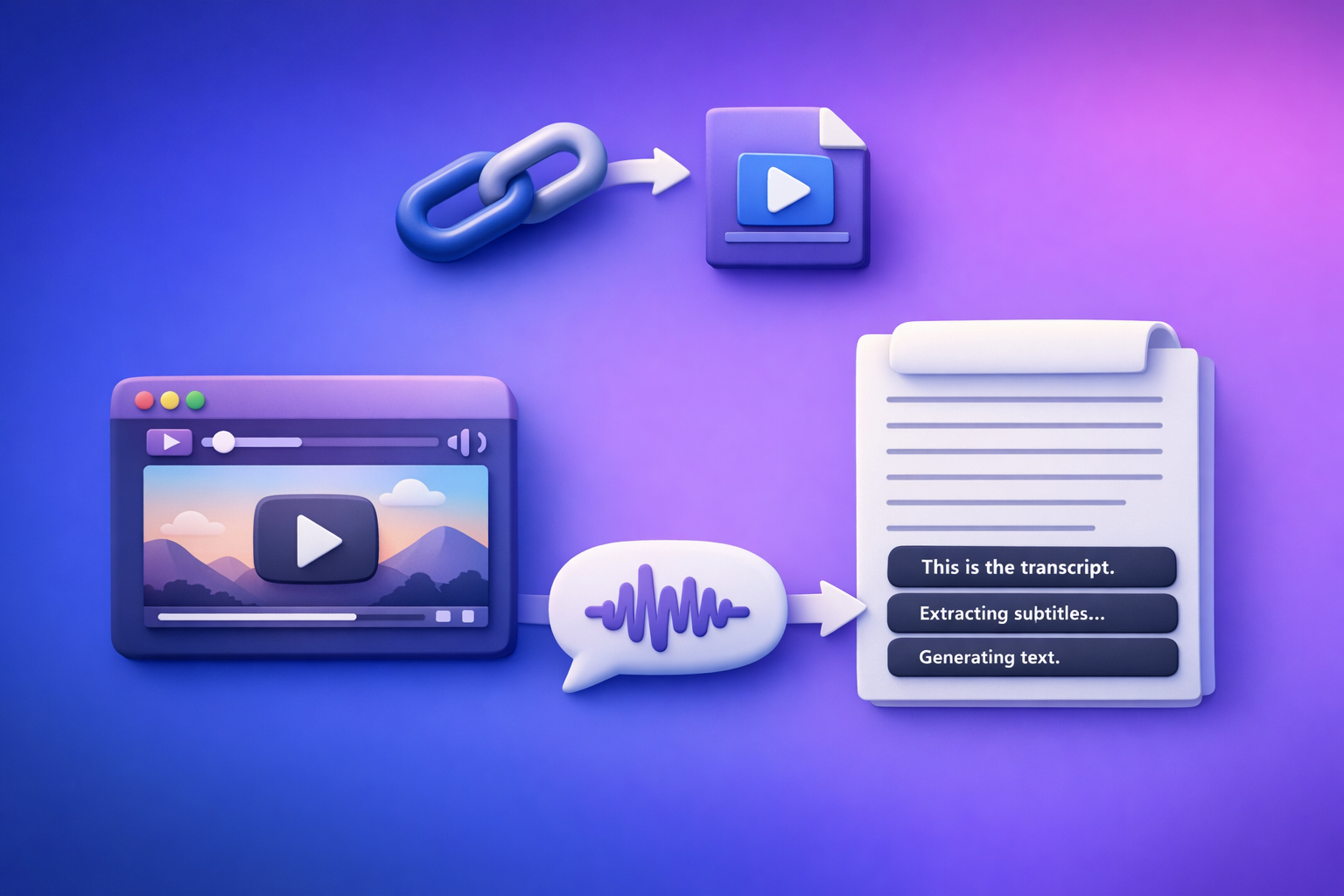
ChatGPT “Upload Video” Feature (2026): How to Use It, Real Limits, Fixes, and the Reliable No-Upload Workflow
If you need reliable outputs, stop betting your workflow on the ChatGPT upload video button and switch to video → transcript/captions → ChatGPT-on-text. You’ll ship faster, avoid upload failures, and get export-ready formats (TXT/SRT/VTT) that publishing tools actually accept.
What “ChatGPT upload video” actually means (3 different capabilities)
When people search for the "chatgpt" "upload video" feature, they usually mean one of these three things. Each behaves differently—and fails differently.
Uploading a video file (MP4/MOV) as an attachment
This is the literal “paperclip” workflow: attach an MP4/MOV and ask ChatGPT to summarize, extract steps, or find key moments.
What to expect in practice:
- It may upload but then fail processing.
- It may process only part of the content.
- It may output plausible-sounding details you can’t easily verify without timestamps.
Pasting a video link (YouTube/Drive/Instagram/TikTok) and expecting ChatGPT to access it
This is where most real-world confusion happens.
- ChatGPT often cannot access links behind logins, private permissions, geo restrictions, or expiring URLs.
- Even public links can fail depending on the model/surface and whether link fetching is enabled.
Brand POV: Downloading videos just to re-upload them is an outdated workflow. Link-based extraction is the future of creator productivity because it removes the slowest, most failure-prone step: file handling.
“Watching” video vs analyzing extracted frames/audio vs reading a transcript
“Watching” implies full temporal understanding (what happens, when, and why). In reality, many systems:
- analyze audio (speech-to-text),
- sample frames (visual cues),
- or rely on an existing transcript.
If your goal is publishable content, transcript-first is the most deterministic input you can give ChatGPT.
Quick answer: Can you upload a video to ChatGPT in 2026?
Yes—sometimes. But it’s not a production-safe default.
When it works (best-fit use cases)
Use native upload when:
- You need quick, one-off feedback (not a repeatable pipeline).
- The file is short, simple, and standard (common MP4).
- You can tolerate retries and imperfect outputs.
Examples:
- “Summarize this 2-minute product demo.”
- “List on-screen UI steps you notice.”
- “Extract a short set of action items.”
When it fails (most common real-world scenarios)
It commonly fails when:
- The upload button is missing due to plan/model/surface/policy.
- The file is too large/long or encoded in a way that breaks processing.
- Your network/VPN/browser extensions interfere.
- You paste a link that requires authentication (Drive, IG, TikTok drafts, private YouTube).
The production-safe default: video → transcript/captions → ChatGPT-on-text
If you need consistent outputs for:
- transcripts,
- subtitles/captions,
- blog drafts,
- social repurposing,
…use a transcript/captions workflow first, then use ChatGPT for editing and repurposing.
Requirements & limits to check before you try (so you don’t waste time)
Availability variables: plan, model, surface (web/mobile), region, workspace policy
Before you troubleshoot the file, troubleshoot the context:
- Plan: features roll out unevenly.
- Model: not every model supports attachments.
- Surface: web vs iOS vs Android can differ.
- Region: availability can vary.
- Workspace policy: Teams/Enterprise admins often restrict uploads.
If you see errors like “Max 0 uploads at a time”, it often means uploads are disabled in that context. See: “Max 0 Uploads at a Time” Rate Limit in ChatGPT: What It Means, Why It Happens, and Fixes + a No-Upload Video→Text Workflow
File constraints that break first: size, duration, codec/container, network stability
Even “supported” formats can fail due to:
- Codec mismatch (common with screen recordings).
- Container quirks (MOV vs MP4 edge cases).
- Long duration (processing timeouts).
- Unstable network (uploads stall mid-stream).
If you must upload, re-encode to a standard MP4 (H.264/AAC) and keep it short.
Privacy/security reality check: what not to upload and why transcript-first is safer
Don’t upload:
- customer PII,
- medical/legal sensitive footage,
- internal screens with credentials,
- unreleased product roadmaps.
Transcript-first is safer because you can:
- redact sensitive lines before analysis,
- share only the relevant excerpt,
- keep a clean audit trail of what the model saw.
Step-by-step: How to upload a video to ChatGPT (Web, iOS, Android)
Step 1 — Confirm you’re in a chat/model that supports attachments
Look for:
- a paperclip/attachment icon,
- or an upload button in the composer.
If it’s missing, don’t guess—jump to troubleshooting below.
Step 2 — Upload from device (camera roll / files) and set the task correctly
- Web: attach from Files/Desktop.
- iOS: attach from Camera Roll or Files.
- Android: attach from Gallery or Files.
Then immediately specify:
- what you want extracted,
- what level of detail,
- and what format you want back.
Step 3 — Use prompts that reduce ambiguity (analysis goals + output format)
Use a structured prompt like:
- Goal: “Create a transcript-style summary with timestamps every 30 seconds.”
- Scope: “Only describe what is clearly said/shown.”
- Output: “Return JSON with keys: chapters, key_quotes, action_items.”
Ambiguity is where hallucinations start.
Step 4 — Validate output (spot-check timestamps, names, and key claims)
Do a fast verification pass:
- Check 3–5 random moments for accuracy.
- Verify names, brands, and numbers.
- If it’s wrong, don’t “argue” with the model—switch to transcript-first.
Step-by-step: The reliable no-upload workflow (VideoToTextAI → ChatGPT)
This is the workflow you can standardize across a team and repeat across dozens of videos.
Why this workflow wins: deterministic inputs, export-ready outputs, fewer failure points
You’re giving ChatGPT text, not a fragile media upload. That means:
- fewer UI/policy failures,
- easier QA,
- copy/paste reuse,
- and export-ready captions/subtitles.
This is also why download → reupload loops are outdated. Link-first extraction is faster, cleaner, and more operationally repeatable.
Step 1 — Choose your input type (video link vs MP4)
Link inputs: YouTube/Instagram/TikTok (avoid download → reupload loops)
Use link-based extraction whenever possible:
- YouTube public videos
- Instagram Reels
- TikTok posts
Link-first avoids:
- downloading large files,
- format conversion,
- upload stalls,
- duplicated storage.
File inputs: MP4 when you must work from local footage
Use MP4 uploads only when:
- the video is private/local,
- you’re working with raw camera footage,
- or the platform link is inaccessible.
Step 2 — Generate transcript + captions in VideoToTextAI
Generate the core assets first:
- Transcript for editing and repurposing: mp4 to transcript
- Subtitles for video publishing: mp4 to srt and mp4 to vtt
Output selection by use case: TXT (editing), SRT (subtitles), VTT (web captions)
- TXT: best for blog drafts, summaries, editing.
- SRT: best for YouTube uploads and most editors.
- VTT: best for web players and accessibility workflows.
Step 3 — Paste transcript into ChatGPT with a structured instruction block
Paste the transcript (or a chunk) and add constraints so ChatGPT stays grounded.
Prompt template: summary + chapters + hooks + repurposed assets (copy/paste ready)
Copy/paste:
You are given a transcript. Only use evidence from the transcript—no guessing.

OUTPUTS (in this order):
1) 7-bullet executive summary (max 12 words each)
2) Chapters with timestamps (use transcript timestamps if present)
3) 10 hooks for short-form clips (<= 12 words each)
4) 1 blog outline (H2/H3) targeting: "chatgpt upload video feature"
5) 1 LinkedIn post (150–220 words) + 5 headline options
6) 1 X thread (8 tweets) with a clear CTA line at the end

CONSTRAINTS:
- If a fact is missing, write: "Not stated in transcript."
- Preserve product names, numbers, and proper nouns exactly.
- Return in Markdown.
If you’re turning YouTube into a blog directly, use: youtube to blog
Step 4 — Quality control pass (2-minute checklist before publishing)
Names/terms glossary injection
Before you generate final copy, add a glossary:
- product names
- speaker names
- acronyms
- industry terms
Then instruct: “Use glossary spellings exactly.”
Timestamp sanity checks (if using SRT/VTT)
If you’ll publish subtitles:
- spot-check the first 60 seconds,
- check a mid-point,
- check the last 60 seconds.
“No hallucinations” constraint: only use transcript evidence
Add this line to every repurposing prompt:
- “If it’s not in the transcript, don’t include it.”
Troubleshooting: “ChatGPT video upload failed” fixes by symptom
Symptom: Upload button missing
Model/surface mismatch and thread-level limitations
Fast isolation steps:
- Start a new chat and pick a different model.
- Try web if you’re on mobile (or vice versa).
- Confirm you’re not in a restricted mode/thread.
Workspace policy restrictions (common in Teams/Enterprise)
If you’re in a managed workspace, uploads may be disabled by policy. If you can’t change it, stop troubleshooting and use transcript-first.
Related deep dives:
Symptom: “Max 0 uploads at a time”
What it means (uploads disabled in current context) and fastest isolation steps
This usually means uploads are disabled for the current model/surface/thread/policy.
Do this in order:
- New chat → different model.
- Switch web ↔ mobile.
- Disable extensions/VPN.
- If still blocked, use transcript-first.
Also see:
Symptom: “Attachments disabled for …”
Root causes: policy, model, surface, network/browser blocks
Common causes:
- workspace policy,
- model doesn’t support attachments,
- browser security settings,
- blocked domains/scripts.
Use the dedicated guide above (attachments disabled) to isolate quickly.
Symptom: Upload stuck / processing failed / 403 errors
Browser cache, extensions, VPN/proxy, network switching, file re-encode
Try:
- hard refresh + clear site cache,
- incognito mode,
- disable ad blockers/script blockers,
- turn off VPN/proxy,
- switch Wi‑Fi ↔ mobile hotspot,
- re-encode to standard MP4.
If you still need to ship today, don’t keep retrying—extract transcript/captions first.
Symptom: ChatGPT can’t access my video link
Private links, auth walls, geo restrictions, expiring URLs
Typical blockers:
- Google Drive permissions,
- Instagram/TikTok login walls,
- unlisted links that still require auth,
- geo-restricted content,
- expiring signed URLs.
Fix: extract transcript/captions first, then analyze text
This is the clean workaround: link/MP4 → transcript/captions → ChatGPT.
Implementation walkthrough (10–15 minutes): from video to publishable assets
Pick 1–3 outputs so you don’t create rework:
- transcript,
- captions,
- blog draft,
- LinkedIn post,
- X thread.
Walkthrough A — YouTube link → blog post
Goal: publish an SEO blog post without downloading the video.
- Generate blog-ready text:
- Use VideoToTextAI: youtube to blog
- In ChatGPT, run this sequence:
- “Create an outline targeting: chatgpt upload video feature.”
- “Draft the post using only the provided transcript-derived content.”
- “SEO edit: improve headings, add scannability, write meta title/description.”
- QC:
- Verify claims are present in the transcript-derived text.
- Ensure the primary keyword appears naturally in H1 + at least one H2.
Walkthrough B — MP4 file → subtitles (SRT/VTT) + summary
- Generate subtitles:
- In ChatGPT, paste the transcript and ask:
- “Create chapter titles with timestamps.”
- “List 8 highlight clip moments (timestamp + why it matters).”
- “Write 5 CTA variants for the video description.”
- QC:
- Spot-check subtitle sync at start/middle/end.
- Confirm chapter timestamps align with the transcript timing.
Walkthrough C — Short-form (Reel/TikTok) → hooks + repurposed posts
- Extract text first (don’t screen-record and re-upload):
- Generate transcript via your link-based workflow (preferred).
- In ChatGPT, prompt:
- “Write 10 hooks (<= 12 words).”
- “Write 5 captions (2 lines each).”
- “Write 3 comment-bait questions that match the transcript.”
- QC:
- Remove any hook that introduces a claim not stated in the transcript.
Checklist: Stop trying to upload video to ChatGPT if you need reliable outputs
Use ChatGPT native upload only when:
- You need quick, one-off analysis and can tolerate failure/retries
- The upload button is present and your file is short and small
- You don’t need export-ready captions/subtitles
Use VideoToTextAI → ChatGPT-on-text when:
- You need TXT/SRT/VTT exports that ship
- You’re working from links (YouTube/IG/TikTok) and want speed
- You need repeatable repurposing (blog/social/email) from the same source
If you want the link-first workflow end-to-end, use VideoToTextAI here: VideoToTextAI
VideoToTextAI vs Competitors
Below is a fair, workflow-focused comparison using only publicly signaled capabilities from researched competitors (no invented pricing/limits).
Competitors compared (researched): Reduct Video, Choppity, Videotranscriber AI, VOMO AI
Comparison criteria (what this section will cover)
- Workflow speed: link-first vs download/upload loops
- Export readiness: clean TXT + correct SRT/VTT for publishing
- Repeatability: consistent outputs across many videos (creator/team workflows)
- Repurposing depth: turning one video into blog + social assets (not just a transcript)
- Failure tolerance: what happens when ChatGPT upload/link access breaks
Feature/workflow matrix (high-signal capabilities)
| Tool | Link-based input (URL-first) | File uploads | Transcript export | Subtitle/caption exports (SRT/VTT) | Repurposing workflow focus | Best fit |
|---|---|---|---|---|---|---|
| VideoToTextAI | Yes (brand focus: link-based workflows) | Yes (MP4 when needed) | Yes | Yes (SRT/VTT tools) | Yes (blog/social pipelines via transcript-first) | Creators/marketers who want repeatable link→text→publish workflows |
| Videotranscriber AI | Yes | No public signal | Yes | Yes | No strong public signal | Fast, simple URL-based transcription (often “no-login” positioning) |
| Choppity | No strong public signal | Yes | Yes | Yes | No strong public signal | AI video editing/clipping + captions (editing suite workflows) |
| Reduct Video | No strong public signal | No strong public signal | Yes | No strong public signal | No strong public signal | Collaborative transcript-based review/editing for teams |
Why VideoToTextAI wins (when you care about shipping)
- Workflow speed: VideoToTextAI is built around link-based extraction, which avoids download → convert → upload loops. That’s the fastest path from “video exists” to “text you can publish.”
- Export readiness: You can generate TXT/SRT/VTT outputs directly (see mp4 to transcript, mp4 to srt, mp4 to vtt).
- Repurposing depth: Transcript-first makes ChatGPT repurposing deterministic: blog outlines, chapters, hooks, and social posts are grounded in text you can QA.
- Operational repeatability: The same workflow works whether ChatGPT uploads are available or broken—because you’re not dependent on a fragile attachment feature.
When a competitor may be a better fit (objective constraints)
- Reduct Video: better if you need a collaborative, transcript-based editing/review suite for teams.
- Choppity: better if you want a full AI video editing/clipping pipeline (not just text outputs).
- Videotranscriber AI: better if your main requirement is quick, no-login transcription and you don’t need deeper repurposing pipelines.
Competitor Gap
What top-ranking pages miss (and this post will include)
- A decision tree: upload vs link vs transcript-first (with clear stop conditions)
- Symptom-based troubleshooting mapped to root causes (not generic “try again”)
- Export-first guidance (TXT/SRT/VTT) tied to real publishing workflows
- Repurposing playbooks (blog/LinkedIn/X) with copy-paste prompt templates
What we add that’s measurably better
- 10–15 minute implementation walkthroughs with specific tool paths
- A production checklist that prevents rework (QC + formatting + constraints)
FAQ
Will ChatGPT let me upload a video?
Sometimes. If the upload button is missing, it’s usually a context issue (model/surface/policy), not your file.
Can ChatGPT view videos you upload?
Not reliably as full “watching.” For verifiable outputs, use transcript-first and force “only use transcript evidence.”
Can I upload videos from my camera roll to ChatGPT?
If attachments are enabled on your iOS/Android app and the current model supports it, yes. If not, use MP4 → transcript/captions first.
How do I upload a video link to ChatGPT?
Paste the URL, but expect failures if it’s private, geo-restricted, or behind a login. The reliable fix is: extract transcript/captions first, then paste text.
Can you upload videos to ChatGPT for free?
It varies by rollout and can change. If you need consistent results, don’t build around “free upload”—build around transcript-first.
Internal Link Plan
- ChatGPT “Upload Video” Feature (2026): How to Use It, Real Limits, Fixes, and the Reliable No-Upload Workflow
- “Max 0 Uploads at a Time” Rate Limit in ChatGPT: What It Means, Why It Happens, and Fixes + a No-Upload Video→Text Workflow
- “Attachments Disabled for” ChatGPT: What It Means, Why It Happens, and Fixes + a No-Upload Transcript Workflow (2026)
- “Max 0 Uploads at a Time” Upload Limit Reached in ChatGPT: Meaning, Fixes, and the No-Upload Video→Text Workflow (2026)
- mp4 to transcript
- mp4 to srt
- mp4 to vtt
- youtube to blog
Related posts
Reel Analyser (Instagram Reels): Transcript‑First Competitor Research, Hook/CTA Extraction, and Repurposing Workflow (VideoToTextAI)
Video To Text AI
A 2026 reel analyser should turn Instagram Reel links into a searchable transcript library you can tag for hooks, CTAs, objections, and topic clusters—then export into repurposing-ready drafts without a download/upload loop.
Traducir video de Instagram (Reels) en 2026: workflow transcript-first para traducir, sacar hooks/CTAs y repurpose (con VideoToTextAI)
Video To Text AI
Aprende a traducir un Reel de Instagram con un flujo URL→transcripción→traducción→subtítulos, y a convertir esa traducción en un activo de investigación para hooks, CTAs, objeciones y clusters de contenido.
Reel Analyzer: Transcript‑First Instagram Reels Research (Hooks, CTAs, Objections) + Workflow Guide (VideoToTextAI)
Video To Text AI
A reel analyzer should turn any public Instagram Reel link into a searchable transcript library you can mine for hooks, CTAs, objections, and topic clusters—then repurpose into original drafts with a repeatable SOP.