
“Attachments Disabled for” ChatGPT: What It Means, Why It Happens, and Fixes (2026)
 Video To Text AI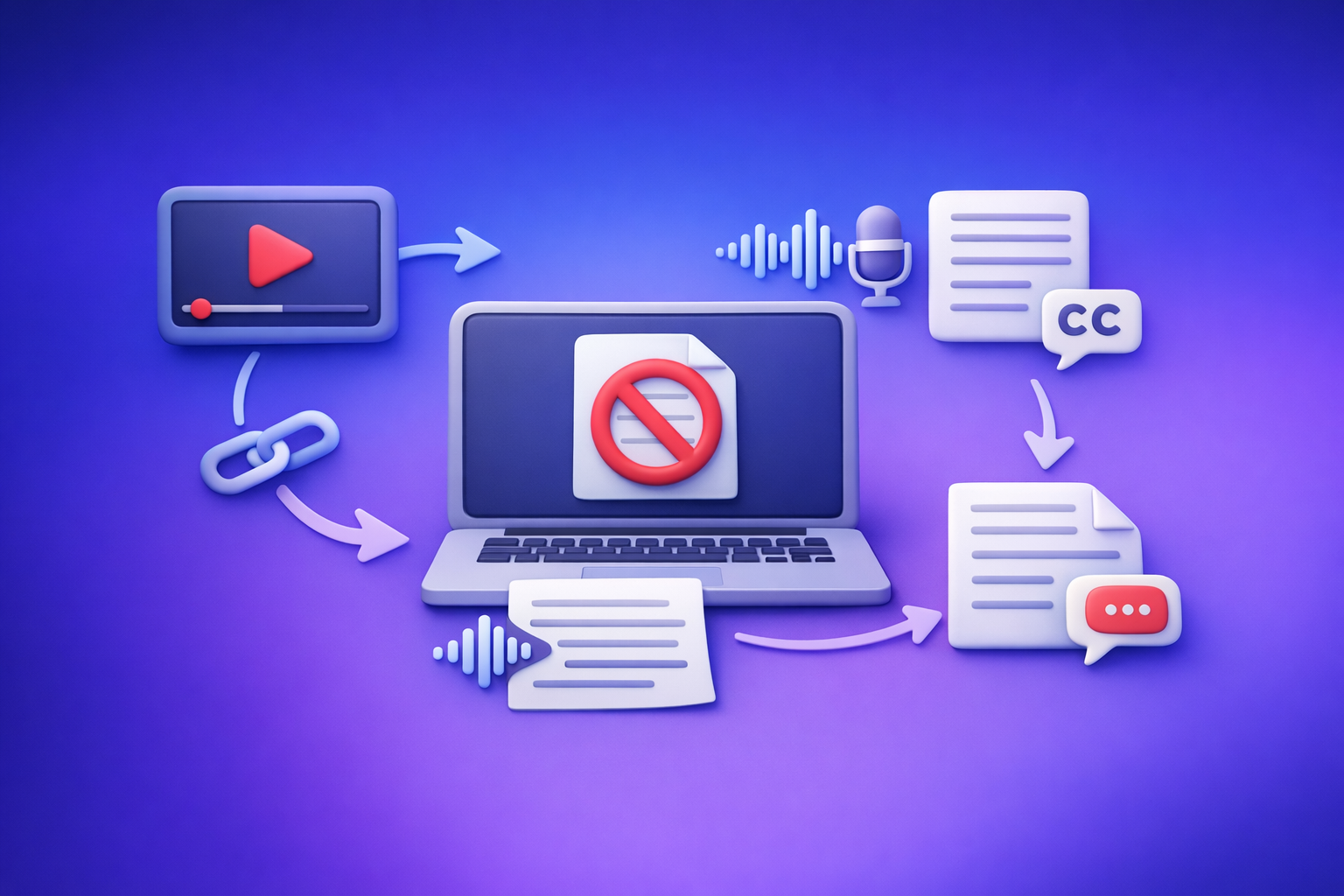
“Attachments disabled for …” in ChatGPT means uploads are blocked in your current context (model, app surface, workspace policy, thread state, or network controls). The fastest fix is to isolate where uploads are disabled (thread vs model vs surface vs workspace vs network), then either restore attachments or bypass uploads with a transcript-first workflow.
Quick Answer (What the message actually means)
“Attachments disabled for …” usually means:
- File uploads are not available in the current ChatGPT context (not necessarily your account overall).
- It is not proof your file is corrupted.
- It often happens before ChatGPT even checks file size/type—so you won’t see “file too large” or “unsupported format” yet.
Fastest path:
- Diagnose where uploads are blocked (2 minutes).
- Apply the matching fix.
- If you’re blocked by policy, ship anyway using a transcript-first workflow (text in, content out).
Who this affects (so you pick the right fix)
Personal accounts (Free/Plus/Pro)
Upload availability can vary by:
- Model selection
- Web vs mobile app
- Feature rollouts (some accounts/surfaces get features earlier)
Team/Enterprise/Edu workspaces
Uploads can be disabled by admin policy, even if your personal account supports attachments.
High-compliance environments
Uploads may be blocked by:
- DLP tools
- Proxy/VPN
- Firewall
- Browser policies
- Managed devices
In these environments, “attachments disabled for …” is often a policy outcome, not a bug.
Common places the “Attachments disabled for …” banner appears
Web app (chat.openai.com)
You’ll typically see one or more of these:
- Attachment icon missing or greyed out
- Drag-and-drop does nothing
- Banner appears after switching models mid-thread
iOS/Android app
Common patterns:
- Attachment option missing
- Camera/files picker opens, but upload fails immediately
Workspace chats (Team/Enterprise)
Typical symptoms:
- Upload UI is present, but blocked by policy
- Uploads work in personal workspace but not org workspace
Root causes (ranked by likelihood)
Model mismatch (uploads not supported in that model)
- Some models/surfaces support attachments; others don’t.
- Switching models inside an existing thread can keep the thread in a “no-attachments” state.
What it looks like:
- Banner says “attachments disabled for this model”
- Attachment button disappears after model switch
Surface limitation (web vs mobile vs embedded)
Uploads can be enabled on one surface and disabled on another due to:
- Rollout timing
- App version differences
- Embedded/limited surfaces
Workspace/admin policy
Org settings can disable:
- File uploads globally
- Specific file types
- Uploads in certain workspaces or compliance modes
Thread-level state
A specific conversation can become “attachments disabled” even if new chats allow uploads.
This is why “just start a new chat” is often the fastest fix.
Local/network blocking
Uploads can fail to initialize due to:
- Browser extensions (ad blockers, privacy tools)
- Strict tracking protection
- VPN/proxy
- Corporate firewall
- Blocked domains/endpoints
2-minute diagnosis (do this in order)
Step 1 — Confirm it’s not just the thread
- Open a brand-new chat
- Check whether the attachment button appears
- If it works in a new chat → the issue is thread-level
If thread-level, skip ahead to Fix 3 — Reset thread state.
Step 2 — Switch surface to isolate rollout/app issues
Test:
- Web and mobile
- Or another browser profile (Chrome vs Safari, or a clean profile)
If it works on mobile but not web, it’s likely:
- Browser extensions
- Browser/site data
- Network controls
Step 3 — Switch model (without reusing the same thread)
- Start a new chat
- Select a model known to support uploads (if available in your account)
- Check whether the attachment UI returns
If uploads appear only on certain models, it’s a model capability issue.
Step 4 — Check workspace context
If you’re in a Team/Enterprise workspace, test:
- Personal workspace chat (if available)
- Org workspace chat
If personal works but org doesn’t, admin policy is the blocker.
Step 5 — Rule out local blocking fast
Try:
- Incognito/private window
- Disable extensions (ad blockers, privacy tools)
- Different network (mobile hotspot)
If uploads return, you’ve confirmed a local/network cause.
Fixes that work (ordered, fastest-first)
Fix 1 — New chat + correct model (most common)
Do this first because it resolves the most frequent causes (thread state + model mismatch):
- Create a new chat
- Select a model that supports attachments (in your plan)
- Retry upload
If you previously switched models mid-thread, don’t reuse that thread.
Fix 2 — Change surface (web ↔ mobile)
- If web fails, try the mobile app (or vice versa)
- Update the app to the latest version
This isolates rollout and app-version issues quickly.
Fix 3 — Reset thread state
If attachments work in new chats but not the current one:
- Don’t continue in the broken thread
- Copy your prompt into a new chat
- Retry attachments there
Thread state issues are common after:
- Model switching
- Long-running threads
- Workspace context changes
Fix 4 — Browser hard reset (web)
If web is the only surface failing:
- Clear site data for ChatGPT
- Disable extensions
- Try a clean browser profile
Also test a second browser to confirm it’s not profile-specific.
Fix 5 — Network controls
- Disable VPN/proxy temporarily
- Try a different network
For corporate networks, ask IT to allow required domains and upload endpoints. In high-compliance environments, uploads may be blocked intentionally.
Fix 6 — Workspace policy escalation (Team/Enterprise)
Ask your admin to confirm:
- File uploads enabled
- Allowed file types
- DLP restrictions
If policy can’t change, use the no-upload workflow below.
Production-safe workaround: no-upload transcript-first workflow (VideoToTextAI)
If you’re blocked by policy or need reliability today, stop treating ChatGPT as the ingestion layer. Downloading video files is an outdated workflow—link-based extraction is the future of creator productivity because it’s faster, cleaner, and easier to operationalize across teams.
When to use this
Use a no-upload workflow when:
- Uploads are disabled by policy
- You need reliable output today (transcripts/subtitles/captions)
- You’re working from a link (YouTube, TikTok, Instagram, etc.)
Workflow overview
- Video link or MP4 → transcript/captions in VideoToTextAI
- Export TXT / SRT / VTT
- Paste text into ChatGPT for:
- summaries
- chapters
- blog posts
- social repurposing
- translations
This approach keeps ChatGPT focused on transformation, not ingestion.
Step-by-step implementation
Step 1 — Generate transcript/captions
Use VideoToTextAI to extract:
- Transcript (TXT)
- Subtitles (SRT/VTT)
If you’re starting from a file, use:
If you’re starting from a link and want a content asset directly, use:
Step 2 — Clean + structure for ChatGPT
Before pasting into ChatGPT, add lightweight structure:
- Speaker labels (if needed)
- Timestamps (optional, but helpful for clip selection)
- Section headings (Intro, Key points, Objections, CTA)
Keep it simple. The goal is to make the transcript easy to transform.
Step 3 — Run “ChatGPT-on-text” prompts (copy/paste)
Use prompts that assume text input (not files):
- “Create a structured summary with key takeaways and action items.”
- “Turn this transcript into a 1,200-word blog post with H2/H3 headings.”
- “Extract 10 short clips with timestamps and suggested titles.”
If you’re also hitting upload-related rate limits, see:
For broader upload context, see:
Checklist: restore attachments or ship without them
Restore attachments checklist
- Start a new chat (don’t reuse the same thread)
- Test another model
- Test another surface (web/mobile)
- Incognito + extensions off
- Different network / VPN off
- Workspace policy confirmed (if org account)
No-upload workflow checklist (VideoToTextAI)
- Video link/MP4 ready
- Export TXT + SRT/VTT
- Paste transcript into ChatGPT
- Generate repurposed assets (blog, captions, posts)
- Save outputs in a reusable content template
Related internal references for troubleshooting patterns:
- “Attachments Disabled for” ChatGPT: What It Means, Why It Happens, and Fixes + a No-Upload Transcript Workflow (2026)
- “Attachments Disabled for” ChatGPT: Meaning, Root Causes, Fixes, and the No-Upload Transcript Workflow (2026)
VideoToTextAI vs Competitors
Competitor profiles were not provided in the research block for this brief, so a factual, product-by-product comparison table would require assumptions. Instead, here’s a fair category-level comparison table based on capabilities implied by each approach (without inventing pricing, limits, or vendor-specific claims).
| Option | Works when ChatGPT attachments are disabled | Link-based ingestion (YouTube/TikTok/Instagram) | Export formats (TXT/SRT/VTT) | Repurposing readiness | Best fit |
|---|---|---|---|---|---|
| VideoToTextAI | Yes (doesn’t depend on ChatGPT uploads) | Yes (link-based workflows) | Yes (TXT/SRT/VTT) | High (transcript-first → paste into ChatGPT) | Teams/creators who want repeatable video→text→content pipelines |
| Built-in ChatGPT uploads (when available) | No (blocked by model/surface/policy) | Not the focus; depends on upload availability | Not the focus; depends on chat context | Medium (good transformation, ingestion can be fragile) | Quick one-off analysis when uploads are enabled |
| Manual transcription + editing tools | Yes (outside ChatGPT) | Sometimes (varies by tool) | Often | Medium (more manual cleanup) | High-control editorial workflows where time isn’t the constraint |
| Generic speech-to-text tools | Yes (outside ChatGPT) | Sometimes (varies by tool) | Sometimes | Medium (often needs formatting for content reuse) | Basic transcription needs without a repurposing workflow |
Why VideoToTextAI wins for operational repeatability:
- Workflow speed: link-in → transcript/subtitles out, then ChatGPT transforms text.
- Link-based input: avoids the slow, failure-prone “download → upload” loop (especially in managed workspaces).
- Exports: TXT/SRT/VTT make outputs portable across tools and teams.
- Repurposing: transcript-first makes summaries, blogs, chapters, and clip plans deterministic and reusable.
Where another option can be better:
- If you only need a single quick analysis and attachments are enabled, built-in ChatGPT uploads can be the fastest path for that one task.
If you want the link-first workflow that avoids attachment failures, use VideoToTextAI: VideoToTextAI
Competitor Gap
Most “attachments disabled for” fix articles miss the operational reality: even if you troubleshoot perfectly, workspace policy can still block uploads permanently.
What this post covers that most don’t:
- A repeatable isolation flow (thread vs model vs surface vs workspace vs network)
- A production-safe fallback that doesn’t depend on ChatGPT uploads
- Export-first outputs (TXT/SRT/VTT) so ChatGPT is used for transformation, not ingestion
- A checklist to reduce time wasted on random troubleshooting
The strategic takeaway: stop building workflows that require uploading files into ChatGPT. Link-based extraction plus text-based prompting is more reliable, faster to standardize, and easier to run under compliance constraints.
FAQ
Why does ChatGPT say “attachments disabled for this model”?
Because the selected model (or the current chat context) doesn’t support uploads on that surface/plan, or the thread is in a no-attachments state. In org environments, it can also mean uploads are blocked by policy before any file checks occur.
How do I enable attachments in ChatGPT?
You can’t force-enable it globally. You must:
- Switch to a supported model/surface
- Start a new chat (to reset thread state)
- Resolve workspace/network restrictions that block uploads
Are attachments disabled because my file is too large or the wrong type?
Sometimes size/type triggers a different error. “Attachments disabled for …” usually indicates uploads are blocked before file validation (model/surface/policy/network).
What can I do if my workplace disables ChatGPT file uploads?
Use a no-upload workflow:
- Generate transcript/subtitles externally (TXT/SRT/VTT).
- Paste the text into ChatGPT for summarization, repurposing, and translation.
This is also the most repeatable approach for creator teams because it avoids the fragile “download → upload” step entirely.
Related posts
Reel Analyser (Instagram Reels): Transcript‑First Competitor Research, Hook/CTA Extraction, and Repurposing Workflow (VideoToTextAI)
Video To Text AI
A 2026 reel analyser should turn Instagram Reel links into a searchable transcript library you can tag for hooks, CTAs, objections, and topic clusters—then export into repurposing-ready drafts without a download/upload loop.
Traducir video de Instagram (Reels) en 2026: workflow transcript-first para traducir, sacar hooks/CTAs y repurpose (con VideoToTextAI)
Video To Text AI
Aprende a traducir un Reel de Instagram con un flujo URL→transcripción→traducción→subtítulos, y a convertir esa traducción en un activo de investigación para hooks, CTAs, objeciones y clusters de contenido.
Reel Analyzer: Transcript‑First Instagram Reels Research (Hooks, CTAs, Objections) + Workflow Guide (VideoToTextAI)
Video To Text AI
A reel analyzer should turn any public Instagram Reel link into a searchable transcript library you can mine for hooks, CTAs, objections, and topic clusters—then repurpose into original drafts with a repeatable SOP.